 ASPNetWorld

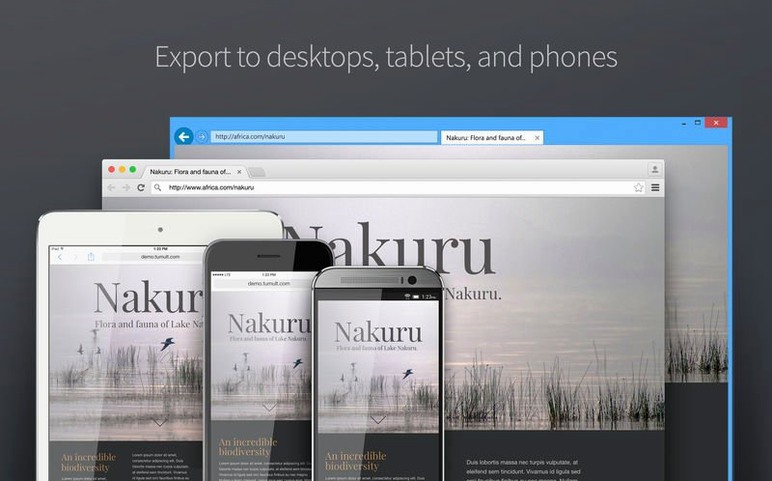
You might be sketching a responsive banner ad that needs to play nicely on everything from a phone to a desktop, or perhaps building an interactive infographic where elements slide into view as the user scrolls. Hype 4 Pro is Tumult’s WYSIWYG tool for creating such HTML5 animations without writing a line of code, and knowing whether it will actually launch on your machine is the sensible place to start.
- Runs natively on both Apple Silicon (M1/M2/M3) and Intel 64-bit Macs, so you are covered regardless of which architecture you use.
- Needs macOS 10.10 (Yosemite) or later — a deliberately low entry point that keeps older machines in the game.
- Interface is localised into English, German, Spanish, Italian, Simplified Chinese, French, and Japanese.
- Current version 4.1.21, released on 21 June 2026, includes both the standard and professional feature sets.
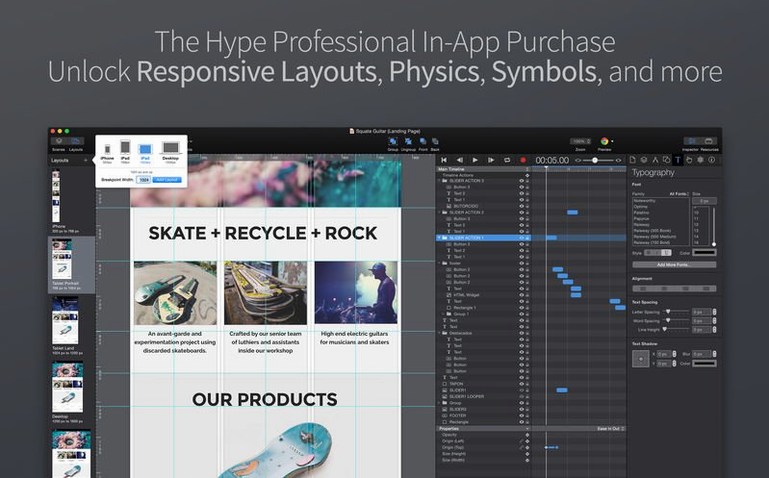
- Professional extras span responsive layouts, symbols, sprite-sheet import, physics-based motion, editable timing functions, and a CDN option for the JavaScript runtime.
- Thumbnail generation for Tahoe documents no longer flashes a brief window, and the default GIF encoder now uses Apple’s built-in engine.
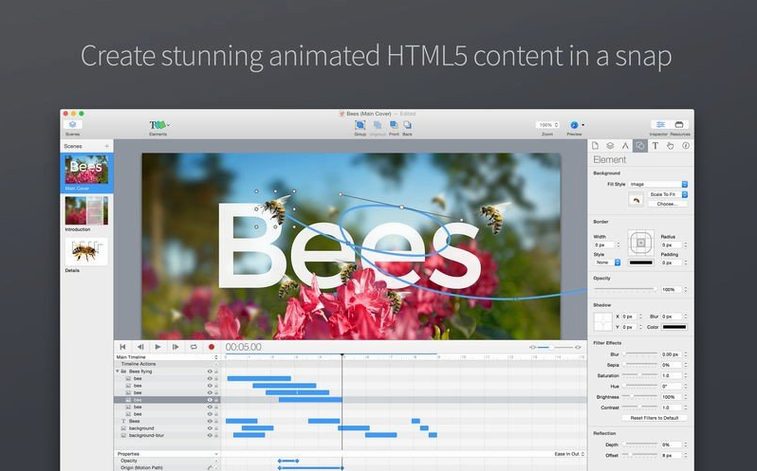
Once you have confirmed your Mac is up to the task, the app presents a familiar keyframe-based timeline and a canvas where you position elements visually. Symbols let you reuse grouped objects across scenes, while persistent symbols hold their state during playback — handy for a character that walks off one slide and onto the next. Because the output is pure HTML5, everything you build runs in a modern browser with no plugin required.
Your first seventy-two hours with the app
After the drag-to-Applications step and that first double-click, spend an afternoon letting the timeline logic settle into muscle memory. A common early mistake is treating the main timeline like a video editor: instead, think of it as a collection of independent actors. Each element gets its own row, and you can start its animation a fraction of a second late just by nudging the keyframe bar rightwards. If you find yourself fighting the playhead, check the Autoplay checkbox in the Scene inspector — it is off by default, which catches almost everyone on day one.
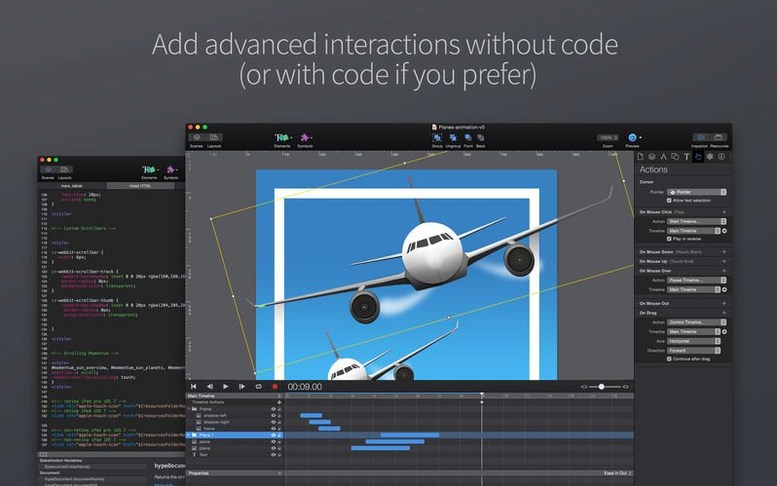
Next, head into the Resource Library and drop in two or three placeholder images. Group them on the canvas, then right-click and choose Create Symbol. Now place two instances of that symbol on different scenes. Edit the master once, watch both update, and you have just learned the single biggest time-saver in the professional toolkit. For interactive work, bind a simple On Click > Go to Scene action to a rectangle early — it teaches you how scenes talk to each other, and it takes roughly forty seconds to set up.
One more tip: set the default preview browser to something you actually use for testing. The 4.1.21 update added Zen, Helium, and Dia to the preview menu, so if you favour one of those niche Mac browsers, you can now test without manually exporting each time.
GIF exports got smaller and cleaner with Apple’s encoder
The move in version 4.1.21 to Apple’s built-in GIF encoder may sound like a footnote, but if you regularly export animated previews for client emails, you will notice the difference: the encoder produces smaller files with fewer banding artefacts on gradients, and you no longer need to keep a third-party library around for that one task. It is the kind of quiet plumbing change that saves ten minutes every Friday afternoon.
The Tahoe thumbnail fix is similarly low-key yet practical. Previously, generating a thumbnail for a saved document on macOS Tahoe could cause a brief, disorienting window flash — the sort of thing that makes you wonder if the app is about to crash. That is gone now, so saving work feels uneventful, as it should. Meanwhile, the preview menu now ignores Puppeteer and instead lists real desktop browsers, which means the Preview In dropdown finally mirrors the browsers you have installed rather than a developer tool you might never have configured.
A front-end designer’s morning
Picture a front-end designer tasked with creating an interactive product tour for a SaaS landing page. She opens a fresh hype 4 pro mac download, drags a set of screen mockups onto the canvas, and converts the navigation bar into a persistent symbol so it remains static while scenes change underneath. For the walkthrough steps, she uses waypoints — small triggers that fire when the user scrolls to a specific vertical point — so each feature highlights as the visitor reads down the page. She previews in Helium because that is her lightweight testing browser of choice since the 4.1.21 update, tweaks two keyframe easing curves using the editable timing function editor, and exports the whole thing as a self-contained HTML5 bundle. By ten-thirty she has a responsive, scroll-driven tour ready to hand to the back-end developer, with no JavaScript debugging and no plugin dependencies to argue about.
Version 4.1.21 tidies up a few rough edges. A Tahoe thumbnail-generation quirk that briefly flashed a window has been fixed, and the default GIF encoding now passes the job to Apple’s own encoder for smoother results. The preview menu also gains Zen, Helium, and Dia browser entries while Puppeteer is quietly ignored.
- macOS 10.10 (Yosemite) or later
- Apple Silicon or Intel 64-bit processor
Questions from the class 0
Sign in or join the class to ask a question.
Nobody has asked anything yet. If you have used it on a real job, say what the file did.
Also on the Mac Apps shelf
The whole Mac Apps shelf Hyperspace
Hunts down and deletes duplicate files that are quietly wasting your disk space.
Hyperspace
Hunts down and deletes duplicate files that are quietly wasting your disk space.
 HitPaw Watermark Remover
Erases logos and timestamps by drawing a loose selection around them.
HitPaw Watermark Remover
Erases logos and timestamps by drawing a loose selection around them.
 HitPaw Video Converter
Transforms unruly video files into the format your project actually needs.
HitPaw Video Converter
Transforms unruly video files into the format your project actually needs.
 iExplorer
Transfers music, messages and files between an iPhone and a Mac without using iTunes or iCloud.
iExplorer
Transfers music, messages and files between an iPhone and a Mac without using iTunes or iCloud.
 HitPaw Univd
Converts media across over a thousand video and audio container formats.
HitPaw Univd
Converts media across over a thousand video and audio container formats.
 Imagenomic Plugin Suite
Bundles three plugins that retouch skin, reduce noise and add film grain inside your image editor.
Imagenomic Plugin Suite
Bundles three plugins that retouch skin, reduce noise and add film grain inside your image editor.
 HitPaw Edimakor
Edits video by letting you drag, trim and tweak on a literal-minded timeline.
HitPaw Edimakor
Edits video by letting you drag, trim and tweak on a literal-minded timeline.
 Imagenomic Portraiture
Smooths skin and removes blemishes across a whole shoot while preserving natural texture.
Imagenomic Portraiture
Smooths skin and removes blemishes across a whole shoot while preserving natural texture.