 ASPNetWorld

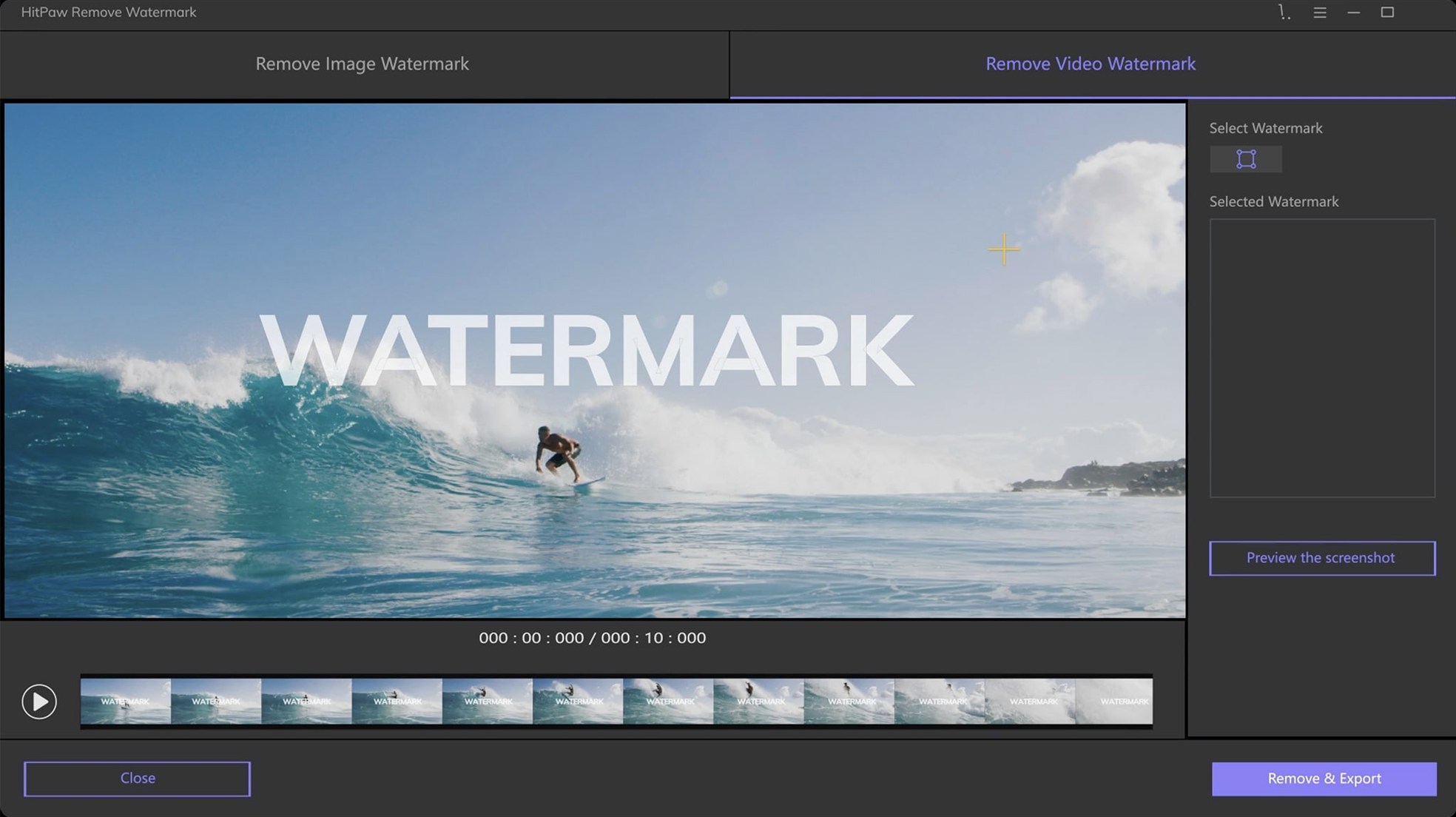
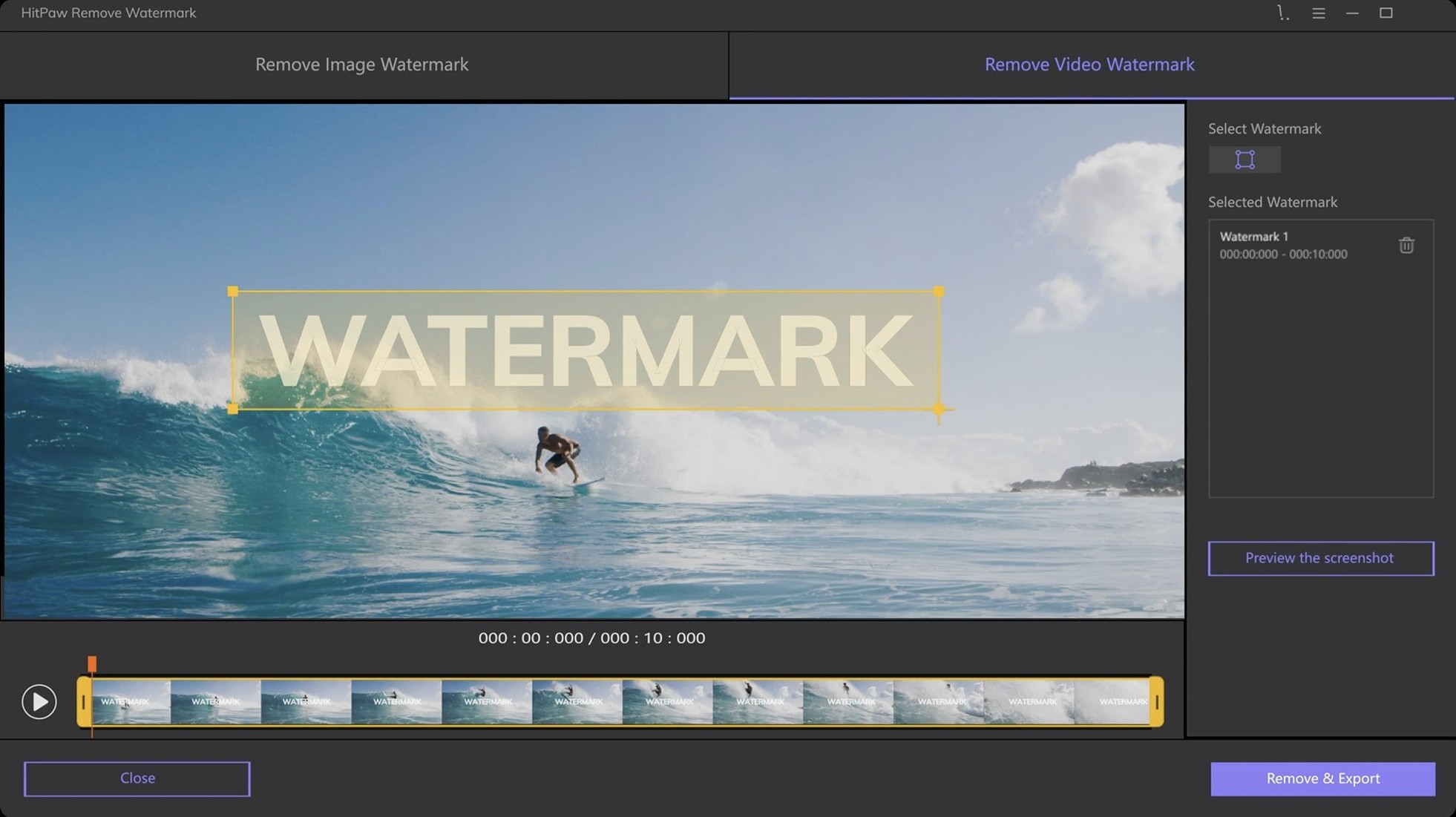
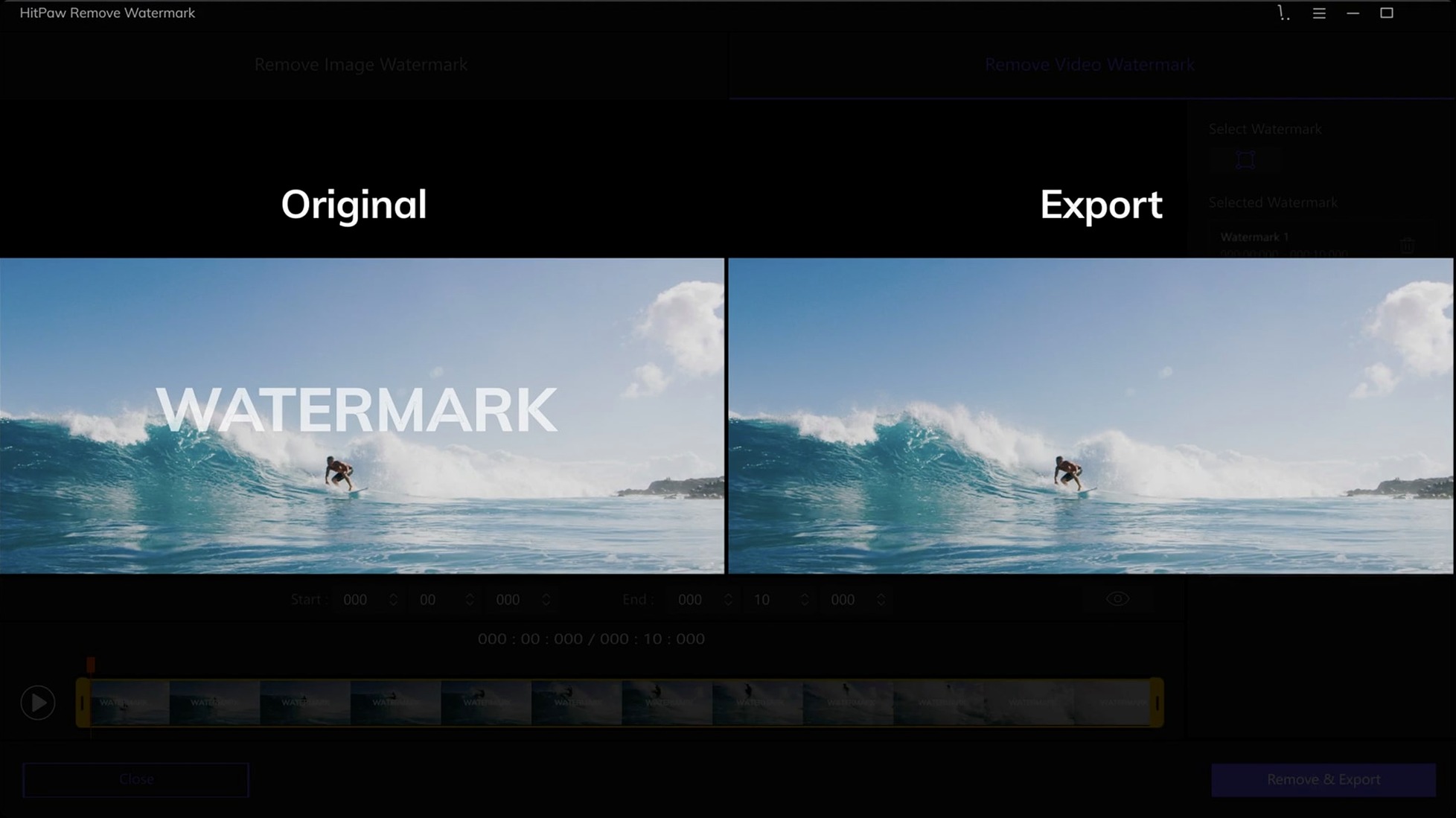
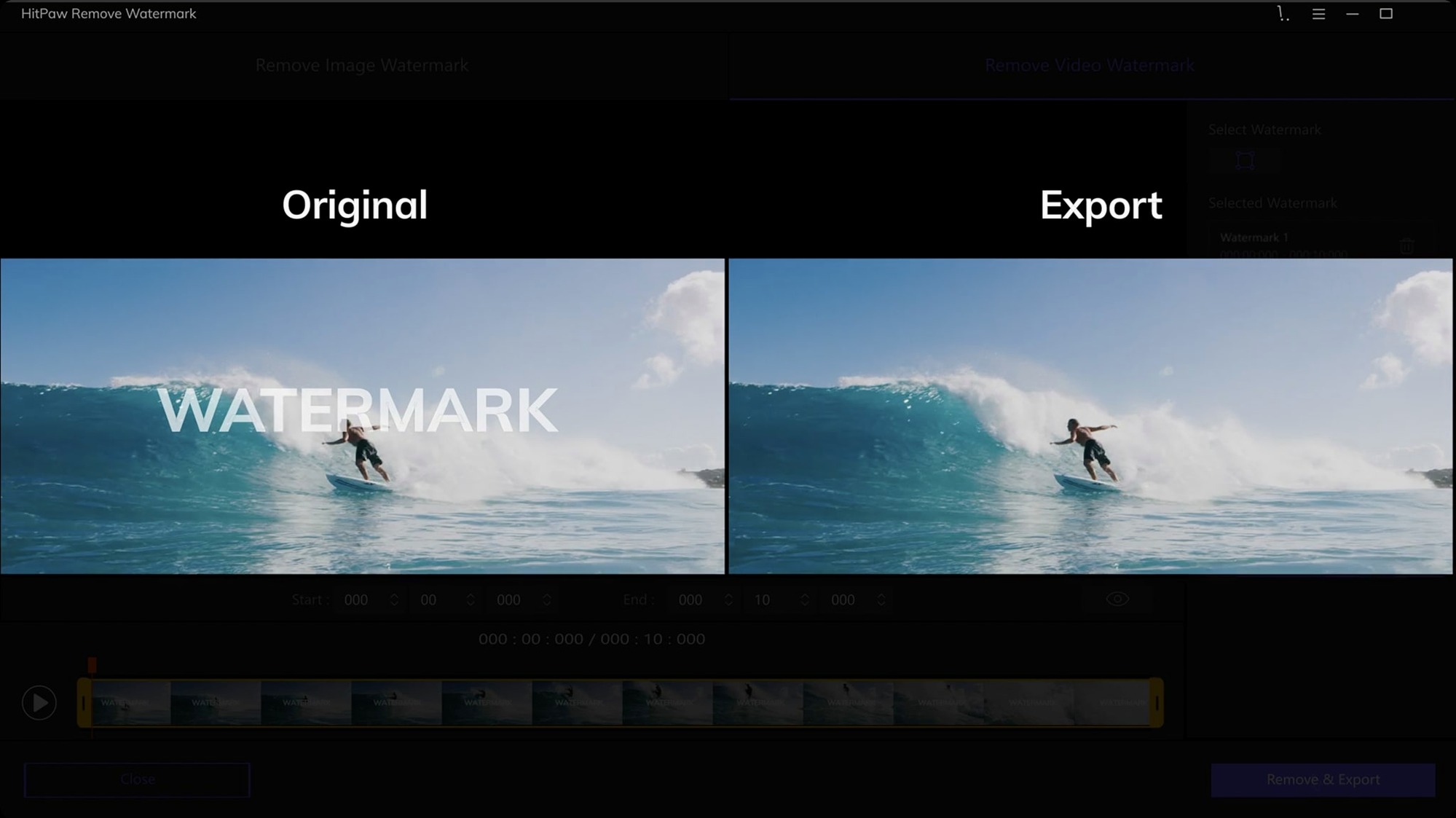
The freeform selection tool is where I tell my evening-class students to begin. It feels the most natural — you just draw loosely around a logo or a timestamp, and the app works out the boundary. HitPaw Watermark Remover builds its whole approach around that kind of forgiving selection, so a newcomer can get a clean result without learning four different marquee modes first.
- Start with a still image. Drop a JPEG, PNG, WebP or BMP onto the window and pick the freeform lasso. Watch how the fill blends with the surrounding pixels — it gives you a feel for the removal engine before you tackle moving footage.
- Try a short video clip next. Load an MP4 or MOV that is only ten or fifteen seconds long. The same selection logic applies, but now the software tracks the mark across frames, which is the real test of its smarts.
- Learn the rectangle tool for hard-edged marks. When a watermark sits in a flat colour band, switching to the rectangle selection often produces a tighter repair than the freehand tool.
- Use drag-and-drop for everything. You can pull files straight from a Finder window. It sounds small, but it saves the stop-start rhythm of file dialogues when you are experimenting with different clips.
- Feed it a WebM or MKV early. If your work involves screen recordings or downloads, confirming that the container plays nicely from the start avoids a surprise later. The format list is broad — AVI, FLV, WMV, TS and others are all supported.
Once those first few experiments are done, the interface stops feeling like a row of icons and starts feeling like a tiny workshop. Everything lives in one window, so you are never hunting through menus for the next step.
Removing a date stamp that runs across a whole holiday clip
Imagine a Tuesday evening. You have pulled a three-minute clip from a holiday montage — an MOV file shot on a phone — and there is a date stamp in the bottom-right corner that runs through the whole thing. The clip is already open in HitPaw Watermark Remover, sitting in the preview pane.
You pause the video about twenty seconds in, where the stamp sits against a textured brick wall. That is your test frame. Grabbing the freeform selection tool, you draw a loose loop around the digits, leaving a small margin of clean wall on all sides. The app takes a moment to analyse the surrounding pixels, then the stamp vanishes. The brick pattern flows across the gap without any obvious smudge. That one frame tells you the texture repair mode is the right choice for this clip — edge filling would have left a faint halo against the mortar lines.
Now you scrub backwards to frame one and click Apply to All. The software works through the clip frame by frame, tracking the stamp as the camera pans. You watch the progress bar creep along, then play the result through once. The corner is clean. You export as the same MOV container, and the whole process — from import to finished file — has taken less than four minutes.
The same logic works for a batch of stills. Drag five PNGs into the window at once, select the same watermark on the first image, and let the app propagate the fix across the rest. You can review each result in the thumbnail strip before saving, which is worth doing if the watermark sits on different backgrounds from shot to shot.
Fixing a selection rectangle that drifts off the mark in video mode
No removal tool reads your mind, and HitPaw Watermark Remover has a few recurring friction points that are easy to solve once you know they exist.
The selection keeps slipping off the mark in video mode. This usually means the watermark moves too far between frames for the tracker to follow. The fix is to shorten the tracking span. Instead of applying one selection to the whole clip, split the job into two or three segments. Place a fresh selection at the start of each segment where the mark is clearly visible, and the tracker will stay locked on.
The repaired patch flickers on moving footage. Flicker almost always comes from using smooth filling on a background with fine detail — grass, pebbles, fabric. Switch to texture repair mode for those frames. Texture repair samples a larger area and rebuilds the grain, which damps down the shimmer. If the background changes dramatically (say, from sky to trees), you may need to split the clip at that transition point and use different removal modes for each half.
A still image export looks softer around the removed area. That happens when the selection is drawn too tightly around the watermark. Give the tool a few extra pixels of breathing room. The blending algorithm works outward from the selection edges, and a cramped boundary gives it less data to work with.
The app refuses to open a file. Check the container first. HitPaw Watermark Remover for Mac reads a long list of formats, but an MKV with an unusual codec or a TS file from a set-top box can still trip it up. If the file plays fine in QuickTime, try re-wrapping it as MP4 with a free tool before importing — the video stream itself is usually fine, and HitPaw handles MP4 without complaint.
Treating a moving watermark as a still frame instead of a trackable object
The most common one I see in class is treating every watermark like a still-image problem, even inside a video. A student will pause the clip, draw a perfect selection on that single frame, hit apply, and then look puzzled when the exported video has a ghostly blur dancing around the screen. The app needs a motion-aware starting point. Always set your selection on a frame where the watermark is crisp and the background has good contrast — that gives the tracker a clear reference for the frames that follow.
Another beginner habit is jumping straight to the freeform lasso for every job. It is the most flexible tool, yes, but on a rectangular timestamp sitting in a flat sky, the rectangle selection often produces a cleaner fill in half the time. The triangle tool, meanwhile, is surprisingly useful for corner logos that sit at an angle — you can match the logo's shape exactly and minimise the area the app needs to reconstruct.
A third mistake is ignoring the preview entirely. The temptation is to set a selection, click export, and trust the result. But scrubbing through the preview after the analysis pass takes only a few seconds and catches the flicker or tracking drift before you commit to a long export. It is the cheapest insurance the app offers.
Using the Space bar to start and stop video preview
The interface hides a few shortcuts that speed things up once they become muscle memory. Pressing the Space bar toggles playback in the video preview — obvious if you come from a video-editing background, but easily missed if you do not. Holding Shift while drawing with the rectangle tool constrains the selection to a square, which is handy when a watermark is perfectly symmetrical.
The thumbnail strip at the bottom of the window does more than show you which files are loaded. You can reorder clips by dragging the thumbnails, and right-clicking any thumbnail lets you duplicate a file — useful when you want to try two different removal modes on the same clip and compare the results side by side.
If you are working with a batch of stills from the same source — product photos, for instance — the copy and paste selection trick saves real time. Set your selection on the first image, press Command-C, move to the next image, and press Command-V. The selection lands in exactly the same position. You still need to check each result, but it cuts out the repetitive drawing when the watermark is in a fixed spot across a whole shoot.
Finally, the export dialogue remembers your last-used format and folder. It sounds trivial, but when you are processing a dozen short clips in a row, not having to navigate back to the project folder each time keeps the rhythm going. The app also preserves the original filename and appends a suffix rather than overwriting, so you never lose the source file by accident — a small design choice that has saved more than one evening's work.
- macOS 10.13 or later
- Intel-based Mac
Questions from the class 0
Sign in or join the class to ask a question.
Nobody has asked anything yet. If you have used it on a real job, say what the file did.
Also on the Mac Apps shelf
The whole Mac Apps shelf HitPaw Video Converter
Transforms unruly video files into the format your project actually needs.
HitPaw Video Converter
Transforms unruly video files into the format your project actually needs.
 HitPaw Univd
Converts media across over a thousand video and audio container formats.
HitPaw Univd
Converts media across over a thousand video and audio container formats.
 HitPaw Edimakor
Edits video by letting you drag, trim and tweak on a literal-minded timeline.
HitPaw Edimakor
Edits video by letting you drag, trim and tweak on a literal-minded timeline.
 Hype 4 Pro
Constructs interactive HTML5 animations without writing a single line of code.
Hype 4 Pro
Constructs interactive HTML5 animations without writing a single line of code.
 Hyperspace
Hunts down and deletes duplicate files that are quietly wasting your disk space.
Hyperspace
Hunts down and deletes duplicate files that are quietly wasting your disk space.
 iExplorer
Transfers music, messages and files between an iPhone and a Mac without using iTunes or iCloud.
iExplorer
Transfers music, messages and files between an iPhone and a Mac without using iTunes or iCloud.
 Imagenomic Plugin Suite
Bundles three plugins that retouch skin, reduce noise and add film grain inside your image editor.
Imagenomic Plugin Suite
Bundles three plugins that retouch skin, reduce noise and add film grain inside your image editor.
 Imagenomic Portraiture
Smooths skin and removes blemishes across a whole shoot while preserving natural texture.
Imagenomic Portraiture
Smooths skin and removes blemishes across a whole shoot while preserving natural texture.