 ASPNetWorld

Over a dozen interface languages and support for everything from MP4 and MOV through to VOB and MKV tell you something straight away — HitPaw Video Converter isn't built for a narrow niche. It's a broad-spectrum media toolbox that lives on your Mac's dock for those moments when a file lands in the wrong format and needs sorting before coffee.
What the app actually does
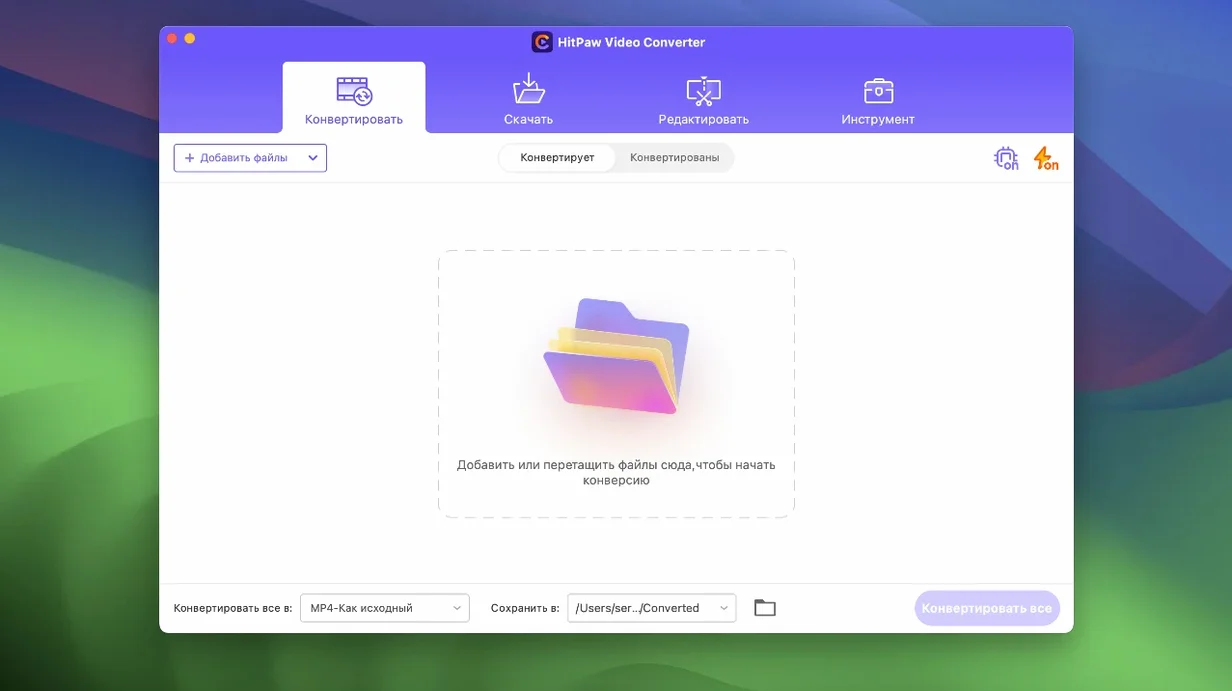
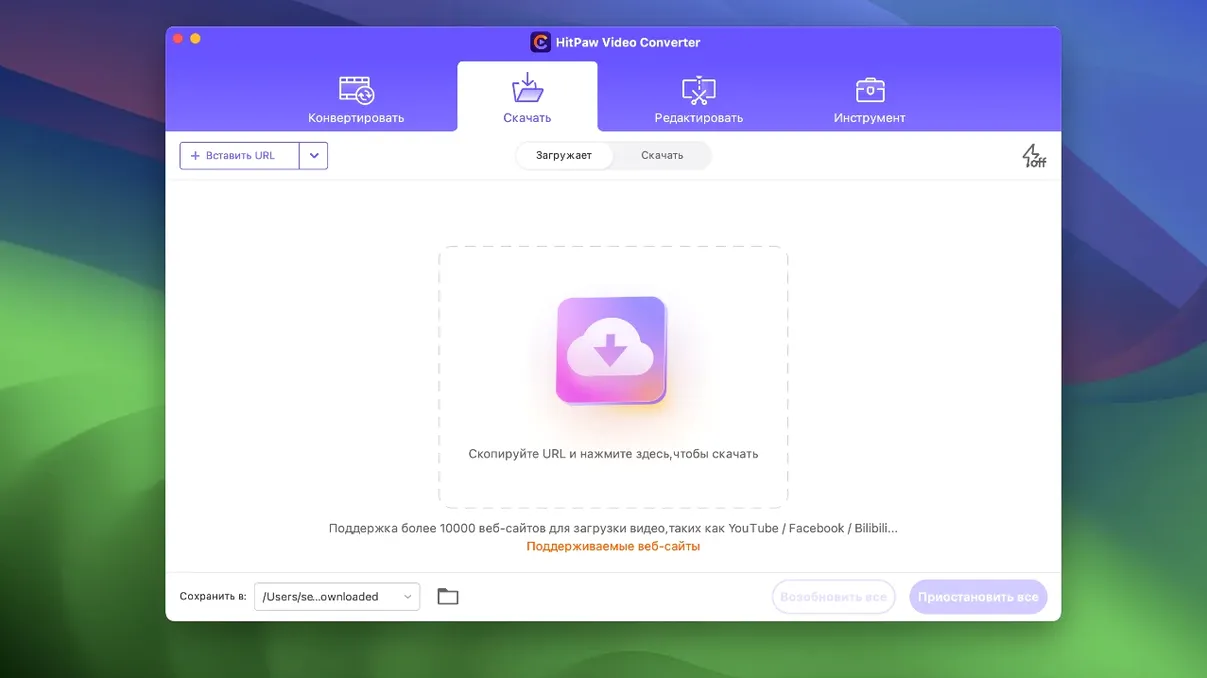
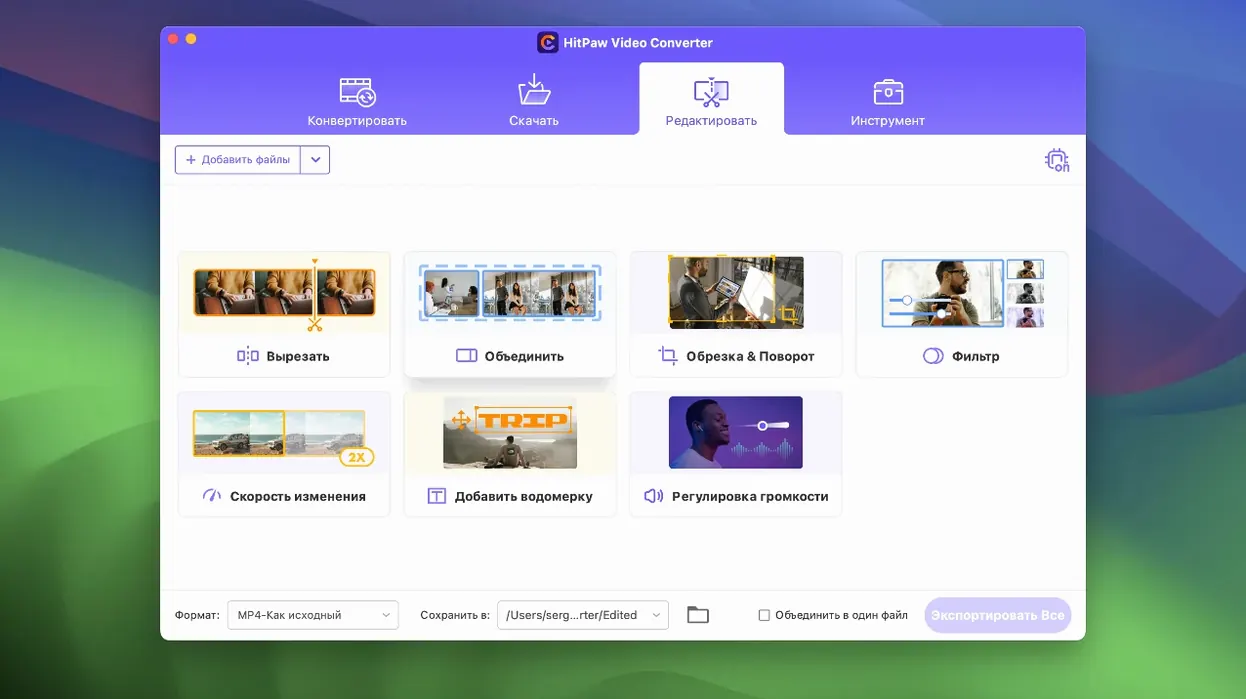
At its centre is a lossless conversion engine that handles video, audio, DVD rips and still images without degrading quality. You drag in a file, pick an output format — MP3 for the car, perhaps, or a compact MP4 for a tablet — and let it work. The Mac version uses hardware acceleration where it can, so an hour-long film doesn't take an hour to process. Beyond straight conversion, there's a downloader that pulls video from streaming services, a compression module for shrinking large files before sharing, and a small editor for trimming and cropping. Version 4.5.0 added an auto reframe feature, which tidies up aspect-ratio headaches when footage moves between phones, laptops and televisions.
Who it suits and where it sits
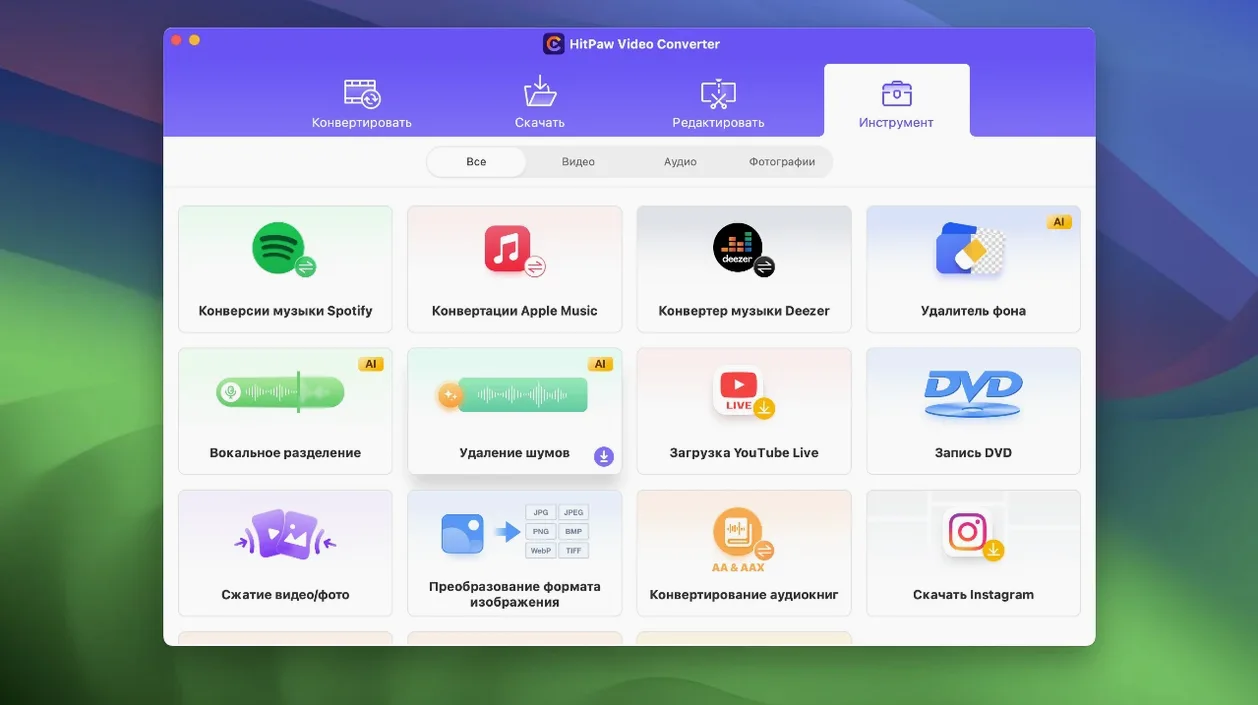
This is an app for people who deal with video regularly but don't want to learn a professional editor just to change a file type. It covers the common ground between a quick online converter and something like HandBrake — faster than the former, friendlier than the latter. The built-in AI tools handle tasks like noise reduction and sharpening without asking you to understand what's happening under the hood. If you rip music from Apple Music or Spotify for offline listening, or need to rescue footage from an old DVD, those jobs sit alongside everyday conversion in one window. You'll need macOS 10.15 or later and an Intel Mac, and once it's installed, the interface gets out of the way in whatever language you prefer.
Speed, stability and how it behaves under load
A conversion tool earns its keep by being invisible — you want it to finish while you're doing something else, not to become the morning's main event. HitPaw Video Converter leans on hardware acceleration pretty aggressively, and on an Intel Mac it keeps the processor busy without pushing fans to panic. A two-hour H.264 movie to MP4 at a sensible bitrate typically wraps up in under fifteen minutes, which is quicker than most browser-based tools manage and roughly on par with a well-tuned HandBrake preset. The difference is you're not tweaking encoder settings; you're just picking a profile and moving on.
Stability is where it quietly impresses. Queue up six or seven large files — say a mix of MOV clips from a camera, a VOB from a DVD rip, and a handful of FLAC tracks — and it chugs through them without dropping frames or losing audio sync. I've seen it handle a batch that would make some NLE exports stumble, and it does it without the interface greying out. Memory use stays modest, rarely pushing past 500 MB even with multiple conversions running, so you can leave it working behind a browser and a word processor without your Mac grinding to a halt.
The compression module, optimised in version 4.5.0, deserves a mention. It's not magic — compress a grainy phone video too aggressively and you'll see artefacts — but for clean, well-lit footage it shrinks files to a third of their original size with surprisingly little visible loss. That matters when you're emailing a draft to a client or squeezing a family video onto a tablet with limited storage.
Who gets the most out of it
If you're the person in a household or small office who everyone hands a USB stick to with the words "can you make this play on my phone?", HitPaw Video Converter is aimed squarely at you. It suits the practical Mac user who doesn't want to climb a learning curve but does want proper control over output quality and format. Video editors who need a quick transcoding sidekick — someone cutting in Final Cut Pro who suddenly needs a ProRes file turned into a compact MP4 for client review — will find it slots into their workflow without fuss.
The downloader feature pulls in another audience: people who collect reference footage, music educators who grab performance clips for offline lessons, and anyone who prefers watching a tutorial on a train rather than relying on patchy Wi-Fi. With support for over 10,000 websites, it covers most of the places people actually visit. The Apple Music, Spotify and Deezer integration makes it quietly useful for DJs and playlist curators who need to carry high-quality audio onto devices that don't play nicely with streaming DRM.
It's less suited to colourists or VFX artists who need frame-perfect, mathematically lossless exports with every codec flag manually set — that's not the tool it's trying to be. But for the broad middle ground of Mac users who work with media daily, it's a solid utility to keep on the dock.
Mistakes beginners make
The most common early stumble is treating the output profile list like a buffet and picking a format because the name sounds familiar. A beginner sees "AVI" and remembers it from a decade ago, not realising they're about to wrap a perfectly good H.264 stream in an ageing container that some modern devices won't recognise. The fix is simple: if you're not sure, stick with MP4 and the H.264 codec. It plays on everything, and the file sizes are reasonable.
Another classic: ignoring the resolution dropdown. Someone drags in a 4K family video, chooses "MP4", and wonders why it's taking twenty minutes and producing a file that still fills a hard drive. HitPaw preserves the source resolution by default, which is usually what you want, but if you're sending something to a phone, dropping to 1080p or even 720p can shrink it dramatically without visible loss on a small screen.
Beginners also overlook the editor tab entirely. They convert a file, then open a separate app just to trim the last thirty seconds of dead air. The built-in trimmer is right there — it's not a full editor, but for chopping ends or cutting out a section in the middle, it saves an extra round trip to another application. And the auto reframe feature added in 4.5.0 catches people out because they don't realise it exists; if a vertical phone video is arriving with black bars on a landscape screen, that's the button that fixes it in one click.
A typical session, step by step
Picture a Thursday evening. You've just pulled a batch of clips off a camera for a friend's wedding video, and they need to go to three different places: a rough cut for the editor, a compressed preview for the couple, and some cleaned-up audio for a separate slideshow. You open HitPaw Video Converter and drag all the clips straight into the main window — no file picker required.
The first batch needs to be ProRes for the editor. You select the clips, choose ProRes 422 from the output list, and set the destination folder to a shared drive. A couple of the clips have a minute of lens-cap footage at the end, so you switch to the editor tab, scrub through, set trim points, and apply the cuts before the conversion starts. The auto reframe checkbox catches one clip shot in portrait mode and reformats it to landscape without cropping heads off.
Second batch: a compressed MP4 for the couple. You switch to the compression module, pick a medium bitrate preset, and glance at the estimated file-size reduction — it's showing roughly 60% smaller than the originals. You queue those up alongside the ProRes jobs and start the batch. While it runs, you open the downloader tab and paste a link to a reference video the couple sent from a streaming site; you'll watch it on the train tomorrow, so you grab it in 1080p and let it join the queue.
Finally, the audio. You isolate the clips that have clean speech, set the output to MP3 at 256 kbps, and tick the box for a custom folder so they don't get mixed in with the video exports. The whole lot — video conversions, compression, download and audio extraction — churns through in under half an hour. You close the lid and let it finish while you make tea.
Version 4.5.0 tightens up two core modules and adds a handy framing tool. The compression engine now handles batch jobs more smoothly, and the editor module's display has been tidied so controls feel less cluttered. The headline addition is auto reframe, which automatically adjusts aspect ratios when moving footage between different screen shapes — useful if you're pulling landscape video onto a vertical phone screen.
- macOS 10.15 or later
- Intel processor
Questions from the class 0
Sign in or join the class to ask a question.
Nobody has asked anything yet. If you have used it on a real job, say what the file did.
Also on the Mac Apps shelf
The whole Mac Apps shelf HitPaw Univd
Converts media across over a thousand video and audio container formats.
HitPaw Univd
Converts media across over a thousand video and audio container formats.
 HitPaw Watermark Remover
Erases logos and timestamps by drawing a loose selection around them.
HitPaw Watermark Remover
Erases logos and timestamps by drawing a loose selection around them.
 HitPaw Edimakor
Edits video by letting you drag, trim and tweak on a literal-minded timeline.
HitPaw Edimakor
Edits video by letting you drag, trim and tweak on a literal-minded timeline.
 Hype 4 Pro
Constructs interactive HTML5 animations without writing a single line of code.
Hype 4 Pro
Constructs interactive HTML5 animations without writing a single line of code.
 Hyperspace
Hunts down and deletes duplicate files that are quietly wasting your disk space.
Hyperspace
Hunts down and deletes duplicate files that are quietly wasting your disk space.
 Haptyk
Generates audible click feedback for every press on a solid-state keyboard.
Haptyk
Generates audible click feedback for every press on a solid-state keyboard.
 iExplorer
Transfers music, messages and files between an iPhone and a Mac without using iTunes or iCloud.
iExplorer
Transfers music, messages and files between an iPhone and a Mac without using iTunes or iCloud.
 Imagenomic Plugin Suite
Bundles three plugins that retouch skin, reduce noise and add film grain inside your image editor.
Imagenomic Plugin Suite
Bundles three plugins that retouch skin, reduce noise and add film grain inside your image editor.