 ASPNetWorld
You've just finished offloading a camera's memory card and realise you copied the same batch of holiday photos into two different folders six months ago. The files are scattered, Finder sees them as separate items, and your SSD is haemorrhaging gigabytes for no reason. Hyperspace is built for exactly this kind of tidy-up.
Needs Sequoia, runs native on Apple Silicon and Intel
- Requires macOS 15 Sequoia or newer
- Runs natively on both Apple Silicon and Intel (64-bit) Macs
- Interface language: English
Swaps duplicate files for space-saving APFS clones
Under the hood, Hyperspace leans on a clever piece of macOS file-system plumbing called space-saving clones — the same mechanism Finder uses when you duplicate a file. The app scans for identical-content files, then replaces the duplicates with lightweight APFS clones that point back to a single copy of the data. The upshot: every duplicate still appears in its original location, still behaves like a normal file, but the extra copies stop consuming disk space. You reclaim the room without deleting anything.
A session with Hyperspace, step by step
Let’s walk through a real tidy-up. I had a sprawling “Archive” folder on an external drive — old projects, backups of backups, stuff I’d been meaning to prune for years. The drive was sitting at 92% full and I couldn’t face manually comparing hundreds of folders.
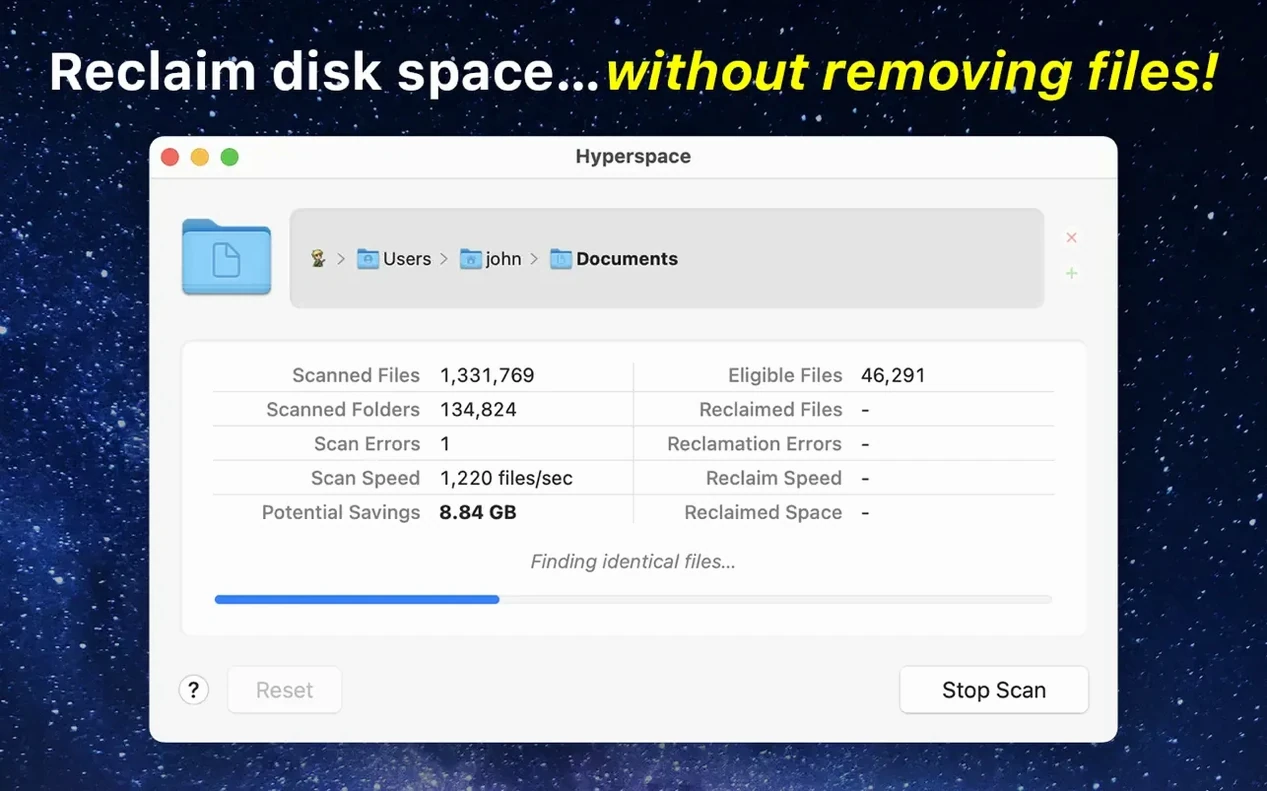
I launched Hyperspace and clicked the + button to add my Archive folder as the first scan target. Then I added my main Documents folder too, because I had a hunch some project files had drifted between them. You can add as many folders as you like; Hyperspace will compare everything against everything. I left the scan running while I made a cup of tea — it chewed through roughly 400 GB of mixed media in about four minutes on an M1 MacBook Air, which felt brisk rather than blistering, but perfectly acceptable for a first pass.
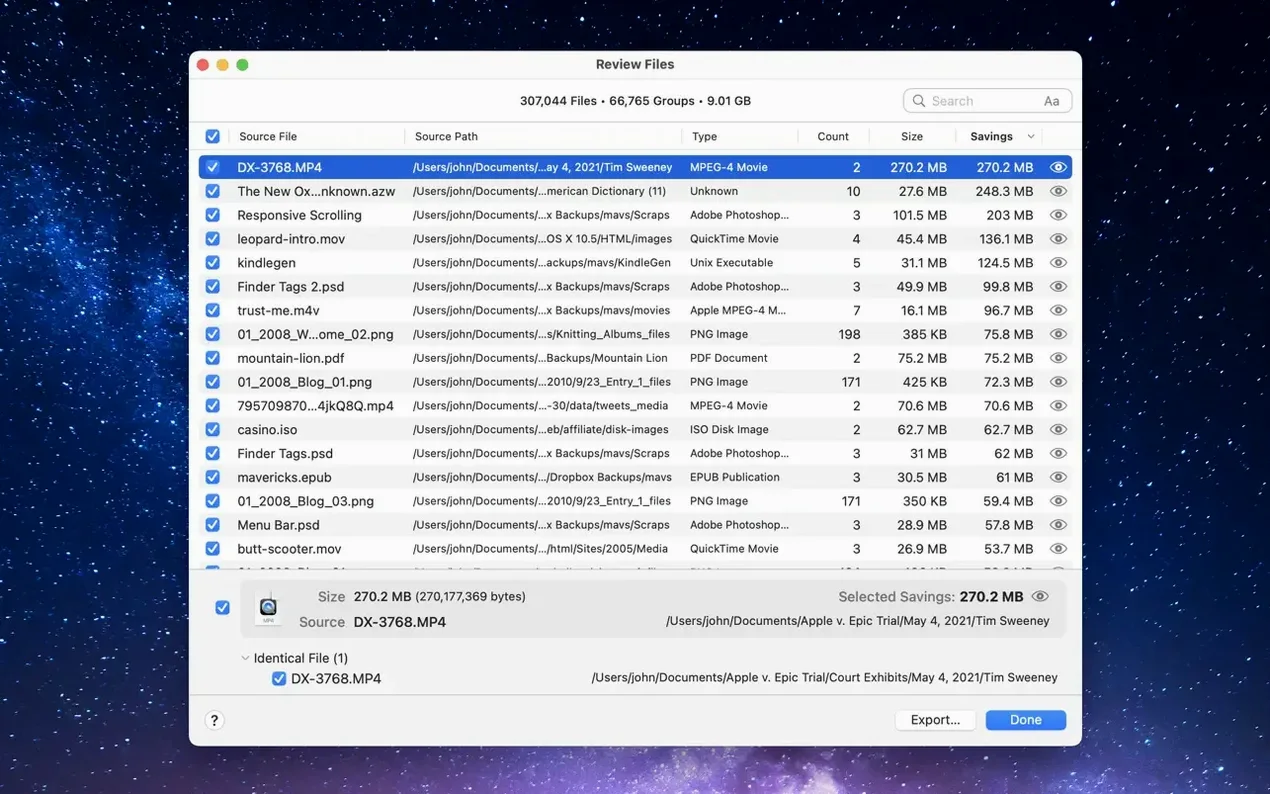
When the scan finished, the main window showed a list of duplicate groups sorted by the space they were wasting. Each group had a disclosure triangle — click it and you’d see every file path involved. I spotted a cluster of old Logic project folders where I’d copied the entire thing to a “Safety Copies” directory and then apparently done it again a year later. Hyperspace flagged the audio files inside those projects as identical-content matches, even though the folder names and dates were different. That’s the key: it doesn’t care about names or metadata, only the actual bits on disk.
I selected the groups I trusted — the obvious duplicates — and hit Reclaim. A small progress bar flickered for maybe ten seconds, and then the reclaimed-space counter in the toolbar jumped by 47 GB. The best part: every file was still exactly where I’d left it. The “Safety Copies” folder still showed all its contents. Finder didn’t blink. The clones are transparent; macOS treats them as independent files right up until you edit one, at which point the file system quietly gives the changed copy its own storage blocks.
Single-threaded scanning keeps the rest of your Mac responsive
In daily use, Hyperspace is a well-behaved citizen. The scan phase is single-threaded in my experience — it pegs one efficiency core and leaves the rest of the machine perfectly usable. Memory usage stayed around 180 MB even during the largest scan I threw at it, and I never saw a beachball. The app’s footprint is refreshingly small for something that’s doing byte-level comparisons across thousands of files.
Stability has been uneventful, which is exactly what you want from a tool that messes with file-system structures. I’ve run it across APFS volumes on both the internal SSD and external Thunderbolt drives, including a Samsung T7, without a single crash or hung scan. If you’re the sort of person who worries about data integrity — and you should be — it’s reassuring that Hyperspace doesn’t touch the original file until you explicitly tell it to reclaim space, and even then it’s using a system call that’s been baked into macOS since High Sierra. You’re not relying on some third-party voodoo; you’re just asking the operating system to do its clone trick on demand.
One thing worth knowing: the reclaim operation itself is fast because it isn’t copying data around. It’s updating file-system metadata to point duplicate inodes at the same extents. On a modern SSD, that’s near-instantaneous regardless of file size. A 10 GB video file and a 10 KB text file both reclaim in roughly the same eyeblink.
A photographer’s real-world rescue
Imagine a wedding photographer who shoots RAW+JPEG to dual cards, then copies everything to a working drive, a NAS, and a “lightroom dump” folder for culling. Three months later, the NAS is complaining about capacity and she can’t remember which folders are safe to thin out. She drops all three locations into Hyperspace, lets it scan overnight, and wakes up to find 380 GB of duplicate RAW files scattered across the network share and the local drive.
She selects the groups where the NAS copy and the local working copy are identical, clicks Reclaim, and suddenly the NAS has breathing room again. The files still appear in both places — her Lightroom catalogue doesn’t break, her folder structure stays intact — but the NAS stops storing redundant data. She can carry on editing without an emergency archive shuffle. That’s the quiet magic of an hyperspace mac download that understands APFS at a system level: it solves the storage crunch without forcing anyone to reorganise their life.
- macOS 15 (Sequoia) or later
- Apple Silicon or Intel 64-bit processor
Questions I keep hearing
Does Hyperspace delete my duplicate files?
No, it keeps every file in place. The duplicates are converted into APFS clones, so they still appear in Finder but no longer take up extra space on the disk.
What is an APFS clone?
An APFS clone is a lightweight copy of a file that shares its data with the original on the disk. It behaves like a separate file but uses almost no additional storage until you edit one of the copies.
Can I undo what Hyperspace does?
Because the files remain fully usable in their original locations, there's nothing to undo. You can open, rename or move them as normal, and the space saving is transparent.
Questions from the class 0
Sign in or join the class to ask a question.
Nobody has asked anything yet. If you have used it on a real job, say what the file did.
Also on the Mac Apps shelf
The whole Mac Apps shelf Hype 4 Pro
Constructs interactive HTML5 animations without writing a single line of code.
Hype 4 Pro
Constructs interactive HTML5 animations without writing a single line of code.
 iExplorer
Transfers music, messages and files between an iPhone and a Mac without using iTunes or iCloud.
iExplorer
Transfers music, messages and files between an iPhone and a Mac without using iTunes or iCloud.
 HitPaw Watermark Remover
Erases logos and timestamps by drawing a loose selection around them.
HitPaw Watermark Remover
Erases logos and timestamps by drawing a loose selection around them.
 Imagenomic Plugin Suite
Bundles three plugins that retouch skin, reduce noise and add film grain inside your image editor.
Imagenomic Plugin Suite
Bundles three plugins that retouch skin, reduce noise and add film grain inside your image editor.
 HitPaw Video Converter
Transforms unruly video files into the format your project actually needs.
HitPaw Video Converter
Transforms unruly video files into the format your project actually needs.
 Imagenomic Portraiture
Smooths skin and removes blemishes across a whole shoot while preserving natural texture.
Imagenomic Portraiture
Smooths skin and removes blemishes across a whole shoot while preserving natural texture.
 iMazing
Creates local, browsable backups of an iPhone or iPad and extracts specific files from them.
iMazing
Creates local, browsable backups of an iPhone or iPad and extracts specific files from them.
 HitPaw Univd
Converts media across over a thousand video and audio container formats.
HitPaw Univd
Converts media across over a thousand video and audio container formats.