 ASPNetWorld

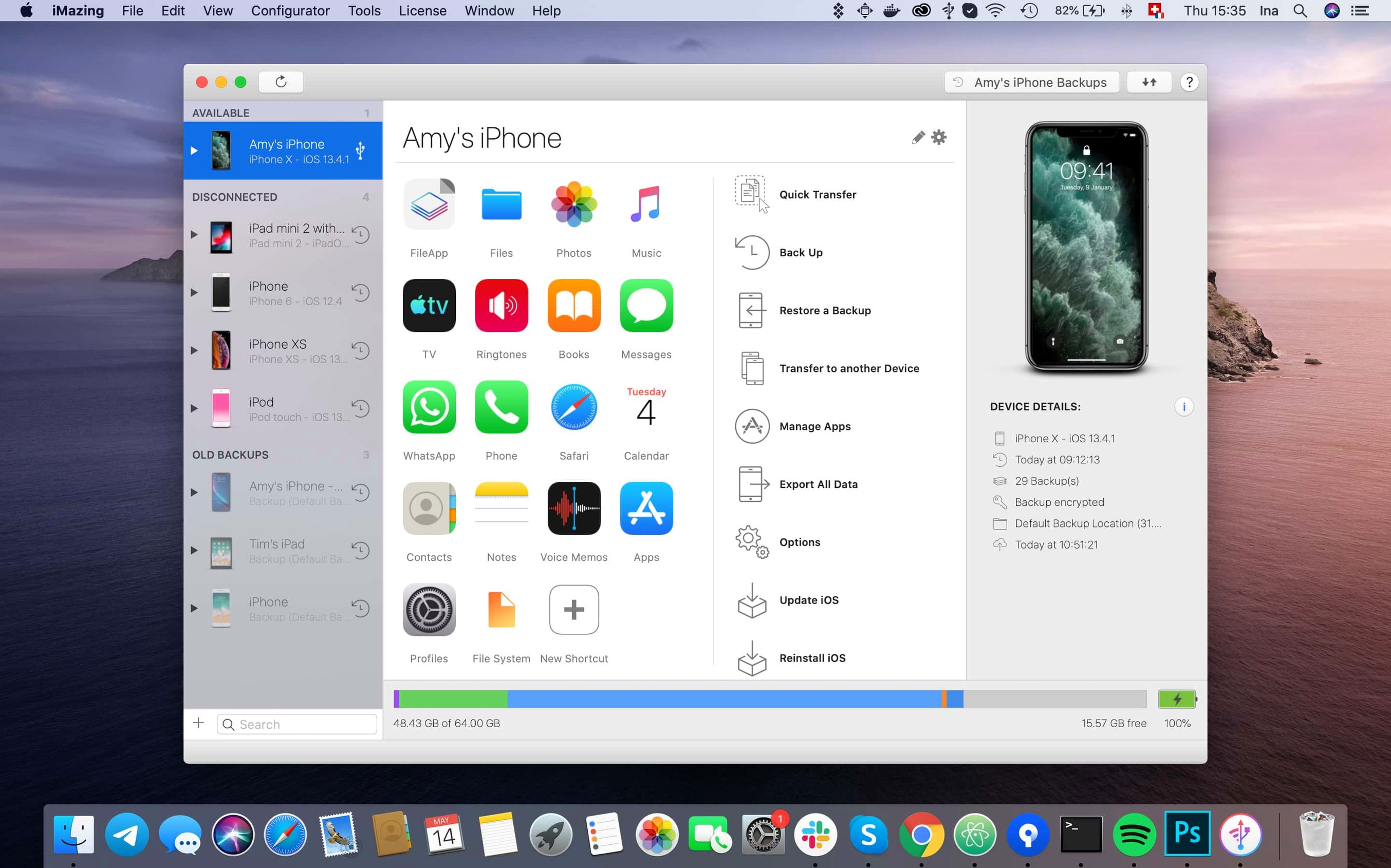
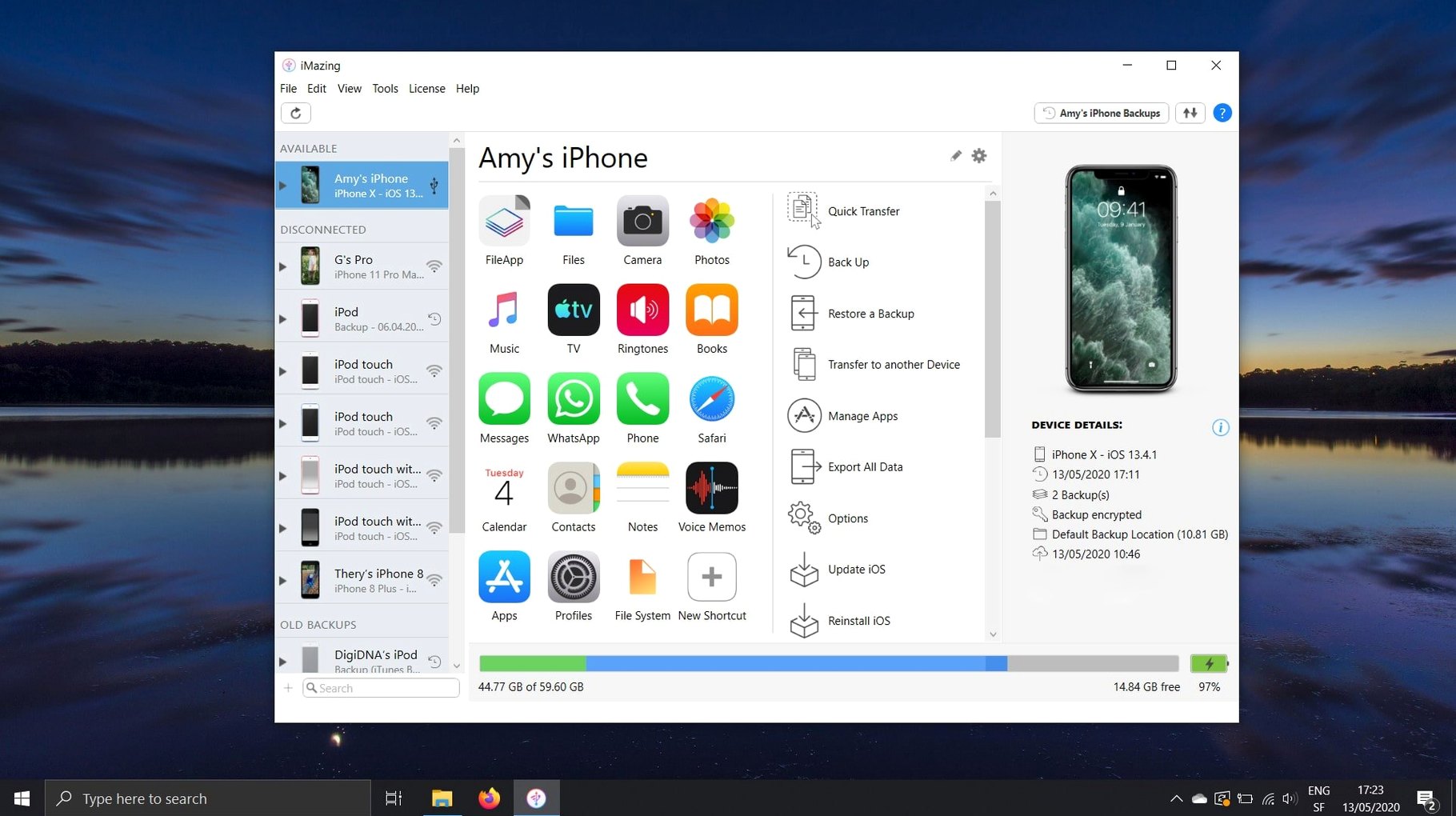
iMazing tends to be discovered by people who have bumped up against the limits of iCloud and iTunes — photographers who want a straight folder of full-resolution images, families moving a parent to a new phone, or anyone who simply prefers a local backup they can see and touch. If you have just installed it and the window feels a little wide open, here are two good places to start.
Pull your photos out cleanly
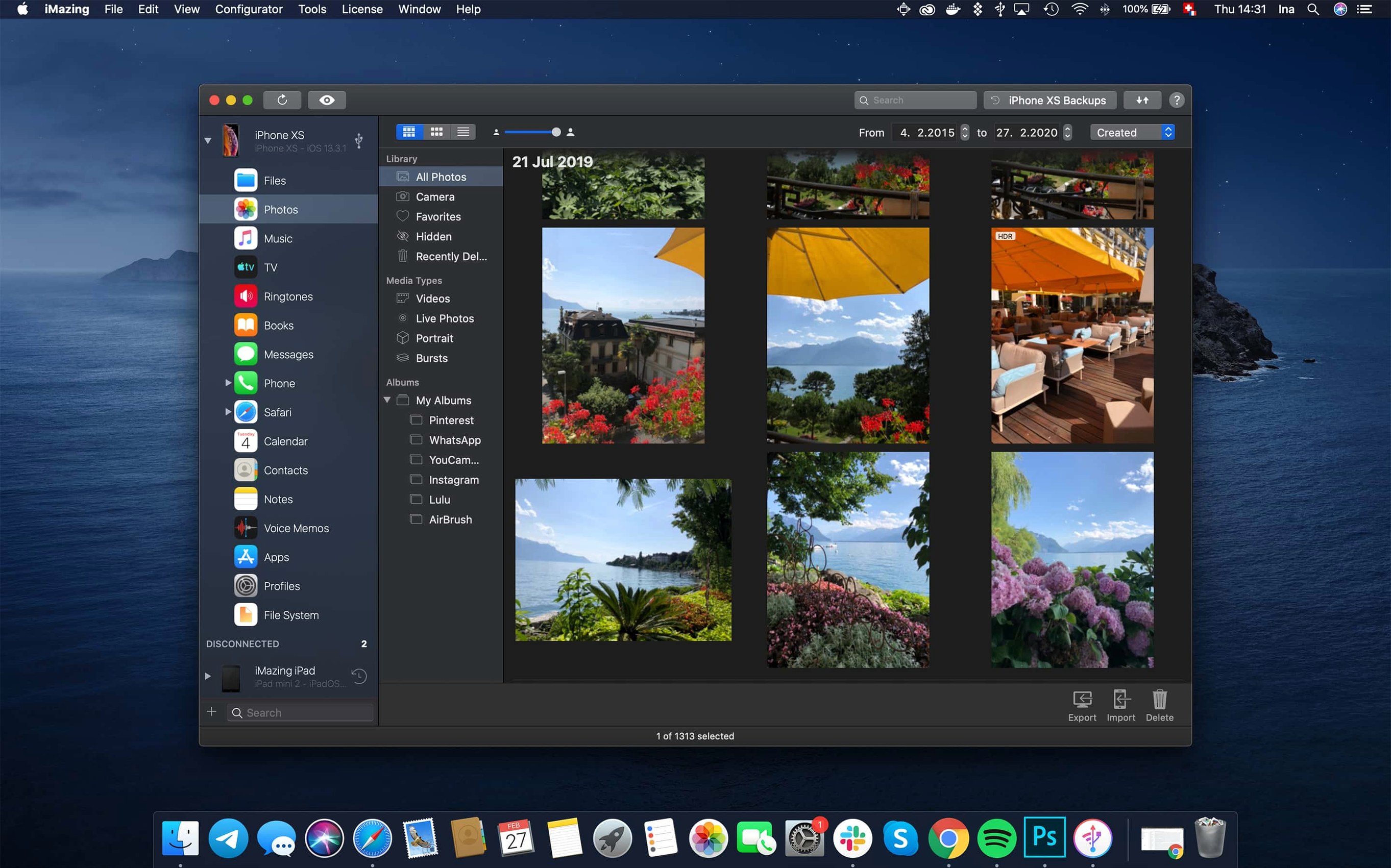
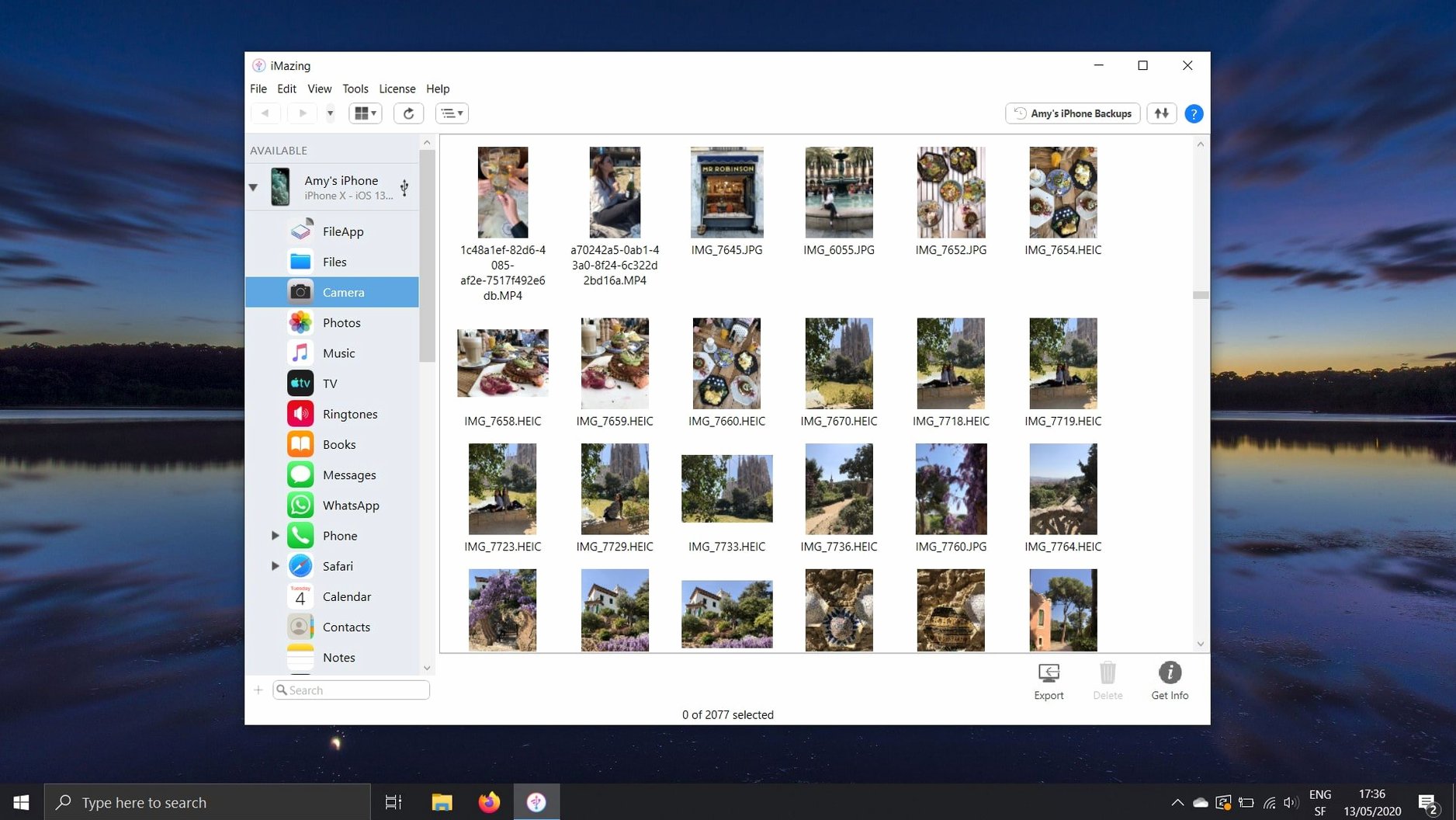
The photo export is the feature most newcomers reach for first, and with good reason. Instead of wrestling with the Photos app’s sync logic, iMazing shows your iPhone or iPad camera roll as a straightforward file browser, organised by album and month. You can drag a single image to the desktop or export an entire year with a click, keeping the original file format and metadata intact. No cloud upload, no compression, and it works over USB or Wi-Fi once the device is paired. While you are there, try the quick transfer for videos — those large 4K files move far faster over a cable than through a browser upload.
Move bookmarks and books without a cloud
Safari bookmarks normally travel through iCloud, which ties them to an Apple ID. iMazing can read the bookmarks database directly from a connected iPhone or iPad and copy it across to your Mac’s Safari, no account sync required — handy when setting up a device for a family member who uses a different ID. The same local-first logic applies to books: the app imports ePub and PDF files straight into Apple Books on the device, and exports purchased books back to the computer for safekeeping. It is the kind of transfer that sounds simple but has no official Apple route outside of cloud services, and it works with a couple of clicks.
Imagine a freelance journalist who lives half the year on the road with an iPad Pro and a battered iPhone, filing copy from cafés where the Wi-Fi is patchy at best. She shoots interviews as voice memos, snaps photos of documents, and keeps every text message thread as a paper trail. Cloud sync is not her friend — she has lost half a morning watching a single video crawl up to iCloud, and she has learned not to trust hotel networks. On a Sunday evening back home, she plugs her iPhone into the Mac, opens iMazing, and in twenty minutes pulls the whole trip into shape: voice memos exported as clean WAV files straight into a project folder, message threads with sources saved as PDFs, and the call log dumped to a CSV so she can bill for every interview. For her, iMazing is not a backup utility — it is the end-of-trip ritual that turns a chaotic device into a tidy archive, and it does not ask for a password to someone else’s server.
Why treating iMazing like iTunes leads to overwritten backups
Everyone makes the same few missteps in the first week, and most of them come from treating iMazing like iTunes. The commonest is overwriting a good backup by accident. iMazing can create full device snapshots, but it also lets you archive them as separate, dated files — something iTunes never did gracefully. If you do not right-click a backup in the sidebar and choose Archive, the next automatic backup will roll straight over it. I have watched people lose a clean pre-update state that way, and the fix is a two-second habit: archive first, tinker later.
A second classic slip is pulling an encrypted backup without saving the password somewhere memorable. iMazing respects Apple’s encryption layer, which means health data, saved passwords, and Wi-Fi settings only come across when encryption is turned on. If you set a password, lose it, and then need to restore, you are in the same locked room you would be with an iTunes backup — no back door, no reset link. Write it in a password manager, not on a sticky note.
Third, newcomers sometimes expect the wireless backup to behave like Time Machine, kicking in silently every hour. It does not — Wi-Fi backups require the Mac and the iOS device to be on the same network and plugged into power, and they are triggered on a schedule you set, not continuously. If you walk out of the house with the phone in your pocket mid-backup, you will come back to a partial snapshot. The solution is to treat wireless backups as an overnight affair and keep the first big one on a cable.
The locked-device reason your data pane appears empty
A handful of friction points crop up reliably, and most have straightforward fixes once you know where to look.
The device shows up but the data pane is empty. Almost always, this means the iPhone or iPad is locked. iMazing reads the file system through the same USB pairing that iTunes uses, and a locked screen blocks access to most of the data silos. Unlock the device, tap Trust This Computer if the prompt appears, and the panes fill in within seconds.
Messages export skips attachments. By default, the messages export includes text and metadata, but images, videos, and location pins live in a separate attachment store. In the export dialog, look for the Include attachments checkbox — if it is unchecked, you get a tidy CSV or PDF that is half the story. Check it, and the export folder fills with a media subdirectory that preserves the original file names.
An app download fails with error code 429. This is Apple’s rate-limiting, not a fault in iMazing. The fix is patience: wait half an hour and try again. Version 3.6.5 addressed a specific trigger for this, but heavy downloading in a short window can still trip it. If you are pulling a stack of .ipa files, space them out.
Scanned multi-page documents from iOS 26 appear blank after the first page. This was a known rendering quirk, fixed in 3.6.5 — scanned documents now show every page. If you are on an older version, a quick update is the cleanest remedy, and the scanned originals remain intact on the device in the meantime.
macOS asks for permissions repeatedly. Under Catalina and later, iMazing needs explicit access to the desktop, documents, and removable volumes. If you denied a permission on first launch, go to System Settings → Privacy & Security and check Files and Folders — iMazing should have ticks for the locations you want to write to. Without them, exports fail silently or land in a sandboxed temp directory you cannot easily find.
How iMazing fits with other apps and macOS features
iMazing does not try to be a media player, a photo editor, or a messaging client — it positions itself as the plumbing between your iOS device and the Mac apps you already use. That modesty is what makes it slot into a workflow without friction.
Apple Books. When you drag an ePub or PDF into iMazing’s book list, the file lands in Apple Books on the device exactly as if you had used the Finder sync. The difference is direction: iMazing can pull books back out, which Finder cannot. Academics who mark up PDFs on an iPad use this to archive annotated copies on the Mac without uploading them anywhere.
Finder and the desktop. Photos come out as plain image files — HEIC, JPEG, PNG, whatever the camera captured — dropped straight into a folder. There is no intermediate library, no package you have to right-click to browse. That makes them immediately usable in Preview, Photoshop, or any automation you have rigged with folder actions.
Calendar and Contacts. Export a calendar as an ICS file and double-click it — macOS adds the events to the system Calendar app instantly. Contacts come out as vCards, which the built-in Contacts app opens natively. It is the same file format the Mac expects; iMazing simply hands it over without routing through a sync service.
Spotlight and Quick Look. Anything you export to the Mac — call logs, voice memos, message PDFs — inherits the usual Spotlight indexing and Quick Look previews. A voice memo saved as an m4a file is just an audio file: tap the spacebar, listen to it, tag it in Finder, move on.
Unified logs. The 3.6.5 update added direct export of complete log archives from the unified logs view. For developers and support technicians, that means an iOS device’s diagnostic output can be handed to Console.app or a text editor without juggling Xcode’s device window — a small addition that saves a surprising amount of time when you are chasing a stubborn bug.
How iMazing compares with similar Mac apps
Three other tools tend to come up in the same conversation, and they each draw a slightly different line around what they handle.
iMazing versus AnyTrans. AnyTrans covers a similar spread — media transfers, backups, app data — and wraps it in a friendlier, more consumer-focused interface. Where iMazing pulls ahead is depth: AnyTrans handles the common paths well, but iMazing digs deeper into the backup archive, encrypted data, and raw file system. If you want to extract a single plist from an old app container or restore game scores without restoring the whole device, iMazing gives you that granularity; AnyTrans tends to keep the hood closed. For someone who mainly moves music and photos, either works. For someone who treats an iOS device as a computer they want to take apart logically, iMazing is the sharper tool.
iMazing versus iExplorer. iExplorer was the go-to for years, and it still does a clean job of browsing the media folders and pulling out text messages. Its interface feels lighter, which some users prefer. However, iExplorer’s development has been conservative — features like wireless backup, full message attachment handling, and modern device support have arrived later and sometimes less reliably. iMazing 3.6.5 already lists support for the iPhone 18 Pro and Duo; iExplorer’s update cadence is slower, which matters if you buy new hardware on release day. If you value a minimalist view of your music library, iExplorer is still pleasant. If you need certainty that the app recognises your device straight away, iMazing is the safer bet.
iMazing versus Finder (and Apple’s ecosystem). This is the comparison that frames all the others. Since macOS Catalina, the Finder handles device syncing and backups, so technically you can do a lot of what iMazing offers without installing anything else. The Finder’s backup is all-or-nothing; iMazing lets you browse inside it, export individual items, and archive snapshots. Finder syncs music and books in one direction; iMazing is bidirectional. Finder puts voice memos inside a sync loop you cannot easily break; iMazing hands them to you as files. For a one-off device swap, Finder suffices. For anyone who wants to live with their data rather than just back it up, iMazing earns its place on the dock.
Version 3.6.5 brings support for the latest Apple hardware, including the iPhone 18 Pro, iPhone 18 Pro Max, iPhone Duo, Apple Watch Series 12 and Apple Watch Ultra 4. On the troubleshooting side, a bug that caused app downloads to fail with error code 429 has been fixed, and shared app group containers are now included in .imazingapp files exported from backups. The update also adds a link to the iMazing Chatbot in the main window toolbar and lets you export complete log archives from the unified logs view.
- macOS 10.11 or later
- Runs natively on both Intel and Apple Silicon Macs
- Interface languages: English, German, French, Spanish, Italian, Portuguese, Russian, Arabic, Chinese (Simplified), Korean, Japanese
Questions I keep hearing
Does iMazing work with the latest iPhones?
Yes — version 3.6.5 added support for iPhone 18 Pro, iPhone 18 Pro Max and iPhone Duo, along with the newest Apple Watch models.
Questions from the class 0
Sign in or join the class to ask a question.
Nobody has asked anything yet. If you have used it on a real job, say what the file did.
Also on the Mac Apps shelf
The whole Mac Apps shelf Imagenomic Portraiture
Smooths skin and removes blemishes across a whole shoot while preserving natural texture.
Imagenomic Portraiture
Smooths skin and removes blemishes across a whole shoot while preserving natural texture.
 Infuse Pro
Plays almost any video file, including high-bitrate MKVs, direct to your screen or receiver.
Infuse Pro
Plays almost any video file, including high-bitrate MKVs, direct to your screen or receiver.
 Imagenomic Plugin Suite
Bundles three plugins that retouch skin, reduce noise and add film grain inside your image editor.
Imagenomic Plugin Suite
Bundles three plugins that retouch skin, reduce noise and add film grain inside your image editor.
 iExplorer
Transfers music, messages and files between an iPhone and a Mac without using iTunes or iCloud.
iExplorer
Transfers music, messages and files between an iPhone and a Mac without using iTunes or iCloud.
 iShot Pro-ScreenShot Recording
Captures screenshots, scrolling pages and screen recordings with a floating toolbar.
iShot Pro-ScreenShot Recording
Captures screenshots, scrolling pages and screen recordings with a floating toolbar.
 iStat Menus
Puts CPU, memory, disk, network and weather stats right in your menu bar.
iStat Menus
Puts CPU, memory, disk, network and weather stats right in your menu bar.
 Hyperspace
Hunts down and deletes duplicate files that are quietly wasting your disk space.
Hyperspace
Hunts down and deletes duplicate files that are quietly wasting your disk space.
 Hype 4 Pro
Constructs interactive HTML5 animations without writing a single line of code.
Hype 4 Pro
Constructs interactive HTML5 animations without writing a single line of code.