 ASPNetWorld

Making the delayed capture work for you
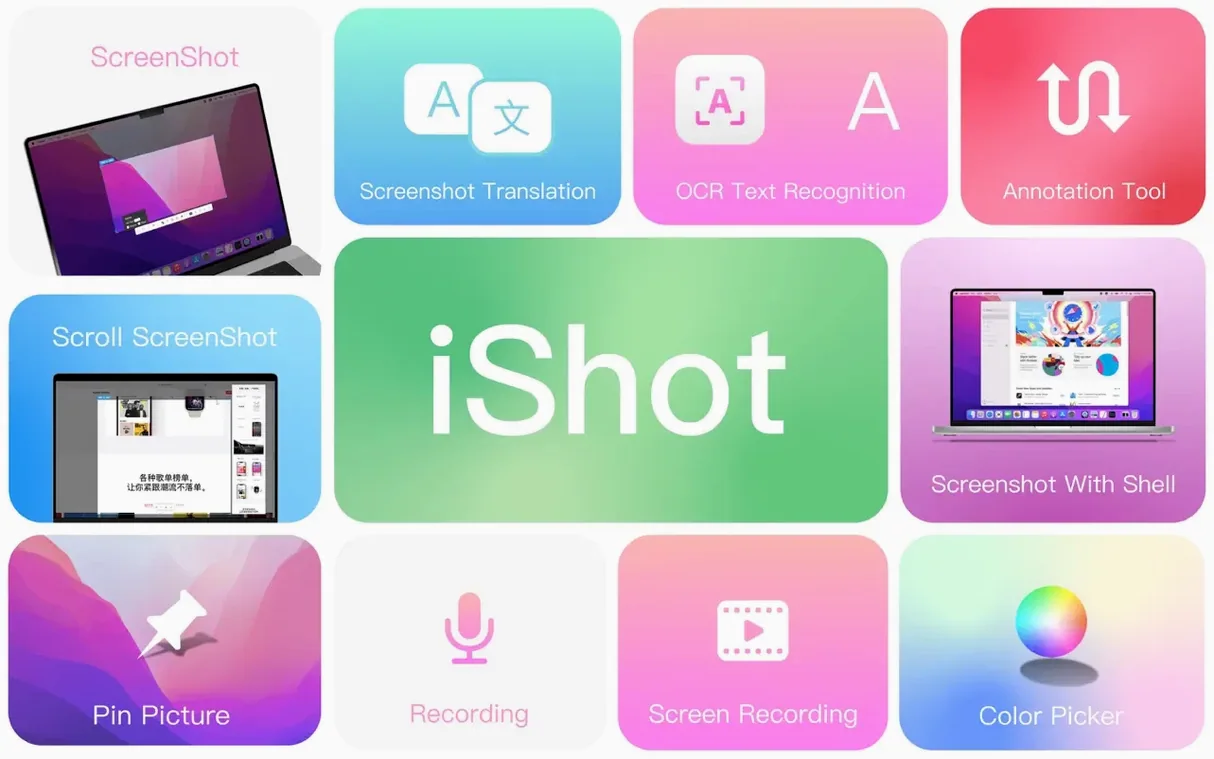
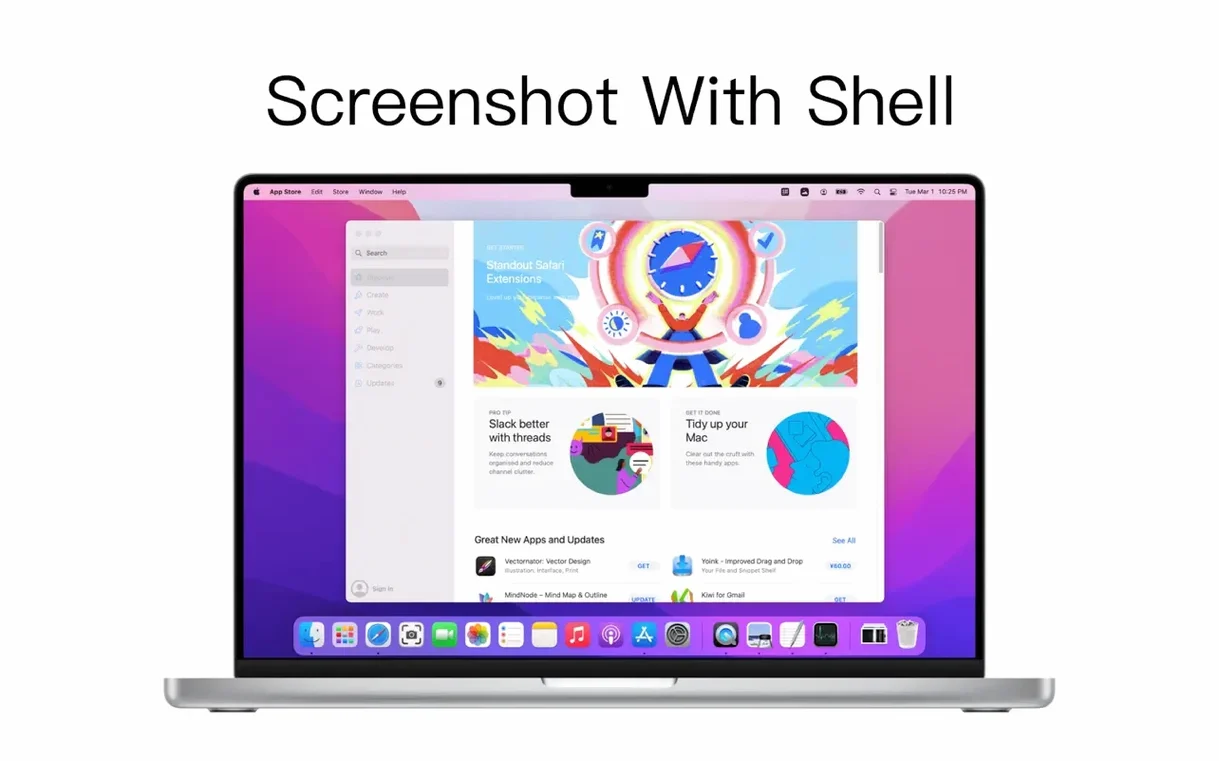
Tap the delayed full-screen screenshot shortcut and you have ten seconds to set up exactly what you want the viewer to see. I use this constantly when I am building step-by-step guides. The countdown gives me time to hover a cursor over the right menu item, expand a sub-panel, or let a tooltip appear. Once the shutter fires, the capture lands in the editor with the menu open and the pointer in place — no frantic keyboard mashing required.
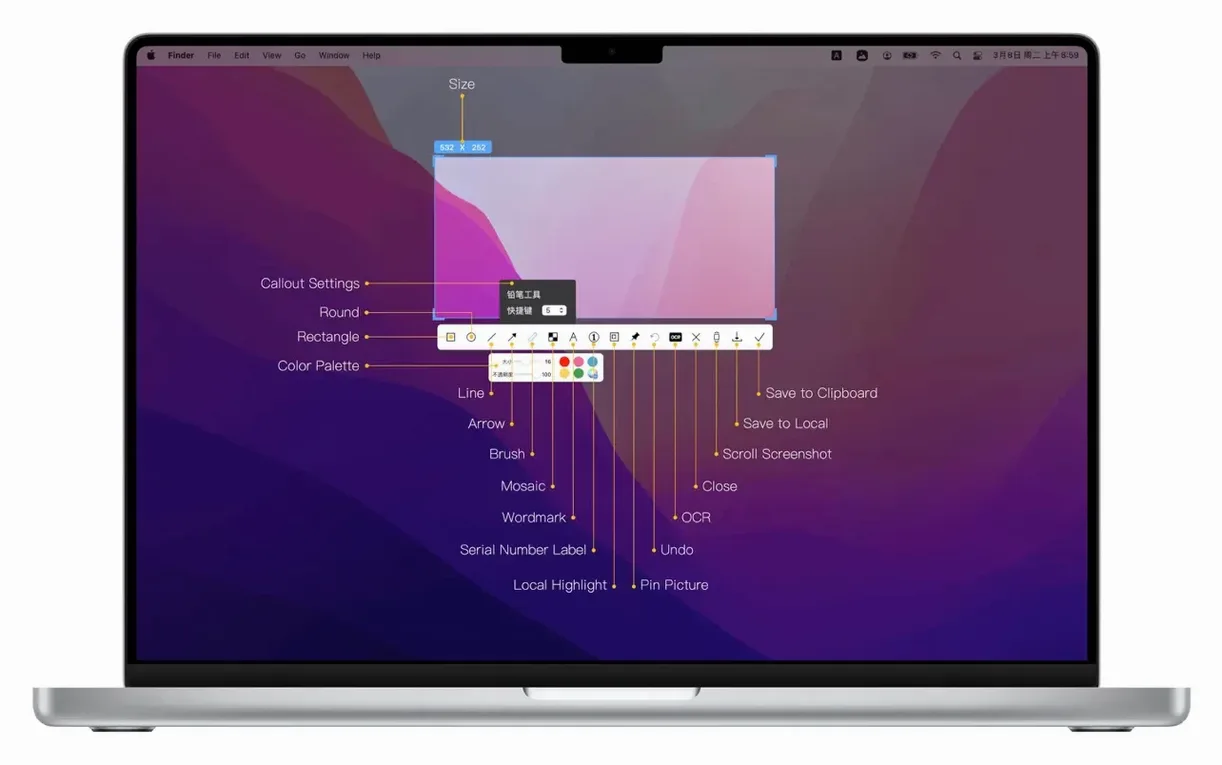
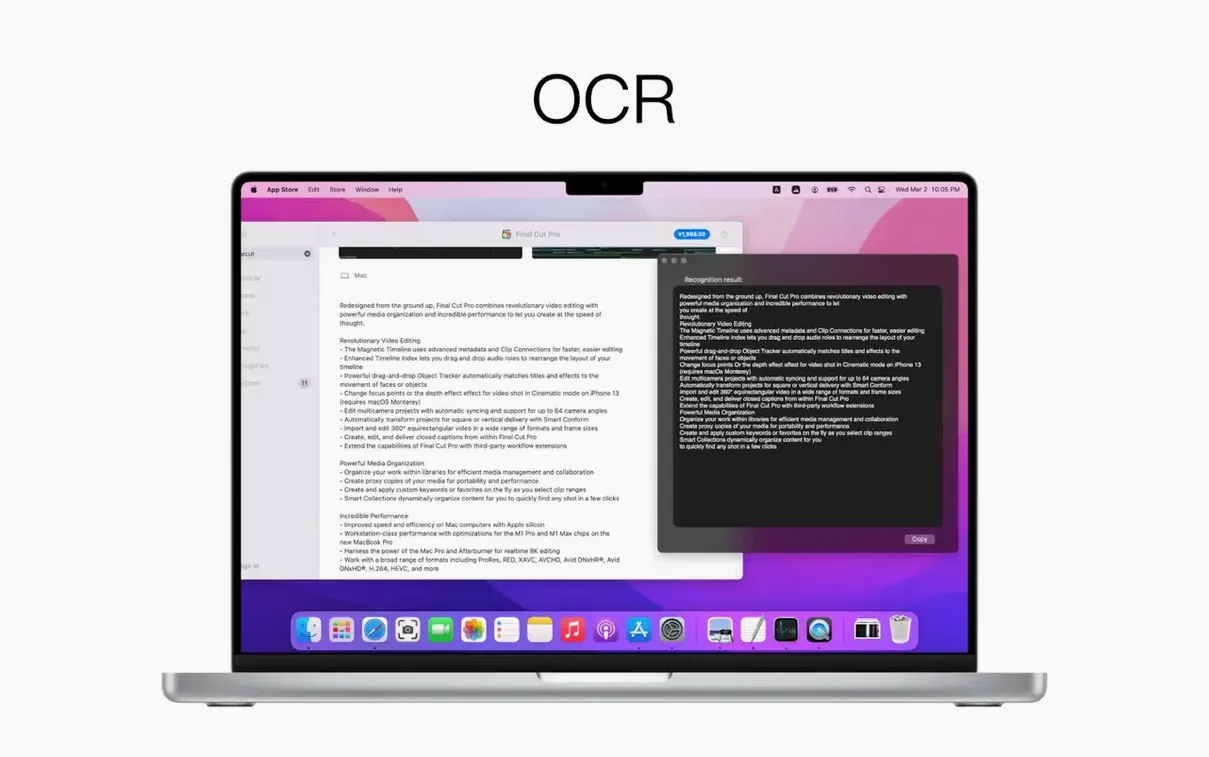
From there, the toolbar offers the annotation tools you would expect: arrows, rectangles, text blocks. What sets it apart is the OCR button sitting right there on the same strip.
Bringing OCR and translation into one sequence
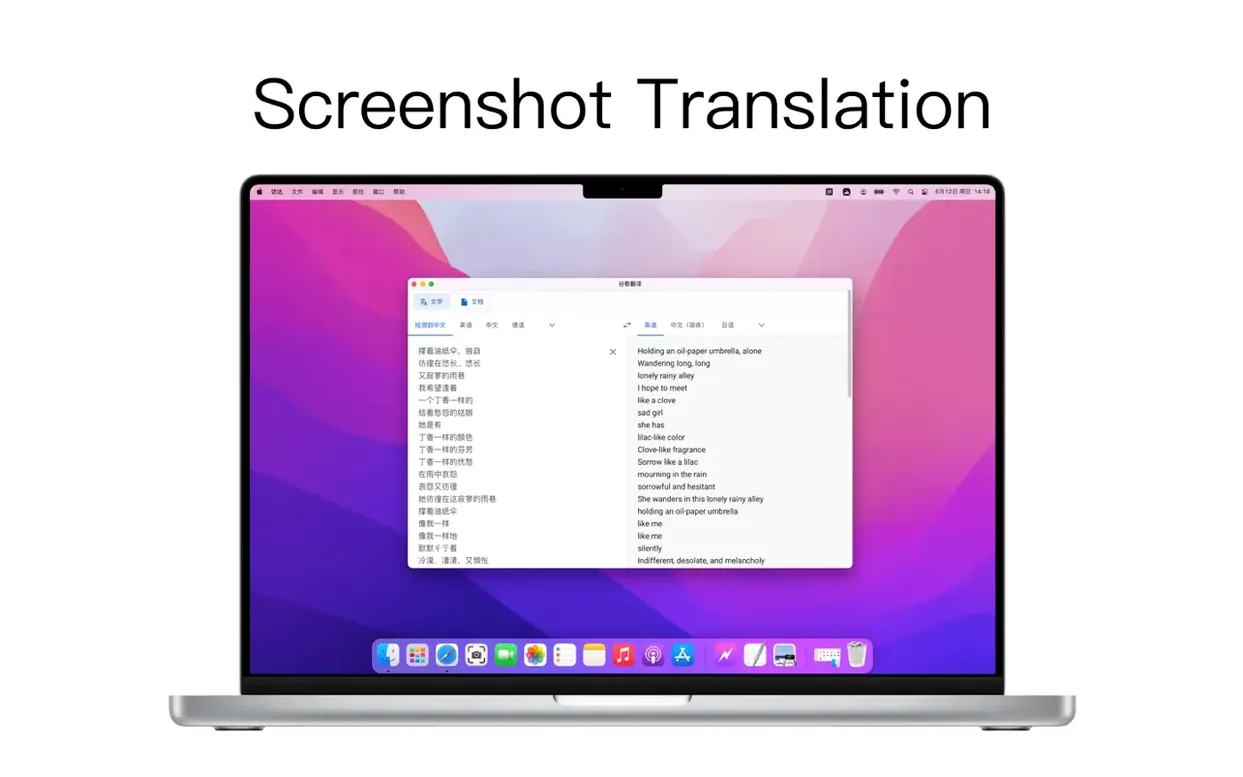
Select a Chinese-language error dialog inside your screenshot, hit the OCR recognition, and iShot Pro pulls the text into a selectable layer. Now, instead of typing that string into a separate translation service, click the translate function and choose your target language. The result appears as an overlaid, editable text box. You can adjust the font size, colour, and position before saving.
A quick colour pick from the toolbar grabs the exact shade from the original dialog’s background, so your translated text sits on a perfectly matched label. The whole chain — delayed capture, OCR, translation, colour-matched annotation — happens without leaving the app. For anyone who documents software that switches between English and Simplified Chinese, that is a proper time-saver.
Memory stays calm even with forty tabs and heavy apps open
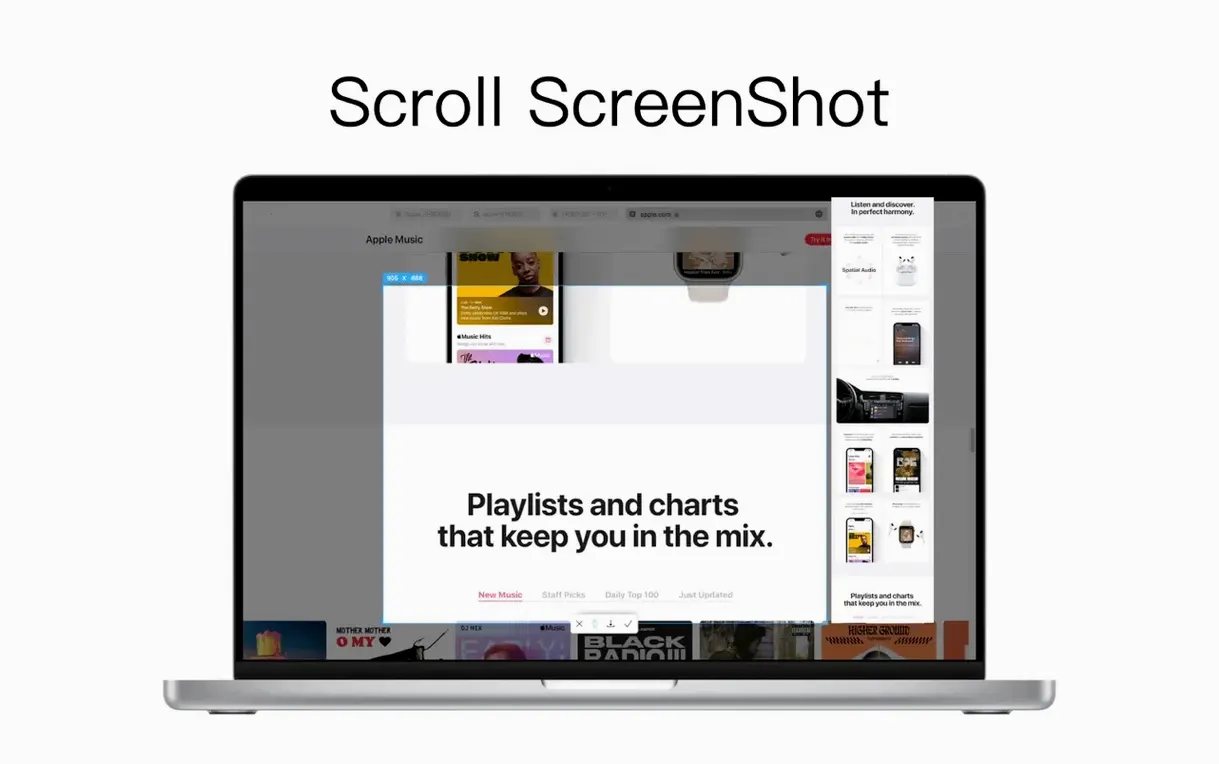
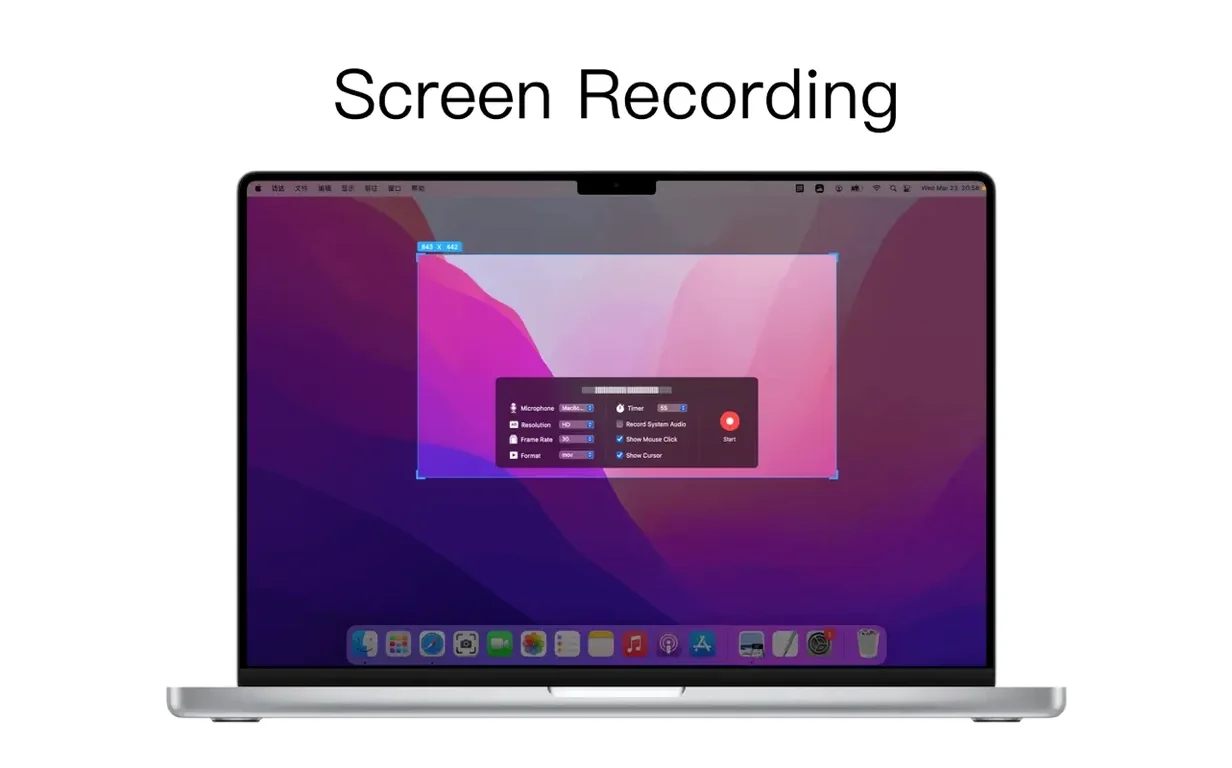
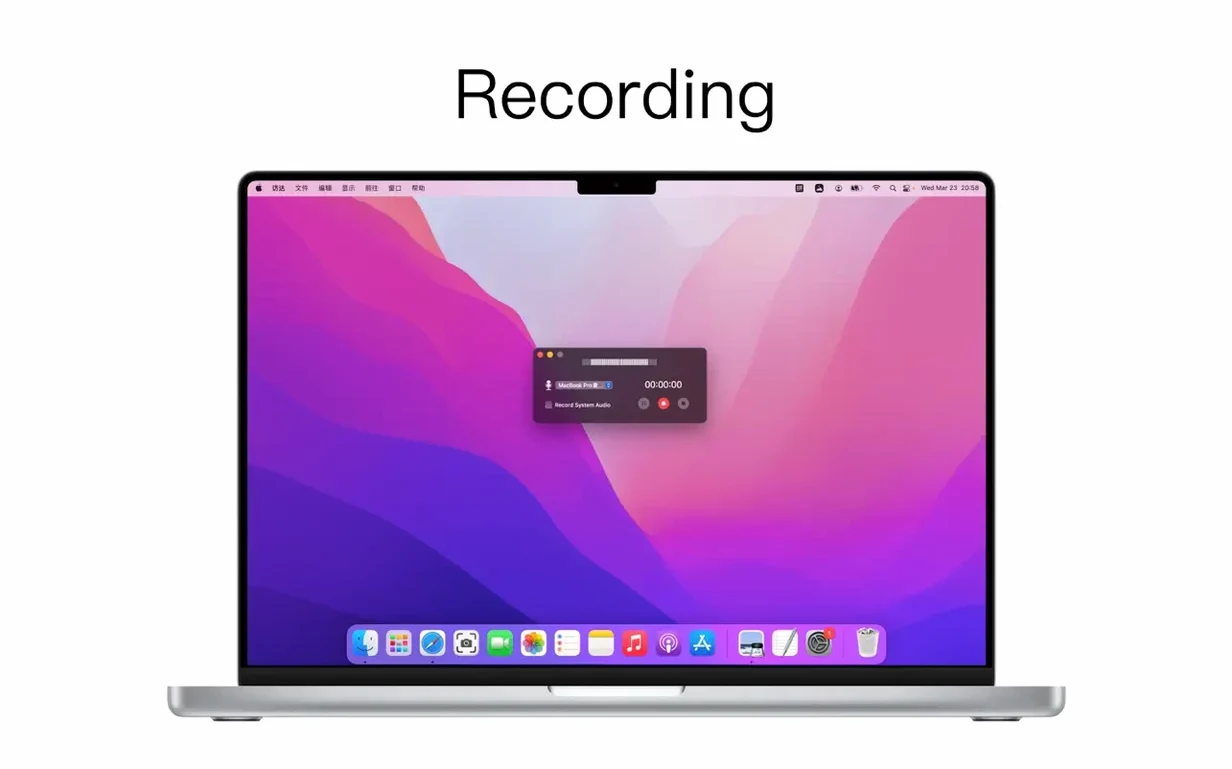
Run it alongside a browser with forty tabs, a DAW, and a code editor, and iShot Pro stays quiet. Memory use on my M1 machine hovers around 120–140 MB during normal screenshot-and-annotate work, climbing to roughly 200 MB only when I am scrubbing through a 4K recording. The CPU hit from the scrolling capture — where the app stitches dozens of frames together — is real but brief; you see a quick spike in Activity Monitor, then everything settles back down. The screen recording engine handles system audio capture without crackles, even when I am pulling sound from a live Zoom call and a YouTube tab simultaneously.
I have thrown some awkward window combinations at it — semi-transparent palettes, panels that redraw during the capture — and the region detector rarely misses. The one quirk worth knowing is that on older Intel machines, the high-frame-rate recording presets can introduce a slight audio drift on clips longer than about twenty minutes. Switching to the standard 30 fps profile solves it cleanly, and the file sizes stay surprisingly manageable: a five-minute 1080p recording with system audio lands at roughly 85 MB in the default HEVC format.
Small shortcuts that reward muscle memory
Hold the Option key while dragging a capture region and the selection expands symmetrically from the centre — brilliant when you are framing a dialog box that needs equal padding on both sides. Double-tap the F1 key (the default screenshot shortcut) twice in quick succession and iShot re-captures the last-used area, pixel for pixel. That single move has saved me more time than I can count when I am updating the same interface screenshot across multiple builds of an app.
A few other details that are easy to overlook:
- The colour picker displays the common name of a shade — "Dark Sea Green," "Sandy Brown" — not just the hex triplet, which is genuinely useful when you are building a palette and want a human-readable reference.
- Right-click any saved capture in the history strip and you can convert it from PNG to JPG or TIFF without re-exporting through the editor.
- In OCR mode, hovering over a QR code highlights it with a subtle blue glow; clicking copies the decoded string straight to the clipboard.
- The annotation numbers auto-increment — place four serial number labels and they read ① ② ③ ④ without any manual editing.
A technical writer’s half-hour sprint
Imagine a technical writer preparing release notes for a bilingual piece of industrial software. She needs six screenshots of a new settings panel, each annotated with callouts, plus a short screen recording showing the workflow sequence. She opens the panel, hits the delayed full-screen capture, and uses the ten-second window to hover the cursor over the first checkbox — the tooltip appears just as the shutter triggers. She repeats this four times with different controls, using the re-capture shortcut for the last two so she does not have to redraw the region each time.
With all six captures in the editor, she switches the interface to Simplified Chinese, runs OCR on each, and pipes the translated labels into numbered annotation boxes. The colour picker ensures every callout matches the panel’s muted grey background. Finally, she records a forty-second clip at 60 fps with system audio explaining the sequence, saves it as HEVC, and drags it to the shared drive. Thirty minutes, one app, no additional tools. The OCR-translate-annotate pipeline is where iShot Pro earns its keep. For someone whose day is measured in documentation deadlines, that tight loop matters more than any feature list.
- macOS 10.15 Catalina or later
- Works natively on both Apple Silicon and Intel 64-bit Macs
Questions I keep hearing
Can iShot Pro capture a window without bringing it to the front?
Yes, it can capture the window directly under the cursor without activating it, which keeps your workspace exactly as it was.
Does the OCR tool only work with text?
No, in OCR mode it can also recognise QR codes, giving you a quick way to extract content from them.
What Mac operating system does the current version need?
Version 2.6.9 requires macOS 10.15 or later and supports both Intel and Apple Silicon Macs.
Questions from the class 0
Sign in or join the class to ask a question.
Nobody has asked anything yet. If you have used it on a real job, say what the file did.
Also on the Mac Apps shelf
The whole Mac Apps shelf iStat Menus
Puts CPU, memory, disk, network and weather stats right in your menu bar.
iStat Menus
Puts CPU, memory, disk, network and weather stats right in your menu bar.
 Infuse Pro
Plays almost any video file, including high-bitrate MKVs, direct to your screen or receiver.
Infuse Pro
Plays almost any video file, including high-bitrate MKVs, direct to your screen or receiver.
 iMazing
Creates local, browsable backups of an iPhone or iPad and extracts specific files from them.
iMazing
Creates local, browsable backups of an iPhone or iPad and extracts specific files from them.
 Imagenomic Portraiture
Smooths skin and removes blemishes across a whole shoot while preserving natural texture.
Imagenomic Portraiture
Smooths skin and removes blemishes across a whole shoot while preserving natural texture.
 Imagenomic Plugin Suite
Bundles three plugins that retouch skin, reduce noise and add film grain inside your image editor.
Imagenomic Plugin Suite
Bundles three plugins that retouch skin, reduce noise and add film grain inside your image editor.
 JPEGmini Pro
Shrinks JPEG file sizes without visibly changing the photo.
JPEGmini Pro
Shrinks JPEG file sizes without visibly changing the photo.
 iExplorer
Transfers music, messages and files between an iPhone and a Mac without using iTunes or iCloud.
iExplorer
Transfers music, messages and files between an iPhone and a Mac without using iTunes or iCloud.
 Jump Desktop
Lets you control another Mac or PC from your current screen and drag files between them.
Jump Desktop
Lets you control another Mac or PC from your current screen and drag files between them.