 ASPNetWorld

What does the adaptive compression actually choose?
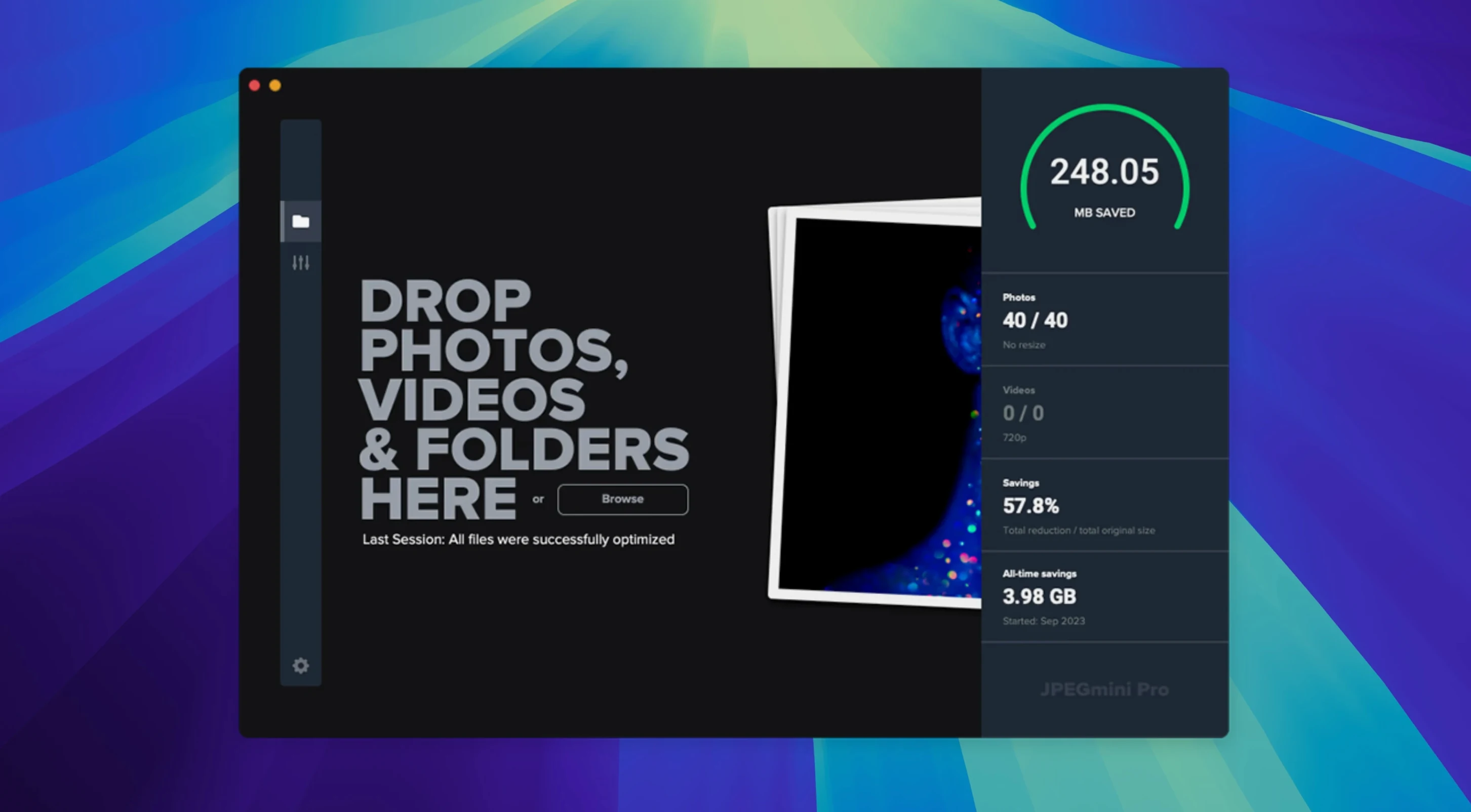
Each photo gets its own compression profile without you having to tweak sliders. The engine analyses content — sharp edges, smooth gradients, noise patterns — and settles on settings that shrink the file while keeping the visual result close to the original. You can override this by setting a target quality level, but the automatic pass usually hits the sweet spot first time.
How does it handle a folder of five hundred holiday snaps?
Batch processing is where it earns its keep. Drag a folder onto the window and it works through the queue methodically, applying the chosen compression strategy to every JPEG. IPTC captions, copyright notices and GPS coordinates travel through unchanged, so your Lightroom or Photos library metadata stays intact.
Where does it sit alongside a Mac’s built-in tools?
Preview and Photos can export a smaller JPEG, but they apply uniform compression across a batch. JPEGmini Pro sits further up the chain as a dedicated optimiser — something you’d run before uploading a gallery to a website or pushing files to cloud storage, where smaller images mean faster transfers and lighter hosting.
Does it matter on Apple Silicon?
It runs natively on both ARM and x86 64-bit Macs, so an M1 or M2 machine chews through large batches without Rosetta overhead. The interface stays in English, and the workflow is deliberately simple: compress, check, move on.
Tips for the first few days after installing
Start with a small folder of twenty or thirty images rather than your entire photo library. Watch how the automatic compression handles different subjects — a portrait with soft bokeh, a landscape full of fine grass, a high-ISO night shot with grain. You will quickly learn which images shrink dramatically and which ones barely budge, and that knowledge shapes your workflow later.
Set up a watch folder early, even if you do not think you need one. Pick a folder on your desktop, point the app at it, and drop a few images in while you work on something else. By the time you switch back, the compressed versions are waiting. The real benefit creeps up on you: after a week, you have saved megabytes without ever opening the main window.
Resist the urge to push the quality slider down too far on your first pass. The automatic setting is genuinely well-judged, and a conservative target keeps your originals safe while you build trust in the output. If you later decide a particular album can take more compression, you can run it again — the app does not stop you from reprocessing.
What the recent versions changed in everyday use
Version 4.1.3 tightened up how the app handles HEIC files alongside JPEGs, which matters if your iPhone dumps a mix of formats into your Mac. Earlier builds would sometimes ignore HEIC in batch operations; now they sit in the same queue without fuss, so a folder of holiday photos can be processed in one pass rather than two.
Performance on Apple Silicon saw incremental but noticeable improvements. The difference is not a headline number — more like shaving a second off each image in a batch of hundreds, which adds up when you are waiting for a client gallery to finish. The app also grew more patient with deeply nested folder structures, where older versions occasionally tripped over permissions on external drives formatted as APFS.
Metadata handling became more granular. Previous releases preserved EXIF and ICC profiles but sometimes dropped lesser-used IPTC fields like City or Sublocation. The current build passes them through reliably, which matters if your workflow relies on those fields for stock submissions or archive searches.
Questions people ask before installing
Will it overwrite my originals? Not unless you tell it to. By default it saves compressed copies alongside the source files with a modified filename. You can switch to overwrite mode if you are confident, but the safe default gives you room to compare before committing.
Does the compression really look identical? At sensible settings, side-by-side comparison at one hundred percent zoom rarely reveals a difference. The algorithm avoids posterisation in skies and keeps edge detail sharp. Push the compression aggressively and you will eventually see softening, but the automatic mode stays on the safe side of that line.
Can I use it on images I share through torrents or a JPEGmini Pro torrent macOS search? The app works on any JPEG file you point it at, regardless of where the image came from. If you are sourcing images and want them smaller for local storage or faster sharing, the software compresses them the same way it handles everything else — no watermarking, no restrictions on file origin.
Does it play nicely with Lightroom and Capture One? Yes, as long as you treat it as an external step. Export your edits as full-resolution JPEGs, run them through the app, and then upload from the compressed folder. Some users set the watch folder to their export directory so the optimisation happens automatically while they move on to the next job.
- macOS 10.15 or newer
- Apple Silicon (ARM) or Intel 64‑bit Mac
Questions I keep hearing
Does JPEGmini Pro work with the standalone Suite version?
No, JPEGmini Pro is a separate application from the Pro Suite. They share the same compression core but are licensed and installed independently.
Can it speed up a photography website?
Yes, because each compressed JPEG is physically smaller on disk, pages load faster for visitors. The reduction also shortens upload times when pushing photos to a cloud service.
Questions from the class 0
Sign in or join the class to ask a question.
Nobody has asked anything yet. If you have used it on a real job, say what the file did.
Also on the Mac Apps shelf
The whole Mac Apps shelf Jump Desktop
Lets you control another Mac or PC from your current screen and drag files between them.
Jump Desktop
Lets you control another Mac or PC from your current screen and drag files between them.
 Kerlig
Rewrites highlighted text in a friendlier or clearer tone without leaving the app you are in.
Kerlig
Rewrites highlighted text in a friendlier or clearer tone without leaving the app you are in.
 Keyboard Maestro
Triggers multi-step actions on your Mac from a single hotkey, shortcut or condition.
Keyboard Maestro
Triggers multi-step actions on your Mac from a single hotkey, shortcut or condition.
 KeyShot
Renders 3D models as lifelike images by simulating real-world materials and lighting.
KeyShot
Renders 3D models as lifelike images by simulating real-world materials and lighting.
 Klack
Plays a satisfying mechanical keyboard sound through your speakers whenever you strike a key.
Klack
Plays a satisfying mechanical keyboard sound through your speakers whenever you strike a key.
 iStat Menus
Puts CPU, memory, disk, network and weather stats right in your menu bar.
iStat Menus
Puts CPU, memory, disk, network and weather stats right in your menu bar.
 iShot Pro-ScreenShot Recording
Captures screenshots, scrolling pages and screen recordings with a floating toolbar.
iShot Pro-ScreenShot Recording
Captures screenshots, scrolling pages and screen recordings with a floating toolbar.
 Infuse Pro
Plays almost any video file, including high-bitrate MKVs, direct to your screen or receiver.
Infuse Pro
Plays almost any video file, including high-bitrate MKVs, direct to your screen or receiver.