 ASPNetWorld
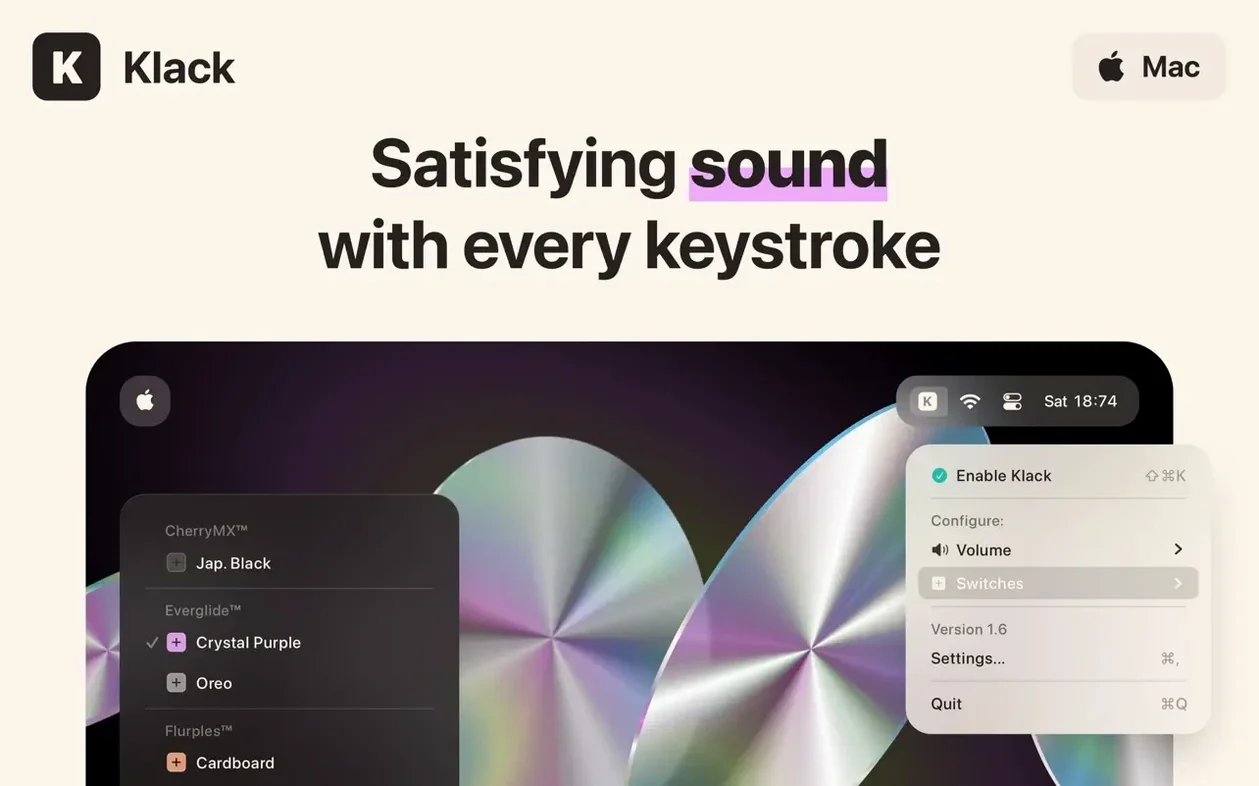
If you have used a Mac for any length of time, you will know that the built-in keyboard — whether on a MacBook or a Magic Keyboard — is practically silent. That is a deliberate engineering choice, but it leaves a lot of people missing the audible character of a mechanical keyboard. Klack steps into that gap. It is a small, focused utility that generates high-fidelity switch sounds every time you press and release a key, turning your existing keyboard into something that sounds far more substantial.
Switch profiles let you audition different mechanical key sounds
Once the app is running in your menu bar, these are the settings that give you the quickest sense of what it can do:
- Pick your switch profile. Klack includes several switch models that mimic different mechanical key types. Cycle through them while typing a sentence in TextEdit to find the one that matches the feel you are after.
- Adjust the volume early. The default level can be surprisingly punchy. Use the slider in the menu bar drop-down to blend the sound naturally with your room ambience.
- Toggle individual sounds. The app separates key-down and key-up effects. Try muting the key-up sound temporarily to understand how much of the character comes from the bottom-out click alone.
A native Swift menu bar app that renders audio without phoning home
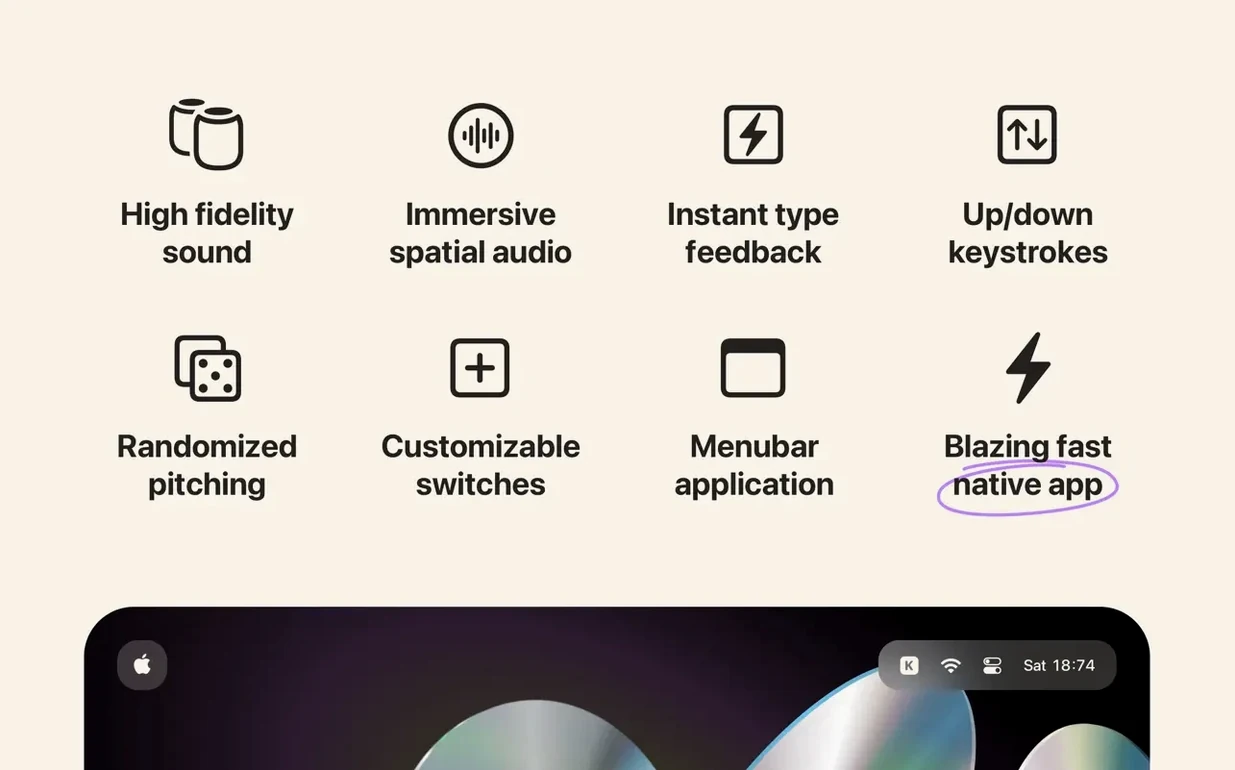
Because Klack is a native app built with Swift, it stays out of your way. It sits in the menu bar, collects no personal information, and does not phone home. The sounds are rendered with enough fidelity that they genuinely change how typing feels, even on a laptop keyboard. It is the kind of tool you forget is running until you work in silence and realise how much the audio feedback has become part of your rhythm.
Audio triggers on key-down and key-up with no noticeable lag
One of the first things people want to know is whether the sound responds quickly enough to feel real. The short answer is yes — the audio triggers on key-down and key-up with no lag you would notice in ordinary typing. That instant feedback is what stops the effect from feeling like a gimmick. A related worry is whether Klack will turn every system alert into a clatter. It does not. The app only plays sounds for deliberate text entry, so navigating menus, adjusting volume, or using keyboard shortcuts is silent unless you are actually typing characters into a field.
Another common question is about wearing headphones. The spatial audio in Klack is genuinely useful here: the sound image shifts subtly as you type, mimicking the way a real keyboard would reach your ears from slightly different positions. It does not sound like a flat stereo recording pinned to the centre of your head, which means you can wear closed-back headphones for hours without the effect becoming tiring. If you share a workspace, you will also be glad to know that the sounds play through your Mac's speakers or your own headphones — nobody else hears them unless you are on a call with your microphone unmuted.
Subtle playback randomisation mimics the acoustic variance of real switches
A few details in Klack are easy to overlook. The randomisation of playback is one of them. Real mechanical switches never produce exactly the same acoustic signature twice, and the app introduces subtle variations in each keystroke so the sound does not become robotic after a few minutes. You do not need to turn this on; it is baked into the engine. Another hidden nicety is how the menu bar icon doubles as a quick mute toggle. Hold the Option key while clicking it, and the app silences itself immediately — useful when you need to type quietly without quitting the application and losing your switch settings.
If you have already found a klack mac download and installed it, it is worth checking that the app is set to launch at login. The preference is not forced on you during setup, but you can enable it from the menu bar menu. Once it is running at startup, you stop thinking about it entirely, which is exactly how a utility like this should behave.
Stays under one percent CPU even during rapid typing
On both Apple Silicon and Intel machines, Klack is light enough that you will not spot it in Activity Monitor unless you go looking. It typically sits under one percent of CPU even during rapid typing, and its memory footprint is small — often around 30 to 40 megabytes. The app has been stable through several macOS updates, and version 1.7.2 runs without issue on macOS 13.1 and everything newer. I have yet to see it cause an audio glitch or interfere with another sound-producing application, which is partly down to its use of native system frameworks rather than a heavyweight third-party audio engine.
Battery impact on MacBooks is minimal. Because the sound generation is event-driven rather than a constant process, the app sleeps between keystrokes. You might lose a few minutes of charge over a full working day, but nothing that would make you reconsider the klack for mac experience. More than anything, the app feels finished — there is no jank, no preference pane that fights you, and no moment where you suspect the developer stopped caring halfway through. For a utility that does one thing, it does it with a polish that quietly earns its place in the menu bar.
- macOS 13.1 or later
- Works on both Intel and Apple Silicon Macs
Questions I keep hearing
Does Klack work with any keyboard connected to a Mac?
Yes, it plays typing sounds based on key presses in macOS, so it works with the built-in keyboard on a MacBook, Apple's Magic Keyboard, and most third-party USB or Bluetooth keyboards.
Questions from the class 0
Sign in or join the class to ask a question.
Nobody has asked anything yet. If you have used it on a real job, say what the file did.
Also on the Mac Apps shelf
The whole Mac Apps shelf KeyShot
Renders 3D models as lifelike images by simulating real-world materials and lighting.
KeyShot
Renders 3D models as lifelike images by simulating real-world materials and lighting.
 Keyboard Maestro
Triggers multi-step actions on your Mac from a single hotkey, shortcut or condition.
Keyboard Maestro
Triggers multi-step actions on your Mac from a single hotkey, shortcut or condition.
 Kerlig
Rewrites highlighted text in a friendlier or clearer tone without leaving the app you are in.
Kerlig
Rewrites highlighted text in a friendlier or clearer tone without leaving the app you are in.
 Jump Desktop
Lets you control another Mac or PC from your current screen and drag files between them.
Jump Desktop
Lets you control another Mac or PC from your current screen and drag files between them.
 LanScan
Scans your local network and lists every connected device with its IP and MAC address.
LanScan
Scans your local network and lists every connected device with its IP and MAC address.
 JPEGmini Pro
Shrinks JPEG file sizes without visibly changing the photo.
JPEGmini Pro
Shrinks JPEG file sizes without visibly changing the photo.
 LaunchOS
Replaces the standard Launchpad with a faster, keyboard-friendly app launcher.
LaunchOS
Replaces the standard Launchpad with a faster, keyboard-friendly app launcher.
 LightBurn
Designs artwork and controls a laser cutter from a single application.
LightBurn
Designs artwork and controls a laser cutter from a single application.