 ASPNetWorld

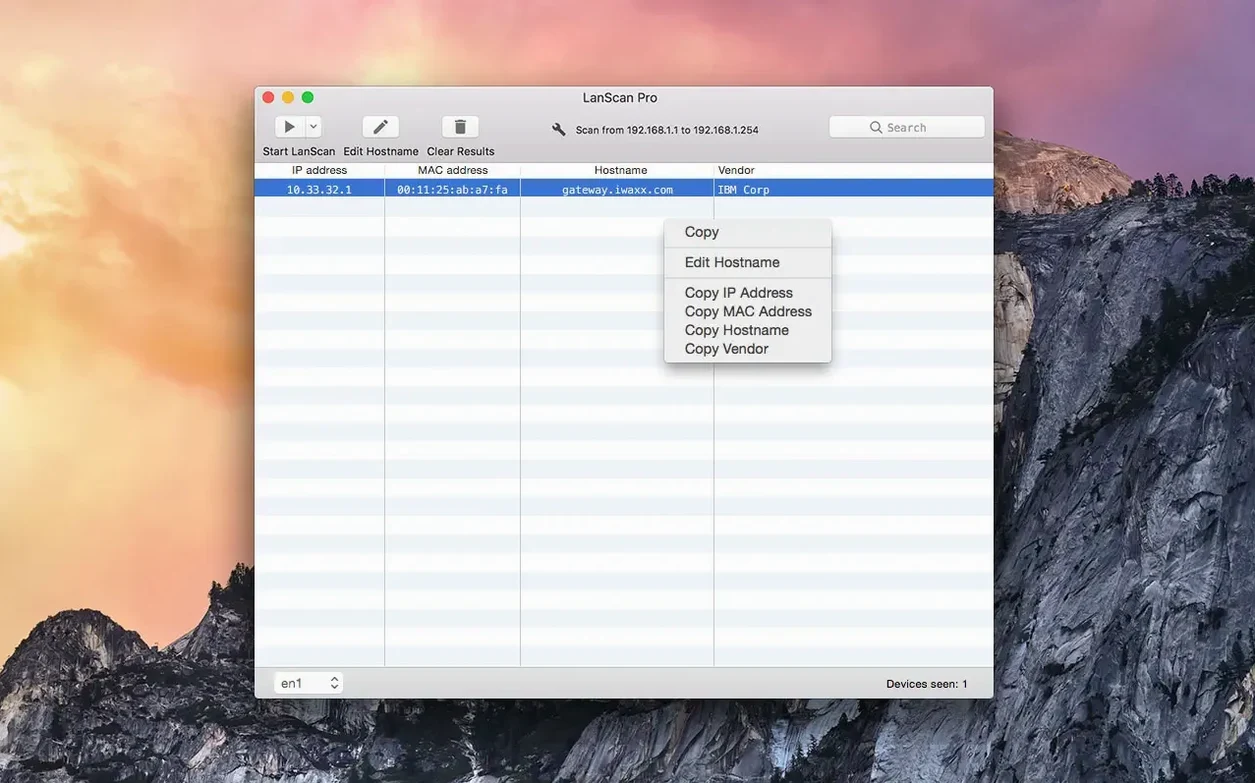
Version 8.2.17 asks very little of your Mac: macOS 11 or later, on either Apple Silicon or a 64-bit Intel machine. That covers a good stretch of hardware still in daily use, from older Intel models to the latest M-series portables.
Will LanScan run on my Mac?
Almost certainly. Any Mac running macOS 11 or a newer version of the operating system is supported, with native builds for both ARM and 64-bit Intel processors. The installer arrives as a standard disk image, so there is nothing unusual about getting it into place.
What does LanScan actually find?
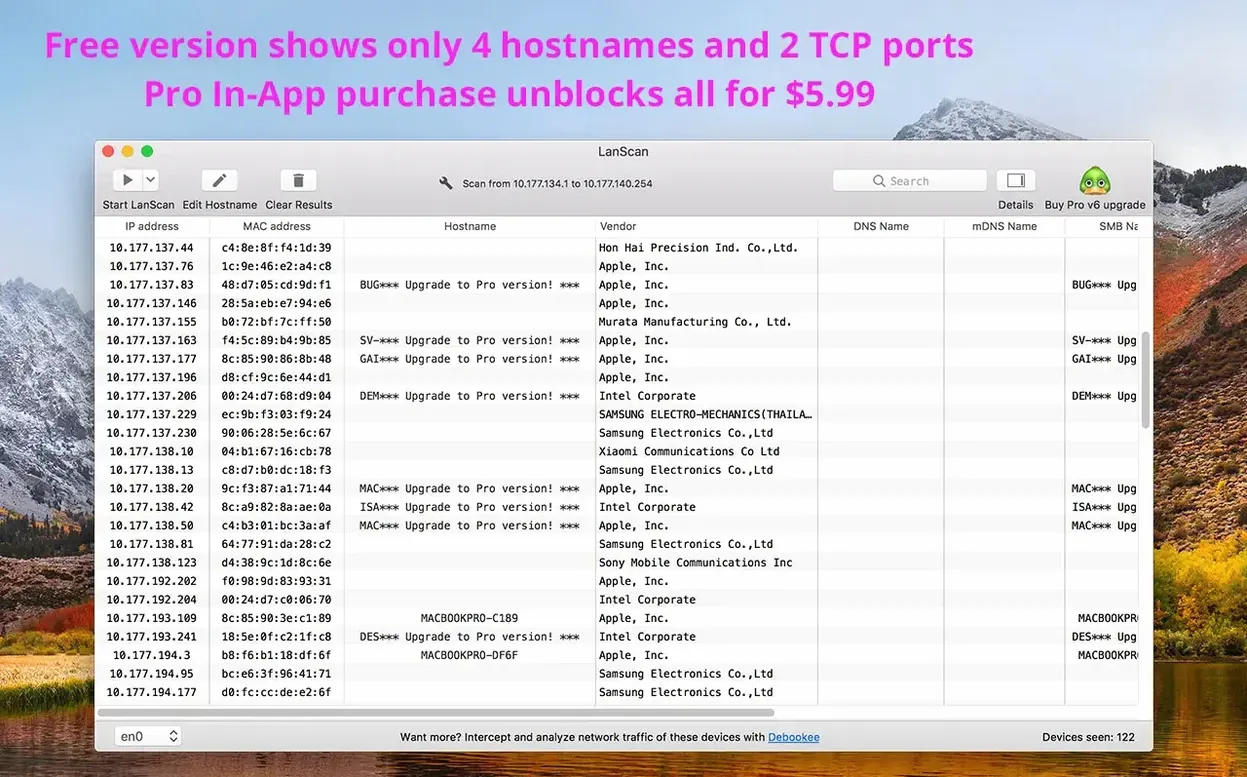
It builds a live picture of the devices on your local subnet or a configured public range. ARP packets do the quiet work of discovery on a local network, while public range scanning leans on Ping, SMB and mDNS packets to coax devices into announcing themselves.
How much detail do I get?
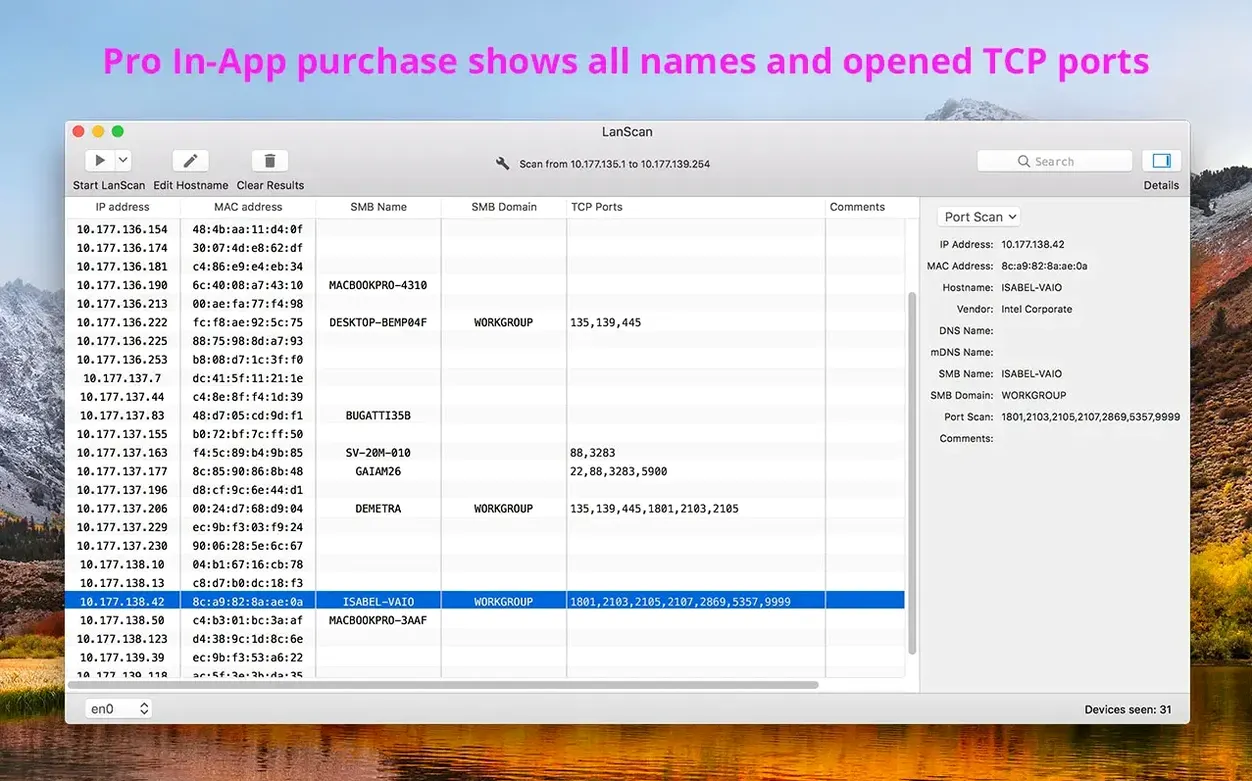
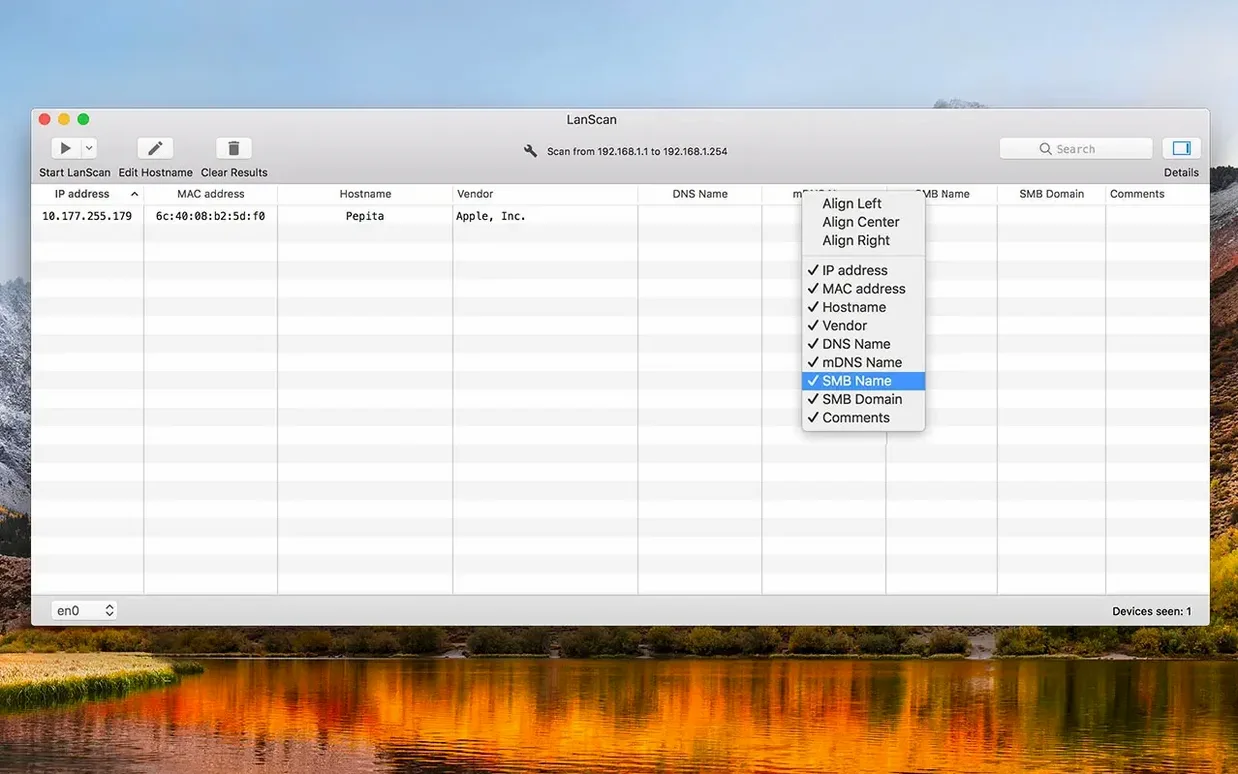
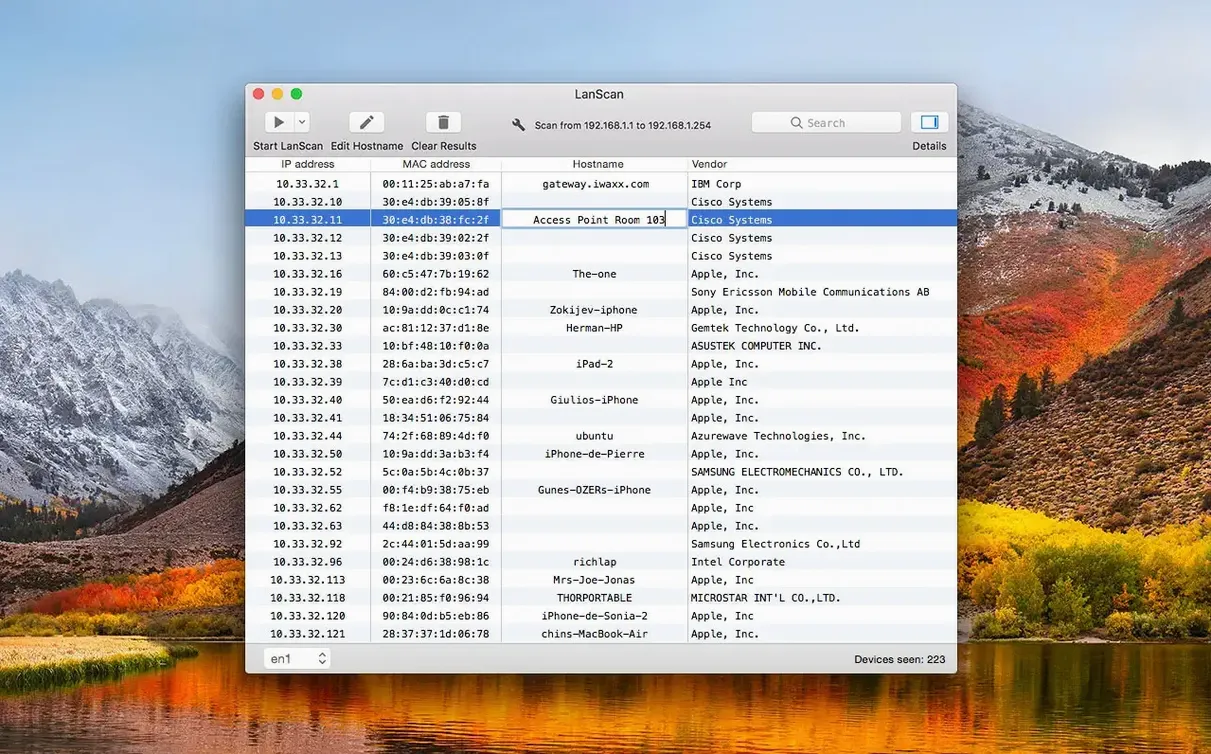
Each device appears with its IP address and, where possible, a host name resolved through DNS, mDNS or SMB. You can edit those names by hand, add a comment for any device, and hide or align columns individually to keep the list readable.
Home lab tinkerers and live sound engineers checking address assignments
Anyone who needs to see what is actually sitting on a network: home lab tinkerers, small-office troubleshooters, or a sound engineer checking which stage box has grabbed which address before a session.
A blank scan result even though devices are on the subnet
A network scanner lives or dies by the permissions the operating system grants it, and macOS is understandably cautious. The most frequent hiccup is a completely blank scan result, even though you know devices are chattering away on the subnet. Almost always, this comes down to LanScan not having been given access to the local network. When you first launch it, macOS should prompt you with a dialogue asking whether the app can find and connect to devices on your local network. If you dismissed that dialogue in a hurry — easy to do when you are setting up half a dozen tools at once — the scanner sits in the dark.
The fix lives in System Settings → Privacy & Security → Local Network. Find LanScan in the list and toggle the switch on. Relaunch the app and run the scan again; devices should populate within seconds.
Another occasional stumbling block is interface selection. LanScan automatically detects configured interfaces — AirPort, Ethernet, virtual adapters from VPNs or virtual machines — and picks one. If you have several active interfaces, it sometimes latches onto the wrong one: a VM bridge adapter with no traffic, say, rather than your main Wi‑Fi connection. Use the interface dropdown in the toolbar to manually select the correct adapter and rescan. The difference is immediate.
On public range scans, a scan that crawls or returns patchy results often traces back to firewall rules on remote hosts. ARP is a local‑only protocol; once you step outside the subnet, LanScan relies on ICMP echo requests and SMB or mDNS probes. If a device blocks ICMP, it simply will not answer. There is no workaround for that — it is the nature of ping‑based discovery — but switching on the SMB and mDNS options in the scan configuration can flush out a few more hosts, especially Windows machines and Bonjour‑aware kit.
Finally, host names not resolving when you expect them to usually means your local DNS server is not populating reverse lookup records for DHCP clients. LanScan queries DNS, mDNS and SMB in parallel; if none of those sources has a name for a given IP, the field stays blank. Editing host names manually and adding a quick comment is the pragmatic way to label transient devices that you will want to recognise next time you scan.
One scenario: the touring sound engineer
Picture a touring front‑of‑house engineer walking into a festival tent at nine in the morning. The digital stage box, the console, the wireless microphone receivers and the system processor are all networked, and the local crew swears the IP assignments are written on a piece of gaffer tape somewhere. The engineer fires up LanScan on a MacBook Air, selects the Ethernet interface connected to the control network, and runs a scan. In under ten seconds the list populates: the stage box at 192.168.1.10, the console surface at .11, four wireless receivers in a block from .20 to .23, and a mystery device at .5 with a vendor string that reads, helpfully, “Raspberry Pi Foundation.”
A quick comment attached to the Pi — “venue lighting bridge, do not touch” — and the engineer adds custom host names for the receivers, labelling each by the vocalist it is assigned to. Before the first soundcheck note rings out, the scan results get exported as a CSV and dropped into the shared show folder. The monitor engineer on the other side of the stage pulls the same file up, and nobody has to shout an IP address across a noisy tent all day. What could have been twenty minutes of detective work with a terminal window becomes a task that fits inside the time it takes to drink half a cup of coffee.
CSV export into Numbers or Excel for a permanent client inventory
LanScan does not try to be an everything‑tool, and that is precisely why it slots neatly into a wider toolkit. The CSV export is the glue: drag the file into Numbers or Excel for a permanent inventory of a client site, or pull it into a network documentation system like NetBox. The columns you have chosen to show — and the order you have aligned them in — carry through to the export, so you are not trimming data after the fact.
For quick follow‑up on a single device, the custom URL feature is quietly powerful. Set a template like http://{ip} or a vendor‑specific management page, and a double‑click opens the device’s web interface in your default browser. A support tech can scan, spot a printer, click through to its embedded web server, and check toner levels without ever typing an address.
macOS integration runs deeper than the local network permission. LanScan reads the system’s network interface list directly, which means it picks up virtual interfaces created by Parallels, VMware, WireGuard or tailscale without extra configuration. If you switch locations — moving from an office Ethernet subnet to a home Wi‑Fi network, for example — the interface list refreshes automatically. The app also respects Dark Mode and standard macOS text selection behaviours, so copying a MAC address or an IP from the results table works exactly as you expect it to. There is no clipboard mangling, no odd export formats to unpick later.
For command‑line users, LanScan is not a replacement for arp -a or a well‑crafted nmap invocation, but it sits alongside them happily. The GUI gives you sortable, filterable, annotated results that you can hand to a colleague who has never opened Terminal. Export from LanScan, then process further with your scripts — the workflow is additive rather than either‑or.
No kernel extension or low‑level driver required
Does LanScan need a kernel extension or low‑level driver? No. It works entirely within macOS’s standard networking frameworks and requires only the local network permission you grant through the Privacy & Security pane. There is nothing to install beyond the application itself, which is why the lanscan dmg download is small and quick to set up. Drag it into Applications, launch it, answer the permission prompt once, and you are done.
Will it work on a corporate network with VLANs and strict switching? Yes, within the subnet you are connected to. LanScan sees whatever broadcast domain your chosen interface is part of. It cannot leap across VLANs unless your Mac has an interface on each one. For multi‑VLAN visibility, you would scan each interface in turn or use a managed switch’s port mirroring alongside a tool like Wireshark, but for single‑subnet discovery LanScan is entirely at home on enterprise hardware.
Can I scan public IP ranges safely? The public range scanning feature sends standard ICMP echo requests, SMB queries and mDNS probes — nothing aggressive, nothing that resembles a port scan. That said, scanning ranges you do not own can draw attention from network administrators, so the feature is best reserved for your own public subnets or ranges you have explicit permission to probe. For most people grabbing a lanscan mac download, local subnet scanning is the bread‑and‑butter use, and that stays safely inside your own network boundary.
- macOS 12 or later
- Works on both Apple Silicon and Intel 64‑bit Macs
Questions I keep hearing
Does LanScan work with IPv6?
Yes, LanScan finds both IPv4 and IPv6 devices on the network ranges you ask it to scan.
Questions from the class 0
Sign in or join the class to ask a question.
Nobody has asked anything yet. If you have used it on a real job, say what the file did.
Also on the Mac Apps shelf
The whole Mac Apps shelf LaunchOS
Replaces the standard Launchpad with a faster, keyboard-friendly app launcher.
LaunchOS
Replaces the standard Launchpad with a faster, keyboard-friendly app launcher.
 LightBurn
Designs artwork and controls a laser cutter from a single application.
LightBurn
Designs artwork and controls a laser cutter from a single application.
 Klack
Plays a satisfying mechanical keyboard sound through your speakers whenever you strike a key.
Klack
Plays a satisfying mechanical keyboard sound through your speakers whenever you strike a key.
 Linguist
Translates text you select in any app without switching windows.
Linguist
Translates text you select in any app without switching windows.
 KeyShot
Renders 3D models as lifelike images by simulating real-world materials and lighting.
KeyShot
Renders 3D models as lifelike images by simulating real-world materials and lighting.
 Little Snitch
Alerts you to every network connection your Mac tries to make and lets you approve or deny it.
Little Snitch
Alerts you to every network connection your Mac tries to make and lets you approve or deny it.
 Live Home 3D Pro
Builds detailed floor plans and 3D walkthroughs of interior and exterior spaces.
Live Home 3D Pro
Builds detailed floor plans and 3D walkthroughs of interior and exterior spaces.
 Keyboard Maestro
Triggers multi-step actions on your Mac from a single hotkey, shortcut or condition.
Keyboard Maestro
Triggers multi-step actions on your Mac from a single hotkey, shortcut or condition.