 ASPNetWorld


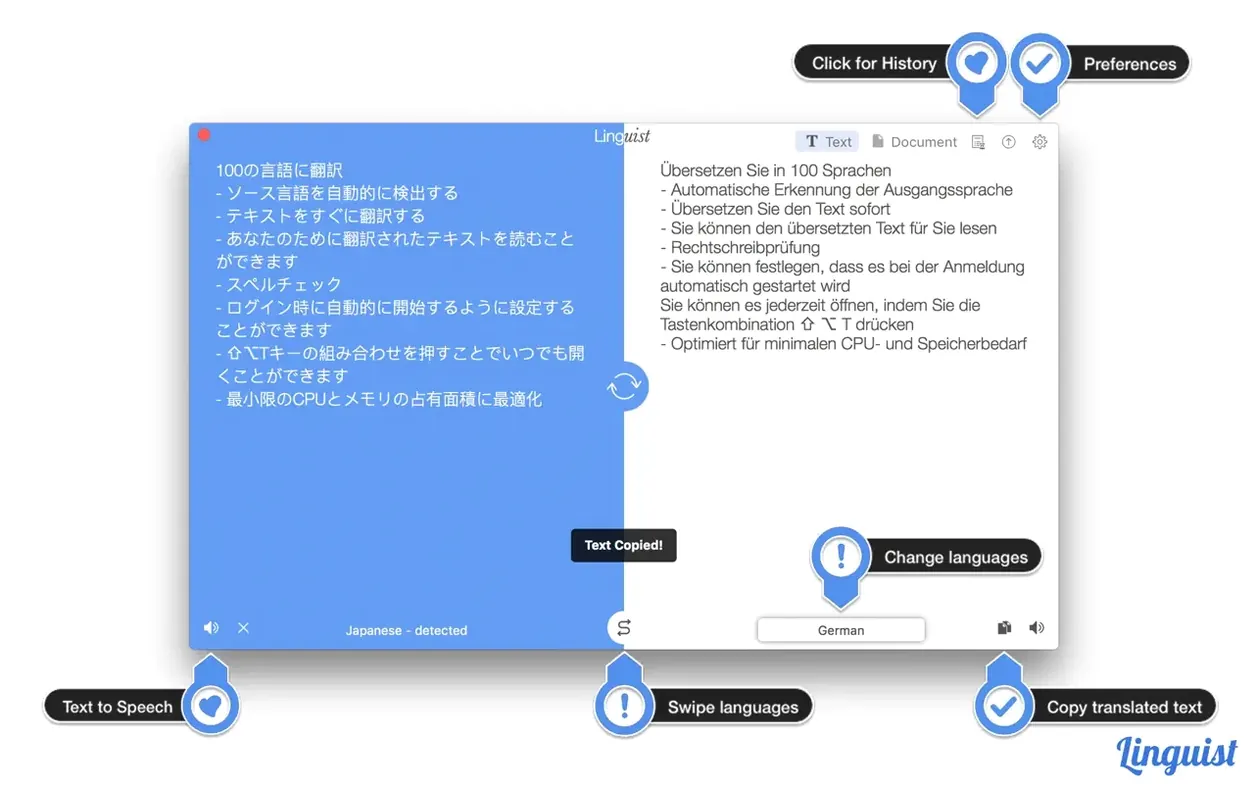

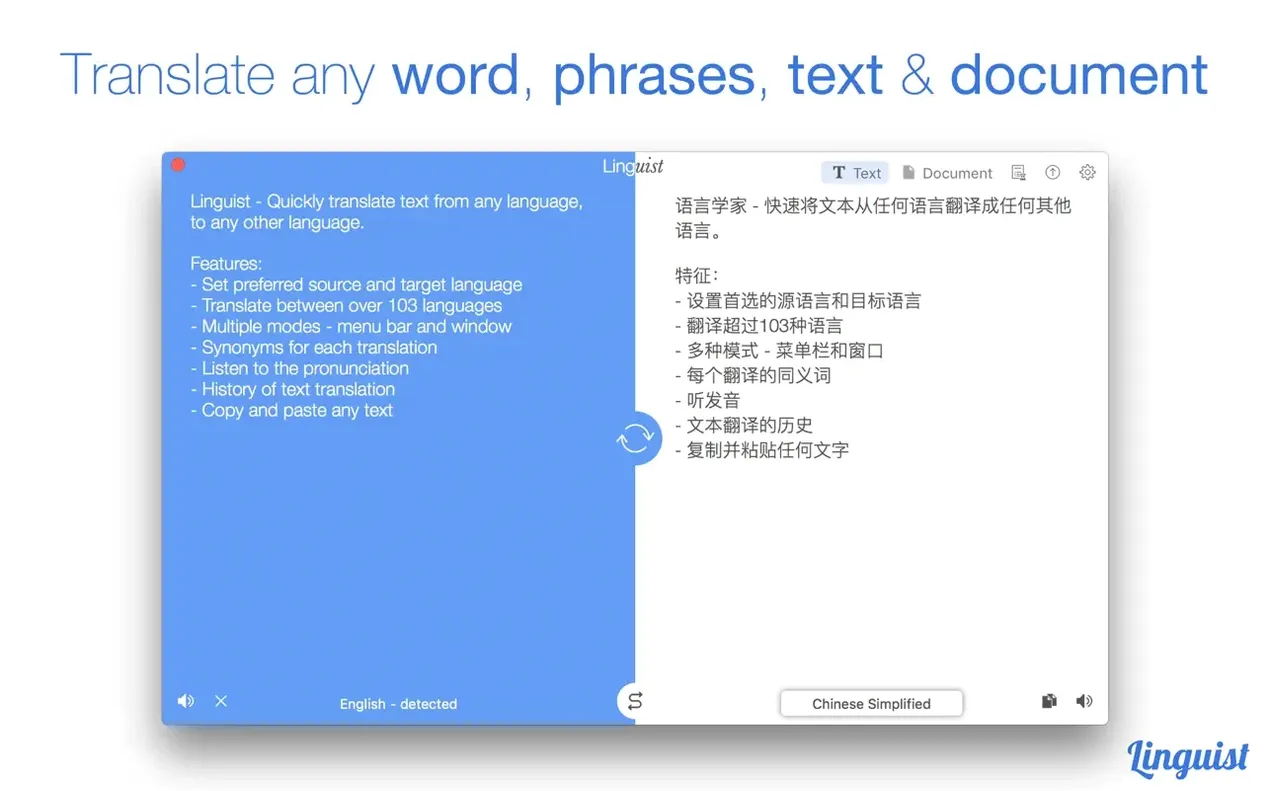
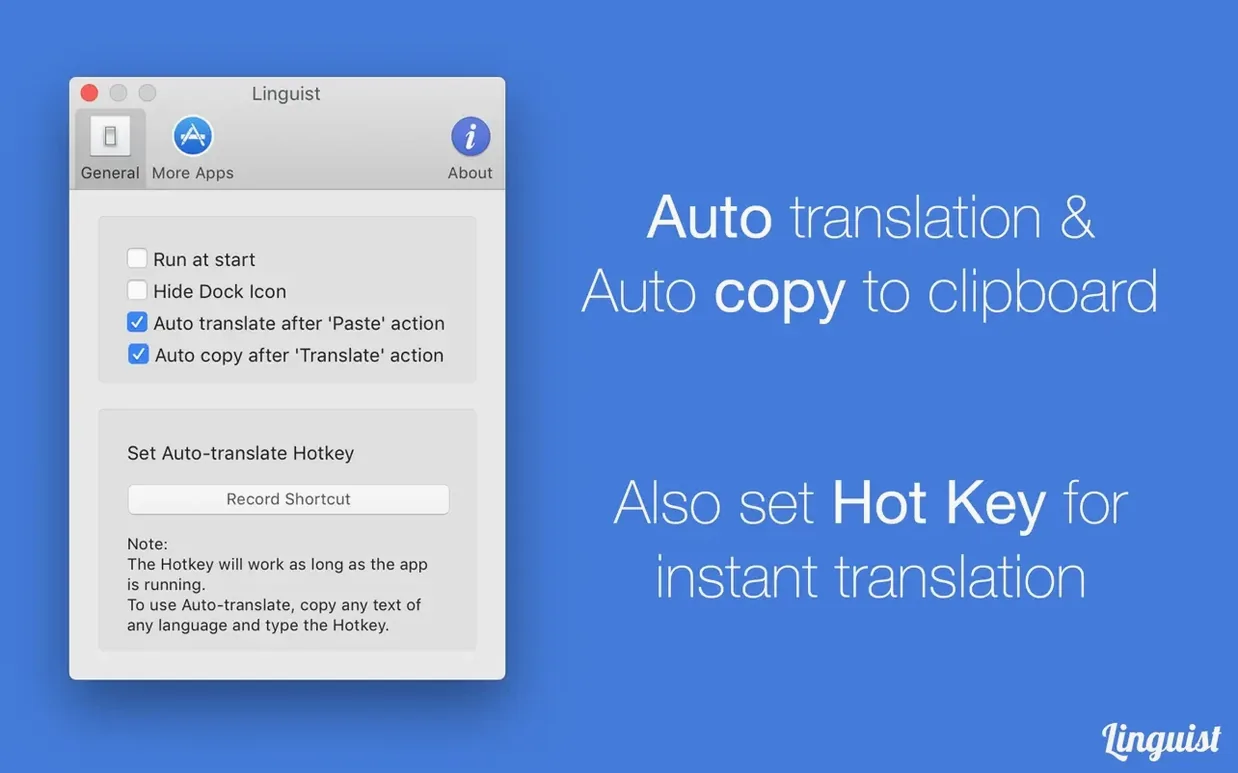
When a translation app only handles pasted text, you end up switching windows more than you translate. Linguist 3.4 for Mac is built around a different idea: the text you already have in front of you should be enough.
Translate from anywhere on the screen
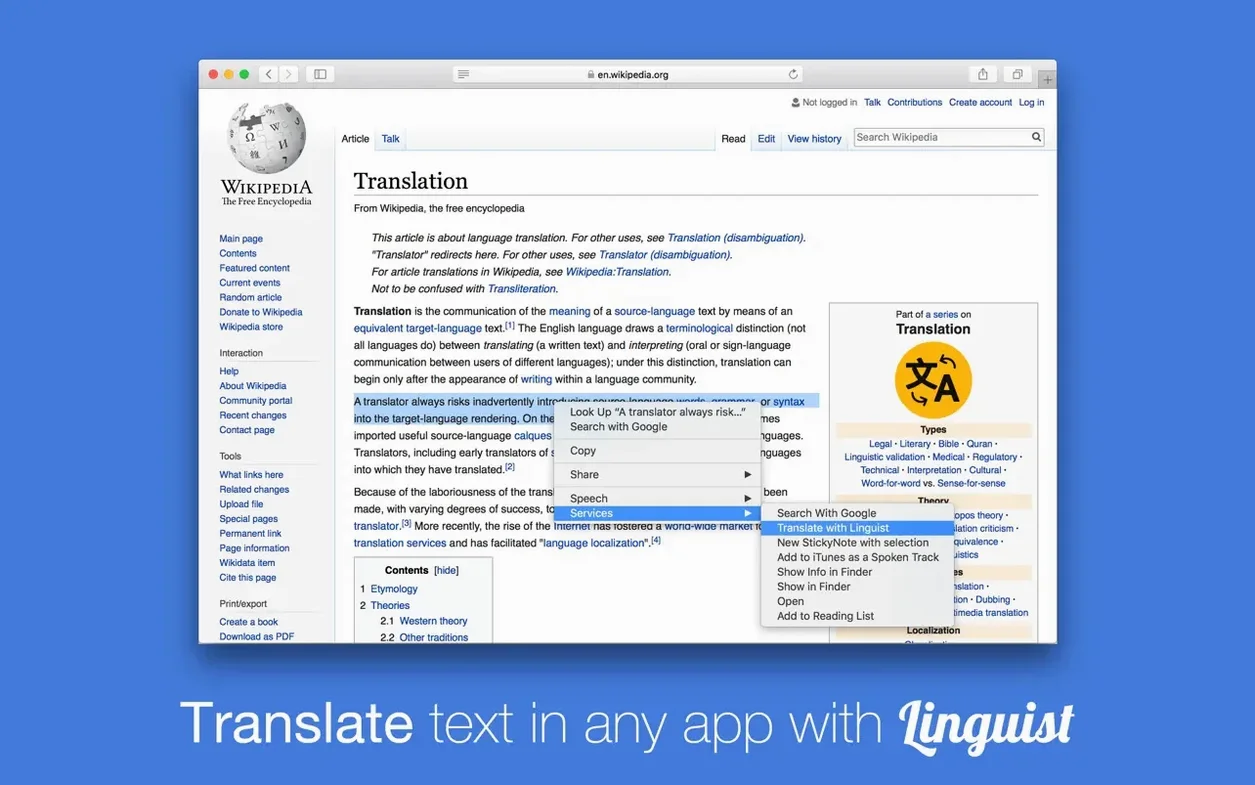
Highlight a phrase in any application, then call Linguist from the menu bar. The translation appears without breaking your flow, and the same trick works from the main window when you prefer a wider view. With support for more than 103 languages, the tool keeps the mapping between source and target out of your way.
Handle documents without splitting them
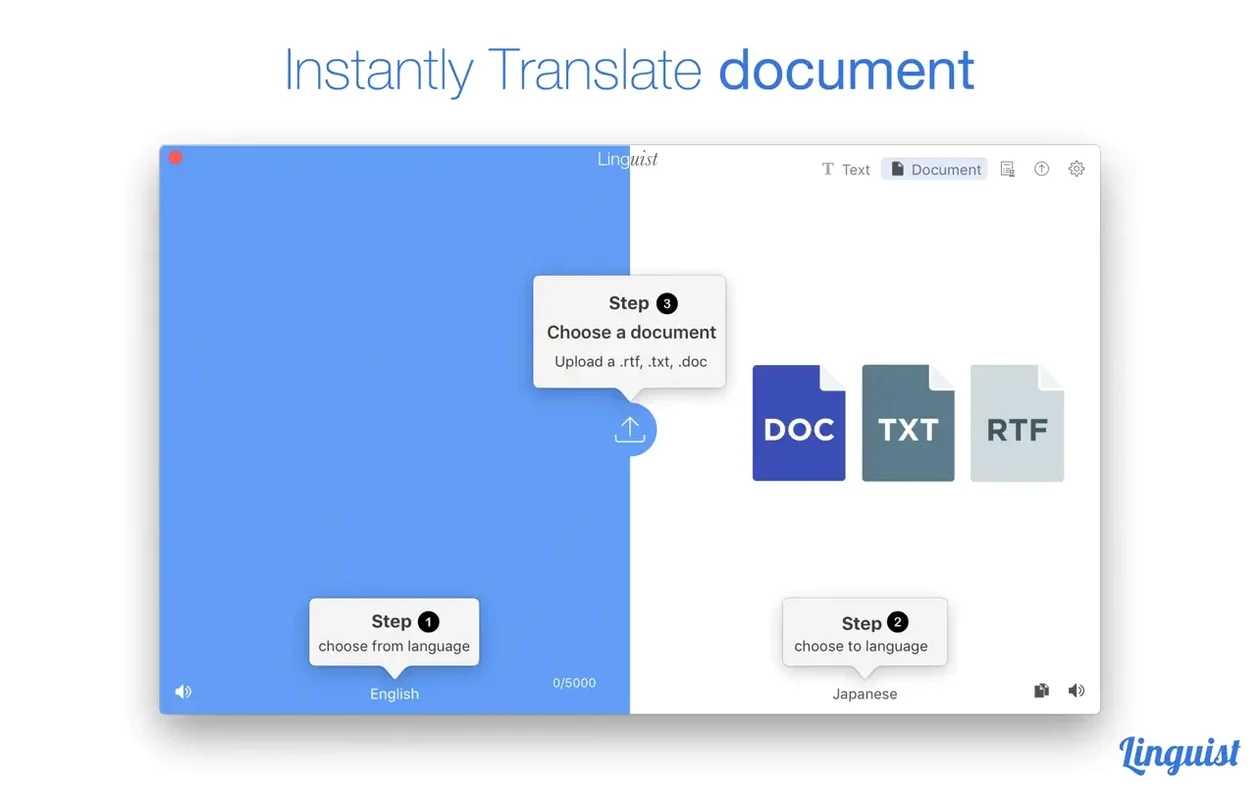
PDF, DOC, TXT, and RTF files drop straight into the app. Rather than copying chunks back and forth, you translate the document as a whole and read the result in context.
Keep a working record of translations
Every translation stays in a local history, which helps when the same technical term keeps appearing across a project. You can export that history as a .txt file for notes or reference, and check synonyms for individual translations when a word feels slightly off.
When the menu bar icon is there but the translation popover stays blank
Even a straightforward translator can throw up the occasional puzzle. The most frequent one I hear from students is a silent refusal to translate: the menu bar icon is there, the text is highlighted, but nothing appears. Nine times out of ten the culprit is a missing internet connection. Linguist needs a live connection for every lookup, so a dropped Wi‑Fi or a firewall that blocks the app will stop it cold. Check that the Mac can reach the web, then try again.
Another sticking point is document formatting. When a PDF comes back from translation with odd line breaks or missing paragraph spaces, the source file is usually to blame. Scanned PDFs, image‑heavy layouts, and text boxes that overlap in the original often confuse the parser. Splitting a problematic document into plain .txt first, translating that, and pasting the result back into your layout tool gives you far cleaner output than wrestling with a messy PDF directly.
If the pronunciation playback sounds garbled, pop open System Settings → Accessibility → Spoken Content and check that the Mac’s speech engine isn’t fighting with Linguist’s own voice selection. Setting both to the same language variant usually clears it up. And when the menu bar icon vanishes after a system update, a quick relaunch of the app restores it—macOS occasionally tidies menu extras away without asking.
How Linguist sits alongside other Mac translators
Put Linguist next to DeepL and the differences are about breadth versus precision. DeepL produces remarkably natural phrasing in its supported languages, but that list is under thirty. Linguist’s 103‑language spread makes it the practical choice when you need Bengali, Thai, or Finnish alongside the usual European set. It won’t rival DeepL’s prose in German or French, but it gets you a working translation in places DeepL simply doesn’t go.
Mate Translate shares the menu‑bar‑first philosophy and also offers offline translation packs, which Linguist lacks. The trade‑off comes with documents. Mate handles text selection everywhere, but it doesn’t accept a full DOC or PDF file for batch translation. If your day involves whole reports rather than paragraphs, Linguist saves you the copy‑paste marathon.
Against Apple’s own Translate app, introduced with macOS Big Sur, Linguist feels less polished but more flexible. Apple’s system‑wide translation works beautifully inside Safari and a handful of native apps, yet it doesn’t touch PDFs, RTFs, or the menu bar of a third‑party writing tool. Linguist goes wherever the cursor goes, which is why I still install it on classroom Macs that already have the built‑in translator sitting idle.
Fitting Linguist into a wider Mac workflow
The menu bar integration is the quiet star when you pair Linguist with a writing app like Ulysses or Scrivener. Highlight a sentence in your draft, hit the hotkey, and a translated reference appears without pulling you out of the editor. For research reading, I keep Linguist open alongside Preview or Skim: select a dense paragraph in a foreign‑language PDF, glance at the popover, then carry on annotating.
Linguist also plays well with macOS’s built‑in Services menu. Right‑click selected text in Mail or Notes, choose Services → Linguist, and the translation opens in the app’s window while your original message stays put. The export‑history feature links neatly to Notes or a plain‑text log in BBEdit if you’re compiling a glossary across a project. Pop that .txt export into a Numbers spreadsheet with a source column and a target column, and you’ve built a lightweight translation memory without leaving the Apple ecosystem.
When an app’s own language support stops short, the hotkey trigger becomes a universal fallback. I’ve used it inside dialogue boxes, image‑editing apps that have no text services, and even Terminal output that arrived in the wrong script. Because Linguist reads whatever is highlighted system‑wide, it effectively extends translation to every corner of macOS that can hold a selection rectangle.
- macOS: OS X 10.10 Yosemite or any later version (fully compatible with the latest macOS releases).
- Architecture: Runs natively on both Apple Silicon (M1/M2/M3 family) and 64‑bit Intel processors — a universal binary.
Questions from the class 0
Sign in or join the class to ask a question.
Nobody has asked anything yet. If you have used it on a real job, say what the file did.
Also on the Mac Apps shelf
The whole Mac Apps shelf Little Snitch
Alerts you to every network connection your Mac tries to make and lets you approve or deny it.
Little Snitch
Alerts you to every network connection your Mac tries to make and lets you approve or deny it.
 LightBurn
Designs artwork and controls a laser cutter from a single application.
LightBurn
Designs artwork and controls a laser cutter from a single application.
 Live Home 3D Pro
Builds detailed floor plans and 3D walkthroughs of interior and exterior spaces.
Live Home 3D Pro
Builds detailed floor plans and 3D walkthroughs of interior and exterior spaces.
 Logoist 5
Creates logos, icons, and vector illustrations using layers, effects, and a built-in style browser.
Logoist 5
Creates logos, icons, and vector illustrations using layers, effects, and a built-in style browser.
 LaunchOS
Replaces the standard Launchpad with a faster, keyboard-friendly app launcher.
LaunchOS
Replaces the standard Launchpad with a faster, keyboard-friendly app launcher.
 Luminar AI
Edits photos using templates that analyse the image and apply adjustments automatically.
Luminar AI
Edits photos using templates that analyse the image and apply adjustments automatically.
 Luminar Neo
Layers multiple AI-driven edits onto a photo and lets you relight or swap backgrounds non-destructively.
Luminar Neo
Layers multiple AI-driven edits onto a photo and lets you relight or swap backgrounds non-destructively.
 LanScan
Scans your local network and lists every connected device with its IP and MAC address.
LanScan
Scans your local network and lists every connected device with its IP and MAC address.