 ASPNetWorld

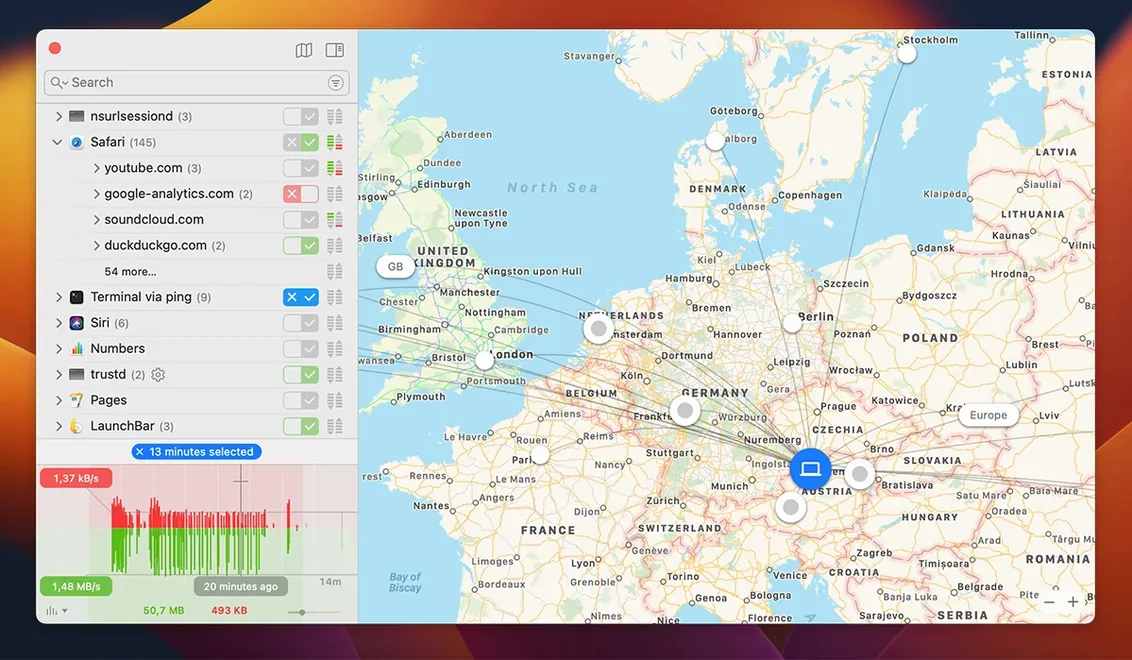
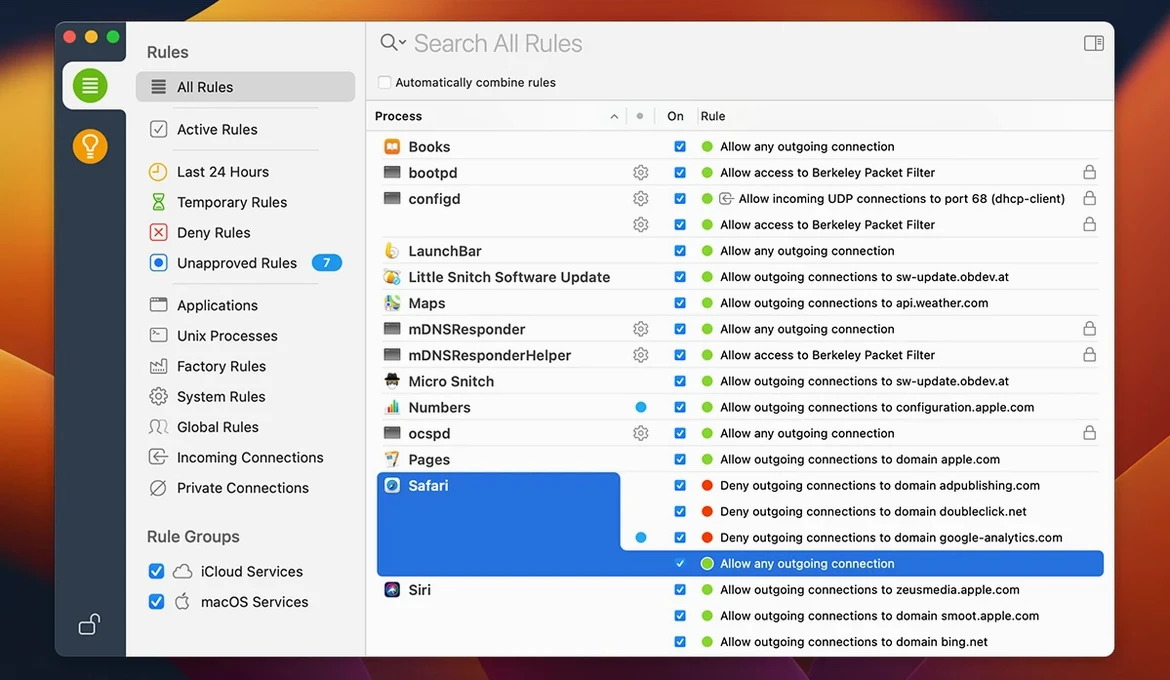
Most people meet a firewall through a quiet pop-up asking whether a new app can "accept incoming connections." Little Snitch takes that one question and turns it into a running commentary on everything your Mac wants to say to the internet, giving you a seat at the table for every conversation.
App bundle integrity monitoring — while an app is running, Little Snitch watches its code signature so you know if something on disk has tampered with the binary you originally trusted.
Filtering engine — the kernel-extension approach is gone. Version 6 runs on a newer filtering architecture built for modern macOS, so rule processing doesn't lean on deprecated plumbing.
NAT64 (experimental) — an early implementation of RFC 6052, letting you test how your network behaves when IPv4 addresses get synthesised into IPv6. Mostly relevant if you develop or deploy on networks that lean heavily on IPv6-only connectivity.
Command-line interface — the little snitch command-line tool lets you script configuration changes and pull settings into automated workflows, which is useful when you're managing rules across multiple machines or provisioning a new setup without clicking through the GUI.
Encrypted DNS handling — improved recognition of DNS-over-HTTPS and DNS-over-TLS traffic, so rules that depend on domain names stay accurate even when the queries themselves are wrapped in encryption.
The broad group who settle in and stay
A tool that asks permission for every network hop sounds like it would appeal mainly to the paranoid, but in practice the people who settle into Little Snitch and stay there span a much broader group. They just share a common starting point: they want to know what their machine is doing when they are not looking.
Developers working on apps that phone home get an immediate practical benefit. Instead of guessing whether a build is leaking telemetry or making calls to a retired analytics endpoint, they see the connection attempt as it happens, right down to the server name and port. That alone saves hours of combing through logs. The command-line interface pushes it further—you can script a rule set that matches your staging environment, switch it on before a test run, and tear it down afterwards without ever touching the preferences window.
System administrators who manage fleets of Macs tend to gravitate towards the rule-export side of things. Once you have built a sensible blocklist for the office network—blocking ad trackers, stopping unauthorised cloud sync destinations, keeping in-house tools from dialling out to third-party CDNs—you can push that configuration to every machine and lock it with a profile. The encrypted DNS improvements in 6.5 make this sturdier, because rules that depend on domain names no longer fall apart when the queries slip past in a TLS wrapper.
Photographers, video editors and musicians sometimes discover Little Snitch by accident after noticing that a creative suite installer tries to reach a dozen servers before the splash screen fades. Creative software is notorious for background licensing checks, crash-report uploads and font-syncing services that wake up even when the application is idle. Once those are mapped and selectively blocked, the machine often feels lighter—not because the CPU was pegged, but because the constant low-grade network chatter stops. The Quiet Mode earns its keep here: you can postpone decisions during a tight deadline, let the rules accumulate in the background, and review them on Friday afternoon with a coffee.
Security researchers and curious users form the other obvious camp. If you have ever wondered why a text editor needs to talk to a server in a country you cannot place on a map, the interactive world map in Network Monitor turns that question into an afternoon investigation. It plots the endpoints geographically, so patterns become visible—a cluster of connections to a data centre in Oregon, a lone request to an IP range you do not recognise. The map is not a gimmick; it is a pattern-recognition tool that turns raw IP addresses into something you can reason about spatially.
There is a quieter audience too: people who simply do not like the idea that their laptop is a chatty guest on every network it joins. They use the Mac on public Wi-Fi in cafes and airports, where outbound connections to ad networks and tracking services are not just a privacy concern but a bandwidth drain. Little Snitch gives them a condensed view of which apps grab the connection as soon as the Wi-Fi associates, and a one-click way to silence the noisiest offenders before they have finished loading a single webpage.
Where People Trip Up—and How to Get Unstuck
The first hour with an outbound firewall is the hardest, and most friction points are not bugs but mismatched expectations. Understanding the common ones turns a frustrating afternoon into a short learning curve.
Alert fatigue. On a fresh installation, Little Snitch will fire alerts for background processes you did not know existed. The mistake is trying to answer every single one immediately with a permanent rule. A better rhythm is to use the "Until Quit" scope for anything you are unsure about, let a session or two pass, and then convert the recurring ones into permanent rules once you have seen the pattern. Quiet Mode exists precisely for the periods when you cannot babysit the alerts—it collects them silently and lets you process them in bulk later. Users who skip Quiet Mode and try to power through every alert in real time are the ones who burn out fastest.
Over-blocking system services. Denying a connection from a process with an opaque name like trustd or rapportd can lead to strange behaviour hours later—Apple services that rely on OCSP checks or Handoff suddenly stop working, and the connection back to the blocklist is not obvious. The rule of thumb is: if a process is signed by Apple and you do not have a specific reason to block it, allow it on the default port and watch the Network Monitor for a few minutes to confirm it is not doing anything unexpected. You can always tighten the rule later.
Rules that stop matching after an update. An app update changes the code signature, and Little Snitch notices. The bundle integrity monitoring introduced in 6.5 goes further—it watches the signature while the app runs—but even before that, an updated binary would trigger a fresh alert because the old rule was tied to the previous signature. The fix is to decide whether you trust the new version, then re-allow it. The alert that appears is not a malfunction; it is the firewall doing its job.
DNS confusion with encrypted protocols. Before version 6.5, rules that relied on domain names could go blind when an app used DNS-over-HTTPS. The query was wrapped in TLS, Little Snitch saw only an IP address, and the domain-based rule never matched. The improved encrypted DNS handling in 6.5 recovers that visibility in most cases, but if you are running a local DNS resolver or a VPN that tunnels all traffic, the interplay can still produce unexpected results. In those situations, switch to process-based rules rather than domain-based ones until you have mapped the traffic flow. The Network Monitor's traffic history view helps you trace exactly which process spoke to which IP, so you can build rules on what you actually see rather than what you expect.
Forgetting the command-line tool exists. Users who configure everything through the GUI sometimes miss that little snitch in Terminal can dump the current rule set, load a new configuration, or toggle the filtering engine without a single click. This matters most when you are troubleshooting a network issue and need to temporarily disable filtering without navigating menus. A quick little snitch configuration set filter=off followed by the reverse after testing saves a surprising amount of time once it becomes muscle memory.
The end of a long-running kernel extension complaint
A firewall that inspects every packet is only as good as the engine doing the inspecting, and the move away from kernel extensions in version 6 has quieted one of the longest-running complaints about Little Snitch on modern macOS. The older kext-based approach worked but sat at a level where system updates could break it, and the performance profile was harder to predict across different hardware. The current filtering engine runs inside the network extension framework Apple prefers, which means updates are less likely to require a scramble and the overhead sits closer to the surface where you can measure it.
In daily use on Apple Silicon, the CPU footprint is a rounding error during normal browsing and file transfers. The Network Monitor updating its map and traffic graphs will nudge the Activity Monitor needle slightly, but closing the window returns the process to near-idle. On Intel machines—particularly older ones without a T2 chip—the difference is more noticeable when a burst of rule evaluations coincides with heavy disk I/O, though it rarely crosses the threshold from "measurable" to "annoying."
Memory use stays flat over long sessions, which matters because a firewall is the kind of tool you forget is running. Checking after a week of uptime typically shows the same modest footprint as after the first hour. There is no creeping allocation, no sense that the daemon is holding onto resources it should have released. The 6.5 fix for a rare crash during exact-match process searches in the rules list suggests the developers are chasing edge cases rather than patching gaping holes, which aligns with the general impression of a mature codebase.
Rule evaluation speed has improved noticeably since the 6.0 rewrite. A ruleset with hundreds of entries—common among users who have been building it up for years—used to introduce a perceptible pause on the first connection from a newly launched app. That pause is now sub-second in most cases, and the filtering engine's decision cache means repeated connections from the same process to the same endpoint skip the full rule walk. The practical effect is that you stop noticing the firewall is there, which is exactly what you want from a piece of infrastructure software.
One area where users on older macOS versions should temper expectations is the experimental NAT64 implementation. It is labelled experimental for a reason: IPv6-only network testing works, but the performance path has not been optimised, and high-throughput scenarios will show a throughput drop compared to native IPv4. This is a testing tool, not a production NAT64 gateway, and it is best treated as a preview of what the developers intend to build out in future releases.
Toning down the firehose of initial alerts
Out of the box, Little Snitch makes conservative choices that lean towards alerting you about everything. That is the correct default—a firewall that silently allows connections is not much of a firewall—but a few adjustments make the experience feel less like an interrogation and more like a calm conversation.
Switch the alert style to "Simple" early on. The full alert panel shows every detail: process path, parent process, code signature status, server address, port and protocol. That is excellent for forensic work but overkill for routine decisions. The simplified alert gives you the app name, the destination and the allow/deny buttons, and you can expand the details when a connection looks suspicious. New users who stick with the full panel often develop a habit of clicking through without reading, which defeats the purpose. A cleaner prompt encourages better decisions.
Set a reasonable Research Assistant baseline. The Research Assistant feature checks connection attempts against a community database of known services, which helps you decide whether a connection to an unfamiliar server is routine or worth investigating. The privacy trade-off—your Mac queries a remote service about the server you are connecting to—is minimal for most people, and the time saved by not having to manually research every endpoint is substantial. Turn it on. You can always disable it later if the queries bother you.
Configure Quiet Mode timing to match your workflow. The default Quiet Mode is a toggle; you turn it on, work without interruptions, and turn it off when you are ready to review. The setting worth changing is the auto-expiry: you can set Quiet Mode to disable itself after a fixed period, which prevents the situation where you accidentally leave it running for three days and return to a backlog of three hundred undecided connections. An hour is a good starting point—long enough to get through a focused work block, short enough that the pile-up stays manageable.
Enable the menu bar indicator for connection attempts. By default, Little Snitch shows a small animated icon in the menu bar whenever a connection is blocked or allowed. It is easy to disable because it flickers constantly on a busy machine, but keeping it visible for blocked connections only gives you a quiet pulse of awareness. When you see the indicator flash, you know something was stopped, and a quick glance tells you whether it was expected or needs investigation. This is a lightweight alternative to keeping the Network Monitor open all day.
Review the automatic rules for Apple services. Little Snitch ships with a set of preconfigured rules for common Apple processes—iCloud, Spotlight Suggestions, Software Update and so on. These are reasonable but permissive, and users who want tighter control over Apple's background telemetry should walk through the list and switch a few from "Allow" to "Ask" or "Deny." The rule names are descriptive enough that you will know what each one controls, and the worst that happens is a feature stops working, at which point you know exactly which rule to flip back.
Mistakes Beginners Make—and the Habits That Replace Them
Everyone makes the same handful of mistakes in the first week. They are not signs of a difficult tool; they are signs that a network firewall asks you to think in a way that no other piece of desktop software does. Recognising them early turns a frustrating first impression into a solid foundation.
Creating a blanket "Allow All" rule for an app. The quickest way to quiet a noisy application is to allow every connection it ever attempts, on every port, to every server. It feels efficient in the moment, but it means the app can later start talking to a data broker or a compromised endpoint and you will never see an alert. The better habit is to scope rules tightly: allow the specific domain on the specific port, then expand only when the app proves it needs more. Little Snitch's rule editor makes this granularity straightforward, and the extra thirty seconds per rule pays off in visibility you keep rather than visibility you gave away.
Blocking first and researching later. The Deny button is satisfying, but denying a connection you do not understand can lead to a slow-motion debugging session where a service fails silently and you spend an hour tracing the cause. A safer rhythm—especially for system processes—is to allow the connection temporarily, watch the Network Monitor to see what happens next, and then build a permanent rule based on observed behaviour. The traffic history view makes this pattern easy: allow, observe, decide. Three steps, no regret.
Ignoring the "Suggestions" tab entirely. Little Snitch quietly suggests rules based on connections it sees repeatedly, and users who never open the Suggestions pane miss a shortcut to a cleaner rule set. Expired temporary rules, recurring patterns that look like they should be permanent, and connections that match an existing rule but with a slightly different parameter—all of these land in Suggestions. The 6.5 fix for expired temporary rules not appearing under Suggestions means the feature is now more reliable, and spending five minutes there once a week keeps the rule list lean.
Leaving Quiet Mode on permanently. Quiet Mode is a pressure-release valve, not a lifestyle. Users who leave it enabled for weeks end up with a rule base that reflects only the connections they made explicit decisions about before they turned it on, while everything else accumulates in an unexamined backlog. The habit to build is pairing Quiet Mode with a calendar reminder: when you toggle it on for a deep-work session, set a rough time to switch it off and process the queue. The auto-expiry timer mentioned above reinforces this automatically.
Assuming the firewall replaces common sense about downloads. Little Snitch controls outbound connections from applications that are already running on your Mac. It does not scan files, it does not inspect downloads, and it cannot stop you from running a malicious binary you obtained from a dubious source. Users who treat it as a substitute for caution about what they install will eventually run something that makes a single, allowed connection—because the user clicked "Allow" without reading—and wonder why the firewall did not protect them. The protection is real but it is interactive; the human in the loop is the point, not a weakness.
If you have spent time searching for phrases like little snitch cracked or little snitch mac cracked, you have probably seen discussions that conflate older builds with the current version. Version 6
Version 6.5 tidies up a few corners that power users will notice quickly.
- Compatibility with macOS 27 Golden Gate is now official, so the filtering engine runs without workarounds on the latest system.
- App bundle integrity monitoring keeps an eye on running applications and flags changes to their code signature in real time.
- An experimental NAT64 implementation is included for those testing IPv6-only network environments.
- Encrypted DNS handling has been reworked, giving more reliable domain-based rules when traffic uses DNS-over-HTTPS or DNS-over-TLS.
- macOS 14 or later
- Apple Silicon and Intel Macs
- Interface languages: English, German
Questions I keep hearing
Does Little Snitch still work if I switch between wired and Wi-Fi networks?
Yes, it watches connections at the system level, so rules apply consistently regardless of which network interface is active.
Questions from the class 0
Sign in or join the class to ask a question.
Nobody has asked anything yet. If you have used it on a real job, say what the file did.
Also on the Mac Apps shelf
The whole Mac Apps shelf Linguist
Translates text you select in any app without switching windows.
Linguist
Translates text you select in any app without switching windows.
 Live Home 3D Pro
Builds detailed floor plans and 3D walkthroughs of interior and exterior spaces.
Live Home 3D Pro
Builds detailed floor plans and 3D walkthroughs of interior and exterior spaces.
 LightBurn
Designs artwork and controls a laser cutter from a single application.
LightBurn
Designs artwork and controls a laser cutter from a single application.
 Logoist 5
Creates logos, icons, and vector illustrations using layers, effects, and a built-in style browser.
Logoist 5
Creates logos, icons, and vector illustrations using layers, effects, and a built-in style browser.
 Luminar AI
Edits photos using templates that analyse the image and apply adjustments automatically.
Luminar AI
Edits photos using templates that analyse the image and apply adjustments automatically.
 Luminar Neo
Layers multiple AI-driven edits onto a photo and lets you relight or swap backgrounds non-destructively.
Luminar Neo
Layers multiple AI-driven edits onto a photo and lets you relight or swap backgrounds non-destructively.
 MacBooster
Finds and clears system junk, duplicate files, and privacy traces to free up disk space.
MacBooster
Finds and clears system junk, duplicate files, and privacy traces to free up disk space.
 LaunchOS
Replaces the standard Launchpad with a faster, keyboard-friendly app launcher.
LaunchOS
Replaces the standard Launchpad with a faster, keyboard-friendly app launcher.