 ASPNetWorld

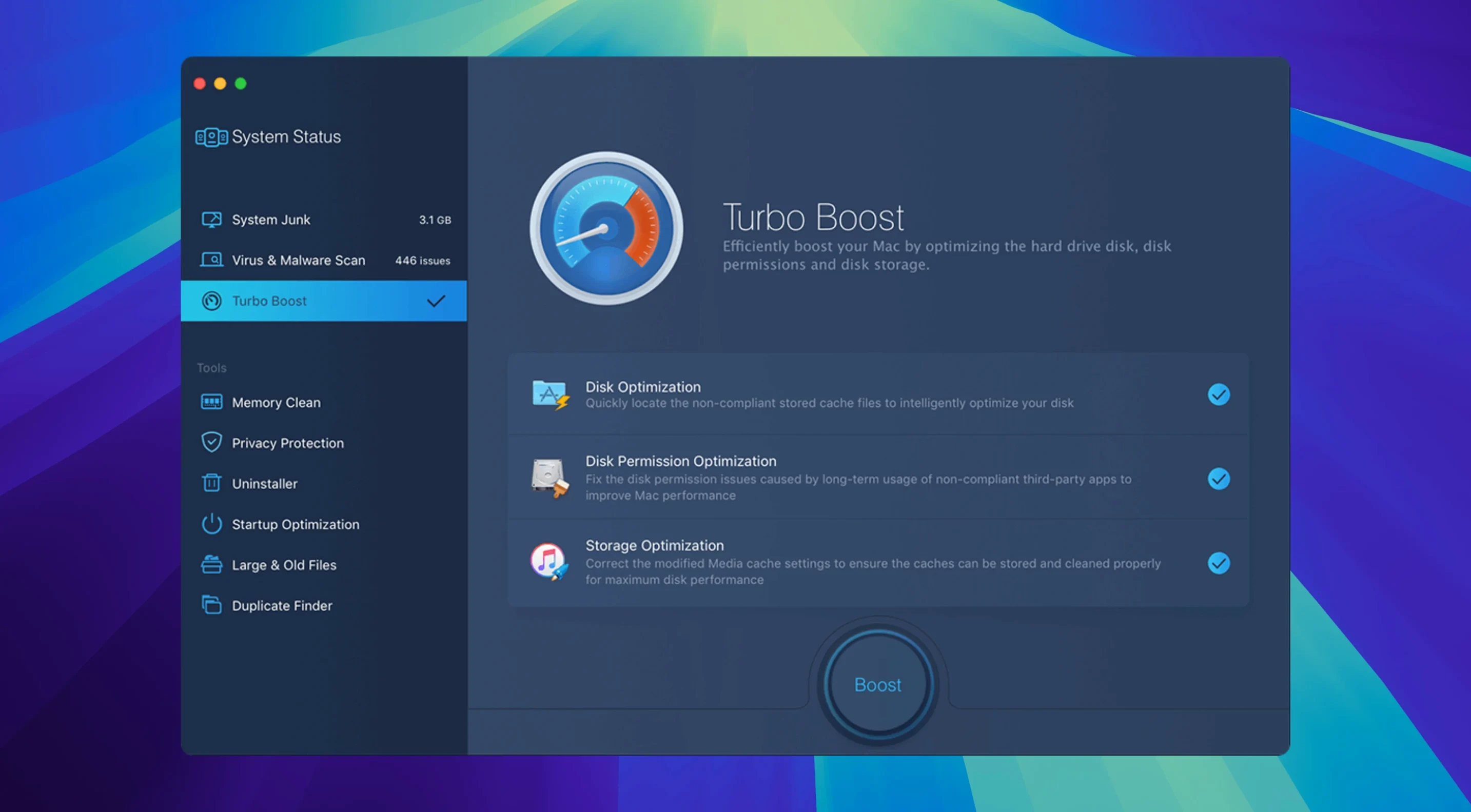
MacBooster 8.3.0 runs on any Mac with macOS 11.5 or later — that covers Intel machines and Apple Silicon, so it fits into pretty much any current setup without a fuss. It occupies a slightly different slot from the utilities your Mac already ships with, like Disk Utility or Activity Monitor, and it doesn't try to replace something like Time Machine. Think of it more as the assistant that handles the tidying jobs macOS leaves alone.
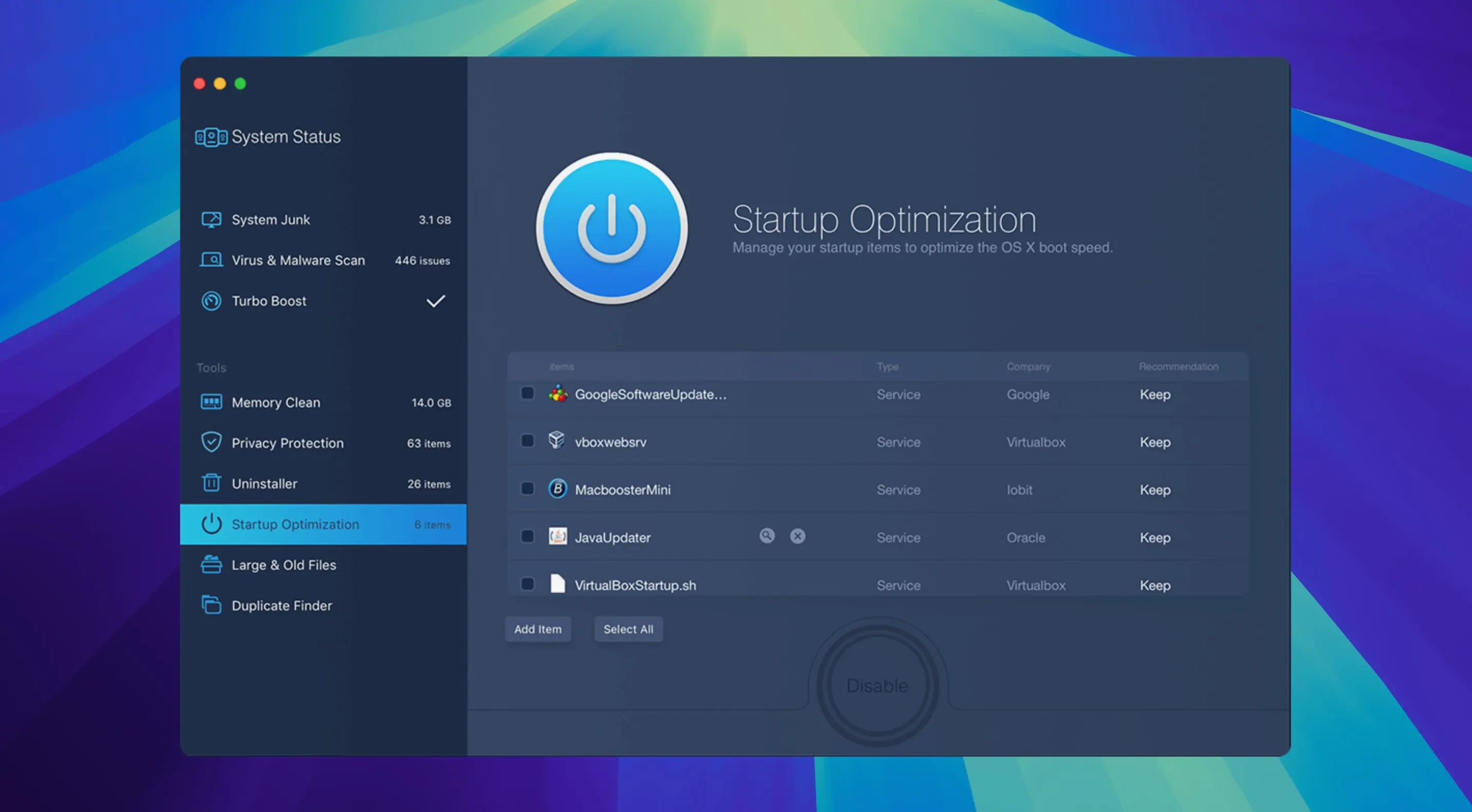
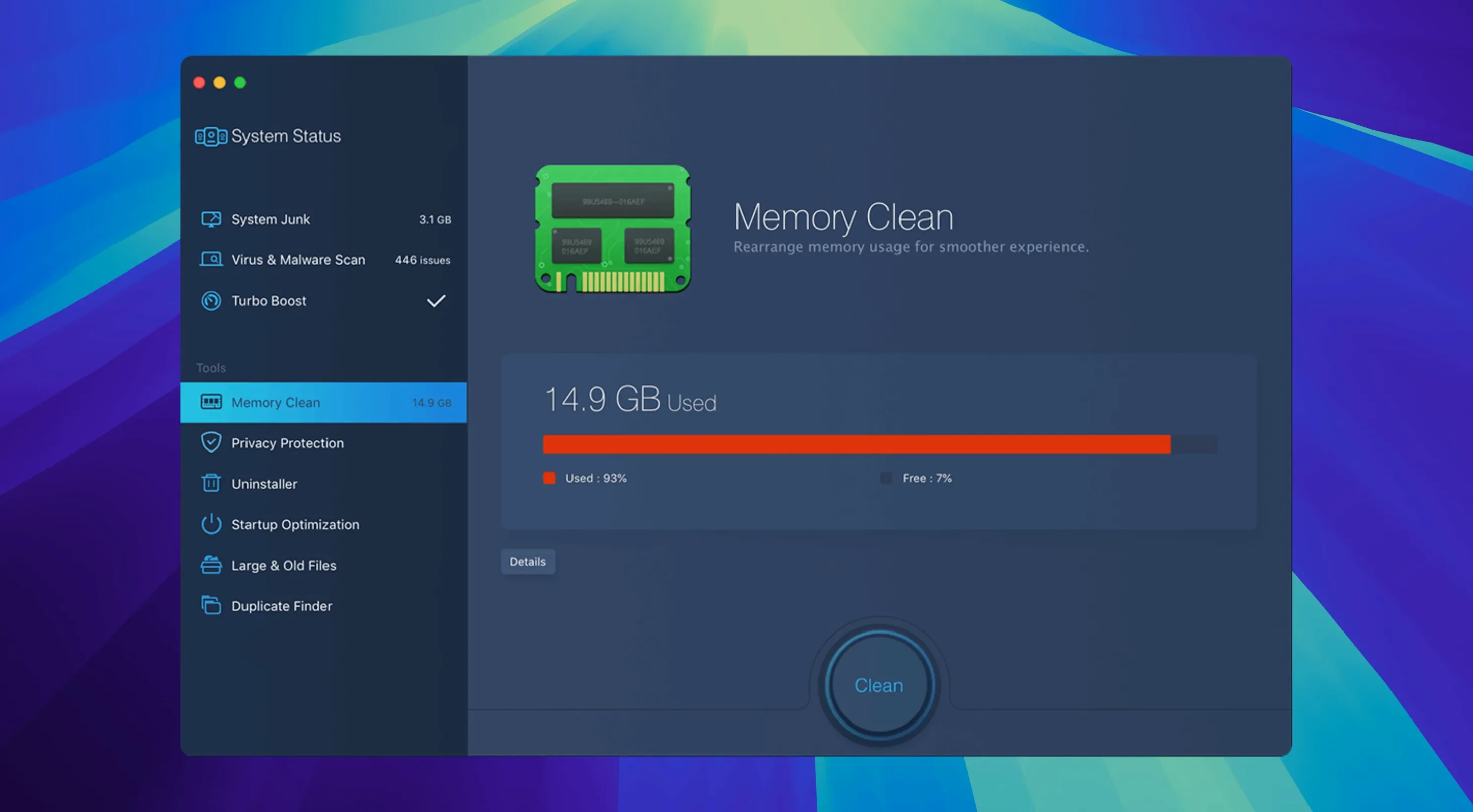
It bundles seven tools under one roof. You can uninstall apps properly — pulling out all the support files the drag-to-Trash method misses — clean out memory that apps have held onto, and slim down the list of programs that launch at login. There is also a dedicated module for hunting down duplicate files and photos, which can quietly eat a surprising amount of drive space over a year.
One-click scanning covers junk files, viruses, and RAM status in a single pass. The junk cleanup knows about twenty types of clutter, and the repair function can sort out disk permission problems that occasionally cause odd behaviour. Privacy traces — browsing histories, recent file lists — get swept up in the same routine. It is not an antivirus replacement in the enterprise sense, but the malware scanner does a decent job of spotting the sort of adware and browser hijackers that slip past a careful user.
Where it earns its keep next to Apple's own tools is the combination of breadth and automation. macOS will warn you about low disk space, but it won't proactively find and group large old files, duplicates, and leftover installer packages in one view. That is the difference between a general hint and a guided cleanup. The disk optimisation tweaks — which the developer describes as improving hard disk performance — are subtle, and on an SSD you will notice them less, but the cumulative effect of clearing caches and pruning launch agents does add up.
Narrow the scan scope so it skips your work folders
MacBooster works perfectly well out of the box, but a few minutes in its preferences will make the results feel less like a blunt instrument. Open the app and look for the scan scope options first. By default it casts a fairly wide net, and if you keep large design assets or video proxies in folders you would rather not have flagged as junk, you can add those locations to an exclusion list. I tend to exclude my sample libraries and any folder that contains active client work — not because MacBooster would delete them, but because seeing them listed as “large files” every scan becomes noise.
The second setting I change is the login-agent behaviour. The startup optimisation module is genuinely useful, but some of the items it flags as unnecessary are things you may want running — cloud sync helpers, clipboard managers, audio drivers. Before letting it disable anything, open the review screen and read the descriptions. MacBooster groups items sensibly, and it does not remove anything without confirmation, but the review step is where your judgement matters more than the default recommendation.
Finally, check the notification and schedule options. If you would rather not be reminded after every reboot that a scan might be overdue, turn the nudges down. I keep the weekly scan suggestion on one Mac and off on another; it depends whether the machine is a daily driver or a studio machine that only gets switched on for sessions. The schedule itself is straightforward — pick a day, pick a time, let it run while you make tea.
What the 8.x line changed in day-to-day use
The move into version 8 brought the interface closer to something you can read at a glance. The dashboard now separates the three main concerns — cleanup, security, performance — instead of presenting one long list of everything it found. That sounds cosmetic, but it changes how you use the tool. You can run just the malware check without sitting through a full junk scan, which is handy when a browser suddenly starts opening tabs it should not.
Under the hood, the duplicate-finder gained better handling of photo libraries. It understands that a RAW file and its JPEG preview are not true duplicates, and it groups similar images in a way that makes manual review faster. The memory cleaner also behaves a little more politely: it targets inactive memory rather than aggressively purging everything, so you are less likely to see apps stutter immediately after a clean. For anyone using MacBooster 8 Pro features, the disk optimisation runs with a clearer before-and-after report than earlier versions offered, listing exactly which caches and temporary files were cleared rather than just reporting a total.
Recovering 40 GB and a quiet fan after three weeks of uptime
Imagine a MacBook that has been running for three weeks without a restart. Safari feels sluggish, the fan spins up during video calls, and Finder reports 40 GB less free space than you remember. You open MacBooster and click the main scan button. The first pass takes a couple of minutes, depending on drive size and how many files have accumulated. It returns three groups: junk files, security concerns, and memory status.
You start with the junk list. MacBooster shows categories — cache files, broken login items, leftover installer packages, language resources for apps you only use in English. You untick the language resources because you occasionally switch the system to German for a client project. Everything else you approve. The cleanup runs and the free-space figure climbs.
Next, the security section. It has found a browser extension you do not remember installing and a launch agent tied to an app you deleted months ago. Both are flagged as low-risk, but you remove them anyway. The RAM section reports several apps holding inactive memory. You quit two of them properly, then let MacBooster release the rest. The fan settles within a minute.
Finally, you open the duplicate finder. It shows three versions of the same presentation, a folder of screenshots that were copied rather than referenced, and eleven near-identical photos from a shoot. You keep the best photo from each group and delete the rest. By the time you close the app, the Mac has recovered space, stopped running a process you did not want, and booted faster on the next restart. That is the whole routine — no terminal commands, no manual cache hunting.
It does not fight Gatekeeper or XProtect
One of the first questions is whether MacBooster conflicts with Apple’s built-in protections, and the answer is no. It sits alongside Gatekeeper and XProtect rather than trying to replace them. The malware scanner looks for the kind of adware and potentially unwanted programs that Apple’s baseline protections are less concerned with, so running both is not redundant.
Another common question is whether the disk optimisation is worth it on an SSD. The honest answer is that the difference is smaller than on a spinning hard drive, but it is not zero. Clearing caches, pruning launch agents, and removing orphaned files still reduces background work. If your Mac has an SSD and you are hoping for dramatic speed gains, you may be underwhelmed; if you are trying to reclaim space and tidy the system, it does the job.
People also ask how long a full scan takes. On a typical Mac with a few hundred gigabytes of data, expect two to five minutes for the first pass. Subsequent scans are quicker because MacBooster learns which files are safe and skips re-examining them. The duplicate finder takes longer than the junk scan, especially with large photo libraries, so run that separately if you are short on time.
- macOS 11.5 or later
- Intel or Apple Silicon Mac
- 70 MB or more of free disk space
Questions I keep hearing
Does MacBooster 8 do anything my Mac can't already do?
Yes — while macOS includes individual tools for disk management and malware protection, MacBooster pulls them into a single scan-and-fix routine, adds complete app uninstalling, and finds duplicate files, which Finder cannot do on its own.
Questions from the class 0
Sign in or join the class to ask a question.
Nobody has asked anything yet. If you have used it on a real job, say what the file did.
Also on the Mac Apps shelf
The whole Mac Apps shelf Luminar Neo
Layers multiple AI-driven edits onto a photo and lets you relight or swap backgrounds non-destructively.
Luminar Neo
Layers multiple AI-driven edits onto a photo and lets you relight or swap backgrounds non-destructively.
 MacCleaner Pro
Bundles app uninstallation, duplicate detection, and disk space analysis into a single toolkit.
MacCleaner Pro
Bundles app uninstallation, duplicate detection, and disk space analysis into a single toolkit.
 Luminar AI
Edits photos using templates that analyse the image and apply adjustments automatically.
Luminar AI
Edits photos using templates that analyse the image and apply adjustments automatically.
 MacDroid Pro
Lets your Mac read and write to Android and MTP devices over USB.
MacDroid Pro
Lets your Mac read and write to Android and MTP devices over USB.
 MacFamilyTree
Builds an interactive family tree that pulls historical records from online genealogy databases.
MacFamilyTree
Builds an interactive family tree that pulls historical records from online genealogy databases.
 MacGPT
Puts ChatGPT in your menu bar for quick questions, text rewrites, and inline assistance anywhere.
MacGPT
Puts ChatGPT in your menu bar for quick questions, text rewrites, and inline assistance anywhere.
 macOS Catalina
Runs your Mac and introduced Sidecar, Voice Control, and a dedicated Music app separated from iTunes.
macOS Catalina
Runs your Mac and introduced Sidecar, Voice Control, and a dedicated Music app separated from iTunes.
 Logoist 5
Creates logos, icons, and vector illustrations using layers, effects, and a built-in style browser.
Logoist 5
Creates logos, icons, and vector illustrations using layers, effects, and a built-in style browser.