 ASPNetWorld

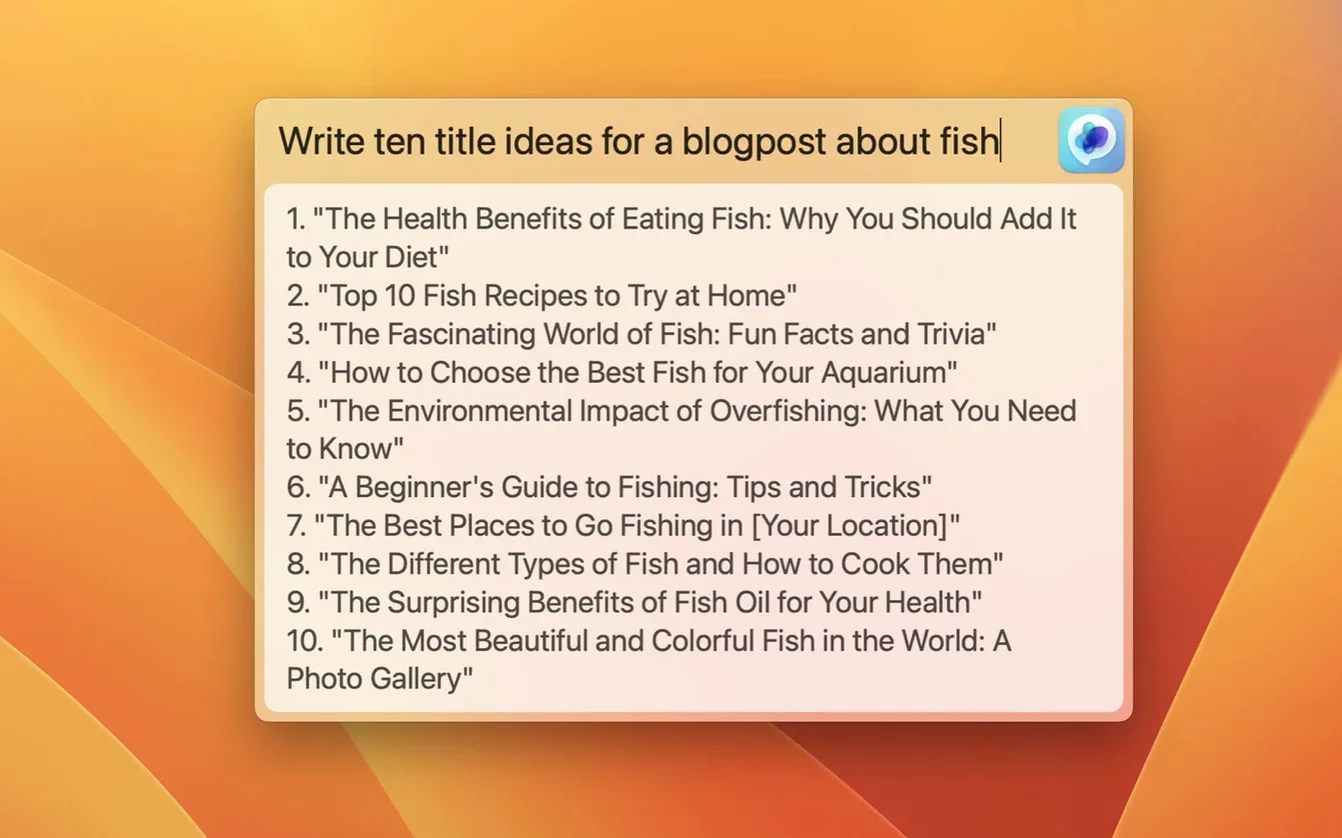
MacGPT sits quietly in your menu bar until you need it, which for most people turns out to be surprisingly often. Students use it to untangle a dense paragraph in a lecture note. Developers reach for it when a regex refuses to cooperate. Writers keep it around for the moment a sentence won't land. The appeal is the speed: one click, no browser tab hunt, and ChatGPT is ready to talk.
Skip the browser tab for quick ChatGPT queries
- Anyone who dips into ChatGPT several times a day and resents the friction of opening a website.
- Quick fact-checks, short translations, and code snippets where you want the answer without leaving the app you are working in.
- People who prefer to use their own OpenAI API key — the app shows clearer error messages when the key is missing or misconfigured, which saves head-scratching.
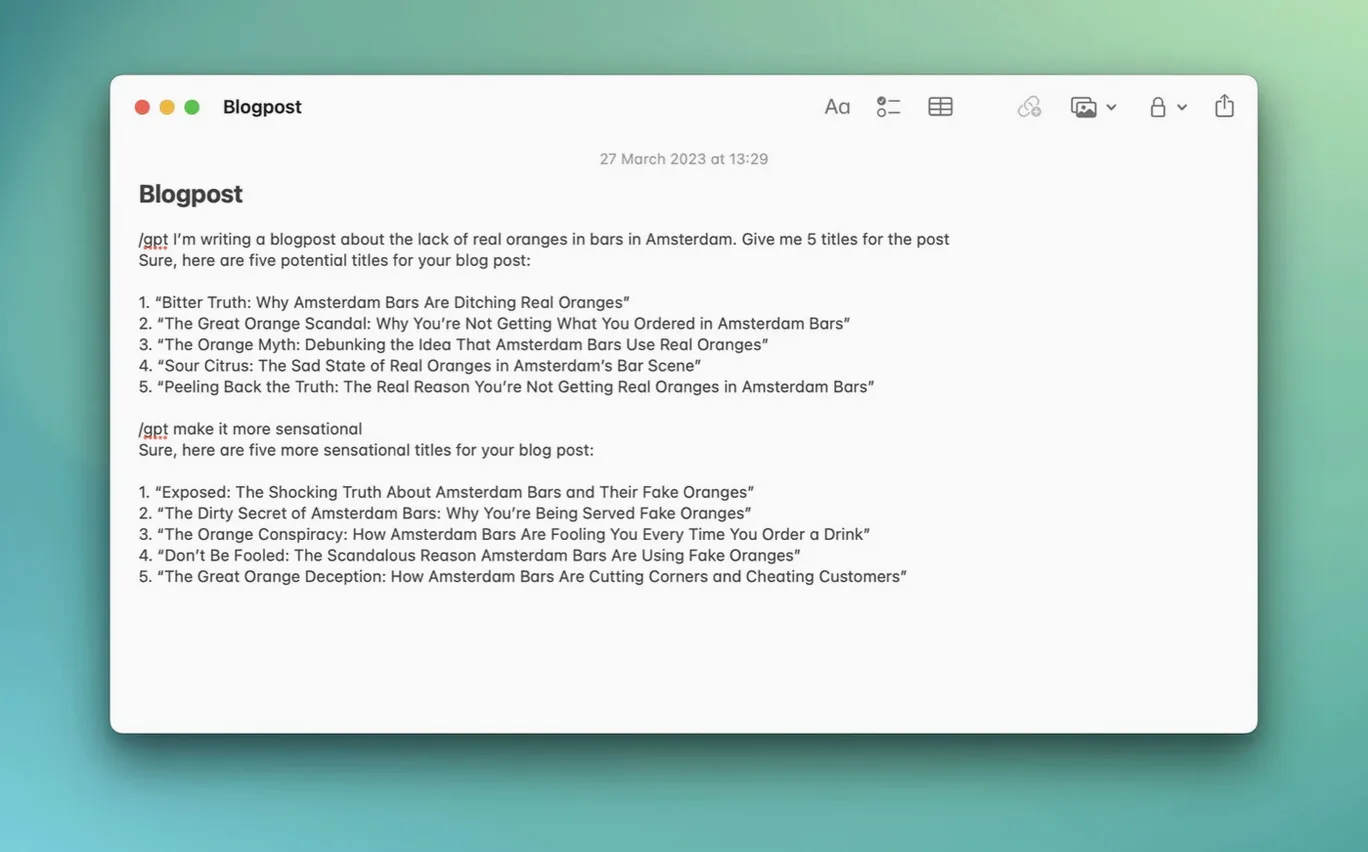
- The Inline feature, which lets you summon ChatGPT directly inside any text field. Highlight some placeholder text, trigger the shortcut, and the response replaces your prompt.
Requires Monterey or newer for its native API foundations
- The app requires macOS Monterey or Ventura — it leans on newer APIs, so older versions of macOS are out of luck.
- You can log in with OpenAI account credentials or supply a custom API key; the experience differs slightly between the two routes.
- It is a menu bar utility first, not a full-blown chat client. Conversations are quick and focused rather than sprawling.
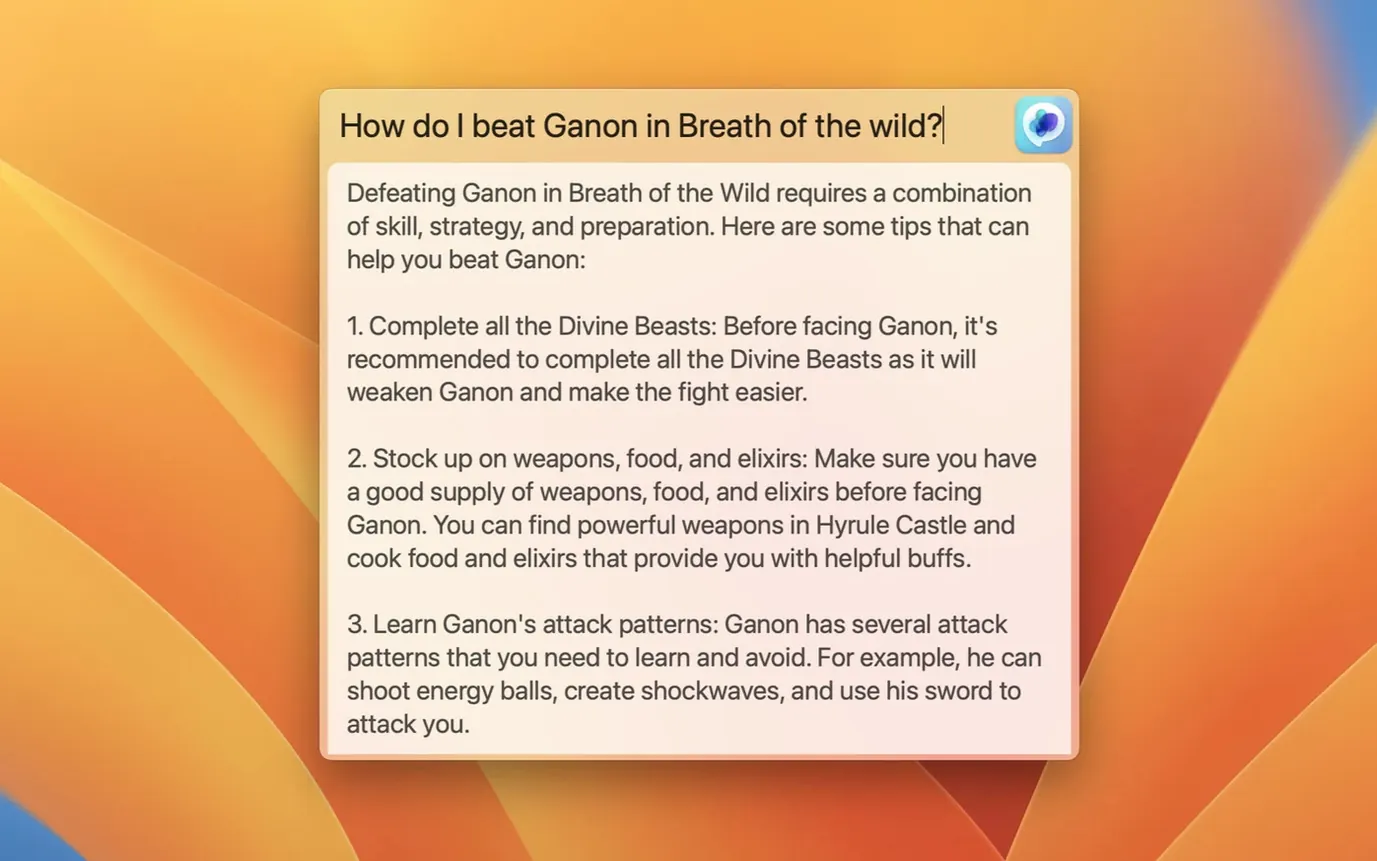
There is a handful of small touches in MacGPT that most people walk straight past, simply because the app never shouts about them. One is the clipboard awareness: if you have text on your clipboard when you invoke the Global overlay, the field is pre-filled. That saves the three-second dance of opening, pasting and re-reading whatever you just copied. Another is the Escape-key behaviour — tap Escape when the overlay is open and it vanishes without a trace, which sounds trivial until you are mid-flow in another app and muscle memory kicks in. The menu bar icon can also be hidden entirely, leaving only a keyboard shortcut for summoning. On a busy menu bar that is a small mercy.
There is a nuance with the Inline mode that is easy to misread. You highlight text, trigger the shortcut, and the highlighted words become the prompt. The model’s reply then replaces your prompt inside the text field. That works beautifully for rewriting a sentence or generating a placeholder, but it also means your original words evaporate. The trick, which the app does not spell out, is to keep a duplicate of the original line on the line above before you invoke Inline — otherwise you lose the context you might want to compare against. A little undo history would be welcome here, though Command-Z will usually get you back.
Another convenience tucked away in settings: you can assign separate shortcuts for the menu bar dropdown, the Global overlay and the Inline trigger. If you set them to distinct combinations you never have to think about which mode you are in — your fingers just go to the right chord for the job. The default is a single shortcut that opens the menu bar, which works, but the three-way split is worth the thirty seconds it takes to configure.
Rewrite an awkward sentence inline with a custom tone prompt
Imagine a Tuesday morning. You are drafting a support email and the phrasing feels like treacle. You highlight the offending sentence, press your Inline shortcut, and type “make this warmer but keep it professional” into the overlay that appears. MacGPT replaces the sentence. You read it, tweak two words, and move on. Ten minutes later a colleague sends a short paragraph in French that you half-understand. You select the text, copy it, tap the Global shortcut — the French is already sitting in the field — and type “translate to English, keep the informal tone.” The answer appears in the overlay. You copy it with Command-C, tap Escape, and paste it into a reply. No window shuffling, no Safari, no login screen.
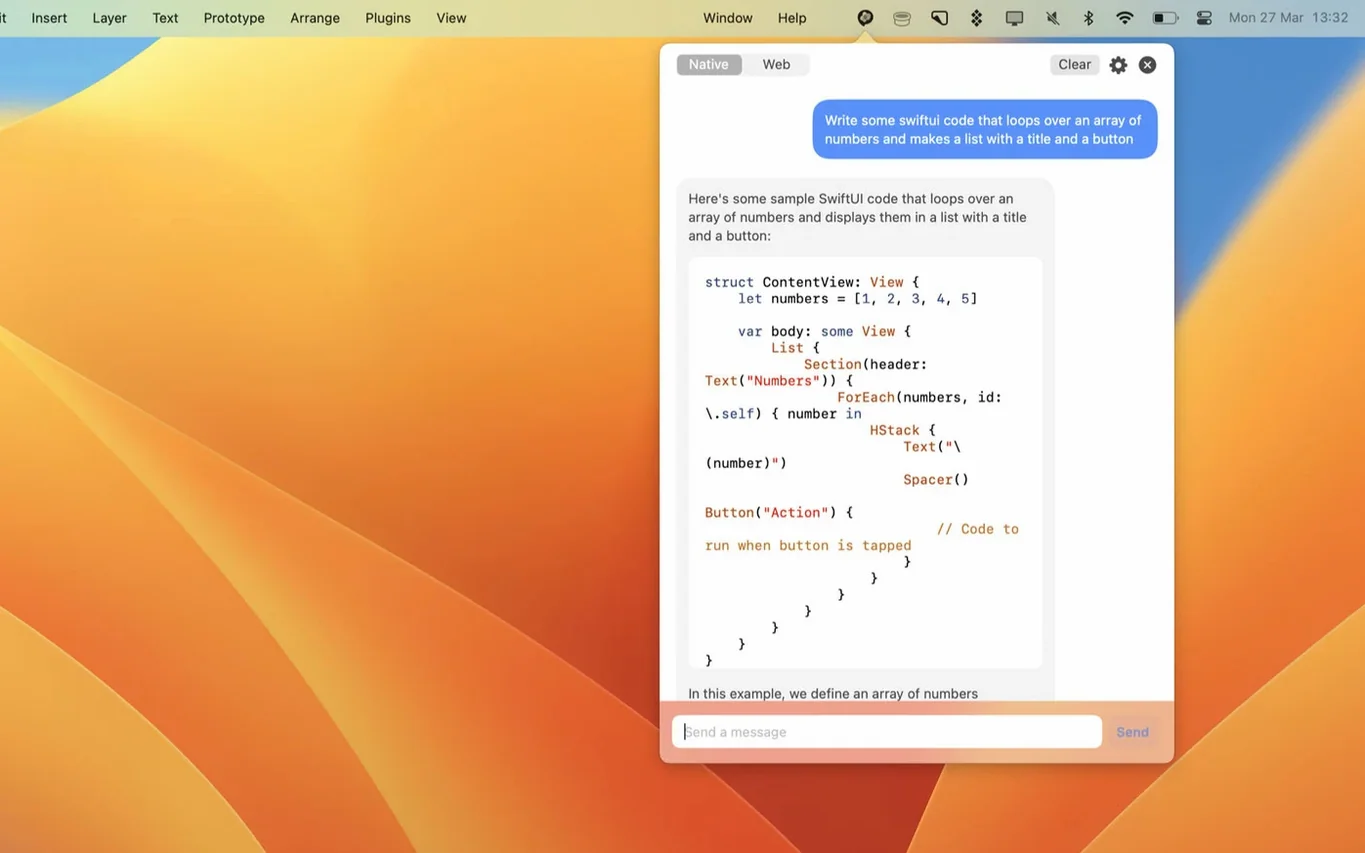
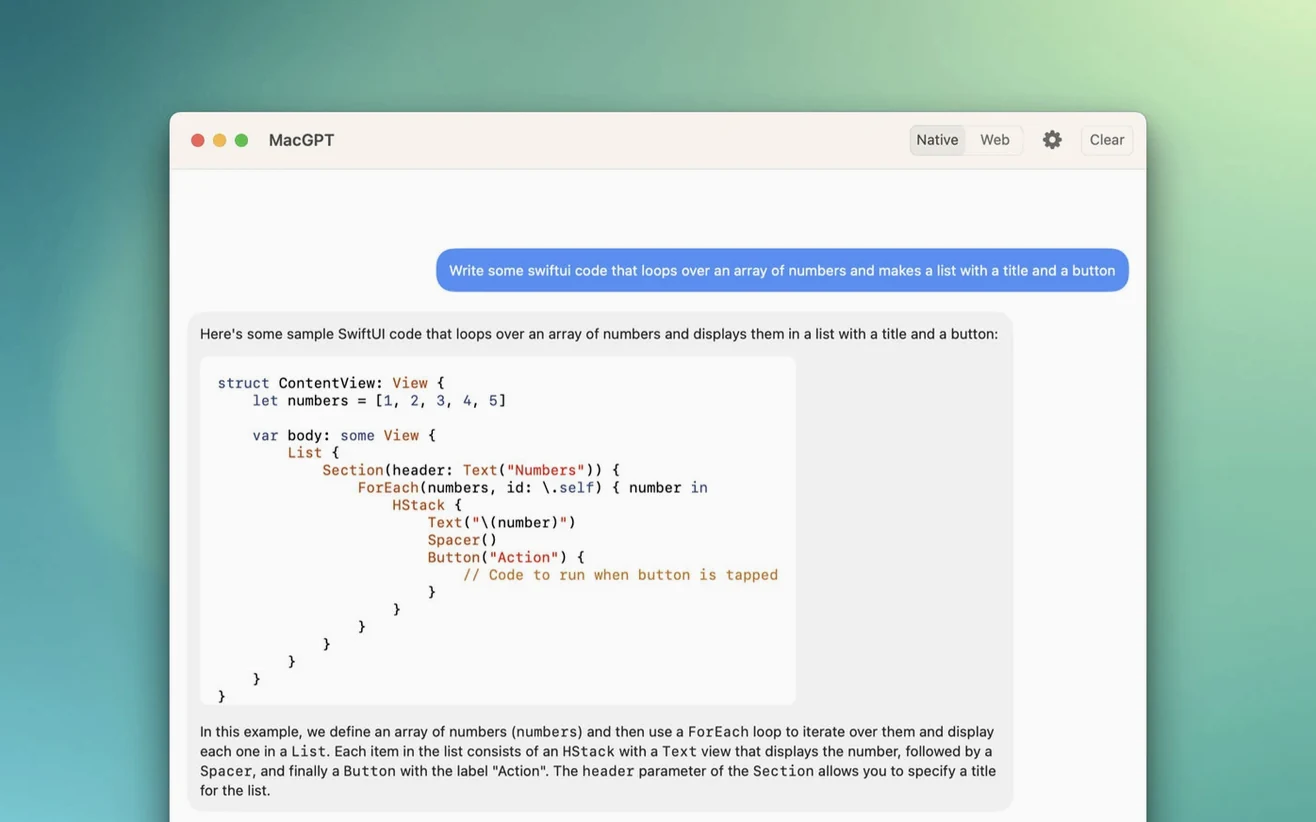
Later that day a regex you wrote to validate postcodes is misbehaving. You click the menu bar icon, choose the web interface from the dropdown, and paste the pattern into ChatGPT’s browser window along with a couple of test cases that fail. The web view loads inside the app as a floating panel, so your terminal stays visible behind it. You get the corrected pattern, close the panel, and carry on. The whole session — three different modes, three different jobs — happens without once opening a full browser tab.
Launches at login and respects your current Focus mode
Because MacGPT is a native menu bar app, it plays well with standard macOS features that web apps cannot touch. It appears in the Login Items list, so it can launch at startup without any fiddling. It respects Focus modes; if you silence notifications, the app does not interrupt. The Inline feature uses the Accessibility API, which means it works in most native text views — Pages, TextEdit, Mail, Notes, even some third-party writing apps — though it cannot reach into every Electron-based editor. When it does work, it feels like a system-level service, the kind of thing you half-expect to find in the Services menu.
It also pairs neatly with clipboard managers. Because the Global overlay reads whatever is on the pasteboard, you can copy text from one app, clean it up or translate it via MacGPT, and then paste the result elsewhere — all without the original app ever knowing ChatGPT was involved. Some people run it alongside a shortcut utility like Keyboard Maestro, chaining the Inline trigger into a larger automation. For instance: copy the current Safari URL, invoke a macro that feeds it to MacGPT with the prompt “summarise this article in two bullet points,” and have the result pasted into a running notes document. The app does not offer built-in scripting, but its clipboard awareness and keyboard shortcuts make it a willing participant in whatever workflow you build around it.
The tiny menu bar field gives terse replies by design
The most common stumble is using the wrong mode for the task. New users often open the menu bar dropdown, type a query into the small field at the top, and wonder why the response is so terse. That field is primed for quick, single-turn prompts; longer conversations need the full web interface. If you want back-and-forth with context, click through to the web panel. If you want a fast one-shot answer, the menu bar field or the Global overlay is the right tool.
Another frequent hiccup is the API key setup. People paste an API key and assume the app is ready, but they forget to add a payment method to their OpenAI account or their usage limit has been reached. MacGPT 3.21 shows clearer error messages than earlier versions — you will see a note that the key is invalid or the model is unavailable — but the fix still happens on the OpenAI dashboard, not inside the app. A quick check of your billing page usually resolves it.
Finally, there is the Inline-overwrite surprise. A beginner highlights a carefully written paragraph, triggers Inline with a vague prompt like “improve this,” and watches their text disappear into something that sounds like a corporate press release. The lesson is to be specific with Inline prompts and, if the original text matters, duplicate it first. Once you learn that rhythm — copy, move down a line, trigger — the feature becomes far less nerve-wracking.
Version 3.21 brings support for gpt-4o, so the app now speaks the latest model alongside the existing options.
- macOS Monterey or Ventura
- Intel or Apple Silicon Mac
- OpenAI account credentials, or an OpenAI API key
Questions I keep hearing
Does MacGPT work on macOS Big Sur?
No — the developer states support for macOS Monterey and Ventura because the app uses newer system APIs.
Can I use my existing OpenAI account?
Yes, you can sign in with your OpenAI account credentials, or supply a custom API key for direct interaction.
What is the Inline feature?
It lets you call ChatGPT from inside any text field: type a prompt, trigger the shortcut, and the response appears in place of your text.
Questions from the class 0
Sign in or join the class to ask a question.
Nobody has asked anything yet. If you have used it on a real job, say what the file did.
Also on the Mac Apps shelf
The whole Mac Apps shelf MacFamilyTree
Builds an interactive family tree that pulls historical records from online genealogy databases.
MacFamilyTree
Builds an interactive family tree that pulls historical records from online genealogy databases.
 MacDroid Pro
Lets your Mac read and write to Android and MTP devices over USB.
MacDroid Pro
Lets your Mac read and write to Android and MTP devices over USB.
 macOS Catalina
Runs your Mac and introduced Sidecar, Voice Control, and a dedicated Music app separated from iTunes.
macOS Catalina
Runs your Mac and introduced Sidecar, Voice Control, and a dedicated Music app separated from iTunes.
 MacCleaner Pro
Bundles app uninstallation, duplicate detection, and disk space analysis into a single toolkit.
MacCleaner Pro
Bundles app uninstallation, duplicate detection, and disk space analysis into a single toolkit.
 macOS High Sierra
Runs your Mac on the system that brought APFS and HEVC video support.
macOS High Sierra
Runs your Mac on the system that brought APFS and HEVC video support.
 MacBooster
Finds and clears system junk, duplicate files, and privacy traces to free up disk space.
MacBooster
Finds and clears system junk, duplicate files, and privacy traces to free up disk space.
 macOS Mojave
Runs your Mac and added Dark Mode, desktop Stacks, and ports of News, Stocks, and Voice Memos.
macOS Mojave
Runs your Mac and added Dark Mode, desktop Stacks, and ports of News, Stocks, and Voice Memos.
 Luminar Neo
Layers multiple AI-driven edits onto a photo and lets you relight or swap backgrounds non-destructively.
Luminar Neo
Layers multiple AI-driven edits onto a photo and lets you relight or swap backgrounds non-destructively.