 ASPNetWorld
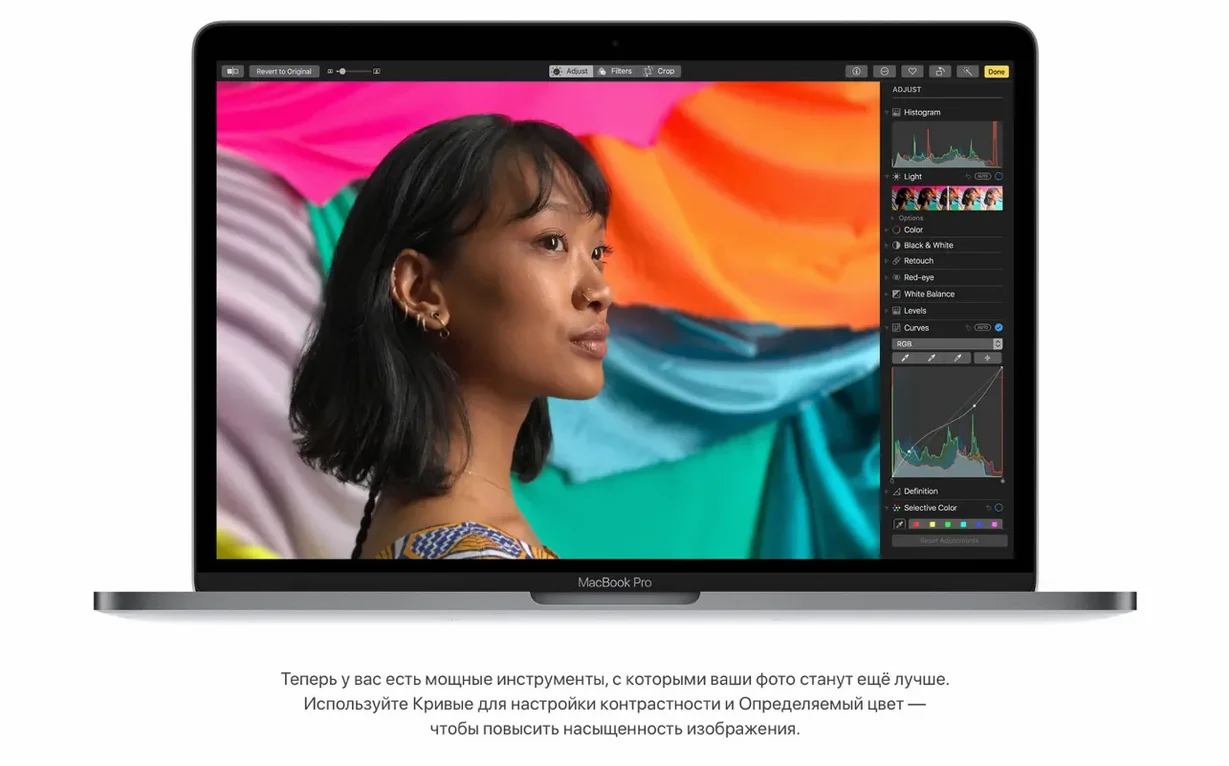
macOS High Sierra ships with over 30 interface languages and a file system that changes how your drive is organised from the ground up.
Apple File System (APFS) — A modern, 64-bit file system optimised for flash storage. It brings native encryption, space sharing across volumes, and snapshots that let you revert the state of a drive to a known point in time without cloning terabytes of data.
Metal 2 — The updated graphics API that gives applications nearly direct access to the GPU. For an experienced user, that means noticeably more draw-call throughput in creative software and native support for virtual reality content creation, including external GPU enclosures over Thunderbolt.
HEVC (H.265) — Hardware-accelerated video playback and streaming. A one-hour 4K file that used to demand 20GB of space sits comfortably in half that, and the processor stays cool while you scrub through it in QuickTime or Final Cut.
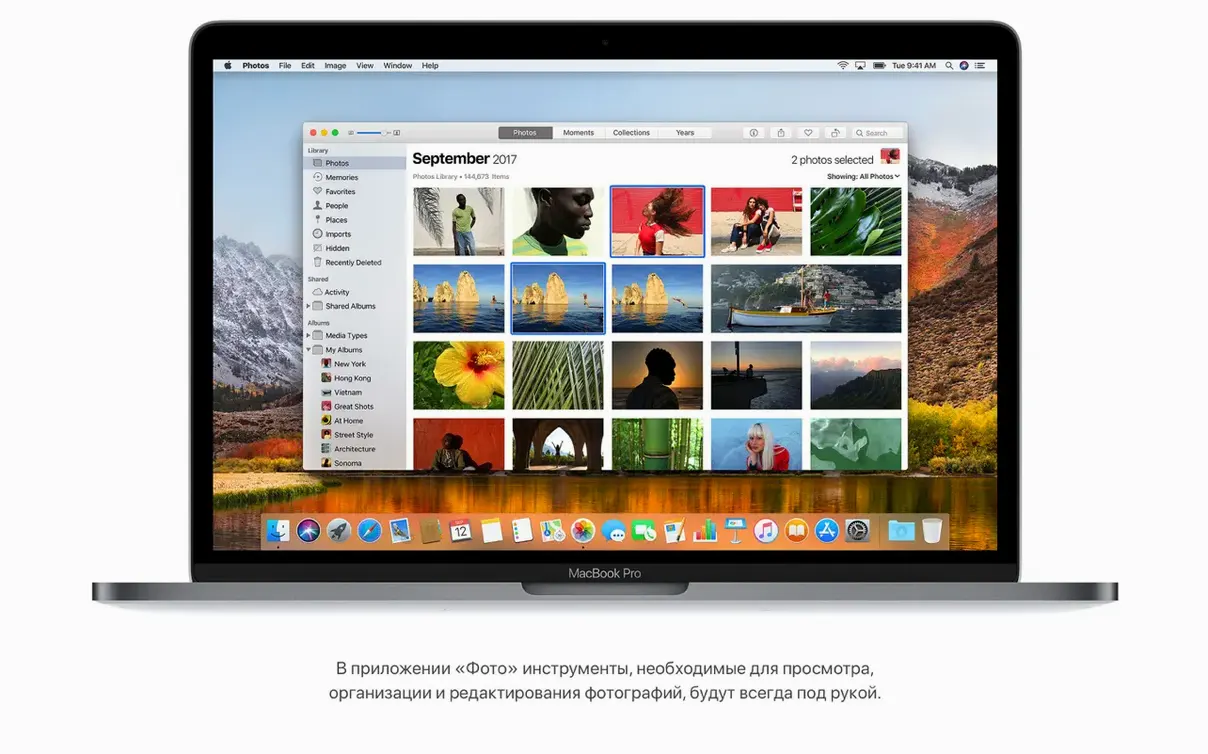
Photos Curves and Selective Color — These aren't sliders for casual users. Curves lets you remap luminance and individual colour channels with precise control points, while Selective Color adjusts a narrow band of hues without masking, useful for pulling a sky back from overexposure without touching skin tones.
Spotlight Flight Data — Type an airline code and flight number, and Spotlight surfaces live arrival time, departure time, delays, terminal, gate, and a plotted flight map, all before you open a browser.
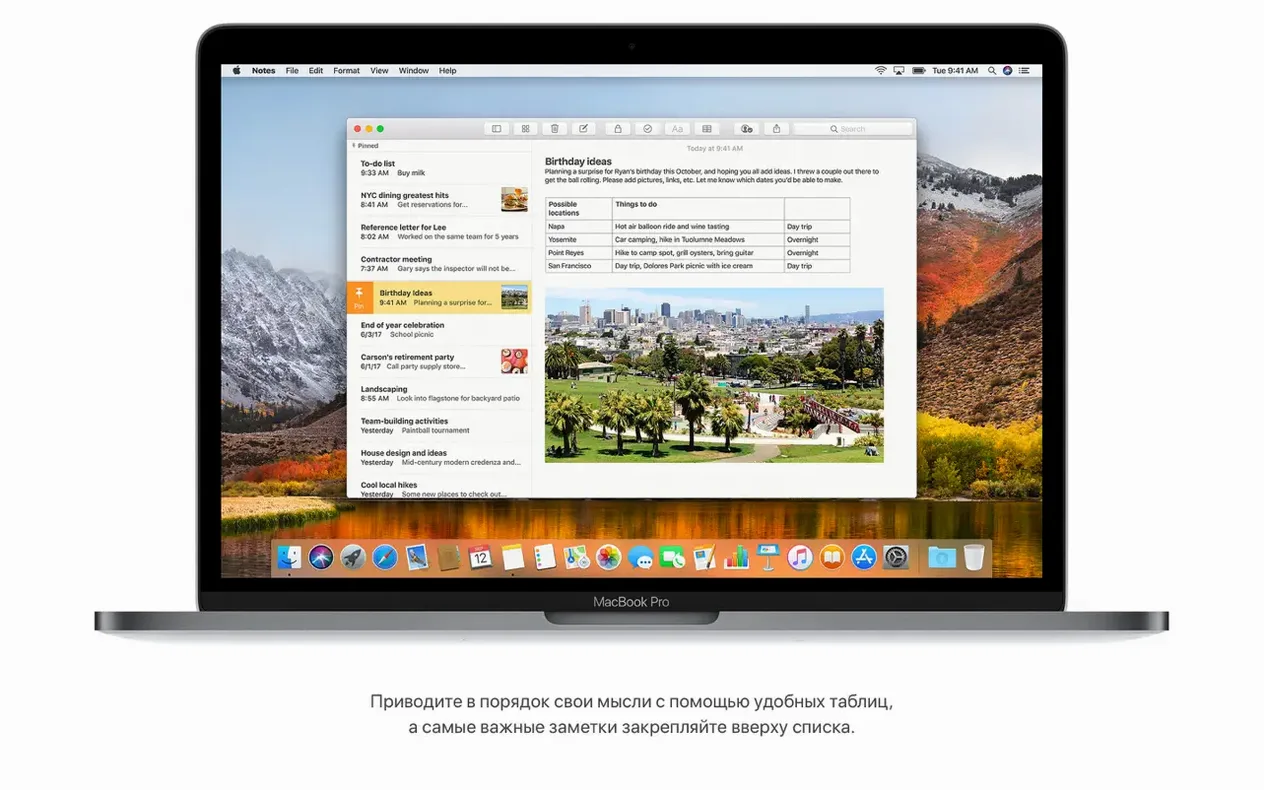
Notes Tables — A small addition that turns a note into a lightweight database. Columns resize, rows accept text and numbers, and the whole table stays searchable inside the app.
A quiet patch fixed AVCHD imports and Bluetooth stutter
The jump from 10.13.5 to 10.13.6 wasn't a headline-grabbing overhaul, but it quietly patched a handful of annoyances that had been tripping people up for months. If you work with footage from older AVCHD cameras — a Sony Handycam, say, or a Panasonic from the early 2010s — Photos would occasionally stare blankly at the card and refuse to import. That's fixed. Mail users who juggle a Gmail account alongside an iCloud or Exchange inbox can now drag messages between accounts without the operation failing silently. Small things, but they sand down the rough edges of a day's work.
AirPlay 2 support arrived properly in the 10.13.6 update, which matters more than it sounds if you run audio in several rooms. iTunes can now push synchronised playback to multiple AirPlay 2 speakers — a HomePod in the kitchen, a Denon receiver in the living room — and you control them from the Mac as a single zone or independently. Latency between rooms drops low enough that you won't get a flam effect when sound bleeds from one space to another.
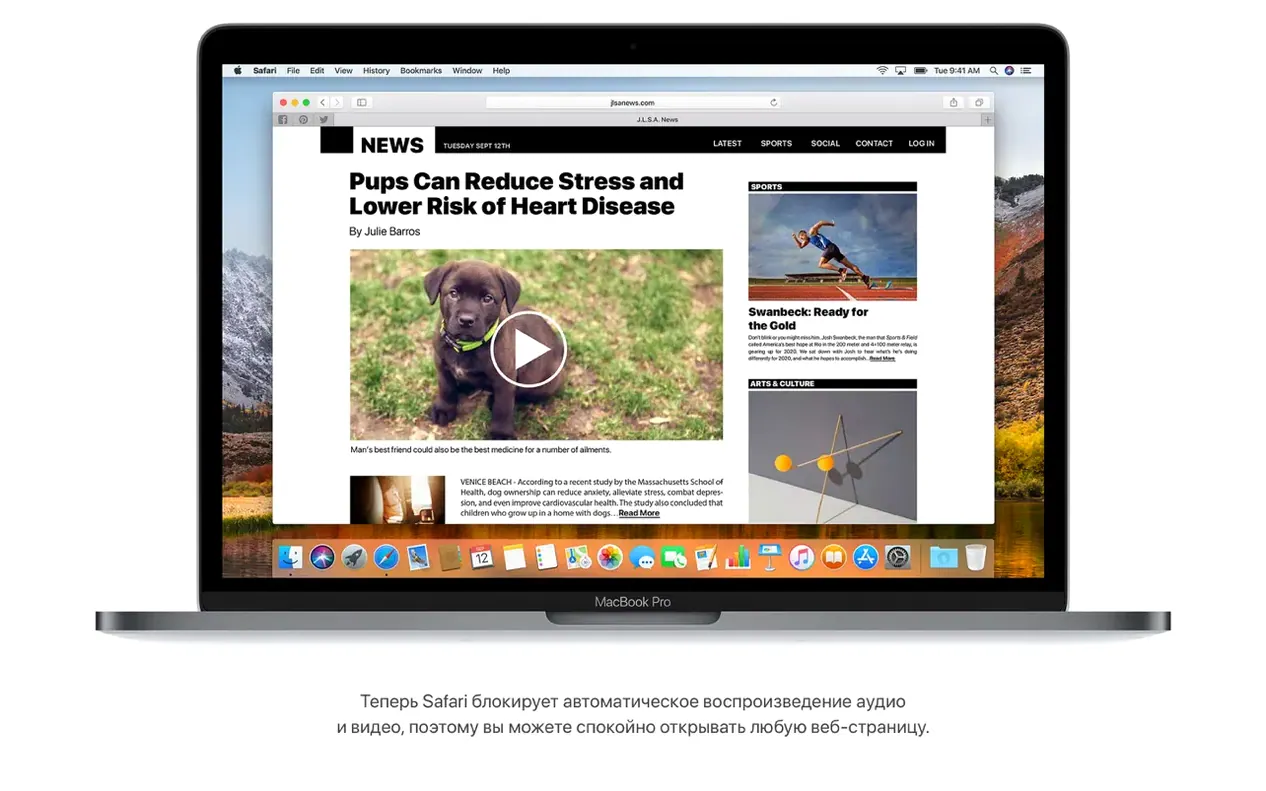
Under the bonnet, the stability and security improvements tightened how the system handles kernel extensions and sandboxed apps. You won't see a new button, but you'll notice Safari crashing less often on JavaScript-heavy sites and a smoother experience when waking a Mac from deep sleep with an external drive attached.
A practical workflow: building a clean High Sierra installer
Suppose you've got an ageing MacBook Pro that's grown sluggish under the weight of migrated user accounts and orphaned preference files. A clean install — erasing the drive and starting fresh — is the surest way back to snappy performance, and APFS makes the process tidier than it was on HFS+. Here's how to build a bootable USB installer from the High Sierra image you've already downloaded.
The disk image you opened earlier placed the full installer app in your Applications folder. Before you do anything else, grab a USB stick with at least 16GB of space — 14.3GB is the minimum Apple quotes for the upgrade, but a little headroom never hurts — and back up anything on it, because the next step wipes it clean.
- Connect the USB stick and open Terminal. You need to identify the device node, so type
diskutil listand look for the external drive in the output. Make a careful note of the identifier — something like/dev/disk2. Picking the wrong one will erase your internal drive, and no amount of Curves adjustments will bring that data back. - With the device node confirmed, run
sudo /Applications/Install\ macOS\ High\ Sierra.app/Contents/Resources/createinstallmedia --volume /Volumes/Untitled. Terminal will prompt for your admin password, then spend around fifteen minutes copying the installer and making the USB stick bootable. The verbose output keeps you informed — expect a progress bar and a confirmation that the volume has been blessed for booting. - Once the script finishes, restart the Mac and hold the Option key immediately after the chime. The Startup Manager appears, showing your new High Sierra installer as a selectable volume. Boot from it, launch Disk Utility from the Utilities menu, and this is where APFS earns its keep: select your internal drive, click Erase, choose APFS as the format, and confirm. The operation takes seconds where HFS+ would have taken minutes.
- Quit Disk Utility and proceed with the installation. Because APFS supports space sharing, the system creates a container that holds multiple volumes — your main boot volume and a Recovery partition — without pre-allocating fixed chunks of the drive. That means you reclaim every spare gigabyte for actual use, not for partitioning overhead.
When the installer finishes and the setup assistant appears, resist the urge to migrate from a Time Machine backup immediately. Set up a bare user account first, let the system settle for an hour so Spotlight can index, then migrate your data. You'll avoid dragging across the cruft that made the old install feel tired.
The APFS conversion stalls if you force-restart a spinning drive
A handful of sticking points pop up often enough to be worth addressing before you hit them. The first is the APFS conversion itself. High Sierra converts solid-state drives to APFS automatically during installation, and for most users that's transparent. But if your Mac has a Fusion Drive — a mix of flash storage and a spinning hard disk — the installer may pause with a warning that the conversion isn't supported. Apple pulled APFS support for Fusion Drives late in the beta cycle, and 10.13.6 still won't attempt it. The workaround is straightforward: don't force it. Install onto a pure SSD or stick with HFS+ on the Fusion Drive. You'll miss out on snapshots and space sharing, but the system runs perfectly well without them.
Another snag involves HEVC video files refusing to play. Hardware acceleration for HEVC requires a Mac with a sixth-generation Intel Core processor or newer — think 2015 iMacs with Skylake, or a 2016 MacBook Pro. Older Intel machines fall back to software decoding, which can stutter on 4K footage. If you're editing on a 2012 Mac Pro and wondering why your HEVC timeline chokes, that's why. Transcode to Apple ProRes before you cut, or stick with H.264 source files until your hardware catches up.
Mail's Top Hits feature sometimes learns the wrong habits. If it keeps prioritising a newsletter you never read over a colleague's reply, you can reset the learning data without nuking your entire Mail setup. Quit Mail, navigate to ~/Library/Mail/V6/MailData/, and delete the file called TopHits.plist. Restart Mail and give it an hour to rebuild the index from your actual behaviour. The smart mailbox will settle back to something more useful.
This is the last macOS to run 32-bit apps without nagging
Will my 32-bit apps still work? Yes, and this is the last version of macOS where they do without caveats. High Sierra runs 32-bit software natively — older versions of Adobe Creative Suite, abandonware games, niche audio plug-ins — with only a one-time warning dialogue the first time you launch each app. Mojave introduces the stricter "this app is not optimised" nag, and Catalina kills 32-bit support outright. If you maintain a library of older creative tools, High Sierra is the sensible place to stay.
Does the APFS conversion encrypt my drive automatically? No, but it makes encryption far less painful. FileVault on APFS uses the file system's native encryption capabilities rather than layering a CoreStorage volume on top. That means turning FileVault on — and off, should you ever need to — completes in seconds instead of the hour-long wait that HFS+ forced. Your data is encrypted at rest, and the performance hit is negligible on any Mac with an SSD.
Can I dual-boot with an older version of macOS? Yes, provided you set up a separate APFS container or HFS+ partition before the High Sierra install. Disk Utility's partition tool handles this, and APFS containers can share free space dynamically, so you're not locking yourself into a fixed split. One container for High Sierra, another for Sierra or El Capitan, and the system leaves the rest of the drive flexible. Boot with the Option key to pick your OS at startup.
The 10.13.6 update concentrates on stability, security, and a long-awaited audio feature.
- iTunes gains AirPlay 2 multi-room audio support, so you can stream the same track to several AirPlay 2 speakers simultaneously and control them independently.
- A fix stops Photos from failing to recognise AVCHD media imported from certain cameras.
- A Mail bug that blocked moving Gmail messages to another account has been resolved.
- General security and stability improvements for the Mac.
- macOS 10.13.5 or later for the update
- 64-bit Intel processor
- 2GB of memory
- 14.3GB of available storage for the upgrade
Questions I keep hearing
Can macOS High Sierra run 32-bit applications?
Yes, it supports 32-bit software, but it's the last Mac operating system to do so without compromise, making it a useful holdover for older creative tools.
How much space does the upgrade actually require?
The system needs a minimum of 14.3GB of available storage to perform the upgrade from an earlier version of macOS.
Questions from the class 0
Sign in or join the class to ask a question.
Nobody has asked anything yet. If you have used it on a real job, say what the file did.
Also on the Mac Apps shelf
The whole Mac Apps shelf macOS Catalina
Runs your Mac and introduced Sidecar, Voice Control, and a dedicated Music app separated from iTunes.
macOS Catalina
Runs your Mac and introduced Sidecar, Voice Control, and a dedicated Music app separated from iTunes.
 macOS Mojave
Runs your Mac and added Dark Mode, desktop Stacks, and ports of News, Stocks, and Voice Memos.
macOS Mojave
Runs your Mac and added Dark Mode, desktop Stacks, and ports of News, Stocks, and Voice Memos.
 macOS Tahoe
Runs your Mac and overhauls the built-in network firewall and system settings layout.
macOS Tahoe
Runs your Mac and overhauls the built-in network firewall and system settings layout.
 MacWhisper
Transcribes audio files into text entirely on your Mac without sending data to the cloud.
MacWhisper
Transcribes audio files into text entirely on your Mac without sending data to the cloud.
 MacGPT
Puts ChatGPT in your menu bar for quick questions, text rewrites, and inline assistance anywhere.
MacGPT
Puts ChatGPT in your menu bar for quick questions, text rewrites, and inline assistance anywhere.
 MacFamilyTree
Builds an interactive family tree that pulls historical records from online genealogy databases.
MacFamilyTree
Builds an interactive family tree that pulls historical records from online genealogy databases.
 Magic Disk Cleaner
Finds and removes caches, logs and orphaned files that waste space.
Magic Disk Cleaner
Finds and removes caches, logs and orphaned files that waste space.
 MacDroid Pro
Lets your Mac read and write to Android and MTP devices over USB.
MacDroid Pro
Lets your Mac read and write to Android and MTP devices over USB.