 ASPNetWorld

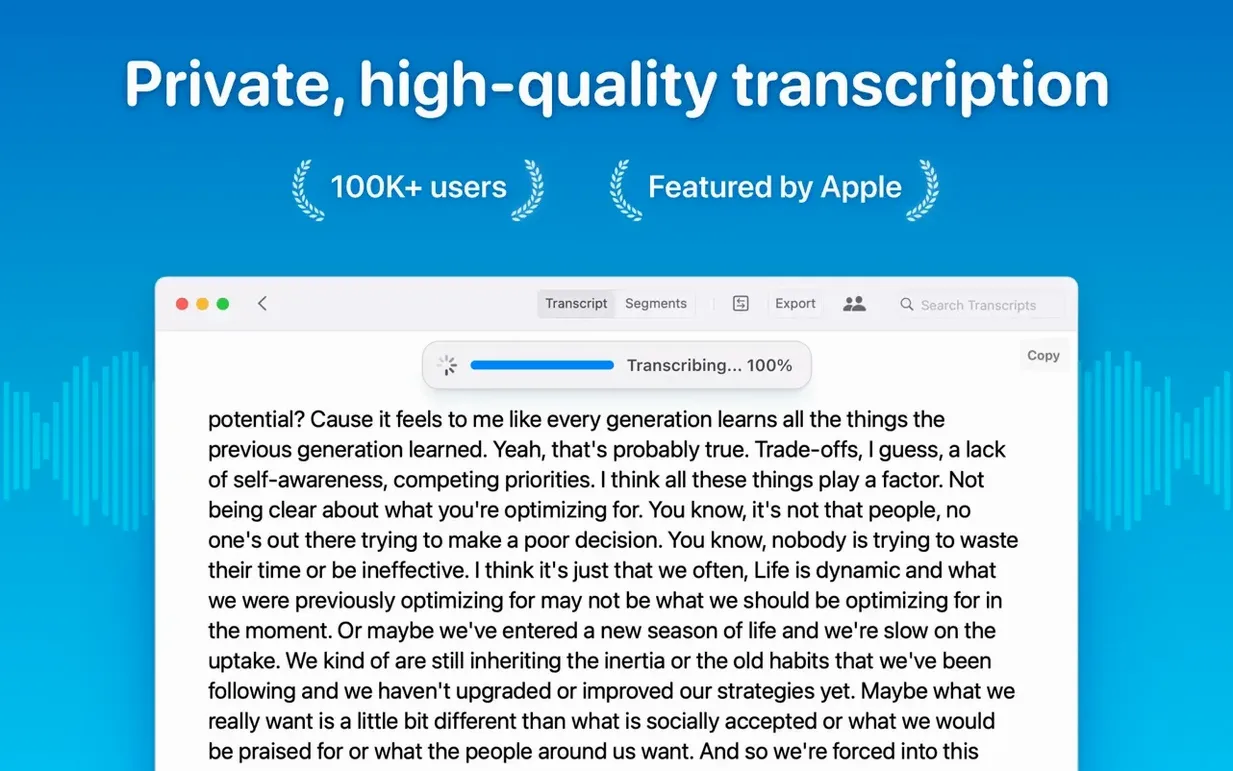
Spot the reading mode button — it’s one of those small touches that makes a dense transcript feel less like work.
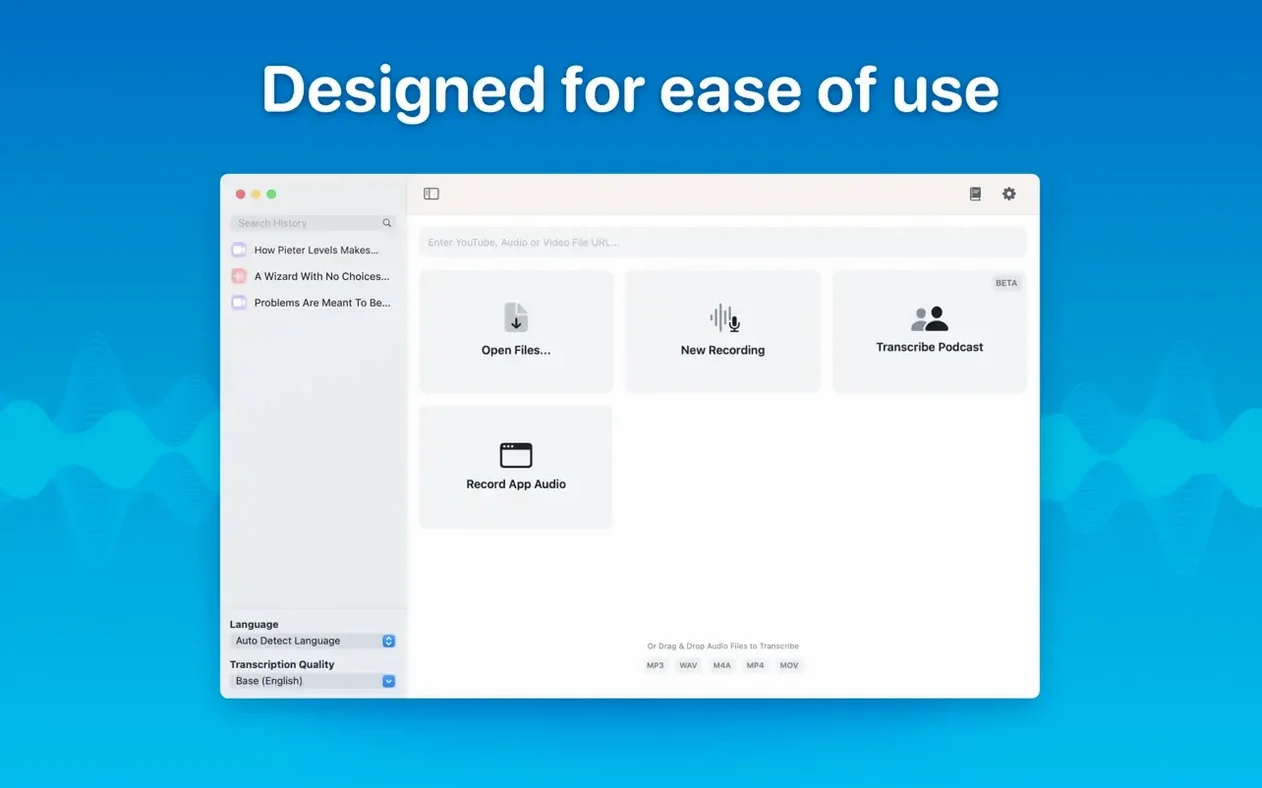
Drag-and-drop transcription — pull an audio file straight into the window and the app processes it on the Mac. Nothing leaves the machine; the inference happens locally.
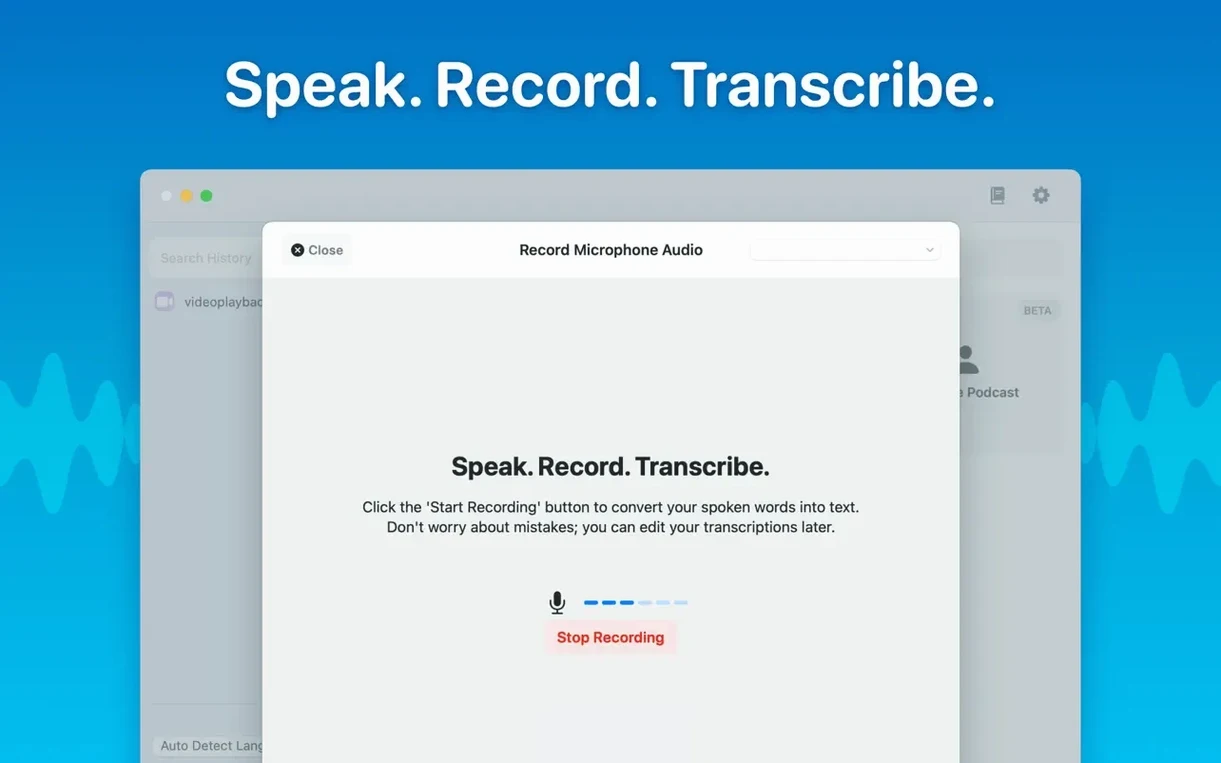
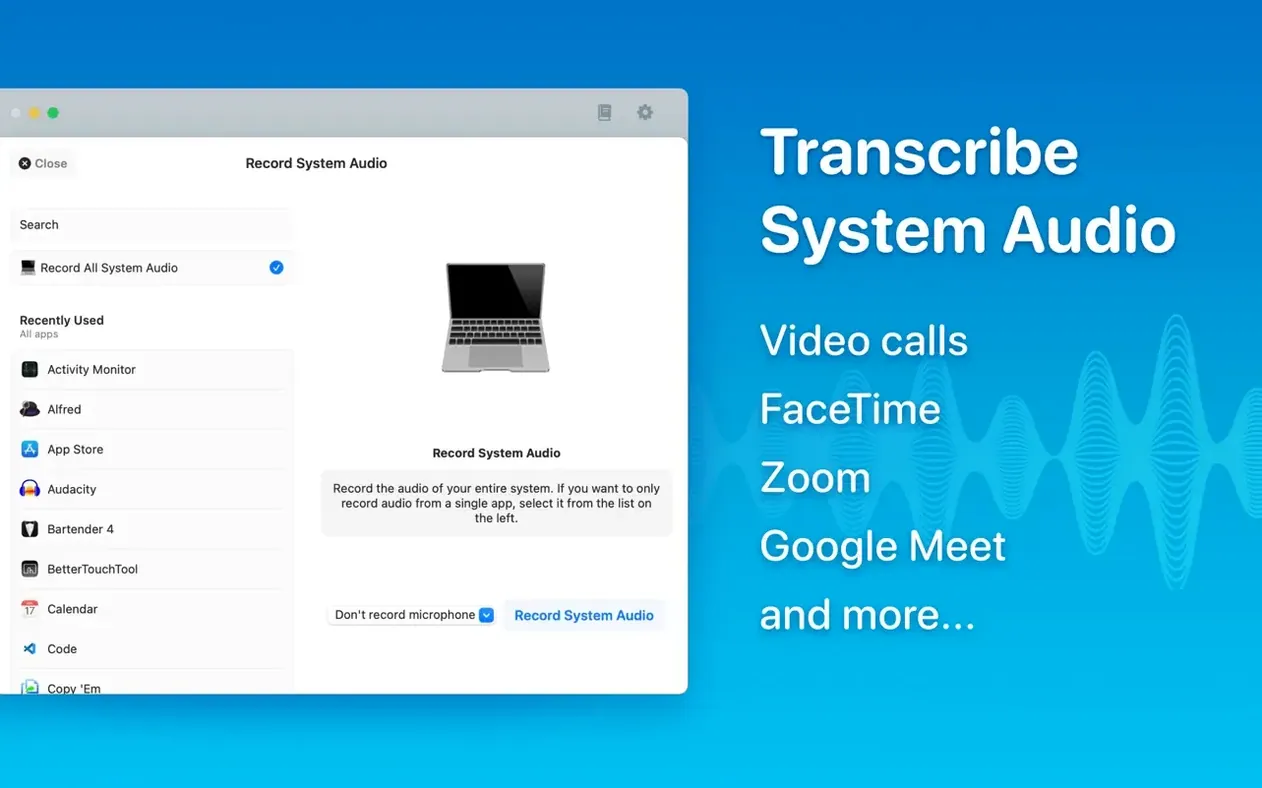
System audio capture — grab a podcast or a video call playing through the Mac’s own output. Newcomers often miss this, but it is the quickest way to turn a livestream into searchable text.
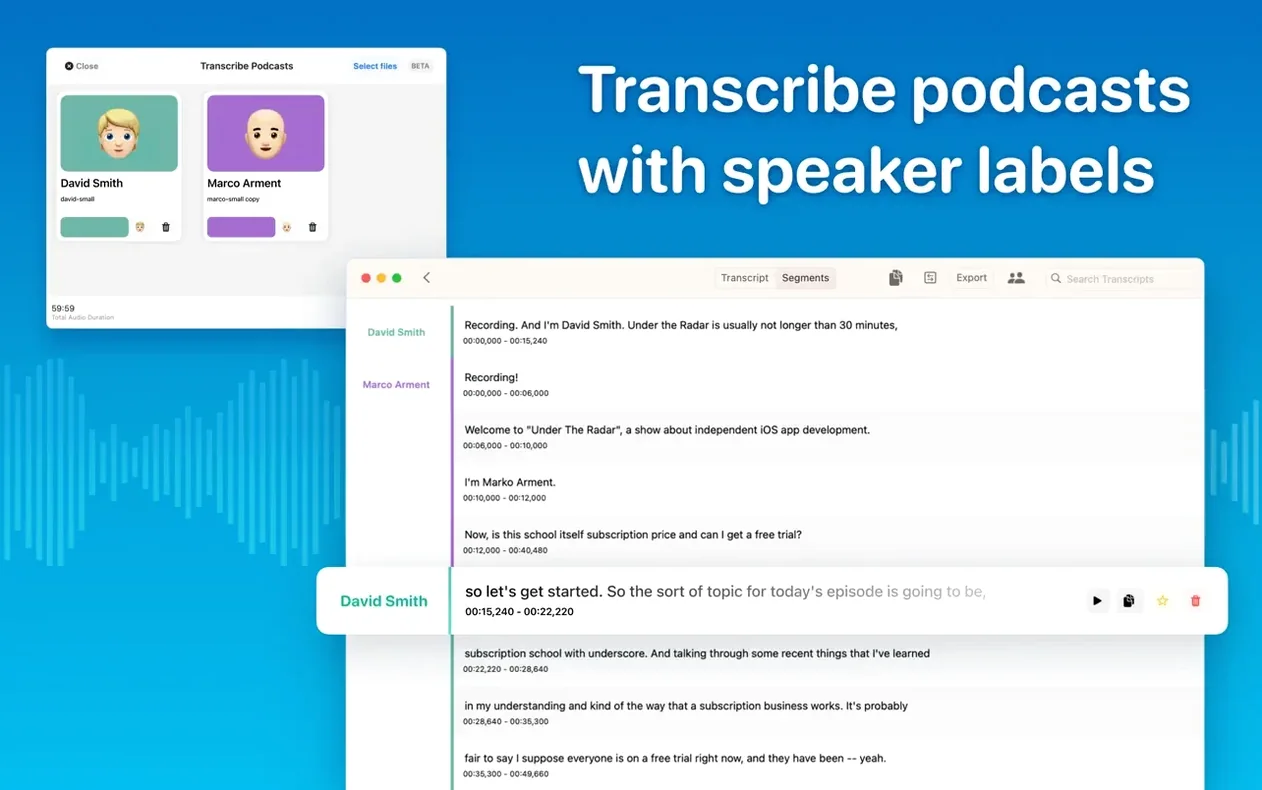
Speaker separation — MacWhisper labels who said what. The current build uses a fresh diarization model, so it untangles overlapping voices more cleanly than before. Works especially well with the built-in podcast transcription preset.
Language selection — set it manually or let the engine auto-detect. Manual selection usually shaves a few seconds off the wait, particularly with short clips.
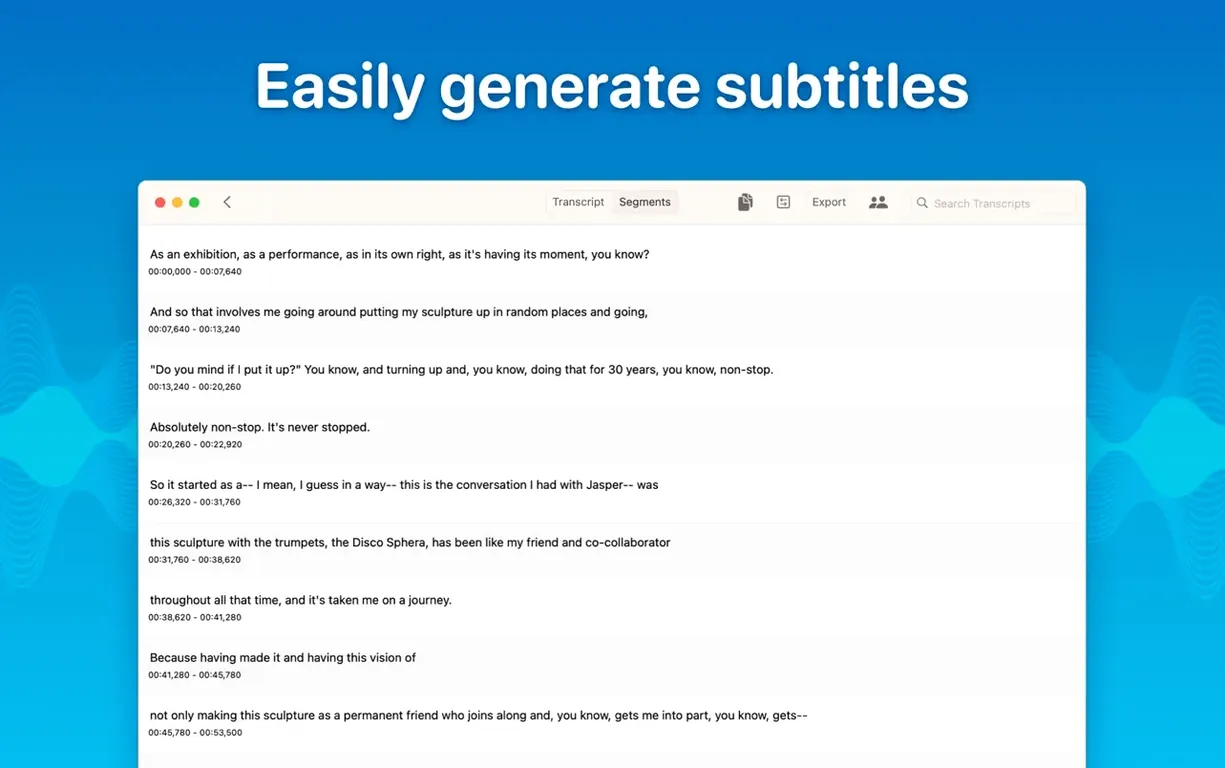
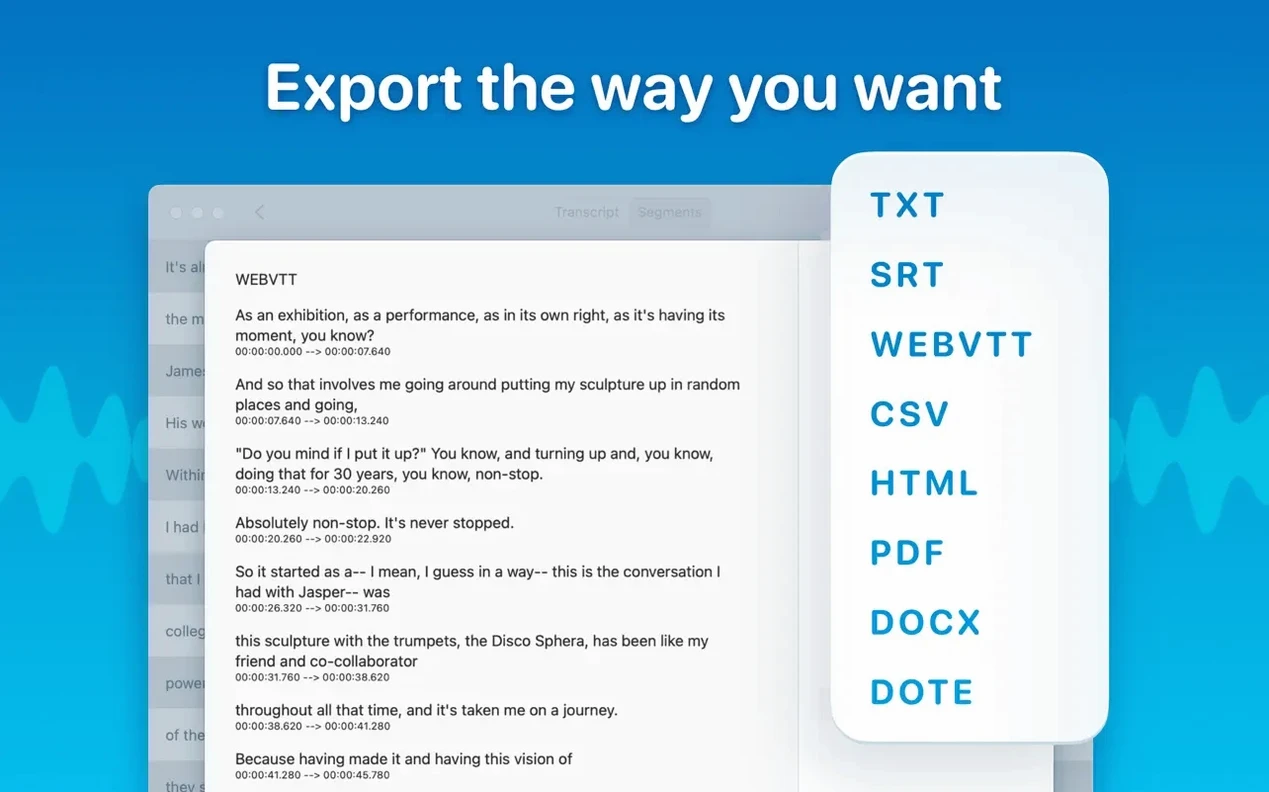
Export subtitles — SRT and VTT are both one click away. Handy for dropping a transcript straight into a video editor timeline.
Folders for organisation — the latest release added proper folder support. Once you have transcribed a handful of meetings, grouping them stops the sidebar turning into a scrolling chore.
Impressions of Speed, Stability and Resource Use
Running transcription locally sounds demanding, and on paper it is — but MacWhisper wears the load lightly. On an M-series Mac, a fifteen‑minute podcast through the Medium model finishes in about a minute, with the fans staying completely silent. The Large‑V3 model is the real test; it leans harder on the Neural Engine and will warm the chassis after twenty minutes, yet the app never stuttered in daily use. Memory pressure stays green for most workflows. If you queue a batch of hour‑long files, expect the system to feel a little softer during the last file, but the operating system remains perfectly usable.
Stability has improved steadily across recent builds. Version 15.2 fixed a crash on macOS 15 when opening the Live Captions language menu, and the new diarization model loads without the half‑second freeze the older one occasionally caused. Transcripts autosave after every segment, so even if the unlikely happens, you come back to a recent state rather than a blank window. People who push the app hardest — live meeting transcripts running alongside system audio capture — report solid behaviour across an eight‑hour working day.
Intel Macs get the job done, just with different rhythms. A 2019 iMac chews through the Small model briskly, but Large‑V3 turns into a coffee‑break task. The interface stays responsive throughout; the progress bar updates smoothly, and you can edit earlier segments while later ones are still processing. That’s the real test of whether an app threads its work properly, and MacWhisper passes it.
What to Do in the First Days
Resist the urge to throw the longest file you own at it. Start with a three‑minute clip and watch how the segments appear — the rhythm of the transcript teaches you more than any manual. Tap the reading mode button early, even on a short transcript, so your brain registers it as a go‑to tool rather than an afterthought.
Set up one folder structure before the sidebar fills up. A simple Work / Personal / Experiments split is enough for the first week. Later you will thank yourself when the search field finds a meeting title in half a second instead of wading through a flat list of forty transcripts.
Open Preferences on day one and pick a default export format. If most of your work lands in Word, setting it once saves a click on every export. The same screen lets you choose whether the app starts with the recording window or the file picker — pick the one that matches how you actually work, not how you imagine you might work.
Test system audio capture with something disposable, like a five‑minute tech news clip. The permissions dialog appears once, and understanding the routing early prevents a scramble when the real recording matters.
Mistakes Beginners Make
Picking the wrong model for the job. Large‑V3 is tempting, but a two‑minute voice memo with a single speaker and clear audio does not need it. Tiny or Base will return the same words in a fraction of the time. Save the big model for noisy recordings, multiple speakers, or anything you need to publish.
Forgetting to set the language manually. Auto‑detection is clever, but it adds a few seconds of analysis. If you know the clip is in French, tell the app. On short clips the difference is negligible; on a ninety‑minute lecture the clock ticks noticeably longer.
Recording system audio without checking the output device first. If your Mac is still routing sound to Bluetooth headphones that are in another room, the capture will be silent. A quick glance at the menu bar before hitting record saves a wasted attempt.
Hiding the speaker labels too soon. After diarization, the colour‑coded labels sit above each segment. Beginners sometimes toggle them off before proofreading, then struggle to work out who said what. Leave them visible until you have skimmed the whole transcript at least once.
Treating batch export as an afterthought. Selecting three files and exporting them as SRT, PDF and Word in one pass sounds like a power‑user move, but it locks the interface for a short spell. Queue the batch when you are about to step away from the desk rather than right before a meeting.
Small Conveniences That Are Easy to Miss
Click any timestamp and the audio jumps to that exact moment. It is a tiny thing, but it turns proofreading from a chore into a quick back‑and‑forth between ear and eye.
The Copy Selected command works on partial selections. Highlight three segments, press ⌘C, and only those lines go to the clipboard — no need to copy the whole transcript and trim it elsewhere.
Dragging an audio file onto the dock icon works even when the main window is closed. The app wakes, opens, and starts processing without a second click.
The reading mode button doubles as a quick focus toggle. Press it once to strip the interface chrome; press it again to return to editing. People who read long transcripts aloud during review find this rhythm becomes second nature within an hour.
Hold the Option key while dragging a segment to duplicate it into another transcript. It is an undocumented little trick that saves copy‑pasting when you want to compare two edits of the same passage.
Questions People Ask Before Installing
“Does it need an internet connection?” No. The speech‑recognition engine runs entirely on the Mac. The models download once during setup, and after that MacWhisper works offline — on a train, in a studio with the Wi‑Fi switched off, wherever. The only time it reaches out is to check for updates, and you can turn that off in Preferences if you prefer.
“How much disk space do the models take?” Tiny is around 40 MB; Large‑V3 sits close to 3 GB. The app shows the size before downloading, and you can delete models you never use with a single click from the Local Models list. Version 15.2.1 tidied that list up considerably, hiding categories your Mac cannot run and adding a cleaner provider icon.
“Will it slow my Mac down while I’m doing other things?” Transcription bumps the processor load for a short burst, but the app yields gracefully. On M‑series chips the efficiency cores do a lot of the lifting, so browsing, email and lighter apps stay snappy. If you are rendering video at the same time as running Large‑V3, you will feel the squeeze — but that is true of any two heavy tasks competing for the same silicon. Most people set a batch running and carry on with ordinary office work without noticing.
“Can I try it before committing?” The free version handles short clips and gives a fair taste of the workflow, minus the batch tools and the larger models. It is enough to test whether the app fits into your daily rhythm before you look into the full feature set.
- macOS 14 (Sonoma) or later
- Apple Silicon or Intel 64-bit processor
Questions from the class 0
Sign in or join the class to ask a question.
Nobody has asked anything yet. If you have used it on a real job, say what the file did.
Also on the Mac Apps shelf
The whole Mac Apps shelf macOS Tahoe
Runs your Mac and overhauls the built-in network firewall and system settings layout.
macOS Tahoe
Runs your Mac and overhauls the built-in network firewall and system settings layout.
 macOS Mojave
Runs your Mac and added Dark Mode, desktop Stacks, and ports of News, Stocks, and Voice Memos.
macOS Mojave
Runs your Mac and added Dark Mode, desktop Stacks, and ports of News, Stocks, and Voice Memos.
 Magic Disk Cleaner
Finds and removes caches, logs and orphaned files that waste space.
Magic Disk Cleaner
Finds and removes caches, logs and orphaned files that waste space.
 Magnet
Snaps windows into tidy arrangements with keyboard shortcuts or dragging.
Magnet
Snaps windows into tidy arrangements with keyboard shortcuts or dragging.
 macOS High Sierra
Runs your Mac on the system that brought APFS and HEVC video support.
macOS High Sierra
Runs your Mac on the system that brought APFS and HEVC video support.
 macOS Catalina
Runs your Mac and introduced Sidecar, Voice Control, and a dedicated Music app separated from iTunes.
macOS Catalina
Runs your Mac and introduced Sidecar, Voice Control, and a dedicated Music app separated from iTunes.
 MAMP PRO
Manages individual local web servers for each project you build.
MAMP PRO
Manages individual local web servers for each project you build.
 MacGPT
Puts ChatGPT in your menu bar for quick questions, text rewrites, and inline assistance anywhere.
MacGPT
Puts ChatGPT in your menu bar for quick questions, text rewrites, and inline assistance anywhere.