 ASPNetWorld

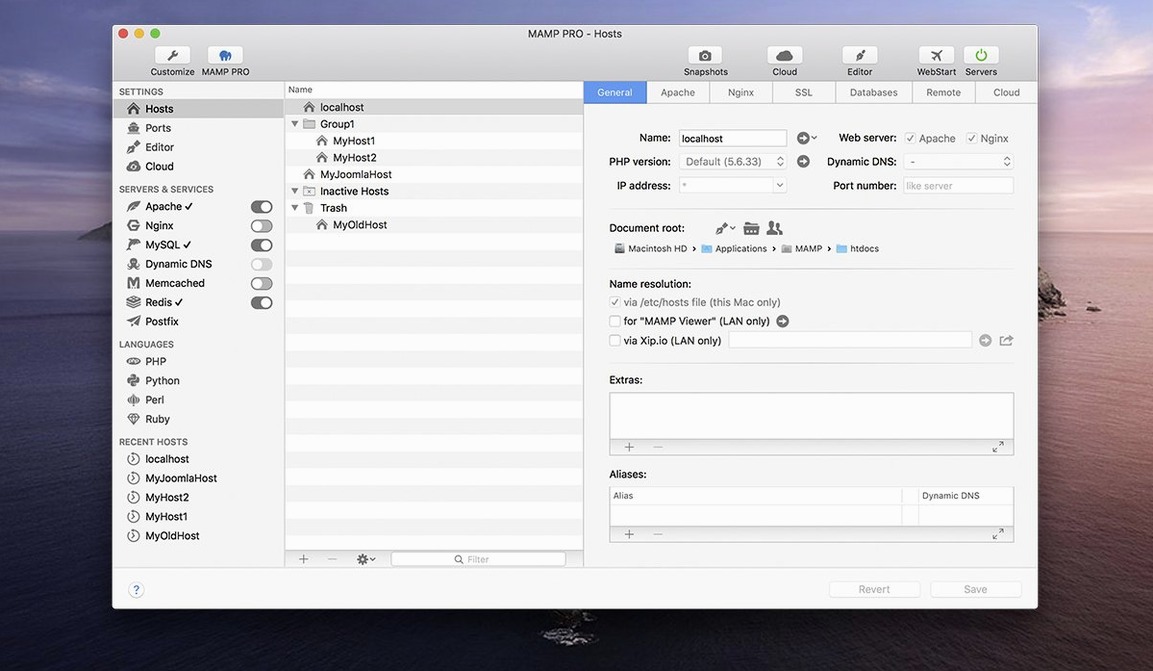
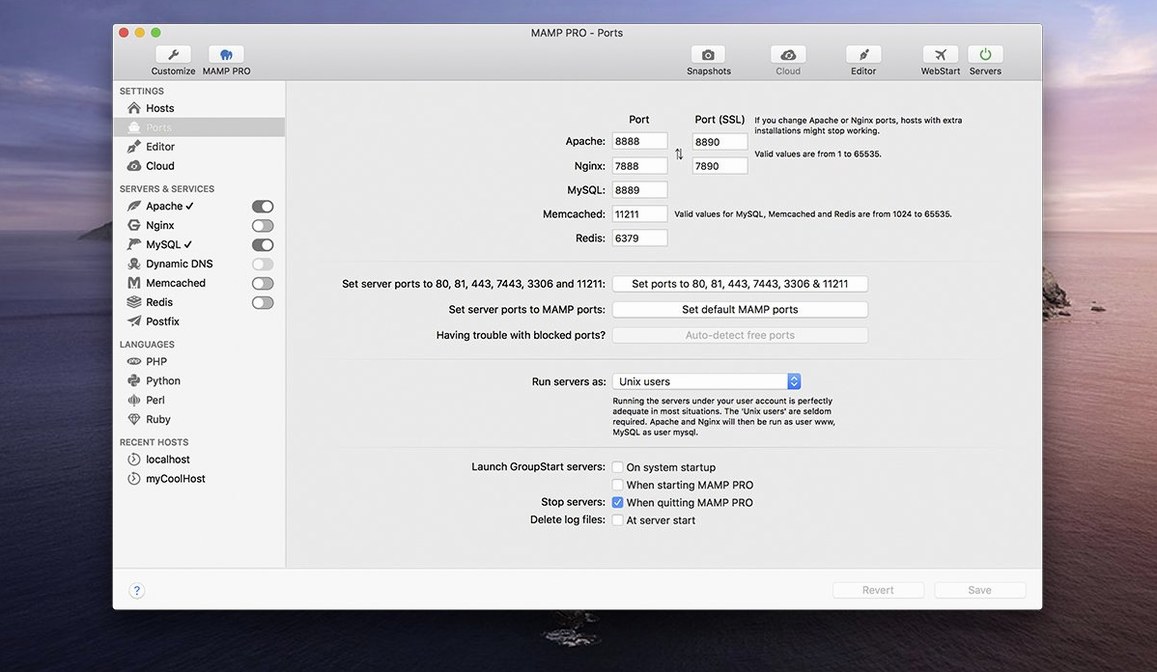
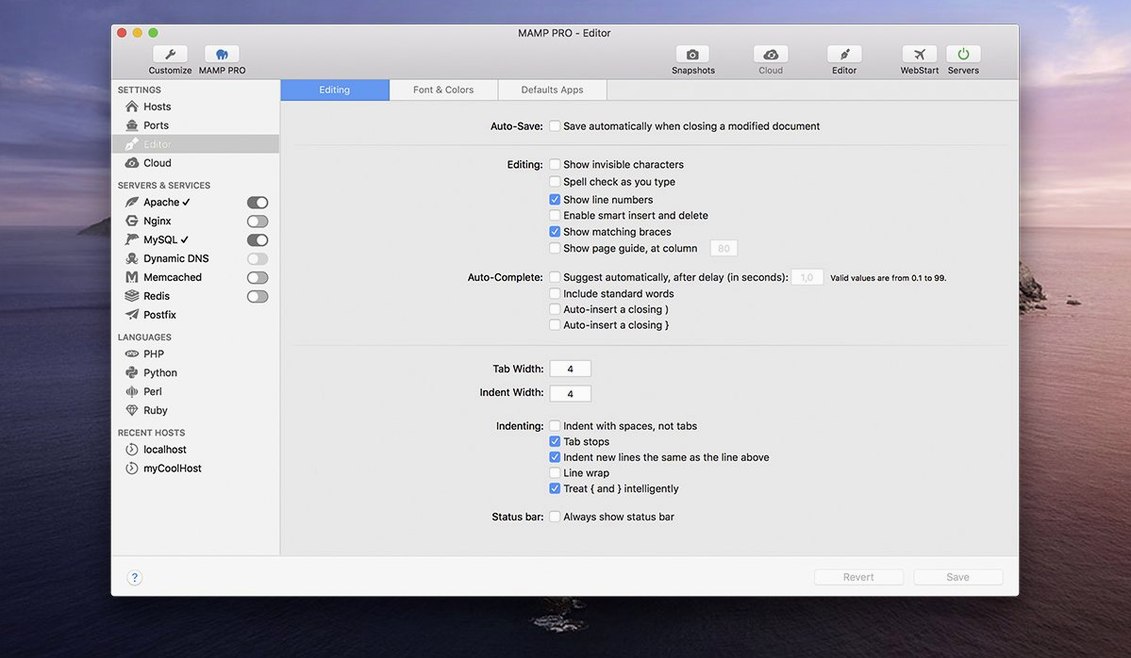
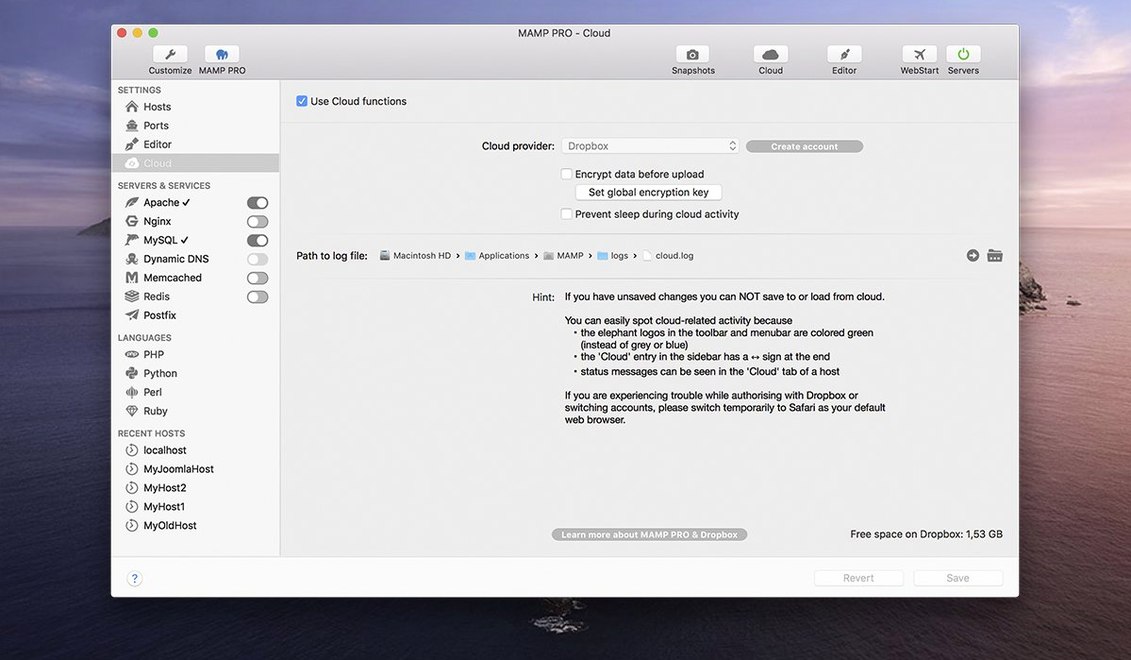
If you've ever used the free MAMP to spin up a quick local site, think of MAMP PRO as the control room behind that stage. It's the commercial front end that takes the same local server environment and gives you a proper set of switches and dials for every project. Rather than one flat setup, it lets you create a separate host for each web project—so a WordPress build can run PHP 8.2 while an older client site stays on 7.4, each with its own server configuration.
Per-host PHP and Python versions with one-click publishing
- Developers who manage multiple sites and need individual PHP and Python versions per host.
- Anyone who wants one-click WordPress installation and the ability to publish a finished site directly to a live server.
- Workflows that involve remote editing, where you need to tweak a project from elsewhere on your network.
Intel build runs through Rosetta 2, English-only interface
- The app is a 64-bit Intel build, which runs on Apple Silicon via Rosetta 2 rather than natively.
- Its interface is currently available only in English.
How MAMP PRO sits among similar Mac apps
Put MAMP PRO next to Laravel Valet, and the difference in philosophy becomes clear straight away. Valet is a lightweight companion that runs quietly in the background, mapping folders to .test domains with almost no interface at all. It's brilliant if you work mostly with Laravel or Sculpin and want command-line speed. MAMP PRO goes the other direction—it wraps everything in a visual dashboard, which means you spend less time editing configuration files and more time clicking hosts into existence. Valet feels like a bicycle; MAMP PRO feels like a van with a dashboard.
Then there's Local by Flywheel, which shares MAMP PRO's fondness for one-click WordPress setups and a polished GUI. Local leans hard into the WordPress ecosystem, with features like live links for client previews and a simpler onboarding flow for people who never want to see a PHP directive. MAMP PRO covers that ground too, but it keeps a foot in the broader world: Apache or Nginx, MySQL and Redis, multiple Python versions alongside PHP. Where Local gently steers you toward WordPress, MAMP PRO assumes you might also be tinkering with a flat-file CMS or a custom API project next week, and it refuses to get in your way.
Compared to Docker-based setups—perhaps using Devilbox or a custom compose file—MAMP PRO trades container-level isolation for sheer convenience. Docker gives you reproducible environments that match production down to the last library version, but you pay for that precision with a steeper learning curve and a noticeable hunger for RAM. MAMP PRO sits on top of a native stack, booting Apache or Nginx directly rather than inside containers. The overhead is lower, and the startup time is faster, though you lose the ability to mirror a production container exactly. For many freelance developers, that trade-off is perfectly sensible.
Apache and MySQL start in about two seconds on Apple Silicon
On a 2023 MacBook Pro with Apple Silicon, MAMP PRO starts its Apache and MySQL services in about two seconds—faster than most Docker environments I've watched spin up. Because the Intel build runs through Rosetta 2, there's a small translation penalty the first time a PHP process launches, but it's barely perceptible once everything is warm. Memory use sits around 300 to 500 MB for a modest setup with two hosts, Apache, MySQL 8.0 and Redis, which leaves plenty of headroom for a browser with thirty tabs and a design tool or two.
Stability has been solid across long workdays. Leaving the services running from morning until evening, I've yet to see MySQL silently drop a connection or Apache freeze mid-request. Version 6.9.0 tidied up a crash that used to appear when editing host-specific server configurations, and since that update the settings panel has felt reassuringly predictable. The only slight wobble comes when switching between PHP versions rapidly across several hosts—there's a half-second pause as MAMP PRO restarts the web server, but it's brief enough that you learn to batch your changes.
Disk usage is worth a mention. Each additional PHP version adds roughly 200 to 400 MB to the application's internal library, so if you install six or seven versions you'll see several gigabytes occupied before you've even created a project. It's not hidden, and the installer warns you, but it catches people out when they first explore the PHP version manager.
Point any host at a folder on your desktop or inside a Git repo
MAMP PRO integrates with your code editor without any ceremony. The default host directory lives inside /Applications/MAMP/htdocs by default, but you can point any host at a folder on your desktop, in Documents, or inside a Git repository you've cloned elsewhere. Open that folder in Nova, VS Code or PhpStorm and start editing—the file watcher picks up changes immediately. Because it uses standard Apache or Nginx configurations under the hood, there's no proprietary lock-in; you can copy a project folder to another machine running plain MAMP or a Linux server and it will work with minimal tweaking.
The remote editing feature ties in with macOS file sharing rather neatly. Turn on remote access for a host, and you can reach it from another Mac or even an iPad on the same network by browsing to the host's .local address. It's useful for checking responsive layouts on a tablet without deploying to a staging server first. Combined with macOS Screen Sharing or Universal Control, you end up with a surprisingly fluid multi-device testing setup.
MAMP PRO also plays nicely with macOS backup habits. All your host configurations, database credentials and PHP version assignments live in a single SQLite database inside ~/Library/Application Support. If you use Time Machine, that database gets backed up alongside everything else. Restoring it after a clean macOS install brings your entire local server setup back intact—handy when you're migrating to a new machine and dreading the thought of recreating twenty hosts by hand.
Move the document root out of the buried Applications folder
Right after installation, open the preferences and head to the Server tab. The default document root is buried deep inside the Applications folder, which isn't terrible but becomes annoying when you want quick Finder access. Change it to a folder in your home directory—something like ~/Sites—and every new host you create will automatically nest there. It's a small change that saves dozens of trips through the folder hierarchy.
Next, check the PHP version manager. MAMP PRO ships with one or two versions pre-installed, but the list of available versions extends much further. Download the ones you realistically need—probably the latest PHP 8.3 for new projects and whatever version your production server runs for older sites. Resist the urge to install all eleven available versions; each one eats disk space, and you'll rarely switch between more than three or four in practice.
The third setting to revisit is the MySQL tab, where you can toggle between MySQL 5.7 and 8.0. If you're importing older WordPress sites or legacy applications, 5.7 compatibility mode avoids authentication plugin conflicts that sometimes trip people up. New projects should default to 8.0, but knowing the toggle exists means you won't waste an afternoon debugging a caching_sha2_password error on a site that's still using mysql_native_password.
Build a client site locally and push it live for review
Let's walk through a typical task: building a new WordPress site for a client, testing it locally, and pushing it to a live server once it's ready for review. This uses several of MAMP PRO's features in sequence and shows how they connect.
Start by clicking the plus button in the host list and choosing "Create a new WordPress host." MAMP PRO asks for the host name—call it client-preview—and offers to set up a database and download the latest WordPress version automatically. Tick both boxes, pick PHP 8.2 from the dropdown, and let the installer run. Within about thirty seconds you have a fresh WordPress installation at client-preview.local, complete with a dedicated database user and a random secure password stored in the host settings.
Open the host folder in your editor and start building. Add a custom theme, install Advanced Custom Fields, pull in the client's brand assets—all the usual steps. Because the host has its own PHP configuration, you can tweak the upload_max_filesize and memory_limit values in the host's Extended tab without affecting any other project. When the client emails a 40 MB video file for the hero section, bump those limits up temporarily and keep working.
Once the site looks ready for feedback, open the host's Publishing tab. Enter the live server's FTP or SFTP credentials—hostname, username, password, and the remote path where WordPress should live. MAMP PRO can export the database, transfer all files, and handle the search-and-replace for URLs automatically. Click Publish and watch the progress bar. When it finishes, the live site at the real domain mirrors exactly what you saw locally, down to the permalink structure and active plugins.
Later, if the client makes content changes directly on the live server, you can reverse the flow. Use the Import feature from the same Publishing tab to pull the live database and files back down to your local host. MAMP PRO re-runs the URL replacements so client-preview.local works again without manual edits. It turns what used to be a tedious round-trip involving phpMyAdmin dumps and wp-cli commands into two clicks.
The 6.9 update is a maintenance release that smooths out a few rough edges reported in earlier builds. A program crash that could occur when editing host-specific server configurations has been fixed, and several network-related quirks in the MAMP Cloud feature are now resolved. The team also improved how PHP versions are installed, and opening phpMyAdmin 5 via an alias no longer misbehaves.
- macOS 10.12 or later
- Intel or Apple Silicon Mac (64-bit Intel build)
Questions from the class 0
Sign in or join the class to ask a question.
Nobody has asked anything yet. If you have used it on a real job, say what the file did.
Also on the Mac Apps shelf
The whole Mac Apps shelf Marmoset Toolbag
Renders 3D models with realistic lighting and materials in real time.
Marmoset Toolbag
Renders 3D models with realistic lighting and materials in real time.
 Magnet
Snaps windows into tidy arrangements with keyboard shortcuts or dragging.
Magnet
Snaps windows into tidy arrangements with keyboard shortcuts or dragging.
 Marvelous Designer
Simulates fabric so you can design and drape clothing in 3D.
Marvelous Designer
Simulates fabric so you can design and drape clothing in 3D.
 Magic Disk Cleaner
Finds and removes caches, logs and orphaned files that waste space.
Magic Disk Cleaner
Finds and removes caches, logs and orphaned files that waste space.
 MacWhisper
Transcribes audio files into text entirely on your Mac without sending data to the cloud.
MacWhisper
Transcribes audio files into text entirely on your Mac without sending data to the cloud.
 MAXON Cinema
Creates 3D scenes, animation and simulations for motion graphics.
MAXON Cinema
Creates 3D scenes, animation and simulations for motion graphics.
 macOS Tahoe
Runs your Mac and overhauls the built-in network firewall and system settings layout.
macOS Tahoe
Runs your Mac and overhauls the built-in network firewall and system settings layout.
 MediaMate
Shrinks the volume and brightness overlays into compact, useful HUDs.
MediaMate
Shrinks the volume and brightness overlays into compact, useful HUDs.