 ASPNetWorld

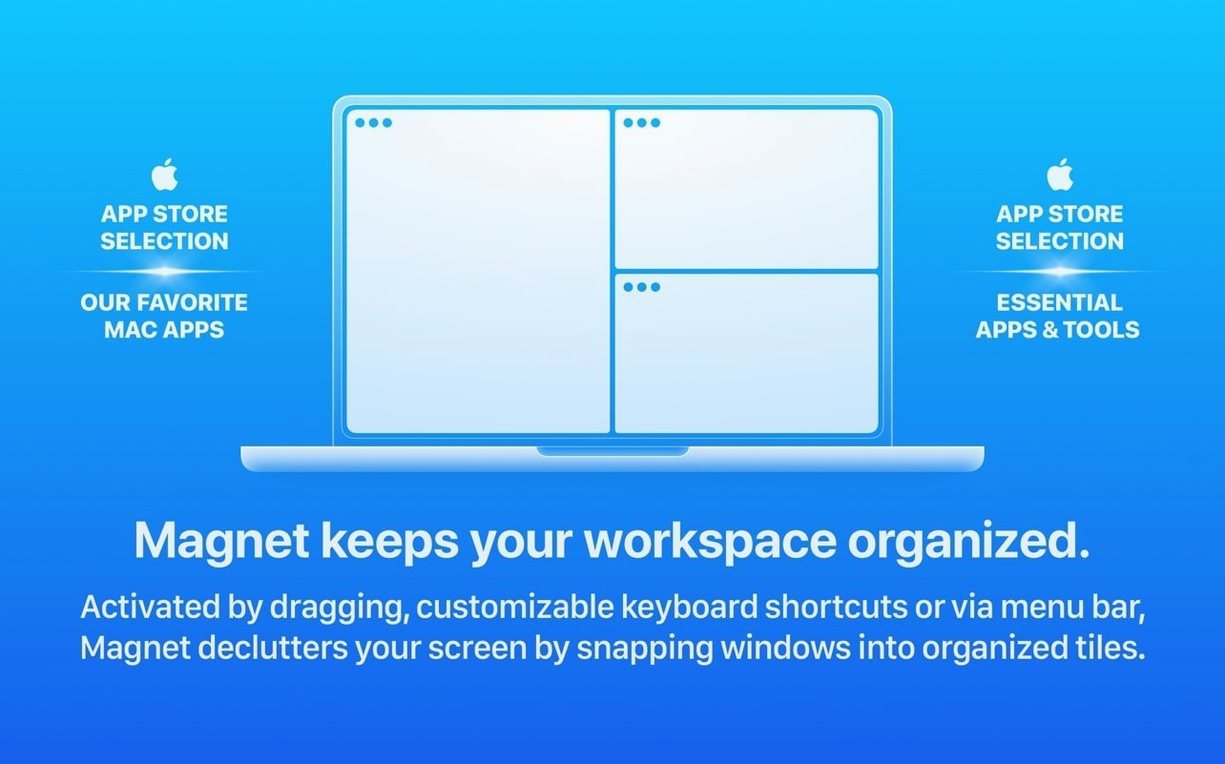
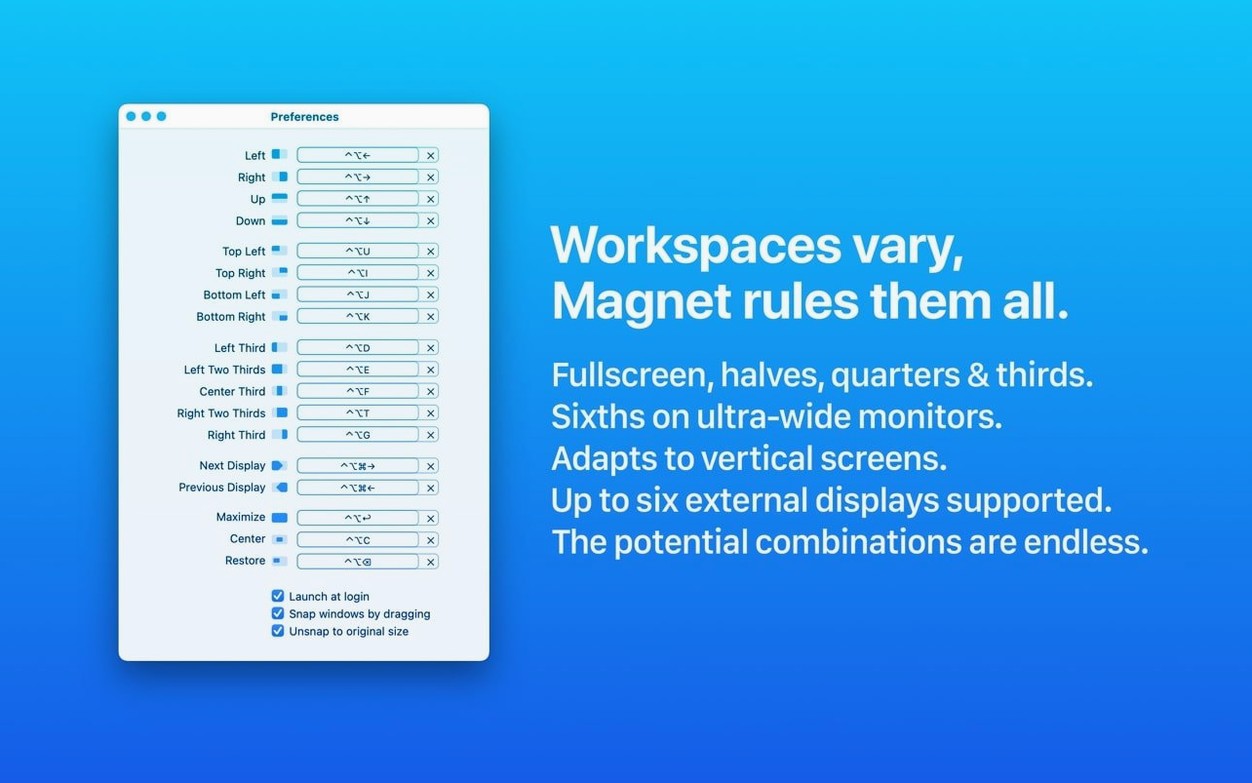
Magnet is a window manager that brings proper window snapping to macOS through keyboard shortcuts and simple drag gestures.
It extends macOS window management instead of replacing it
It extends the window management already built into macOS rather than replacing it. Your existing Mission Control, Spaces and full-screen habits keep working, while Magnet adds the half, quarter and custom layouts that macOS still only half-heartedly offers.
Any standard window snaps into halves, quarters or custom positions
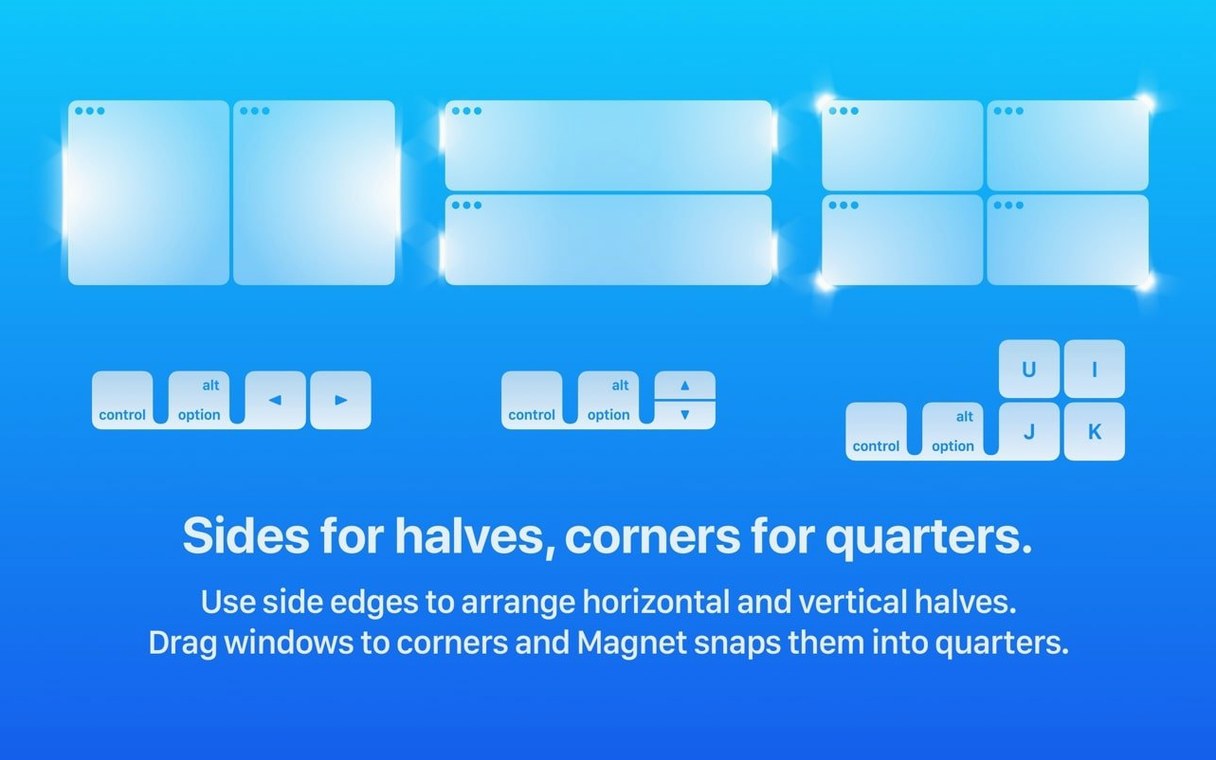
Any standard window can be pushed into full-screen, half-screen, quarter-screen or your own custom positions. The interface languages span Russian, English, German, Spanish, Italian, Traditional and Simplified Chinese, Korean, Dutch, Polish, French, Czech, Swedish and Japanese — useful when a Mac is shared or set up for someone else.
Will it cope with a multi-display setup?
Yes. Magnet supports up to six external displays, so snapping behaviour stays predictable whether you work on a laptop alone or a desk with several monitors attached.
Tweak these defaults in the first five minutes
Out of the box, Magnet works well enough to make you wonder why Apple hasn't built the same thing into macOS itself. But a handful of defaults are worth tweaking during the first five minutes of use, because they quietly shape how the app feels day to day.
Open the menu bar icon — it looks like a little magnet — and choose Preferences. The first thing I recommend switching off is Snap windows by dragging if you have strong muscle memory for Mission Control hot corners. The drag zone at the screen edge can fire a snap when you meant to trigger a hot corner, especially on a smaller laptop display. You can always keep the keyboard shortcuts active and leave dragging turned on only for the layouts you actually use.
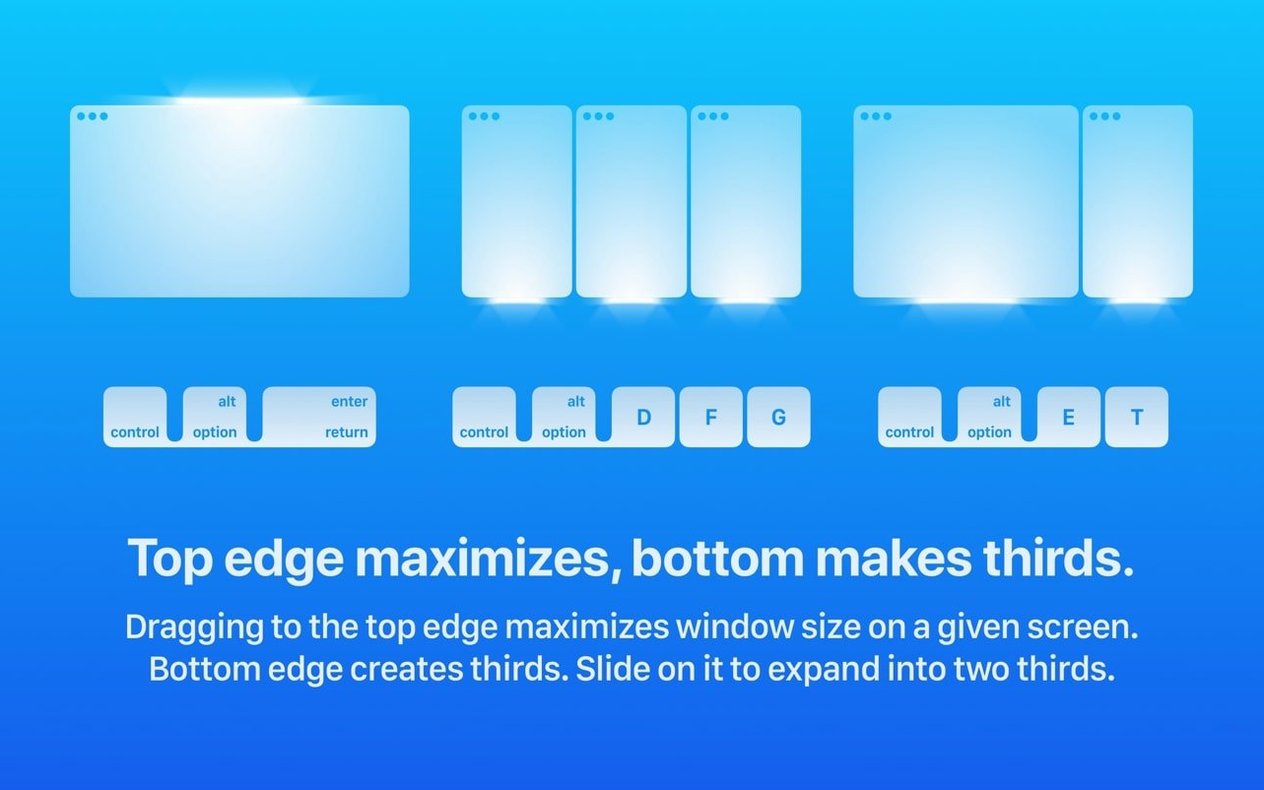
Next, look at the list of keyboard shortcuts. The default set uses the Control key plus the Option key plus an arrow for most actions. That combination keeps well away from system-wide shortcuts, but some people find a two-key chord easier. I swap mine to Control + Option + Command with the cursor keys, which stops me accidentally nudging windows while I'm switching between Spaces. If you use an external mechanical keyboard without a dedicated Option key on the right, remap the less common layouts — thirds and sixths — to something involving the Shift key instead.
Last: enable Launch Magnet at login. A window manager that you have to start manually each time stops being a window manager and starts being a mild inconvenience. Tick the box and forget it exists.
Treat it as a deliberate habit, not an automatic reflex
Once the shortcuts are bedded in, spend the first week treating Magnet as a deliberate habit rather than an automatic reflex. The goal is to stop reaching for the green traffic-light button for anything other than genuine full-screen mode with its own Space.
Start with just three shortcuts. Left-half, right-half and maximise. Use them every time you open a Finder window, a browser or a text editor. The half-screen shortcuts work on the currently active display, so on a two-monitor desk you get four half-screen slots without touching the mouse. After a day or two, add quarter-screen snapping — top-left, bottom-right and so on — and notice how often a chat window, a terminal and a browser can all stay visible at once without overlapping.
If you already use Mission Control to organise by task, treat Magnet as the grid within each Space. One Space might hold a code editor and a browser in left-right halves; another might hold a quartered layout of Finder, notes, Safari and Preview. Combining the two mental models stops Spaces from feeling like a pile of full-screen apps and turns them into proper desktop arrangements you can call up in a swipe.
Don't try to control every pixel with custom layouts
The most common mistake is thinking of Magnet as a layout robot that should control every pixel. New users sometimes try to set up a custom layout for every possible workflow, then get frustrated when windows don't quite fit or a dialog box breaks the pattern. Magnet is best treated as a quick arranging tool, not a permanent tiling engine. Let it handle the big structure and drag a window manually for the odd occasion when a chat panel needs to be a little narrower.
Another slip: snapping a window to full-screen via Magnet and then pressing Escape expecting it to restore. Magnet's full-screen command uses the standard macOS full-screen Space, so the window genuinely enters its own Space. The way back is either the Magnet restore shortcut or the familiar three-finger swipe. People who download Magnet for Mac and skip the restore shortcut walk into this on day one and assume the app is misbehaving.
Forgetting about the drag threshold is also surprisingly common. When you grab a window and pull it to the top of the screen, the snap triggers only when the cursor hits the menu bar area — not halfway up. Dragging slowly and watching for the translucent preview frame avoids the moment where nothing happens and you wonder if the app has quit.
Finally, some users chase a Magnet DMG from unofficial sources and end up with a version that doesn't match the system requirements listed for the current build, which expects macOS 13 Ventura or later. The app runs natively on both Apple Silicon and Intel, so architecture isn't the issue; an outdated copy simply won't behave reliably on a modern Mac.
Research-heavy workflows with editor, browser and terminal side by side
Magnet suits anyone who keeps multiple windows open simultaneously, but it rewards certain workflows more immediately than others.
Developers and writers with a research-heavy setup benefit straight away. A text editor centred, a browser half-snapped to the right and a terminal or reference PDF quartered in the corner creates a single-screen studio that previously needed two displays or constant Alt-Tab gymnastics. The arrangement becomes muscle memory inside an afternoon.
Designers and video editors who already use large monitors gain back the edges of the screen that Adobe panels and floating toolbars eat up. Snapping the canvas to the left two-thirds while keeping bins and timelines in a custom right-side strip — defined once in Magnet's menu — turns a chaotic workspace into something repeatable.
Anyone working through a MacBook display alone also sees an outsized benefit. The 13- and 14-inch screens feel substantially larger when you stop overlapping windows and commit to a tiled grid. The quarter-screen shortcuts, in particular, make a laptop feel closer to a desktop without any extra hardware.
Even casual users who simply want two documents side by side without fiddling with manual resizing find the app pays for the tiny mental overhead of learning three shortcuts. The magnet Mac free trial-like experience — using the unregistered version to test the snapping — tends to convert people within a couple of days because the friction of going back to manual window management feels immediately worse.
Hover over a layout name in the menu bar to see its shortcut
Some of Magnet's most useful behaviour doesn't appear in the main preferences window and takes a while to stumble across.
The menu bar dropdown itself is more than a settings launcher. Hover over any layout name and you see the current keyboard shortcut listed beside it, so you can learn them incrementally instead of memorising a table. Right-clicking the menu bar icon and picking Ignore for a particular app stops Magnet from interfering with software that has its own window management — useful for music production tools or virtual machines.
The sixths layout, which splits a display into three vertical columns and two rows, is hidden inside the custom layouts section and rarely gets explored. On an ultrawide monitor, it creates six usable tiles that make a single screen behave like a multi-monitor rig for chat, email, calendar, browser, terminal and notes all at once.
A subtler trick: you can chain snaps. Snap a window to the left half, then immediately press the top-left quarter shortcut and the same window reshapes into the upper-left quadrant. No unsnapping in between. Once your fingers learn the geography of the grid, rearranging a workspace takes seconds.
If you use a laptop in clamshell mode with an external keyboard and display, Magnet's shortcuts transfer cleanly because they don't rely on the built-in keyboard's fn key or the Touch Bar. The same key chords work identically on a Magic Keyboard, a Keychron or a laptop deck, which sounds small but removes a constant source of friction in other workflow tools.
Lastly, the app's support for Retina and non-Retina displays means the snapping preview frame stays pixel-accurate regardless of the monitor you drag across. When you download Magnet for Mac and run it on a mixed setup — say a 5K iMac with a 1080p side monitor — windows snap to the correct pixel boundaries on both screens without jitter or misalignment.
- macOS 13 (Ventura) or later
- Works natively on both Apple Silicon and Intel 64-bit Macs
Questions I keep hearing
Which versions of macOS can run Magnet?
The listed compatibility is macOS 13 Ventura and later, on both Intel and Apple Silicon Macs.
Questions from the class 0
Sign in or join the class to ask a question.
Nobody has asked anything yet. If you have used it on a real job, say what the file did.
Also on the Mac Apps shelf
The whole Mac Apps shelf Magic Disk Cleaner
Finds and removes caches, logs and orphaned files that waste space.
Magic Disk Cleaner
Finds and removes caches, logs and orphaned files that waste space.
 MAMP PRO
Manages individual local web servers for each project you build.
MAMP PRO
Manages individual local web servers for each project you build.
 MacWhisper
Transcribes audio files into text entirely on your Mac without sending data to the cloud.
MacWhisper
Transcribes audio files into text entirely on your Mac without sending data to the cloud.
 Marmoset Toolbag
Renders 3D models with realistic lighting and materials in real time.
Marmoset Toolbag
Renders 3D models with realistic lighting and materials in real time.
 macOS Tahoe
Runs your Mac and overhauls the built-in network firewall and system settings layout.
macOS Tahoe
Runs your Mac and overhauls the built-in network firewall and system settings layout.
 Marvelous Designer
Simulates fabric so you can design and drape clothing in 3D.
Marvelous Designer
Simulates fabric so you can design and drape clothing in 3D.
 macOS Mojave
Runs your Mac and added Dark Mode, desktop Stacks, and ports of News, Stocks, and Voice Memos.
macOS Mojave
Runs your Mac and added Dark Mode, desktop Stacks, and ports of News, Stocks, and Voice Memos.
 macOS High Sierra
Runs your Mac on the system that brought APFS and HEVC video support.
macOS High Sierra
Runs your Mac on the system that brought APFS and HEVC video support.