 ASPNetWorld

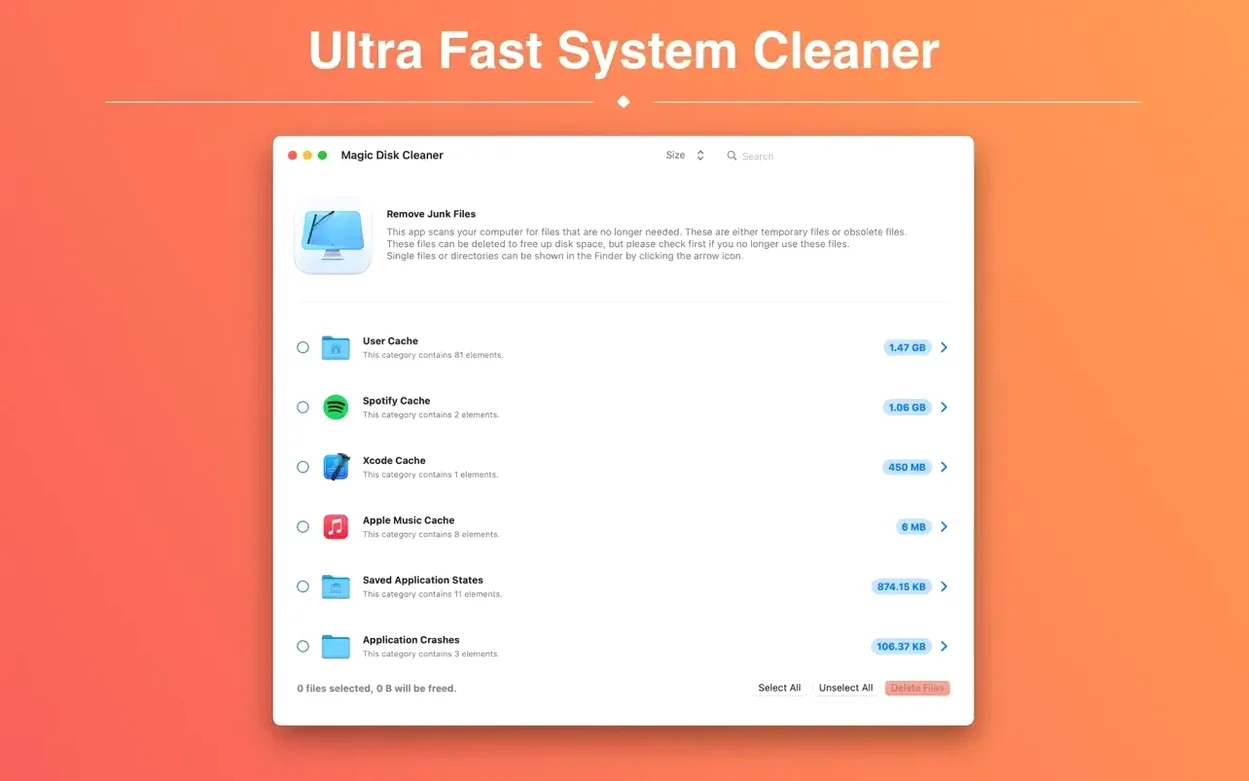
If you've ever dug through the Library folders by hand, Magic Disk Cleaner is essentially that knowledge packaged into an app. It scans for the caches, logs and orphaned temporary data that build up in the background, presenting them for review before you commit to deletion — nothing is removed without your say-so.
- Service-bundle inspection. Right-click a result to reveal it in Finder, so you can check exactly which application generated the files.
- Granular item selection. Expand any folder in the results to tick individual subfolders rather than wiping an entire cache at once.
- Size-sorted scan results. The list is ordered by disk footprint by default, putting the biggest space hogs at the top where they belong.
- System-wide temporary file coverage. It looks beyond the user Library into system temp directories, provided your account has the permissions.
- Quick rescan. After deleting a batch you can re-run the scan with one click to verify the space was actually reclaimed.
That alarming first scan number is mostly safe to clear
Your first scan will almost certainly show a figure that looks alarming — several gigabytes of temporary files sitting in caches you didn't know existed. Don't panic-clean everything at once. It's wiser to let the app show you the landscape for a couple of days before you make sweeping deletions, because macOS will immediately begin rebuilding caches that are still in active use. Deleting the Safari cache, for instance, frees space in the short term, but the browser will repopulate it as soon as you revisit your usual sites.
Start with the folders that appear under User Cache. Expand each one individually — you'll often spot a single application that has gone rogue, hoarding a disproportionate amount of space. Right-click it and reveal it in Finder. If the timestamp on those files is months old and you haven't launched the parent app in weeks, you can tick that folder with confidence. The system-level temp directories, by contrast, are best inspected but left alone on the first pass unless you know exactly what you're looking at.
One habit worth forming early: run a scan, note the total, then run a rescan after your first deletion. Occasionally a background process will have written fresh temp data in the seconds between scans, and that delta tells you whether you're chasing a moving target — a sign that some application is unusually aggressive with its temporary writes.
How Magic Disk Cleaner Compares with Similar Mac Apps
Set Magic Disk Cleaner alongside CleanMyMac and the difference in philosophy becomes obvious immediately. CleanMyMac bundles maintenance scripts, malware scanning, and an uninstaller into a polished suite. Magic Disk Cleaner does one thing — temporary file discovery and manual deletion — and it does it without background daemons or scheduled clean-ups. Where CleanMyMac nudges you toward letting it manage things automatically, Magic Disk Cleaner puts every file in front of you and waits for a decision. Power users who want to see the raw file paths tend to prefer the latter; people who would rather not think about caches at all lean toward the former.
OnyX shares Magic Disk Cleaner's deliberate, no-automation approach, but it comes with a far broader scope. OnyX can rebuild Launch Services, verify disk structures, and tweak hidden system parameters. It's a toolbox. Magic Disk Cleaner is more like a single, sharp instrument — it scans, it displays, it deletes. If you already use OnyX for system maintenance, you might still reach for Magic Disk Cleaner for a quick, focused temp-file sweep that doesn't require navigating multiple tabs and confirmation dialogs for unrelated tasks.
Against DaisyDisk, the comparison is less direct because DaisyDisk visualises all storage, not just temporary files. DaisyDisk helps you find a forgotten 40 GB video project buried in your Documents folder; Magic Disk Cleaner would never see it. The two apps complement each other well. Use DaisyDisk to map your entire drive and identify what's eating space broadly, then switch to Magic Disk Cleaner to clear the low-hanging fruit — the caches and temp data that DaisyDisk will show as "System" or "Other" without giving you a straightforward delete button.
A full-drive scan finishes in under fifteen seconds
The scan itself is fast in a way that feels almost casual. On a 512 GB drive with a typical year of app usage behind it, an initial scan completes in under fifteen seconds. The interface remains responsive throughout — no beachballing, no progress bar that stalls at 90%. That speed comes partly from the app's narrow remit: it's not enumerating every file on the disk, only the known cache and temp directories. The trade-off is that you won't find forgotten downloads or old disk images, but you will get a clean, repeatable result in the time it takes to glance at your phone.
Stability has been uneventful in the best sense. Magic Disk Cleaner runs as a single foreground process, installing no launch agents or background helpers. It asks for nothing at login. Over several days of repeated scans — opening, scanning, deleting a few folders, closing — it has not caused a crash or left a hung process in Activity Monitor. When it deletes files, it uses the standard macOS trash mechanism for flagged items, so an accidental deletion is recoverable from the Bin if you act before emptying it.
Memory usage sits modestly around 60 MB during a scan, and the app releases most of that back to the system when the window is closed. CPU spikes briefly during the directory enumeration phase — roughly two seconds on a modern Mac — then flatlines. It's a well-behaved citizen that doesn't compete for resources with audio software or browser tabs, which makes it a sensible candidate for keeping in the Applications folder rather than stashing on an external drive for occasional use.
Reclaiming space after a three-week video project
Picture a freelance video editor wrapping three weeks of work on a documentary cut. Final Cut Pro has been generating render files, optical flow analyses and waveform thumbnails the entire time. DaVinci Resolve has its own cache directory doing much the same. The editor's 1 TB internal drive is showing 87% full, and Finder's storage breakdown is vague to the point of uselessness.
She launches Magic Disk Cleaner. The scan returns 62 GB of temporary files. Expanding the results reveals 21 GB in Final Cut Pro's render cache — files she won't need now that the project is delivered — and another 14 GB in Resolve's optimised media folder. She ticks both, along with 8 GB of user logs and Adobe Media Encoder transcodes from a project she invoiced a month ago. One click, one confirmation, and 48 GB of space is back on the drive. The remaining 14 GB she leaves untouched: those are current-project assets she recognises by path. The entire process, from launch to close, takes under two minutes. No automation guessed wrong because no automation was involved.
The utility avoids automation: you choose what goes and what stays, making it a deliberate tool rather than a background cleaner.
This update is a quiet one — the kind I always appreciate after a run of feature-heavy releases. Version 5.5.1 tidies up a handful of bugs that could trip the app under specific conditions, and the developer has taken the opportunity to polish the engine room with general performance improvements. Nothing has changed in how you use the cleaner, but the scan feels a touch snappier on my end, and a couple of edge-case hangs that a few users reported should now be history.
- macOS 15.6 or later
- Runs natively on both Apple Silicon and Intel 64‑bit Macs
Questions I keep hearing
Does Magic Disk Cleaner delete anything automatically?
No, it only removes files you have explicitly selected and confirmed — there is no automatic or background cleaning behaviour.
Questions from the class 0
Sign in or join the class to ask a question.
Nobody has asked anything yet. If you have used it on a real job, say what the file did.
Also on the Mac Apps shelf
The whole Mac Apps shelf Magnet
Snaps windows into tidy arrangements with keyboard shortcuts or dragging.
Magnet
Snaps windows into tidy arrangements with keyboard shortcuts or dragging.
 MacWhisper
Transcribes audio files into text entirely on your Mac without sending data to the cloud.
MacWhisper
Transcribes audio files into text entirely on your Mac without sending data to the cloud.
 macOS Tahoe
Runs your Mac and overhauls the built-in network firewall and system settings layout.
macOS Tahoe
Runs your Mac and overhauls the built-in network firewall and system settings layout.
 MAMP PRO
Manages individual local web servers for each project you build.
MAMP PRO
Manages individual local web servers for each project you build.
 macOS Mojave
Runs your Mac and added Dark Mode, desktop Stacks, and ports of News, Stocks, and Voice Memos.
macOS Mojave
Runs your Mac and added Dark Mode, desktop Stacks, and ports of News, Stocks, and Voice Memos.
 Marmoset Toolbag
Renders 3D models with realistic lighting and materials in real time.
Marmoset Toolbag
Renders 3D models with realistic lighting and materials in real time.
 Marvelous Designer
Simulates fabric so you can design and drape clothing in 3D.
Marvelous Designer
Simulates fabric so you can design and drape clothing in 3D.
 macOS High Sierra
Runs your Mac on the system that brought APFS and HEVC video support.
macOS High Sierra
Runs your Mac on the system that brought APFS and HEVC video support.