 ASPNetWorld
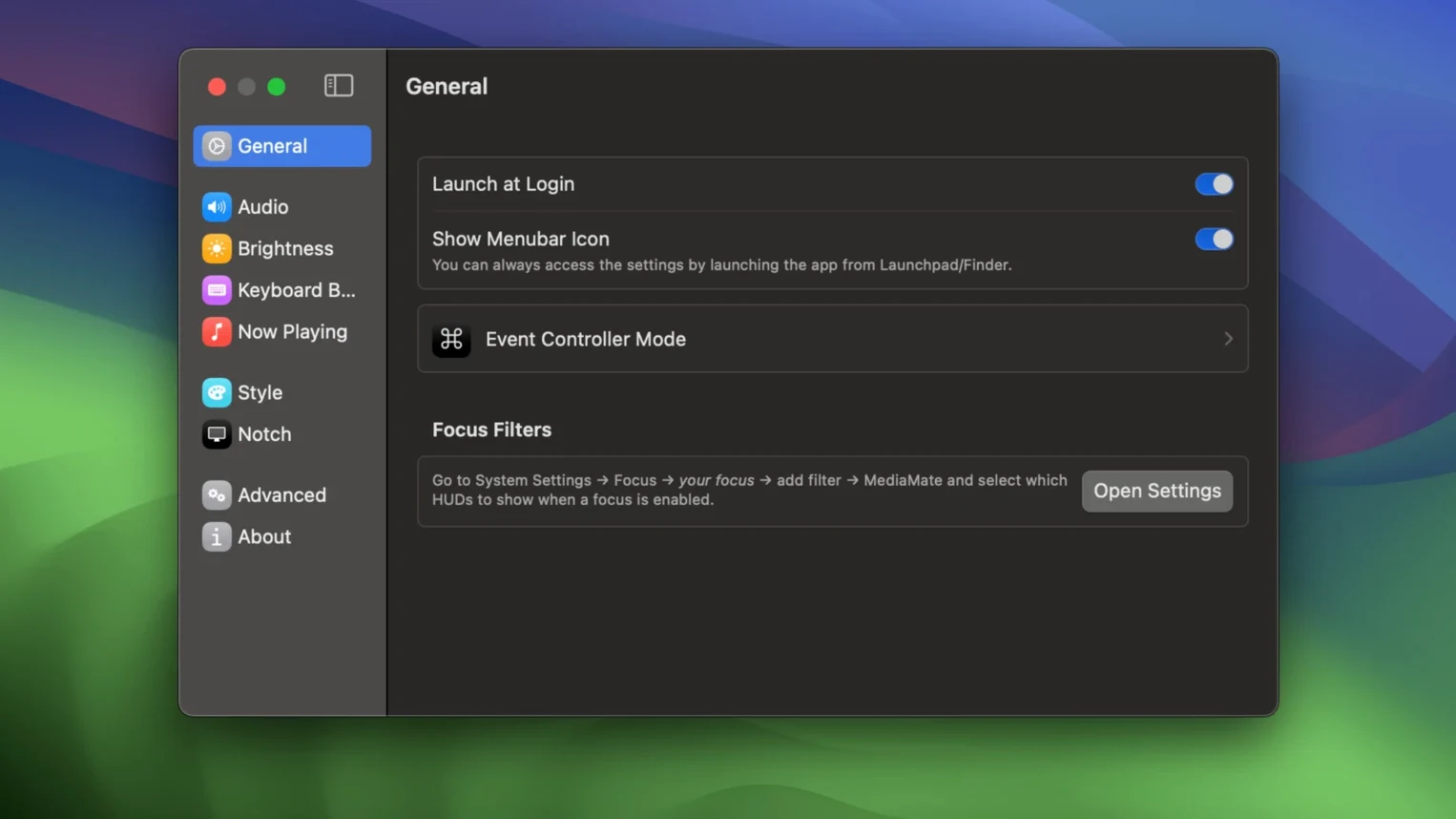
Anyone who adjusts volume or brightness a hundred times a day and immediately forgets what song just started will get on with this app. It replaces the oversized Apple overlays with compact, custom HUDs that actually tell you something useful.
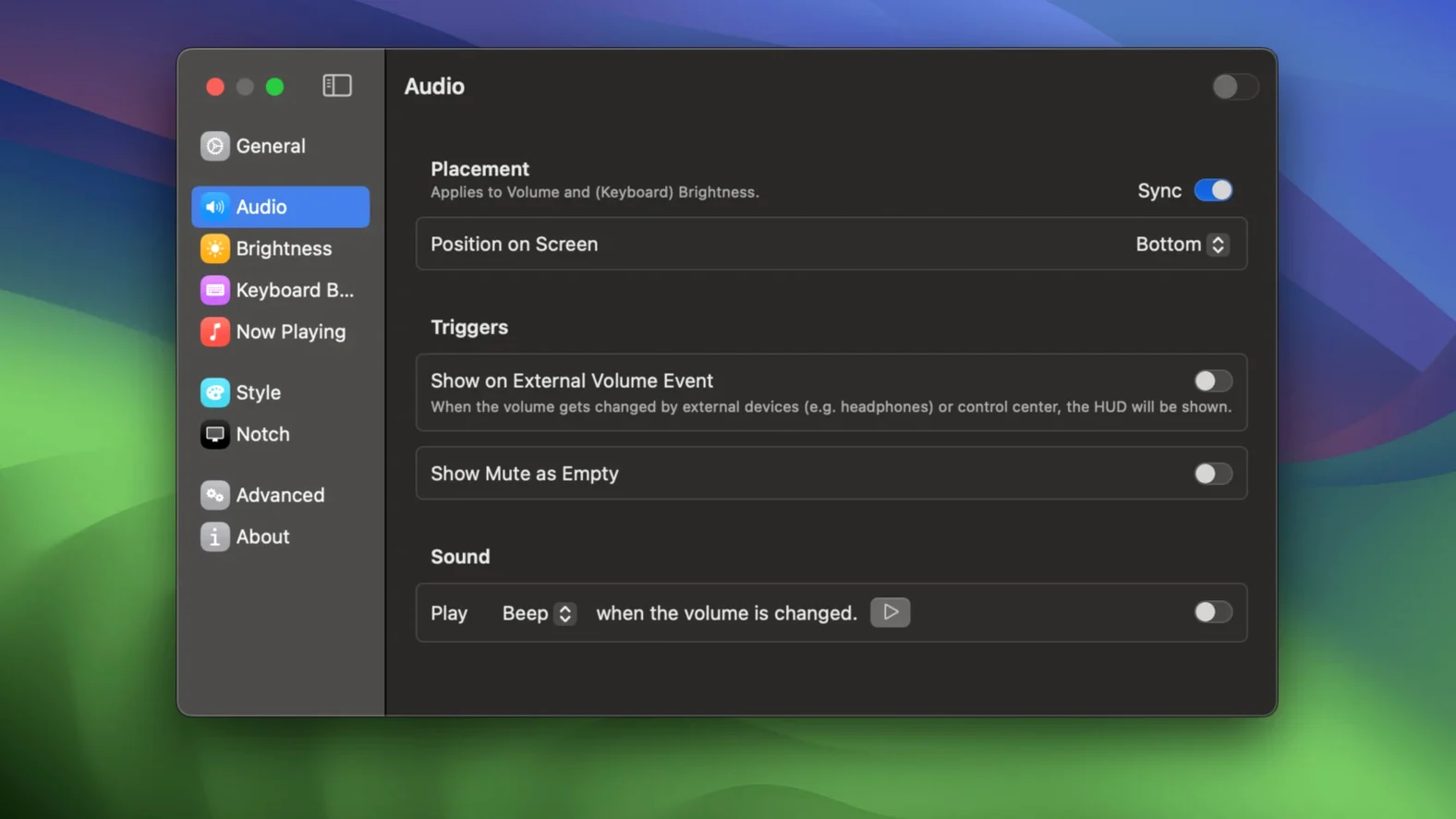
Volume HUD — a slim replacement for the standard macOS bezel. It shows the output device name and a precise level readout, not just an anonymous stack of squares.
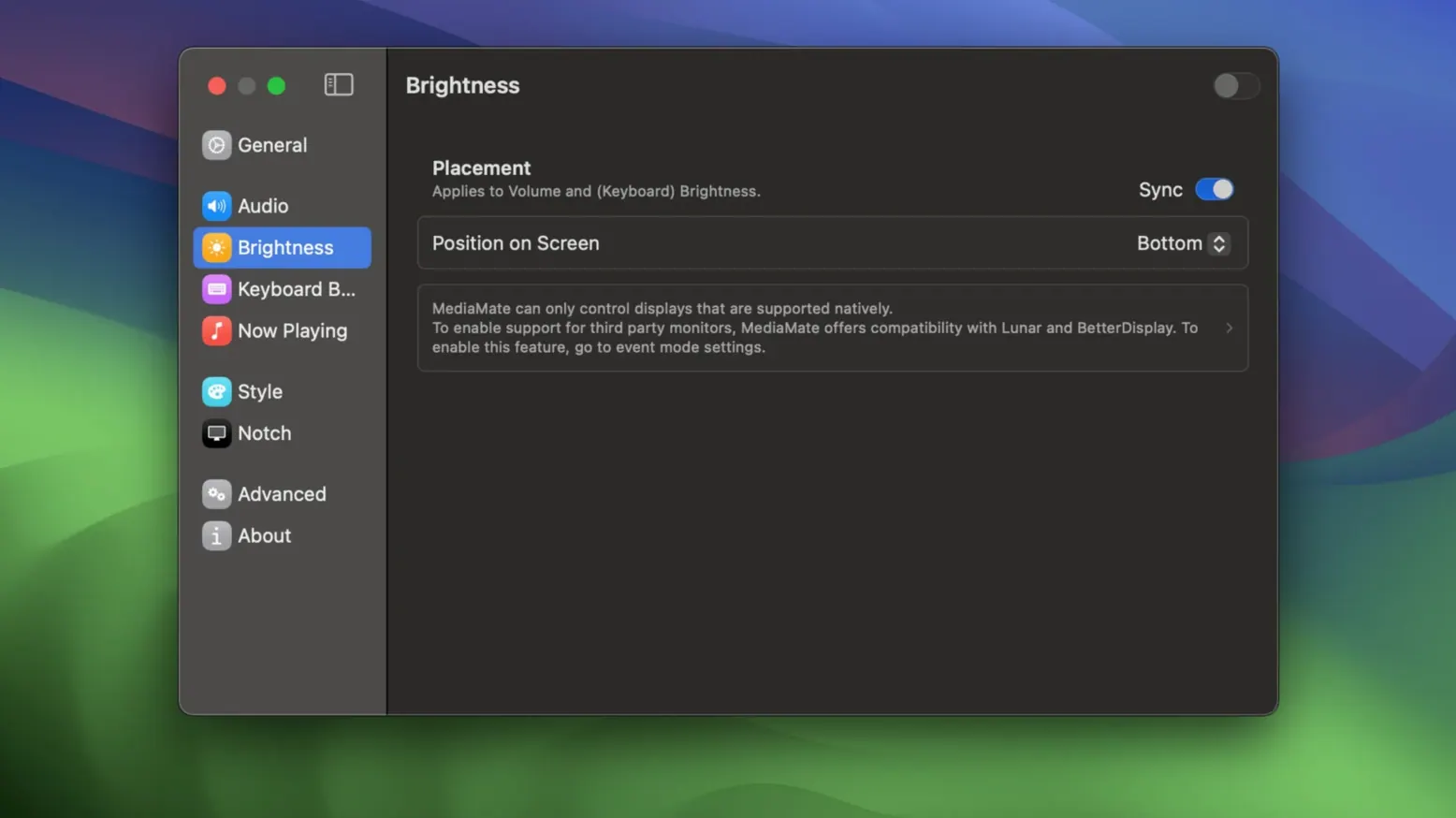
Brightness HUD — does the same job for your screen backlight, swapping the default overlay for a clean, modern indicator that matches the volume style.
Now Playing HUD — a discreet notification that slides in whenever the current track changes, showing the artist and song title. No need to swipe into a widget or open the full music app just to satisfy a moment of curiosity.
Touch Bar mode — if you are still using a Mac with a Touch Bar, MediaMate has a separate mode that puts its controls right there under your fingertips instead of on the main screen.
How MediaMate compares with similar apps
If you have looked around for HUD replacements before, you have probably bumped into a few names. Two that come up regularly are MonitorControl and Soundsource, though they approach the problem from different angles. Neither is a direct clone of MediaMate, and knowing where they overlap helps you pick the right tool for the job.
MonitorControl is primarily a brightness utility. It lets you control external monitor brightness and volume from your Mac keyboard, which is fantastic if you run a multi-screen desk setup. Its on-screen display is functional but plainly designed — it shows a percentage and not much else. Where MediaMate wins is aesthetics and integration. The HUDs in MediaMate feel like they belong on a Mac; MonitorControl’s overlay is more of a practical afterthought. That said, MonitorControl does something MediaMate does not: it talks to DDC-capable external displays. If you need to dim a Dell monitor without reaching for its physical buttons, MonitorControl is your friend. For internal screen HUDs and volume on a single Mac, MediaMate is the more polished experience.
Soundsource, from Rogue Amoeba, is a full audio-routing toolbox. It gives you per-app volume control, input and output device switching, and a ten-band equaliser, all from a menu bar icon. Its HUD is essentially the standard macOS bezel with a tiny bit of extra info tacked on. The overlap with MediaMate is slim: both apps show what is playing and both let you adjust volume, but Soundsource does not touch the brightness HUD at all. People sometimes run the two together — Soundsource for its audio engine and routing, MediaMate for the visual layer that replaces Apple’s clunky overlays.
A third app worth mentioning without going too deep is Bezel, which mimics the iPhone volume HUD on macOS. It is a single-purpose tool, quite pretty, but it stops at volume. If all you want is that pill-shaped indicator on your Mac, Bezel does exactly that. MediaMate covers more ground and gives you finer control over how the HUDs look and behave.
Hour-long editing fatigue meets keyboard volume nudging
Picture a late-afternoon editing session. You have been cutting dialogue for an hour, so your ears are tired and the room has grown dimmer as the sun moves. You nudge the volume up with the keyboard. Instead of the usual blocky overlay swallowing the centre of the screen, a slim indicator slides in near the edge. It reads “Headphones – 62%” in crisp white text on a dark pill-shaped background. You glance at it for half a second, register the level, and carry on. No annoyance, no waiting for it to disappear.
A few minutes later the next track on your reference playlist kicks in — something you put there a month ago and forgot about. A small, elegant strip fades up at the top of the screen: “Phoebe Bridgers · Kyoto.” You make a mental note to borrow that reverb treatment and keep working. The notification vanishes after a couple of seconds, never stealing focus.
The room darkens further, so you reach for the brightness keys. The same style of HUD appears, this time showing a sun icon and a percentage. You bring the screen down to about forty percent and notice the keyboard backlight is too bright by contrast. A custom shortcut you set earlier — Fn+F5 — slides in the keyboard backlight indicator. You dial it down without opening System Settings or squinting at the Touch Bar.
Throughout the session, MediaMate stays out of the way. It never opens a window, never demands a click. Its job is to show you what changed and then get out. That rhythm, repeated across a working day, is where the app earns its place.
External monitors stay untouched by MediaMate
The most common head-scratcher is assuming MediaMate works on external monitors the same way it works on the built-in display. It does not control external screen brightness — that is DDC territory, and MediaMate focuses on the Mac’s internal panel. New users sometimes spend ten minutes tapping brightness keys at a connected LG monitor and wondering why nothing moves.
Another trap is launching the app without granting it accessibility permissions. macOS blocks any tool that wants to draw over system elements until you explicitly allow it in System Settings under Privacy & Security > Accessibility. MediaMate prompts you on first launch, but plenty of people click through the dialogue too quickly and then wonder why the old Apple HUDs still appear.
Touch Bar users occasionally miss the separate mode toggle. MediaMate does not automatically detect a Touch Bar Mac and switch over — you need to enable Touch Bar mode in the app’s settings if you want the controls on that strip rather than the main display. Skipping this step leaves the Touch Bar empty of MediaMate’s functions, which feels like the app is not working.
A subtler mistake is leaving every HUD enabled at full animation duration and then feeling the app is sluggish. The fade-in and fade-out times are adjustable. Dropping them to around 0.2 seconds makes the overlays feel instantaneous. The default values are a comfortable middle ground, but they are worth tweaking to match your personal tolerance for on-screen motion.
System media keys and Control Centre keep working as before
MediaMate slots neatly into the macOS ecosystem because it does not fight for control — it observes and replaces. System-wide media keys, Control Centre toggles, and Touch Bar brightness sliders all continue to work exactly as before. The app intercepts the visual feedback, not the input. That means any keyboard shortcut manager like Karabiner-Elements or BetterTouchTool can still remap volume and brightness keys, and MediaMate will faithfully display the result.
For music production folk, there is a happy coexistence with Soundsource and Loopback. MediaMate reads the output device name from the system, so if Soundsource reroutes audio to a virtual device called “Mixing Bus,” that name appears right in the volume HUD. The Now Playing HUD pulls track data from whatever is registered as the active media source — Music, Spotify, Tidal, even a browser tab playing Bandcamp. It does not care which app is playing; it just reports what the system tells it.
Shortcuts integration is not native, but a clever workaround exists. You can trigger AppleScript commands that tell MediaMate to show a specific HUD, which means Shortcuts can fire off a custom volume notification as part of a larger automation. For example, a “Morning Desk” shortcut could set the display brightness, switch audio output to a desktop DAC, and briefly flash the brightness HUD to confirm everything took effect. It is a power-user trick, not a beginner feature, and it is worth exploring once you are comfortable with the basics.
- macOS 13 Ventura or newer
- Apple Silicon or 64-bit Intel processor
Questions I keep hearing
Does MediaMate work on Apple Silicon and older Intel Macs?
Yes, it runs natively on both ARM-based Macs and 64-bit Intel machines, so you are covered regardless of which processor your Mac uses.
What does the Now Playing HUD actually show me?
It displays the current media item being played — typically the artist and track name — in a subtle overlay that appears whenever the song changes.
Questions from the class 0
Sign in or join the class to ask a question.
Nobody has asked anything yet. If you have used it on a real job, say what the file did.
Also on the Mac Apps shelf
The whole Mac Apps shelf Mela
Keeps your recipes organised and in sync across Apple devices.
Mela
Keeps your recipes organised and in sync across Apple devices.
 MAXON Cinema
Creates 3D scenes, animation and simulations for motion graphics.
MAXON Cinema
Creates 3D scenes, animation and simulations for motion graphics.
 Marvelous Designer
Simulates fabric so you can design and drape clothing in 3D.
Marvelous Designer
Simulates fabric so you can design and drape clothing in 3D.
 Marmoset Toolbag
Renders 3D models with realistic lighting and materials in real time.
Marmoset Toolbag
Renders 3D models with realistic lighting and materials in real time.
 MAMP PRO
Manages individual local web servers for each project you build.
MAMP PRO
Manages individual local web servers for each project you build.
 Magnet
Snaps windows into tidy arrangements with keyboard shortcuts or dragging.
Magnet
Snaps windows into tidy arrangements with keyboard shortcuts or dragging.
 Magic Disk Cleaner
Finds and removes caches, logs and orphaned files that waste space.
Magic Disk Cleaner
Finds and removes caches, logs and orphaned files that waste space.
 MacWhisper
Transcribes audio files into text entirely on your Mac without sending data to the cloud.
MacWhisper
Transcribes audio files into text entirely on your Mac without sending data to the cloud.