 ASPNetWorld
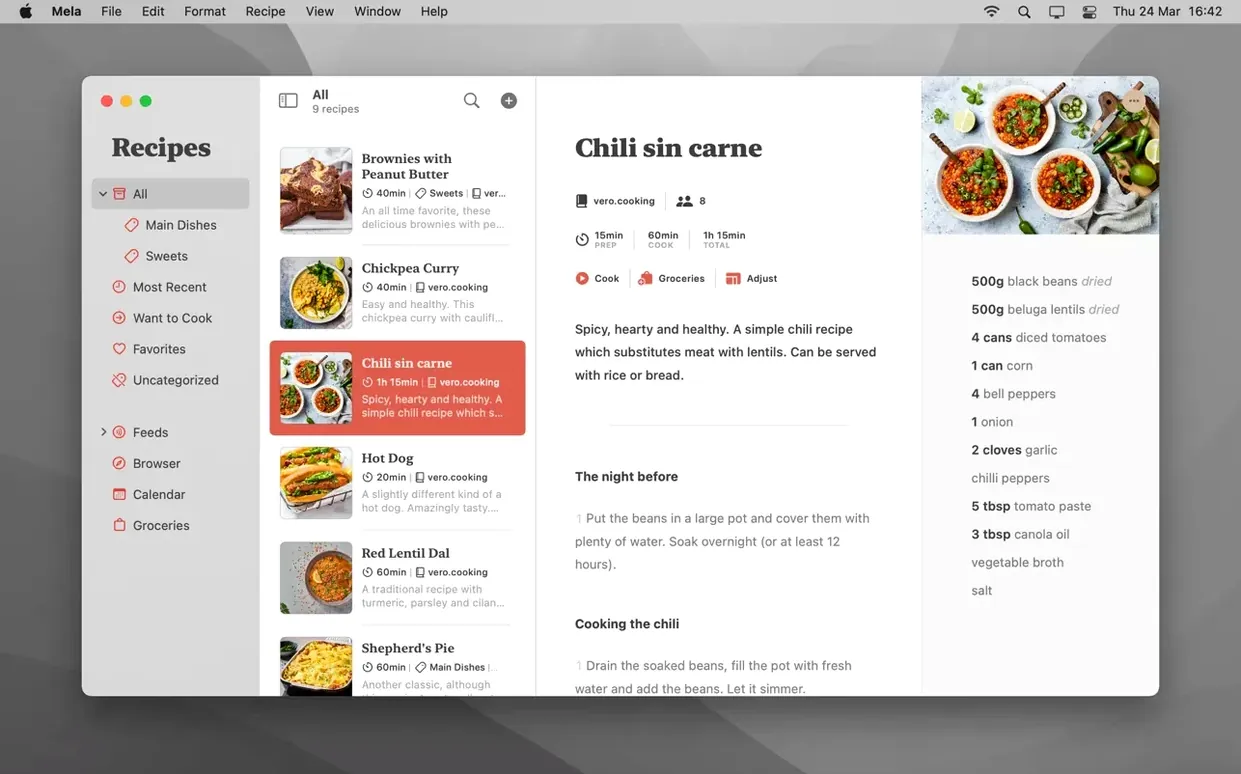
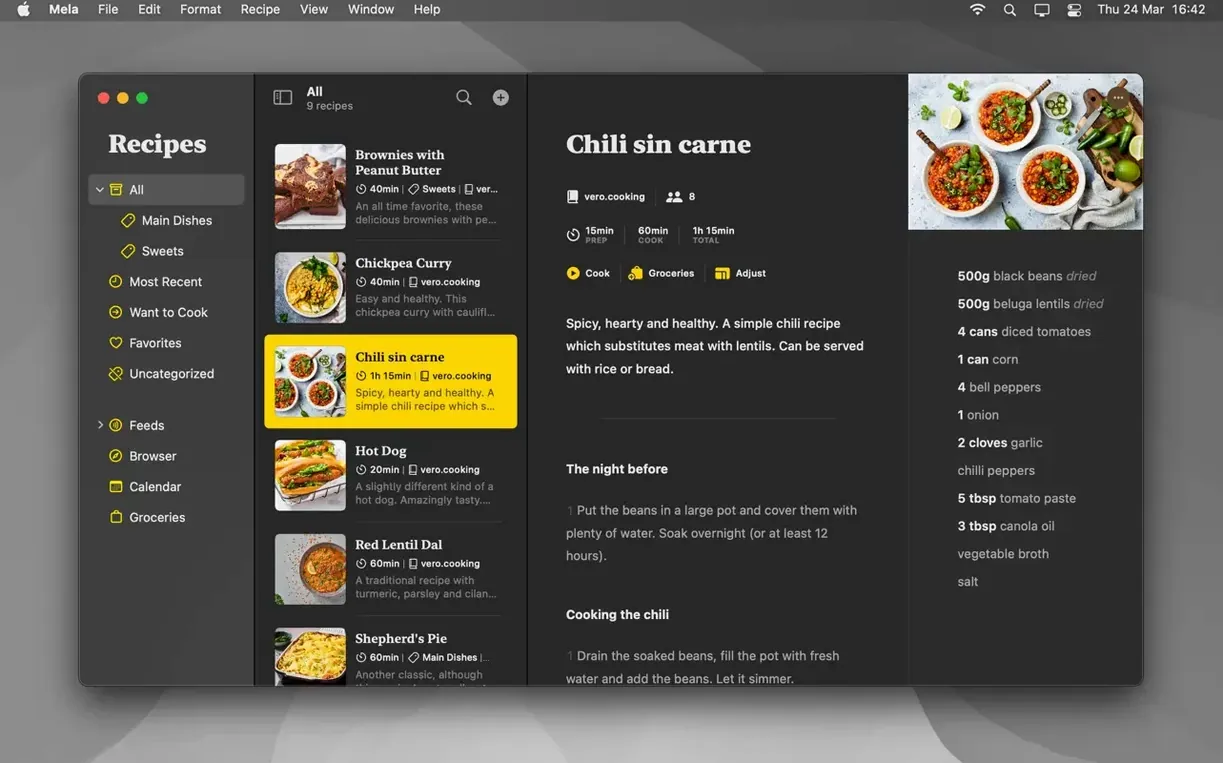
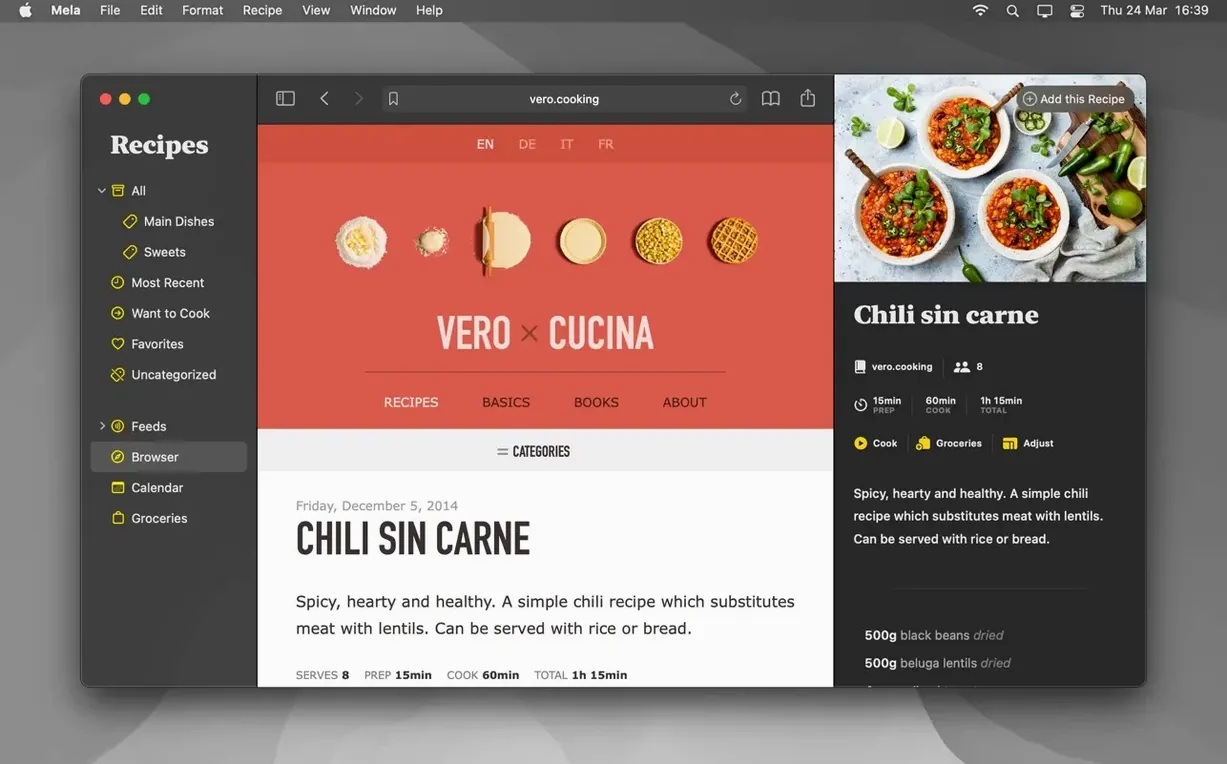
Over 4,000 recipes can sit in a Mela library without the app breaking a sweat, all kept neatly in sync through iCloud. If you have just installed version 2.6.1 and are staring at an empty window, here is a quick, five-step path to make the app feel like home.
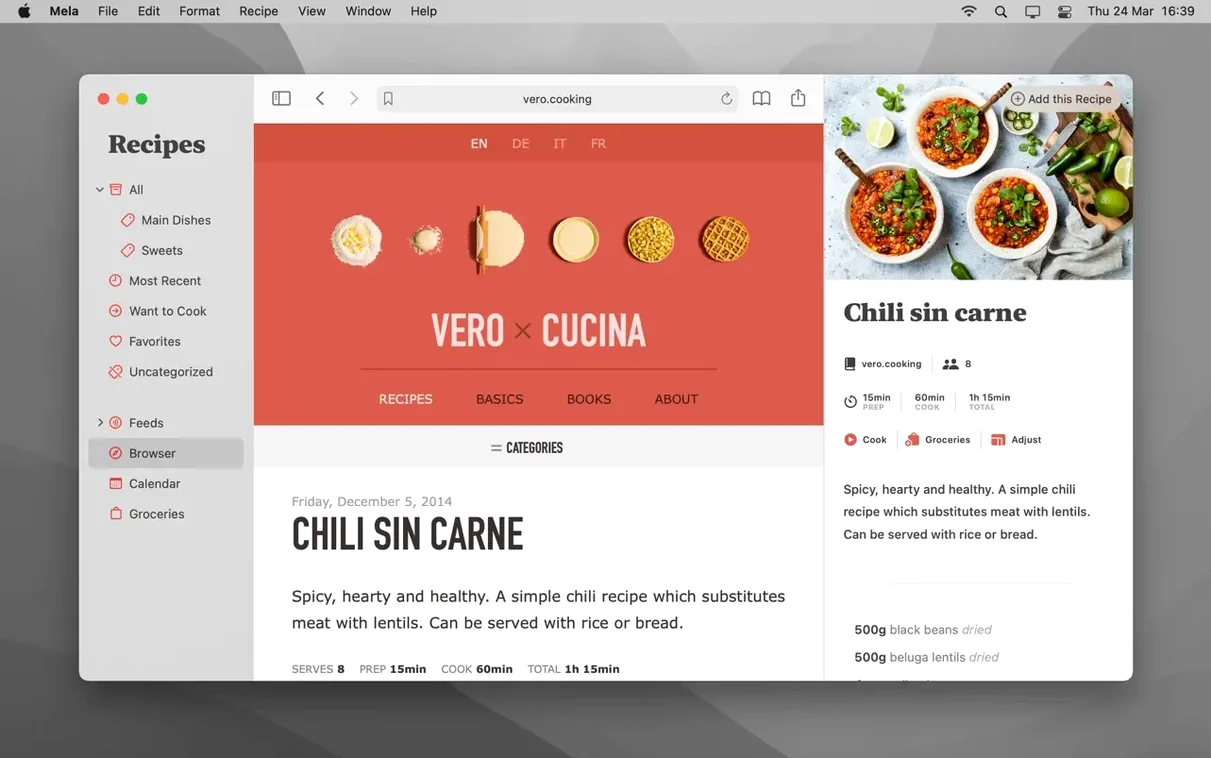
- Add your first recipe with the sharing extension. Find a recipe online in Safari, click the Share button and choose Mela. The in-app browser pops up with a live preview, and Mela parses the page into ingredients and method fields. Give it a quick check, then save.
- Scan a family recipe from paper. Open the scanner from the app’s toolbar, hold a handwritten card or a cookbook page up to the camera, and let the text recognition pull the words into a new recipe. A bit of tidying may be needed, but it beats retyping your grandmother’s shopping-list scrawl.
- Mark a few things as Want to Cook. Browse your growing library and tap the bookmark icon on dishes that catch your eye. This builds a shortlist for the week ahead without committing them to the calendar straight away.
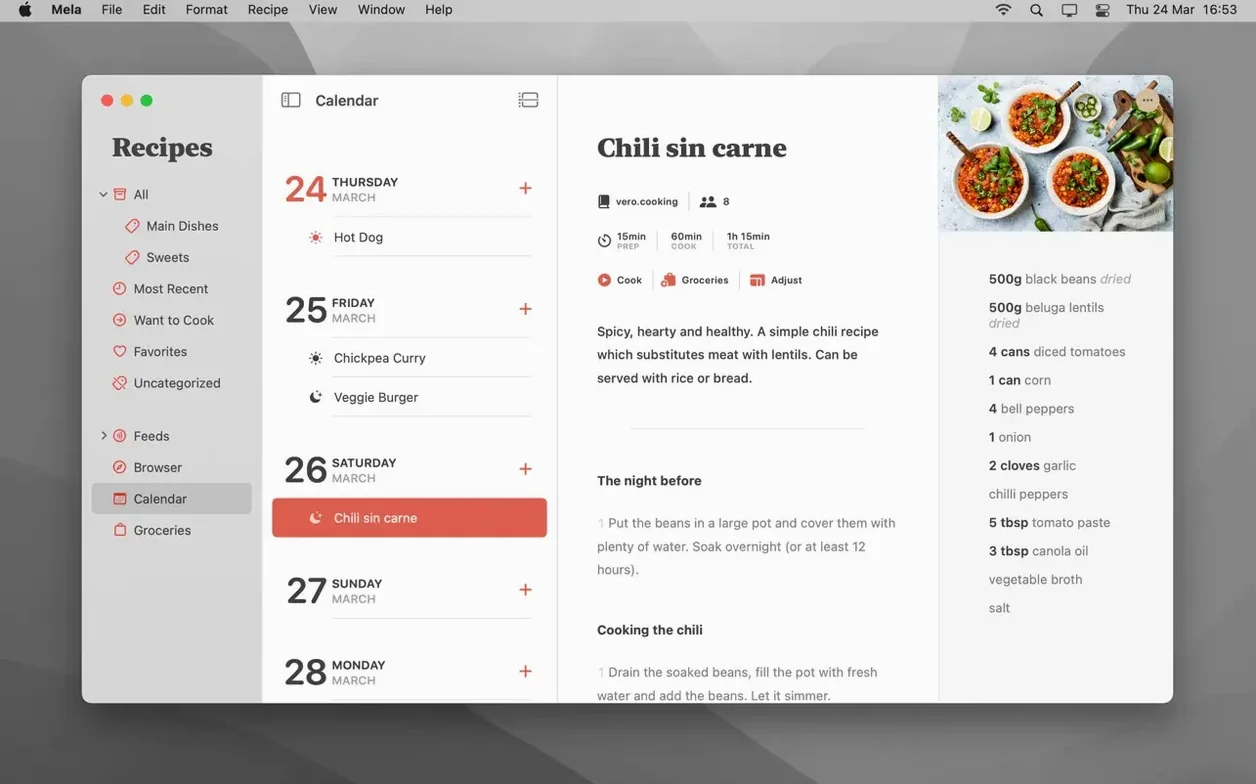
- Plan a meal using Calendar.app. Drag a recipe onto a date in Mela’s meal-planner view and it appears as an event in Apple’s Calendar, complete with a link back to the recipe. The calendar is controlled entirely by Calendar.app, so it slots into whatever else you have scheduled.
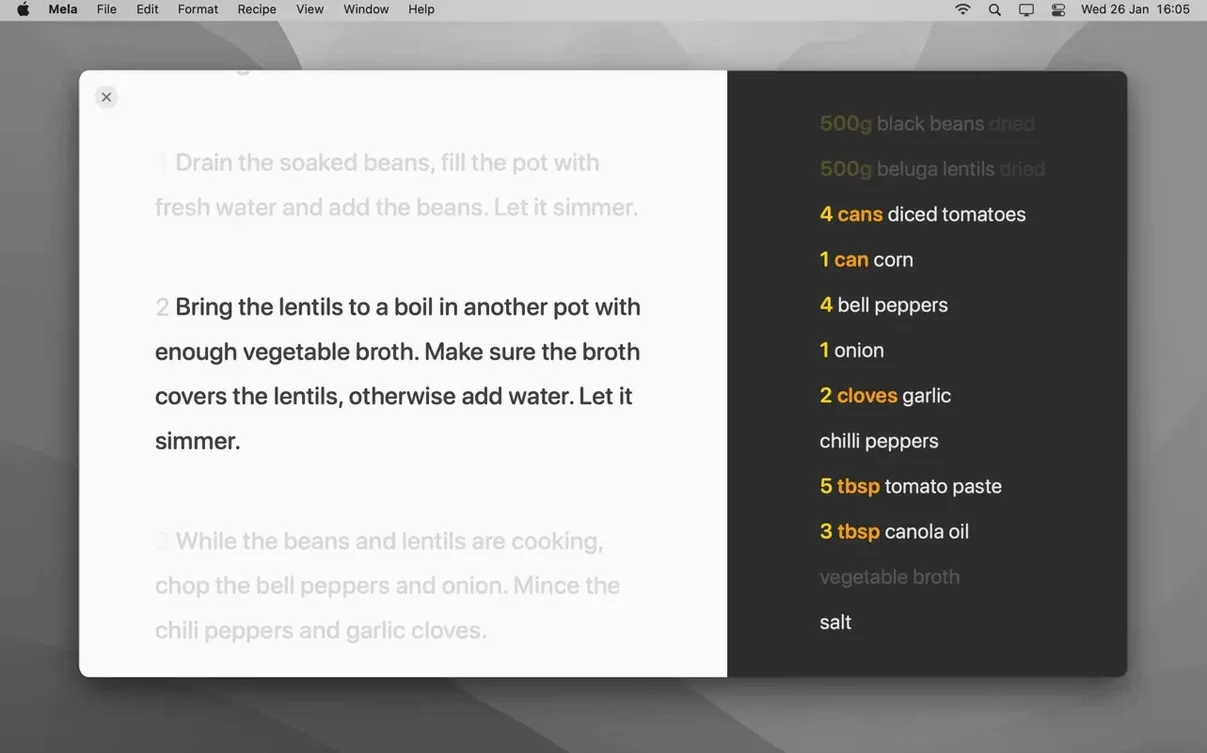
- Share a recipe library with someone on macOS 12 or later. Invite another iCloud user to a shared library, and you can both contribute to the same collection. Cooking mode with its larger text makes the shared recipes easy to read on a screen propped up next to the hob.
None of these steps take more than a couple of minutes, but together they turn Mela from a blank slate into a working kitchen companion that follows you across devices.
How Mela talks to the rest of your Mac
Mela does not try to be an island. Its meal planner is really a thoughtful front-end for Calendar.app, which means any recipe you drop onto a date appears as a standard calendar event. That event carries the recipe title, a link that opens Mela straight to the instructions, and whatever time you assigned. Because the data lives in Apple's own calendar database, it shows up on your iPhone, iPad and Apple Watch without Mela needing to run its own sync engine for scheduling. The same iCloud account that keeps your recipe library in order handles the calendar side too.
The sharing extension ties Mela into Safari and any other browser that supports the macOS share sheet. When you stumble across a recipe on a food blog, the extension hands the page to Mela's built-in parser, which separates the ingredients list from the method steps and pulls out a photo if one is available. The recipe browser can also subscribe directly to recipe blogs, so new posts appear inside Mela's own reader without you needing to remember to check a site. That reader strips away the surrounding clutter — no pop-ups, no life stories about the blogger's weekend, just the recipe.
On the output side, printing and PDF saving are straightforward but useful when you want a hard copy or need to send a recipe to someone who does not use Mela. The print layout is clean, with ingredients and steps in a sensible order, and the PDF export honours that same formatting. For cooks who like to annotate, marking up a saved PDF in Preview or a note-taking app is a natural next step.
Shared libraries tie into iCloud's sharing infrastructure, so inviting another user happens through the standard system sharing panel. The recipient gets a notification and the library appears in their Mela sidebar, just like a shared album in Photos. Both people can edit recipes, add new ones and see each other's Want to Cook markers, which makes it a quietly effective tool for households where more than one person cooks.
A Wednesday evening with Mela
It is half past five and you have forty minutes before anyone asks what is for dinner. You open Mela and tap into the Want to Cook list you built over the weekend. Three dishes are sitting there: a lentil soup you saved from a blog subscription, a chicken traybake a friend shared into your shared library, and a cauliflower curry you scanned from a cookbook last month.
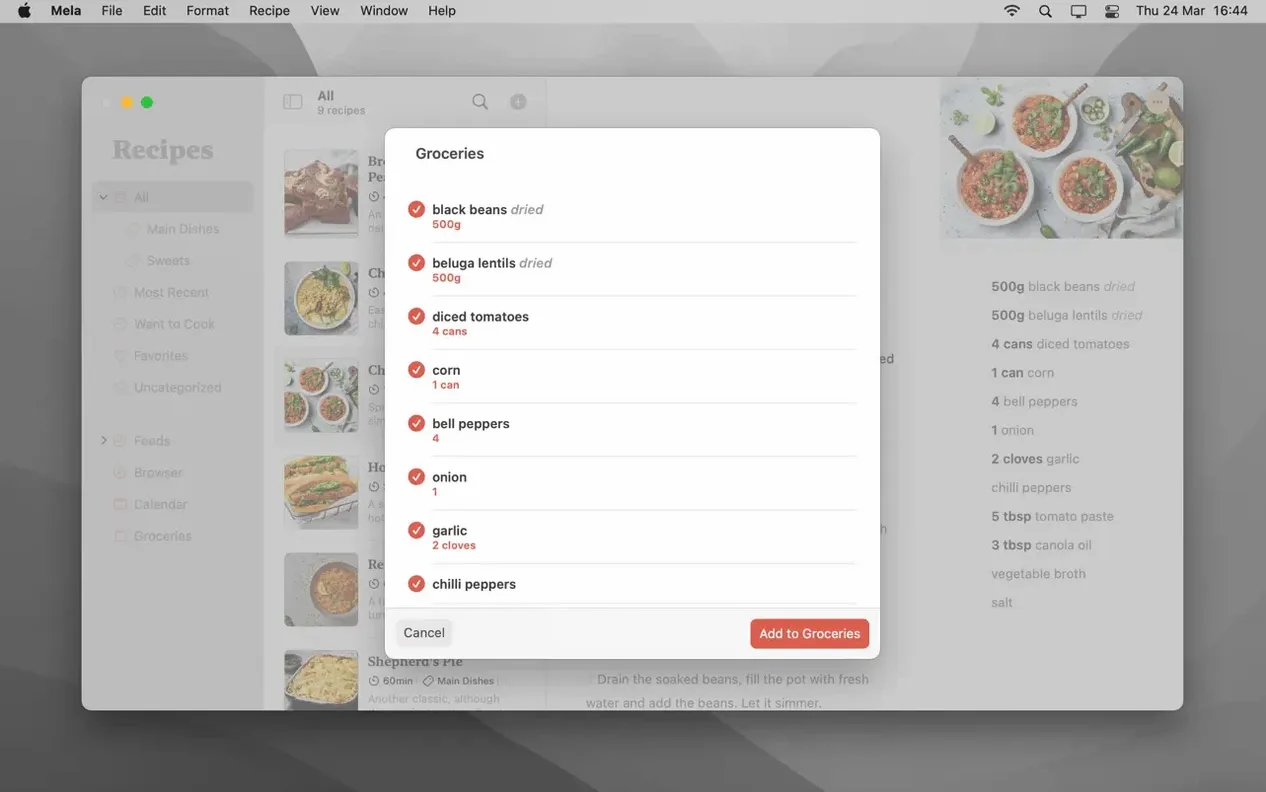
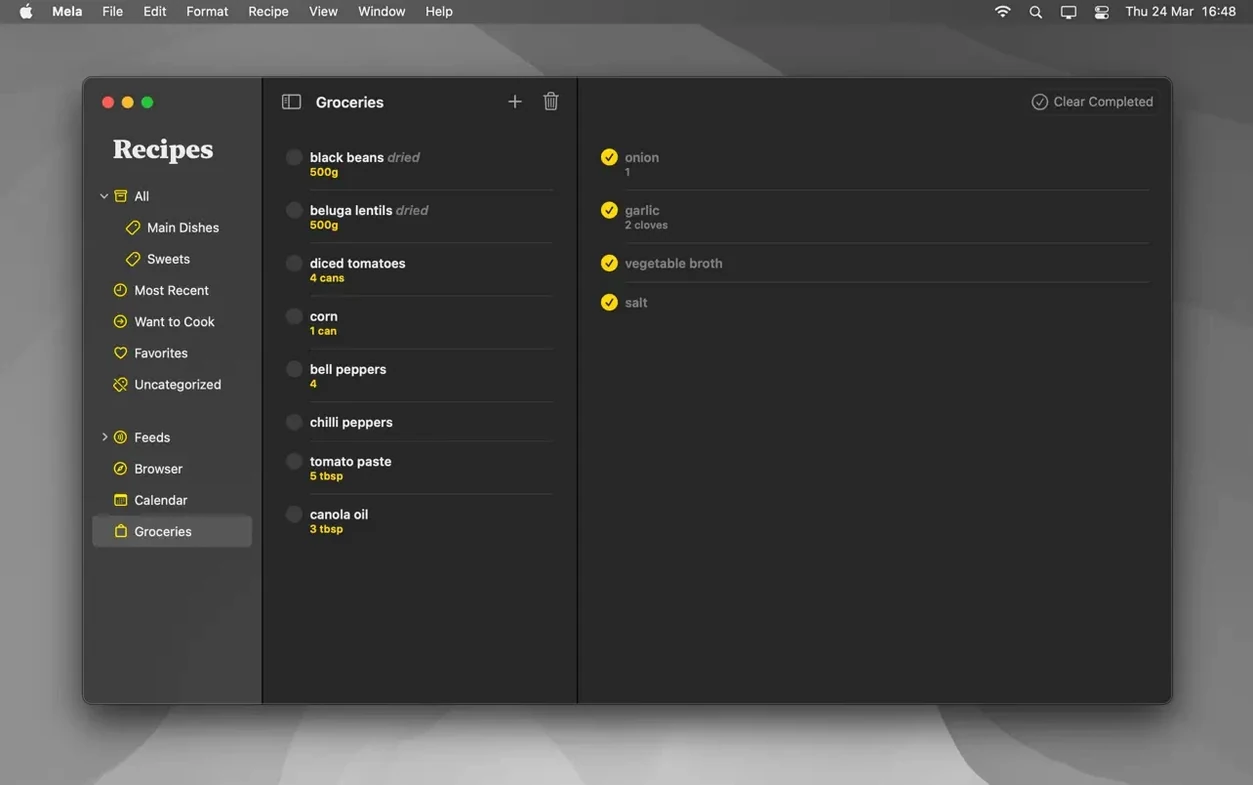
You drag the traybake onto today's date in the meal planner. Mela writes the event to Calendar.app, and because you have a shared family calendar, your partner's phone pings with the plan. You tap the recipe to open it, switch to cooking mode and the text jumps to a size you can read from a metre away. The ingredients list sits at the top; you scan it, realise you are out of paprika, and make a mental note to add it to the shopping list later.
The traybake needs forty minutes in the oven. You set a timer directly in cooking mode — Mela lets you run several timers at once, so you add a second one for the couscous that needs to go on with fifteen minutes to spare. The timer rings, you stir the couscous, and the recipe stays visible the whole time without the screen dimming.
While the food cooks, you open the shared library and see that your friend has added a note to the traybake recipe suggesting an extra squeeze of lemon at the end. You try it. The note was right. After dinner, you mark the recipe as a Favourite, which bumps it to a dedicated section for the meals worth repeating.
Tweak the recipe browser to skip live previews
Mela's defaults are sensible, but a few tweaks make it fit your kitchen better. The first stop is the recipe browser. By default, the in-app browser shows a live preview of any page you add. If you prefer to see only the parsed recipe without the original site behind it, you can switch the view mode so the detected recipe fills the window instead. This is especially helpful on recipe blogs that load slowly or bury the method under adverts.
Next, check the cooking mode preferences. The text size slider goes larger than you might expect, and setting it to a comfortable reading distance avoids the need to squint or lean over the screen with floury hands. While you are there, enable the option to prevent the display from sleeping during cooking mode. Nothing is more irritating than tapping the trackpad with a sticky finger to wake the screen mid-recipe.
Categories are worth setting up early. Mela ships with a short default list, but adding your own — weeknight dinners, baking, slow cooker, dishes that impress guests — gives the sidebar real structure. Recipes can belong to multiple categories, so a mushroom risotto can live under both vegetarian and dinner party without duplication. The category system also feeds into the filter bar at the top of the recipe list, which is the fastest way to narrow a large library down to something you actually feel like cooking.
Finally, if you share a library, agree on a light convention for the Want to Cook markers. Using them as a shared shortlist for the coming week avoids the "what do you fancy" conversation at five o'clock. A quick glance at the Want to Cook section tells both of you what ingredients to pick up and what is realistically on the menu.
- macOS 11 (Big Sur) or later
- Apple Silicon or Intel 64-bit processor
Questions from the class 0
Sign in or join the class to ask a question.
Nobody has asked anything yet. If you have used it on a real job, say what the file did.
Also on the Mac Apps shelf
The whole Mac Apps shelf MediaMate
Shrinks the volume and brightness overlays into compact, useful HUDs.
MediaMate
Shrinks the volume and brightness overlays into compact, useful HUDs.
 MAXON Cinema
Creates 3D scenes, animation and simulations for motion graphics.
MAXON Cinema
Creates 3D scenes, animation and simulations for motion graphics.
 Marvelous Designer
Simulates fabric so you can design and drape clothing in 3D.
Marvelous Designer
Simulates fabric so you can design and drape clothing in 3D.
 Marmoset Toolbag
Renders 3D models with realistic lighting and materials in real time.
Marmoset Toolbag
Renders 3D models with realistic lighting and materials in real time.
 MAMP PRO
Manages individual local web servers for each project you build.
MAMP PRO
Manages individual local web servers for each project you build.
 Magnet
Snaps windows into tidy arrangements with keyboard shortcuts or dragging.
Magnet
Snaps windows into tidy arrangements with keyboard shortcuts or dragging.
 Magic Disk Cleaner
Finds and removes caches, logs and orphaned files that waste space.
Magic Disk Cleaner
Finds and removes caches, logs and orphaned files that waste space.
 MacWhisper
Transcribes audio files into text entirely on your Mac without sending data to the cloud.
MacWhisper
Transcribes audio files into text entirely on your Mac without sending data to the cloud.