 ASPNetWorld
MTP mode improvements in version 2.10.1206 cleared up those odd moments where folders showed the wrong contents. It’s one of those fixes that quietly makes the whole utility feel more solid, especially if you’re relying on a USB connection.
The compatibility story is straightforward:
macOS 11.5 or later — Big Sur upwards, covering Intel and Apple Silicon Macs without separate downloads. One installer handles both architectures, so you don’t have to think about which chip you’re on.
Android side — no minimum Android version spelled out; the app talks MTP, ADB or Wi‑Fi, so it works across a wide range of phones and tablets without fuss.
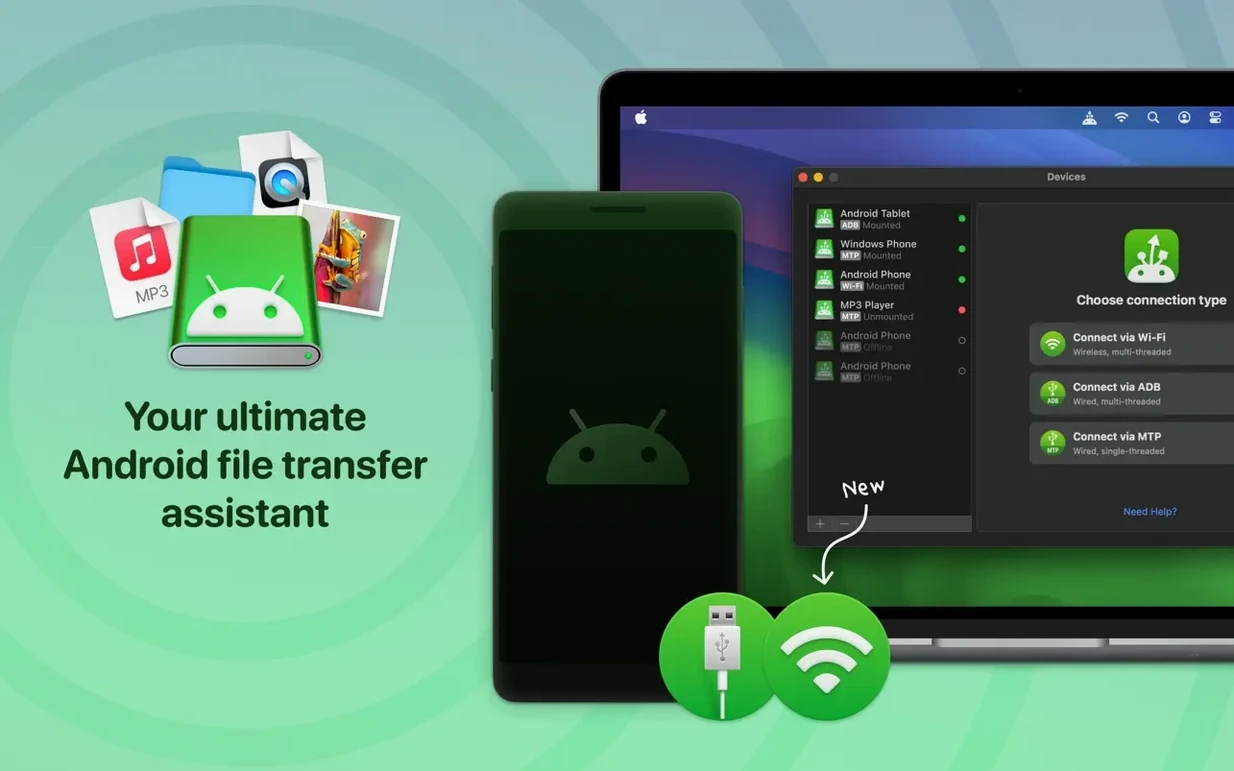
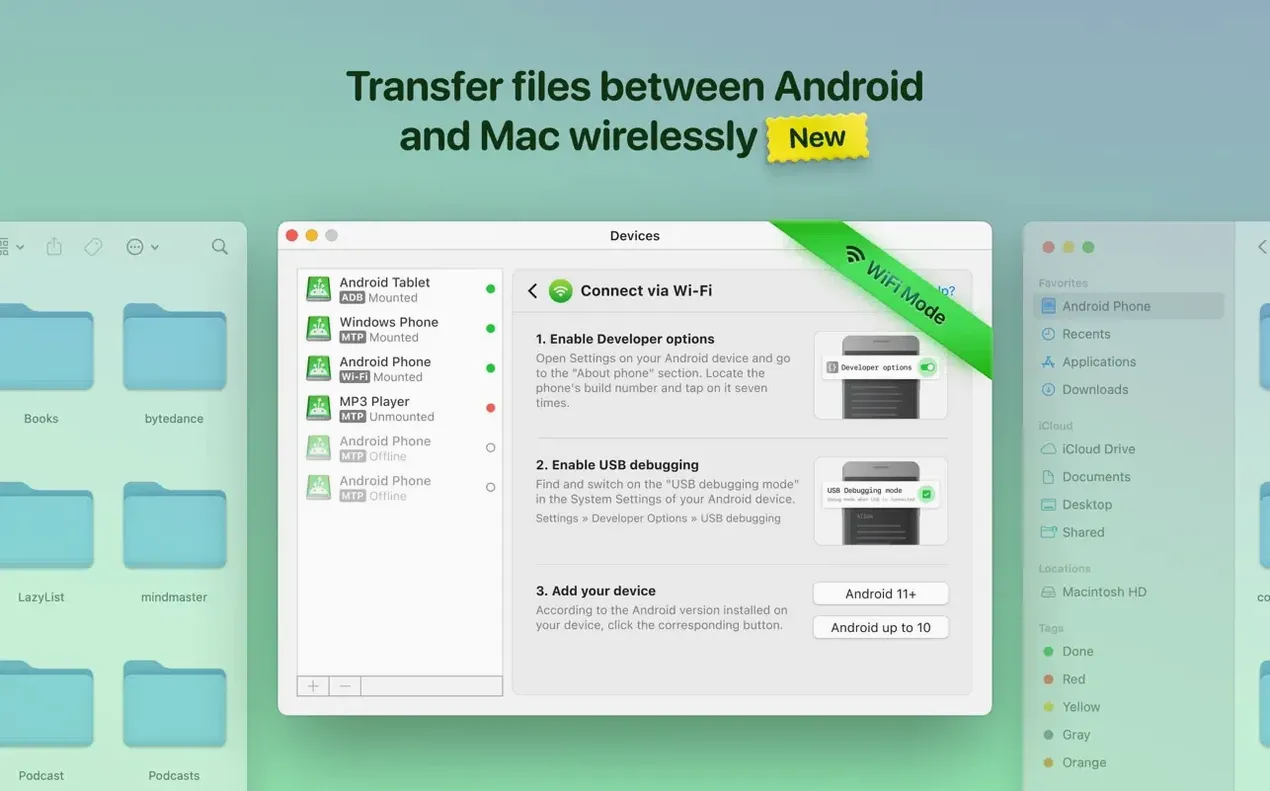
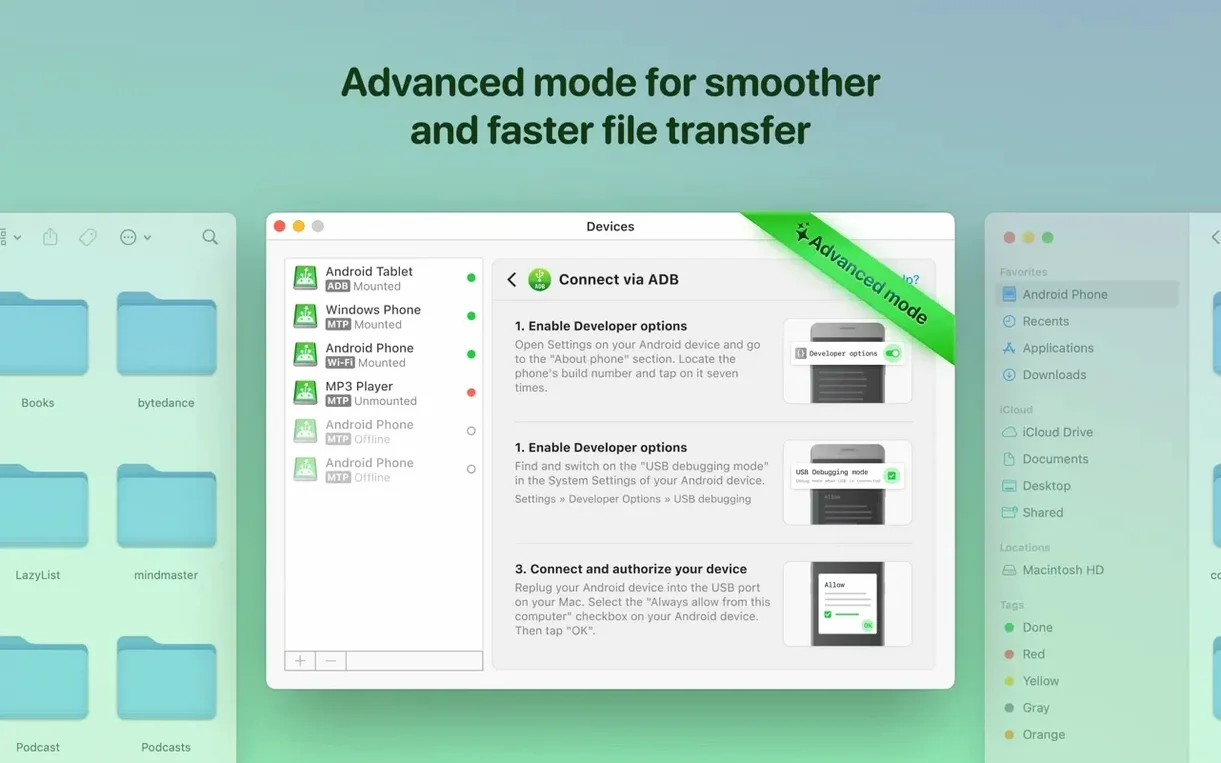
Three connection modes — MTP (the standard USB protocol for media devices), ADB (Android Debug Bridge, useful for deeper file access) and wireless over Wi‑Fi. You can switch between them depending on whether you want raw speed or the convenience of no cable.
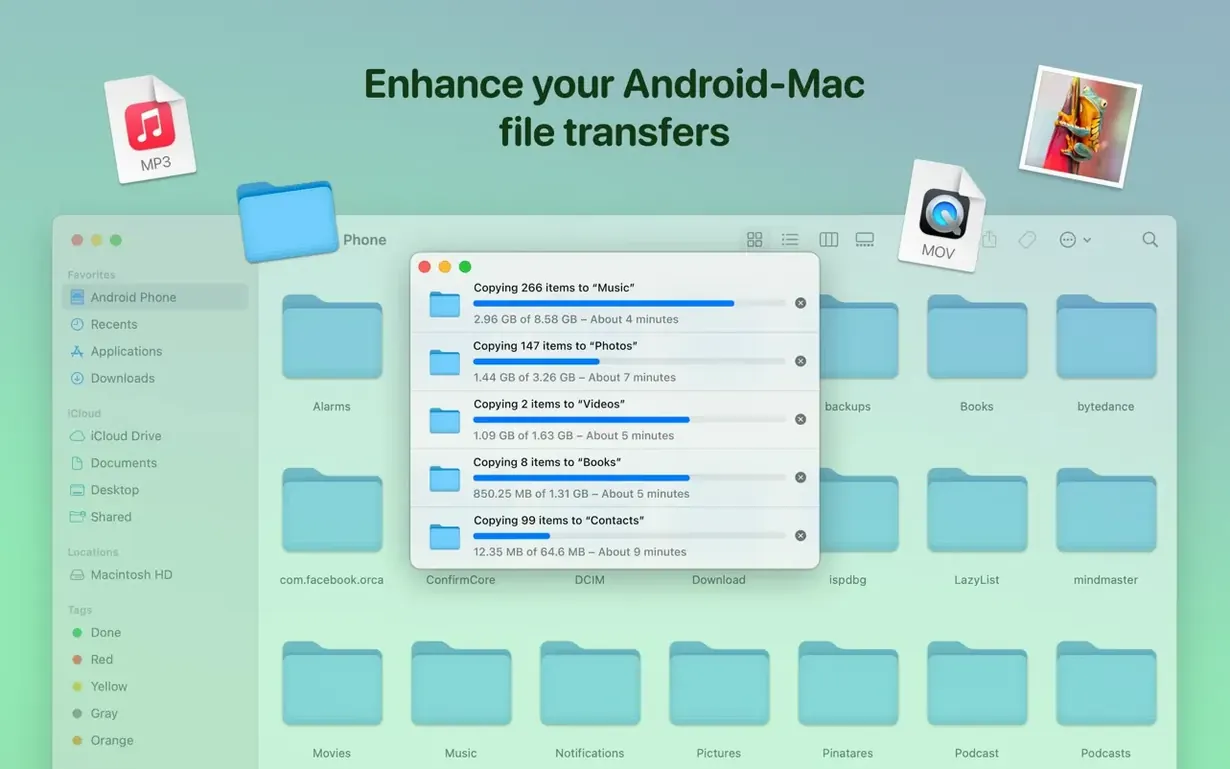
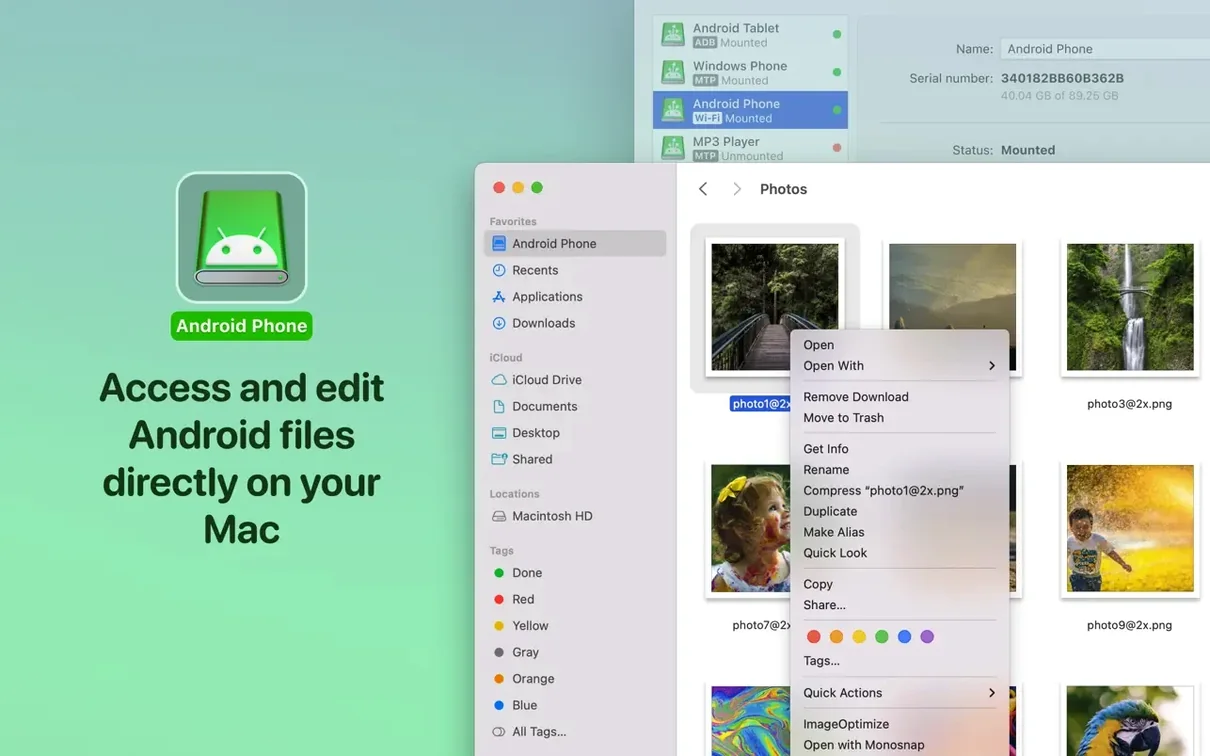
Once connected, what you’re really getting is an Android device that mounts like any other disk drive on the Mac desktop. You can browse internal and external storage, drag whole music folders across, and edit files in place — no local copy required. The app treats your phone’s storage as a working volume rather than a locked box you can only push files into. For someone editing a photo or tweaking a document directly on the device, that’s a genuine time-saver.
Even with a clean setup, a few behaviours trip people up. One is the phone not showing in the sidebar at all. Nine times out of ten, the Android device has defaulted to "Charging only" mode on its USB settings. Pull down the notification shade, tap the USB options entry, and switch it to File Transfer / MTP. The Mac should recognise it within a second or two — if it doesn’t, toggling the connection mode inside MacDroid from MTP to ADB and back often jolts the handshake.
Another head-scratcher is seeing the device listed but finding folders empty. This can happen when a Samsung or Xiaomi phone applies its own aggressive power management and quietly severs the data link while keeping the mount point visible. The fix is simple: unlock the phone, keep the screen awake during the transfer, and — if you spot a "Connected as a media device" notification — leave it alone. Dismissing it sometimes breaks the session on certain Android skins.
Wireless mode brings its own quirks. The Wi‑Fi connection relies on both devices sitting on the same network, but some mesh systems separate 2.4 GHz and 5 GHz bands under one SSID, and a phone that hops bands mid-transfer can drop the link. If wireless transfers keep stalling, forcing the phone onto the same band as the Mac (usually 5 GHz for speed) sorts it. Also worth noting: the first wireless pairing needs a one-time USB connection so the app can exchange handshake details. People who skip that step and wonder why the wireless button stays grey are actually following the correct sequence — just out of order.
When a transfer fails partway through a big folder, the culprit is often a single file with characters the Android file system doesn’t like — colons, trailing spaces, or a name that’s drifted beyond 255 characters. MacDroid doesn’t always surface a helpful error; it just stops. Splitting the job into smaller chunks usually pinpoints the problem file fast.
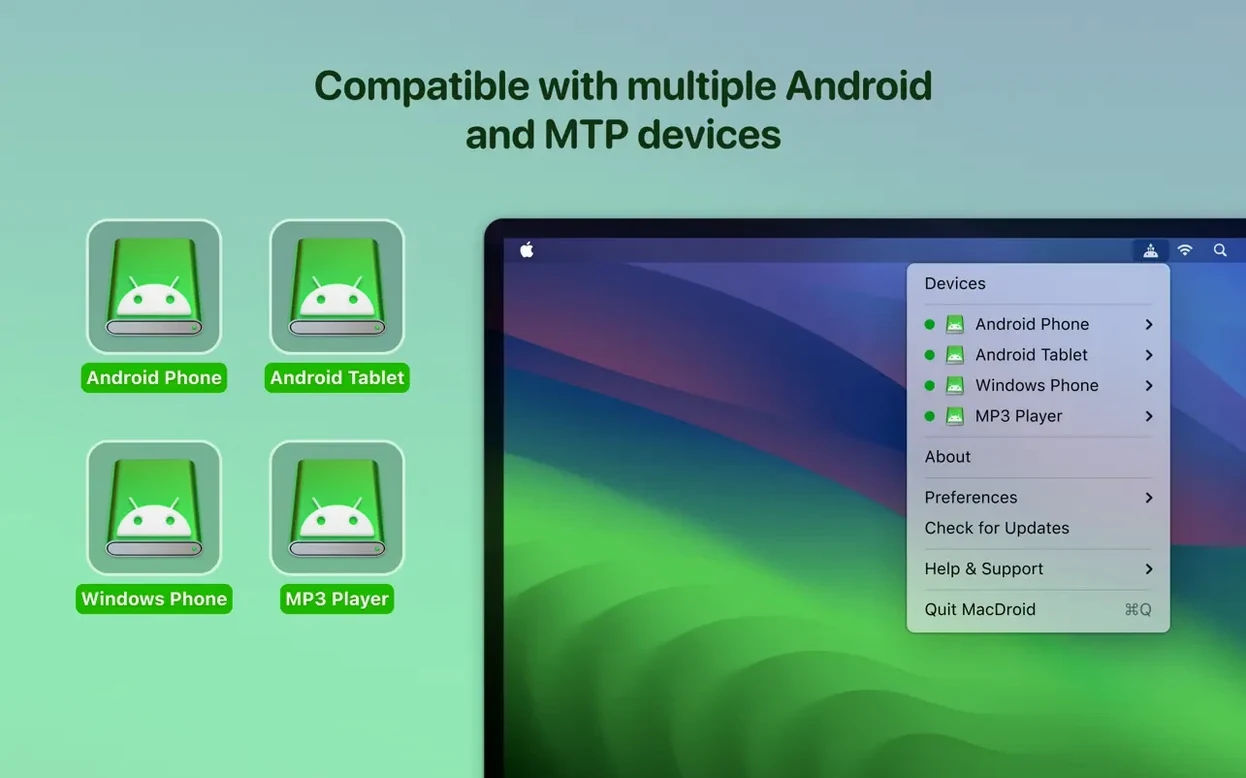
Right‑click the tray icon to mount a recent device instantly
Several touches sit just below the surface, easy to miss on first use. The system tray icon, for instance, isn’t just a status light — right‑clicking it gives you a shortcut to mount or unmount the last‑connected device without opening the main window. Handy when you’re mid‑workflow and don’t want to pull focus.
In ADB mode, file listings load with a different priority to MTP mode — the app fetches directory structure first, then thumbnails. If you’re browsing a folder stuffed with photos, pressing Cmd + R while the window is active forces a refresh that sometimes pulls in previews faster than waiting for the automatic load.
Another quiet feature: you can rename Android files directly from Finder’s Get Info panel when the device is mounted in ADB mode. MTP has more restrictions here, so if you’re doing a tidy‑up of a music library or a batch of PDFs, switching to ADB for that session saves a round‑trip.
For anyone who regularly moves the same folders — say a podcast downloads directory or a camera roll — the app remembers the last‑used path per device. Next time you connect, the sidebar jumps straight there. No bookmarking system, but the memory persists across disconnects.
Culling RAW files on an Android tablet via SSD
Consider a photographer who shoots on a mirrorless camera but uses an Android tablet as a field review screen. The tablet’s SD card slot is fine for a quick look, but culling a full shoot means moving RAW files onto the tablet in bulk, rating them, and then bringing the keepers back to the Mac for editing.
With MacDroid in ADB mode over USB, the tablet’s internal storage appears as a regular volume. The photographer drags a folder of 200 RAW files onto the tablet, waits a few minutes for the transfer bar to clear, then disconnects. Later, after an hour of culling in the field, they reconnect and pull only the rated shots back by dragging the tagged folder onto the Mac desktop. The round‑trip happens without ejecting SD cards or passing through a cloud service. The entire workflow stays local, and the tablet never needs to leave its protective case.
The Wi‑Fi mode earns its keep here too. Back at base, the tablet sits on the desk while the photographer works on the Mac a few feet away. A wireless connection lets them pull the final selects without fishing for a cable — a small ergonomic win that adds up across a busy week.
Dual‑platform owners who shuffle large media projects daily
MacDroid isn’t a one‑size‑fits‑all utility. People who own both a Mac and an Android handset but only occasionally drag off a few photos won’t feel the difference between this and Google’s own Android File Transfer tool. The app starts earning its place when the volume or frequency of transfers climbs past casual use.
Musicians and producers who store sample packs and field recordings on an Android device get a workflow that mirrors an external drive. Browsing by folder structure rather than a media‑library abstraction matters when you’re hunting for a specific 24‑bit WAV.
Developers testing APKs across multiple handsets appreciate ADB mode keeping the bridge open without launching Android Studio. The ability to push a build, edit a config file in place, and re‑run without replugging cables makes iteration faster.
People with large offline media libraries — video collections, audiobook folders, archived podcasts — benefit from the whole‑folder drag‑and‑drop approach. The app doesn’t try to catalogue or transcode anything; it just moves the data as it is, which is exactly what you want when your library is already organised.
Anyone who’s hit the limits of free alternatives and searched for a macdroid full experience will notice the three‑mode flexibility straight away. Where simpler tools pin you to MTP only, the ADB and Wi‑Fi modes open up genuine quality‑of‑life improvements for specific tasks. People who’ve been tempted by a macdroid crack or macdroid cracked download often discover that the real software’s multi‑mode handling is what they actually needed — the single‑mode workarounds rarely hold up under daily use.
Pick ADB as the default connection mode for a faster pipe
Out of the box, MacDroid works, but a few preferences repay attention before you settle into a routine.
Set the default connection mode. The app picks MTP on first launch. If you’re using a device that plays well with ADB — most Pixels, OnePlus handsets, and anything running near‑stock Android — switching the default to ADB in preferences gives you faster folder browsing and in‑place editing. You can still flip to MTP for a specific session, but the default shapes your day‑to‑day speed.
Enable "Mount on connection" if you plug in the same device daily. Without it, you’re manually clicking connect each time. It’s a tiny checkbox in the connection preferences pane, but it shaves a repetitive step off your morning.
Check the cache location. Version 2.10.1206 fixed an issue where changing the cache volume could break file downloads, but the setting is still worth a look. If your boot drive is tight on space, pointing the cache to an external SSD stops temp files from eating into your system volume — especially relevant when you’re transferring 4K video or large sample libraries.
Wi‑Fi pairing password. The first wireless pairing generates a random code, but you can set a custom one in preferences. If you’re connecting the same two devices repeatedly, a short memorable code saves a squint at tiny on‑screen digits.
None of these changes are essential on day one, but they’re the kind of tweaks that turn a tool you use into a tool that fits.
Version 2.10.1206 brings a trio of practical refinements rather than a headline feature, and that’s no bad thing.
- Traditional Chinese localisation arrived, opening the door properly for a whole new user base.
- MTP connection handling got attention, so devices that were a little flaky over USB now stay in sync more reliably.
- The file and folder listings were given a speed boost — large directories populate without that awkward pause you used to get.
- macOS 11.5 or later
- Runs on Intel and Apple Silicon Macs
- Android device connected via USB or Wi‑Fi
Questions I keep hearing
Does MacDroid Pro let me edit Android files without copying them to my Mac first?
Yes. You can open a file straight from the mounted Android storage, make changes, and save it back to the device — no local copy stage needed.
Can I connect my Android phone without a cable?
You can. MacDroid Pro supports Wi‑Fi connections alongside MTP and ADB modes, giving you a cable-free option when both devices are on the same network.
What if my Mac has an Apple Silicon chip — will it still work?
Absolutely. The app runs natively on both Intel and Apple Silicon Macs, so any Mac running macOS 11.5 or later is covered.
Questions from the class 0
Sign in or join the class to ask a question.
Nobody has asked anything yet. If you have used it on a real job, say what the file did.
Also on the Mac Apps shelf
The whole Mac Apps shelf MacCleaner Pro
Bundles app uninstallation, duplicate detection, and disk space analysis into a single toolkit.
MacCleaner Pro
Bundles app uninstallation, duplicate detection, and disk space analysis into a single toolkit.
 MacFamilyTree
Builds an interactive family tree that pulls historical records from online genealogy databases.
MacFamilyTree
Builds an interactive family tree that pulls historical records from online genealogy databases.
 MacBooster
Finds and clears system junk, duplicate files, and privacy traces to free up disk space.
MacBooster
Finds and clears system junk, duplicate files, and privacy traces to free up disk space.
 MacGPT
Puts ChatGPT in your menu bar for quick questions, text rewrites, and inline assistance anywhere.
MacGPT
Puts ChatGPT in your menu bar for quick questions, text rewrites, and inline assistance anywhere.
 Luminar Neo
Layers multiple AI-driven edits onto a photo and lets you relight or swap backgrounds non-destructively.
Luminar Neo
Layers multiple AI-driven edits onto a photo and lets you relight or swap backgrounds non-destructively.
 Luminar AI
Edits photos using templates that analyse the image and apply adjustments automatically.
Luminar AI
Edits photos using templates that analyse the image and apply adjustments automatically.
 macOS Catalina
Runs your Mac and introduced Sidecar, Voice Control, and a dedicated Music app separated from iTunes.
macOS Catalina
Runs your Mac and introduced Sidecar, Voice Control, and a dedicated Music app separated from iTunes.
 macOS High Sierra
Runs your Mac on the system that brought APFS and HEVC video support.
macOS High Sierra
Runs your Mac on the system that brought APFS and HEVC video support.