 ASPNetWorld

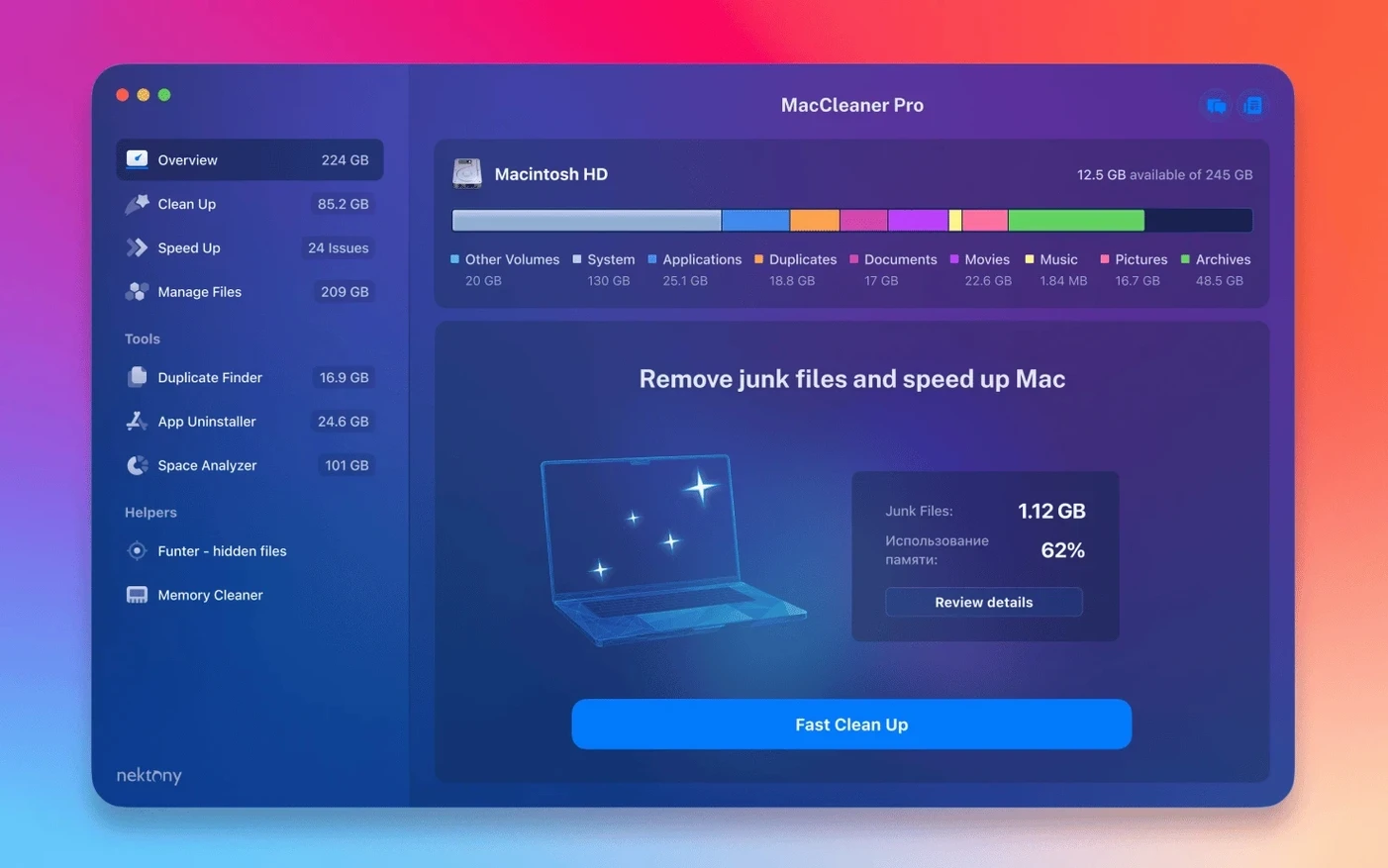
If you have ever used App Cleaner & Uninstaller and wished it could also hunt down duplicate files or show you exactly what is eating your disk space, MacCleaner Pro is essentially that wish fulfilled. It wraps that familiar uninstaller together with several other Nektony tools into a single bundle, so you get a broader cleanup toolkit without juggling six separate downloads. Think of it as a utility belt rather than a single spanner — each app in the box tackles a different kind of clutter.
- App Cleaner & Uninstaller removes applications and all their leftover service files, and also lets you disable login items and other system extensions that can slow down a restart.
- Disk Space Analyzer builds a visual map of your drive so you can spot a forgotten 40 GB video project folder in seconds.
- Duplicate File Finder scans for identical files — even inside packages like Photos libraries — and lets you merge folders or delete copies safely.
- Memory Cleaner sits in the menu bar and shows you which apps are holding on to RAM, then frees it up with a click instead of forcing a full restart.
- Funter makes hidden files visible in Finder without a Terminal command, which is handy when you need to reach a buried Library folder or check what an installer left behind.
- MacCleaner Pro itself acts as a dashboard that ties the suite together and adds a few direct cleanup shortcuts of its own.
The point of having all these in one package is that storage problems rarely come from one cause. You might start by uninstalling an old app, discover half a dozen duplicates while you are at it, then find your memory pressure spiking because of a browser you forgot was open. The bundle lets you move between those tasks without switching contexts. It is particularly useful when macOS starts warning about a full startup disk, because you can attack the problem from three angles — large files, duplicates and leftover application junk — in a single session.
A few of the best time‑savers in MacCleaner Pro are tucked away where you might not spot them on a first run. In App Cleaner & Uninstaller, for example, holding the Option key while clicking the “Remove” button skips the confirmation dialogue entirely — useful when you are clearing out five or six apps in a row and you have already checked the file list. The same tool lets you drag any application from Finder straight into its window; you do not need to open the full app list just to uninstall a single program you just downloaded and regretted.
Disk Space Analyzer has a habit of surprising people with its right‑click menu. Click any large folder in the sunburst chart and you will see a “Reveal in Finder” command, but also a “Move to Trash” option that works without leaving the map view. It is a small thing, yet it completely changes the rhythm of a cleanup session — you can scan, identify a forgotten cache folder and deal with it in three clicks. In Duplicate File Finder, the “Select All but One” button in the toolbar is easy to overlook, and it saves you from ticking thirty boxes by hand when you want to keep the original and bin the rest.
Funter’s integration with Finder runs deeper than the toggle switch suggests. Once you enable hidden files, you can also press Shift-Command-Period in any open Finder window to flip visibility on the fly — Funter respects the shortcut even when its own panel is closed. That means you can install maccleaner 4 pro, set Funter to launch at login, and essentially forget it is there until you need to peek inside a .git folder or clean up invisible temporary files left by a crashed editor.
Where people tend to stumble — and how to set things right
One recurring snag involves Duplicate File Finder and cloud‑synced folders. If you have iCloud Drive set to “Optimise Mac Storage”, the scan may see stub files rather than full originals, and the reported sizes can look odd. The workaround is straightforward: temporarily download the folder you want to scan by control‑clicking it in Finder and choosing “Download Now” before you run the scan. That gives the tool real files to measure and compare. The 4.0.2 update improved detection of iCloud‑stored items, but the stub‑file quirk is a macOS behaviour, not something the app can bypass entirely.
Another sticking point is the “Leftovers” list in App Cleaner & Uninstaller after you have already deleted an app by dragging it to the Trash. The tool can still find those orphaned files, but only if you switch to the “Remains” tab — people often stay on the “Applications” tab and wonder why the old app does not appear. Once you are in the right tab, selecting the remains and clicking “Remove” cleans up preference panes, caches and launch daemons that would otherwise sit on your disk forever.
Memory Cleaner sometimes confuses users who expect it to behave like a task manager. It does not kill processes; it purges inactive memory — data macOS keeps cached in case an app needs it again. If your memory pressure is still in the yellow after a purge, the real culprit is usually a browser with too many tabs or a virtual machine running in the background. The menu‑bar graph shows pressure, not just free gigabytes, and that is a far better indicator of whether you actually have a RAM problem. A quick look at the graph before clicking “Clean” teaches you to read your Mac’s memory habits rather than chasing numbers.
Disk scans finish in under forty seconds on Apple Silicon
The whole suite feels lightweight for what it does. On an Apple Silicon machine the individual apps open in a single bounce, and even Disk Space Analyzer finishes a 512 GB drive scan in under forty seconds — faster if you exclude external volumes beforehand. The tools share a common design language, so once you learn the scan‑select‑remove flow in one app, the others feel predictable. I have not seen a spinning beachball during normal use, though Duplicate File Finder can briefly pause the interface when comparing thousands of very large files; it never locks up, just needs a moment to finish hashing.
RAM usage across all six apps is modest. With Memory Cleaner running in the menu bar, Funter in the background, and the other apps closed until needed, the suite rarely claims more than 120 MB of resident memory. CPU spikes are confined to the active scanning phase — Disk Space Analyzer and Duplicate File Finder use multiple cores to speed up their work, which is exactly when you want them to. Idle, they sit at zero. That is a refreshing change from bulkier cleanup tools that install a permanent background agent.
Stability has been uneventful in the best way. Across dozens of uninstall‑and‑scan sessions I have not seen a crash or a kernel panic traceable to the suite. The 4.0.2 fixes for custom Home folder layouts suggest Nektony is paying attention to edge cases — users who move their Home to a separate drive or rename it no longer get blank scan results, which was a quiet annoyance in earlier versions. If you grabbed a MacCleaner Pro crack from an unofficial source and ran into weird permission errors, those almost always come down to the bundle needing a quick permissions reset in Terminal before it settles in; the properly packaged version asks for standard macOS permissions — full disk access, removable volumes — only when a tool actually needs them, and it explains why each time.
A cleanup session, moment by moment
Imagine a Saturday morning when your Mac complains the startup disk is full. You open MacCleaner Pro first — the dashboard shows a summary of large files, duplicates and unused apps, but you are here for the launchpad it provides. One click opens Disk Space Analyzer. You select your main SSD, skip external drives to save time, and watch the sunburst chart bloom across the screen. A wide purple wedge catches your eye: an old “Exports” folder from a video project you finished six months ago, sitting at 38 GB. Right‑click, “Move to Trash”, done. You notice a thin grey sliver nearby — ~/Library/Caches/Adobe — and make a mental note to check it manually later, because you suspect you still need some of those files.
With the obvious space‑hog dealt with, you switch to Duplicate File Finder. You drag in your Documents folder and let it run while you make coffee. When you return, it has grouped 200‑odd duplicates, many of them PDFs you saved twice with slightly different names. You click “Select All but One” in each group, glance over the selections to be sure, and hit “Remove”. The app asks if you want to move them to Trash or delete permanently — you choose Trash, because you are cautious before emptying the bin. A small detail: the scan window remembers your last folder selection, so next time you open it, Documents is already there. You do not have to navigate from scratch.
Now you open App Cleaner & Uninstaller. Sorting by “Last Opened” shows three apps you have not touched in over a year — an old FTP client, a game you finished, a markdown editor you replaced. You select all three, click “Uninstall” and watch the file list populate with support folders, caches and a launch agent you had no idea was still loading at startup. Option‑clicking “Remove” skips the confirmation on the second and third apps, because by now you trust what the tool has found. A quick visit to the “Extensions” panel lets you disable a video‑conferencing plugin that inserts itself into every browser; it is not malicious, just unnecessary.
Before you wrap up, you glance at the menu bar — Memory Cleaner shows pressure in the green, so you leave it alone. You open Funter, toggle hidden files on, and peek at the root of your home folder just to check for stray temporary files. You spot a .tmp folder from a beta app you deleted months ago, drag it to the Trash, and toggle hidden files back off. Total elapsed time: maybe twenty minutes, most of it spent waiting for the duplicate scan while you were away from the desk. The startup disk warning has gone, and you have reclaimed nearly 60 GB without once opening Terminal or second‑guessing what a file was for.
If someone arrives at the suite by searching for mac cleaner torrent or maccleaner pro torrent, they are often in a hurry — a full disk warning does that to you. What they usually need is exactly this kind of guided, multi
Version 4.0.2 is a maintenance update that sharpens the bundle's ability to find files stored outside the usual folders.
- Detection of items kept in an iCloud folder is now more reliable.
- The scan picks up items stored in a custom Home folder that earlier versions might have missed.
- A handful of small interface glitches have been tidied up across the suite.
- macOS 10.13 or later
- Works on both Intel and Apple Silicon Macs
- Interface language: English
Questions I keep hearing
What is the difference between buying MacCleaner Pro and getting the apps separately?
MacCleaner Pro bundles six Nektony utilities together under one licence, so you get the complete set — including Duplicate File Finder and Funter — without purchasing each one individually.
Do I need to keep all the apps running at once?
No, you open each tool only when you need it. The only one that runs in the background is Memory Cleaner, and you can turn its menu bar icon off if you prefer.
Questions from the class 0
Sign in or join the class to ask a question.
Nobody has asked anything yet. If you have used it on a real job, say what the file did.
Also on the Mac Apps shelf
The whole Mac Apps shelf MacBooster
Finds and clears system junk, duplicate files, and privacy traces to free up disk space.
MacBooster
Finds and clears system junk, duplicate files, and privacy traces to free up disk space.
 MacDroid Pro
Lets your Mac read and write to Android and MTP devices over USB.
MacDroid Pro
Lets your Mac read and write to Android and MTP devices over USB.
 Luminar Neo
Layers multiple AI-driven edits onto a photo and lets you relight or swap backgrounds non-destructively.
Luminar Neo
Layers multiple AI-driven edits onto a photo and lets you relight or swap backgrounds non-destructively.
 MacFamilyTree
Builds an interactive family tree that pulls historical records from online genealogy databases.
MacFamilyTree
Builds an interactive family tree that pulls historical records from online genealogy databases.
 Luminar AI
Edits photos using templates that analyse the image and apply adjustments automatically.
Luminar AI
Edits photos using templates that analyse the image and apply adjustments automatically.
 MacGPT
Puts ChatGPT in your menu bar for quick questions, text rewrites, and inline assistance anywhere.
MacGPT
Puts ChatGPT in your menu bar for quick questions, text rewrites, and inline assistance anywhere.
 macOS Catalina
Runs your Mac and introduced Sidecar, Voice Control, and a dedicated Music app separated from iTunes.
macOS Catalina
Runs your Mac and introduced Sidecar, Voice Control, and a dedicated Music app separated from iTunes.
 macOS High Sierra
Runs your Mac on the system that brought APFS and HEVC video support.
macOS High Sierra
Runs your Mac on the system that brought APFS and HEVC video support.