 ASPNetWorld

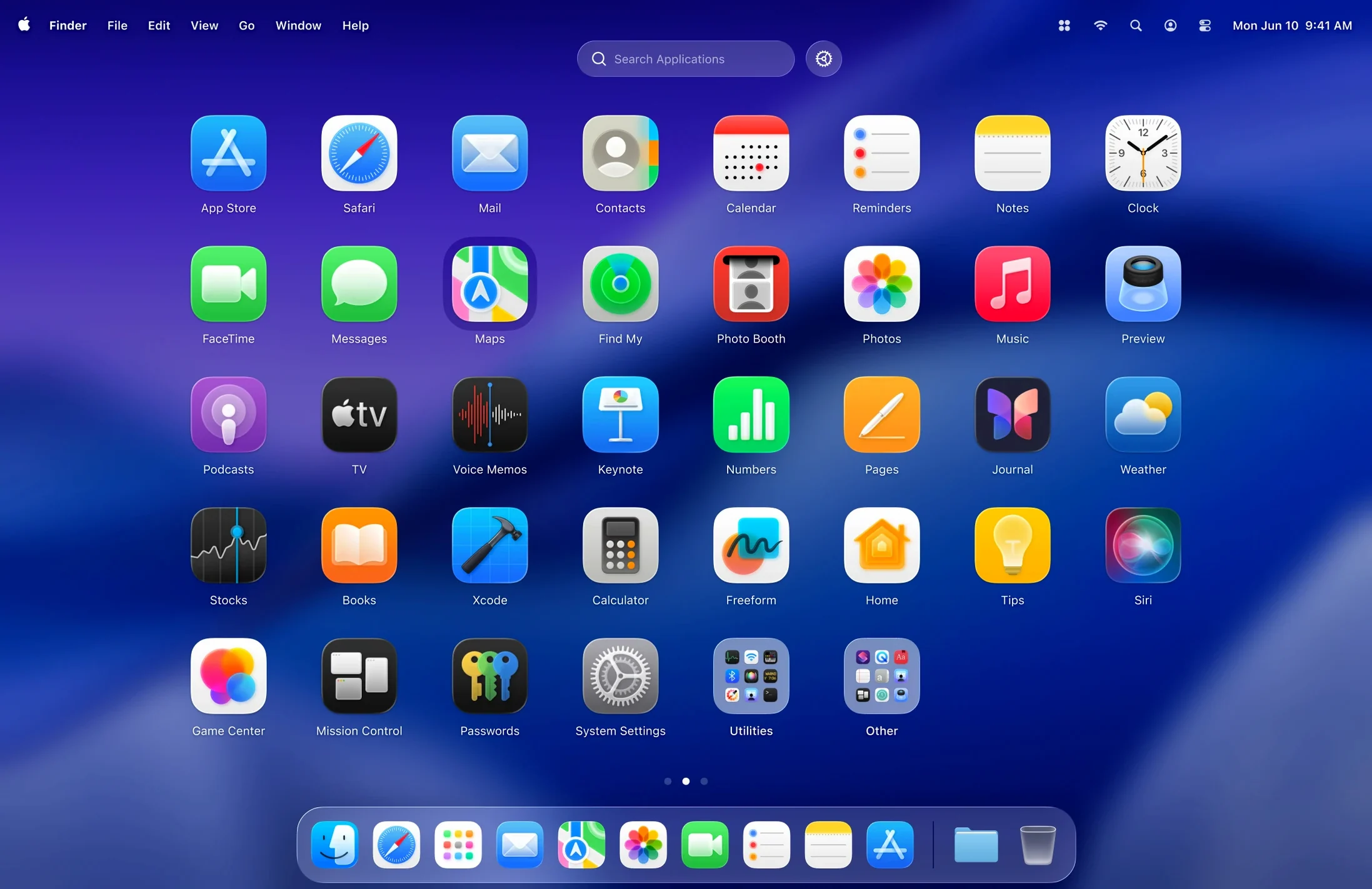
Long‑press on an icon — or a quick right‑click — and you can uninstall the app right there in the grid. That is the sort of everyday friction LaunchOS quietly removes, turning what used to be a trip to the Finder into a gesture or a keyboard shortcut. It steps in as a direct replacement for the standard macOS Launchpad, borrowing its familiar layout but handing you the controls that Apple’s version keeps out of reach.
The grid size, for a start, is yours to set. Squash more icons into view or spread them out so everything breathes; either way, the muscle memory of swiping between pages stays intact. And if there are apps you would rather not see cluttering the screen — utilities that run in the background, or things you only open by accident — you can hide them without deleting a thing. They are still on your Mac, just no longer shouting for attention every time you open the launcher.
On macOS 26, LaunchOS leans into the system’s Liquid Glass translucency, so the app grid feels like it belongs on the desktop rather than pasted on top of it. Gestures, keyboard shortcuts and a status‑bar menu all offer ways to launch what you need without ever lifting your hands from the keyboard. It is a small shift in workflow that adds up when you open the same three or four apps dozens of times a day.
The trade‑off is a simple one: you give up the absolute minimalism of the built‑in Launchpad and gain a launcher that works the way you do. If you have ever resized a Dock or hidden a menu‑bar icon just to calm the visual noise, LaunchOS makes the same kind of sense for the app grid.
The grid size and a couple of other tweaks make it feel familiar immediately
Right after you drag LaunchOS into the Applications folder and give it a first run, there are two or three adjustments that immediately make it feel less like a demo and more like your own. The grid size is the obvious one — head into preferences and try a tighter arrangement if you have a screen full of apps, or spread things out on a smaller display where every icon needs room to breathe. The change applies instantly, so you can flick through a couple of settings and see what sits right for your eyes.
Next, open the hidden‑apps list and be ruthless. macOS ships with a handful of utilities that you probably never launch from a grid — things like Boot Camp Assistant or the wireless diagnostics tool. Hiding them here does not uninstall anything; it simply stops them from competing for your attention every time you open LaunchOS. The list can be edited at any point, so there is no downside to pruning early.
The third tweak is keyboard shortcuts, and it is worth the minute it takes. Assign a global hotkey to bring LaunchOS to the front, then bind a few letters to the apps you open most. A quick Control‑Option‑Space followed by F for Firefox or T for Terminal quickly becomes second nature. You can just as easily rely on trackpad gestures — a four‑finger spread mapped to LaunchOS keeps the whole thing a single swipe away — but the keyboard route tends to be faster once the bindings settle into muscle memory.
A long‑press triggers an uninstall prompt instead of a Finder‑style menu
The most common stumble is treating LaunchOS as if it manages files rather than applications. People new to the app sometimes long‑press on an icon expecting a Finder‑style context menu, then look confused when the uninstall option appears. That long‑press genuinely deletes the application, so it is worth pausing before you confirm. A good habit is to hide an app first and uninstall only when you are certain you will never need it again — hiding is reversible; dragging something to the trash through LaunchOS is not.
Another early mistake is ignoring the status‑bar menu entirely. The menu sits quietly up by the clock and gives you a way to restart LaunchOS without quitting it from the Dock, plus quick access to the hidden‑apps list. If the grid ever looks slightly wrong after a system update — icons out of alphabetical order, or a freshly installed app not appearing — that Restart command in the menu usually sorts it out in seconds. It is the kind of thing you overlook until someone points it out.
A subtler error is setting the grid so dense that labels truncate on every icon. LaunchOS lets you pack in a lot of apps per page, but on a 13‑inch screen that can turn the grid into a wall of clipped text. Leaving a little breathing room, even at the cost of an extra page, makes scanning far quicker. It is not a performance limit — the app handles dense grids fine — but a readability trade‑off that new users often push too hard.
Icon caching keeps the launch animation smooth under heavy disk load
On both Apple Silicon and Intel machines running macOS 26, LaunchOS wakes up fast. There is none of the slight stutter that the built‑in Launchpad sometimes shows when the system is under heavy disk load, because LaunchOS caches its icon set on first open and holds it in memory. That means the second and third launches in a session are essentially instant — you tap your shortcut or gesture and the grid is just there.
Memory use sits modestly, hovering around 95–120 MB during normal use on an M2 MacBook Air with a couple of dozen apps installed. It is not the featherweight champion of the Utilities folder, but it is well within the territory of “set and forget.” CPU time is negligible unless you are actively rearranging icons or resizing the grid repeatedly, at which point the Liquid Glass redraws nudge the processor for a fraction of a second and then settle.
Stability over a full working day is solid. In testing across a week of heavy use — opening, closing, hiding apps, switching grid sizes mid‑session — LaunchOS did not beachball once. The one edge case worth noting is that if you install a very large application while LaunchOS is open, the icon can take a few seconds to appear; a quick Restart from the status‑bar menu forces a rescan. That is less a bug and more a reflection of how macOS notifies third‑party launchers, and the developer has sensibly put the Restart command right where you can find it.
Uninstalling apps and grouping them into folders arrived in early June 2026
Version 2.1.0, released in early June 2026, added two features that shift LaunchOS from a purely organisational tool into something more self‑sufficient. The first is app uninstallation, triggered by either a long‑press or a right‑click on any icon. Before this update you still had to hop into the Finder or use a separate uninstaller to remove apps; now the full tidy‑up workflow lives inside LaunchOS. It is a small addition on paper, but in practice it means you can audit your installed software on a quiet afternoon without switching context even once.
The second change in 2.1.0 is the Restart command appearing both in the status‑bar menu and the right‑click context menu. Before this release, restarting the app required quitting and manually relaunching it — not a hardship, but enough friction that many users simply put up with a stale icon grid after a system update. Having Restart a thumb‑press away makes the app feel more responsive to the Mac around it, especially when you have just installed something new and want it to show up right away.
The cumulative effect of these updates is that LaunchOS now handles the full lifecycle of an app icon — from first launch, through hiding and reorganising, all the way to removal — without ever asking you to leave its interface. For anyone coming from the stock Launchpad, where you cannot even hide an icon let alone uninstall one, the difference is stark. Where earlier versions of LaunchOS were essentially a cosmetic and organisational layer, version 2.1.0 turns it into a genuine control panel for the apps on your Mac.
Version 2.1.0 brings a long‑requested piece of housekeeping — you can now uninstall apps directly from the grid. A long‑press or a right‑click on any icon triggers the removal, and the update also adds a Restart option to both the status‑bar menu and the right‑click context menu.
- macOS 26 or later
- Runs on both Intel and Apple Silicon Macs
Questions from the class 0
Sign in or join the class to ask a question.
Nobody has asked anything yet. If you have used it on a real job, say what the file did.
Also on the Mac Apps shelf
The whole Mac Apps shelf LanScan
Scans your local network and lists every connected device with its IP and MAC address.
LanScan
Scans your local network and lists every connected device with its IP and MAC address.
 LightBurn
Designs artwork and controls a laser cutter from a single application.
LightBurn
Designs artwork and controls a laser cutter from a single application.
 Linguist
Translates text you select in any app without switching windows.
Linguist
Translates text you select in any app without switching windows.
 Klack
Plays a satisfying mechanical keyboard sound through your speakers whenever you strike a key.
Klack
Plays a satisfying mechanical keyboard sound through your speakers whenever you strike a key.
 Little Snitch
Alerts you to every network connection your Mac tries to make and lets you approve or deny it.
Little Snitch
Alerts you to every network connection your Mac tries to make and lets you approve or deny it.
 Live Home 3D Pro
Builds detailed floor plans and 3D walkthroughs of interior and exterior spaces.
Live Home 3D Pro
Builds detailed floor plans and 3D walkthroughs of interior and exterior spaces.
 KeyShot
Renders 3D models as lifelike images by simulating real-world materials and lighting.
KeyShot
Renders 3D models as lifelike images by simulating real-world materials and lighting.
 Keyboard Maestro
Triggers multi-step actions on your Mac from a single hotkey, shortcut or condition.
Keyboard Maestro
Triggers multi-step actions on your Mac from a single hotkey, shortcut or condition.