 ASPNetWorld

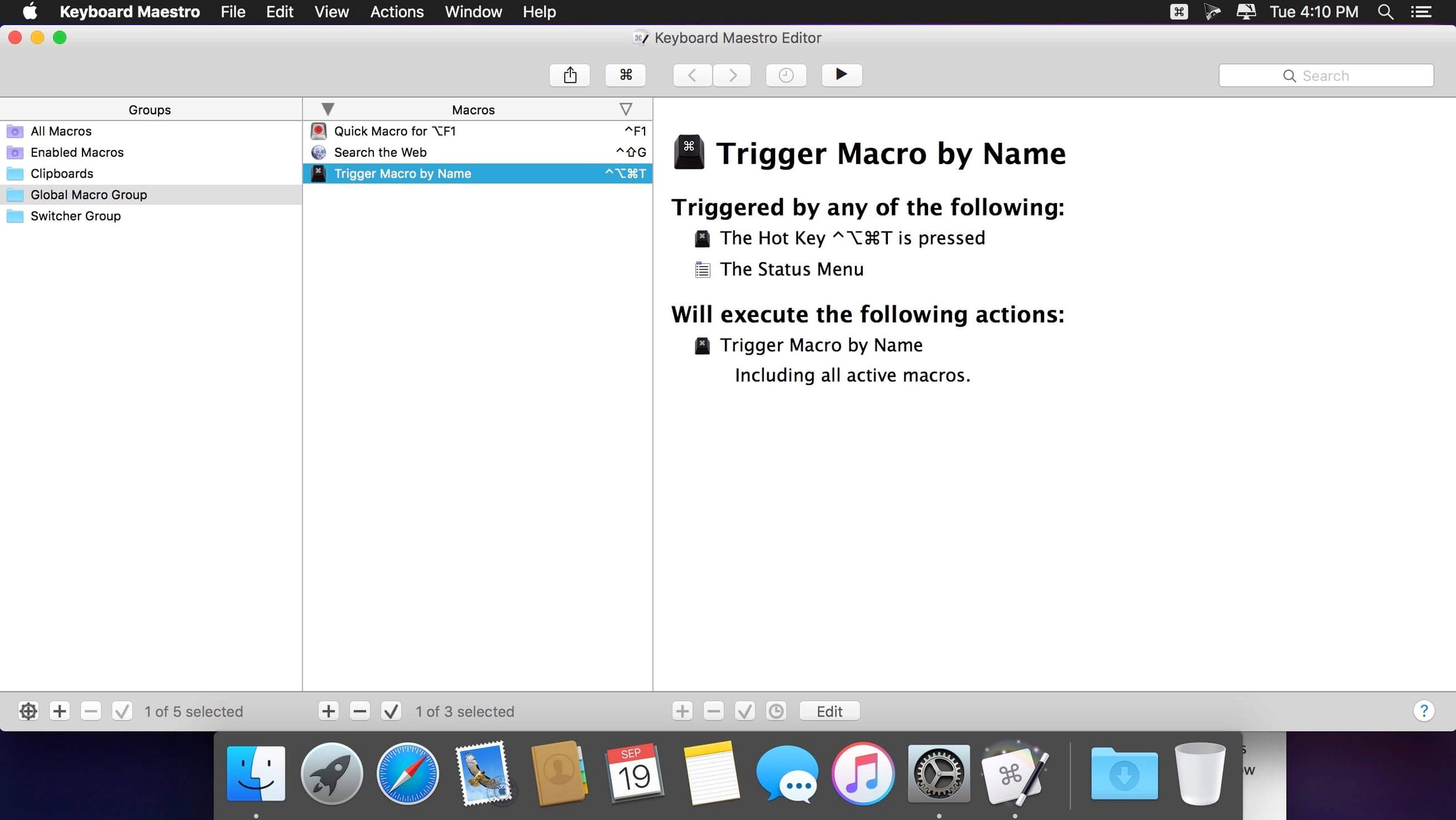
The Switch/Case action now shows you which branch is live before anything runs—a small but telling detail for anyone who builds multi-condition macros. That visual feedback, added in version 11.0.4, answers the quiet worry of setting up a complex trigger and not quite trusting it will fire the right way. It is the kind of refinement you get from an app that has spent years mapping out the tiny frictions of macOS automation.
Most people arrive here with a specific itch. A web form they fill out twenty times a day. A set of applications they open every morning and arrange just so across two screens. Keyboard Maestro turns those into a single shortcut. You record the steps once—launching apps, typing text, resizing windows, pulling text from an image with OCR—and the app plays them back on command or on a schedule. Under the hood it is a visual programming environment with flow control, loops, and conditions, but you can ignore all that and just build a simple hotkey macro in under a minute.
Another group comes from the music side, often wondering why their Ableton keyboard shortcuts have stopped working or how to play MIDI notes using the Mac keyboard as a makeshift controller. Those are separate Ableton settings, not something Keyboard Maestro fixes directly, but the confusion is understandable. Where this app helps a musician is in everything around the DAW: launching a project template, organising sample folders, or pasting session notes into a form. If you want to use your Mac keyboard as a MIDI input, that lives inside Ableton’s own preferences; Keyboard Maestro handles the repetitive desktop chores that eat into studio time.
The action library is deep—hundreds of built-in blocks covering text conversion, image recognition, and application control—so the question is rarely “can it do this?” but “what is the cleanest way to build it?” The answer usually starts with dragging a few actions into a macro and assigning a keyboard trigger that makes sense for your fingers.
Assigning a hotkey macOS already steals for Spotlight or screenshots
Everyone makes the same handful of errors in the first week, and they are almost never about the macro logic itself. The most common one is assigning a hotkey that macOS already claims for something else—Spotlight, screenshots, input source switching—and then wondering why the macro never fires. Keyboard Maestro will not warn you when a shortcut conflicts with a system binding; it simply sits silent while the operating system wins the tug-of-war. Before you settle on a trigger, tap the combination in a blank Finder window and see what happens. If nothing pops up, you are probably safe.
Another classic stumble is forgetting that macros run inside a specific scope. You build a window-arranging macro while Safari is frontmost, test it, it works beautifully, and then you try it while Mail is active and nothing moves. The macro group was set to trigger only in Safari, or it targeted windows by title and the Mail window does not match. The Available in these applications setting near the top of the editor is the first thing to check when a macro that worked yesterday suddenly ignores you.
Overcomplicating the first draft is equally common. New users watch a tutorial showing variables, conditionals, and regex, then try to build a ten-step macro with branching logic before they have made a single text-expansion snippet. The app rewards starting small. A one-action macro that opens a folder is still a legitimate macro, and it teaches you how triggers and scoping behave without the noise of a dozen nested steps.
Automate three small annoyances before exploring the action library
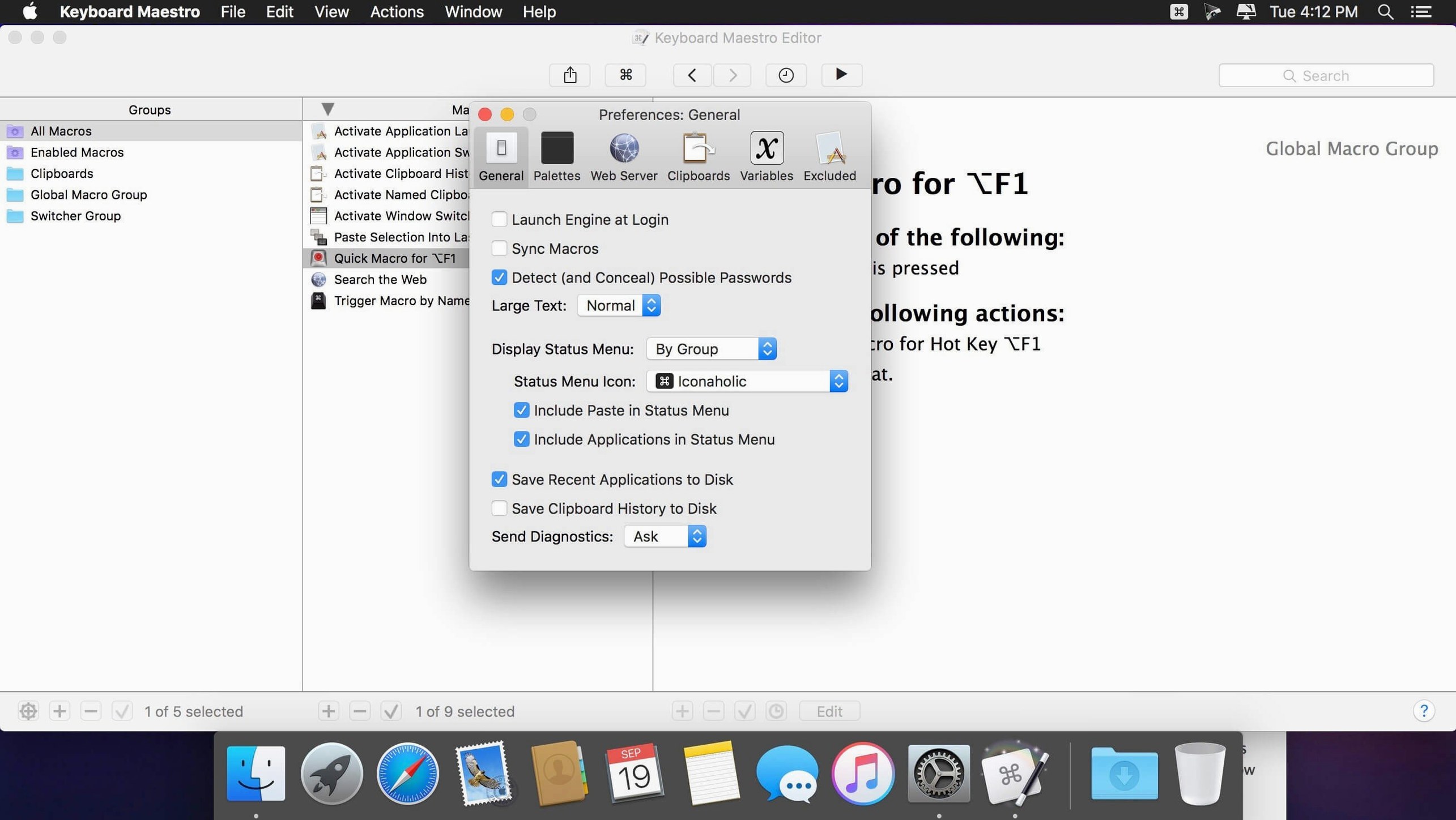
Install it, grant the Accessibility permission when prompted—that is the gatekeeper for window manipulation and keystroke simulation—and then ignore the temptation to browse the entire action library. You will drown in possibility. Instead, think of three tiny irritations from the last hour of work and build a macro for each one, keeping them to a single action where you can.
A practical starting trio: create a hotkey that launches your notes app, a text-expansion snippet that types your email address when you tap @@, and a timed macro that brings your calendar to the front every weekday at nine in the morning. The timed one is particularly instructive because it shows you that macros do not need a keyboard trigger at all—they can run on a schedule, when a Wi‑Fi network changes, or when a specific window appears. Setting a macro to fire at login, for instance, turns your morning app-launching ritual into something that happens while you pour coffee.
One tip that saves a lot of head-scratching: name your macro groups sensibly from day one. A group called “Untitled Group 3” tells you nothing six months later when a macro misbehaves and you are trying to trace which group’s scope is blocking it. Group by domain—“Text tools,” “Window management,” “Email”—and the macro list stays legible as it grows beyond a few dozen entries.
The engine feels transparent on Apple Silicon, even during debugging
On an Apple Silicon Mac, the engine feels transparent. Actions that simulate keystrokes or move windows complete in what registers as instant, and the macro debugger—now with tool tips in 11.0.4—makes it easy to step through a sequence without perceptible lag. The app’s background process, the Keyboard Maestro Engine, typically sits at under 100 MB of memory and barely twitches the CPU unless you are running an OCR-heavy loop or a macro that polls the clipboard several times a second.
Stability is one of those quiet virtues you only notice in its absence, and here the absence stretches for months. Macros that worked under Monterey still work under Sonoma because the developers treat Apple’s API deprecations as maintenance items, not emergencies. The one area where you might feel a pause is Apple Text Recognition—the OCR action introduced in this version calls a system service that takes a second or two on first use, but subsequent calls are cached and noticeably quicker. If you build a macro that runs OCR on a batch of screenshots, expect a brief coffee-sipping pause rather than a background grind that locks up the interface.
Compared to running the same tasks manually, the resource equation is all upside. A macro that resizes ten images via a watched folder uses the same system libraries you would call by hand, but it does not open a preview window for each file or redraw the screen at every step. The savings are cumulative and invisible, which is exactly how automation should feel.
Renaming forty PDFs and sending client emails before coffee
Picture a Tuesday morning. You have a folder of forty scanned contracts, each a PDF that needs its client name extracted, a standard email sent, and the file renamed with today’s date. Before Keyboard Maestro, this was two hours of squinting and copying and pasting. Now you open the editor, create a new macro, and call it “Contract processor.”
You drag in a For Each Path action pointing at the contracts folder, then nestle an OCR Condition inside the loop—the new Apple Text Recognition engine is selected from the dropdown—configured to grab the text block after the phrase “Client Name” on the first page. The extracted string lands in a variable you name ClientName. Next, an Insert Text action drops that variable into a pre-written email template, and a Move or Rename File action appends the date stamp. You assign the whole thing to Ctrl-Option-C, hit save, and press the keys.
The macro runs without opening a single file visibly. You watch the folder fill with renamed PDFs and your drafts mailbox fill with emails, each addressed to the right person, each with the client name slotted into the subject line. The debugger’s tool tips, a new touch in this version, show you which branch of the condition is live as you step through manually to check the first loop iteration. It takes four minutes instead of two hours, and the only thing you touched was a key combination.
BetterTouchTool turns gestures into actions, but not multi-step logic
The obvious neighbour is BetterTouchTool, which shares the shortcut-triggered automation space but draws its strength from input device customisation—trackpad gestures, Touch Bar widgets, drawing triggers with a mouse. Where BetterTouchTool excels at making a single physical gesture do one clever thing, Keyboard Maestro pulls ahead when the task involves multiple applications, conditional logic, or chained actions. A window-snapping macro feels natural in BetterTouchTool; a macro that scrapes a web form, renames a file, and sends a notification feels natural here. The two can coexist, and plenty of people run both, letting each handle its stronger half.
Hazel is a folder-watching specialist, and for “if a file lands here, rename it and move it” workflows it is more approachable. You do not open a macro editor in Hazel; you build rules in a panel that reads like a sentence. The trade-off is that Hazel cannot type into an application, simulate a menu click, or wait for a window to appear. It lives entirely in the file system. If your automation is purely about organising folders, Hazel is the simpler tool. As soon as the task reaches beyond Finder, Keyboard Maestro is the one that can follow.
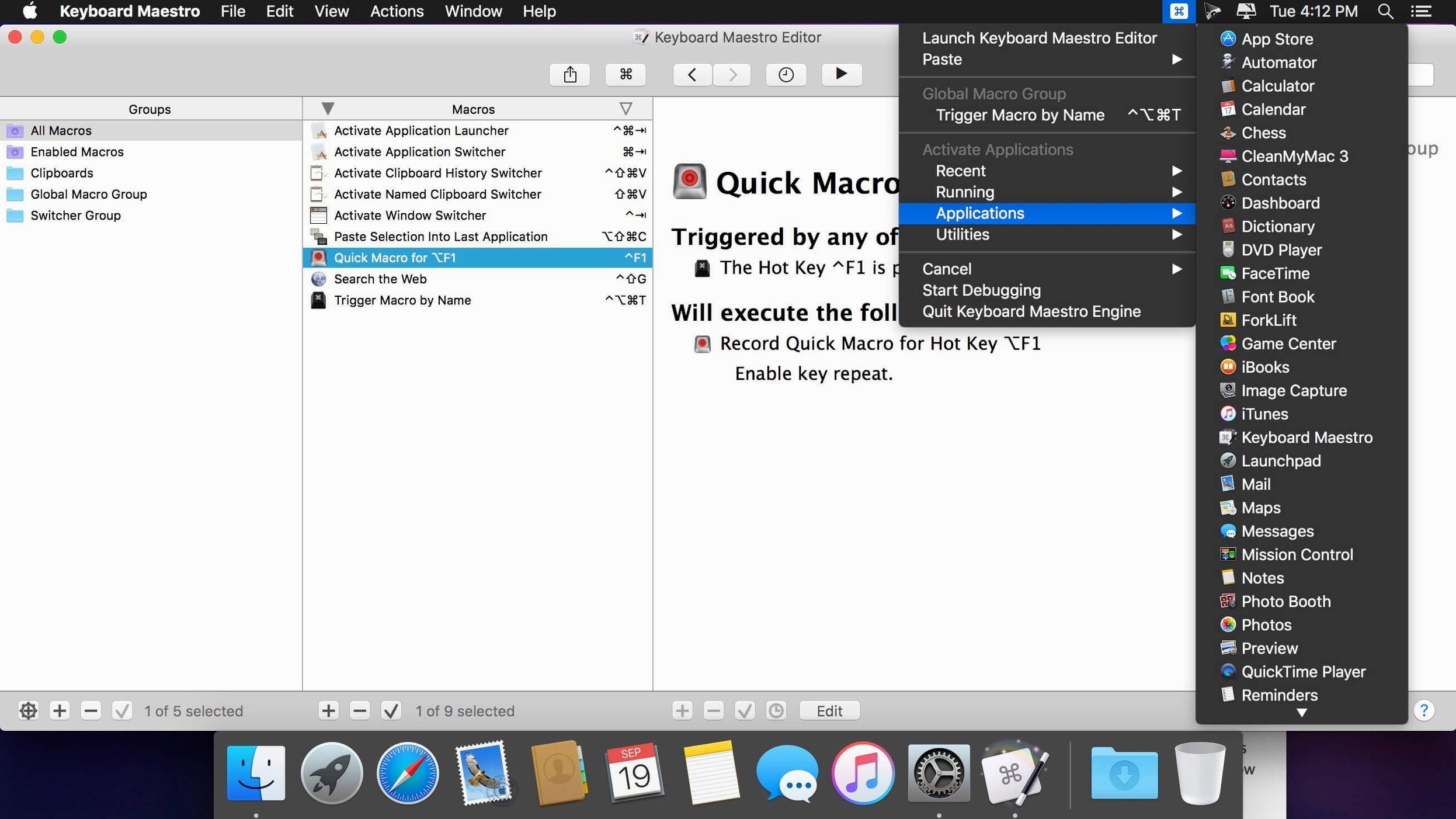
Alfred overlaps on text expansion, clipboard history, and launching things with a few keystrokes, and its Powerpack workflows can chain actions together. The spirit is different, though: Alfred is a launcher that grew outward, while Keyboard Maestro is a macro engine from the ground up. You might trigger an Alfred workflow by typing a keyword into its bar; you trigger a Keyboard Maestro macro with a hotkey, a schedule, or an event. The clipboard history in Keyboard Maestro—multiple entries, filterable, with the ability to paste a specific clip by name—is deeper than Alfred’s, but Alfred’s file-navigation speed and music mini-player are things Keyboard Maestro does not attempt. Again, many Macs run both without conflict, the rule of thumb being Alfred for quick-launch and search, Keyboard Maestro for multi-step automation that touches several apps in sequence.
Version 11.0.4 brings a handful of thoughtful refinements. The Switch/Case action now displays which entries are currently true or would execute, taking the guesswork out of debugging branching macros. Apple’s Text Recognition engine is supported inside the OCR condition, and the Macro Debugger window has gained tool tips for quicker orientation. A fix for search highlighting triggers rounds out the update.
- macOS 10.13 or later
- Runs natively on both Intel and Apple Silicon Macs
Questions from the class 0
Sign in or join the class to ask a question.
Nobody has asked anything yet. If you have used it on a real job, say what the file did.
Also on the Mac Apps shelf
The whole Mac Apps shelf Kerlig
Rewrites highlighted text in a friendlier or clearer tone without leaving the app you are in.
Kerlig
Rewrites highlighted text in a friendlier or clearer tone without leaving the app you are in.
 KeyShot
Renders 3D models as lifelike images by simulating real-world materials and lighting.
KeyShot
Renders 3D models as lifelike images by simulating real-world materials and lighting.
 Klack
Plays a satisfying mechanical keyboard sound through your speakers whenever you strike a key.
Klack
Plays a satisfying mechanical keyboard sound through your speakers whenever you strike a key.
 Jump Desktop
Lets you control another Mac or PC from your current screen and drag files between them.
Jump Desktop
Lets you control another Mac or PC from your current screen and drag files between them.
 JPEGmini Pro
Shrinks JPEG file sizes without visibly changing the photo.
JPEGmini Pro
Shrinks JPEG file sizes without visibly changing the photo.
 LanScan
Scans your local network and lists every connected device with its IP and MAC address.
LanScan
Scans your local network and lists every connected device with its IP and MAC address.
 LaunchOS
Replaces the standard Launchpad with a faster, keyboard-friendly app launcher.
LaunchOS
Replaces the standard Launchpad with a faster, keyboard-friendly app launcher.
 iStat Menus
Puts CPU, memory, disk, network and weather stats right in your menu bar.
iStat Menus
Puts CPU, memory, disk, network and weather stats right in your menu bar.