 ASPNetWorld

You're halfway through a mix in the studio when a client calls for a file that's only on your office Mac. You open Jump Desktop, and within seconds you're dragging the Logic project straight to your MacBook Pro, as if you were sat at the desk.
What kind of remote connections does it handle?
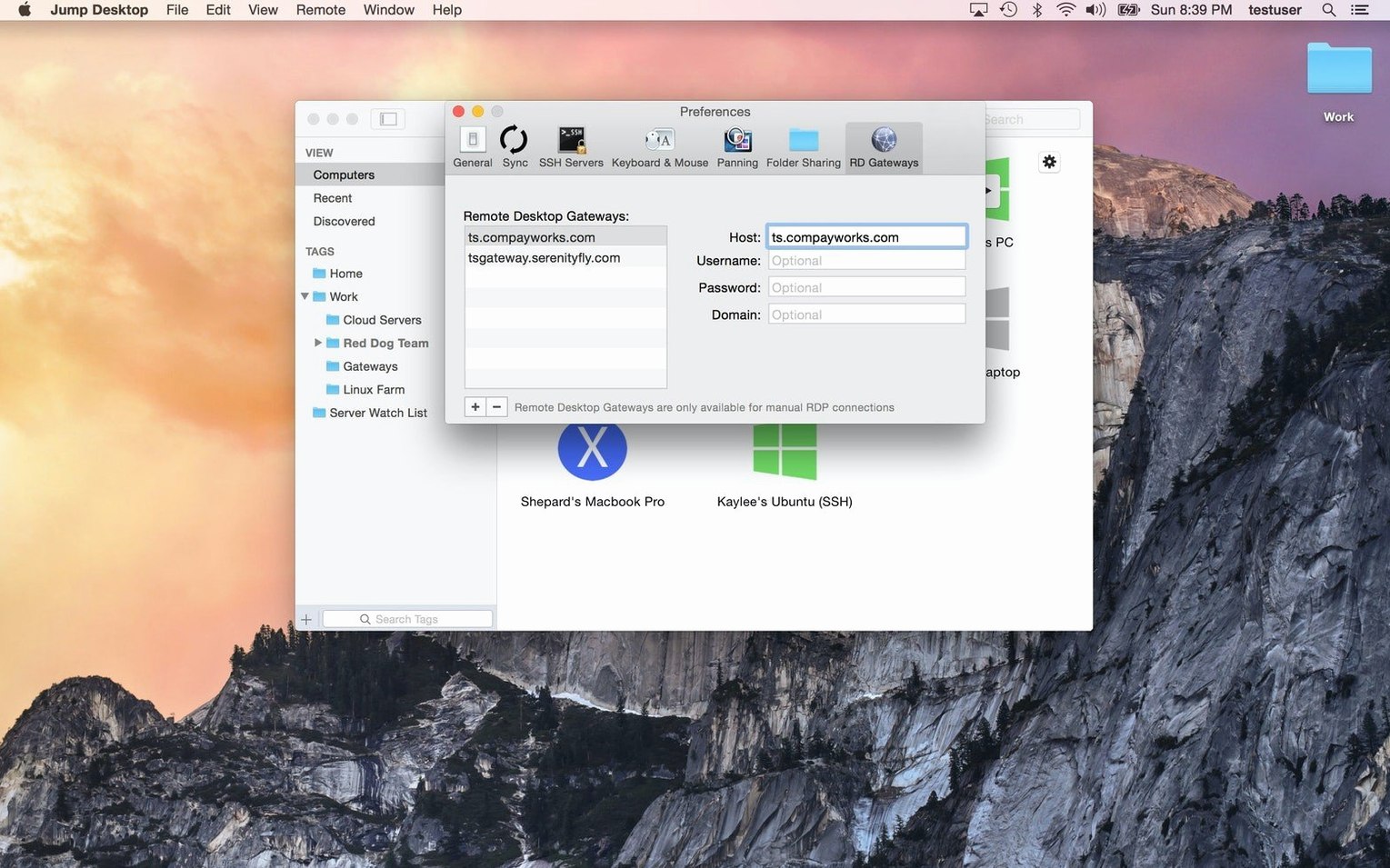
The app speaks the two protocols that matter: Microsoft's RDP and the open VNC standard. That means you can reach a Windows PC in the accounts department just as easily as a headless Mac mini in a server rack. If the remote computer runs the free Jump Desktop Connect companion app, setup becomes a simple sign-in rather than a network configuration puzzle.
The remote-access companion you pull out when leaving the building
It's not trying to replace Screen Sharing or Apple Remote Desktop for local admin tasks—it's the tool you reach for when you're away from the building. A Google account or any email address is all you need to link your machines, and the app handles the firewall traversal quietly in the background so you don't have to explain port forwarding to anyone.
Can you actually get work done, or is it just for viewing?
This is a full interactive session, not a slideshow. Mouse clicks, keyboard shortcuts, and even custom key remapping travel across the connection so your muscle memory still works. File transfer is built in too; you can pull documents, projects, or ISOs straight from the remote desktop without setting up a separate cloud sync.
Two preference tweaks that make it feel native instead of borrowed
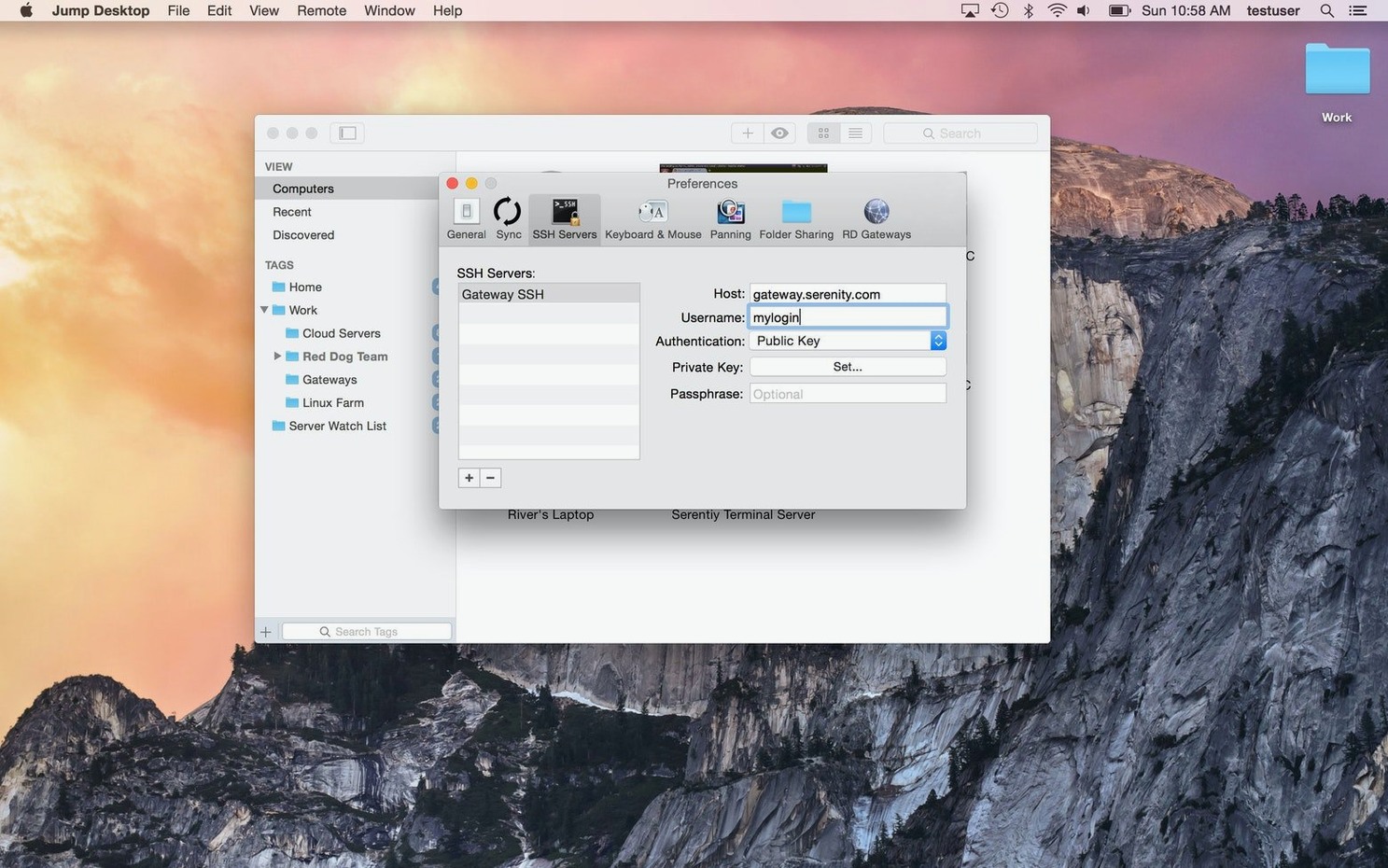
The defaults are sensible enough for a quick coffee-shop connection, but a few tweaks turn Jump Desktop into something that feels native rather than borrowed. Open the preferences pane before you connect to anything important and walk through these.
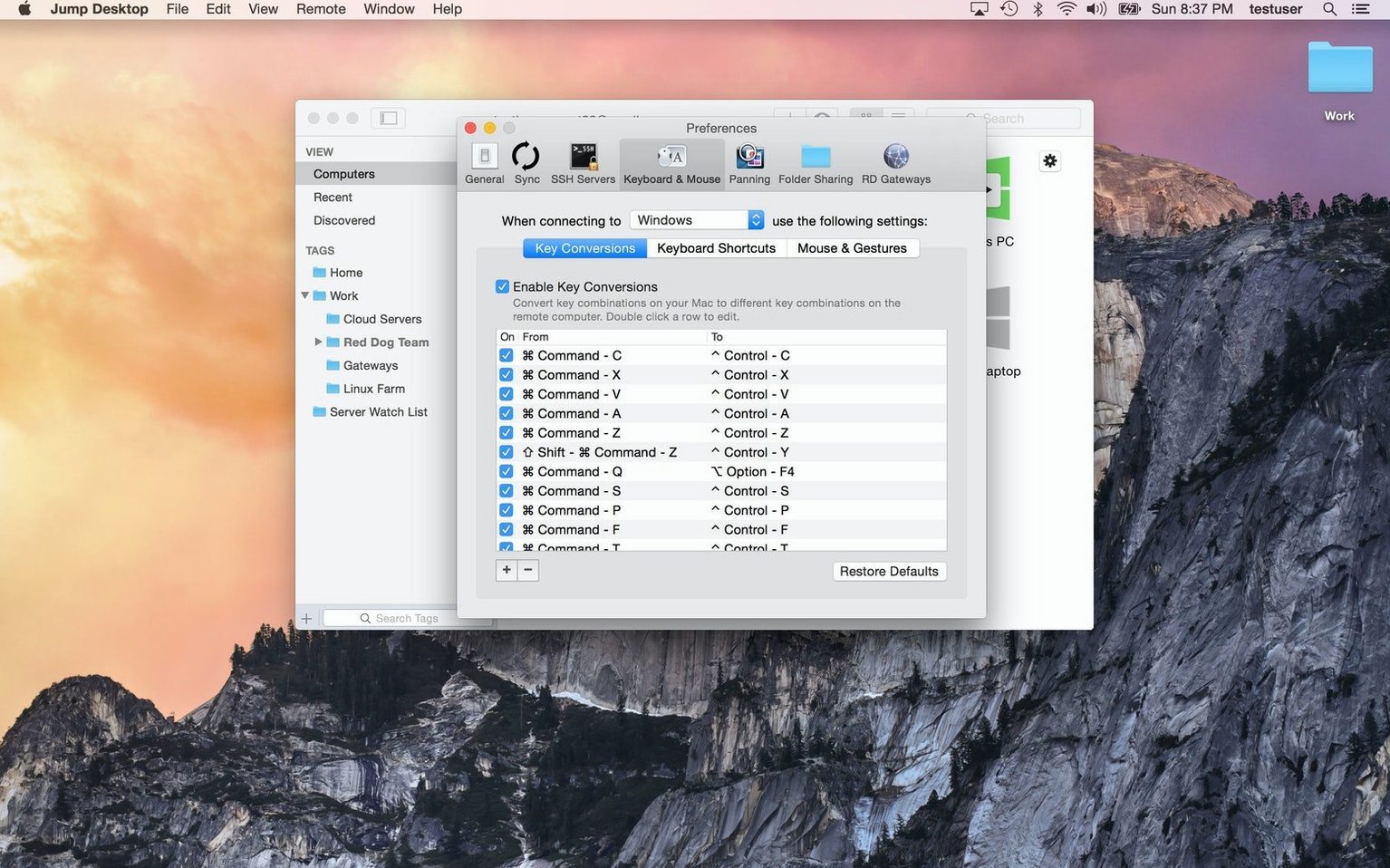
Keyboard mapping, right now. The app makes an honest guess at translating Windows modifier keys to a Mac layout, yet the guesswork falls apart the moment you use an RDP session to a PC and muscle memory reaches for Cmd+C. Under Keyboard, switch the profile to Mac to Windows so Cmd sends the Windows key and Option maps to Alt. There’s a per-connection override too, so a VNC session to a Linux box can keep a different mapping from the RDP link to the office PC.
Display scaling that matches your eyesight. A remote desktop at native resolution on a Retina display often arrives looking like a postage stamp. Tick Scale to fit for a quick fix, but the smarter move is to set a fixed resolution in the connection profile—something like 1920×1200 on a MacBook screen keeps text sharp without forcing you to squint. If you’re working across two local monitors, enable Use all displays so the remote desktop spans both; it’s disorienting for the first thirty seconds, then indispensable.
Clipboard sync with limits. Copy-paste between local and remote machines is a quiet superpower until you accidentally paste a 200 MB video file over a hotel Wi‑Fi connection and watch the session freeze. In the Clipboard tab, keep text and images enabled but uncheck File copy and paste unless you’re on a wired connection you trust. The feature is brilliant for small PDFs and screenshots; it’s a liability for raw camera footage.
Sound routing. By default, remote audio plays through your local speakers, which is fine for alert beeps but maddening when you’re editing a podcast on the remote machine and hearing it through laptop drivers. Either redirect audio to the remote host in the Sound tab or switch it off entirely for sessions where you only need visual access.
Tag your connections with colours so the app earns its dock space
Most people install Jump Desktop, connect to one machine, and stop exploring. Spend the first week building a couple of habits and the app will earn its dock space.
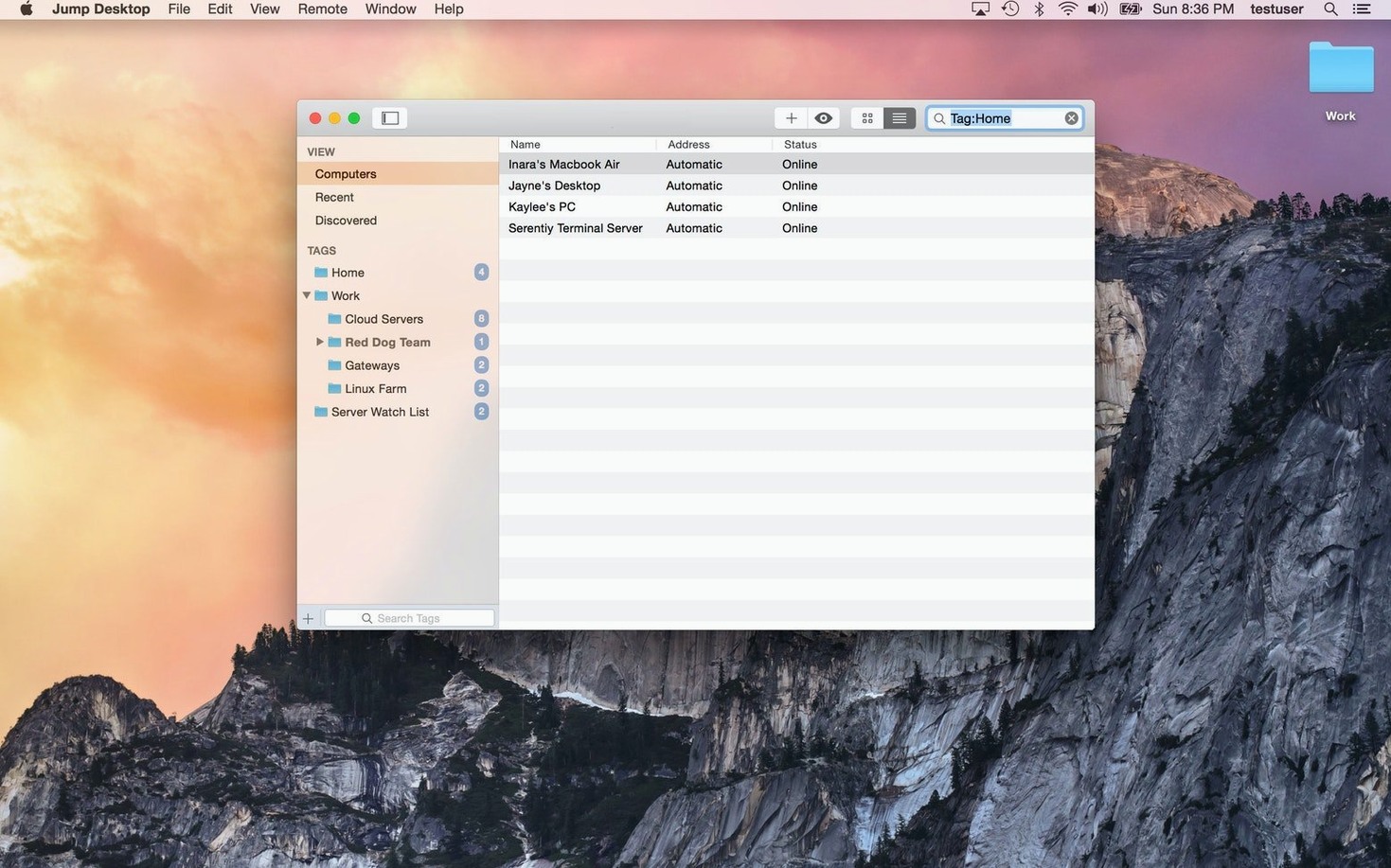
Tag your connections with colours. Right-click any saved machine, choose Edit, and assign a colour label. Red for production servers you shouldn’t reboot casually, green for your own workstation, blue for client machines. After five days you’ll recognise the colour faster than the hostname, especially when you’re bleary-eyed and remote in at 7am.
Create a local admin shortcut alongside the remote user session. If you’re the person who fixes things, keep two connection entries for the same machine: one with your everyday user account and one with an administrator login. The day a macOS update breaks screen sharing, you’ll be grateful you can hop onto the admin session without hunting for credentials.
Test the file transfer before you need it. Don’t wait until a deadline. Connect to your office Mac, drag a small folder to your desktop, and confirm the transfer speed and destination behaviour. The transfer panel lives in a slide-out drawer at the top of the session window, easily missed if you’re in a hurry. Knowing where it hides saves a frantic support call later.
Practice disconnecting cleanly. Closing the window on a Mac ends the session but leaves the remote desktop locked, exactly as you’d want. Closing an RDP session to a Windows box, though, sometimes logs the user out entirely, killing open applications. Check the session’s Disconnect behaviour setting and set it to Lock session rather than Log out for hosts where uptime matters.
A workflow: pulling a mix session from the studio Mac
This is a real sequence I walk through at least once a week, and it shows how the features lock together under pressure.
1. Wake the remote Mac. Open Jump Desktop, find the studio Mac in the list, and click to connect. Because Jump Desktop Connect is running there, the Mac wakes from sleep if it’s set to do so, and the session appears within about eight seconds on a decent broadband line.
2. Orient yourself. The desktop appears at 2560×1440, scaling cleanly to my MacBook Pro’s built-in display. I’ve saved this resolution in the connection profile so I can read Logic’s channel labels without zooming.
3. Locate the project. I use the remote Finder normally—Spotlight works, as do keyboard shortcuts—to navigate to the Logic project folder. The session is responsive enough that I forget I’m remote until the fans on the studio Mac spin up audibly through the next room.
4. Transfer the files. I drag the project folder to the transfer drawer, which opens automatically when I drop it. The drawer shows a progress bar and an estimated time; a 2 GB folder takes roughly four minutes over a 100 Mbps uplink. Once it finishes, the folder sits on my local desktop, ready to open.
5. Clean up remotely. Before disconnecting, I close the project on the studio Mac and lock the screen so nobody in the building wanders past an open session. I hit Cmd+Shift+Q, which the keyboard mapping sends as Ctrl+Shift+Delete to lock the Windows test PC next to it—proof the remapping profiles work side by side.
6. Disconnect and work locally. I close the Jump Desktop window. The session ends, the studio Mac stays locked, and the Logic project sits on my laptop, fully transferred. No cloud sync, no USB stick, no return trip to the building.
The blank-screen refusal and eight other trouble spots solved
Remote desktop software lives or dies on what happens when a session goes wrong. These are the trouble spots I see most often.
“The connection refused and I’m staring at a blank screen.” Nine times out of ten, Jump Desktop Connect has quit on the remote Mac. Walk someone through restarting it, or—if you set it up beforehand—enable the launch daemon so it starts automatically at boot. The tick box is in the Connect app’s preferences, under General, labelled Start Jump Desktop Connect at login.
“The keyboard is sending the wrong characters.” This hits people who switch between a Windows RDP session and a Mac VNC session without adjusting mappings. Each connection entry has its own keyboard profile; set them independently in the Keyboard tab and the problem disappears. If you need a quick sanity check, type a few characters in the remote machine’s text editor before opening anything important.
“The remote screen is tiny or blurry.” The Mac version of Jump Desktop downloads a Retina-aware display driver for Windows hosts, but older VNC servers don’t always negotiate HiDPI well. Drop the connection resolution manually to match a standard 1× pixel density—1440×900 usually does the trick—and the blurring clears up. For Mac-to-Mac connections, the built-in screen sharing in Jump Desktop Connect handles scaling without this step.
“Clipboard copy-paste just stopped working.” The clipboard bridge is sensitive to network hiccups. If text stops flowing between local and remote machines, disconnect the session entirely and reconnect; the bridge re-establishes itself during handshake. Avoid pasting rich text with embedded images across the link—plain text is far more reliable over high-latency connections.
Version 10 is a proper milestone for Jump Desktop, and the headline feature is the frame rate — it can now push up to 480 fps when your screen supports it. Leave the setting on Auto and the app will match your display's refresh rate without you having to think about it. That's the sort of thing that makes scrolling feel instant, and it's a genuine step forward for anyone who remotes into a fast Windows machine for gaming or 3D work.
Hardware encoding joins the codec options under the new Codec > Hardware menu. The benefit is twofold: you get sharper detail at the same bandwidth, and the host CPU takes less of a hit, which means quieter fans and longer battery life on your Mac. The virtual display system has had a serious overhaul too — you can now save and switch between display presets, dial in an exact resolution, scale and refresh rate, and tick Keep After Disconnect to leave those displays alive on the host between sessions.
USB device redirection is another big addition — plug a device into your desk Mac and pass it straight through to a Windows or Mac host as if it were connected there. Game controllers work the same way: keep the controller in your hands and play titles running on the remote machine. For creative work, Input Trail draws your stylus and mouse strokes immediately, which makes drawing feel responsive even on high-latency links, while Color Passthrough sends the host's colour output unprocessed so calibrated displays show exactly what the host intended. Everyday work hasn't been ignored either — back and forward mouse buttons now work properly, pinch-to-zoom on a trackpad is supported, and text composition for Chinese, Japanese and Korean is far more reliable.
- macOS 11 (Big Sur) or later
- Apple Silicon or Intel 64-bit processor
Questions I keep hearing
Does it run natively on Apple Silicon Macs?
Yes, the download includes native support for both Apple Silicon and Intel Macs running macOS 11 or later.
Questions from the class 0
Sign in or join the class to ask a question.
Nobody has asked anything yet. If you have used it on a real job, say what the file did.
Also on the Mac Apps shelf
The whole Mac Apps shelf JPEGmini Pro
Shrinks JPEG file sizes without visibly changing the photo.
JPEGmini Pro
Shrinks JPEG file sizes without visibly changing the photo.
 Kerlig
Rewrites highlighted text in a friendlier or clearer tone without leaving the app you are in.
Kerlig
Rewrites highlighted text in a friendlier or clearer tone without leaving the app you are in.
 Keyboard Maestro
Triggers multi-step actions on your Mac from a single hotkey, shortcut or condition.
Keyboard Maestro
Triggers multi-step actions on your Mac from a single hotkey, shortcut or condition.
 KeyShot
Renders 3D models as lifelike images by simulating real-world materials and lighting.
KeyShot
Renders 3D models as lifelike images by simulating real-world materials and lighting.
 Klack
Plays a satisfying mechanical keyboard sound through your speakers whenever you strike a key.
Klack
Plays a satisfying mechanical keyboard sound through your speakers whenever you strike a key.
 iStat Menus
Puts CPU, memory, disk, network and weather stats right in your menu bar.
iStat Menus
Puts CPU, memory, disk, network and weather stats right in your menu bar.
 iShot Pro-ScreenShot Recording
Captures screenshots, scrolling pages and screen recordings with a floating toolbar.
iShot Pro-ScreenShot Recording
Captures screenshots, scrolling pages and screen recordings with a floating toolbar.
 Infuse Pro
Plays almost any video file, including high-bitrate MKVs, direct to your screen or receiver.
Infuse Pro
Plays almost any video file, including high-bitrate MKVs, direct to your screen or receiver.