 ASPNetWorld

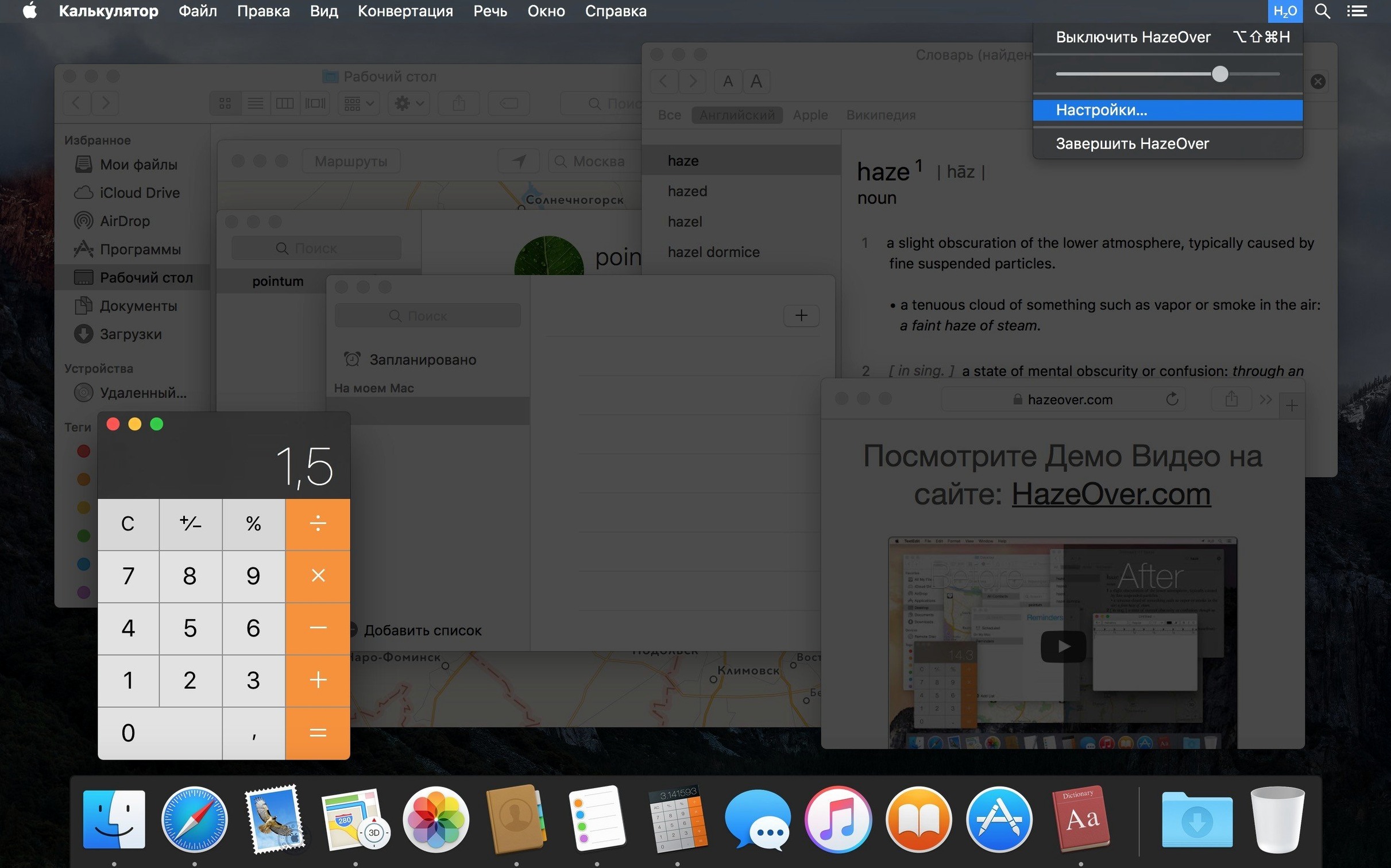
You can run HazeOver on any Mac with macOS 13 Ventura or later, and it works natively on both Apple Silicon and Intel machines — so whatever you are sat in front of, the app will feel at home. The interface itself speaks an unusually wide range of languages, from Arabic to Ukrainian, which quietly tells you how long this little utility has been polished.
Highlights the active window on each display independently
Yes, it can highlight the active window on each monitor independently. If you spread your work across a pair of displays, the dimming follows your attention rather than blanketing everything identically.
Hold fn while dragging to pause dimming momentarily
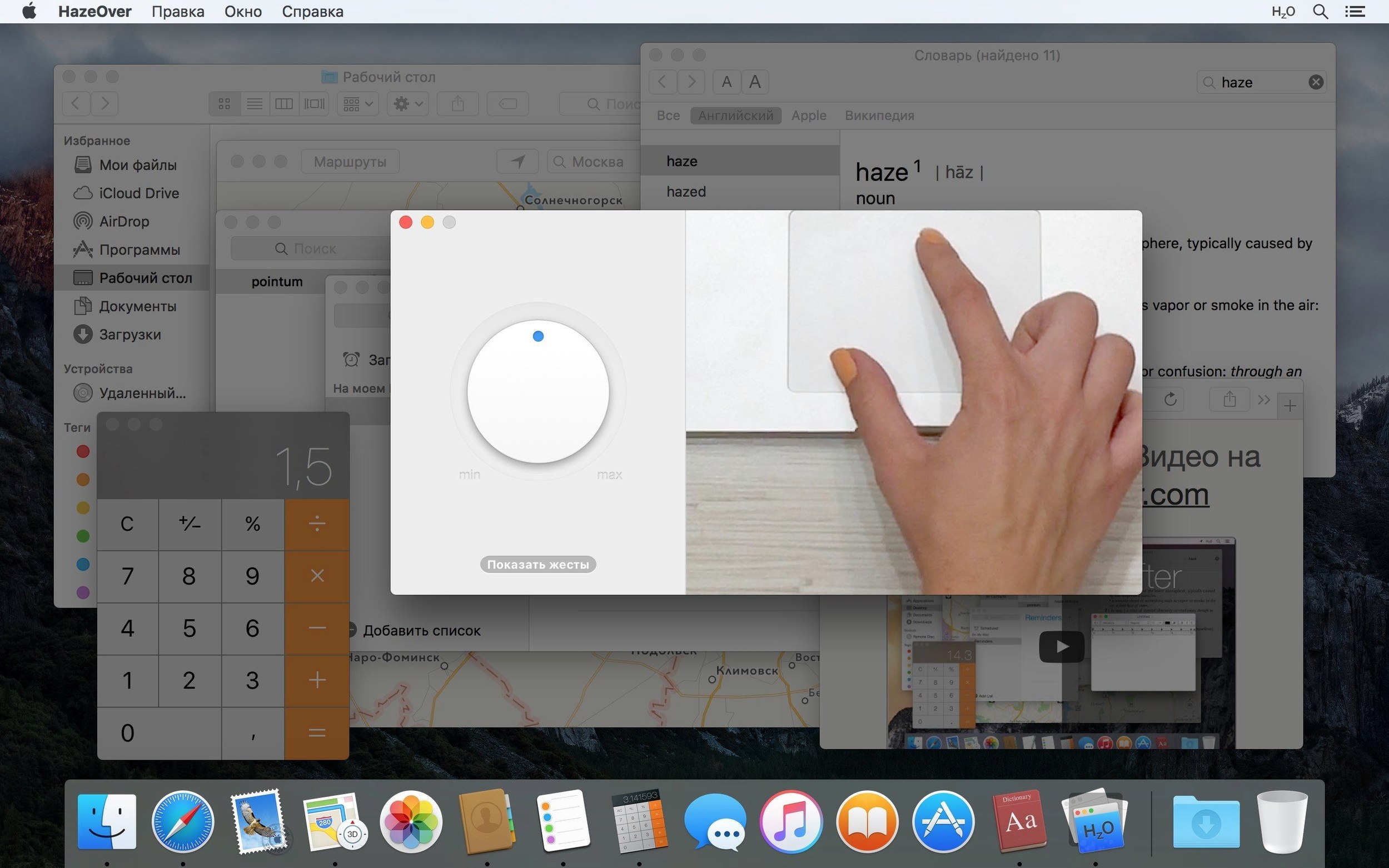
Hold the fn key while dragging and the dimming pauses, so you can drop an image from Finder into a dimmed Photoshop window without the overlay snapping back and forth. It is a small touch, but it stops the effect from feeling like it is fighting you mid-task.
How much of the dimming can I change?
You control the intensity, from a gentle shade that just nudges your eye toward the frontmost app to a near-blackout of everything else. The highlight moves automatically each time you switch windows — no clicking a floating palette, no remembering a shortcut unless you want to add one.
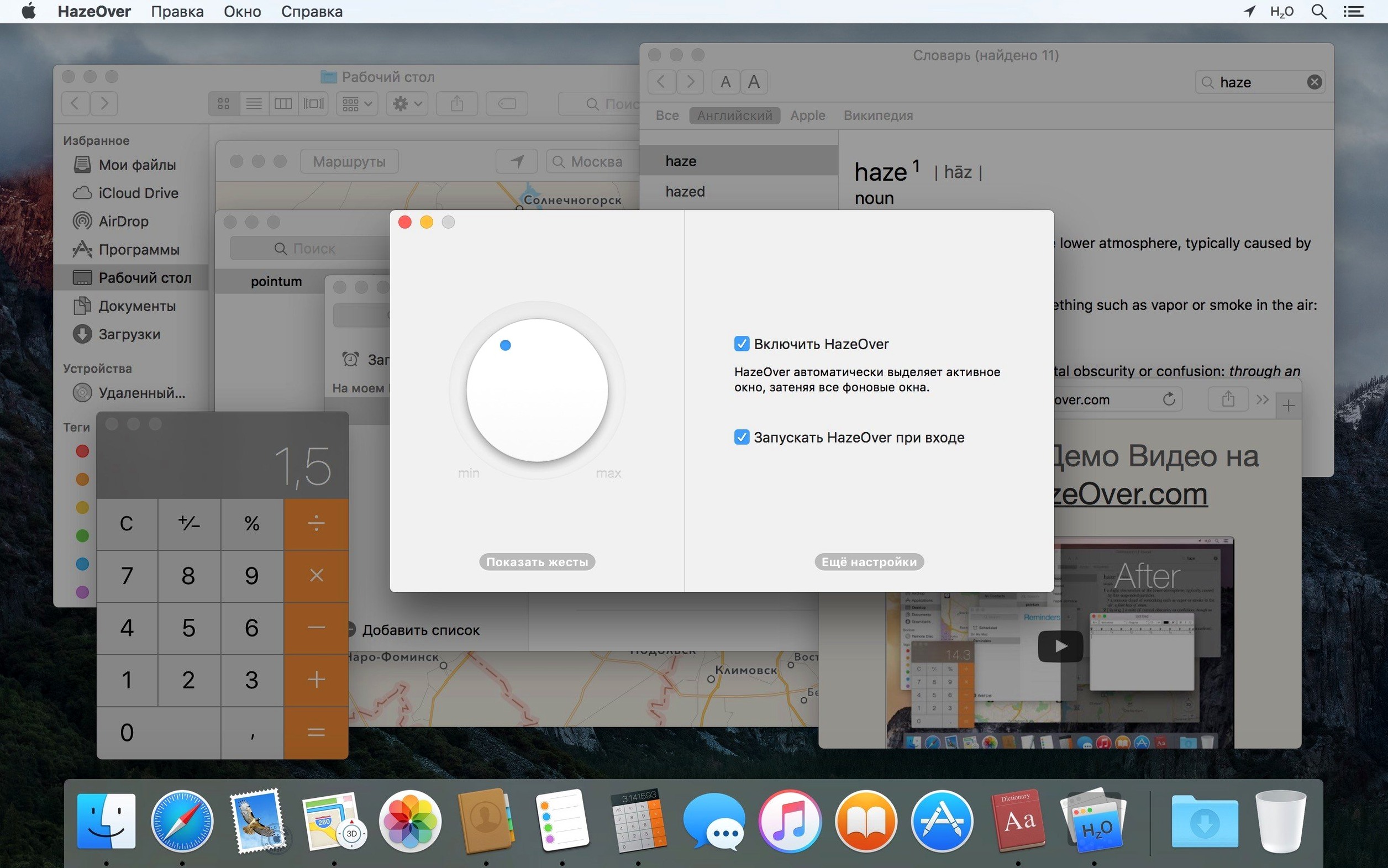
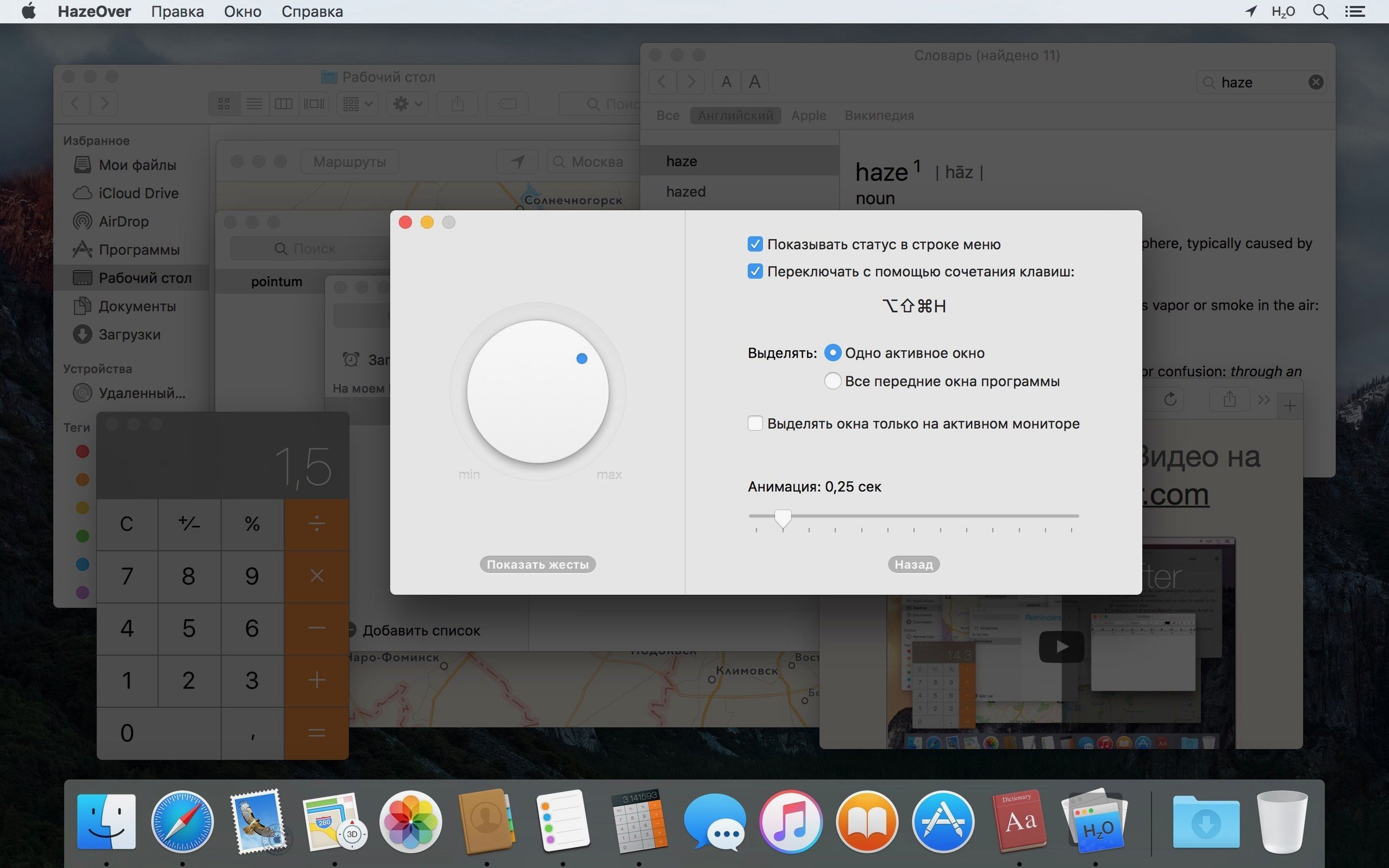
If you installed HazeOver and left every slider at its midpoint, you are only seeing half the picture. Open the menu bar icon and click Preferences — or pull up its pane directly from Spotlight, which version 1.9.8 now lets you do — and spend sixty seconds on three settings that change the character of the dimming entirely.
First, drag the Dimming Intensity slider lower than you think you need. A faint 15–20% shade is often enough to separate windows on a bright desktop; your peripheral vision picks up the contrast without conscious effort, and you avoid the slight claustrophobia that a heavy overlay can bring. Second, if you switch between dark and light appearances during the day, set separate intensity values for each mode. A dim that feels gentle on a pale Numbers sheet can look almost invisible against a dark terminal, so tweak the dark-mode value while you have a few real windows open.
Third, head to the General tab and find the Highlight desktop option. With it enabled, clicking the desktop lifts the dim from the whole screen, which sounds trivial until you need to grab a stray file from a cluttered space and the dim no longer masks what you are reaching for. While you are there, consider binding a quick key to toggle HazeOver entirely — version 1.9.8 added assignable quick keys for actions — so you can switch the effect off during screen-sharing calls or colour-critical work without hunting through the menu bar.
Dimming no longer flickers alongside Stage Manager
The jump to version 1.9.8 brought a handful of changes that affect everyday use more than a changelog lets on. Full compatibility with macOS 27 Golden Gate means the dimming layer no longer flickers when Stage Manager or a full-screen Space slides across, and a long-standing Dock icon quirk — where multiple windows could stay highlighted after you minimised an app — has been squashed. In practice, that removes the rare but frustrating moments when the overlay seemed to ignore which window you were actually working in.
Spotlight integration is the headline item, but the real day-to-day difference comes from those assignable quick keys and the improved keyboard navigation. If you use HazeOver alongside Shortcuts or AppleScript, you can now trigger preset dimming profiles without opening the preferences window at all: one shortcut for a deep writing dim, another for a barely-there coding shade. Screen reader support also got a quiet polish, so VoiceOver announces dimming state changes more reliably — a small detail that makes the app feel less like an overlay and more like a proper accessibility tool.
Setting up a distraction-free writing session
Suppose you are about to draft a long report in Ulysses or Pages, and your desktop is littered with a browser, Slack, a reference PDF and Finder. You want only the writing app to hold your attention, but you still need to peek at the PDF now and then without the dimming fighting you.
- Open the HazeOver preferences and set Dimming Intensity to around 35% for light mode. This is enough to push background clutter into a soft grey while keeping text legible if you glance sideways.
- In the Appearance tab, choose Highlight the frontmost app rather than the individual window. That way, when you switch to Preview to check a diagram, the whole PDF reader comes forward as one block, not just the single document window — useful if the PDF has a floating toolbar.
- Assign a quick key — perhaps
⌃⌥⌘D— to the Toggle HazeOver action so you can disable the dimming instantly when you need to compare two documents side by side. - Open your writing app, switch to it, and let HazeOver shade everything else. When you need to drag a snippet of text from the reference PDF, hold the fn key before you start dragging; the dimming pauses, you drop the text, and the overlay returns the moment you release the key.
- If you step away and the screen dims according to your Mac’s energy-saver settings, clicking back into the writing app brings the highlight back without a stutter — version 1.9.8 smoothed out the redraw that could previously leave a ghosted overlay for a split second.
This kind of light-touch setup turns HazeOver from a novelty into a rhythm. The dimming becomes something you no longer notice consciously, but you feel its absence the moment you turn it off and every window screams for attention at equal volume.
Version 1.9.8 catches up with macOS 27 Golden Gate and makes the app easier to reach without opening its window. You can now assign quick keys to actions and adjust settings straight from Spotlight. Screen reader support and keyboard navigation have also been tightened up, so the dimming effect plays nicely with assistive tools.
- macOS 13 Ventura or later
- Apple Silicon or Intel (64-bit)
Questions from the class 0
Sign in or join the class to ask a question.
Nobody has asked anything yet. If you have used it on a real job, say what the file did.
Also on the Mac Apps shelf
The whole Mac Apps shelf Haptyk
Generates audible click feedback for every press on a solid-state keyboard.
Haptyk
Generates audible click feedback for every press on a solid-state keyboard.
 HitPaw Edimakor
Edits video by letting you drag, trim and tweak on a literal-minded timeline.
HitPaw Edimakor
Edits video by letting you drag, trim and tweak on a literal-minded timeline.
 HitPaw Univd
Converts media across over a thousand video and audio container formats.
HitPaw Univd
Converts media across over a thousand video and audio container formats.
 HitPaw Video Converter
Transforms unruly video files into the format your project actually needs.
HitPaw Video Converter
Transforms unruly video files into the format your project actually needs.
 HitPaw Watermark Remover
Erases logos and timestamps by drawing a loose selection around them.
HitPaw Watermark Remover
Erases logos and timestamps by drawing a loose selection around them.
 Hype 4 Pro
Constructs interactive HTML5 animations without writing a single line of code.
Hype 4 Pro
Constructs interactive HTML5 animations without writing a single line of code.
 Hyperspace
Hunts down and deletes duplicate files that are quietly wasting your disk space.
Hyperspace
Hunts down and deletes duplicate files that are quietly wasting your disk space.
 iExplorer
Transfers music, messages and files between an iPhone and a Mac without using iTunes or iCloud.
iExplorer
Transfers music, messages and files between an iPhone and a Mac without using iTunes or iCloud.