 ASPNetWorld

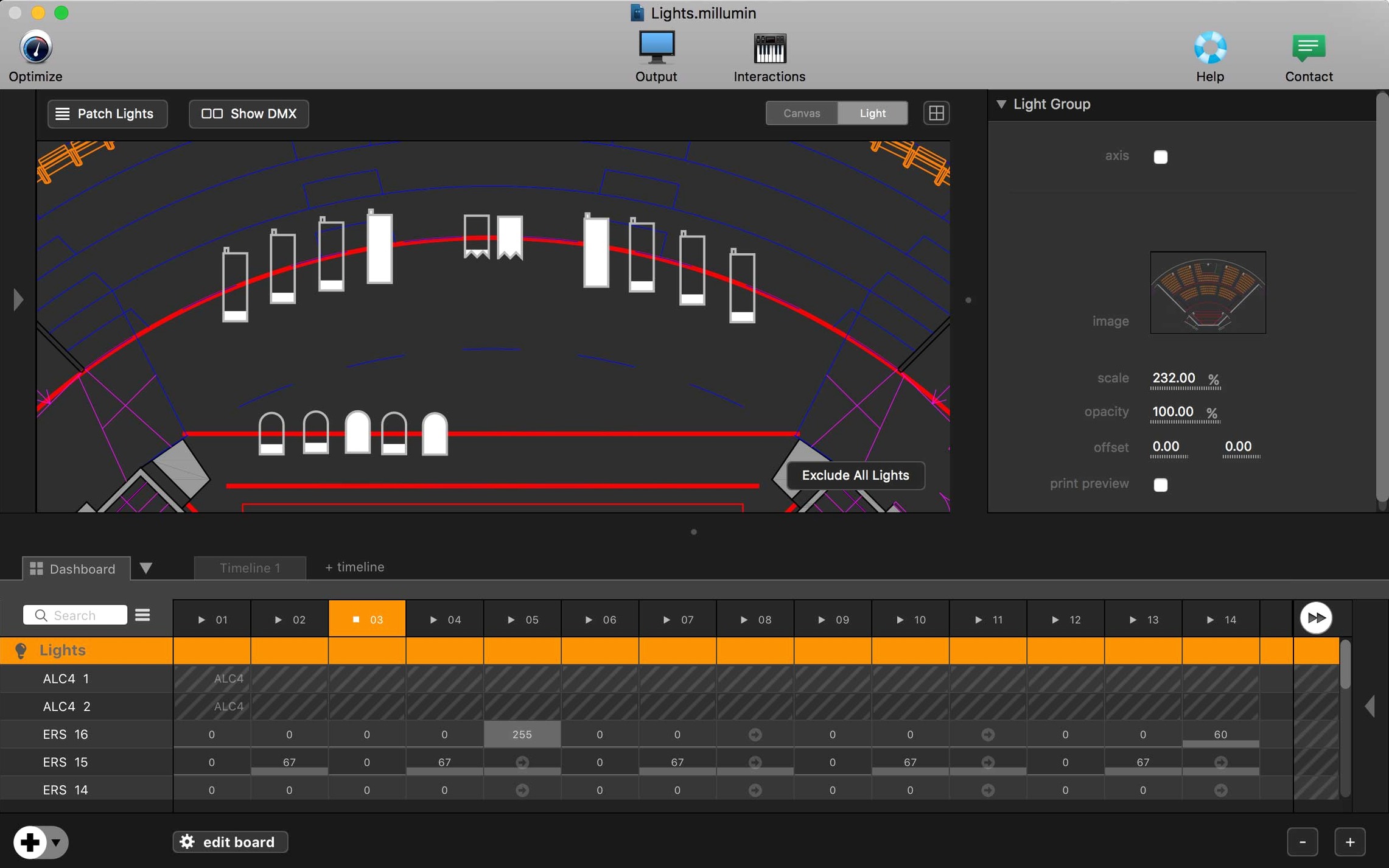
One timeline can drive a dozen projectors, a lighting desk and a live camera feed simultaneously. Millumin 5 is software for staging audiovisual and interactive shows — the kind where video, sound and light need to hit the same beat every night.
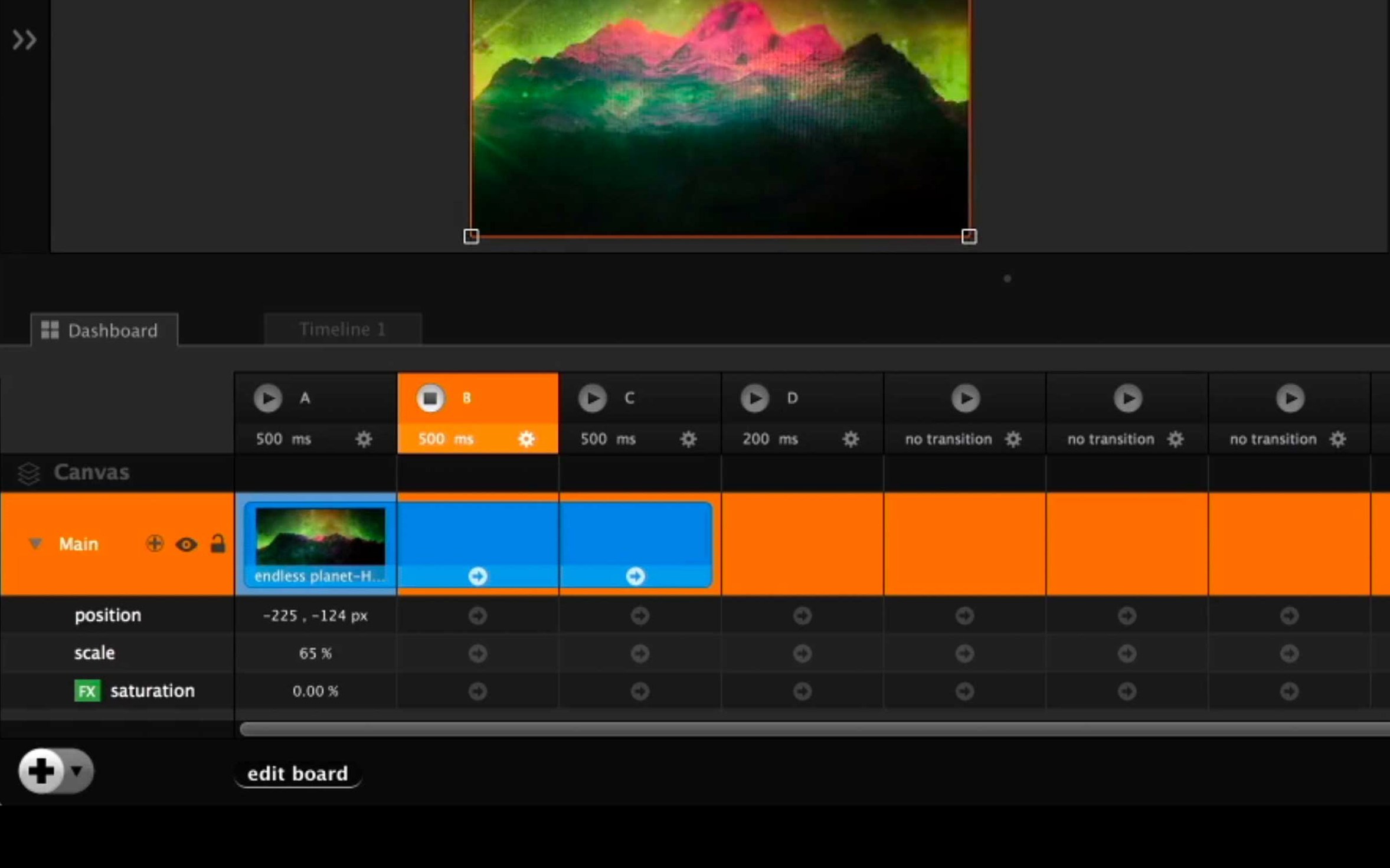
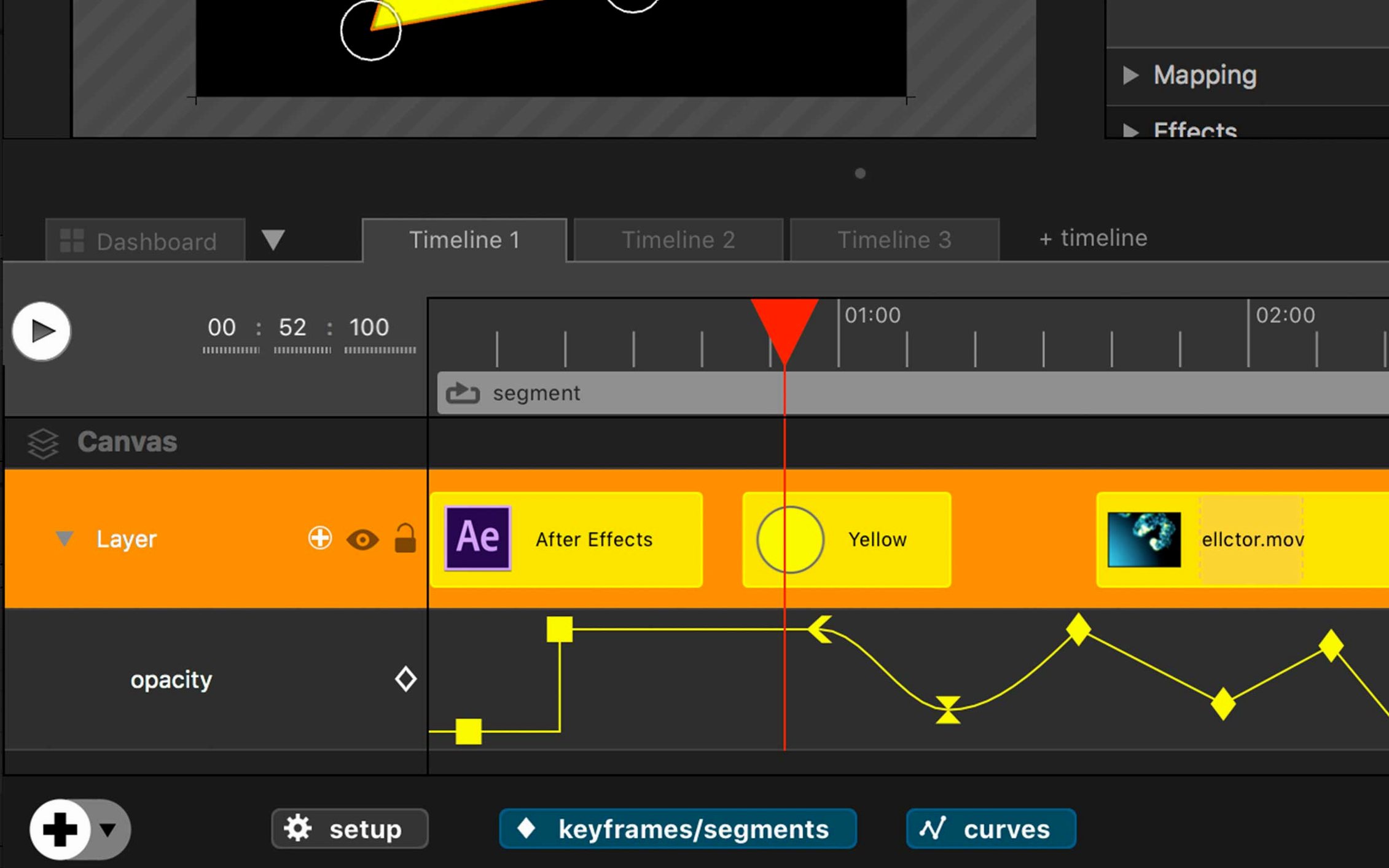
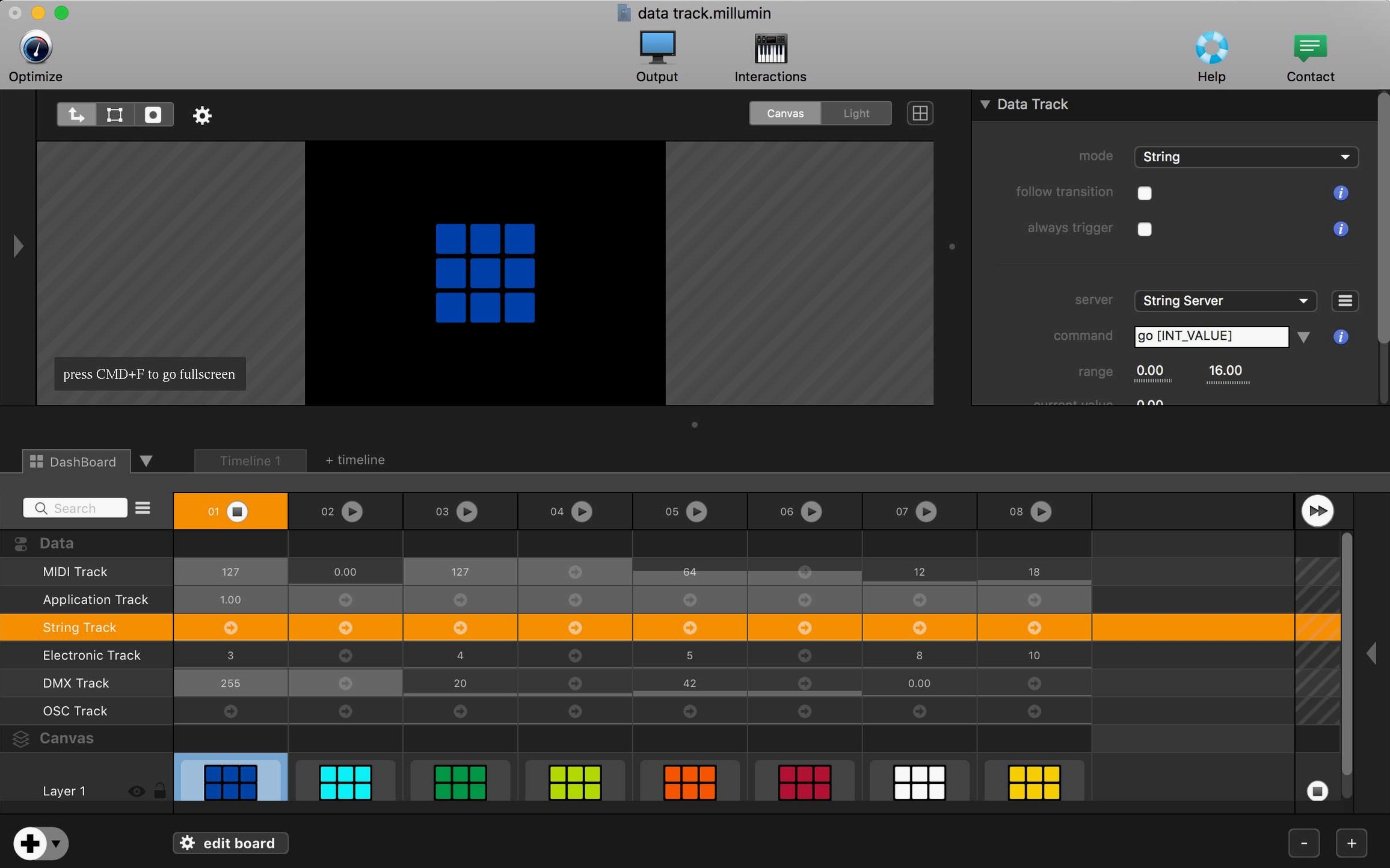
Timeline-based show control — Rather than playing clips one at a time, you build a full performance on a track-based timeline. Cues, fades and layer changes are plotted to the frame.
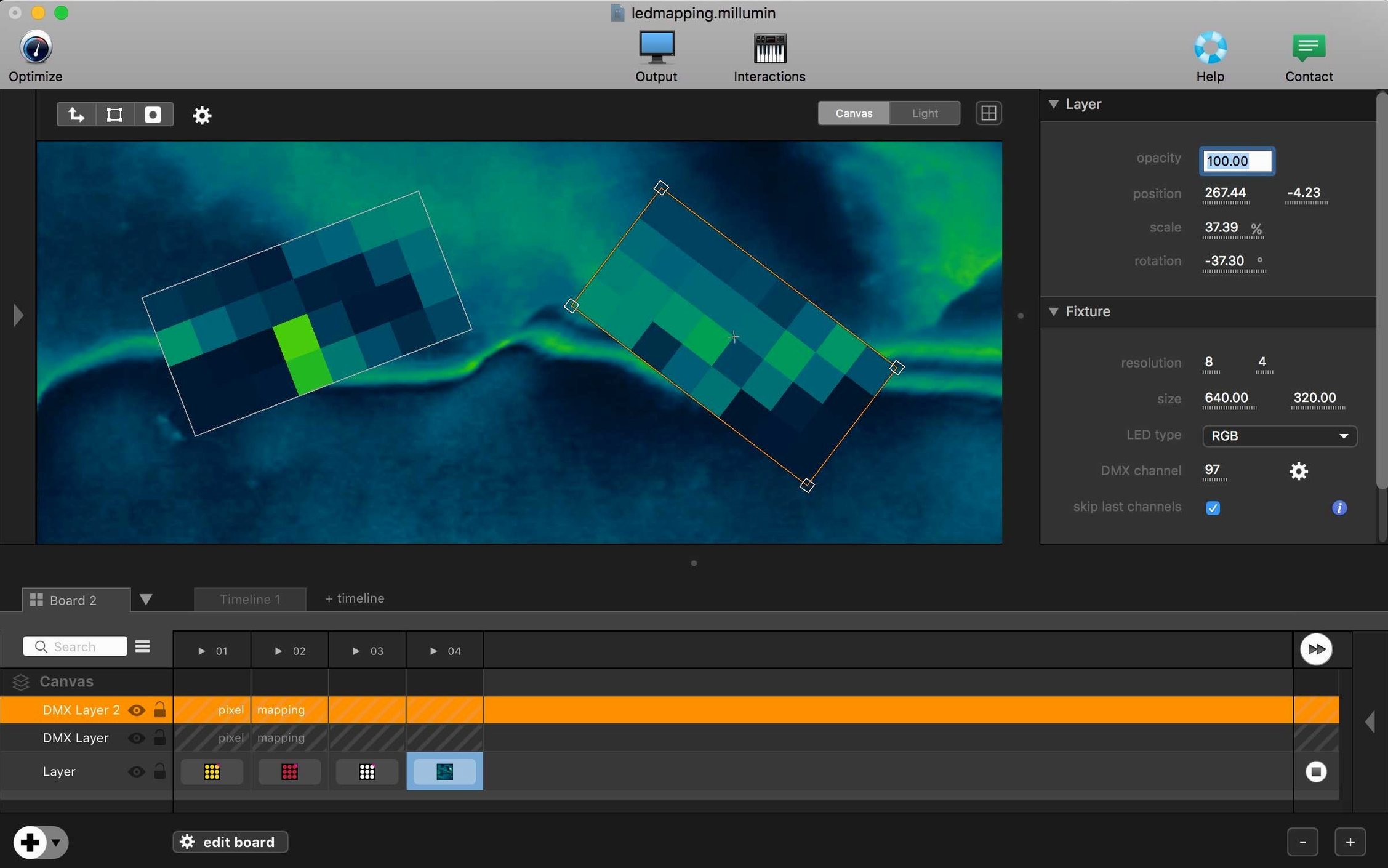
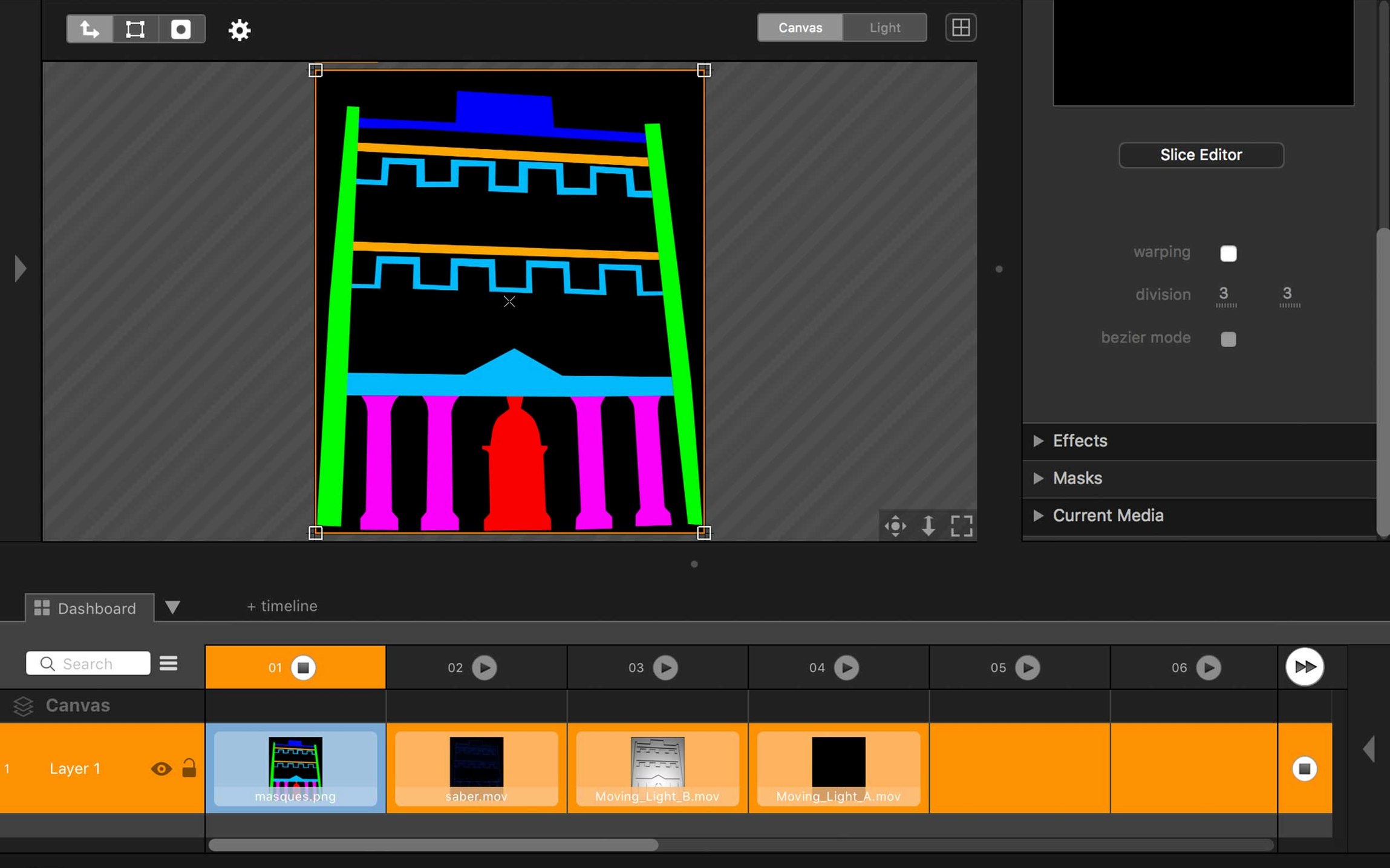
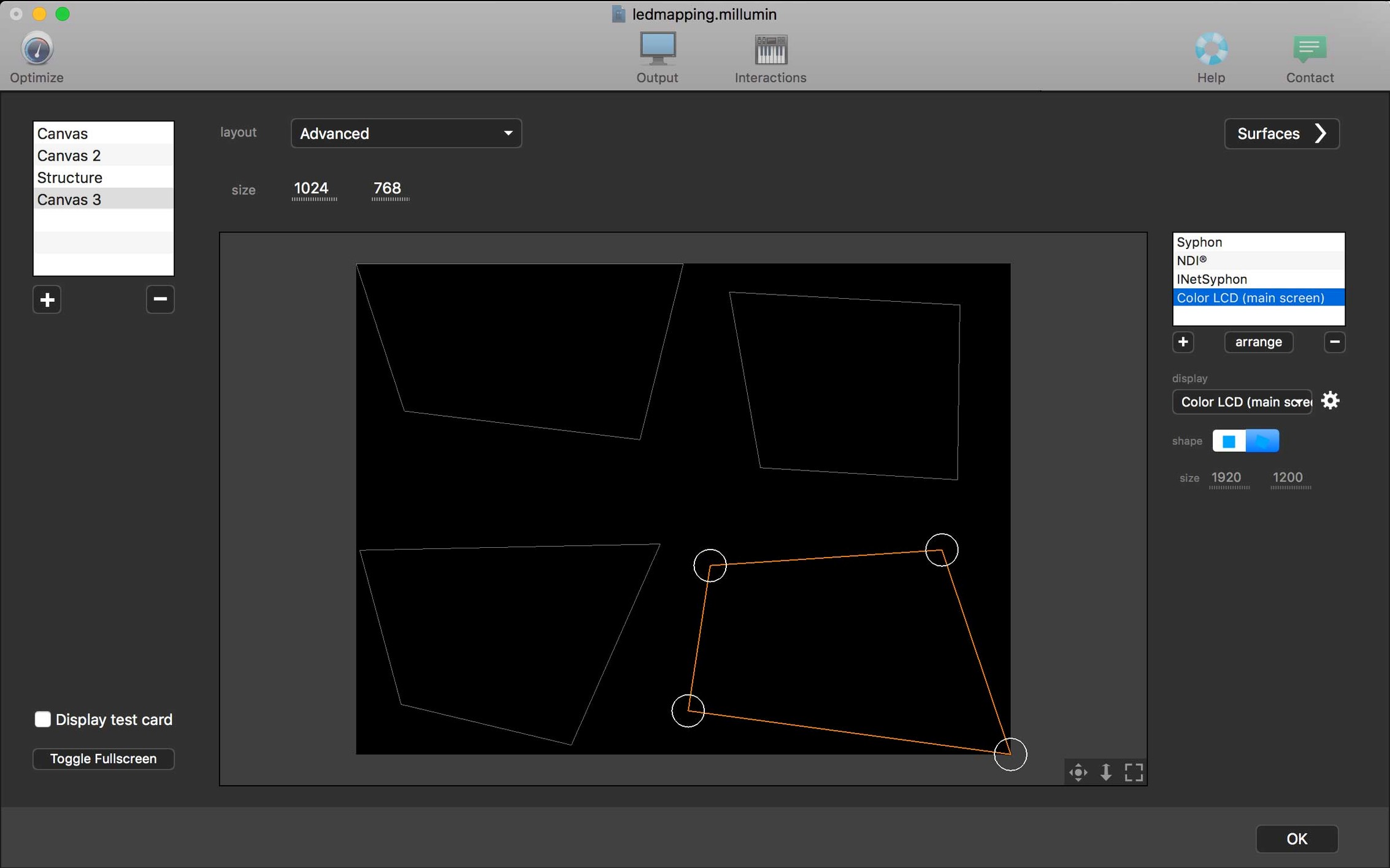
Videomapping — Projecting onto irregular surfaces, curved sets or 3D objects. The built-in mapping tools let you warp and mask output to fit the physical stage.
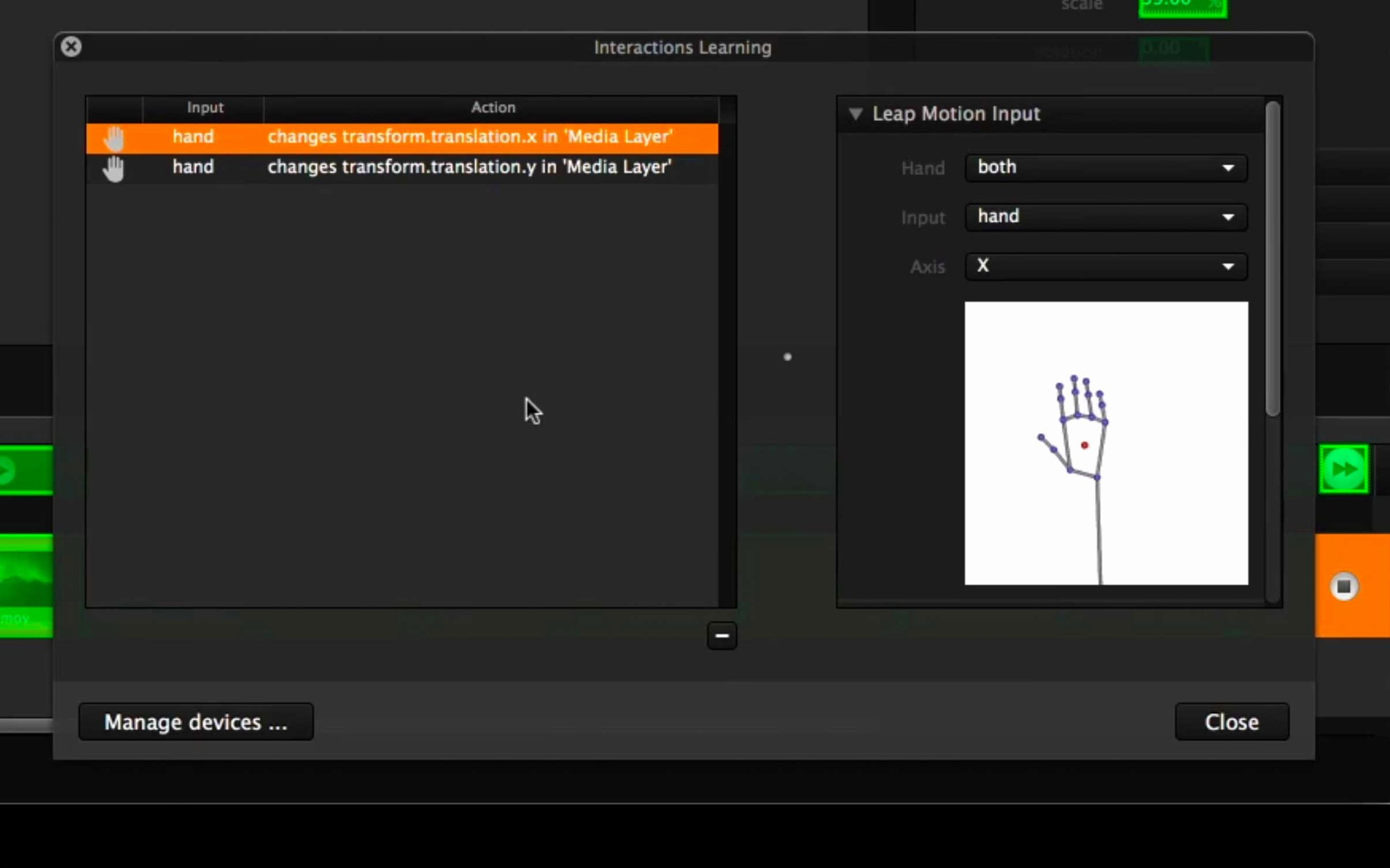
Interactive installations — Millumin listens for OSC, MIDI and DMX signals, so a sensor, button or fader can trigger scenes, shift colours or crossfade layers in real time.
It is used in theatre, contemporary dance, live music tours and gallery installations. The current release, version 5.14.j, requires macOS 11 Big Sur and runs on Intel-based Macs. The interface is in English.
What the latest Millumin 5 releases changed in everyday use
Version 5.14.j sits inside a generation that quietly rethought how the app handles colour and canvas. The most practical shift is native support for recent macOS versions — it runs without complaint on Tahoe 26 and Golden Gate 27, which matters when a venue Mac gets updated overnight and the show must go on.
Earlier Millumin 4 projects open in version 5, but the colour pipeline has been rebuilt. Gradients and blends that once banded on big projection surfaces now stay smooth, and HAP video files play with less CPU thrashing. For touring shows that rely on a single ageing MacBook Pro, that headroom is the difference between a clean tech rehearsal and frantic last-minute proxy rendering.
The other everyday win is contextual help. Click the question mark beside any parameter — blend mode, mapping mesh point, OSC address — and a short explanation appears inside the interface rather than sending you to a browser. For a technician troubleshooting during a half-hour get-in, that immediacy saves actual minutes.
Real-world scenario: a contemporary dance production
Imagine a three-night run of a contemporary dance piece in a converted warehouse. The set is a curved wall of stretched fabric, two metres tall and six wide, lit from behind by a single short-throw projector. The choreographer wants the projections to breathe with the dancers — a wash of deep blue during the opening solo, then a sudden shift to fractured white lines when the ensemble enters.
The lighting designer runs an MA2 console and fires cues manually. Millumin sits on an Intel Mac Mini in the wings, receiving MSC timecode from the sound playback software. Each cue in the timeline is trimmed to the frame so the video snap matches the lighting state and the first beat of the music. During dress rehearsal, the choreographer asks for the transition to happen half a second earlier. The technician opens Millumin, nudges the cue left on the timeline, and the change is ready before the dancers reset.
Because the fabric wall has a slight sag in the middle, the built-in mesh warp corrects the image so the horizontal lines read as straight from the audience. No external mapping software needed — it is all inside one session file that gets saved and reloaded for the matinee.
Workflow: building a synced audio-visual cue from scratch
Here is a start-to-finish method for a single cue that combines video, sound and a DMX light pulse.
- Set the canvas. Open Millumin and define the output resolution to match the projector — say 1920 by 1080. If you are sending to multiple outputs, assign each screen in the Canvas settings now. Doing this first stops you scaling content later.
- Import media. Drag a ProRes 422 video file and a separate WAV stem into the Media bin. Millumin references files from disk rather than copying them into a library, so keeping a tidy folder structure on an external SSD avoids broken links mid-rehearsal.
- Build the timeline. Create a new column on the timeline for video and another for audio. Drop the video clip onto layer one. The waveform for the WAV file snaps to a parallel audio column; Millumin auto-syncs playback when both start on the same frame.
- Add a DMX cue. Patch a generic RGB LED fixture in the DMX panel. Draw a keyframe curve on a new DMX track that ramps the red channel from zero to full over two seconds. The curve sits directly beneath the video layer, so you see the timing relationship at a glance.
- Refine transitions. Use a soft crossfade at the cue’s tail by dragging the fade handle on the video clip. Set the audio column to fade a beat earlier so the sound tail feels natural. The timeline’s snap-to-grid keeps everything on the same musical division.
- Assign a MIDI trigger. In the Interaction panel, map a MIDI note from a Novation Launchpad to fire the cue. Press the pad, and video, audio and light run in lockstep. The same trigger can be reassigned to an OSC message if the show switches to a tablet-based controller later.
How Millumin fits with other apps and macOS features
Millumin is not an island. Its timeline can chase incoming MIDI Timecode from QLab, which is a common combination in theatre — QLab handles the sound design and show control logic, while Millumin runs the heavy video layers and mapping. The two apps communicate over a virtual MIDI port, so no extra hardware is needed.
For live music tours, Ableton Live often sends MIDI clock and note triggers. A keyboardist presses a pad on a Push controller, Live receives it and forwards the note to Millumin via the IAC Driver. Millumin fires the corresponding video column, and because the tempo is shared, any beat-synced effects inside Millumin stay locked to the band.
On the lighting side, Art-Net and sACN output from Millumin can drive LED strips, blinders or haze machines directly. A video clip of rolling clouds can push real-world white LEDs to pulse in sync — the pixel data becomes a lighting cue without manual programming.
macOS itself plays a supporting role. Screen Recording permissions let Millumin grab a live feed from another application — Syphon is the traditional route, but the native macOS capture is a useful fallback for apps that do not speak Syphon. Mission Control spaces are best set to a single desktop during shows, which stops the menu bar from popping up over a full-screen output. And because millumin 5 leans on AVFoundation and Metal, the video decode happens on the GPU, leaving the CPU freer for OSC and DMX processing.
For installations, pairing Millumin with a Raspberry Pi running a simple OSC client is a lightweight way to add physical buttons. A visitor presses a button wired to the Pi; the Pi sends an /millumin/launchColumn message over Wi-Fi, and the installation reacts instantly. No custom drivers, just an IP address and a port number typed into Millumin's OSC settings.
The millumin 5 download package on this page includes the TNT release, which opens without a Gatekeeper hurdle when you follow the Terminal step in the install notes. Once running, the app sits in the menu bar with quick access to show control, so you can start and stop the timeline without switching away from your lighting software.
- macOS 11 Big Sur or later
- Intel-based Mac
- Interface language: English
Questions I keep hearing
What kind of shows is Millumin 5 built for?
It is designed for live theatre, dance performances, videomapping events and interactive installations where video, audio and lighting need to run together in sync.
Does Millumin 5 work on Apple Silicon Macs?
The supplied version runs on Intel-based Macs. The developer states macOS 11 Big Sur or later is needed, but native Apple Silicon support is not indicated in this package.
Questions from the class 0
Sign in or join the class to ask a question.
Nobody has asked anything yet. If you have used it on a real job, say what the file did.
Also on the Mac Apps shelf
The whole Mac Apps shelf Mimestream
Puts Gmail in a proper Mac window with fast search and swipe gestures.
Mimestream
Puts Gmail in a proper Mac window with fast search and swipe gestures.
 Mission Control Plus
Lets you quit apps straight from the Mission Control overview.
Mission Control Plus
Lets you quit apps straight from the Mission Control overview.
 Mitti
Cues video, audio and MIDI for theatre and live events.
Mitti
Cues video, audio and MIDI for theatre and live events.
 Moho Pro
Builds rigged 2D characters and turns flat vector layers into 3D scenes with real shadows.
Moho Pro
Builds rigged 2D characters and turns flat vector layers into 3D scenes with real shadows.
 Mole
Clears cached clutter, logs, and forgotten files to reclaim disk space on your Mac.
Mole
Clears cached clutter, logs, and forgotten files to reclaim disk space on your Mac.
 Moom
Saves and restores exact window layouts so you never drag and resize the same arrangement twice.
Moom
Saves and restores exact window layouts so you never drag and resize the same arrangement twice.
 Mela
Keeps your recipes organised and in sync across Apple devices.
Mela
Keeps your recipes organised and in sync across Apple devices.
 Motion
Designs title sequences, particle effects, and transitions on a huge canvas for video editors.
Motion
Designs title sequences, particle effects, and transitions on a huge canvas for video editors.