 ASPNetWorld
Direct Quit — that is the name of a setting tucked inside Mission Control Plus's preferences panel — is one of those small features that quietly changes a daily habit. Instead of mousing up to a window's tiny close button in the bird's-eye overview, you hover over the preview and tap a key. The app closes, its windows vanish from the grid, and you stay exactly where you were.
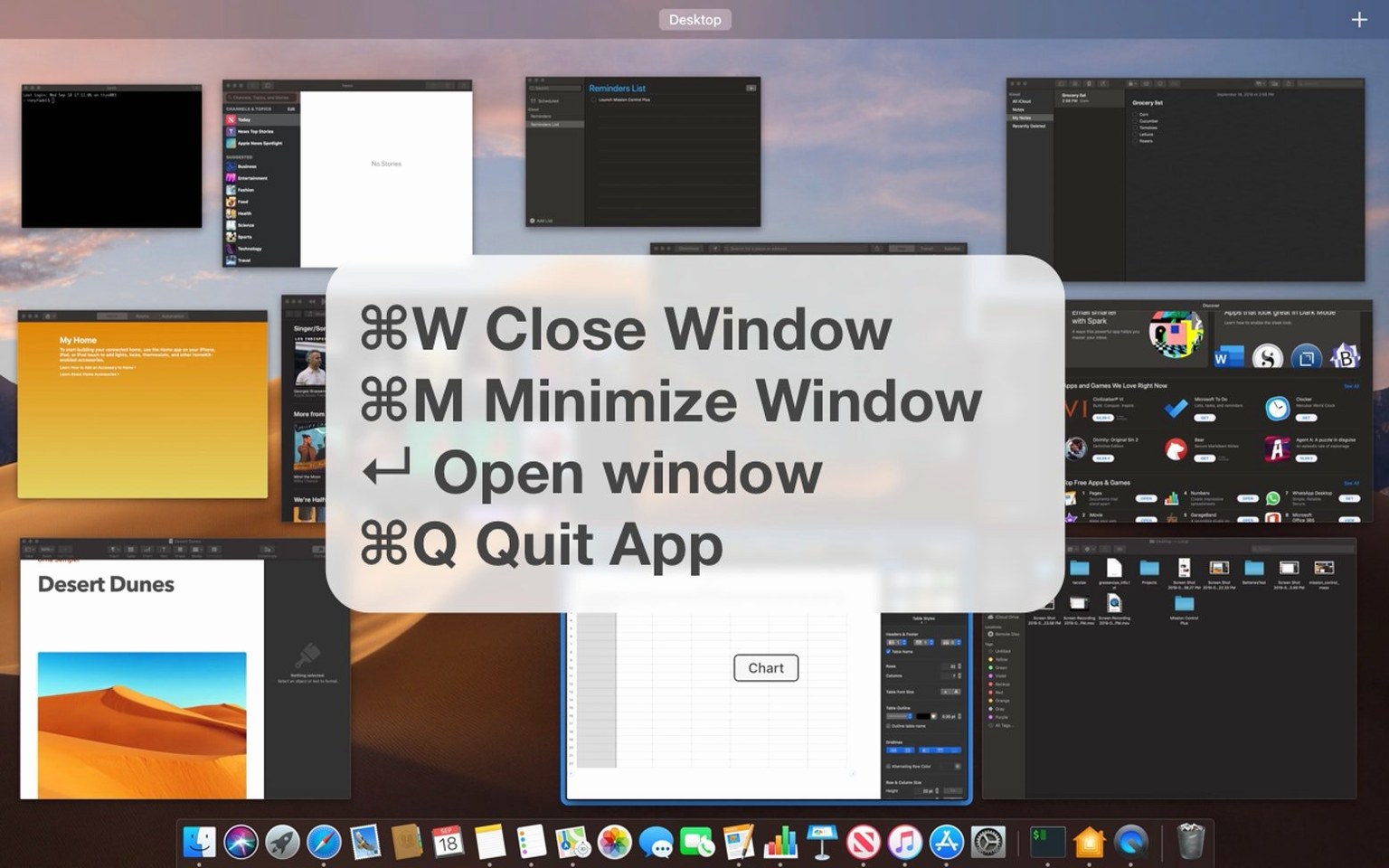
That idea runs through the whole tool. macOS Mission Control is a fast way to see everything that is open, but acting on what you see usually means clicking. Mission Control Plus adds keyboard shortcuts so you can quit or open any visible window without leaving the overview. If you already use the built-in Spaces bar and Cmd‑Tab to move between apps, think of this as a third lane — one that lets you prune and pick windows from a single wide view, rather than cycling through a stack.
The app sits in the background after a simple drag-to-Applications installation. Once you give it the Accessibility permission it asks for (that is how it sends a quit command on your behalf), it blends into Mission Control with no extra panels or floating controls. The shortcuts are configurable, and the interface speaks English, Italian, French and Czech, which helps if you are setting up a Mac for someone who prefers a different language.
It runs on any Intel or Apple Silicon Mac from macOS 10.13 High Sierra onward, so it slots in alongside older utilities you might still rely on, as well as newer Apple silicon-native tools. Not a replacement for how you already switch between windows — more a companion that gives the overview screen the same kind of shortcut fluency the rest of the system enjoys.
What version 1.27 quietly changed
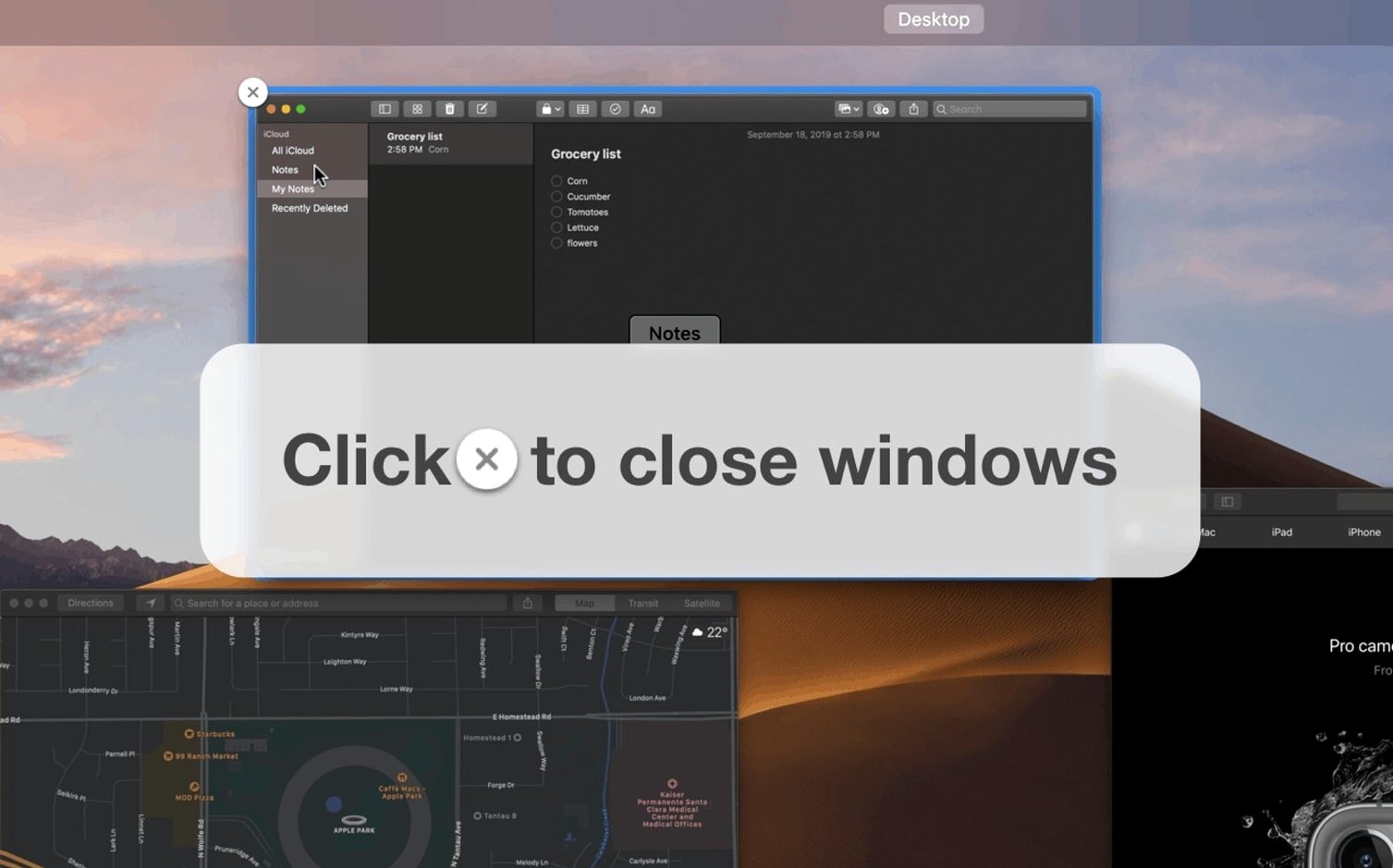
The jump to version 1.27 did not arrive with a splash screen or a list of bullet points demanding your attention. Instead it tightened three things that used to feel slightly spongy. The close button that appears when you hover over a window preview in Mission Control now responds on the first frame — no more wiggling the cursor and waiting for the little cross to realise you mean it. That might sound tiny, but muscle memory builds around predictability, and a button that hesitates is one your fingers learn to distrust.
Under the hood, the Accessibility permission request became more precise on Apple Silicon Macs. Earlier builds occasionally asked twice if your security preferences were locked down tightly; the current build reads the TCC database once and gets on with it. The Czech localisation also received a thorough polish — native speakers had flagged a handful of menu items that read like literal translations, and those are now replaced with the phrasing a Prague editor would actually use.
Small conveniences worth digging into preferences for
Most people install the app, flip on the Enable Close Button toggle and stop there. That is a shame, because a few settings further down turn Mission Control Plus from a one-trick helper into something you reach for without thinking.
- Direct Quit (mentioned earlier) works with a single keystroke while hovering — set it to
Qand closing an app becomes as quick as dismissing a notification. - Minimise window from the overview, bound to
Mby default, tidies the grid without ending any work. Handy when you want to declutter but keep a browser tab exactly where it is. - The Close All Windows shortcut fires from anywhere — not just inside Mission Control — which feels like a cheat code the first time you clear ten Finder windows in a quarter-second.
- If you run the app on a MacBook without an external keyboard, consider mapping Open Window to a key you rarely use, like the right Option key. It turns the overview into a launcher, not just a map.
None of these shortcuts appear in the menu bar or scream for attention. They sit quietly in the preferences pane, waiting for someone to notice them — which makes stumbling across them feel oddly satisfying, like finding a spare room in a house you thought you knew.
Swiping up reveals every window, even the one hiding Slack
Imagine a mid-afternoon desk: Safari has twelve tabs spread across three windows, Mail is open behind a half-finished Pages document, and Slack is chirping from a space you cannot quite locate. You swipe up with three fingers to enter Mission Control. The grid appears, every window laid flat, and you spot the Safari window you actually need — the one with the CSS reference, not the inbox or the lunch menu. You hover over it and tap O (your custom Open Window key). Mission Control dissolves, that window comes forward, and you are inside it before the thought “where was that” finishes forming.
Later, a video export has been spinning in the background, and its application window is just taking up space. Three-finger swipe up, hover over the preview, tap Q. The app quits immediately — no Dock right-click, no Cmd-Tab hunt. Two more windows get the M minimise treatment because you might return to them after lunch. Then you notice the desktop has collected stray Finder windows from three different copy operations. You stay in the overview and hit your assigned Close All Windows shortcut. They disappear in unison, and the grid tightens to what actually matters.
What is notable here is not any single action but the rhythm: you enter Mission Control once and perform a handful of different window operations without ever dropping back to the normal desktop. The overview becomes a control surface, not a viewing gallery. For anyone who has habitually used mission control plus free shortcuts to manage clutter, the workflow feels less like using an extra utility and more like the feature Apple should have shipped. And if you found your way here by searching for something like mission control plus macos, you already suspect the built-in tool leaves too much work to the mouse.
- macOS 10.13 or later
- Apple Silicon or Intel 64‑bit processor
Questions I keep hearing
What do I need to run Mission Control Plus on my Mac?
You need macOS 10.13 High Sierra or a later version, and it works natively on both Intel-based and Apple Silicon Macs.
Questions from the class 0
Sign in or join the class to ask a question.
Nobody has asked anything yet. If you have used it on a real job, say what the file did.
Also on the Mac Apps shelf
The whole Mac Apps shelf Mitti
Cues video, audio and MIDI for theatre and live events.
Mitti
Cues video, audio and MIDI for theatre and live events.
 Moho Pro
Builds rigged 2D characters and turns flat vector layers into 3D scenes with real shadows.
Moho Pro
Builds rigged 2D characters and turns flat vector layers into 3D scenes with real shadows.
 Mole
Clears cached clutter, logs, and forgotten files to reclaim disk space on your Mac.
Mole
Clears cached clutter, logs, and forgotten files to reclaim disk space on your Mac.
 Mimestream
Puts Gmail in a proper Mac window with fast search and swipe gestures.
Mimestream
Puts Gmail in a proper Mac window with fast search and swipe gestures.
 Millumin
Controls video, lighting and sound cues for live shows.
Millumin
Controls video, lighting and sound cues for live shows.
 Moom
Saves and restores exact window layouts so you never drag and resize the same arrangement twice.
Moom
Saves and restores exact window layouts so you never drag and resize the same arrangement twice.
 Motion
Designs title sequences, particle effects, and transitions on a huge canvas for video editors.
Motion
Designs title sequences, particle effects, and transitions on a huge canvas for video editors.
 MotionVFX mInfographics
Drops animated charts and percentage counters straight into a Final Cut Pro timeline.
MotionVFX mInfographics
Drops animated charts and percentage counters straight into a Final Cut Pro timeline.