 ASPNetWorld


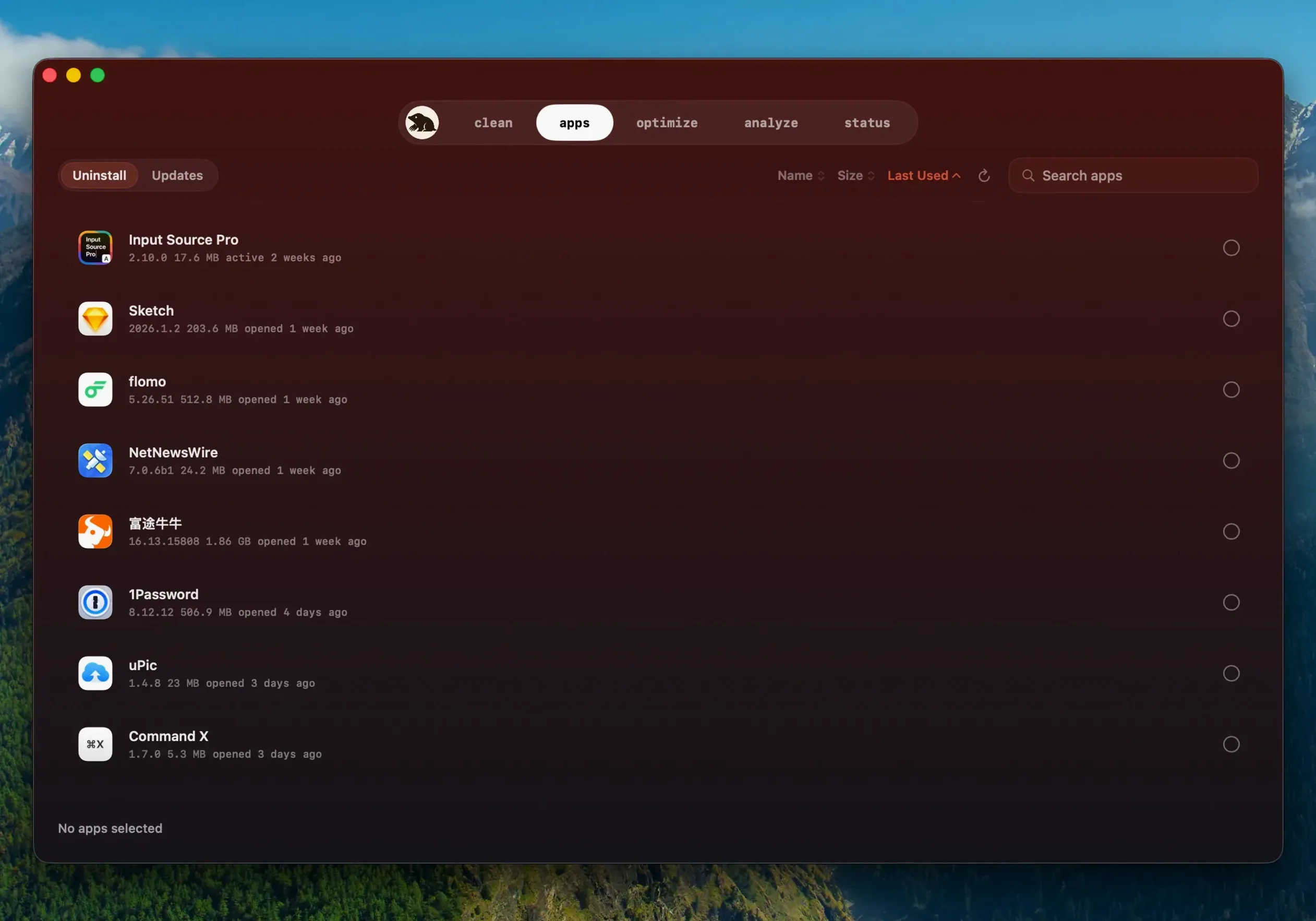

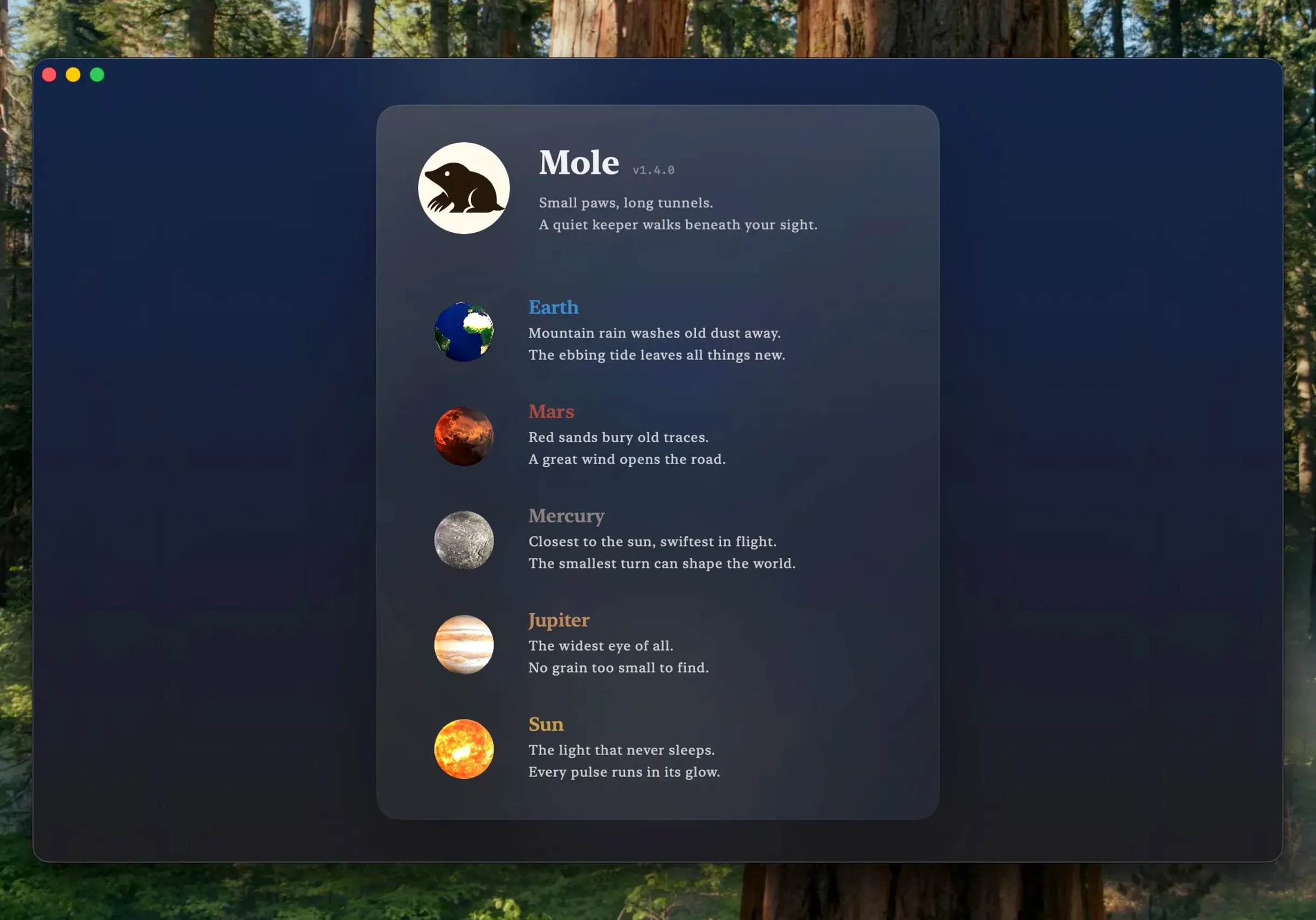
Mole runs on any Mac with macOS 14 (Sonoma) or later, on both Intel and Apple Silicon machines. Once you have granted it full disk access for deeper scanning, the app works locally by default — nothing leaves your machine.
Clear out cached clutter
A good place to begin is the cache and logs sweep. Mole scans for temporary files, old logs, and system caches, then presents a clear list of what it found with the space you will reclaim. You can review the list before confirming, so nothing disappears without your say-so.
Trim your login items
Next, head to the startup section and prune the Dock items that launch when you log in. Mole shows you the helpers and launchers currently hiding there; removing the ones you no longer need shaves seconds off every cold start.
Run a one-click maintenance pass
Finally, hit the system maintenance button. It bundles several housekeeping jobs — rebuilding Spotlight indexes, flushing DNS caches, and similar tasks — into a single click. It is the kind of thing you might do monthly, and Mole turns it into a thirty-second job.
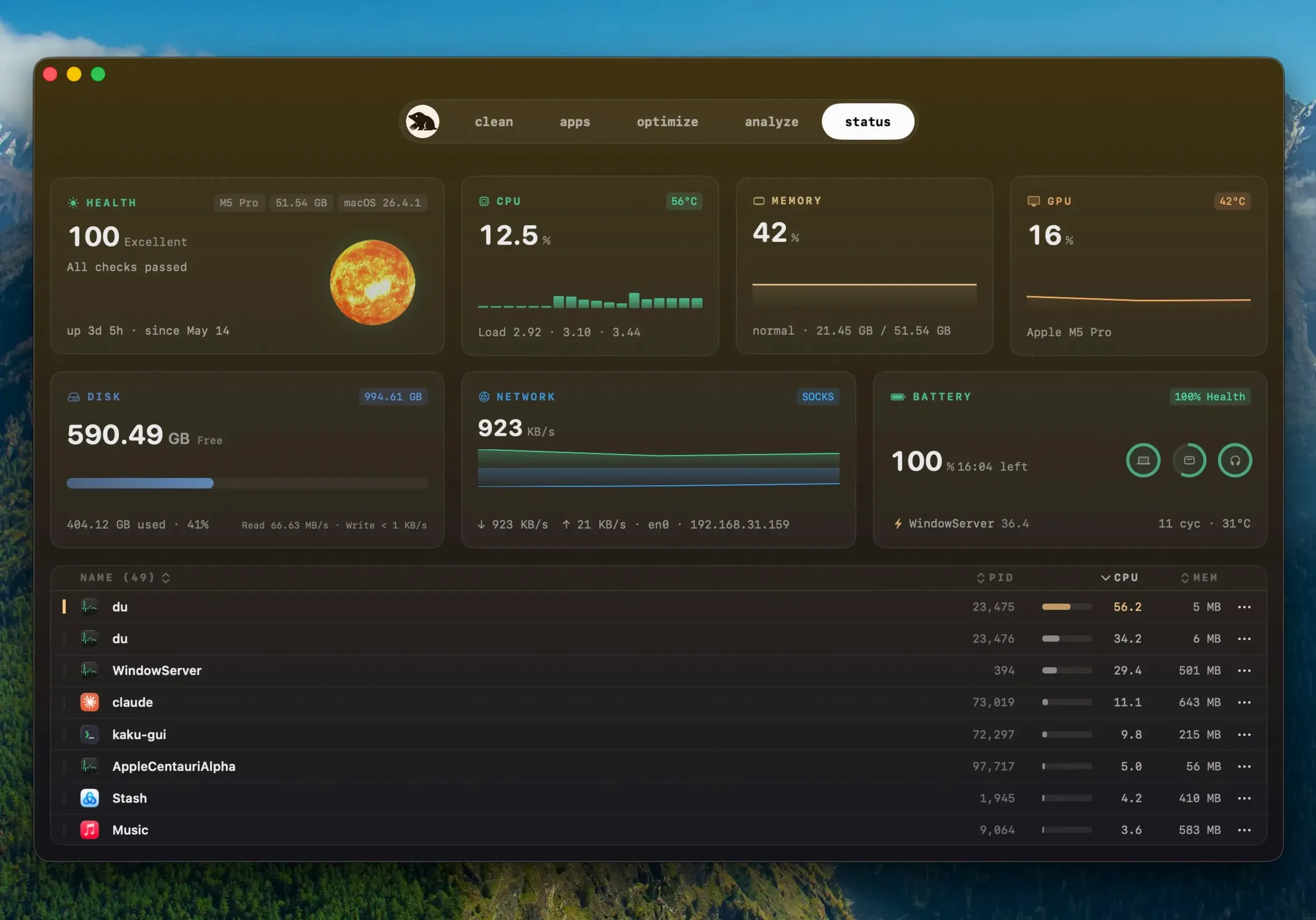
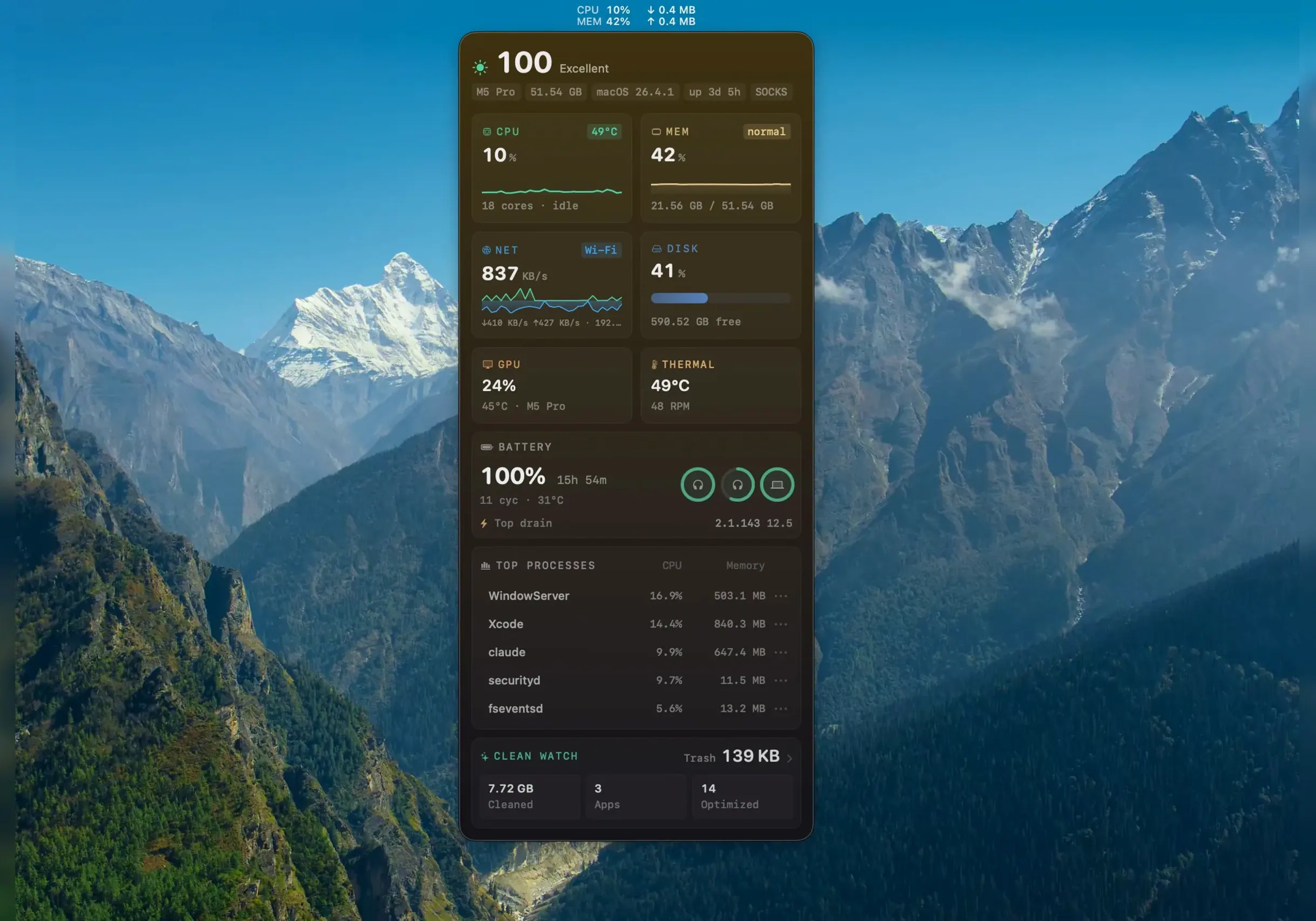
I opened Mole on a Friday afternoon, the kind of moment when a MacBook Air starts feeling warm for no obvious reason and the free-space figure in Finder has shrunk by fifteen gigabytes since Monday. The main window settled into a dashboard view: CPU load, memory pressure, disk activity, and a temperature readout that confirmed the fans were earning their keep. I clicked into the cleanup section first, because that was the immediate itch, and let the cache scanner run. It took about twenty seconds, then presented a tidy list — Xcode derived data, a few gigs of browser caches, and a cluster of log files from apps I had not opened in months — with a total reclaimable figure at the top. I unchecked a couple of items I wanted to keep, then confirmed, and the bar chart in the sidebar nudged upward.
From there I moved to the application leftovers pane. Mole had flagged fragments from three uninstalled apps: a preference plist, a folder in Application Support, and a LaunchAgent that was still trying to load at login. Each entry carried a small description, so I was not guessing what the files did. I selected all three, confirmed, and watched them disappear. The whole sequence — cache sweep, leftover hunt, confirmation — ran under five minutes, and the machine genuinely felt snappier afterwards, the way it does after a restart without the restart.
What struck me during that session was how little Mole demanded my attention. It does not pop up reminders or plead for upgrades. The interface stays out of the way, with a left-hand sidebar that switches between cleanup, analysis, status, and the maintenance toolkit. When I ran the one-click maintenance routine, a small progress spinner appeared, a couple of system prompts flashed, and then it was done — no fanfare, just a quiet confirmation that three tasks had completed. That is exactly the tone you want from a tool that pokes around in temporary files and system caches.
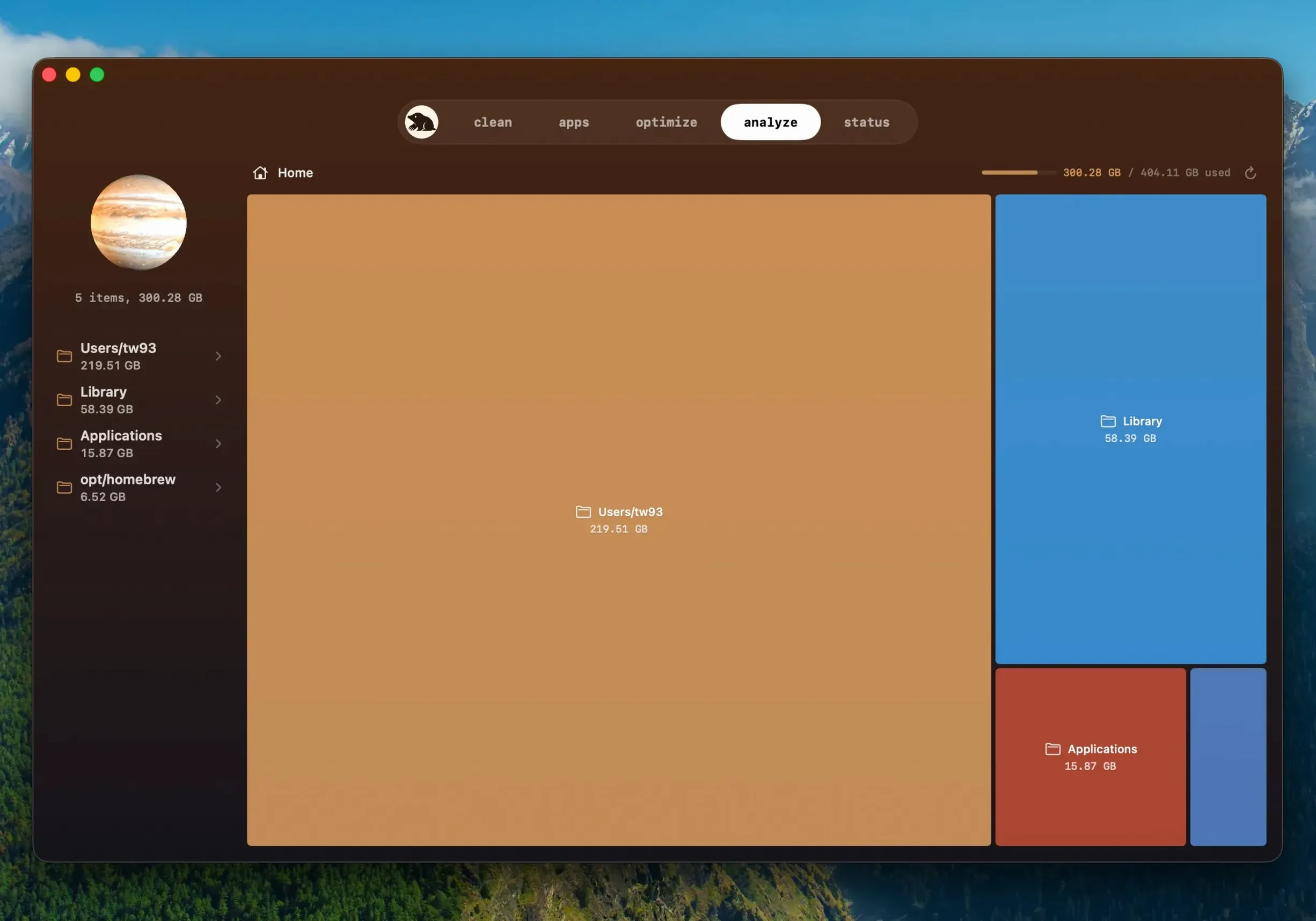
A tree map that found a 60 GB simulator image in seconds
The space analyser, tucked into the analysis tab, is a tree map that colours folders by size. It is the fastest way I have found to discover that a single iOS simulator image is eating sixty gigabytes. You can click into any block to drill down, and a right-click opens the folder in Finder. That alone makes Mole worth keeping around, but a few other shortcuts are even easier to miss.
Drag any folder from Finder onto the Mole dock icon, and it jumps straight to the space analysis view for that folder — no need to navigate there from inside the app. In the status panel, clicking any of the real-time graphs (CPU, memory, network) toggles a compact floating window that stays on top of other apps. I keep the temperature widget floating during long exports, just to keep an eye on thermals without switching windows. Holding the Option key while clicking the cleanup button skips the confirmation dialogue entirely, though I would only use that once I had already reviewed what a scan found.
Another quiet touch: Mole remembers which items you unchecked in previous scans and keeps them deselected the next time, so you are not forever telling it to leave your Docker caches alone. And when it spots an item it is not certain about — a cache folder belonging to an active project, for example — it marks it with a small warning icon and moves it to the bottom of the list, which is a thoughtful way to handle ambiguity.
Switch on deep scan to let the leftover scanner see protected folders
Out of the box, Mole operates with sensible defaults, but three preferences deserve an early visit. First, open settings and switch on deep scan if you have granted full disk access; without it, the leftover scanner cannot see into protected folders like Mail or Messages, and you will miss a fair chunk of orphaned data. The toggle is off by default because it needs that permission, so it is easy to overlook.
Second, look for the scan exclusions list under the general tab. Add any folder that holds active project files or virtual machines — I added my Parallels directory and a folder of raw audio sessions — and Mole will skip them entirely. That prevents the uncomfortable moment when a cleanup tool offers to delete half a terabyte of virtual disk images you definitely still need.
Third, if you use the built-in software updater — the feature added in version 1.14.0 that can update apps downloaded from websites — check the update behaviour setting. You can set it to download updates in the background, ask before quitting a running app, and automatically reopen the app once the update is installed. I set mine to ask, because I have lost unsaved work to overeager updaters before, and Mole respects that choice.
No, Mole does not send your file lists anywhere
Does Mole phone home with my file list or browsing data? It does not. Scanning and cleaning run locally by default. File contents, names, and any browsing history that might appear in caches stay on your Mac. The developer is explicit about this, and the app works fine offline, which is a reasonable litmus test for local-only behaviour. The only network calls it makes are for checking software updates, and you can disable those in settings.
What happens if Mole flags something it should not delete? Mole errs on the side of caution. Items it is uncertain about are marked as suspicious and placed at the bottom of the results list, clearly labelled, and they are unchecked by default. You have to actively choose to include them. In practice, I have seen it flag outdated cache folders that still belonged to actively used apps, but never anything critical to the system. If you are still worried, the scan exclusions list gives you a belt-and-braces approach.
Will it work on an older Mac running macOS Ventura or Monterey? Mole requires macOS 14 (Sonoma) or later, so Ventura and Monterey machines are out of luck for this particular app. It runs on both Intel and Apple Silicon Macs, so if your hardware supports Sonoma, you are set. People searching for mole 1.13.0 or mole 1.12.1 sometimes ask whether older versions had a lower macOS requirement, but the developer has kept the baseline at Sonoma right through recent releases. There is no mole 1.11.0 for mac build that runs on Monterey, despite what some forum threads suggest. The current 1.14.0 build is the one to go for.
Is this the same as the CLI tool by the same developer? No — Mole the Mac app is a separate download from the command-line project. They share a name and a developer, but the GUI app wraps up far more functionality than the terminal version, including the visual space analyser, the real-time status dashboard, and the software updater. If you have spotted a mole torrent floating around, double-check that it includes the full signed Mac app bundle rather than just a repackaged version of the CLI tool from an older commit.
Version 1.14.0 turns Mole into a proper software updater for apps you grabbed from the web. It spots a newer build of the same release, asks before quitting a running app, and reopens it after installing — all without downloading the file a second time if you already have it.
- macOS 14 (Sonoma) or later
- Intel or Apple Silicon Mac
- Full disk access recommended for deep scanning
Questions from the class 0
Sign in or join the class to ask a question.
Nobody has asked anything yet. If you have used it on a real job, say what the file did.
Also on the Mac Apps shelf
The whole Mac Apps shelf Moho Pro
Builds rigged 2D characters and turns flat vector layers into 3D scenes with real shadows.
Moho Pro
Builds rigged 2D characters and turns flat vector layers into 3D scenes with real shadows.
 Mitti
Cues video, audio and MIDI for theatre and live events.
Mitti
Cues video, audio and MIDI for theatre and live events.
 Mission Control Plus
Lets you quit apps straight from the Mission Control overview.
Mission Control Plus
Lets you quit apps straight from the Mission Control overview.
 Moom
Saves and restores exact window layouts so you never drag and resize the same arrangement twice.
Moom
Saves and restores exact window layouts so you never drag and resize the same arrangement twice.
 Motion
Designs title sequences, particle effects, and transitions on a huge canvas for video editors.
Motion
Designs title sequences, particle effects, and transitions on a huge canvas for video editors.
 MotionVFX mInfographics
Drops animated charts and percentage counters straight into a Final Cut Pro timeline.
MotionVFX mInfographics
Drops animated charts and percentage counters straight into a Final Cut Pro timeline.
 MotionVFX mKBHD
Gives video editors a shortcut to Marques Brownlee’s clean, kinetic on-screen graphic style.
MotionVFX mKBHD
Gives video editors a shortcut to Marques Brownlee’s clean, kinetic on-screen graphic style.
 Mimestream
Puts Gmail in a proper Mac window with fast search and swipe gestures.
Mimestream
Puts Gmail in a proper Mac window with fast search and swipe gestures.