 ASPNetWorld
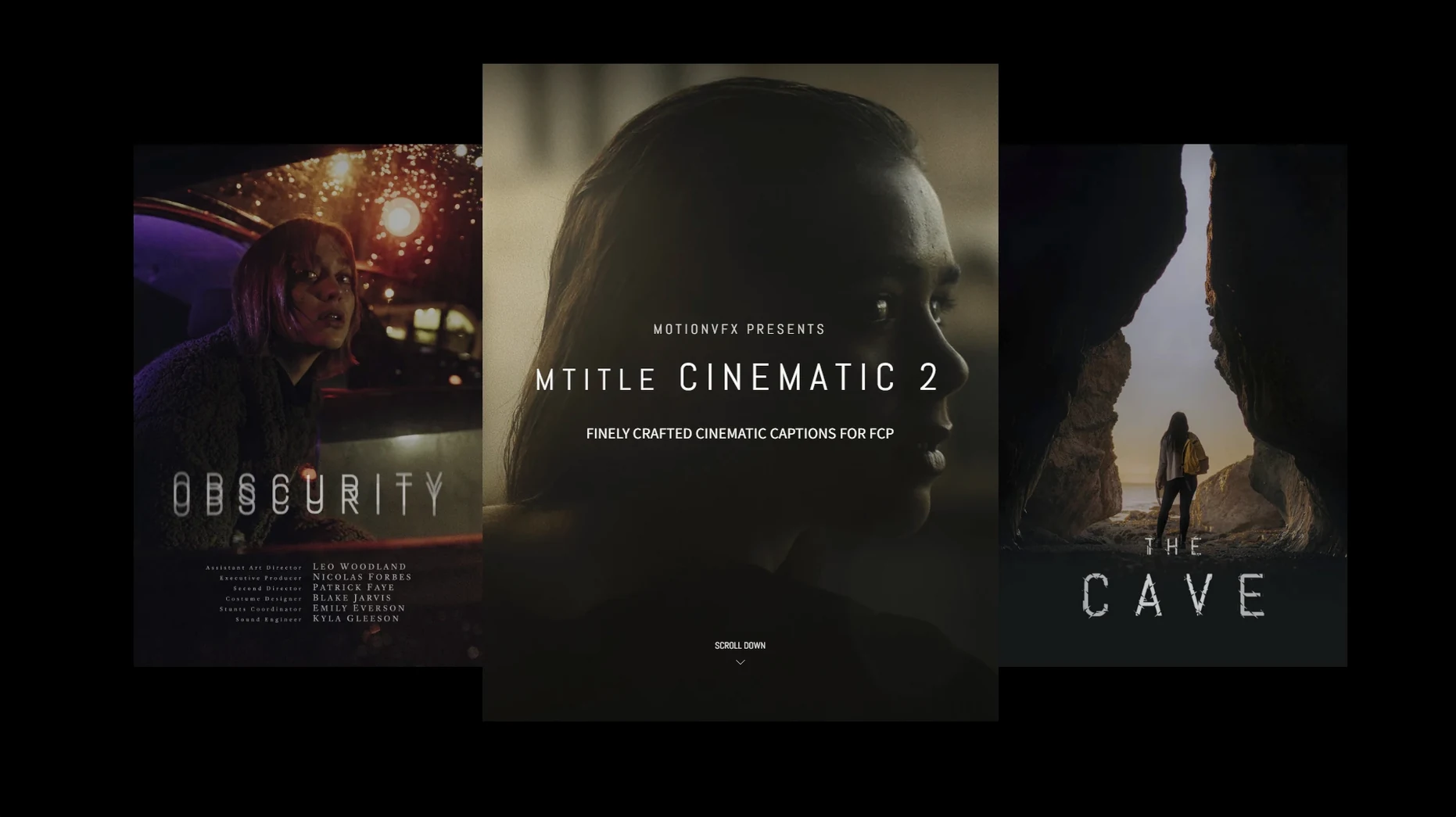
mTitle Cinematic is a plug-in pack that drops fifty animated title templates straight into your Final Cut Pro timeline. Each one is designed to move like a film trailer — fluid kinetic type, lens-flare sweeps, and the kind of slow-building reveals that give a sequence scale before the first frame of picture even appears.
The animation is baked into the template, but you control the character. Swap in your own text, choose a colour grade, and adjust the timing handles in the Viewer. Because the titles live inside Final Cut Pro's own Title browser, they behave like native elements — no round‑tripping to Motion unless you want to tear them apart at keyframe level.
Fifty options sounds like a lot, and it covers a useful spread. Some templates hit hard with fast cuts and metallic reflections; others drift in with long, slow motion‑blurred fades that sit well under dialogue. All of them respect a horizontal aspect ratio, so they fit modern widescreen deliveries without cropping or letterboxing gymnastics.
A small note on setup: the templates need to be placed in the user's Motion Templates folder. Once they are copied across, Final Cut Pro picks them up automatically — restart the application and they appear in the Titles sidebar, ready to drag onto the storyboard.
How mTitle Cinematic sits with other apps and macOS features
Final Cut Pro editors rarely work in one application alone, and these titles are built with that in mind. Drop them into a timeline and they live happily alongside any other FCP-native effect, generator or transition. If you pull a project into Compressor, the rendered titles pass through without the glitchy alpha edges that sometimes plague third-party Motion Templates — the developer has clearly paid attention to blend-mode cleanliness.
The relationship with Apple Motion is worth understanding, because it unlocks the real depth. Pop any mTitle Cinematic template open in Motion and you get the full construction: behaviour rigs for the type animation, parameter rigs for the colour and glow controls, and a clean layer stack that you can re‑route. If the supplied text animation is a shade too fast, you can open the behaviour's keyframe editor and stretch the curve without rebuilding anything. That means the pack doubles as a learning resource — seeing how a professional builds a lens-flare reveal inside Motion is a lesson in itself.
Outside the editing suite, these titles play nicely with the Finder's tagging system. Keep the .moti templates in a folder tagged with the project name, and Spotlight will surface them instantly when you need to rebuild a library. macOS's built-in Time Machine also backs up the /Movies/Motion Templates/Titles path by default, so losing a customised template is unlikely unless you have excluded the folder manually.
On the audio side, the pack doesn't include sound effects — it's purely visual — but the animation pacing leaves natural landing points for stingers and risers. Editors who work with Logic Pro or DaVinci Resolve's Fairlight for sound design will find the motion curves easy to read, which makes aligning transient hits to the title reveals a quick job. The templates also respect Final Cut Pro's built-in audio crossfade behaviour, so a slow fade‑out title won't clip a voiceover that runs beneath it.
Motion is only needed if you want to open a template’s internals
Do I need Motion installed to use these titles? No, not for everyday use. The templates appear directly in Final Cut Pro's Titles browser and work as self-contained elements. Motion is only required if you want to open the template's construction and change the animation itself, rather than just the text, colour or timing.
Will these templates slow my project down? They are reasonably well optimised. The animations use FCP's built-in rendering engine, so playback depends more on your Mac's graphics capability than on the template count. On an Apple Silicon machine, most of the fifty titles scrub smoothly at full resolution. On an older Intel Mac with integrated graphics, you may want to switch to Better Performance mode for heavy timelines, but that is standard practice for any animated title set.
What happens when macOS updates? The templates live in a user folder, not inside the Final Cut Pro application bundle, so system updates won't touch them. The only consideration is that a major Final Cut Pro update could occasionally change the way Motion Templates are read — motionVFX has a track record of quiet compatibility patches when that happens, and the mtitle mega pack dvr community discussions often pick up on any issues within days of an FCP point release.
Can I use these in a vertical or square timeline? They are designed for a horizontal aspect ratio. You can drop them into a vertical project, but the animation framing will look off — text may drift out of frame, and the lens flares assume a widescreen canvas. For social‑media cuts, you are better off using a dedicated vertical title pack, then recreating the cinematic feel by studying how these templates use motion blur and spacing.
Fewer templates, but each built on its own animation rig
Placed next to Pixel Film Studios' ProText range, mTitle Cinematic takes a narrower remit and executes it with more restraint. ProText bundles often throw in hundreds of templates, but many feel like reskinned variations of the same three animation rigs. mTitle Cinematic's fifty feel genuinely distinct — the kinetic type behaviour in one does not simply reappear at a different speed in another. Pixel Film Studios also tends to lean into flashier particle explosions, whereas mTitle Cinematic sticks closer to what you would see in a theatrical trailer: clean, weighted movement with an eye toward typographic rhythm.
Against LenoFX's Title Animation packs, the motionVFX offering is more resource‑aware. LenoFX titles often render through a separate engine that can cause a noticeable pause on timeline playback, especially on Intel Macs. mTitle Cinematic works inside FCP's own render pipeline, so the playback hiccups are fewer and the background rendering in the timeline feels more predictable. LenoFX does offer a broader range of lower‑third styles, though — if your project calls for corporate interview captions more than film‑style openers, that might matter more than the performance difference.
The motionvfx torrent chatter that sometimes surfaces in forums tends to miss how tightly these templates integrate with the published parameter controls. A motionvfx cracked build might appear to work, but the rigging that lets you adjust glow intensity or text tracking from the FCP Inspector often breaks when the installer has not run properly. The legitimate setup — copying the folder to the Motion Templates path — keeps those slider connections intact, and that is where the speed of editing really shows. You can adjust a title's character in seconds without diving into Motion at all.
Thumbnails generate on first scroll, then cache without delays
In daily work, the pack behaves like a set of well‑behaved library items. Loading the Titles browser with all fifty templates adds no perceptible delay on a modern Mac — the thumbnails generate on first scroll and then cache quietly. Dragging a title onto the timeline triggers a brief render bar, usually under two seconds for a five‑second title on an M1 or M2 chip, longer on Intel but still within acceptable bounds for offline editing.
Memory usage stays flat because each template instance calls the same underlying Motion Template engine; Final Cut Pro is not loading fifty separate plug‑in processes. On a timeline with twenty mTitle Cinematic titles, Activity Monitor shows Final Cut Pro's memory footprint rising by roughly the same amount as twenty built‑in FCP titles would cause — no runaway allocations, no slow leak over long editing sessions.
Stability has been solid through several Final Cut Pro point releases. The templates do not use external renderers or background daemons, so there is nothing to crash independently of FCP. If a template ever fails to render — usually because a custom font is missing — Final Cut Pro falls back to the standard missing‑media alert rather than beachballing. The most common friction point is font management: some templates reference typefaces that are not part of the default macOS set, and if you have not installed them, the text will render in the system fallback. Keeping a note of which templates use custom fonts saves time during conform.
On the render‑farm side, these titles work with Compressor's distributed processing because they are standard Motion Templates. No special network licences or per‑node activation is required, which matters for facilities that batch‑export overnight. The mtitle cinematic 2 free download rumours that occasionally circulate suggest a product that has been around long enough to build a quiet, working‑editor reputation rather than a flashy launch‑week buzz — and in a plug‑in market that often prizes novelty over dependability, that is not a bad thing.
- macOS 10.14.4 or later
- Motion 5.4.3 or Final Cut Pro 10.4.6
Questions I keep hearing
Which version of Final Cut Pro is required?
You need Final Cut Pro 10.4.6 or later, or Motion 5.4.3 if you plan to open the templates inside Motion.
How many title templates are included?
The mTitle Cinematic pack contains fifty separate animated titles, all built for Final Cut Pro.
Questions from the class 0
Sign in or join the class to ask a question.
Nobody has asked anything yet. If you have used it on a real job, say what the file did.
Also on the Mac Apps shelf
The whole Mac Apps shelf MotionVFX mModules
Fills Final Cut Pro’s Titles Browser with sixty self-contained animated elements and backgrounds.
MotionVFX mModules
Fills Final Cut Pro’s Titles Browser with sixty self-contained animated elements and backgrounds.
 Mountain Duck
Makes remote server storage appear as a local disk in Finder, no sync folder required.
Mountain Duck
Makes remote server storage appear as a local disk in Finder, no sync folder required.
 MotionVFX - mLowers Universal for FCP
Places seventy animated lower-third titles onto your timeline without jarring style clashes.
MotionVFX - mLowers Universal for FCP
Places seventy animated lower-third titles onto your timeline without jarring style clashes.
 MouseBoost Pro
Extends your right-click menu with checksums, terminal shortcuts, and actions Finder left out.
MouseBoost Pro
Extends your right-click menu with checksums, terminal shortcuts, and actions Finder left out.
 MotionVFX mKBHD
Gives video editors a shortcut to Marques Brownlee’s clean, kinetic on-screen graphic style.
MotionVFX mKBHD
Gives video editors a shortcut to Marques Brownlee’s clean, kinetic on-screen graphic style.
 Movavi Screen Recorder
Schedules screen recordings in advance so you never miss a live demo at an awkward time.
Movavi Screen Recorder
Schedules screen recordings in advance so you never miss a live demo at an awkward time.
 MotionVFX mInfographics
Drops animated charts and percentage counters straight into a Final Cut Pro timeline.
MotionVFX mInfographics
Drops animated charts and percentage counters straight into a Final Cut Pro timeline.
 Movavi Video Converter
Converts media into Opus audio, WebM video, and image sequences, not just MP4 files.
Movavi Video Converter
Converts media into Opus audio, WebM video, and image sequences, not just MP4 files.