 ASPNetWorld

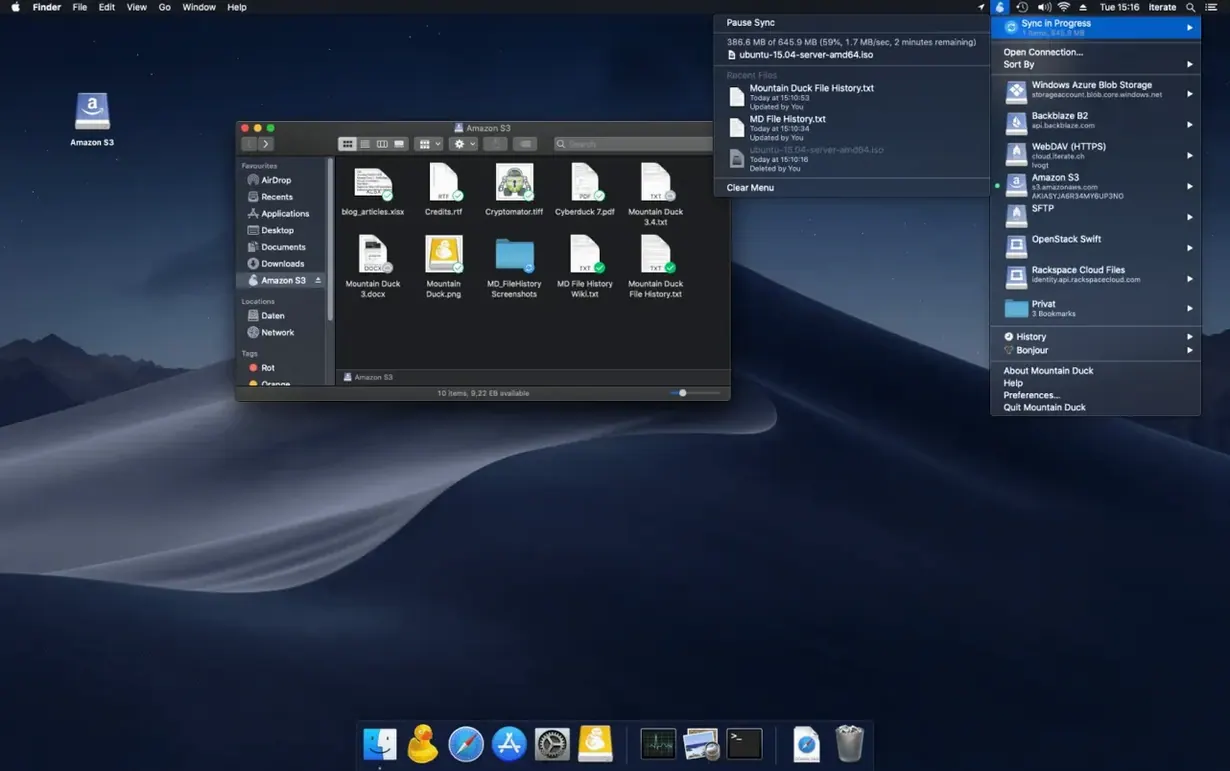
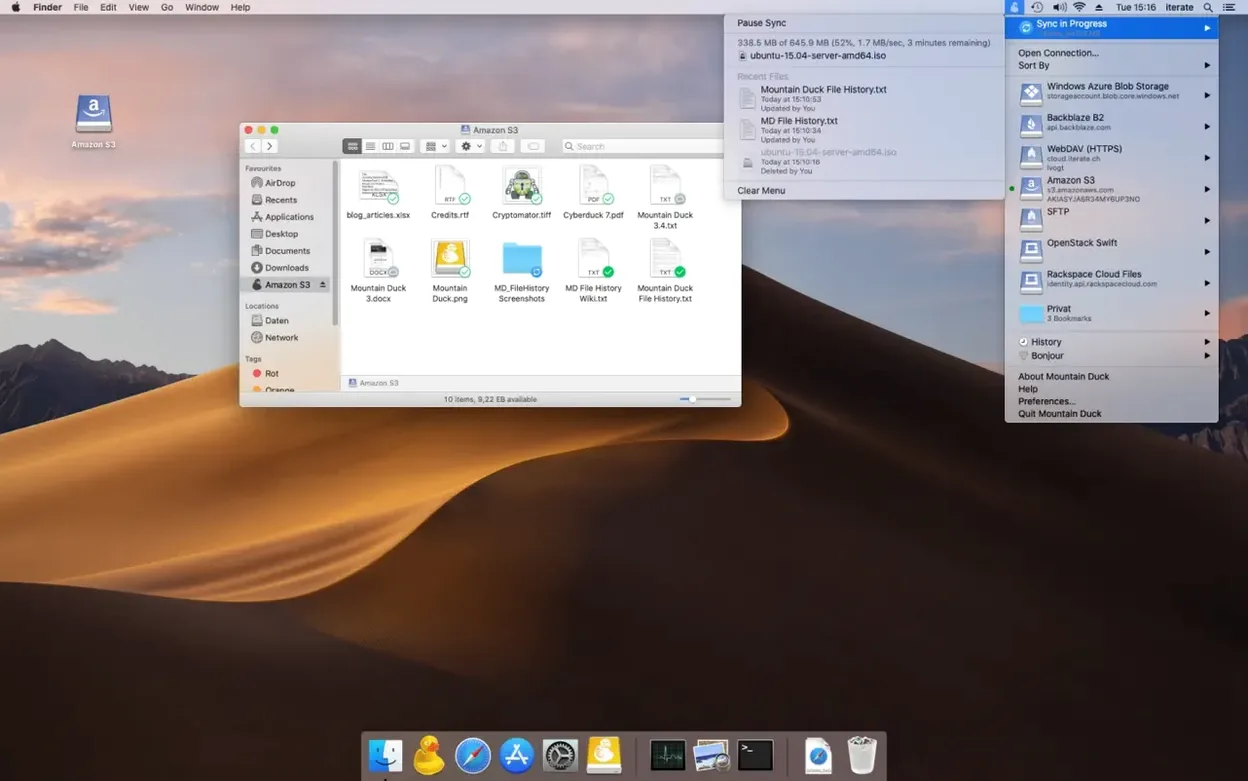
For researchers juggling large datasets across university servers, video editors pulling media from a remote S3 bucket, or anyone who simply can’t stand the clutter of sync folders, Mountain Duck solves a familiar puzzle. It makes remote storage behave exactly like a local disk, right in Finder. No sync client, no browser uploads — just a standard volume that appears on the desktop, waiting for you to open files as if they were on a drive under your desk.
Features that do the heavy lifting
- On-demand downloads with Smart Synchronization — files sit as lightweight placeholders until you double-click one. Only then does Mountain Duck pull down the full data, so you never fill your Mac’s SSD with archives you don’t need yet.
- Storage-independent file versioning — version 5 keeps a history of every save, regardless of which protocol or cloud service sits behind the volume. Roll back a corrupted document without touching a Time Machine backup.
- Encryption at rest via Cryptomator — if the remote server supports Cryptomator vaults, Mountain Duck encrypts files before they leave your machine. The service itself never sees the unencrypted content.
- Integrated Connect Mode — introduced in version 5, this flips the relationship: instead of mounting everything upfront, the app connects only when you open a bookmark. It’s a gentler way to work with dozens of remote locations.
A bridge to Cyberduck and beyond
Mountain Duck shares its DNA with the open-source transfer tool Cyberduck. If both are installed, bookmarks sync between them automatically, so a server you saved in Cyberduck appears ready to mount in Mountain Duck without a second thought. The protocol list reads like a greatest-hits of remote storage: FTP, SFTP, WebDAV, Amazon S3, Google Cloud Storage, Dropbox, Backblaze B2, Azure, and OpenStack Swift are all first-class citizens. It runs natively on Apple Silicon and Intel Macs, speaking over 30 interface languages from Estonian to Tamil — a quiet signal that this tool has been shaped by a genuinely international user base over many years.
An archivist’s afternoon
Consider someone managing a digitised photography collection for a regional museum. The master TIFFs live on an SFTP server in the basement, but the catalogue work happens on a MacBook Air in a reading room upstairs. Before Mountain Duck, a morning’s work meant logging into the server, spotting the right batch of fifteen negatives, dragging them to the desktop, editing the metadata, then remembering to upload the corrected copies before lunch. The afternoon usually started with a sinking feeling that two files had been overwritten by a colleague working on the same folder. With Mountain Duck, the server appears as a volume called “PhotoArchive.” Double-clicking a TIFF opens Preview or Photoshop directly; saving it writes the changes back over SFTP without a separate transfer step. Versioning catches the colleague’s simultaneous edit as a separate revision, so nothing is lost. The archivist can spend the afternoon actually looking at photographs instead of babysitting file transfers.
Start with one or two daily-use volumes, not your entire bookmark list
The first time Mountain Duck sits in the menu bar, the instinct is to mount every server you have ever bookmarked. Resist that impulse. Start with one or two volumes, ideally ones you use daily but that don’t contain thousands of tiny files — a home folder on a remote Mac via SFTP or a single S3 bucket with a manageable structure. Watch how the Finder sidebar behaves: a mounted volume looks identical to an external drive, complete with an eject button. Right-click any file or folder and choose Keep Offline for the handful of items you know you will need on a train later. The context menu is worth a slow tour; the “Reload” and “Show in Transfer Window” options answer most mysteries about whether a file has synced.
If you already use Cyberduck, install Mountain Duck alongside it before doing anything else. The shared bookmark library means a connection you tweaked in Cyberduck — changing an SFTP key path, updating a bucket region — appears corrected in Mountain Duck the moment you open its menu. For users who find mountain duck mac fits a workflow where they move between a desktop and a laptop, keeping the bookmark file in a shared cloud folder (iCloud Drive or Dropbox) effectively synchronises server connections across machines without touching a preference pane.
Opening a folder of 300 RAW photos can saturate your broadband line
The most common early mistake is treating a mounted volume like a local drive when bandwidth is tight. Opening a folder with three hundred high-resolution RAW photos triggers a cascade of placeholder downloads that can saturate a home broadband line for minutes. A better approach is to set the Finder to list view, scroll through filenames first, and double-click only what you need. The Smart Synchronization engine is patient, but it will honour every click you make.
Another tripwire is forgetting that not every cloud service speaks the same dialect. Dropbox and Google Drive connections work reliably, but file-naming restrictions differ — a filename that is perfectly valid on an SFTP server may cause a silent sync failure on a Backblaze B2 bucket. Mountain Duck usually flags these in the transfer queue, but the icon sits quietly in the menu bar and the warning is easy to miss. Make a habit of glancing at the transfer window after a big save. Finally, some users install the app and immediately enable offline storage for their entire Documents folder on an S3 volume, then wonder why their SSD filled up. Offline storage is surgical: a project folder, not a life’s work.
Mounting an S3 bucket with the same chime as a USB stick
Nine in the morning. The menu bar icon gets a click, and a bookmark called “ClientAssets” — an S3 bucket for a design agency — mounts with the same chime a USB stick makes. The volume appears on the desktop. The designer opens a Figma file stored on the bucket; Mountain Duck downloads it in the background, and the file opens inside the app as if it lived in the local home folder. Edits happen over the next two hours, with saves writing back to S3 each time. Version 5’s file versioning creates a new revision with every save, so at eleven o’clock, when a stakeholder asks to see yesterday’s layout, the designer right-clicks the file, chooses “Versions,” and pulls up the previous afternoon’s iteration without touching a separate backup.
At midday, the designer needs to work from a café with patchy Wi-Fi. Before closing the laptop, they right-click the “ProjectDelta” folder and select Keep Offline. Mountain Duck transfers the folder’s contents to the local cache; the progress bar in the transfer window gives a clear ETA. In the café, with Wi-Fi off entirely, the folder behaves identically — files open, edits save locally, and the app queues the changes. Back at the office, reconnecting to the network triggers a background upload, and the version history on S3 updates to include the café work. A search for Mountain Duck torrent would suggest some users explore alternative distribution, and if you go that route, just verify the build’s code signature matches the developer certificate so the auto-update badge in the menu bar can still notify you cleanly when a new version is ready.
- macOS 13 or later
- Apple Silicon or Intel 64-bit processor
Questions I keep hearing
Does Mountain Duck sync files to my Mac?
Not by default. It uses Smart Synchronization to download files on demand when you open them, caching data locally only when needed rather than mirroring an entire cloud account.
Can I use Mountain Duck with my existing Cyberduck bookmarks?
Yes, if Cyberduck is installed, Mountain Duck shares the same bookmark database, so every connection you have defined appears in both apps.
Questions from the class 0
Sign in or join the class to ask a question.
Nobody has asked anything yet. If you have used it on a real job, say what the file did.
Also on the Mac Apps shelf
The whole Mac Apps shelf Motionvfx - mTitle Cinematic
Drops fifty film-trailer title templates with lens flares and slow-building reveals into Final Cut Pro.
Motionvfx - mTitle Cinematic
Drops fifty film-trailer title templates with lens flares and slow-building reveals into Final Cut Pro.
 MouseBoost Pro
Extends your right-click menu with checksums, terminal shortcuts, and actions Finder left out.
MouseBoost Pro
Extends your right-click menu with checksums, terminal shortcuts, and actions Finder left out.
 MotionVFX mModules
Fills Final Cut Pro’s Titles Browser with sixty self-contained animated elements and backgrounds.
MotionVFX mModules
Fills Final Cut Pro’s Titles Browser with sixty self-contained animated elements and backgrounds.
 Movavi Screen Recorder
Schedules screen recordings in advance so you never miss a live demo at an awkward time.
Movavi Screen Recorder
Schedules screen recordings in advance so you never miss a live demo at an awkward time.
 MotionVFX - mLowers Universal for FCP
Places seventy animated lower-third titles onto your timeline without jarring style clashes.
MotionVFX - mLowers Universal for FCP
Places seventy animated lower-third titles onto your timeline without jarring style clashes.
 Movavi Video Converter
Converts media into Opus audio, WebM video, and image sequences, not just MP4 files.
Movavi Video Converter
Converts media into Opus audio, WebM video, and image sequences, not just MP4 files.
 Movavi Video Editor
Turns raw clips into social videos, family montages, or short business promos in thirteen languages.
Movavi Video Editor
Turns raw clips into social videos, family montages, or short business promos in thirteen languages.
 MotionVFX mKBHD
Gives video editors a shortcut to Marques Brownlee’s clean, kinetic on-screen graphic style.
MotionVFX mKBHD
Gives video editors a shortcut to Marques Brownlee’s clean, kinetic on-screen graphic style.