 ASPNetWorld

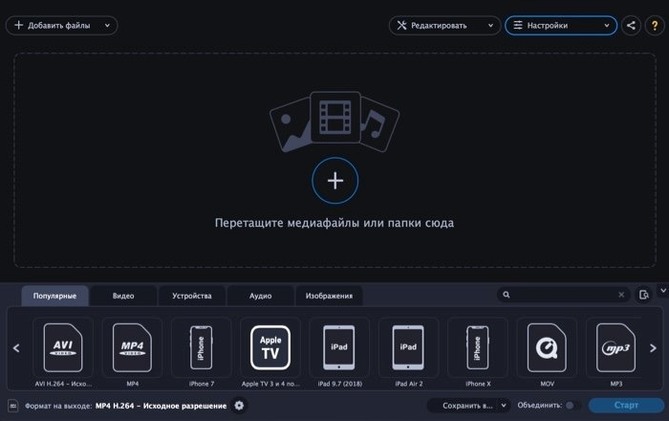
Most converters stop at MP4, but Movavi Video Converter also handles Opus audio, WebM video, and image sequences down to the frame level.
Deeper tools for precise output
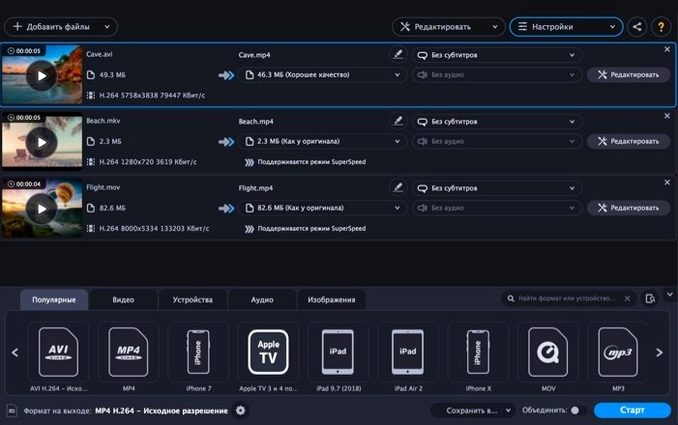
SuperSpeed conversion mode — a remux pass that rewraps the original video and audio streams into a new container without re-encoding. Use it when the source codec already matches the target format; the process finishes in seconds rather than minutes, and there's zero generation loss.
Custom codec mapping — the ability to pair any supported video codec with a specific audio encoder inside the container of your choice. A common scenario is taking an MKV with a FLAC soundtrack and mapping the video stream into an MP4 container while converting the audio to AAC, all in a single pass.
Image sequence extraction — pull individual frames from a clip and save them as BMP, GIF, JPEG, PNG, or TIFF stills. The converter respects the source frame rate, so a ten-second clip gives you exactly the number of frames you expect, making it a quick route to reference frames for colour grading or thumbnail selection.
Educators and trainers get the most mileage from these features
Movavi Video Converter isn't one of those tools that tries to be everything to everyone, and that's a good thing. The people who get the most mileage from it tend to fall into a few clear camps.
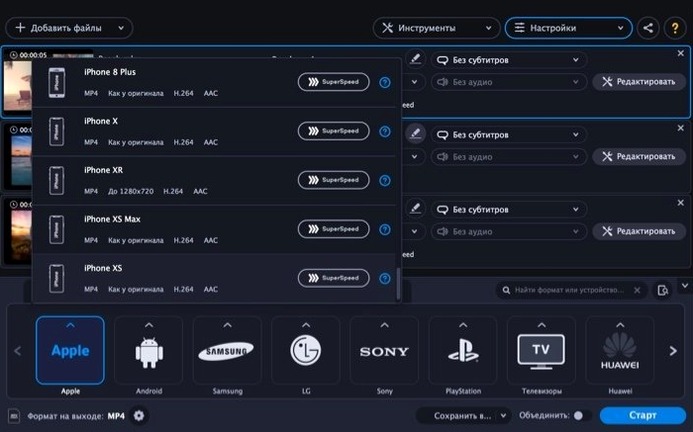
Educators and trainers who juggle footage from phones, screen recordings, and ageing departmental cameras. They need a single place to normalise everything to a format their learning management system will actually accept, and the batch queue means they can set a pile of clips converting during a coffee break. The device profiles for iPads and Android tablets save them from memorising which resolution and codec each classroom device prefers.
Musicians and podcast producers who regularly strip audio from video. A live performance captured on a phone becomes a rehearsal reference track in under a minute — pull the audio, save as FLAC or MP3, and drop it into a practice playlist. The fact that Opus and OGG sit alongside the usual suspects means they're not forced into a lossy format they didn't choose.
Archivists and home-video wranglers dealing with old AVI files from MiniDV tapes or obscure MKV rips. The converter reads formats that QuickTime gave up on years ago and outputs clean H.264 MP4s that play nicely with Photos and iCloud. The trim and rotation tools mean they can tidy up footage without jumping into a full editor first.
A few hours in the life of a video teacher
Imagine a guitar tutor who records lessons on a Sony camera that spits out MTS files, grabs quick demos on an iPhone, and occasionally pulls a student's submitted WebM clip from a browser. She needs everything in MP4 by Thursday evening so the school's streaming portal will ingest it.
She opens Movavi Video Converter on a 2019 Intel iMac, drops the whole week's folder into the window, and ticks the SuperSpeed box for the iPhone clips — those are already H.264 in a MOV wrapper, so the app just remuxes them into MP4 in seconds. The MTS files need a full transcode, so she picks an Apple device profile that matches the school iPads. While those churn, she drags the student's WebM clip into the queue, adds a subtle fade-in at the start using the trim editor, and sets it to convert with the same profile. By the time she's made a cup of tea, the lot is ready, neatly named, and sitting in a single output folder.
Right-click a file in the queue to preview it before converting
Some of the most useful bits of Movavi Video Converter aren't advertised on the splash screen. They're tucked into the interface like tools in a well-organised drawer.
- Right-click a file in the queue and choose "Play" — it opens a quick preview in the built-in player. Handy for checking you've picked the right clip before committing to a long encode.
- Drag an entire folder onto the app window rather than adding files one by one. The converter scans subfolders and preserves the folder structure in the output directory, which saves a lot of clicking when you're dealing with a multi-camera shoot.
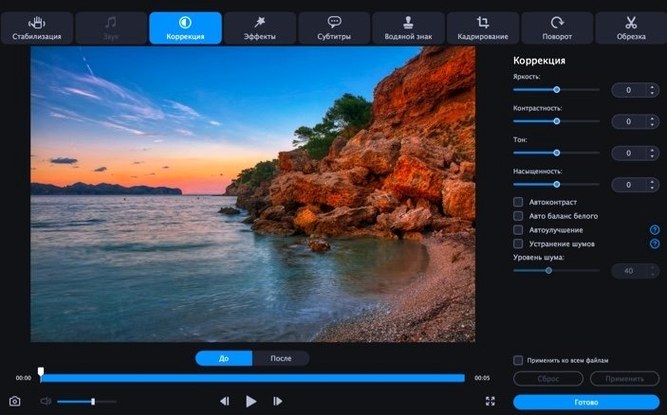
- Click the scissors icon on any queued item to open a trim panel. You can set start and end points with frame-level precision, and the timeline snaps to keyframes so your cuts land cleanly even on long-GOP footage.
- Hold Option while clicking "Convert" — on some builds this forces a full re-encode even when SuperSpeed is available, useful if you suspect a remux might carry over a glitchy header.
Gatekeeper blocking the app on macOS has a well-known fix
No converter is entirely frictionless, and a few issues crop up often enough to be worth addressing head-on.
"The app won't open — macOS says it's from an unidentified developer." This is Gatekeeper doing its job. The fix is well-known to anyone who grabs software outside the App Store: open Terminal, type sudo spctl --master-disable, authenticate, and then right-click the app and choose Open. You can re-enable Gatekeeper afterwards with sudo spctl --master-enable. Some people searching for movavi mac torrent downloads hit this same roadblock regardless of where the installer came from — it's about the code signature, not the source.
"SuperSpeed mode is greyed out." The source and target codecs need to match. If you're converting an older AVI packed with Xvid video and MP3 audio into an MP4 container, SuperSpeed can't help — those streams need re-encoding. Stick to scenarios where both files use H.264 or H.265, and the option should light up.
"The output file has no sound." Usually this means the audio codec you selected isn't compatible with the container format. MOV files, for example, don't play nicely with Opus audio. Switch the audio setting to AAC or PCM and try again. If you're pulling audio from a video and the result is silent, check whether the source track is a format like DTS or AC3 that needs a specific decoder — dropping the original file into a tool like MediaInfo will tell you what you're dealing with.
"The conversion is taking forever." On an Intel Mac without hardware acceleration for newer codecs, HEVC encoding is genuinely slow. Drop the resolution one notch, switch to H.264, or tick SuperSpeed if the formats allow it. People who find themselves typing Movavi Video Converter Mac torrent into a search bar are often running on older Intel machines where these tweaks make the difference between a five-minute wait and a forty-minute one.
- macOS 10.13 or later
- Intel 64-bit processor
Questions I keep hearing
Can I extract audio from a video without touching the video stream?
Yes. Movavi Video Converter can isolate the audio track from any supported video file and save it as AAC, FLAC, M4A, MP3, OGG, Opus, WAV, or WMA.
Questions from the class 0
Sign in or join the class to ask a question.
Nobody has asked anything yet. If you have used it on a real job, say what the file did.
Also on the Mac Apps shelf
The whole Mac Apps shelf Movavi Video Editor
Turns raw clips into social videos, family montages, or short business promos in thirteen languages.
Movavi Video Editor
Turns raw clips into social videos, family montages, or short business promos in thirteen languages.
 Movavi Screen Recorder
Schedules screen recordings in advance so you never miss a live demo at an awkward time.
Movavi Screen Recorder
Schedules screen recordings in advance so you never miss a live demo at an awkward time.
 Movavi Video Suite
Bundles video editing, file conversion, and screen recording into a single three-in-one tool.
Movavi Video Suite
Bundles video editing, file conversion, and screen recording into a single three-in-one tool.
 MouseBoost Pro
Extends your right-click menu with checksums, terminal shortcuts, and actions Finder left out.
MouseBoost Pro
Extends your right-click menu with checksums, terminal shortcuts, and actions Finder left out.
 Movist Pro
Plays video files using either QuickTime or FFmpeg as the engine behind each codec.
Movist Pro
Plays video files using either QuickTime or FFmpeg as the engine behind each codec.
 Mountain Duck
Makes remote server storage appear as a local disk in Finder, no sync folder required.
Mountain Duck
Makes remote server storage appear as a local disk in Finder, no sync folder required.
 Mp3tag
Edits metadata across a whole music library in one fast batch, not track by track.
Mp3tag
Edits metadata across a whole music library in one fast batch, not track by track.
 Motionvfx - mTitle Cinematic
Drops fifty film-trailer title templates with lens flares and slow-building reveals into Final Cut Pro.
Motionvfx - mTitle Cinematic
Drops fifty film-trailer title templates with lens flares and slow-building reveals into Final Cut Pro.