 ASPNetWorld

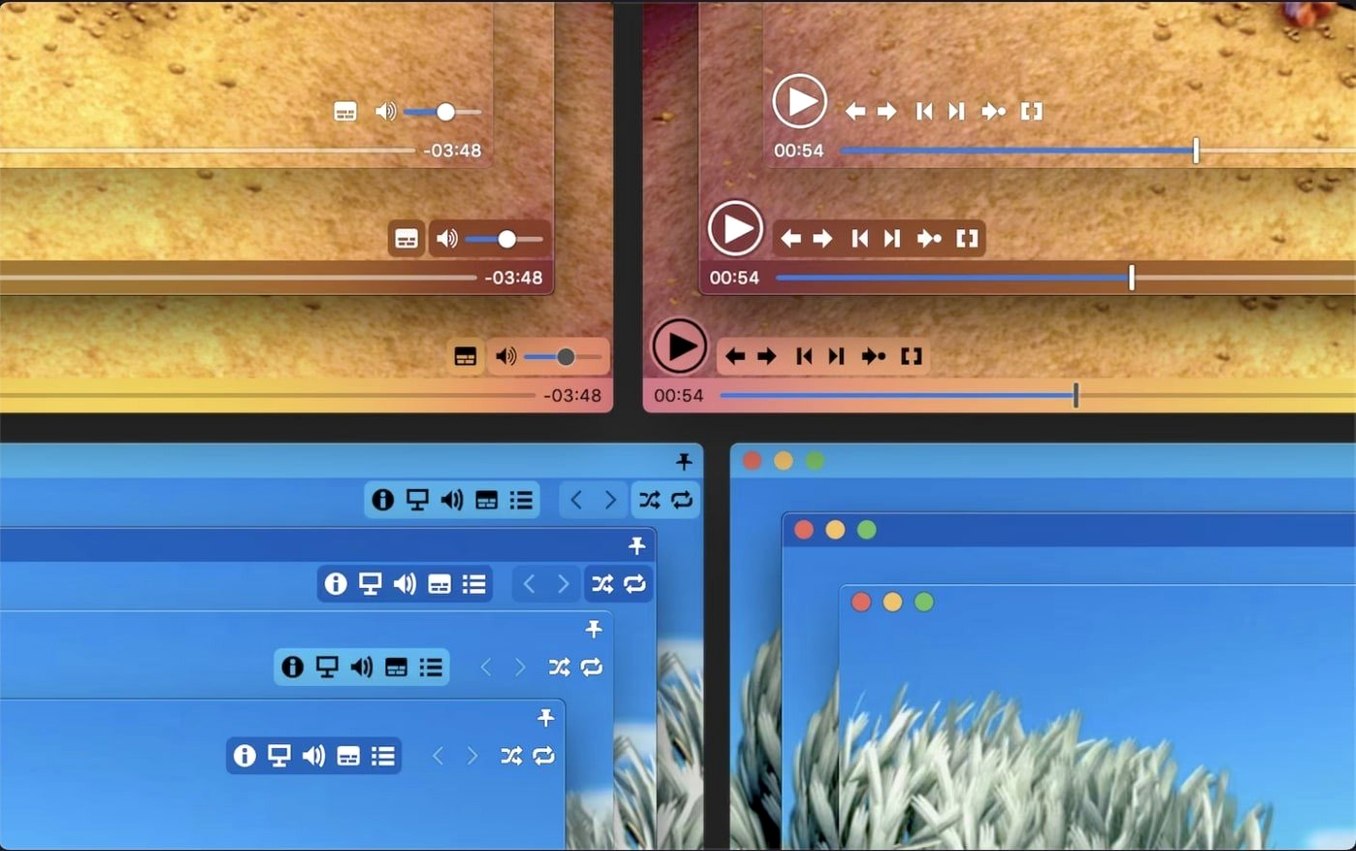
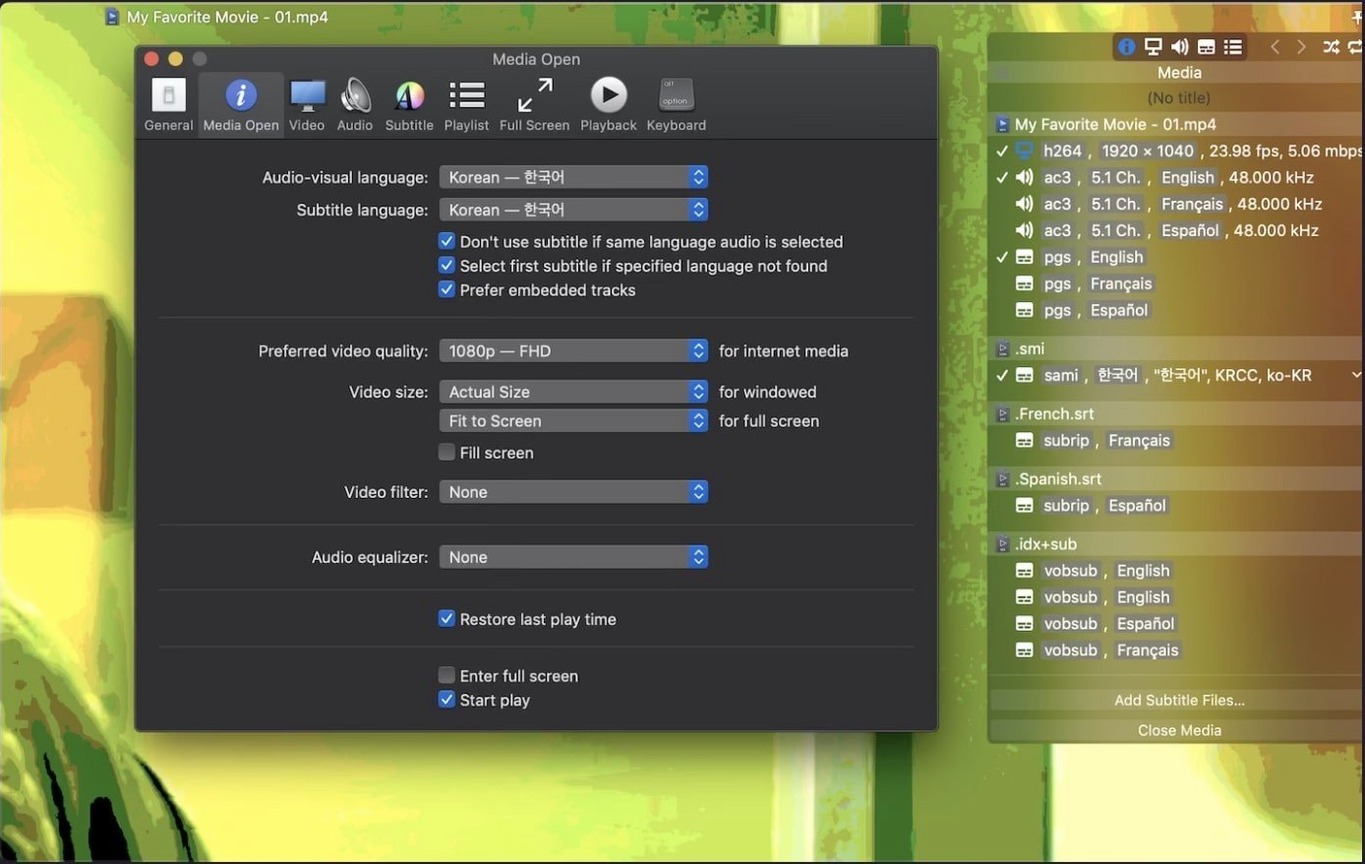
Movist Pro is a Mac video player that hands you a choice between QuickTime and FFmpeg as the engine behind each video codec.
macOS 10.13 or later — the minimum operating system version you need to install Movist Pro. It runs natively on both Intel and Apple Silicon Macs, so an M1 or M2 machine won't push it into Rosetta emulation.
Hardware acceleration for H.264 and H.265/HEVC — decoding that leans on the dedicated video hardware in your Mac's chip rather than hammering the CPU. That means cooler playback and longer battery life when you're watching high-resolution files on a laptop.
HDR tone mapping — when you play an HDR video on a standard dynamic range display, the app remaps the brightness and colour so the picture doesn't look washed out or clipped. Useful if your Mac's screen tops out at SDR.
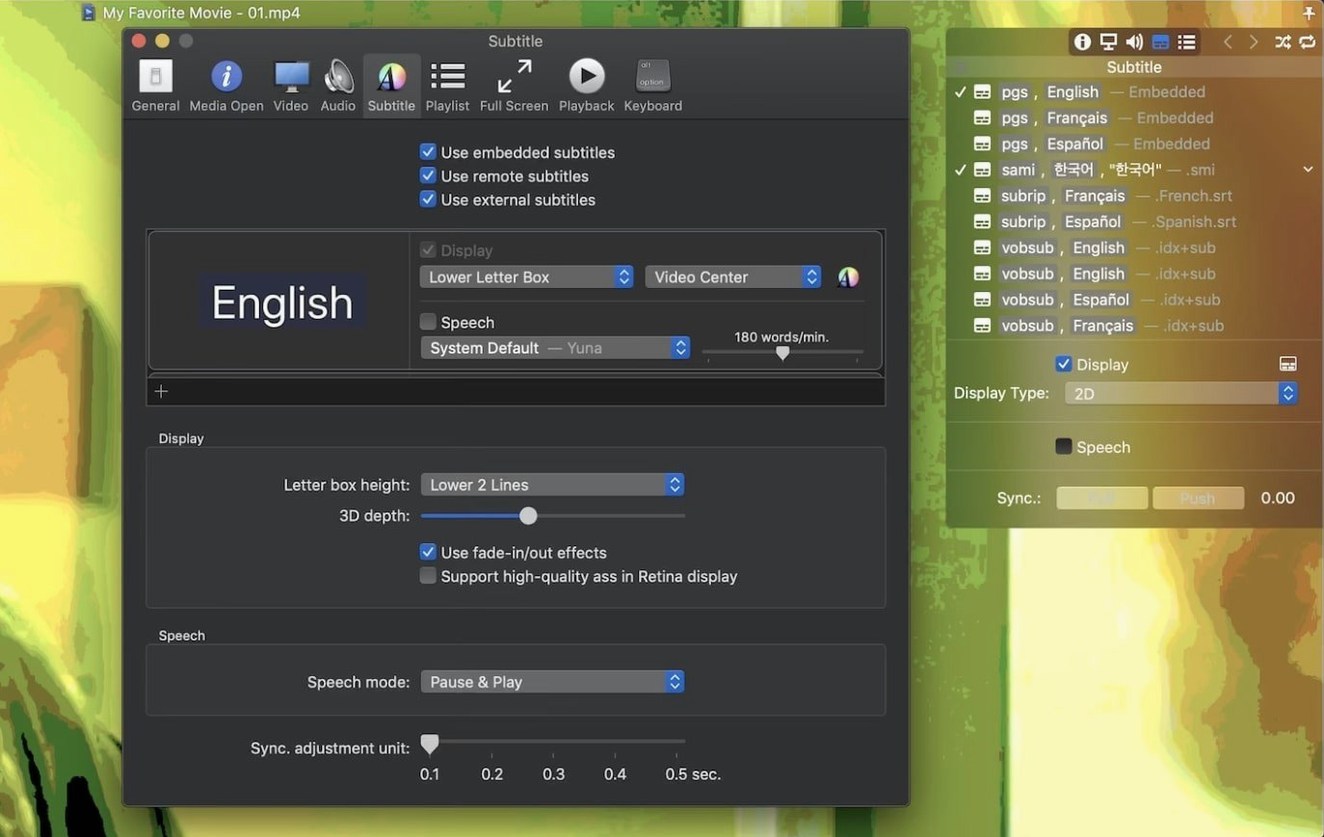
3D subtitles and Letter Box display — the first places subtitle text in stereoscopic space for 3D content, while the second parks subtitles in the black bar below a widescreen picture instead of overlaying them on the image itself.
Beyond the player engine, you get automatic subtitle encoding detection, support for embedded and external subtitle files in several formats, and a playlist system with shuffle and repeat modes. The interface can work in a single-window mode or as a multi-document setup with separate windows for each file.
First days: three tweaks worth making early
Right after installation, Movist Pro leans on sensible defaults, but a few adjustments can make the first few evenings of watching noticeably smoother.
Go to the Subtitle preferences and enable automatic encoding detection if it is not already active. It saves you from guessing whether a Korean .srt file is in EUC-KR or UTF-8, and it does the job silently. While you are there, set the default subtitle position to Letter Box if most of your library is widescreen — text sits in the black bar, out of the picture, and stays legible even when the background gets bright.
Next, check the Playback pane and decide which engine you want as the first choice for common codecs. QuickTime gives you smooth H.264 and H.265 with hardware acceleration baked in, but for older AVI containers or MKV files with unusual audio tracks, switching the default to FFmpeg can head off playback failures before they happen. You can always flip the engine per-file from the menu, but setting a sensible default means fewer interruptions.
Lastly, if you work with playlists regularly — perhaps a series of video lectures or a season of a show — turn on Playlist autocompletion. Point it at the folder where episodes and subtitle files live, and it will find the next episode and its matching subtitles without your having to queue everything by hand.
How it slots in with other apps and macOS
Movist Pro does not try to be a media library. It plays files, and it plays them well, which means it fits neatly alongside apps that do the organising. A common pattern is to keep your video folders indexed in Finder tags or a catalogue app, then open files in Movist Pro as the default player for any format that QuickTime Player refuses to touch.
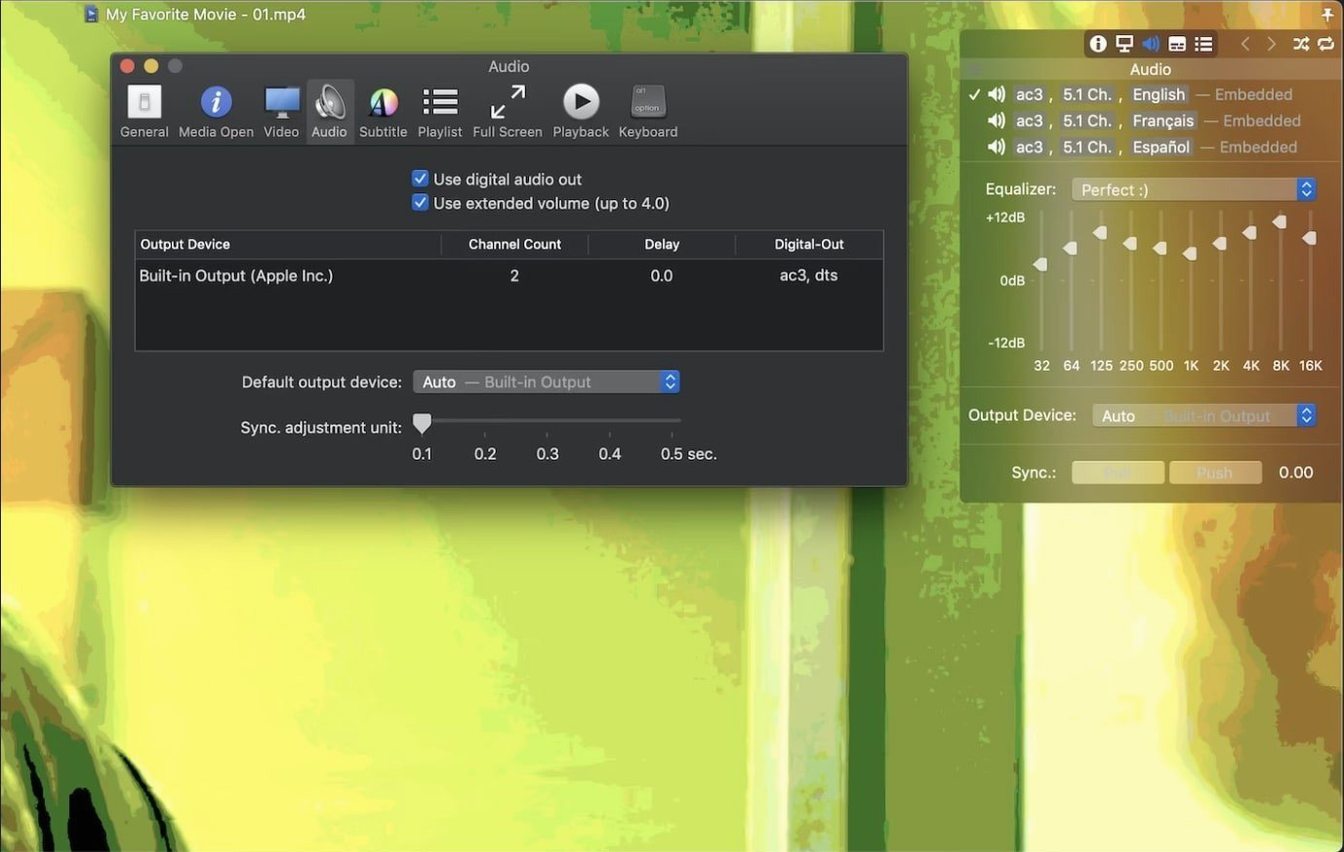
The app supports digital audio output via S/PDIF, so if you use an external DAC or an older amplifier with an optical input, you can send a clean stereo or compressed surround signal straight out. macOS recognises the connection, and Movist Pro hands off the bitstream without meddling. It also respects sandboxed app mode if you prefer to keep media playback walled off from the rest of the system — a small but thoughtful nod for anyone who shares a machine or wants tighter control over file access.
For subtitling workflows, you can preview .srt and .ass files in real time while tweaking them in a text editor. Save the subtitle file, and Movist Pro picks up the change on the next reload. It is a surprisingly fast feedback loop if you are correcting fan-made subs or adjusting timing for a screening.
What 2.17.2 quietly fixed
Two fixes landed in this version, and both matter in everyday use even if they sound narrow on a changelog.
Some TS videos — the transport stream format that broadcast recordings and certain web downloads arrive in — would previously refuse to play at all. The 2.17.2 update addressed that, so a file that sat there stubbornly as a black screen should now start normally.
The other fix is less visible unless you tinker with macOS security settings. If System Integrity Protection was disabled — something a small number of power users do for development or low-level system access — Movist Pro could crash on launch. That crash is gone, which makes the player friendlier to machines configured outside Apple's strictest defaults.
No picture, only sound despite the timeline moving
"No picture, only sound." This is usually the codec engine playing the wrong card. If a file opens with sound but a blank screen, switch the playback engine from QuickTime to FFmpeg (or vice versa) via the menu. Different encoding profiles within the same container format can trip up one engine while the other handles them fine.
Subtitles appear but the timing drifts. Use the sync adjustment — a keyboard shortcut or on-screen control nudges the subtitle track forward or back by small increments. It takes a few seconds while the scene is running, and the adjustment sticks for the rest of that file.
Compressed subtitles inside .zip or .rar files are not showing. Movist Pro can read them directly without extraction, but only if the archive contains a single subtitle file whose format it recognises. If you have multiple .srt files bundled together, unpack them first; the app cannot choose on your behalf.
Playback is jerky on an older Mac. Turn on hardware acceleration in the preferences if it is not already active. On machines without H.265 hardware decoding, FFmpeg might still struggle with 4K HEVC files — dropping to QuickTime for those codecs, or transcoding to H.264, is the practical workaround.
The app window behaves oddly in multi-document mode. Some users prefer single-window mode for a reason. When each video opens in its own window, macOS Spaces and Mission Control can occasionally lose track of which window belongs where. Switching to single-window mode in the preferences simplifies things at the cost of watching only one file at a time.
If you find yourself searching for movist pro tips among Mac users, the short answer most people land on is that a few minutes spent in the preferences — engine choice, subtitle defaults, audio output — tends to prevent the bulk of early frustrations. The player rewards a little setup.
Version 2.17.2 is a maintenance fix targeting two specific issues. A playback failure with certain TS video files has been resolved, and a crash that could occur on machines where System Integrity Protection was disabled has been patched out.
- macOS 10.13 or later
- Runs natively on both Intel and Apple Silicon Macs
- Interface languages: English, Russian, Korean, Japanese, Simplified Chinese
Questions I keep hearing
Can Movist Pro use hardware acceleration on an Apple Silicon Mac?
Yes. Hardware acceleration for H.264 and H.265/HEVC decoding is supported, so playback will use your Mac's dedicated video decode hardware whether it's an Intel or Apple Silicon model.
Questions from the class 0
Sign in or join the class to ask a question.
Nobody has asked anything yet. If you have used it on a real job, say what the file did.
Also on the Mac Apps shelf
The whole Mac Apps shelf Movavi Video Suite
Bundles video editing, file conversion, and screen recording into a single three-in-one tool.
Movavi Video Suite
Bundles video editing, file conversion, and screen recording into a single three-in-one tool.
 Mp3tag
Edits metadata across a whole music library in one fast batch, not track by track.
Mp3tag
Edits metadata across a whole music library in one fast batch, not track by track.
 Movavi Video Editor
Turns raw clips into social videos, family montages, or short business promos in thirteen languages.
Movavi Video Editor
Turns raw clips into social videos, family montages, or short business promos in thirteen languages.
 m’s HalfTone
Brings hands-on, animatable dot-pattern effects into After Effects with motion and transparency control.
m’s HalfTone
Brings hands-on, animatable dot-pattern effects into After Effects with motion and transparency control.
 Movavi Video Converter
Converts media into Opus audio, WebM video, and image sequences, not just MP4 files.
Movavi Video Converter
Converts media into Opus audio, WebM video, and image sequences, not just MP4 files.
 Multitouch
Lets you assign custom finger swipes and taps to control apps without touching the keyboard.
Multitouch
Lets you assign custom finger swipes and taps to control apps without touching the keyboard.
 MuMu Player Pro
Runs Android apps and mobile games on your Mac as if they were tiles in your dock.
MuMu Player Pro
Runs Android apps and mobile games on your Mac as if they were tiles in your dock.
 Movavi Screen Recorder
Schedules screen recordings in advance so you never miss a live demo at an awkward time.
Movavi Screen Recorder
Schedules screen recordings in advance so you never miss a live demo at an awkward time.