 ASPNetWorld

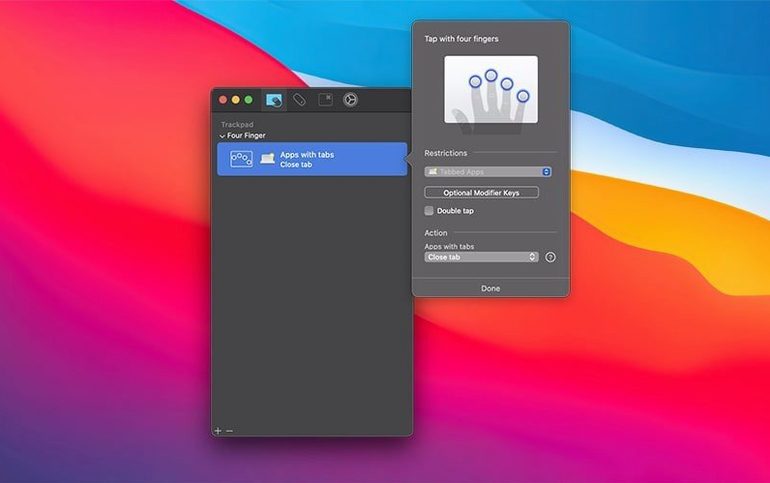
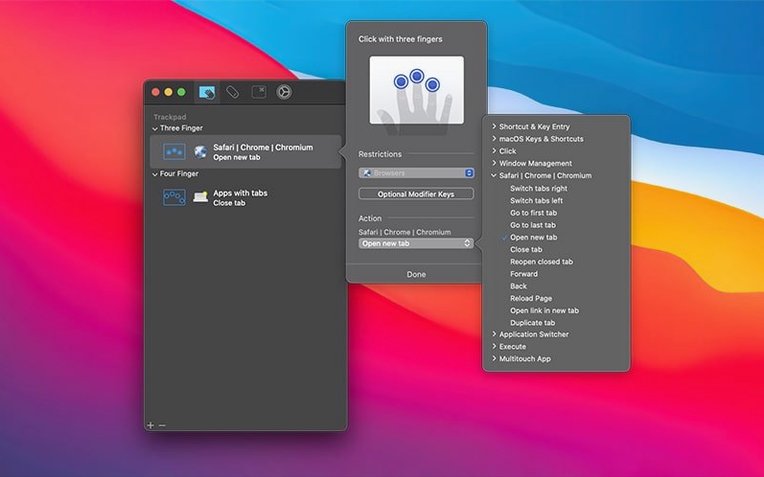
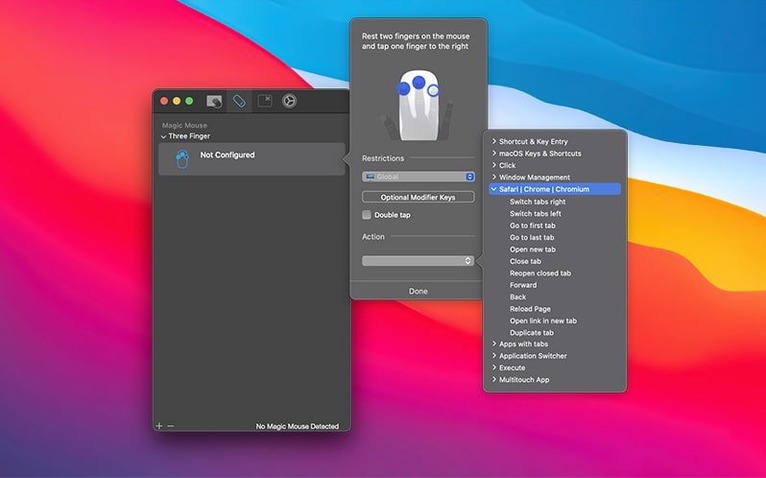
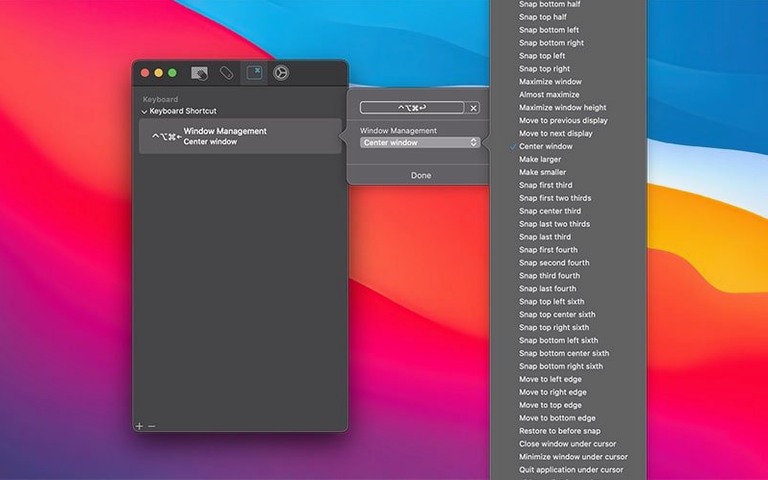
You're deep in a research session, three browser windows open, tabs multiplying. A three-finger swipe left dismisses the current tab. A four-finger tap creates a fresh one. Two fingers twisted clockwise switch to the next window. You never touched the keyboard. This is the kind of fluid, personalised control Multitouch brings to macOS, turning the built-in trackpad or Magic Mouse into a command centre far beyond what System Preferences allows.
At its heart, Multitouch is a bridge between physical gestures and the actions you actually want to trigger. The standout tool for building these bridges is the keystroke recorder. Unlike a simple macro, it captures the genuine sequence of your key presses—including modifier flags and the Return key—and plays them back faithfully, without artificial timing delays. It feels less like automation and more like the app is simply pressing the keys for you, as fast as the system can handle.
Beyond recording, the utility gives you fine-grained control over input itself. You can remap a standard button to serve as a hyper key, a single modifier that combines Shift, Control, Option and Command, which opens up a new layer of shortcuts across all your apps. There's also a straightforward text insertion option for dropping frequently used phrases or code snippets with a single gesture, a feature that quickly becomes muscle memory.
The app was previously known as TouchOven, and under developer Ryan Hanson it has grown into a focused, English-language utility that runs natively on both Intel and Apple Silicon Macs. Version 1.48 is a maintenance release that tidies up the menu bar icon size and squashes a bug where the "unminimize all windows" command would occasionally ignore a window, keeping the experience as reliable as the actions you've assigned to it.
You stop noticing it, and that's the point
After a week with Multitouch running in the background, the first thing you notice is what you don't notice. There's no beachball, no mysterious CPU spikes, no moment where the fans spin up because a gesture helper is chewing through resources. Activity Monitor typically shows it idling at under 100 MB of RAM, and during intensive bursts—recording a complex keystroke sequence, flipping between a dozen browser tabs with three-finger swipes—the processor draw barely registers. On an M1 machine it's a rounding error; on an older Intel Mac it stays politely out of the way.
Stability follows the same pattern. Across version updates and macOS point releases, the app has held its nerve. A crashed gesture utility is more than an annoyance—it's muscle memory ripped out mid-action—but Multitouch recovers cleanly after a logout or restart, and the version 1.48 build hasn't yet dropped a custom binding without warning. The menu bar icon sits there quietly, a small reminder that your trackpad now speaks a richer vocabulary.
One thing worth knowing: the app works at a level that doesn't fight other input tools. If you're already running something like BetterTouchTool or Karabiner-Elements, you'll want to avoid mapping the same gesture in two places—the result is usually both firing, or neither. Pick one master for each physical movement and you'll avoid confusion.
First days: easing in without overload
The temptation on day one is to map twenty gestures and become a wizard. That path leads to accidental window closes and phantom middle-clicks you can't reproduce. A gentler approach pays off faster.
Start with a single gesture that solves a daily irritation. For many people that's assigning a three-finger click to a middle mouse button action—closing tabs, opening links in new tabs, the kind of thing that normally demands a chord. Use it for a full day before adding anything else. Your fingers need time to treat the new gesture as automatic, not something you consciously decide to perform.
Next, pick one text insertion. A phrase you type twenty times a day—an email address, a support sign-off, a git command—and bind it to a four-finger swipe or tap. Within three days it becomes invisible, a thought-to-text shortcut that disappears into your workflow. Only then do you start layering in keystroke recordings for multi-step tasks.
A practical tip that isn't obvious from the interface: when recording keystrokes that include system-wide shortcuts, pause briefly between the keys that bring up a dialog and the keys that interact with it. The recording captures everything instantly, but macOS sometimes needs a beat to present a menu or panel before it can receive the next command. A half-second mental pause during recording saves you from sequences that work sometimes and fail others.
It works with any trackpad macOS already recognises
Does this work with any trackpad, or only Apple's Magic Trackpad? Multitouch hooks into the macOS gesture system, so it cooperates with any trackpad the operating system recognises as a multitouch input device—built-in MacBook trackpads, the standalone Magic Trackpad, and the Magic Mouse all qualify. Third-party Bluetooth trackpads that present themselves as standard multitouch surfaces generally work too, though the physical size of the pad affects how comfortably you can pull off four-finger or five-finger gestures.
Will I lose the default macOS gestures? No, not unless you deliberately override them. The app layers on top of the system defaults. A three-finger swipe between full-screen apps still works exactly as before, until the moment you decide to reassign that gesture to something else. You can leave the built-in set untouched and use the other finger combinations that macOS ignores.
Does it need accessibility permissions, and is that safe? Yes, it asks for Accessibility access the first time it launches, because that's the macOS framework it uses to watch for gestures and inject keystrokes. Without that permission it simply can't do its job. It's the same permission screen readers and window managers require, and the app's scope is limited to input observation and keyboard injection—it doesn't read your screen or record anything beyond the gestures you actively configure. Once you've granted permission in System Settings, you won't be prompted again.
Version 1.48 is a tidy-up release with two targeted fixes. The menu bar icon size has been adjusted for a cleaner look, and a stubborn case where the "unminimize all minimized windows" action failed to restore every window has been resolved.
- macOS 10.15 or later
- Works on Intel and Apple Silicon Macs
- Magic Trackpad or Magic Mouse required for gesture input
- Interface language: English
Questions I keep hearing
What is the hyper key feature in Multitouch?
It's an option that converts a single physical key or button press into a simultaneous press of Shift, Control, Option and Command, effectively giving you an extra modifier for shortcuts that won't conflict with existing ones.
Does the keystroke recording include modifier keys?
Yes, the recording captures modifier flags along with each key press, and plays the whole sequence back in order without introducing timing delays.
Can Multitouch help manage web browser tabs?
Absolutely. You can assign gestures to common browser tab actions—like opening, closing or switching tabs—which is one of the most popular uses for the app.
Questions from the class 0
Sign in or join the class to ask a question.
Nobody has asked anything yet. If you have used it on a real job, say what the file did.
Also on the Mac Apps shelf
The whole Mac Apps shelf m’s HalfTone
Brings hands-on, animatable dot-pattern effects into After Effects with motion and transparency control.
m’s HalfTone
Brings hands-on, animatable dot-pattern effects into After Effects with motion and transparency control.
 MuMu Player Pro
Runs Android apps and mobile games on your Mac as if they were tiles in your dock.
MuMu Player Pro
Runs Android apps and mobile games on your Mac as if they were tiles in your dock.
 Mp3tag
Edits metadata across a whole music library in one fast batch, not track by track.
Mp3tag
Edits metadata across a whole music library in one fast batch, not track by track.
 Movist Pro
Plays video files using either QuickTime or FFmpeg as the engine behind each codec.
Movist Pro
Plays video files using either QuickTime or FFmpeg as the engine behind each codec.
 Movavi Video Suite
Bundles video editing, file conversion, and screen recording into a single three-in-one tool.
Movavi Video Suite
Bundles video editing, file conversion, and screen recording into a single three-in-one tool.
 Movavi Video Editor
Turns raw clips into social videos, family montages, or short business promos in thirteen languages.
Movavi Video Editor
Turns raw clips into social videos, family montages, or short business promos in thirteen languages.
 Movavi Video Converter
Converts media into Opus audio, WebM video, and image sequences, not just MP4 files.
Movavi Video Converter
Converts media into Opus audio, WebM video, and image sequences, not just MP4 files.
 Movavi Screen Recorder
Schedules screen recordings in advance so you never miss a live demo at an awkward time.
Movavi Screen Recorder
Schedules screen recordings in advance so you never miss a live demo at an awkward time.