 ASPNetWorld
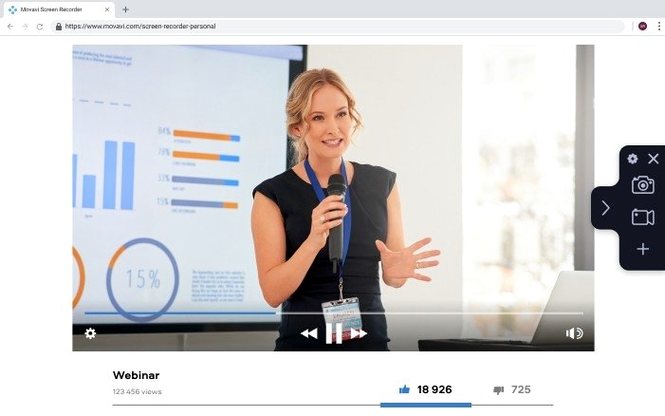
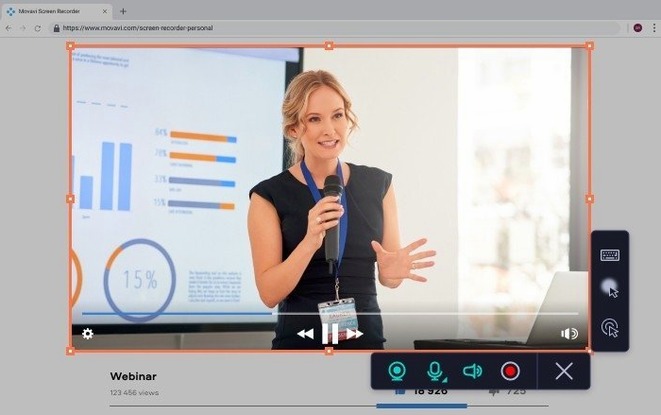
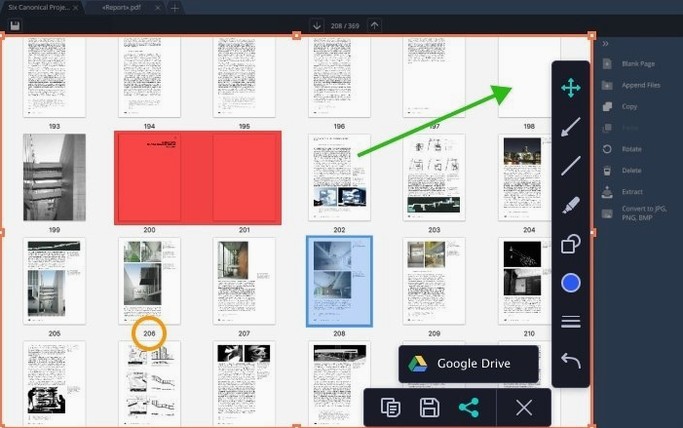
The automatic scheduler is one of those features that sounds minor until it rescues a Tuesday morning. A colleague needs a walkthrough of the new inventory dashboard, but the live demo is at an awkward time. Movavi Screen Recorder 23.1.1 lets you set a date and time, then quietly captures the desktop and application activity while you deal with the morning's real emergencies. It records system sound too, so every click and narration from the host is preserved.
What you can capture in one pass
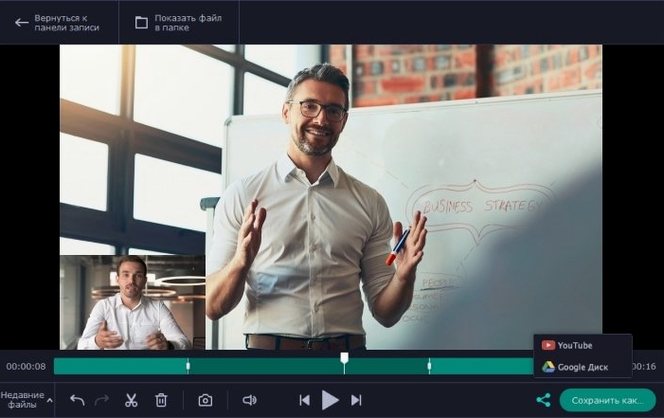
The session you schedule isn't limited to a single view. You can pull in the whole desktop, the webcam feed showing your reactions, and the microphone—all at the same time. The software treats these as parallel video streams, which means you are not committing to a single camera angle before you know what the material needs. Later, you might grab a still frame and tweak it in the built-in screenshot editor before it ever reaches your desktop, or export a short looping GIF for a quick help article rather than a full video file.
Why scheduling changes the workflow
A live recording is obvious—you press the button, you stop it, you trim. A scheduled recording is more like setting a 4-track recorder to catch a radio segment you cannot be there for. You define the inputs once, and the software acts as a quiet cassette deck in the corner, capturing the screen and audio exactly when needed. For regular training sessions or recurring webinars, that predictability means the raw material is already waiting in your folder by the time you reach for a coffee.
Dragging a selection three pixels too narrow and recording silent footage
The first time someone launches a screen capture app, they usually drag a selection rectangle that is three pixels too narrow, forget the system audio toggle is off, and record twenty minutes of perfect silence with a beautiful cursor trail. Movavi Screen Recorder is forgiving, but a handful of habits will save you from the bin folder. The webcam overlay is the most frequent casualty: people leave it floating dead centre over a settings panel they needed to show. Move the overlay to a corner before you hit record, or toggle it off in the capture settings if the session is purely a software walkthrough. The second classic blunder is capturing the entire desktop when a single window would do. Notifications arrive, the dock pops up, and suddenly your polished tutorial has a calendar alert for the dentist sitting in the corner. Lock the capture region to a specific window and the recording stays clean, no matter what else the Mac decides to throw at the screen.
Audio routing trips people too. The app can record system sound or the microphone, and it handles both simultaneously if you ask it to, but beginners often assume it is listening to everything by default. Before a long session, open the sound panel and confirm you can see the input meter twitch when you speak. A ten-second test recording costs nothing and catches a muted microphone long before you have narrated an entire feature. Finally, the scheduler: people set it for 3 p.m., close the laptop lid at 2:55, and wonder why nothing happened. The machine needs to stay awake with the display on. A quick trip to Energy Saver preferences the night before is worth the effort.
A typical session, told as a story
Imagine a Wednesday. The product manager has asked for a short walkthrough of the new checkout flow, something the support team can share with confused customers. You open Movavi Screen Recorder and resist the urge to grab the whole screen. Instead you select a browser window, sized to a sensible 1280 by 720 so viewers on small laptops will still read the labels. You check the audio panel: the microphone input is live, the system sound is muted because this one needs a voiceover, not the ping of an incoming Slack message. The webcam stays off—today is about the interface, not your face.
You press record and click through the flow at half speed, narrating each field as you go. A customer name goes in, a delivery address, a payment method. The cursor click effects paint a soft ring around every tap, and the keyboard press indicator flashes Tab and Enter in the lower third so nobody writes in asking which key you pressed. The whole capture runs three minutes and change. You stop the recording and the file appears in the history panel, already saved as a video file rather than a project you have to render later. Before sending it anywhere, you scrub to the moment the confirmation screen appears, pause, and grab a screenshot. The built-in editor lets you draw a red rectangle around the order number and blur the fake customer's email address. You save the still to the desktop, then flick the video straight to Google Drive with the upload button—no drag-and-drop, no Finder window, just a link you can paste into the team chat. The whole job, from first click to shared link, ran under eight minutes.
What the 23.1.1 release quietly fixed
Version 23.1.1 arrived without a headline feature, and that is often the kind of update a working tool needs. The official wording is minor improvements and bug fixes, and in daily use that translates to the scheduler actually firing at 9:03 when you told it 9:03, rather than drifting a minute over the course of a week. People who record multi-stream sessions—webcam, system audio, and desktop all at once—noticed fewer sync wobbles on Intel machines, particularly when a recording stretched past the hour mark. The cursor click effects, which used to vanish occasionally after waking the Mac from sleep, now persist reliably across sessions.
The fix list is modest, but its target is the kind of friction that makes you distrust a tool. When a screen recorder hesitates at the moment you press stop, or the screenshot editor refuses to open a grab you took thirty seconds earlier, you start building a mental list of workarounds. The 23.1.1 release sands down enough of those rough edges that the app fades into the background again, which is exactly where a capture utility belongs.
Version 23.1.1 is a maintenance update that smooths out a handful of rough edges. No new controls to learn—just minor improvements and bug fixes that keep the recording and scheduling engine running cleanly on Intel Macs from macOS 10.13 onward.
- macOS 10.13 or later
- Intel processor
Questions I keep hearing
Can I record my webcam and the screen at the same time?
Yes, Movavi Screen Recorder can capture multiple video streams simultaneously, including the desktop, application windows, and your webcam feed alongside microphone and system audio.
What file formats can I save my recording in?
Recordings can be saved as standard video files or exported as GIF animations, which is useful for short, looping demonstrations without audio.
Questions from the class 0
Sign in or join the class to ask a question.
Nobody has asked anything yet. If you have used it on a real job, say what the file did.
Also on the Mac Apps shelf
The whole Mac Apps shelf MouseBoost Pro
Extends your right-click menu with checksums, terminal shortcuts, and actions Finder left out.
MouseBoost Pro
Extends your right-click menu with checksums, terminal shortcuts, and actions Finder left out.
 Movavi Video Converter
Converts media into Opus audio, WebM video, and image sequences, not just MP4 files.
Movavi Video Converter
Converts media into Opus audio, WebM video, and image sequences, not just MP4 files.
 Movavi Video Editor
Turns raw clips into social videos, family montages, or short business promos in thirteen languages.
Movavi Video Editor
Turns raw clips into social videos, family montages, or short business promos in thirteen languages.
 Mountain Duck
Makes remote server storage appear as a local disk in Finder, no sync folder required.
Mountain Duck
Makes remote server storage appear as a local disk in Finder, no sync folder required.
 Movavi Video Suite
Bundles video editing, file conversion, and screen recording into a single three-in-one tool.
Movavi Video Suite
Bundles video editing, file conversion, and screen recording into a single three-in-one tool.
 Motionvfx - mTitle Cinematic
Drops fifty film-trailer title templates with lens flares and slow-building reveals into Final Cut Pro.
Motionvfx - mTitle Cinematic
Drops fifty film-trailer title templates with lens flares and slow-building reveals into Final Cut Pro.
 Movist Pro
Plays video files using either QuickTime or FFmpeg as the engine behind each codec.
Movist Pro
Plays video files using either QuickTime or FFmpeg as the engine behind each codec.
 MotionVFX mModules
Fills Final Cut Pro’s Titles Browser with sixty self-contained animated elements and backgrounds.
MotionVFX mModules
Fills Final Cut Pro’s Titles Browser with sixty self-contained animated elements and backgrounds.