 ASPNetWorld

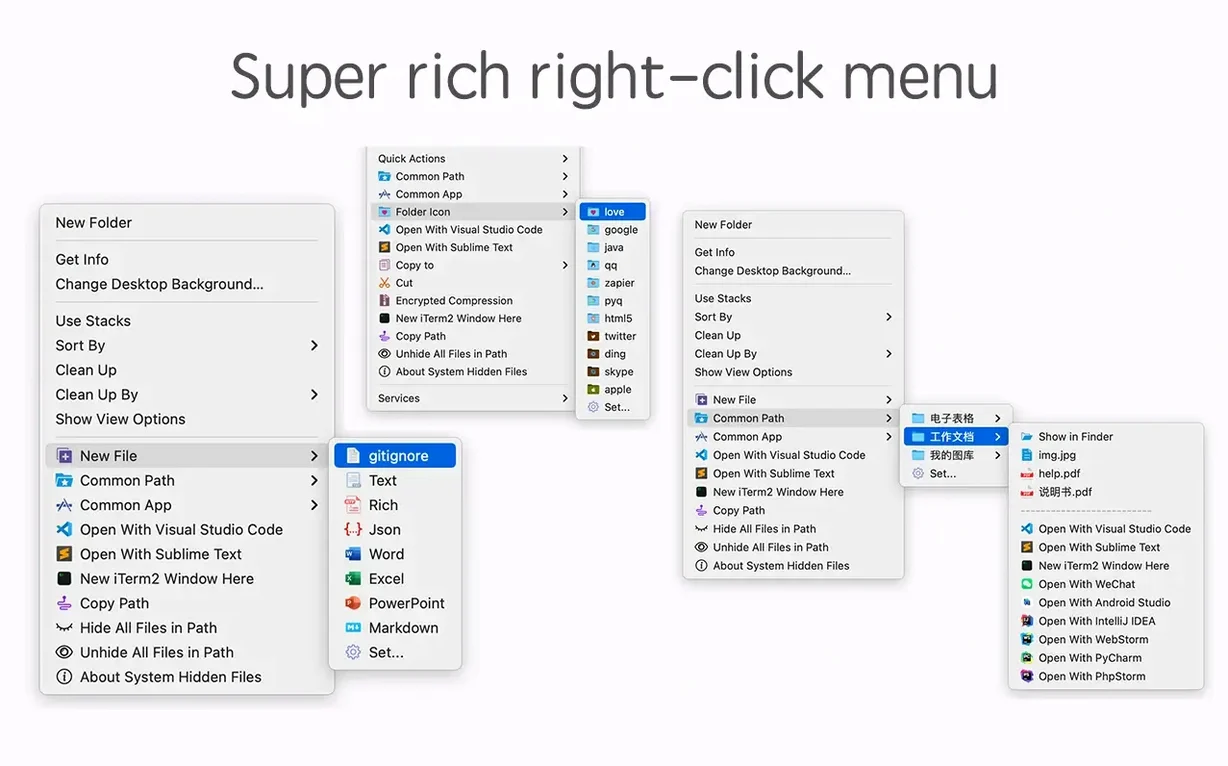
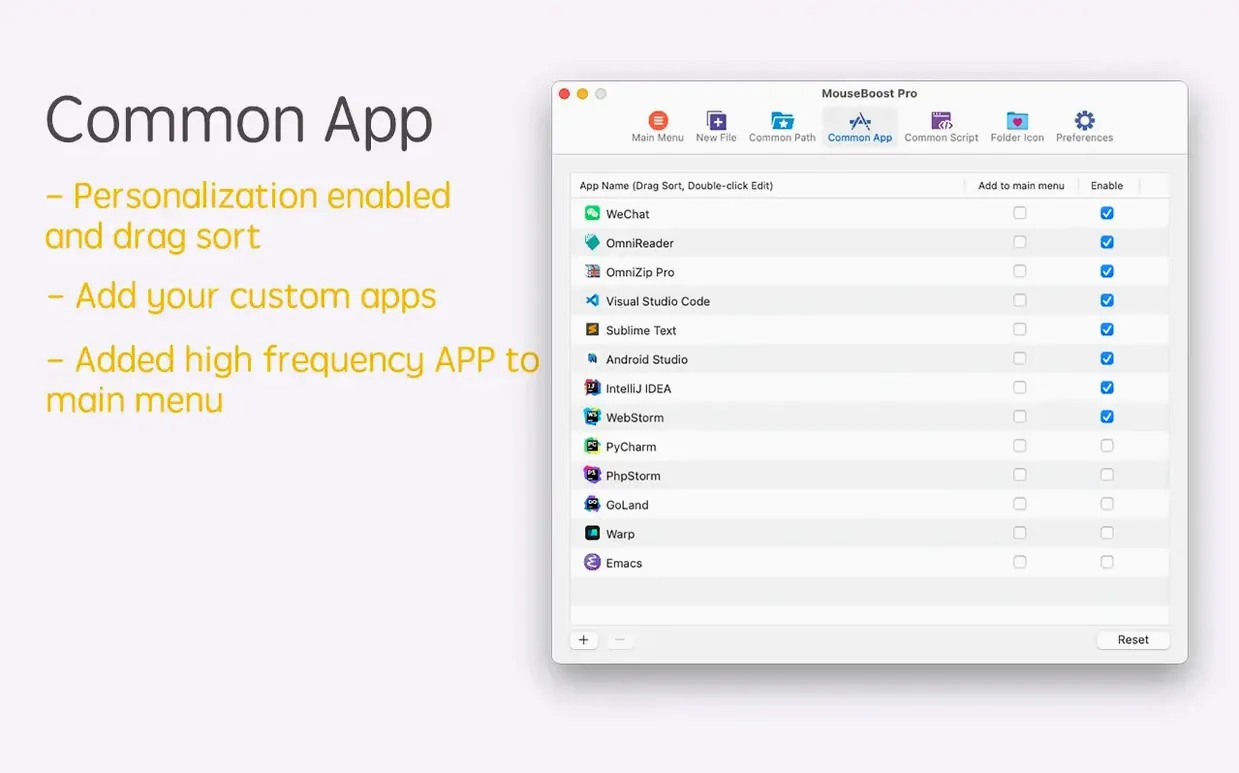
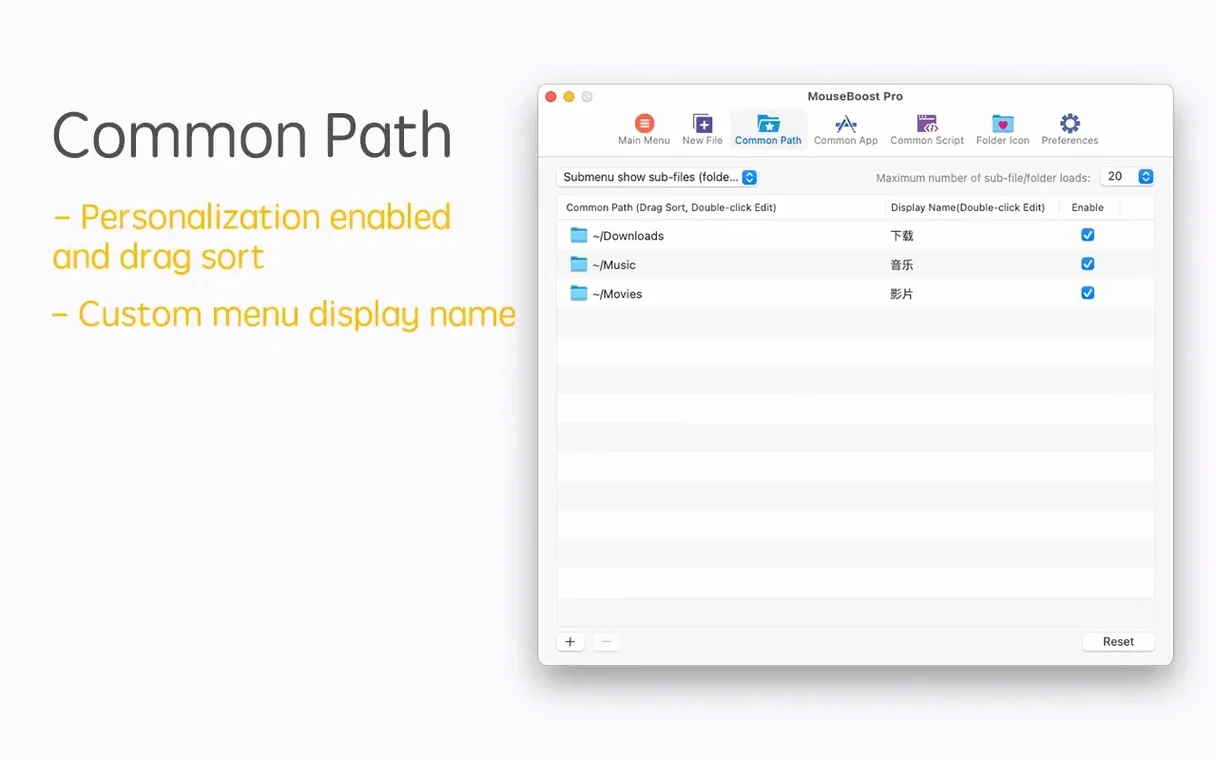
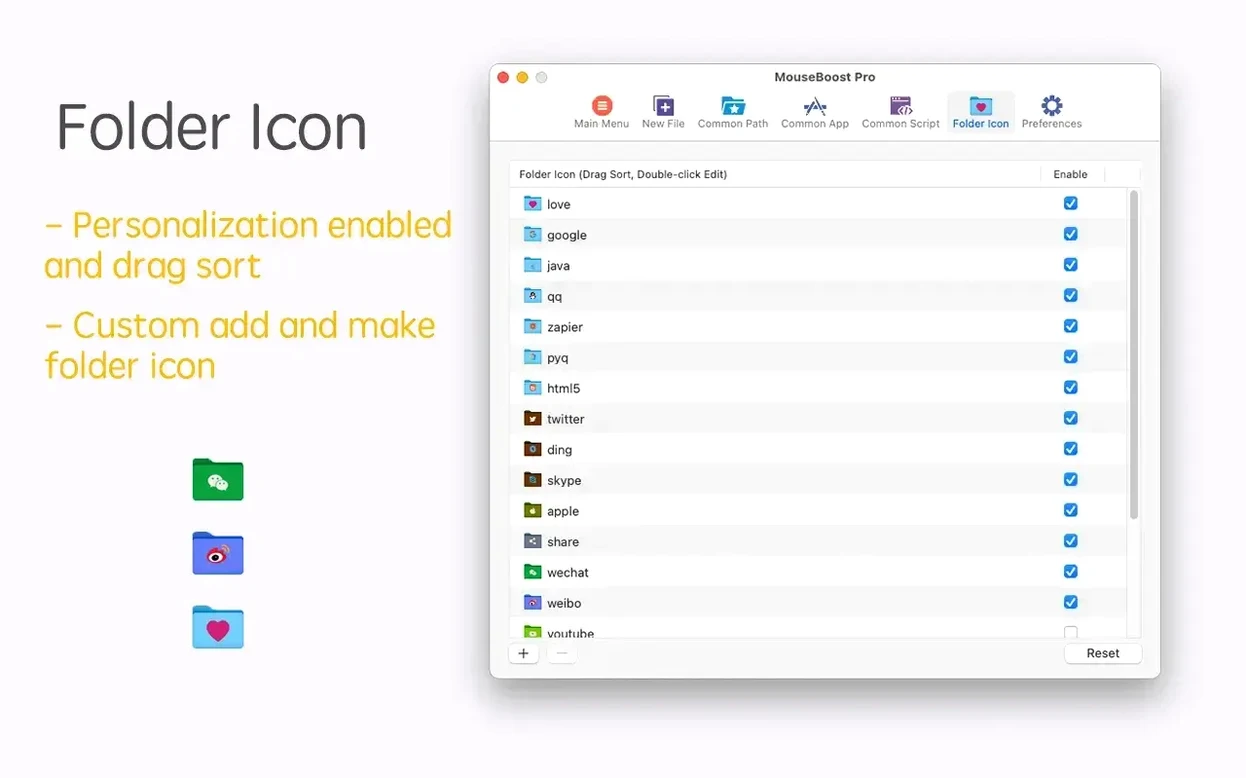
Finder is perfectly serviceable until you need to do something it simply cannot, like calculate a checksum or open a Terminal session right where you are. That's where MouseBoost Pro steps in, extending the right-click menu with actions you'll wish were built in.
Right-click extension — a set of over 30 small utilities that appear when you control-click a file or folder in Finder, putting common power-user tasks a single click away.
New folder — create a new file or folder from a template, or jump straight to a favourite directory without a long hunt through nested folders.
File operations — move, copy, cut, or permanently delete files with commands that feel closer to the keyboard than drag-and-drop ever does.
Terminal here — open iTerm2 and land directly in the selected directory. A small thing that saves a dozen cd keystrokes every single time.
Checksum calculator — grab MD5, SHA1, or SHA256 hashes from the menu. Useful for verifying downloads without launching a separate utility.
Encrypted compression — zip files with password protection built in, rather than compressing first and scrambling afterwards.
Folder icon — paste a custom image onto a folder to spot it at a glance, using the same menu.
Batch rename — rename groups of files with rules: insert text at a set position, pull names from a list, or control how deep the tool looks into a directory tree.
Right-click a folder to open iTerm2 or VS Code at that path
Developers get the obvious wins. Right-click a project folder, jump straight into iTerm2 or VS Code at that path, and you have skipped the part of the afternoon where you mutter at a cd command. The checksum calculator tucked into the same menu means verifying a disk image or a dependency happens without opening a separate terminal tab. It is not flashy — it is the kind of quiet efficiency that stops small frictions adding up.
Designers and photographers tend to live in Finder whether they like it or not. A folder full of exported assets with meaningless filenames becomes manageable once you can batch rename with a list you prepared earlier. Changing a folder icon on the fly — so the client’s logo sits on the job folder instead of yet another blue square — sounds cosmetic, but after the third time you open the wrong directory you realise it is not. The quick preview for folder trees, added in the current version, helps when you are hunting for that one comp buried three levels deep.
More broadly, anyone who has ever held down Option while dragging a file just to copy it somewhere will feel the difference. MouseBoost Pro turns the right-click menu into something you configure rather than something you merely tolerate. If you regularly move files between deeply nested folders, or you need a new blank Markdown file right now without launching an app, or you just resent how many steps a permanent delete takes in stock macOS, the utility earns its keep. It will not transform your workflow overnight; it will quietly remove enough papercuts that you notice when they are gone.
It extends the right-click menu without changing how Finder works
Does MouseBoost Pro replace Finder or sit on top of it? It sits alongside Finder and extends it. The right-click menu grows a new section of actions, but Finder itself behaves exactly as before. Nothing is taken away, and you can hide any menu item you never use. If you ever want the old menu back, you can disable the extension from System Settings without uninstalling anything.
Will it slow down Finder on an older Mac? The extension adds a small amount of work when you right-click — it checks which items are selected and builds the custom menu — but on any Mac that runs macOS 10.11 or later, the delay is hard to measure. The app itself is a universal binary, so Apple Silicon and Intel machines both run it natively. On a MacBook from 2015 you might notice a beat when calling up a menu on a folder containing thousands of files, but that is Finder catching its breath, not the extension.
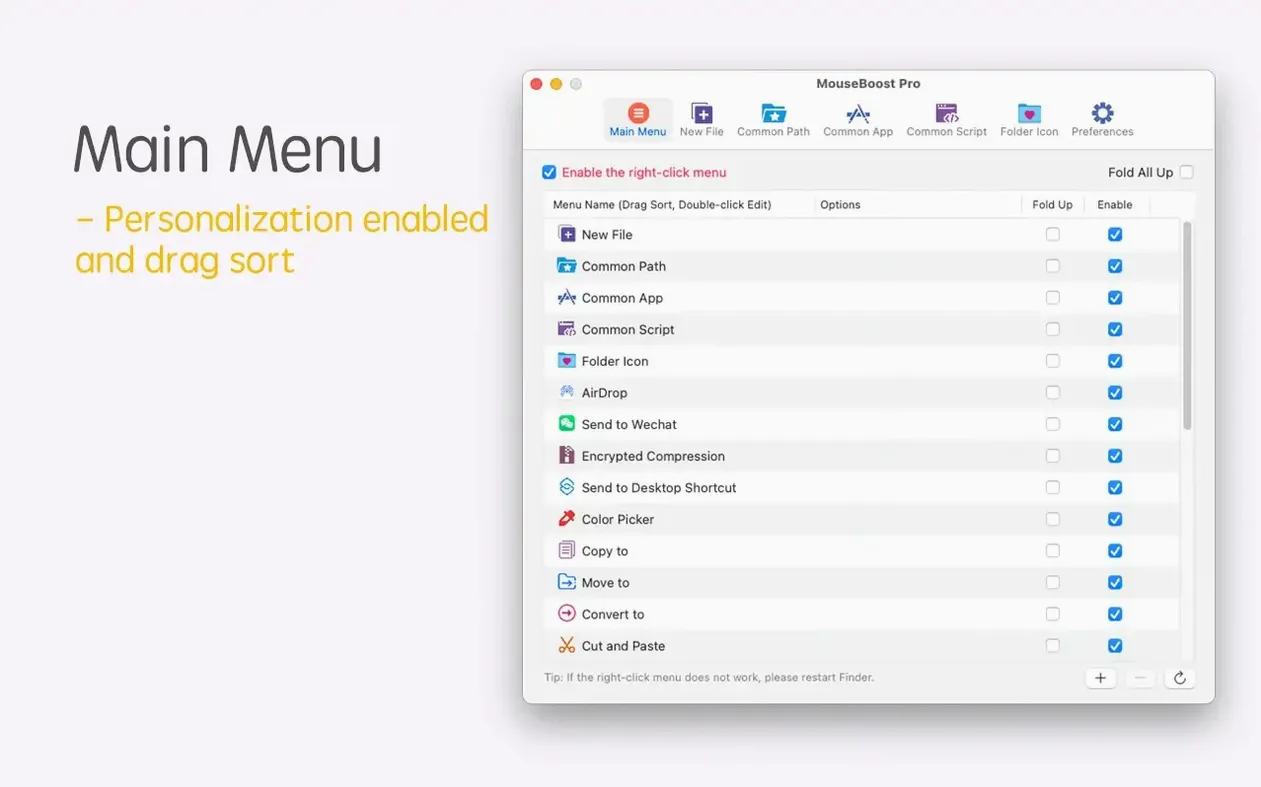
Can I pick and choose which menu items appear? Yes. The sorting and visibility controls let you prune the menu down to the half-dozen actions you actually use. You can also reorder everything. If the only thing you want is the Terminal-here command and the checksum calculator, you hide the rest and the menu stays lean.
It lives in the right-click menu, not the preview pane where Quick Actions sit
macOS already has Quick Actions and Automator workflows, but they live in a different part of the interface and take effort to build. MouseBoost Pro complements those rather than competing with them. Quick Actions appear in the Finder preview pane and the Touch Bar; MouseBoost Pro lives entirely in the right-click menu, so they rarely overlap. If you already use a launcher like Alfred or Raycast, the file-creation shortcuts and favourite-folder jumps might feel familiar, but having them directly on the selected item in Finder keeps your hands on the mouse when that is where they already are.
The Terminal integration is specific enough to matter: iTerm2, not just the stock Terminal app, and it switches to the directory you right-clicked. The editor shortcuts — VS Code, Sublime Text, Emacs — turn Finder into a project launcher for people who think in directories rather than documents. That sits well alongside Git clients and file managers like ForkLift, because you can use MouseBoost Pro for the quick in-and-out operations and leave the heavier lifting to dedicated tools.
For security-conscious users, the encrypted compression feature uses standard zip encryption, so any machine that can unzip a password-protected archive will open the result. No proprietary format to lock you in. And the permanent-delete command bypasses the Trash, which is worth knowing about if you also use file-recovery software — once you use it, the file is gone in the way that matters.
The first couple of days: small habits worth forming
Start by trimming the menu. The full set of over thirty actions can feel like a restaurant menu where you cannot find the dish you want. Open the preferences, hide everything, then switch on just five items: copy path, new file, terminal here, checksum calculator, and permanent delete. Use those for a day. The menu will feel like yours, not the developer’s.
Set up two or three favourite folders straight away. If you spend half your day in a Downloads folder that sprawls across three screens, or a client project folder buried in an external drive, adding them means you can jump there from any Finder window with a right-click on empty space. That one habit, once it sticks, changes how you navigate.
Try the batch rename on a folder of screenshots first, not a live project. The tool is forgiving — you can preview before committing — but getting a feel for how the position-based text insertion works on something disposable builds confidence. The rename-from-list option is especially handy once you realise you can paste a column from a spreadsheet straight into the list field.
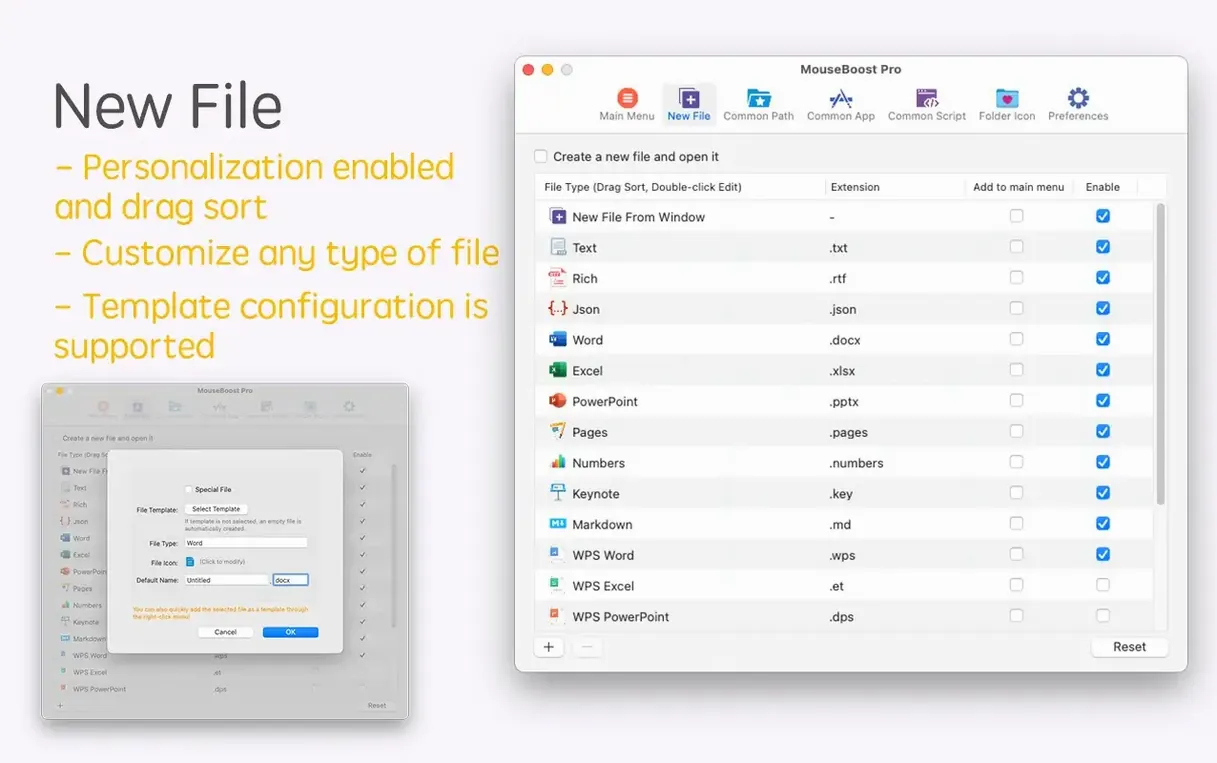
The new file templates deserve a few minutes of setup. Out of the box, you get common file types, but the custom creation feature means you can add a blank Python script, a boilerplate HTML file, or a Photoshop document with your usual canvas size. After you right-click and create one of those in the folder you are already looking at, going back to launching an app just to hit Save As feels like unnecessary ceremony.
Version 5.2.8 sharpens a few tools that power users lean on daily.
- Quick preview now works for folder trees, so you can glance at a structure without expanding it.
- Aspect ratio selection and automatic OCR copy arrive together—handy for screenshots that contain text.
- Scrolling capture is smoother, and batch renaming gains two new abilities: insert text at a chosen position and pull new names from a list. A maximum depth setting now applies to file and directory trees, keeping the view tidy.
- macOS 10.11 or later — works on everything from El Capitan right up to the latest release.
- Runs natively on both Apple Silicon and Intel 64‑bit Macs.
Questions I keep hearing
Which versions of macOS does MouseBoost Pro support?
It works on macOS 10.11 and later, and runs natively on both Intel and Apple Silicon Macs.
Questions from the class 0
Sign in or join the class to ask a question.
Nobody has asked anything yet. If you have used it on a real job, say what the file did.
Also on the Mac Apps shelf
The whole Mac Apps shelf Mountain Duck
Makes remote server storage appear as a local disk in Finder, no sync folder required.
Mountain Duck
Makes remote server storage appear as a local disk in Finder, no sync folder required.
 Movavi Screen Recorder
Schedules screen recordings in advance so you never miss a live demo at an awkward time.
Movavi Screen Recorder
Schedules screen recordings in advance so you never miss a live demo at an awkward time.
 Motionvfx - mTitle Cinematic
Drops fifty film-trailer title templates with lens flares and slow-building reveals into Final Cut Pro.
Motionvfx - mTitle Cinematic
Drops fifty film-trailer title templates with lens flares and slow-building reveals into Final Cut Pro.
 Movavi Video Converter
Converts media into Opus audio, WebM video, and image sequences, not just MP4 files.
Movavi Video Converter
Converts media into Opus audio, WebM video, and image sequences, not just MP4 files.
 Movavi Video Editor
Turns raw clips into social videos, family montages, or short business promos in thirteen languages.
Movavi Video Editor
Turns raw clips into social videos, family montages, or short business promos in thirteen languages.
 MotionVFX mModules
Fills Final Cut Pro’s Titles Browser with sixty self-contained animated elements and backgrounds.
MotionVFX mModules
Fills Final Cut Pro’s Titles Browser with sixty self-contained animated elements and backgrounds.
 Movavi Video Suite
Bundles video editing, file conversion, and screen recording into a single three-in-one tool.
Movavi Video Suite
Bundles video editing, file conversion, and screen recording into a single three-in-one tool.
 MotionVFX - mLowers Universal for FCP
Places seventy animated lower-third titles onto your timeline without jarring style clashes.
MotionVFX - mLowers Universal for FCP
Places seventy animated lower-third titles onto your timeline without jarring style clashes.