 ASPNetWorld

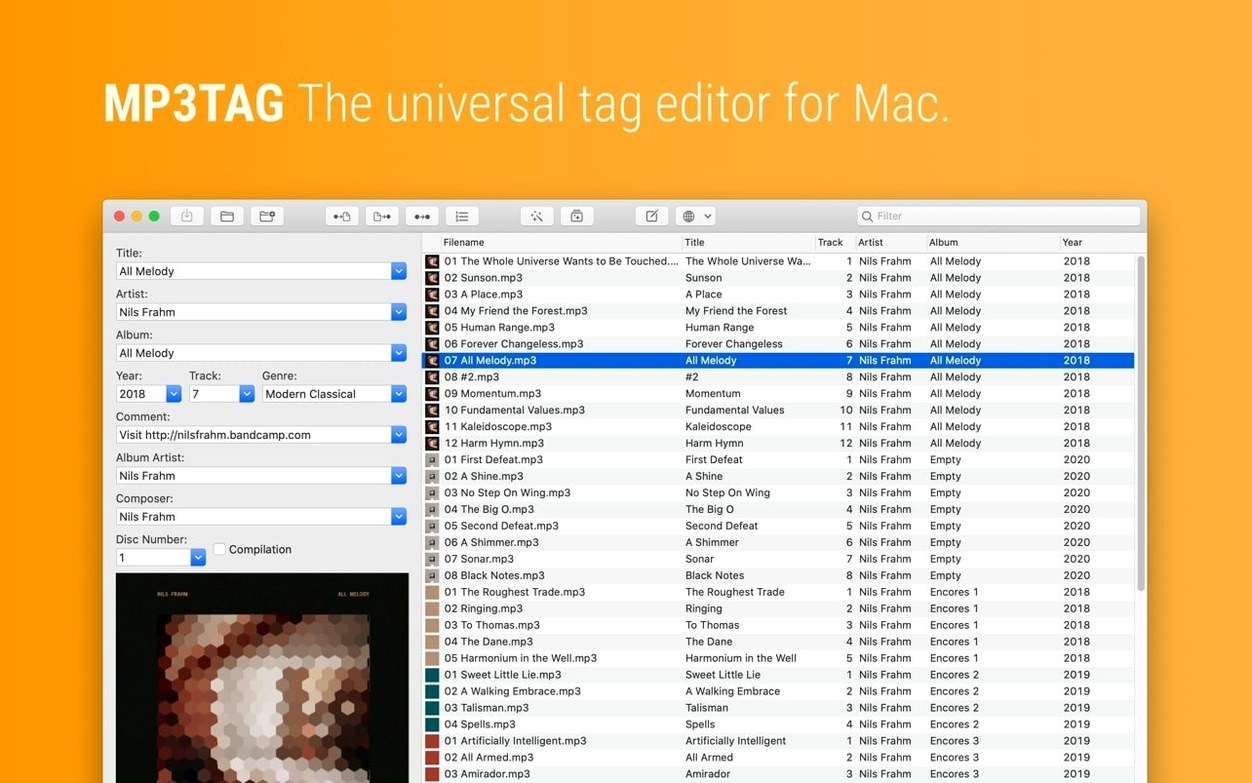
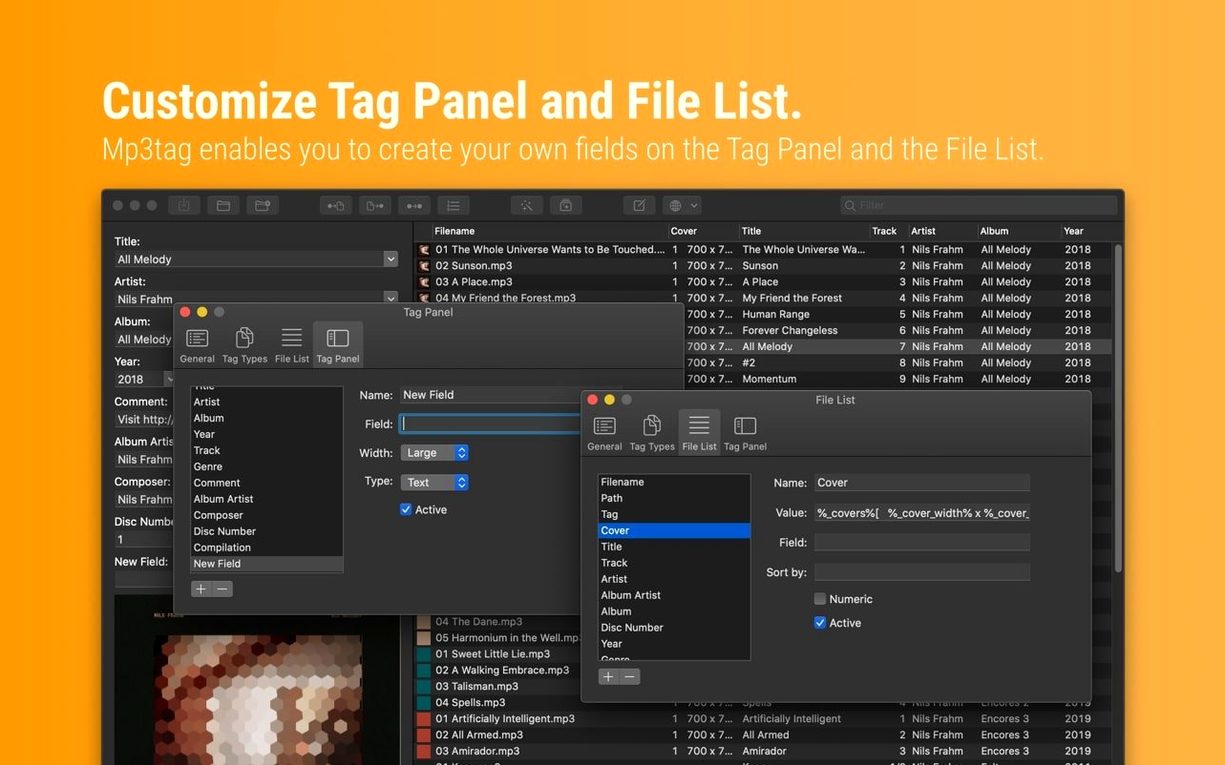
Mp3tag runs on any Mac from macOS 10.14 Mojave onward, with native support for both Intel processors and Apple Silicon chips — so M1, M2 and M3 machines run it without Rosetta translation. The first time you launch it you might notice how quickly it scans a folder of music, because it was written for this platform rather than ported as an afterthought.
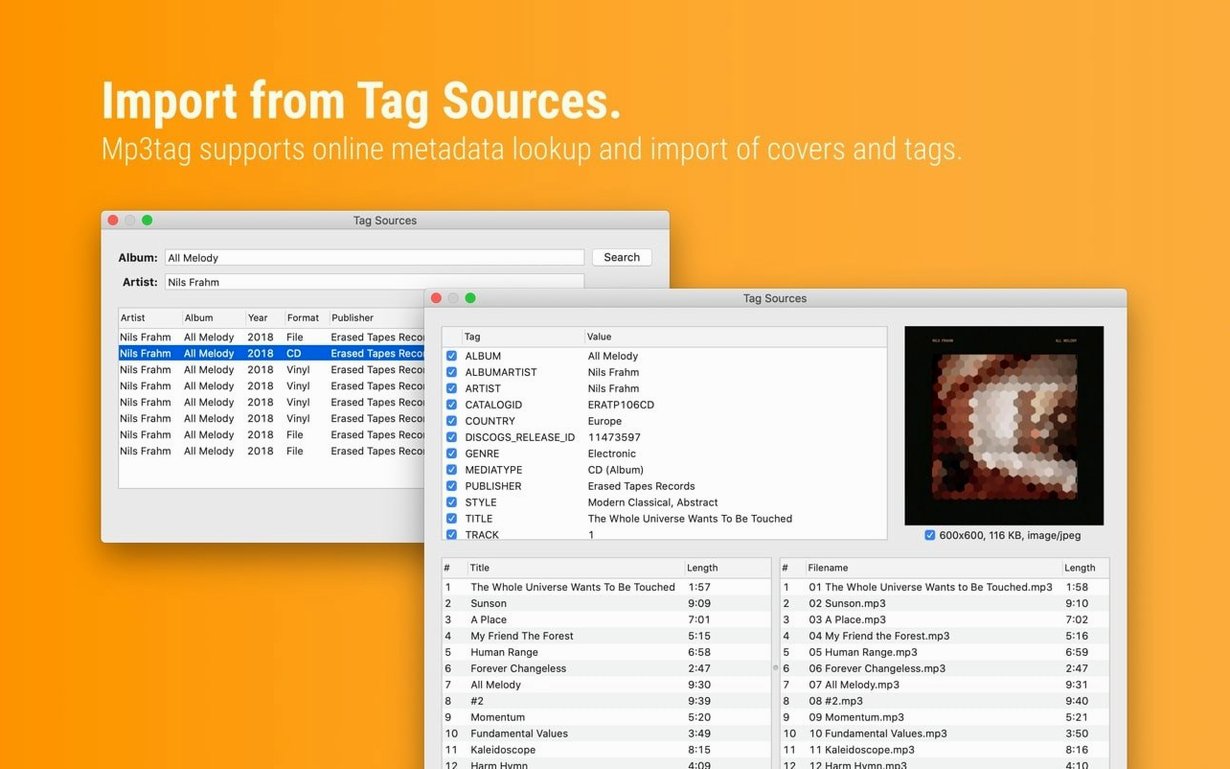
Start by dragging in a messy album. Select all the tracks and open the Tag Sources panel on the left. Pick Discogs or MusicBrainz — either will search by the existing album title or artist name, and you can watch the correct track titles, years and genres fill themselves in. A quick tip: if you have a compilation where the artist field is a mess, use the Converter action right away. Highlight the offending column, choose Actions, and set a rule that replaces "Various" with nothing, or swaps underscores for spaces across every selected file in one pass.
Cover art gets the same batch treatment. Pull up the Cover Search, choose your source, and drag the image you want onto the selection — every file receives it simultaneously. If the embedded artwork is enormous and bloating your files, head into the Converter and resize it down to a sensible 600 pixels or switch from PNG to JPEG, all without opening an image editor.
Once the tags look tidy, rename the actual files to match. Highlight everything, open Convert and pick Filename – Tag. A pattern like %artist% - %title% will pull the freshly cleaned metadata into the filenames themselves. The relationship works the other way too: if your filenames are already perfect but the tags are empty, use Tag – Filename to populate them from the existing file names before you do anything else.
The cover art and Tag Panel bugfix that stopped unsaved work from vanishing
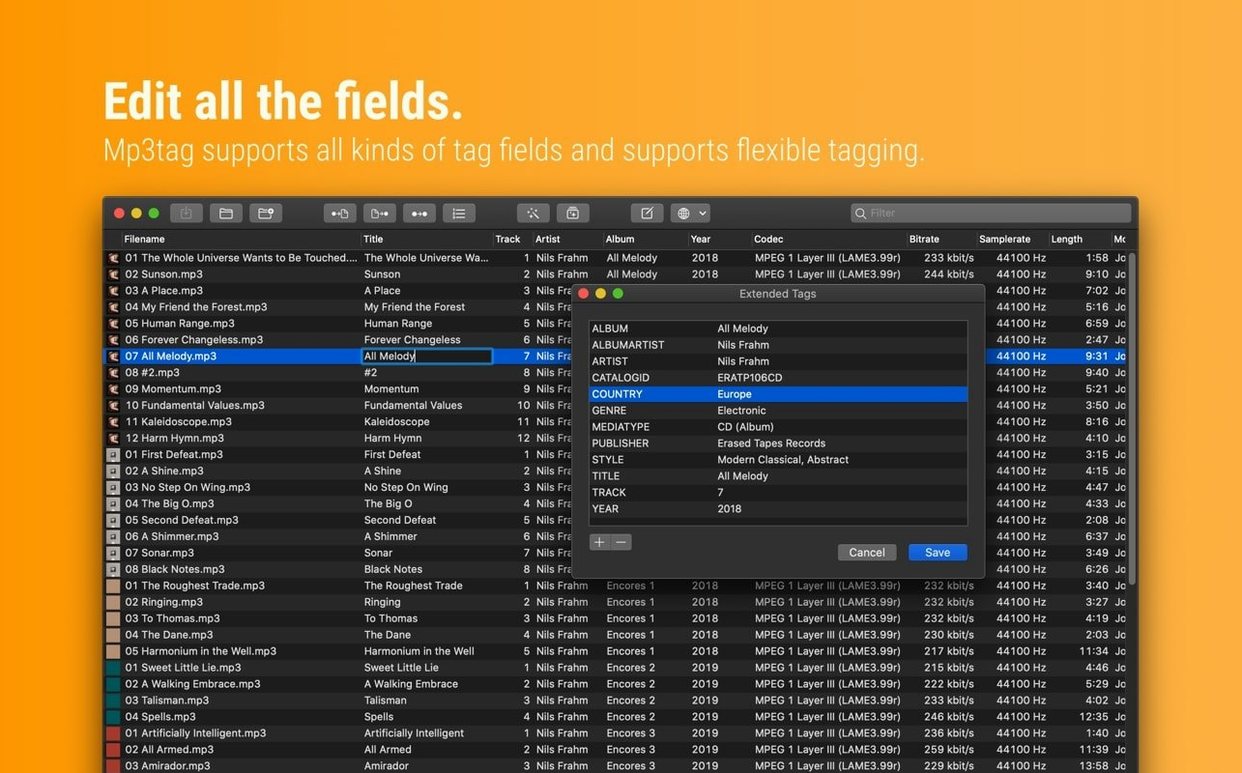
The 1.14.1 release fixed a few gremlins that had been quietly tripping people up, particularly around cover art and Tag Panel behaviour. Before this update, if you opened the Extended Tags window while you had unsaved changes in the Tag Panel, those edits would vanish the moment you returned — a frustration that hit anyone who likes to check custom fields or composer data before committing their main edits. That's now sorted, so you can hop between panels without losing work.
More importantly, the same save-guarding now extends to the entire left-hand toolkit. Previously, running a Tag Source lookup, a Converter rule, the Auto-Numbering wizard, or even an Action group would silently discard whatever you had typed into the Tag Panel if you hadn't hit Save first. The fix here is subtle but real: you can now tweak a title by hand, then click over to MusicBrainz to grab a missing year, and both changes stick.
On the precision front, BPM handling got smarter. Older versions truncated decimal tempo values — so "128.5" became "128" in MP4 files — which mattered to anyone beat-gridding in DJ software. Now the fractional value survives the write, keeping your tempo maps accurate without rounding surprises.
A full tagging workflow: cleaning a live recording
Imagine you have just pulled a two-hour DJ set off a recorder. It sits as a single WAV file called REC_2026-09-15_22-03.wav, and there is no metadata at all. Here is how Mp3tag turns it into something you would actually want in a library.
Drag the file in. The Tag Panel on the right shows blank fields. First, fill the obvious bits by hand — artist name, a descriptive title for the set, and the genre. Now open the Converter, choose Tag – Filename, and point the source format at %artist% - %title%. Mp3tag reads the tags you just typed and renames the file accordingly. That alone saves you a trip to Finder.
Next, set the year and a venue name. Click the Extended Tags button (the little tag icon with a plus) and add a custom field called VENUE. Type the club name. If the recording has a tracklist you found online, paste it into the Comment field — Mp3tag handles long text without truncation.
Now for the cover. Open Cover Search and pick Discogs as the source; even if the exact release is not listed, you can search for the artist and drag across any press-shot that fits. The image embeds directly into the WAV file's metadata chunk, and if it lands at 2000 pixels wide, you can open the Converter's Cover resize action, set a maximum of 800 pixels, and knock the file size down by several megabytes without a visible quality drop.
Finally, select the file and choose Actions → Action Groups. Create a group called "DJ Set Cleanup" that chains three steps: replace any double spaces with single spaces in all tag fields, capitalise the first letter of every word in the title, and write the current timestamp into a custom EDITED field. Save the group; next time a fresh recording lands, one click runs the lot.
Filter the Tag Panel by typing part of a field name
Several of Mp3tag's best moves hide in plain sight. One of them is the Tag Panel filter field — the narrow strip at the bottom of the panel that nobody reads. Type a fragment of a field name there (say, "bpm") and the panel instantly collapses to show only matching fields. When you are working with FLAC files that carry two dozen Vorbis comments, this saves you from scrolling through catalogue numbers and label codes just to reach the tempo line.
Another gem is right-click drag in the file list. Select a block of tracks, right-click the artist column, and drag downward — Mp3tag fills the artist name into every highlighted row without you typing it once. The same trick works for album, year, and genre. It is faster than the multi-edit panel because it targets a single field and leaves everything else untouched.
Keyboard shortcuts deserve a mention too. Cmd+Shift+T opens the Tag Sources panel directly, skipping the mouse. Cmd+Shift+A jumps to the Actions window. And if you hold Option while clicking the "Save" button in the Tag Panel, Mp3tag saves and immediately refreshes the display from disk — useful when another application has altered the same files in the background.
One more: the column browser supports inline editing. Double-click a value in the list itself, type the correction, and press Return. You never need to touch the Tag Panel for a quick typo fix on a single track, which keeps your hands on the keyboard and your eyes on the grid.
Turning a folder of raw MP3s into tagged podcast episodes
Ellen runs a weekly interview podcast. Each episode arrives from her editor as a folder of MP3 files named episode-72-guestname-raw.mp3 with no tags, no cover, and inconsistent capitalisation. She opens Mp3tag, drags in the folder, and the first thing she does is select all files and run Tag – Filename with a custom format string: Episode %dummy% - %dummy% won't work, so she builds it differently.
She uses the Auto-Numbering wizard first, setting the track number to increment from 1 across all files. Then she opens the Converter and selects Format value for the Title field, applying sentence case to the filenames she has already extracted into a temporary field. With the titles looking professional, she hits Discogs to pull in the show's series-level artwork — the same thumbnail she embeds in every episode — and resizes it to 300 pixels square so the RSS feed does not choke on file size.
Her final step is an Action group she built months ago. It strips leading and trailing spaces from every tag, removes the word "final" from filenames (a leftover from her editor's naming convention), and writes her standard copyright string into the Copyright field. She saves, renames the files to %track% - %title%, and drags them into her hosting platform. The whole process takes under two minutes.
Version 1.14.1 tidies up a few stubborn behaviours that could catch you out during a long tagging session. If you edited cover art in the Tag Panel and then opened Extended Tags before saving, those cover changes used to disappear — that is now fixed. The same goes for unsaved Tag Panel edits being ignored when you moved straight to Cover Search, Converters, Auto-Numbering or Actions. A crash that appeared on macOS 27 when adding action groups in the Actions Groups window has been patched, and decimal BPM values written to MP4 files now behave as they should, truncated to whole numbers rather than carrying spurious decimal places.
- macOS 10.14 or later
- Intel 64-bit or Apple Silicon processor
Questions from the class 0
Sign in or join the class to ask a question.
Nobody has asked anything yet. If you have used it on a real job, say what the file did.
Also on the Mac Apps shelf
The whole Mac Apps shelf Movist Pro
Plays video files using either QuickTime or FFmpeg as the engine behind each codec.
Movist Pro
Plays video files using either QuickTime or FFmpeg as the engine behind each codec.
 m’s HalfTone
Brings hands-on, animatable dot-pattern effects into After Effects with motion and transparency control.
m’s HalfTone
Brings hands-on, animatable dot-pattern effects into After Effects with motion and transparency control.
 Movavi Video Suite
Bundles video editing, file conversion, and screen recording into a single three-in-one tool.
Movavi Video Suite
Bundles video editing, file conversion, and screen recording into a single three-in-one tool.
 Multitouch
Lets you assign custom finger swipes and taps to control apps without touching the keyboard.
Multitouch
Lets you assign custom finger swipes and taps to control apps without touching the keyboard.
 Movavi Video Editor
Turns raw clips into social videos, family montages, or short business promos in thirteen languages.
Movavi Video Editor
Turns raw clips into social videos, family montages, or short business promos in thirteen languages.
 MuMu Player Pro
Runs Android apps and mobile games on your Mac as if they were tiles in your dock.
MuMu Player Pro
Runs Android apps and mobile games on your Mac as if they were tiles in your dock.
 Movavi Video Converter
Converts media into Opus audio, WebM video, and image sequences, not just MP4 files.
Movavi Video Converter
Converts media into Opus audio, WebM video, and image sequences, not just MP4 files.
 Movavi Screen Recorder
Schedules screen recordings in advance so you never miss a live demo at an awkward time.
Movavi Screen Recorder
Schedules screen recordings in advance so you never miss a live demo at an awkward time.