 ASPNetWorld
Pieoneer runs on any Mac with an ARM or x86 64-bit processor, provided you have macOS 15.6 or later. There is no separate build to hunt down — the same download covers Apple Silicon and Intel machines, so it slots into a modern workflow without fussing over architecture.
A pie menu that puts launchers and switchers under your hotkey
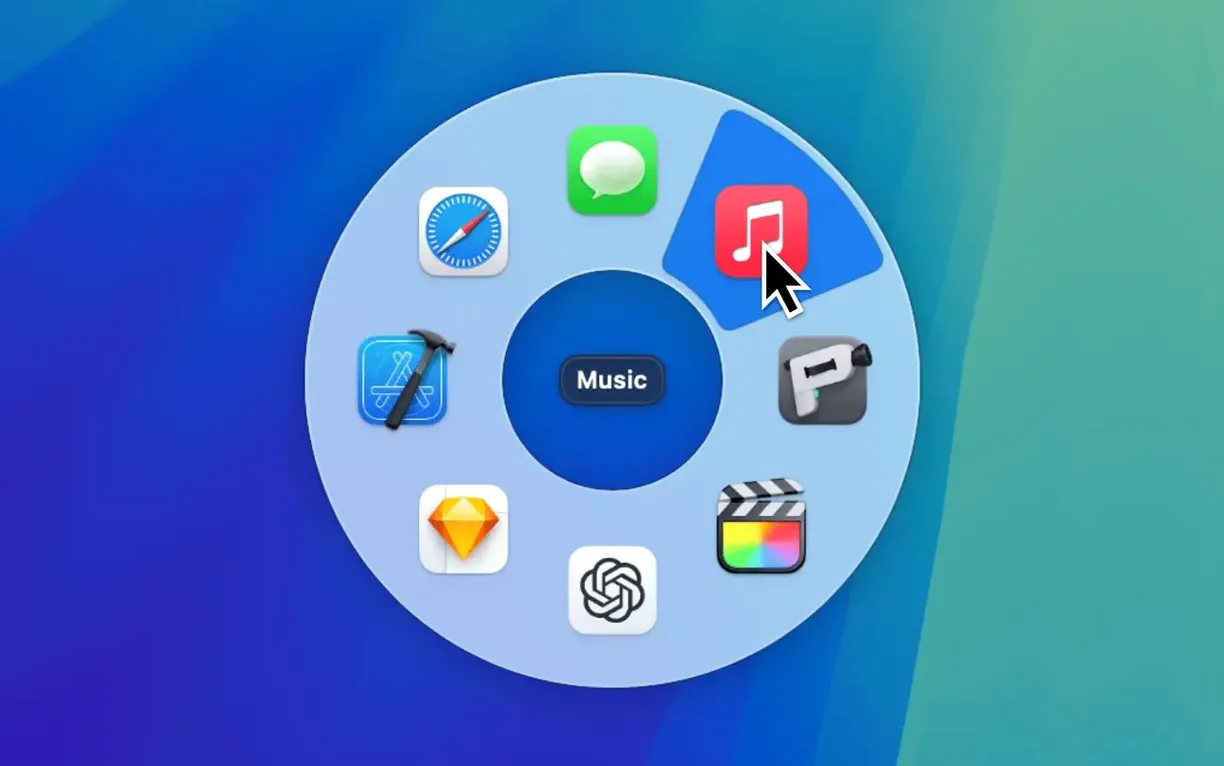
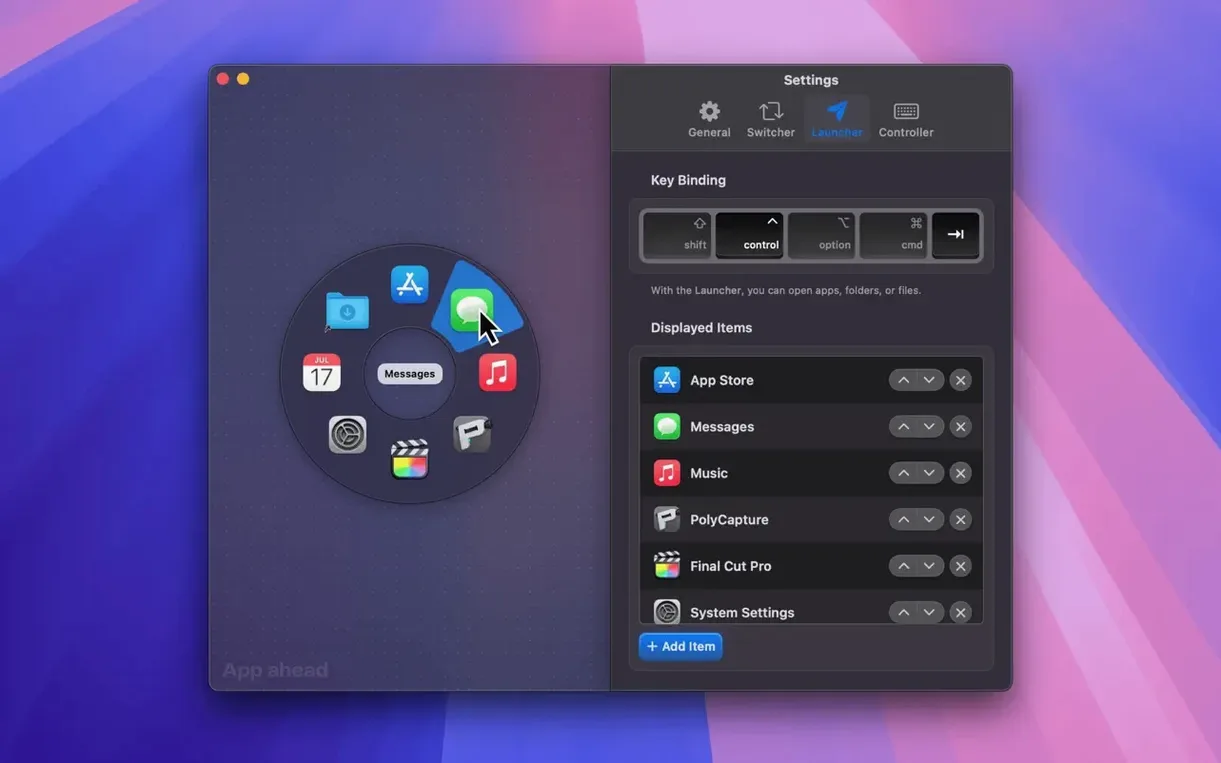
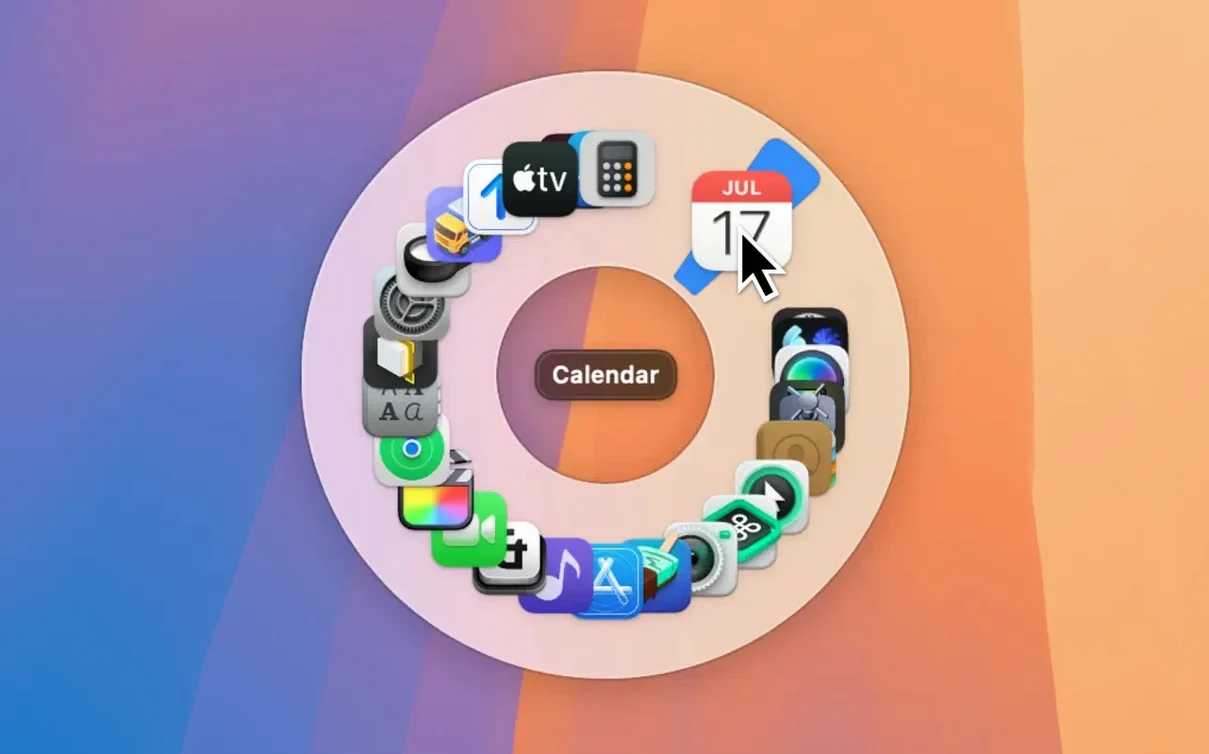
The heart of Pieoneer is a pie menu that appears either directly under your pointer or centred on screen, summoned by a configurable hotkey. The Launcher side of that menu holds apps, folders, files and documents — you can keep adding items without a stated limit, building a radial command centre that grows with your habits. When you need to jump between already-open applications, the Switcher view takes over, letting you move from one running app to another in the same circular overlay. Animation smooths the transitions, though the real gain is in muscle memory: the same gesture always lands on the same wedge, so after a few days your fingers do the work before your eyes catch up.
What stayed reassuringly the same
Pieoneer has always been about giving macOS a second opinion on app launching and switching — not replacing the Dock or Command-Tab outright, but offering a customisable sidekick that you reach for when the linear list feels too slow. The interface stays flexible: colours, sizes and the number of slices adapt to your taste rather than forcing a designer's preference. Under the hood, the app remains a native citizen, built by App ahead GmbH for the Mac it lives on, with interface translations covering English, German, Spanish, Italian, Simplified Chinese, Korean, Portuguese, French, Hindi and Japanese. That linguistic spread says something about how universal the pie-menu instinct turns out to be — point in a direction, click, and you are there.
Quiet the morning chaos with Command-Shift-Space
Imagine a Wednesday morning. Mail pings, a Slack thread has gone rogue, and you need three apps and an Automator folder open before the coffee cools. You tap your assigned hotkey — perhaps Command-Shift-Space — and a radial menu fans out under the pointer. The Launcher's top-right wedge holds your DAW; top-left, a project folder you drag into the menu yesterday. A quick flick northeast opens the folder. Another hotkey tap, this time in Switcher mode, shows every running app except Finder and a handful of distractions you excluded from the list. One nudge down and to the right lands on Safari, already queued to a reference page. By the third use, the motion feels less like clicking a menu and more like pointing where you want to go — the pointer becomes a compass needle.
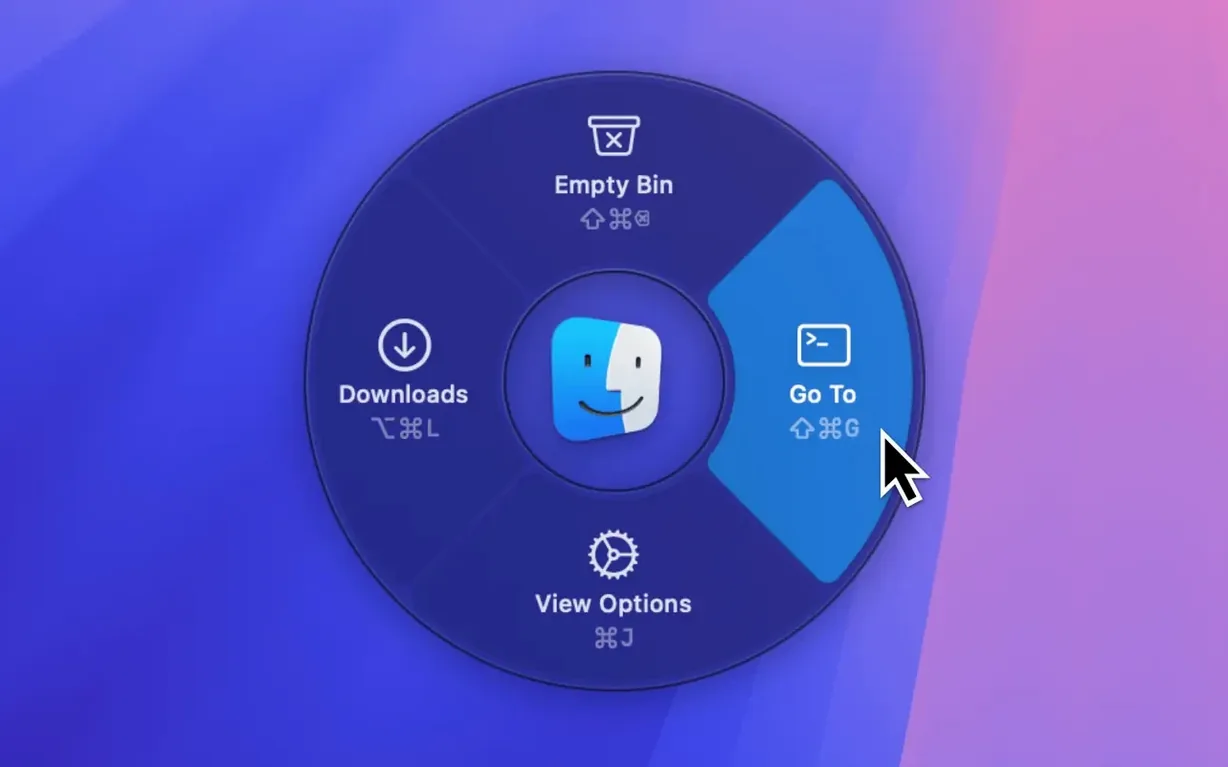
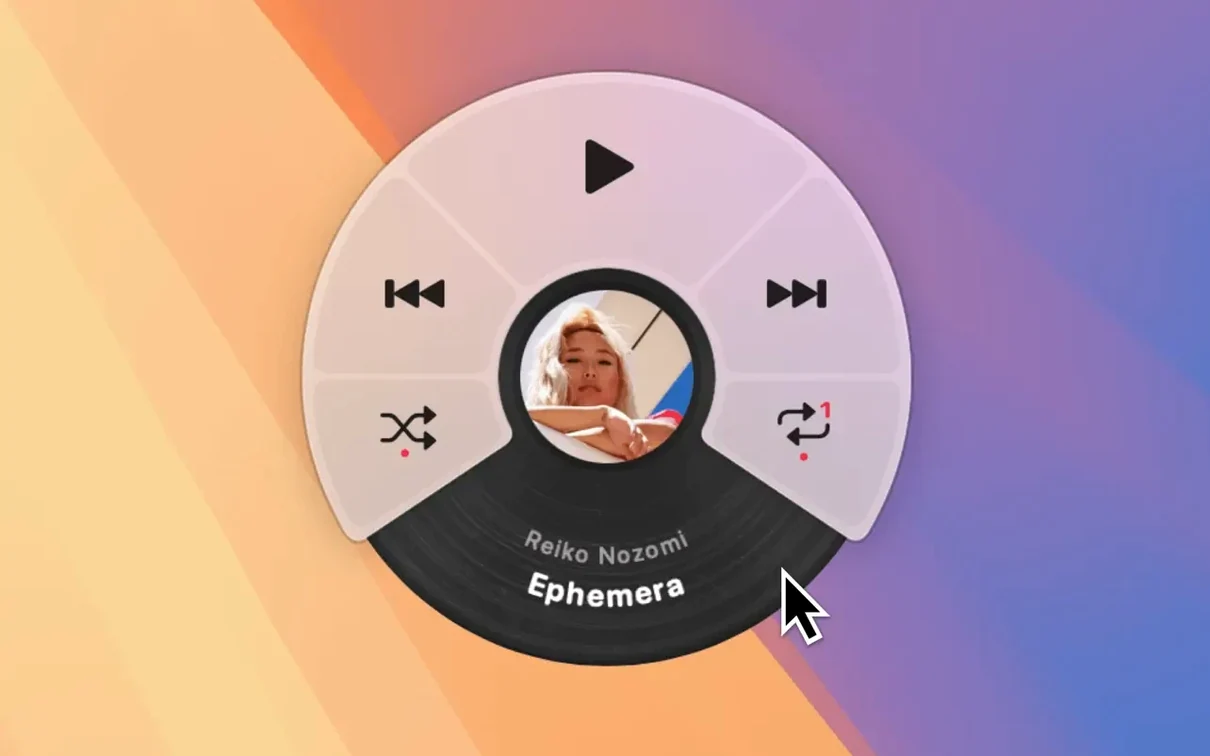
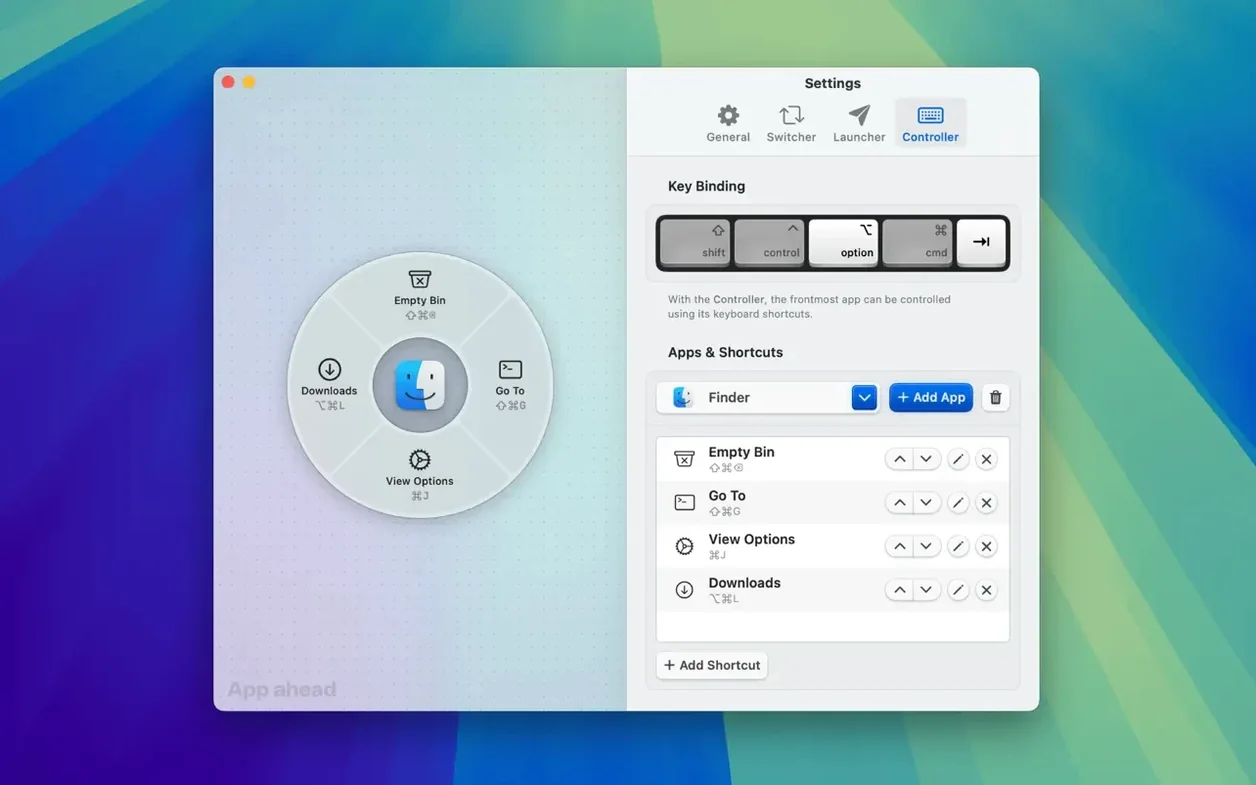
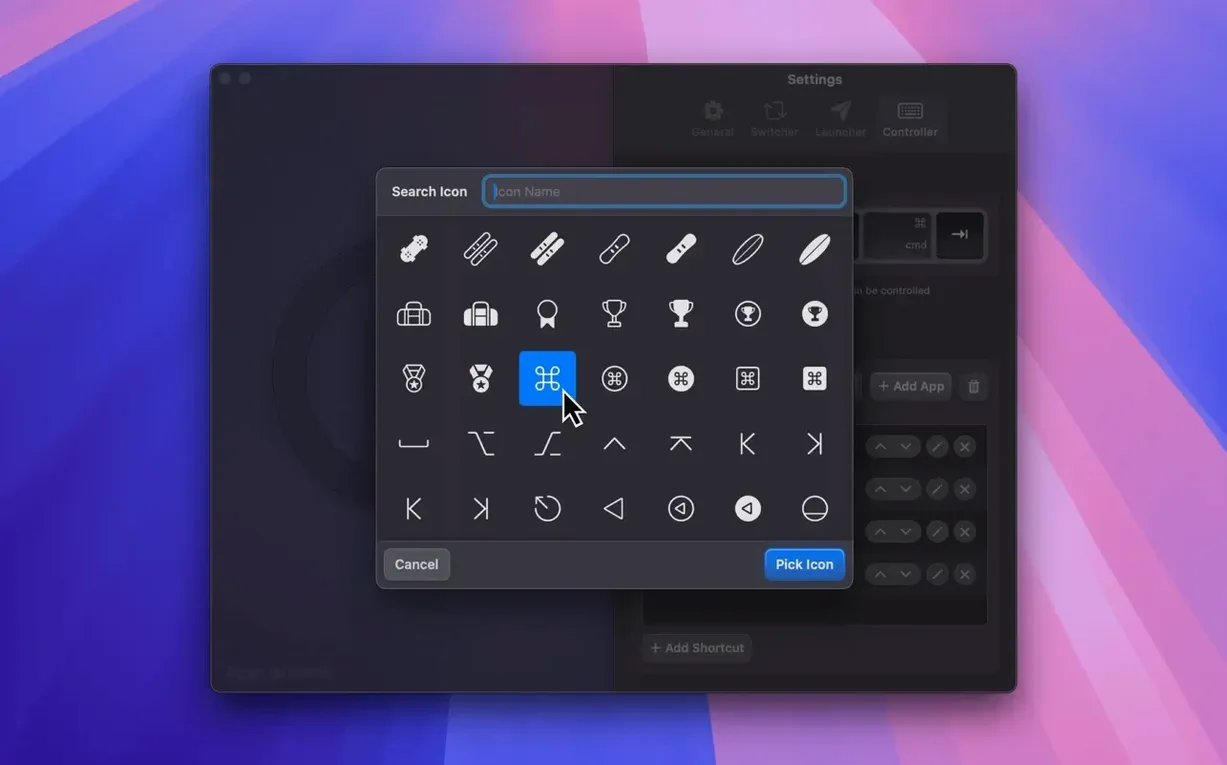
Mid-morning, you remember the Shortcuts Controller can simulate keystrokes inside apps that never quite agree to share their commands. You assign a pie slice to send Command-Option-T to a graphics editor that buries its transparency lock three menus deep. The shortcut fires from inside the pie, no scripting, no AppleScript editor open. For a music breather, a fourth pie wedge — configured for the Music Remote — brings up a compact set of transport controls. One click skips the track in Spotify; a long press in the Doppler wedge pauses playback without leaving the document you are editing. The whole session runs on the same principle: summon the ring, move in the direction you memorised, and the Mac responds. After a few days of this, the Dock begins to feel like a road you only take when someone else is watching.
Version 1.15 tightens the animation feedback loop
With version 1.15, the day-to-day difference is quieter than a feature list suggests. Earlier builds laid the groundwork — the hotkey summoning, the Launcher and Switcher split, the customisable interface — but 1.15 tightens the feedback loop. The animation, always present, now feels more about confirming a choice than decorating it; a brief radial pulse tells you the action registered without stealing a beat. Behind the scenes, the architecture covers both ARM and x86 64-bit Macs equally, which matters less as a bullet point and more as a promise that the pie menu responds the same way on an M3 MacBook Air as on an Intel iMac. The thirty-odd milliseconds you save by not hunting a Dock icon become the point of the tool.
Also noteworthy in everyday use: the Shortcuts Controller grew more tolerant of apps that guard their menu bar jealously. Where a manual hotkey might land on deaf ears, the pie-triggered version now gets through more reliably — small mercies when you are switching brush sizes in a painting app that predates macOS shortcuts conventions. The Music Remote, meanwhile, gained support for Doppler alongside Apple Music and Spotify, so the pie menu can manage a local lossless library with the same gesture as a streaming queue. None of this rewrites the app; it just sands down the friction.
Don’t replace the Dock on day one
The most common beginner error is treating Pieoneer as a Dock replacement on day one. The app works best when you build it gradually — two or three Launcher items at first, maybe a single Switcher wedge for your text editor, and the Music Remote only if you actually listen while you work. Overloading the radial menu with twenty slices before your fingers know which direction is which turns a speed tool into a puzzle box. Start small, add items as the directions become instinctive.
Another stumble: forgetting that the Switcher can exclude apps. New users sometimes summon the pie during a busy session and find a carousel of every background utility, menu-bar helper and Finder window spinning into view. Spending two minutes in preferences to hide those from the Switcher list makes the menu feel twice as sharp. Similar logic applies to the Shortcuts Controller — it is easy to assign a pie wedge to a shortcut that the target app ignores because of a conflict. Test the keystroke manually first, then map it to the pie menu.
A subtler misstep involves the hotkey itself. If you bind the pie to a combination already claimed by macOS or another utility, the menu simply never appears, and the silence is confusing. Pick a chord you can hit with one hand and check it in System Settings before committing. Once the hotkey settles, the rest follows — muscle memory does not need a manual, but it does need a clean starting lane.
- macOS 15.6 or later
- Apple Silicon or Intel 64-bit processor
Questions I keep hearing
Does Pieoneer work with both Apple Silicon and older Intel Macs?
Yes, the current version is a universal binary that runs natively on ARM and x86 64-bit Macs, so there is no emulation overhead on either architecture.
Questions from the class 0
Sign in or join the class to ask a question.
Nobody has asked anything yet. If you have used it on a real job, say what the file did.
Also on the Mac Apps shelf
The whole Mac Apps shelf Picview - Image Viewer
 Pixea Plus
Displays photos and raw files instantly without importing them into a library first.
 PhotoScape X Pro
Browses, fixes and collages a folder of snaps inside a single welcoming window.
 Pixelmator Pro
Develops raw shots and composites artwork in a single-window photo editor.
 Photomator
Hands you professional colour and curve controls layered on top of your Apple Photos library.
 Pixelsnap
Measures the exact pixel distance between any two points on your screen.
 Photo Mechanic
Ingests and culls thousands of raw photos at speed before your main editor finishes loading.
 Pixologic Zbrush
Sculpts digital clay into high-detail models using pixels that carry depth and material data.