 ASPNetWorld
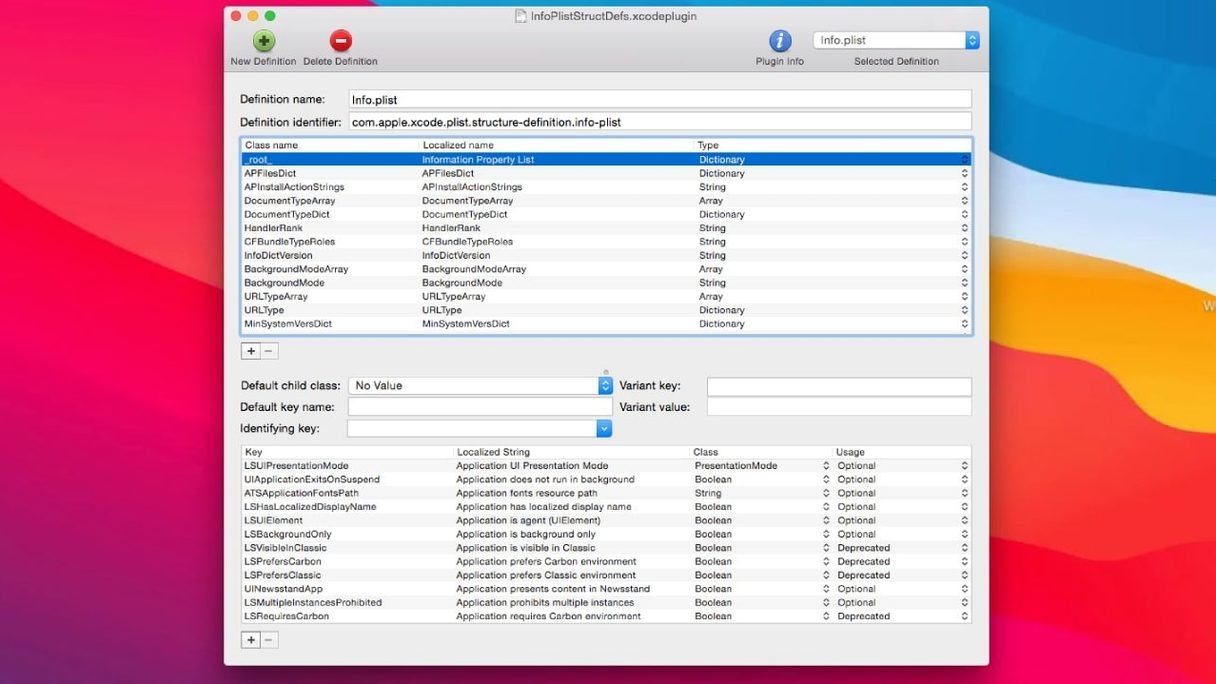
If you have ever opened a macOS .plist file and found yourself squinting at a wall of nested tags, you already know the problem PlistEdit Pro sets out to fix. It turns the raw XML behind preference files, configuration data and JSON documents into something a person can actually read and rearrange.
Start with these three things
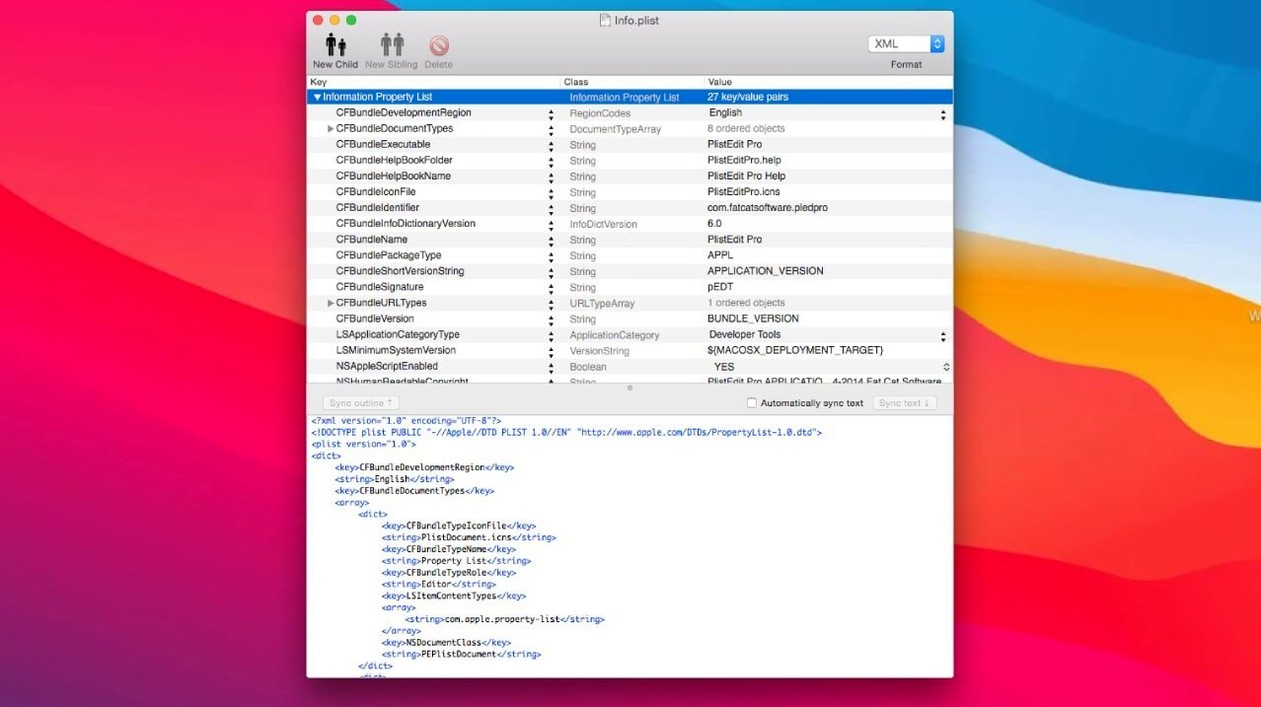
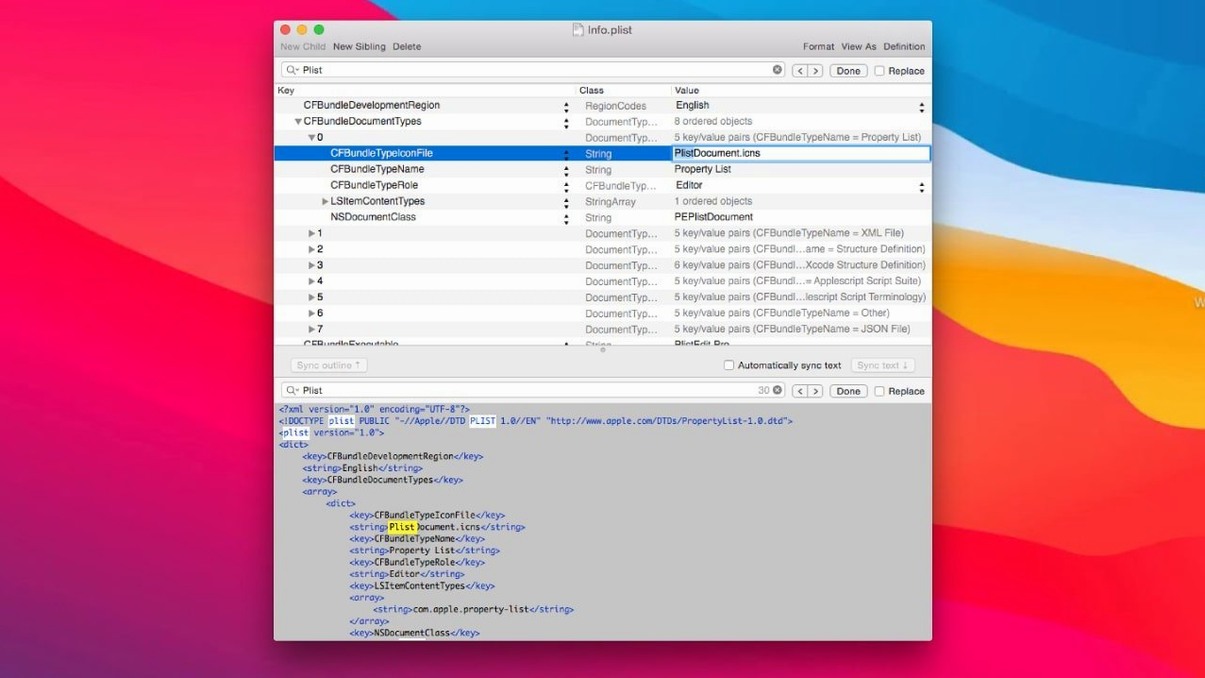
Outline view and plain text — The outline is where the file reveals its structure: dictionaries, arrays and values arranged as a collapsible tree. You can drag items to reorder them or copy a chunk of the tree and paste it into another file. Switch to the plain‑text pane when you need to see the raw source or make a quick find‑and‑replace edit.
Preferences browser — Instead of hunting through hidden Library folders, open the browser built into the app. It lists the preference plists for apps on your Mac, so you can inspect (and gently tweak) the settings a program has stored. The toolbar menu now holds the browser’s filter checkboxes, keeping the window clean.
Multi‑level undo — Property list editing rewards caution, and a generous undo history means you can step back through several changes. That is especially handy when you are learning how a complex plist fits together.
PlistEdit Pro also opens JSON files, displaying them in the same outline you would use for a property list. And if you prefer working in Terminal, the included pledit tool lets you query and modify plists from the command line.
A start‑to‑finish task: editing a sandbox entitlement
Imagine an iOS developer who needs to add a temporary exception to an app’s sandbox so it can read the user’s Movies folder during testing. The entitlement file is called macOS.entitlements and it lives inside the Xcode project. Here is one way to do the job without leaving a stray comma behind.
Open the file in PlistEdit Pro. The outline shows a root dictionary with a handful of Boolean keys already set to YES. Right‑click the root and choose Add Child; pick String from the list of types. Name the new key com.apple.security.temporary-exception.files.home-relative-path.read-write — that long identifier is much easier to type when the outline handles the angle brackets for you. Set its value to /Movies/.
Now the file needs an array that maps the exception to a specific usage description. Click the + button to add a sibling of type Array and call it com.apple.security.temporary-exception.files.absolute-path.read-only. Add a string child to the array and set its value to the full path /Users/dev/Movies/. The outline keeps the array brackets tidy; you just fill in the values.
Switch to the text view to check the raw XML — the indentation is clean, the closing tags match, and nothing has drifted out of order. Save the file, build the project, and the sandbox exception takes effect on the next run. The whole edit took about ninety seconds, most of which was spent looking up the entitlement keys.
Apps that ignore your edits until you quit them
“I changed a preference plist but the app ignores it.” Many apps read their plist at launch and never again. Quit the app properly before editing, and if the file is inside a sandbox container you will need to browse to ~/Library/Containers/ rather than the top‑level Preferences folder. The preferences browser inside PlistEdit Pro can reach those containerised plists directly, which is often quicker than navigating manually.
“The binary plist won’t open in a text editor.” macOS sometimes stores plists in a compact binary format. Drag the file onto PlistEdit Pro and it opens immediately in the outline. If you need the XML version for source control, use the Save As command and pick the XML format from the dropdown — the app converts on the fly.
“My find‑and‑replace missed a value in a nested dictionary.” The search field scans the entire outline by default, but when you have a very deep tree it is easy to lose sight of which level you are searching. Open the Find panel from the Edit menu, type your term, and watch the outline highlight every match across all depths. You can also limit the scope to keys only or values only with the dropdown beside the search field.
It won't touch SIP‑protected system files on its own
Will this mess up system files if I make a mistake? PlistEdit Pro reads whatever you point it at, but it does not sneak into protected directories on its own. System plists inside /System/Library are held behind SIP (System Integrity Protection) and the app cannot overwrite them even if you try. The files you are most likely to edit — user preferences, app bundles, Xcode project plists — are yours to modify, and the multi‑level undo is there to catch you if you change something you did not mean to.
Does the command‑line tool work like defaults? The pledit tool is more surgical. Where defaults reads and writes preference domains, pledit operates on individual plist files and can target a specific key path. If you want to read the value of KeepAlive inside a launch daemon plist, you write pledit print KeepAlive /path/to/daemon.plist. It returns the exact value without the surrounding dictionary noise. The tool also accepts AppleScript commands, so you can build it into larger automation workflows.
I work with JSON every day. Is the plist side of the app just extra clutter? The outline treats JSON and property lists the same way — both are hierarchical structures of dictionaries, arrays and values. When you open a .json file you get the same collapsible tree, the same drag‑and‑drop editing and the same find behaviour. The text pane shows valid JSON, not an XML conversion, so you can round‑trip the file without worrying about format drift.
Choosing a larger monospaced font for hours of editing
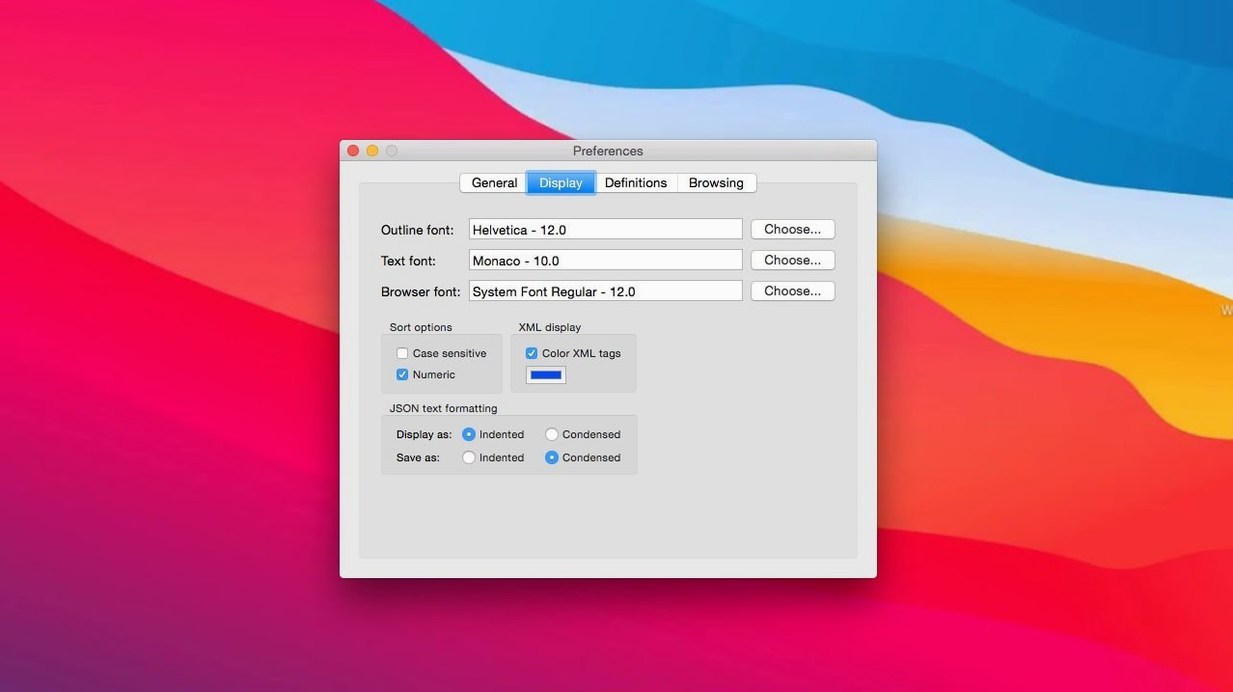
Set the font and size to something comfortable straight away. The default is legible, but if you spend hours staring at nested dictionaries a slightly larger monospaced font in the text pane makes a real difference. The setting lives in the Preferences window under the Display tab.
Drag a folder of plist files onto the Dock icon and use the Find in Folder command. This is useful when you know a key exists somewhere in a project but cannot remember which file holds it. The results pane lists every match, and double‑clicking a row opens that file with the offending key already selected.
If you find yourself making the same structural edit repeatedly — adding a specific set of keys to a new Info.plist, for example — build a template plist once and keep it on the desktop. Copy the relevant subtree from the template, paste it into the target file, and the outline preserves the types and nesting exactly. Paired with AppleScript, this becomes a one‑click operation.
The preferences browser deserves a moment of exploration. Open it from the Window menu and scroll through the list of apps that have written preferences on your Mac. You will discover plists for long‑deleted utilities, and occasionally a setting you thought was lost lives in a container you had not thought to check. The toolbar pop‑out lets you toggle between user preferences, system preferences and both at once, so you can narrow the view when the list gets long.
Version 1.10.0 moves the user interface to macOS 14 and later. The preferences browser’s filter options are now tucked into a tidy toolbar menu, and the ‘Ask to revert when file changes on disk’ setting appears as a small popover.
- macOS 14 or later
- Runs on both Intel and Apple Silicon Macs
- Interface language: English
Questions I keep hearing
Can PlistEdit Pro open JSON files as well as property lists?
Yes, it treats JSON documents with the same drag‑and‑drop outline view it provides for .plist files.
What is the preferences browser for?
It lists the preference property lists of the applications installed on your Mac, so you can browse and edit their settings without digging through the Library folders manually.
Does the app include a command‑line tool?
It does — thepledit command lets you read and write property list data directly from Terminal.
Questions from the class 0
Sign in or join the class to ask a question.
Nobody has asked anything yet. If you have used it on a real job, say what the file did.
Also on the Mac Apps shelf
The whole Mac Apps shelf Plasticity
Builds watertight solid models for manufacture through direct, history-free editing.
Plasticity
Builds watertight solid models for manufacture through direct, history-free editing.
 Pixologic Zbrush
Sculpts digital clay into high-detail models using pixels that carry depth and material data.
Pixologic Zbrush
Sculpts digital clay into high-detail models using pixels that carry depth and material data.
 Pixelsnap
Measures the exact pixel distance between any two points on your screen.
Pixelsnap
Measures the exact pixel distance between any two points on your screen.
 PopClip
Shows a row of actions whenever you select text on your Mac.
PopClip
Shows a row of actions whenever you select text on your Mac.
 Pixelmator Pro
Develops raw shots and composites artwork in a single-window photo editor.
Pixelmator Pro
Develops raw shots and composites artwork in a single-window photo editor.
 PowerPhotos
Splits your photo collection into separate libraries and finds duplicate images across them.
PowerPhotos
Splits your photo collection into separate libraries and finds duplicate images across them.
 Pixea Plus
Displays photos and raw files instantly without importing them into a library first.
Pixea Plus
Displays photos and raw files instantly without importing them into a library first.
 Presentify
Draws annotations and highlights on top of any app or presentation with one menu-bar click.
Presentify
Draws annotations and highlights on top of any app or presentation with one menu-bar click.