 ASPNetWorld
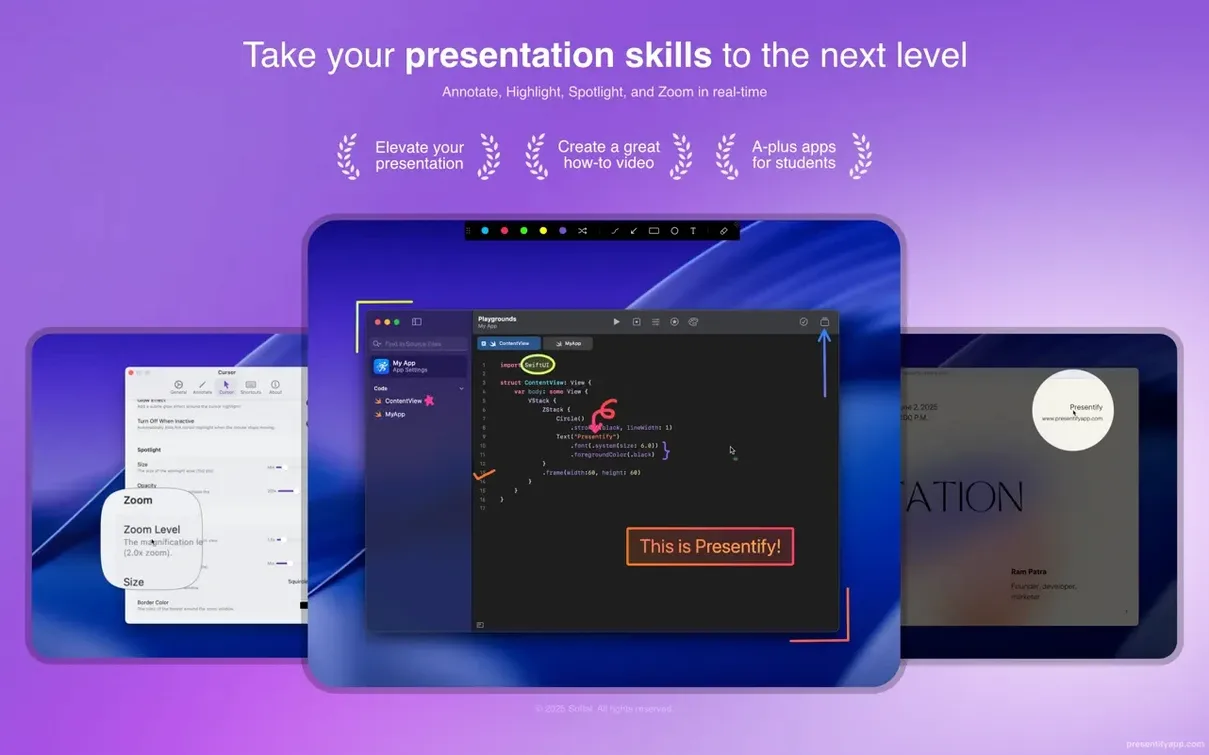
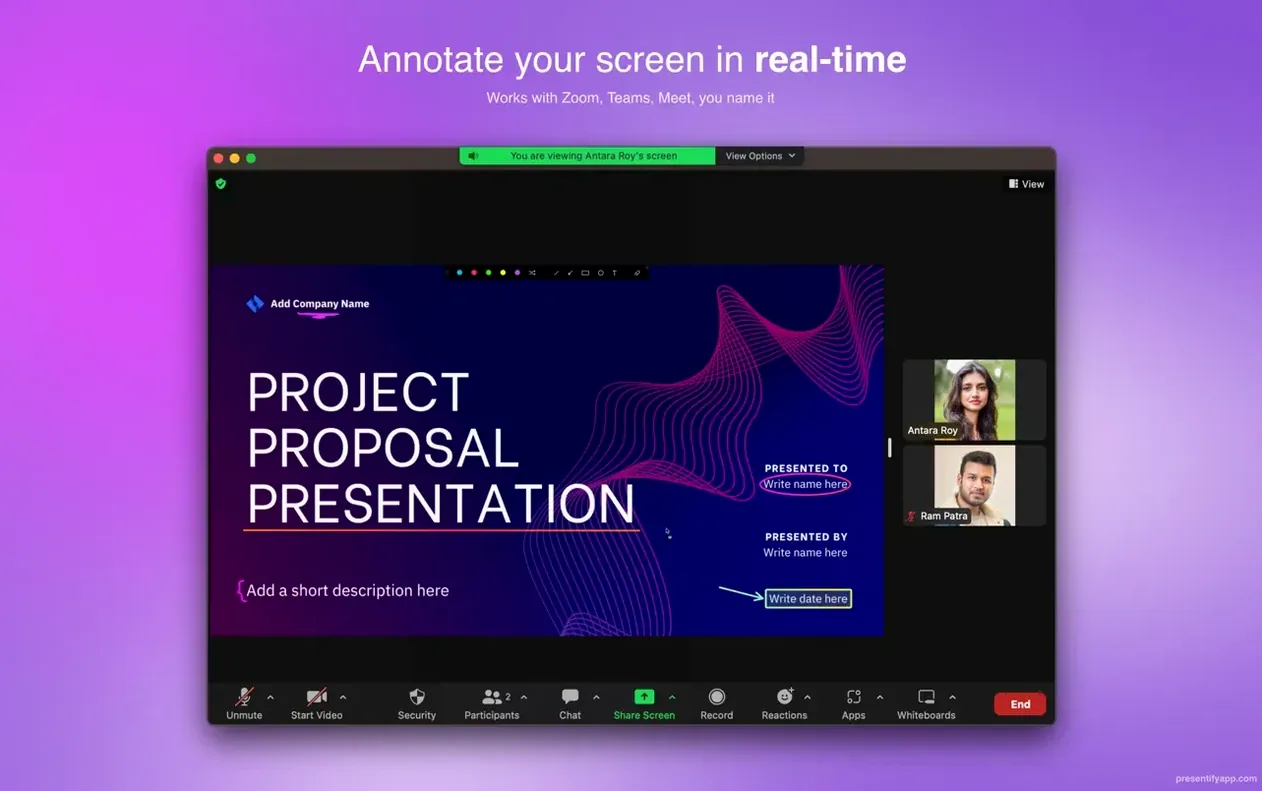
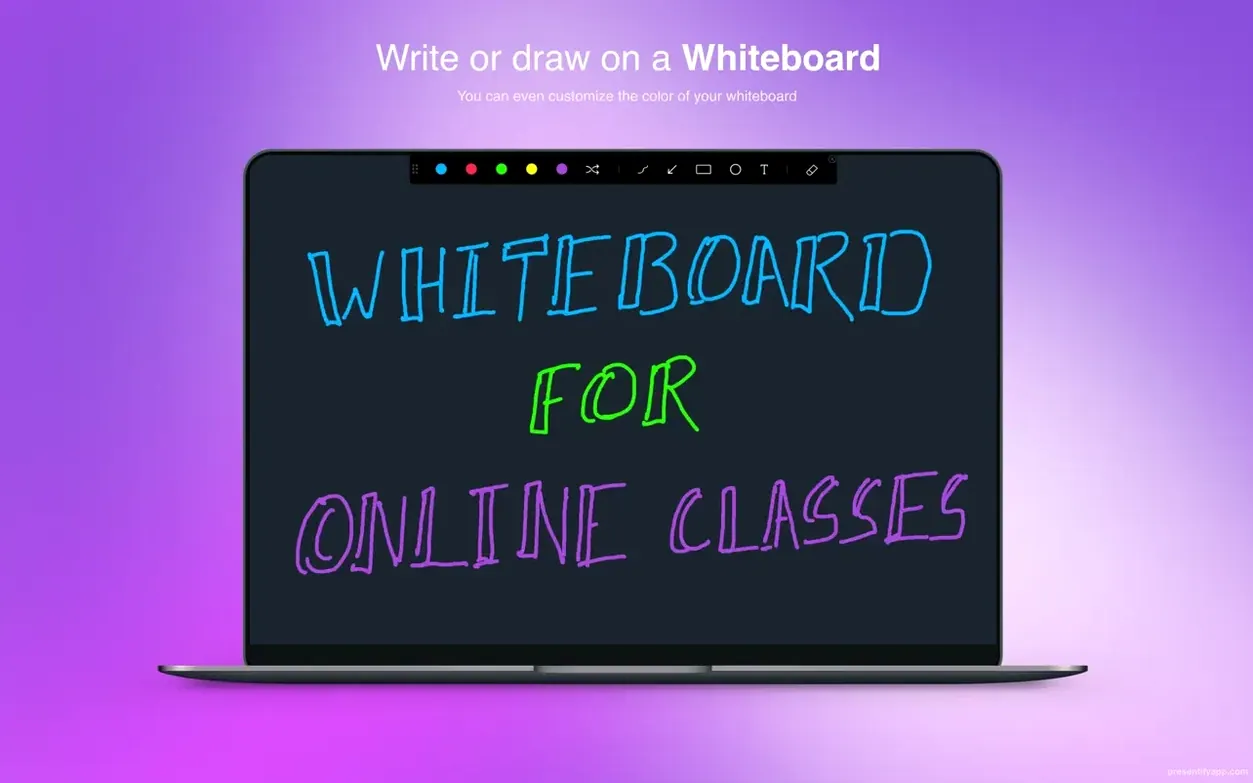
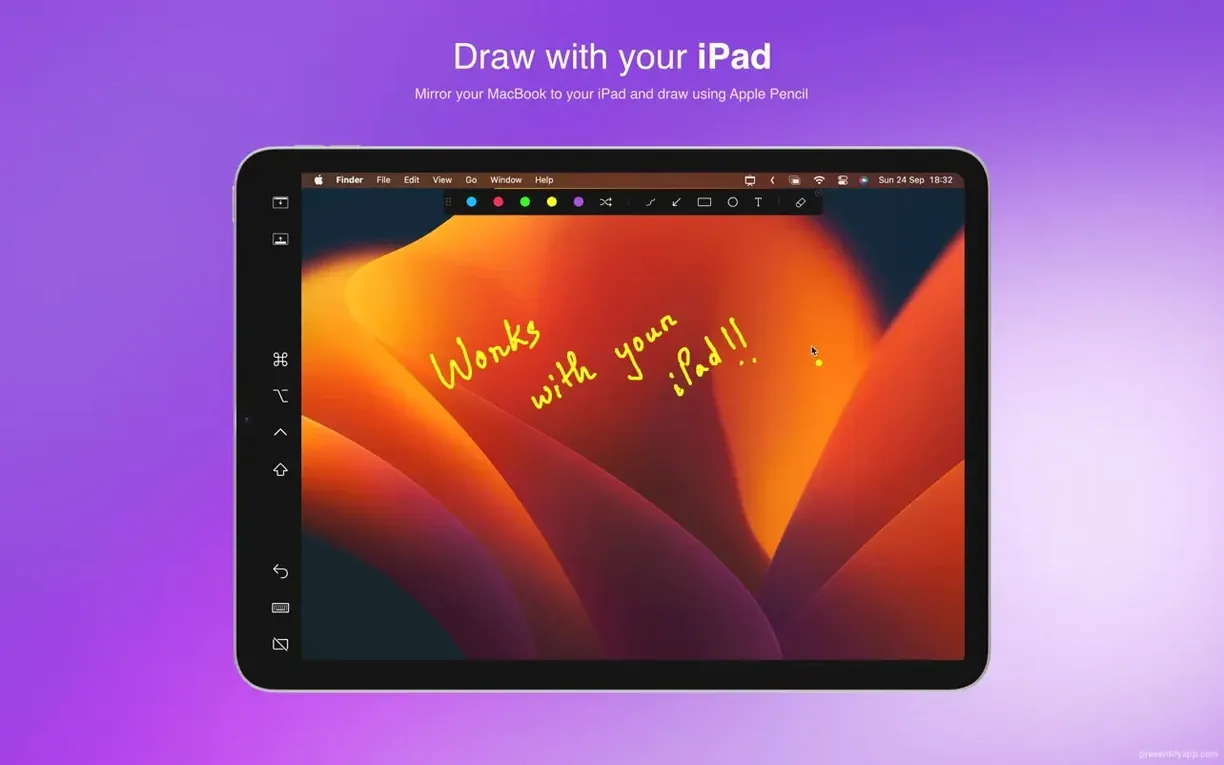
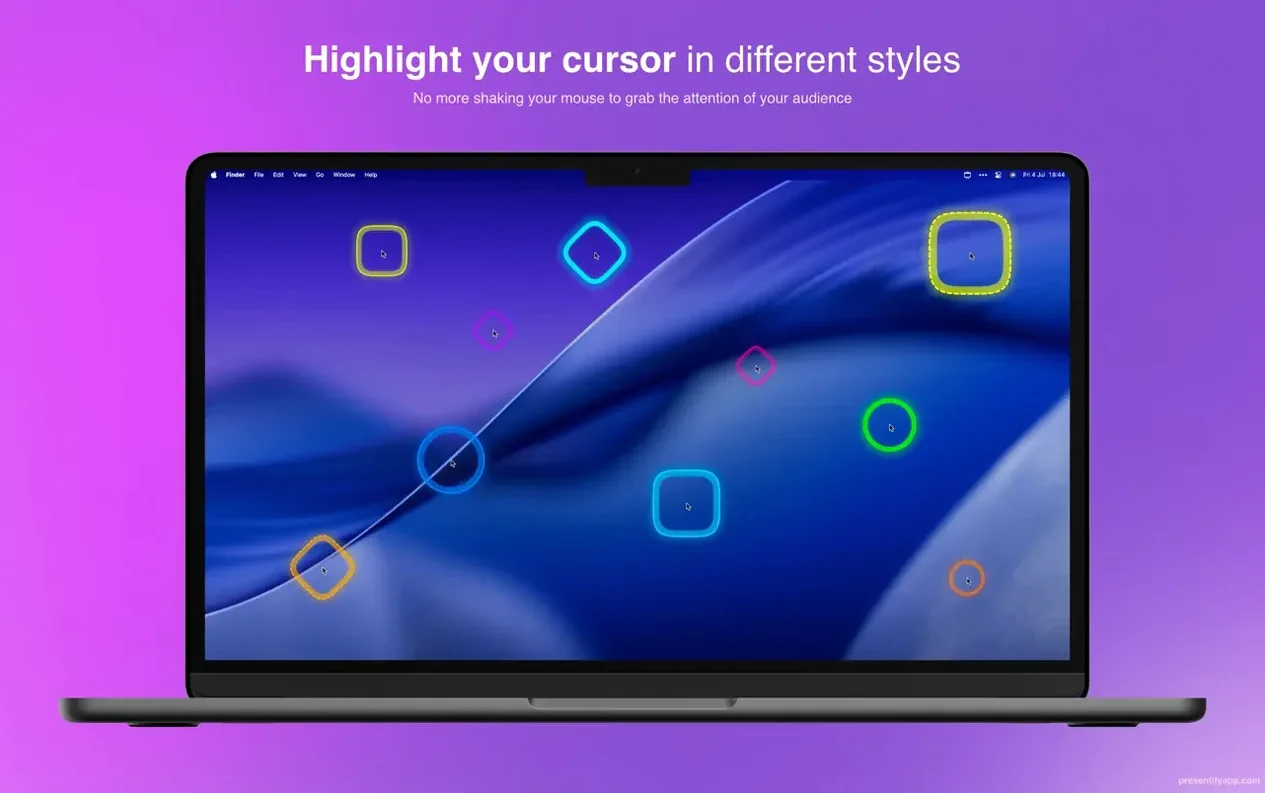
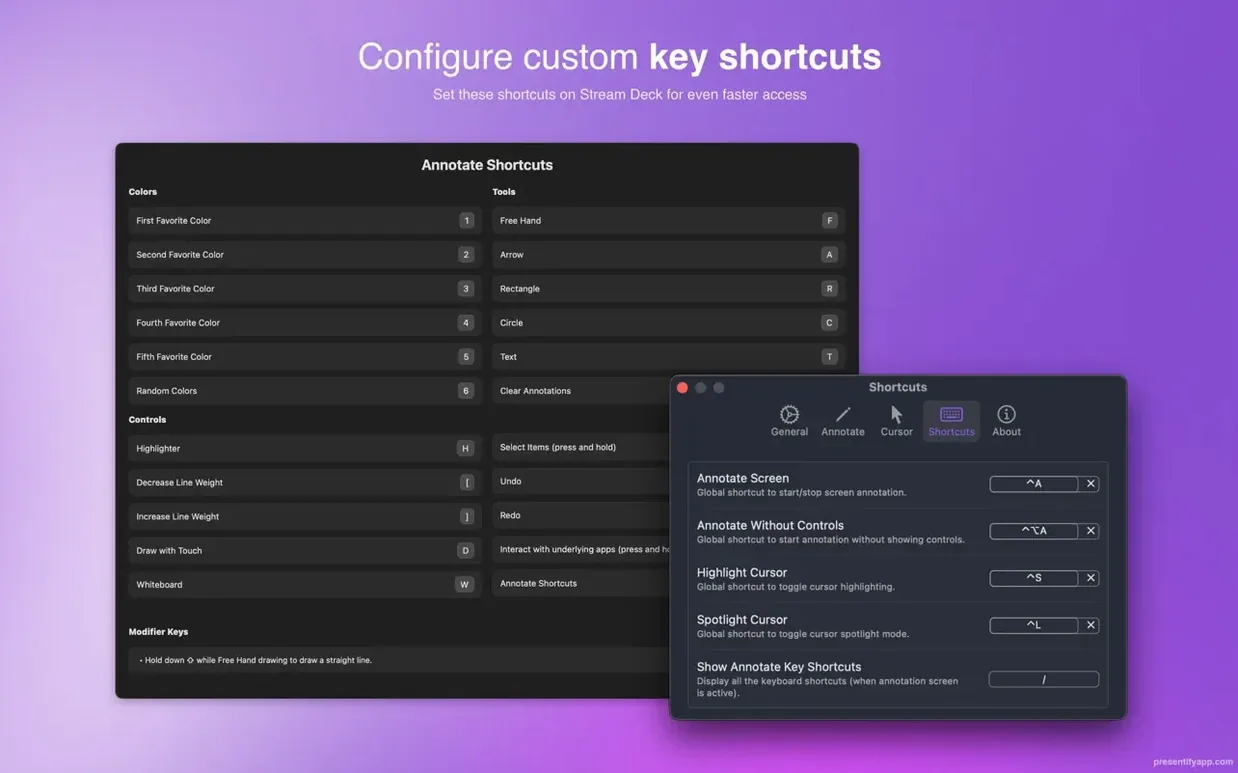
One click in the menu bar gives you a drawing toolkit that floats over your entire display — slides, browser tabs, code editors, even full-screen Keynote decks. Presentify 8.1.3 is a lightweight screen annotation layer that sits above everything else, so you can circle a number in a spreadsheet, underline a sentence on a webpage, or sketch an arrow during a Zoom call without switching apps.
Here’s a realistic flow. You’re teaching an evening class on music production. You open your DAW, share your screen in Google Meet, and click the Presentify icon. The cursor becomes a bright, resizable highlight — students can follow your pointer even on a compressed stream. You hold Fn to interact with the faders and knobs underneath, then release to freeze the annotation and talk through a compressor setting. You tap a key to draw a rectangle around the threshold control, type “start here” beside it, and zoom in with a keystroke so the tiny parameter values are readable. When you’re done, you clear the canvas with one click and carry on mixing. The whole session stays fluid because you never leave the DAW.
Pointing and drawing over any app during live teaching
- Live online teaching where you need to point, draw and write over any application.
- Software demos and code walkthroughs shared via Zoom, Meet or Skype.
- Keynote presentations that benefit from impromptu emphasis — arrows, underlines, temporary zoom.
- Full-screen apps, since the annotation layer draws cleanly on top without breaking the mode.
Holding Fn to click through annotations to the app below
- Requires macOS 13 Ventura or later; older Macs aren’t supported.
- When annotating, you hold
Fnto click through to the app beneath — this is the default behaviour and takes a few minutes to become muscle memory. - The app runs from the menu bar, so there’s no Dock presence until you open the preferences window.
How the drawing canvas avoids blocking your screen share
A common worry is whether Presentify interferes with other screen-sharing tools. People imagine an annotation layer might somehow block the Zoom or Meet feed, but that’s not how it works. The drawing canvas sits between what you see and what the app underneath is doing — screen capture grabs everything, including your annotations, and sends it downstream as one image. The audience never sees two separate layers; they just see your cursor ring and your arrows as part of the broadcast. If you’re running three different meeting apps simultaneously (a messy scenario, but it happens), Presentify draws on top of all of them without favouring one.
Another question is about tablet support. If you already own a Wacom or XP-Pen graphics tablet, you’re probably wondering whether the pressure sensitivity translates into variable line thickness. It doesn’t — Presentify draws at a uniform stroke width — but the tablet’s absolute positioning makes handwriting noticeably more natural than a mouse or trackpad. The pen tip lands exactly where you expect it to, which is what matters when you’re scrawling a quick equation or circling a bug in a code review.
People also ask whether annotations persist when they switch virtual desktops. They don’t. If you draw on Desktop 1 and swipe to Desktop 2, the canvas clears. This is by design, and once you accept it, you can use it as a fast reset — swipe away and back again for a blank slate.
Random gradient colours that assign a fresh hue per stroke
Beyond the obvious drawing tools, a handful of behaviours make daily use smoother. The random gradient colour option isn’t just decorative. Turn it on from the colour palette, and each new stroke picks a fresh hue from a gentle gradient range. During a long teaching session, this keeps successive annotations visually distinct without you ever opening a colour picker. Students can refer to “the green arrow” or “the orange underline” in the chat, and you didn’t spend a second choosing colours.
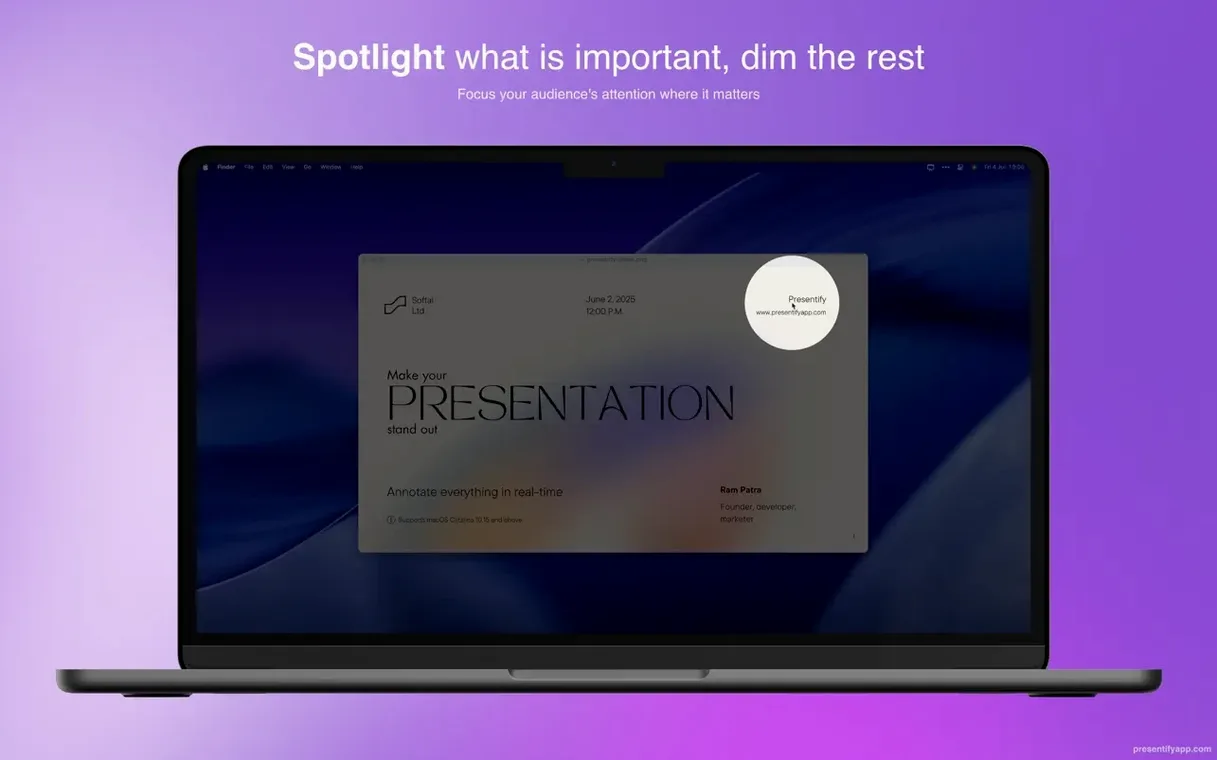
The auto-erase feature sounds minor but changes the rhythm of a demo. Set annotations to vanish after a few seconds, and you can circle a button, explain it, and have the circle disappear on its own — no keystroke, no menu bar trip. The timing is adjustable, and you can toggle it off mid-session if a particular mark needs to stay on screen longer. Combine auto-erase with the spotlight tool (which dims everything outside a resizable oval) and you’ve got a guided tour mode where each area lights up, gets a brief note, then fades, pulling the viewer’s eye along a deliberate path.
Text annotation is more capable than it first appears. You’re not stuck with one font size — the text box scales as you type, and you can reposition it by dragging before the text commits. If you’re labelling parts of a diagram, type short words like “input” or “feedback loop” and leave them floating while you draw the connecting arrows. The text sits on a transparent background, so it doesn’t obscure the content underneath. That’s the “highlighting without covering” behaviour — the letters themselves stand out, not a solid box around them.
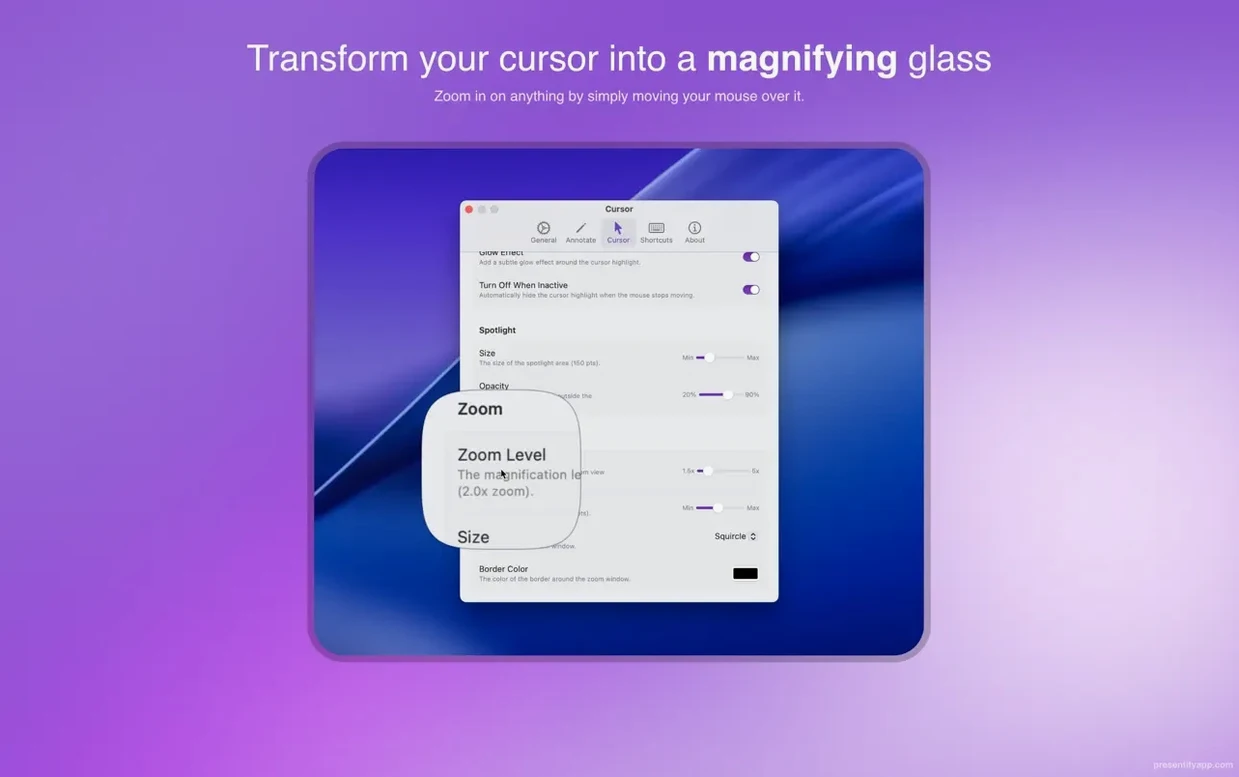
A keyboard shortcut worth memorising: the zoom toggle. A single keystroke magnifies the area around your cursor, and the same keystroke snaps back to normal view. During a code walkthrough, you can punch in, show a variable name at readable size, and punch out — all in under a second. It feels immediate because there’s no animated transition; the magnification just appears.
Trying to interact with slides without holding the Fn key
The most frequent stumble is forgetting the Fn key. Out of the box, Presentify intercepts clicks so you can draw. Clicking a button in the app below requires holding Fn while you click. Beginners try to interact with their slides or code and nothing happens — they think the machine has frozen. The fix is simple: hold Fn. After a few sessions, this becomes automatic, but the first time it catches almost everyone. You can flip the behaviour in preferences so that clicks pass through normally and a modifier key enables drawing, which some people find more intuitive depending on their typing habits.
Another early mistake is drawing before the app has properly initialised. On first launch after installation, Presentify needs a restart via Activity Monitor — quit it there and open it again. Skip that step, and the menu bar icon appears but drawing doesn’t work. People assume the download is broken; it isn’t, it just needs that one-time housekeeping. The developer notes it in the setup instructions, but plenty of users skim past.
Using the app with Keynote in full-screen mode trips up newcomers who expect the annotation canvas to appear inside Keynote’s presenter display. It doesn’t — Keynote’s presenter view is a separate screen-space environment. Presentify draws on the shared screen, which is the one your audience sees. If you’re looking at presenter notes on your MacBook and projecting slides to a monitor, annotate on the monitor. Your notes stay clean.
Menu bar loads instantly with no splash screen or lag
On both Apple Silicon and Intel Macs running Ventura or later, the app loads from the menu bar in under a second — there’s no splash screen, no loading progress indicator. It simply appears. Drawing feels lag-free even on older Intel machines with integrated graphics, because the annotation layer uses Metal rendering and doesn’t touch the CPU heavily during strokes. I’ve kept it running through entire teaching days alongside a DAW, a browser with twenty tabs, and a video call, and the memory footprint stayed below 180 MB. It’s not the lightest menu bar utility in absolute terms, but it’s consistent and doesn’t creep upward over hours.
Stability is solid in the current version. The only quirk I’ve reproduced is that switching display arrangements — plugging in an external monitor mid-session — sometimes causes the annotation canvas to re-centre itself. The drawings vanish, but the app doesn’t crash. A quick click on the menu bar icon resets it. During normal use with a fixed display setup, crashes are rare. The auto-save doesn’t preserve annotations between launches (they’re meant to be ephemeral), so don’t expect to quit and find your arrows waiting; that’s not a bug, it’s the nature of a live overlay tool.
The Russian, German, Spanish and French localisations are complete and read naturally — not machine-translated. If you switch your system language, Presentify follows without a separate download or preference toggle, which keeps the setup minimal. For anyone who teaches in multiple languages, this is a quiet but genuine convenience.
- macOS 13 Ventura or later
- Apple Silicon or Intel 64-bit Mac
Questions I keep hearing
Can I use Presentify during a Keynote presentation?
Yes. The annotation layer draws over full-screen Keynote slides, so you can add impromptu marks without leaving your presentation.
Does Presentify work on older Intel Macs?
It runs on any Intel 64-bit Mac or Apple Silicon Mac, provided the machine is on macOS 13 Ventura or later.
What happens if I need to click a button while annotating?
Hold theFn key in the default mode. That lets you interact with the app underneath while keeping your annotations visible.
Questions from the class 0
Sign in or join the class to ask a question.
Nobody has asked anything yet. If you have used it on a real job, say what the file did.
Also on the Mac Apps shelf
The whole Mac Apps shelf PowerPhotos
Splits your photo collection into separate libraries and finds duplicate images across them.
PowerPhotos
Splits your photo collection into separate libraries and finds duplicate images across them.
 ProPresenter
Manages lyrics, slides and media for live events and worship.
ProPresenter
Manages lyrics, slides and media for live events and worship.
 PopClip
Shows a row of actions whenever you select text on your Mac.
PopClip
Shows a row of actions whenever you select text on your Mac.
 PyCharm
Provides coding tools for Python development and debugging.
PyCharm
Provides coding tools for Python development and debugging.
 PlistEdit Pro
Displays and rearranges the nested tags inside macOS preference and configuration files.
PlistEdit Pro
Displays and rearranges the nested tags inside macOS preference and configuration files.
 QuarkXPress
Designs precise layouts for print and digital publishing.
QuarkXPress
Designs precise layouts for print and digital publishing.
 Plasticity
Builds watertight solid models for manufacture through direct, history-free editing.
Plasticity
Builds watertight solid models for manufacture through direct, history-free editing.
 Radio Silence
Blocks background network chatter from selected apps.
Radio Silence
Blocks background network chatter from selected apps.