 ASPNetWorld

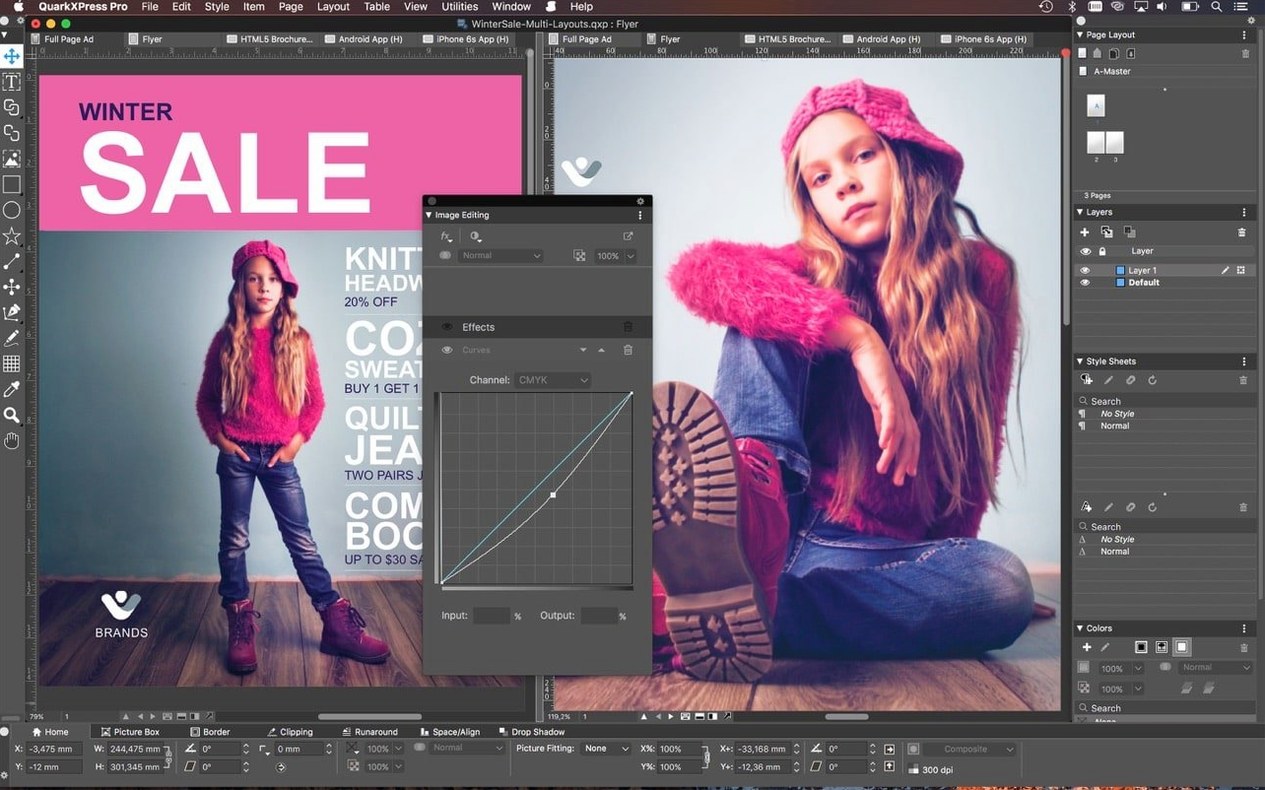
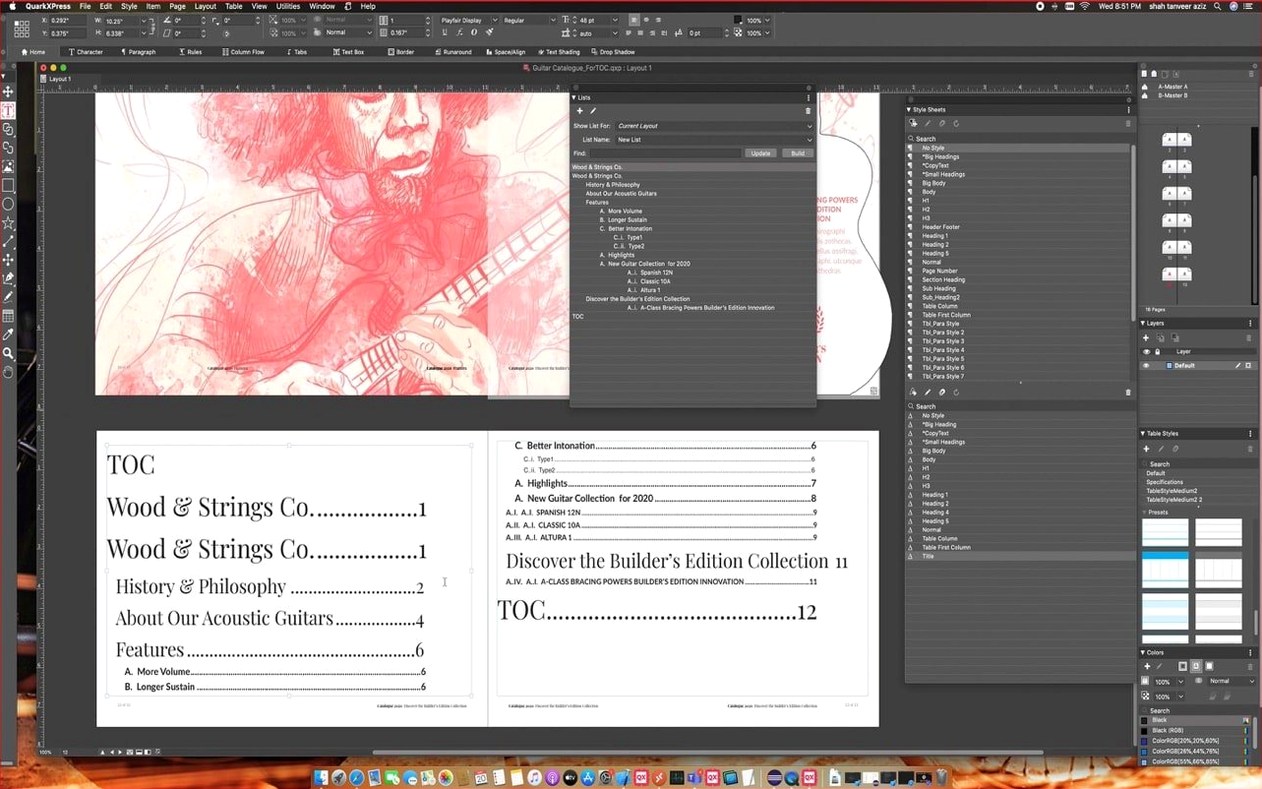
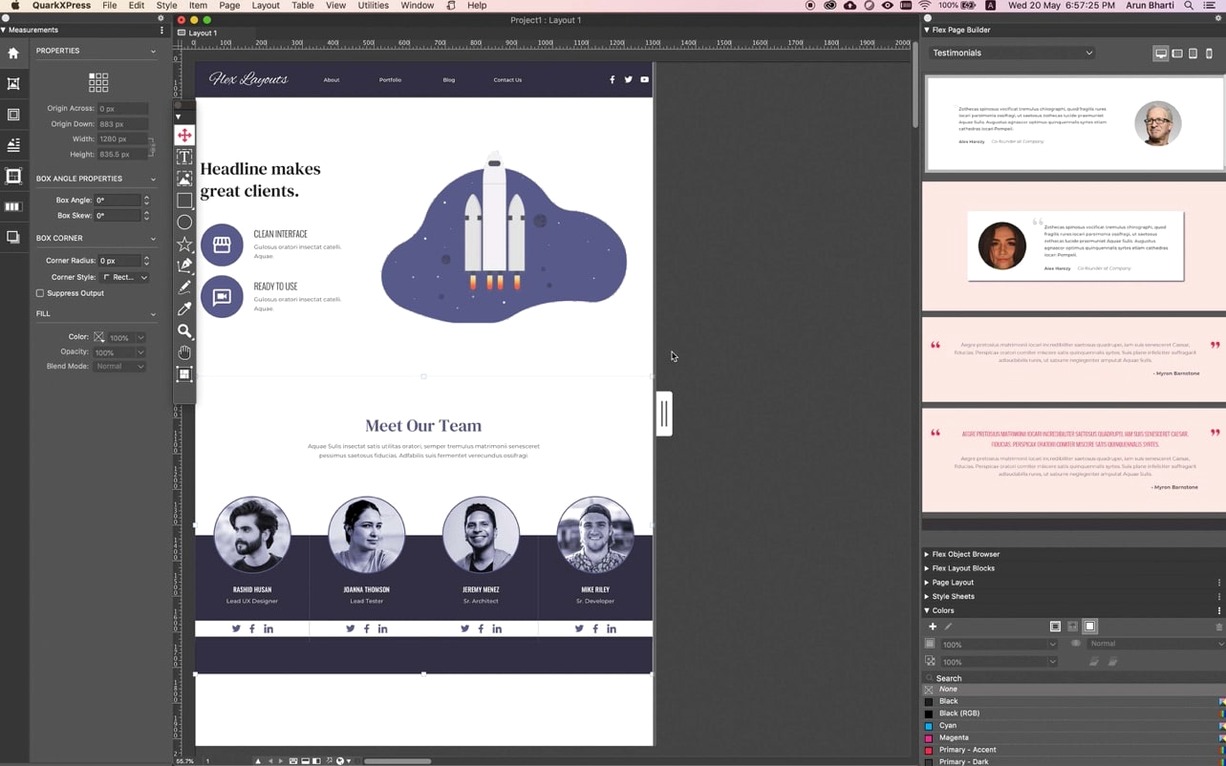
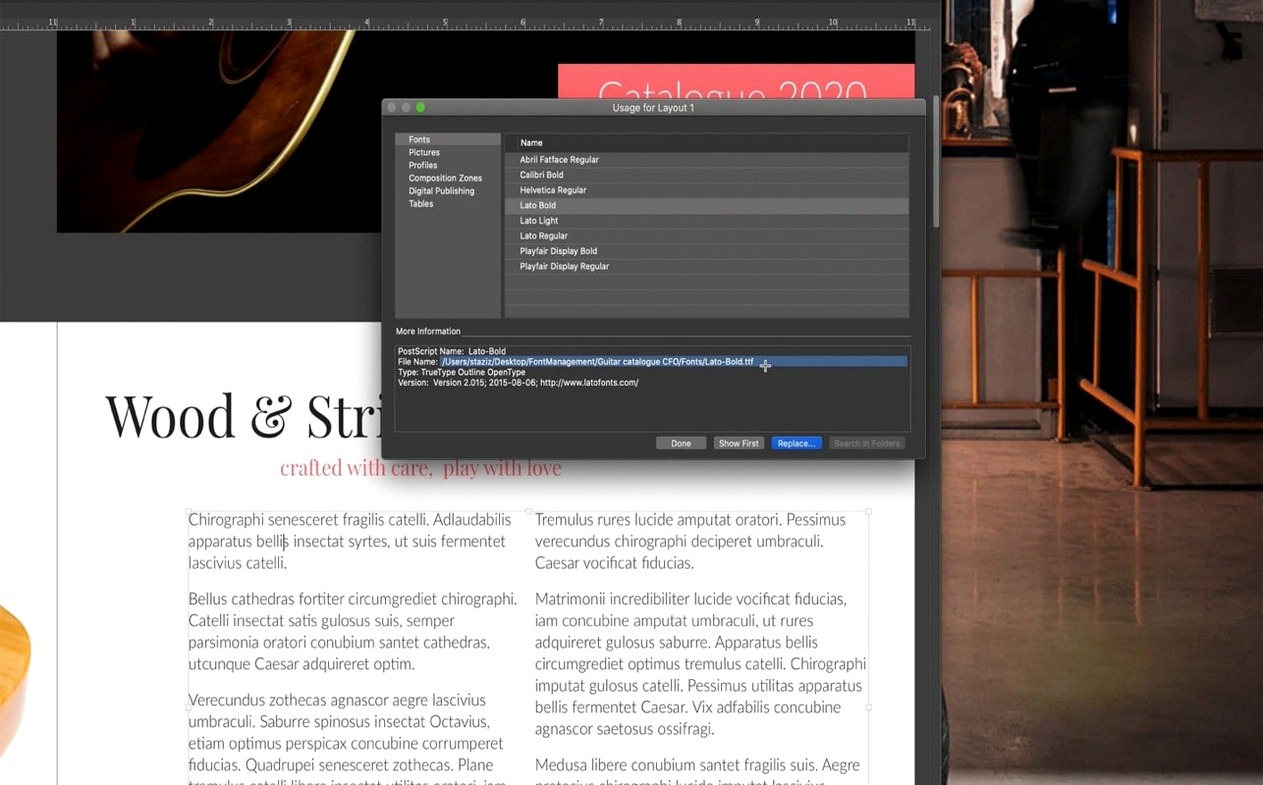
Native mathematical equations arrived in version 22.0, and it’s a change that signals how QuarkXPress continues to serve exacting layout needs — not just for designers, but for anyone producing technical documentation, academic papers, or heavily formatted digital publications where precision is non-negotiable. The software remains a desktop publishing mainstay on macOS, now updated to v22.0.1 and fully compatible with the latest Apple silicon machines.
Good for
- Long-form print projects where master pages and conditional styles save hours of manual formatting.
- Building consistent visual grids — the ImageGrid feature helps you import or construct graphic layouts that stay intact across auto-generated pages.
- Multi-language publishing workflows; the interface supports eighteen languages from Russian and Korean to Danish and Brazilian Portuguese.
- Working with OpenType and Unicode typography, including new markers for bulleted and numbered lists.
Keep in mind
- The current version requires macOS 12 Monterey or newer; it’s been tested through macOS 26 Tahoe and runs natively on both Intel and Apple Silicon Macs.
- While it includes tools for creating iPad applications and a Reflow View for device-level reformatting, the core experience is still rooted in traditional page-layout thinking rather than fluid web-first design.
- The welcome screen redesign in v22.0.1 surfaces project presets and tutorials, but new users should still expect a substantial learning curve for advanced conditional styles and cloning workflows.
How QuarkXPress sits alongside the alternatives
Put QuarkXPress next to Adobe InDesign and you’re looking at two heavyweights that grew up in the same print-first tradition. InDesign has the deeper Creative Cloud integration — round-tripping a Photoshop file feels almost telepathic — but QuarkXPress counters with a single-file-format approach that simply works, no cloud subscription checks, no activation hoops. When I’m teaching an evening class and a student asks which one handles multi-language dictionaries cleanly, I’ll often point out that QuarkXPress ships with hyphenation and spelling modules for over thirty languages out of the box, which trims a fair bit of setup compared to InDesign’s plug-in dance.
Affinity Publisher is the younger contender, and for straightforward magazine layouts or marketing collateral it’s remarkably fluid. Where QuarkXPress pulls ahead is in niche automation: conditional styles that fire layout rules without scripting, callouts that drag grouped frames along with reflowing text, and the Story Editor — a full text-editing view that feels like working in a dedicated word processor. Affinity simply doesn’t offer that depth of conditional logic yet. Then there’s Scribus, the open-source option, which is capable but demands patience. QuarkXPress’s Linkster feature for linking and unlinking text boxes and notes across a long document saves the sort of manual tidying that Scribus users still wrestle with.
A workflow from blank page to finished layout
Let’s walk through a plausible job: a 24-page product catalogue with a photo-heavy grid, English and German text, and an ePub version for the sales team’s tablets. I’ll describe it the way I’d guide a student through it in class.
Start by opening the redesigned welcome screen and picking a print preset close to your trim size — say, A4 portrait. Before placing a single frame, head to the ImageGrid panel. Build a six-column graphic grid with 3 mm gutters and set it to propagate across all master pages automatically. The recent improvement in v22.0 means those master page grid elements won’t wander when auto-generated pages kick in later.
Now define two conditional styles. The first applies to product descriptions: whenever a paragraph starts with a price in bold, the style automatically switches the following text block to a smaller sans-serif with a hanging indent. The second catches German translations — it trips on a language marker you’ve tagged in the text and swaps in the correct hyphenation module and a slightly tighter tracking value. With those rules in place, you import the English copy into threaded text boxes. Switch to Story Editor to clean up widows and odd line breaks without zooming in and out of the layout.
Place product photos via the Illustrator and Photoshop import support, then use callouts to pin spec tables to specific paragraphs. When the client asks to move a whole product section three pages later, you drag the text anchor and the tables and image groups follow — no lassoing, no realigning. Clone a hero-image frame style across all product openers in one step with the cloning tools.
Finally, fire up the ePub export utility. The Reflow View lets you preview how the catalogue reshapes on a Kindle or an iPad before you commit. Tick the iBooks and Kindle output boxes, and you’ve got a print-ready PDF and a digital edition from one source file. No second layout pass.
Who benefits most — and why
QuarkXPress still speaks most fluently to people who live in long-form, structured documents. Book designers and technical manual teams get the deepest return because conditional styles and the Story Editor cut the repetitive formatting that bloats a project timeline. Prepress operators appreciate that the single-file format opens identically whether the file came from a studio in Tokyo or a translator in Oslo — all the region-specific hyphenation stays intact without manual patching.
Marketing teams producing multi-channel campaigns are a less obvious but growing fit. The ability to generate an iPad app layout from the same project that feeds a print brochure means one source of truth, and the new native equation support in v22.0 opens the door for financial or scientific marketing material that previously needed a separate math typesetting step. Even solo designers who juggle client newsletters and short-run booklets find the cloning and grid tools pay off fast — once you’ve built a repeatable master page setup, the software does a lot of the grunt work overnight.
What the latest versions actually changed in daily use
Version 22.0’s native equation handling isn’t a bullet point you glance past — it removes the old workaround of composing equations in a third-party tool and importing them as graphics. If you edit a fifty-page engineering report and need to adjust a formula’s variable notation, you do it inside QuarkXPress, reflow the text, and move on. The ImageGrid fix that arrived with the same release means master page consistency no longer degrades when you auto-generate pages from a data source; previously, a grid element could shift by a fraction of a millimetre on page 47 of a catalogue, and that was maddening to spot.
The v22.0.1 welcome screen redesign sounds cosmetic, but it shifts the first five minutes of a session. Project size presets and built-in tutorials sit front and centre, and customized workspaces save panel arrangements per project type. I’ve noticed in class that beginners get to their first placed image noticeably faster than they did with the older file-menu-first approach. It’s a small navigation change with a real effect on early confidence.
Mistakes beginners make (and how to sidestep them)
The most common slip I see is ignoring conditional styles entirely for the first few projects. People manually format each heading, each pull-quote, each price block, then wonder why QuarkXPress feels laborious. Spend twenty minutes setting up two or three conditional rules, even for a simple newsletter, and the payback is immediate.
Another classic is jumping straight to the canvas without touching master pages. QuarkXPress’s master page system is deep — you can nest them, apply conditional triggers to them, and tie them to ImageGrid layouts — but if you build everything on page one, you’ll rebuild it on page twelve. Beginners also tend to underscript callouts: dragging a grouped element near text doesn’t anchor it; you need to use the callout tool explicitly, or your carefully positioned sidebar will stay behind when the text reflows.
Finally, some users treat the Story Editor as a preview pane and try to adjust visual layout there. It’s a text editor, pure and simple — kerning, tracking and frame geometry still belong in the main layout view. Use the Story Editor to prune copy, apply paragraph styles and check reading order; switch back when you’re ready to make things look beautiful.
QuarkXPress 2026 (v22.0.1) refines the equation tools and layout consistency introduced in the previous major release. Native math support is now fully bedded in. The ImageGrid feature got a sensible fix — master page elements stay put across auto-generated pages rather than drifting out of alignment. The welcome screen has been redesigned to surface project size presets, custom workspaces, and built-in tutorials more directly.
- macOS 12 Monterey or newer (tested through macOS 26 Tahoe)
- Apple Silicon or Intel Mac
- Compatible with macOS 15 Sequoia and macOS 14 Sonoma
Questions I keep hearing
Does QuarkXPress 2026 run on Apple Silicon Macs?
Yes, version 22.0.1 has native support for Apple Silicon and also runs on Intel-based Macs. It requires macOS 12 Monterey or later.
What was the main addition in the QuarkXPress 22 release?
Version 22.0 introduced native support for mathematical equations, allowing you to place and edit equations directly within your page layouts.
Which languages does the QuarkXPress interface support?
The interface is available in eighteen languages, including English, German, Spanish, French, Italian, Japanese, Simplified and Traditional Chinese, Korean, Russian, and several Nordic and Eastern European languages.
Questions from the class 0
Sign in or join the class to ask a question.
Nobody has asked anything yet. If you have used it on a real job, say what the file did.
Also on the Mac Apps shelf
The whole Mac Apps shelf PyCharm
Provides coding tools for Python development and debugging.
PyCharm
Provides coding tools for Python development and debugging.
 Radio Silence
Blocks background network chatter from selected apps.
Radio Silence
Blocks background network chatter from selected apps.
 RAR Extractor - unzip
Extracts files from compressed archives like RAR and ZIP.
RAR Extractor - unzip
Extracts files from compressed archives like RAR and ZIP.
 ProPresenter
Manages lyrics, slides and media for live events and worship.
ProPresenter
Manages lyrics, slides and media for live events and worship.
 RAR Extractor
Previews and extracts compressed archive contents.
RAR Extractor
Previews and extracts compressed archive contents.
 Presentify
Draws annotations and highlights on top of any app or presentation with one menu-bar click.
Presentify
Draws annotations and highlights on top of any app or presentation with one menu-bar click.
 Raycast Pro
Launches apps and commands from a keyboard palette.
Raycast Pro
Launches apps and commands from a keyboard palette.
 PowerPhotos
Splits your photo collection into separate libraries and finds duplicate images across them.
PowerPhotos
Splits your photo collection into separate libraries and finds duplicate images across them.