 ASPNetWorld

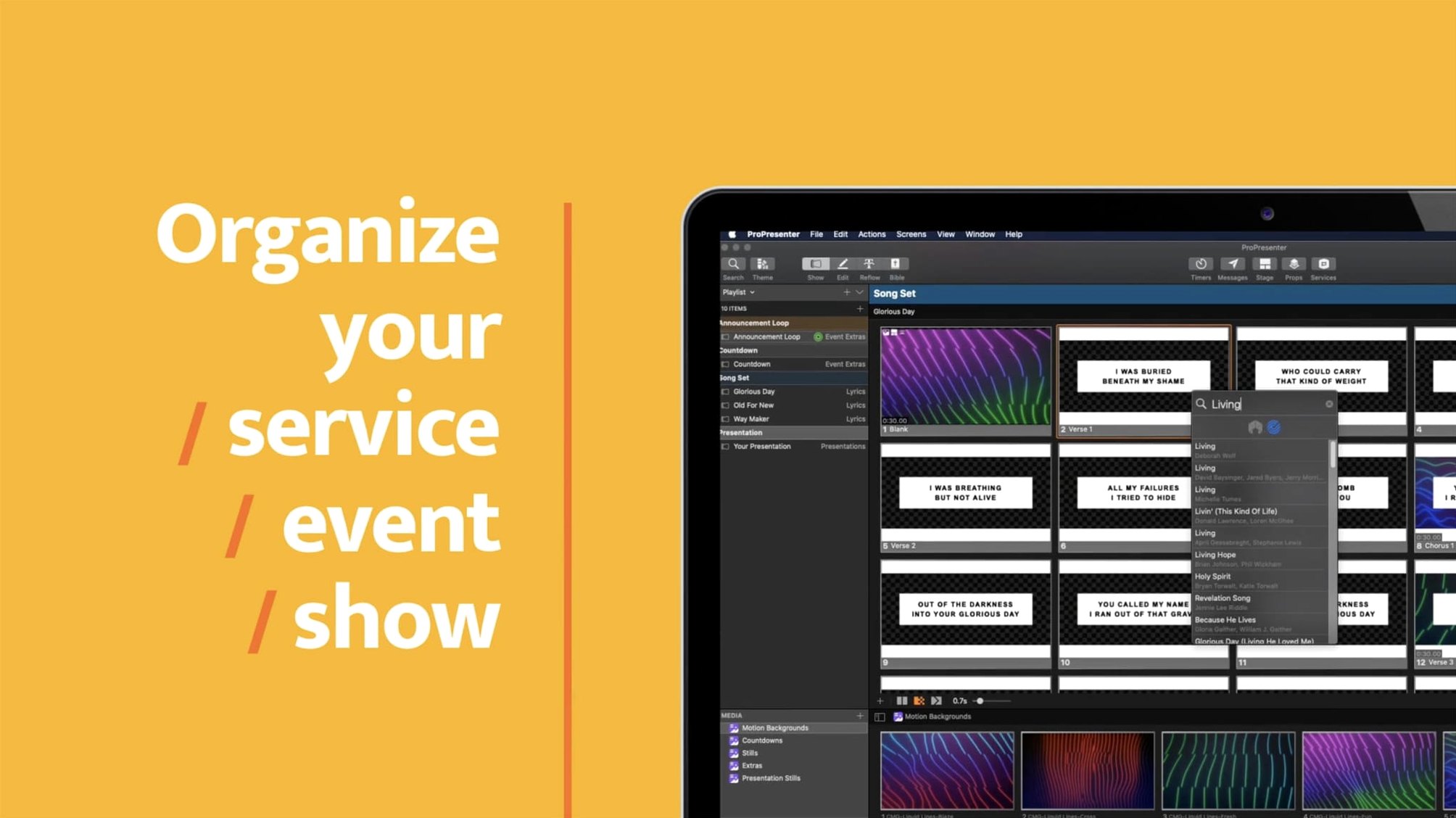
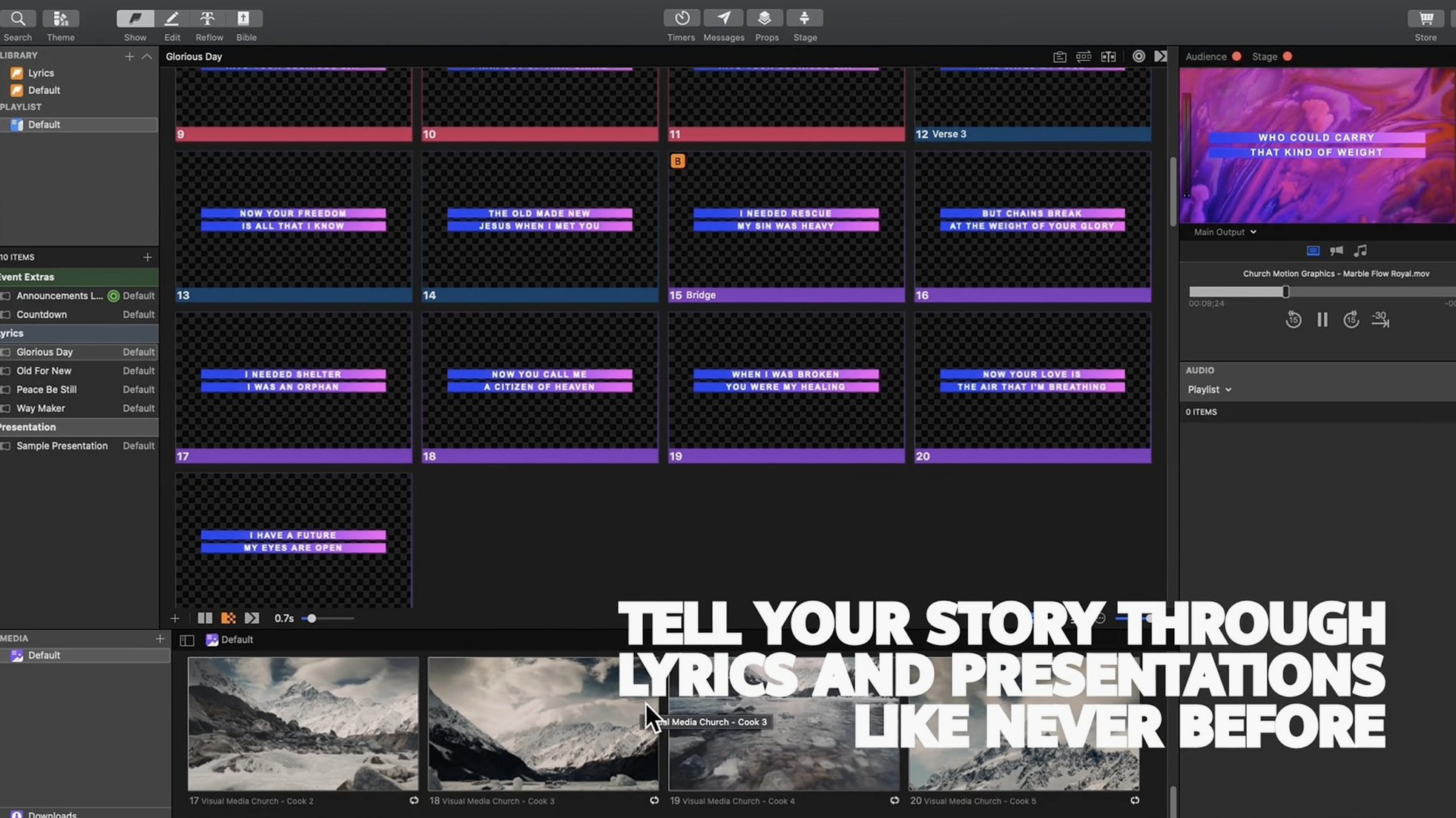
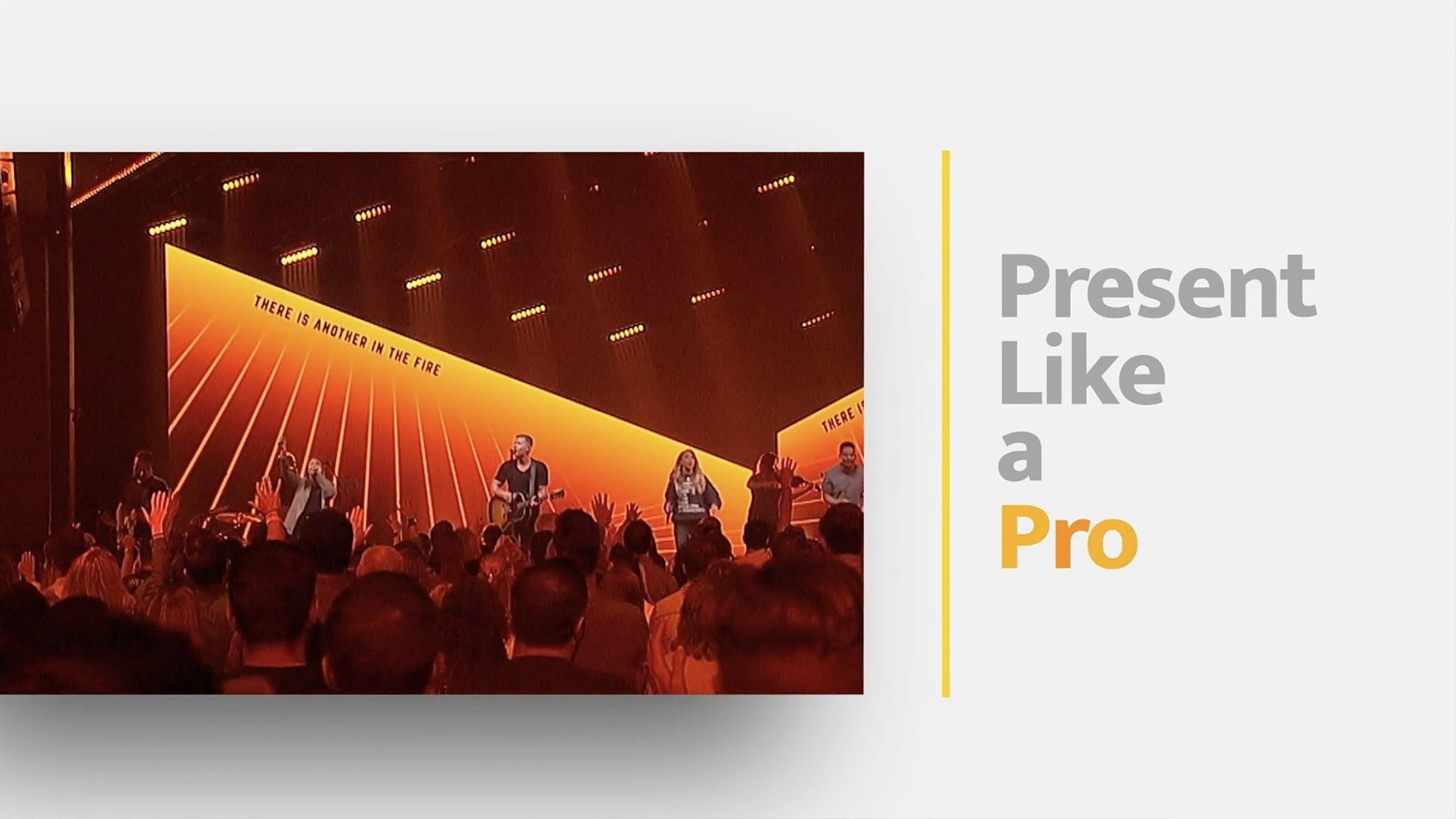
ProPresenter is built for the volunteer running lyrics in a church, the tech director managing a multi-screen conference, and anyone who needs rock-solid playback when it counts. Here are the first concepts worth understanding.
Stage Display — a confidence monitor feed showing the next slide, a timer, and speaker notes, completely independent of what the audience sees. Screen configuration — the system that lets you send one feed to the main projector, another to a lobby television, and a different layout entirely to the live stream, all from the same Mac. Layers — the slide editor stacks up to eight pieces of content on top of each other, such as a background video, a lower-third graphic, and lyrics, each with its own opacity and blend mode. Re-Stream — ProPresenter’s way of sharing its output directly with other Mac applications, useful for feeding a separate streaming encoder without extra hardware. Video/audio integration — playback tools that handle background loops, stingers, and ambient tracks right inside the presentation timeline. Social feeds — you can bring a moderated Twitter feed on-screen, filtering out anything unsuitable before the congregation or audience ever sees it.
Your first forty-eight hours with ProPresenter
Installation on a fresh machine tends to go smoothly, but the real settling-in happens when you connect the Mac to your actual venue hardware. Plug in the projector or secondary display before you launch the application — ProPresenter sniffs out available screens at startup, and adding one mid-session sometimes leaves you diving into the Display Preferences to nudge it awake. Once the second screen appears, head straight to Screen Configuration and save your setup as a named preset. Call it something obvious like “Main Hall + Lobby” rather than “Config 1.” You will thank yourself six months later when a visiting presenter unplugs everything and you need to restore the layout in thirty seconds flat.
Library organisation repays early effort. Drag your most-used playlists to the top of the sidebar, and create a folder called “Z – Archive” (the Z pushes it to the bottom alphabetically) for last year’s seasonal material you cannot quite delete yet. The search box reads your mind reasonably well, but a tidy library makes panicked Sunday-morning hunting far less likely.
Option-click a playlist slide for a live-proof preview
Several shortcuts sit right on the surface yet somehow escape notice during the first few weeks. Hold the Option key while clicking a slide in the playlist, and you get a quick preview in a popover without disturbing the live output — perfect for checking whether that video clip is the right version while the pastor is still talking. Right-click any slide thumbnail and choose Add Slide Label to tag items with stage directions like “Play after offering,” which then appear in the stage display for your operator.
The Clear button in the toolbar has a hidden talent: click and hold it, and a menu drops down letting you clear only the background, only the foreground, or only the media layer. That spares you from clearing the entire screen when all you wanted was to drop the lower-third graphic. Equally useful is the tiny clock icon in the top-right corner of the main window — click it to toggle a countdown or count-up timer overlay on the stage display without touching the audience screen. Musicians watching the confidence monitor can see they have ninety seconds left while the congregation sees only lyrics.
Keyboard shortcuts are remappable, but one factory default is worth memorising immediately: Command-1 through Command-5 switch between your first five screen configurations. If you run separate layouts for the main room, the overflow lounge, and the live stream, these keys turn a three-click operation into a single chord. The Re-Stream feature, which pipes ProPresenter’s output directly into OBS or another encoder on the same machine, is a checkbox in the Preferences under the Video/Output tab — tick it once, and you never need a capture card for the Mac’s own signal.
A worked example: building a song service from scratch
Suppose you need to prepare a three-song worship set with a welcome slide and a closing announcement. Start in the Library panel and create a new playlist called “Sunday 9am.” Open the Video/Image Bin on the right side of the interface and drag in a looping ambient video — something gentle and abstract — straight from the Finder. This bin holds all your reusable media, and dragging it onto a slide later takes one gesture instead of navigating folders every time.
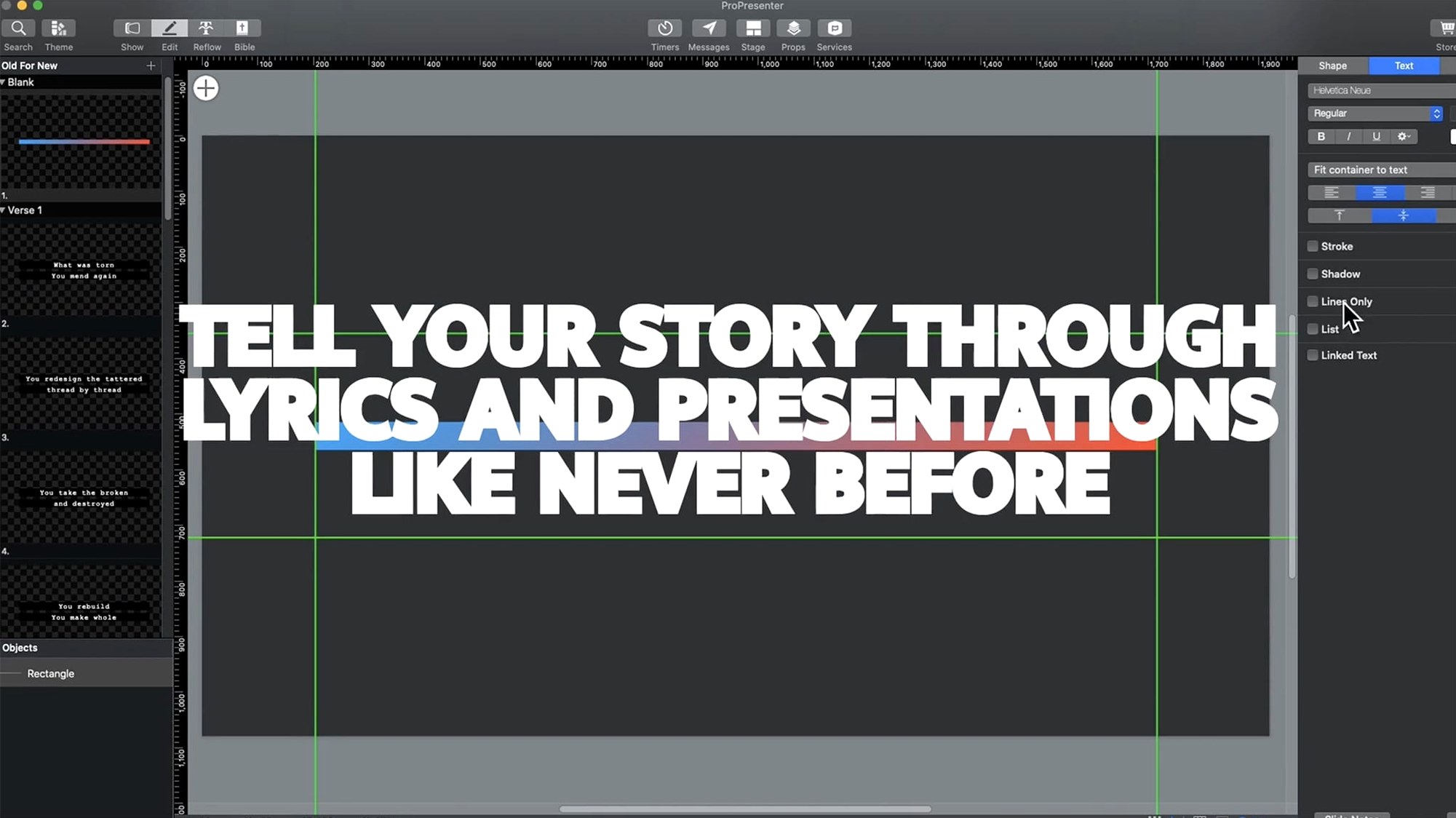
Click the Add Slide button (the plus icon above the playlist area) and choose Blank Slide. Open the Slide Editor — the panel that appears on the left — and drag your background loop from the bin onto the first content layer. Set its opacity to around forty percent so text stays readable. Click the text tool and type the welcome message. With the text layer selected, use the formatting controls to pick a clean sans-serif font and centre the alignment. Now create a new slide for the first song. Type the lyrics by hand or paste them from a text document, pressing Command-Return after each line you want on a separate slide — ProPresenter splits the text automatically at those breaks. The slide editor shows eight available layers, so you might add a subtle gradient overlay on layer two and the church logo on layer three, each with its own fade timing set in the Build Inspector.
Repeat for the remaining songs, then go back to the playlist and drag your announcement slide to the end. Select all three song groups, right-click, and choose Apply Template if you have already built a master look with your standard backgrounds and fonts; otherwise the manual layering you did on the first song becomes a template you can copy across. Finally, open the Audio Bin, add a quiet instrumental track, and drop it onto the welcome slide with a setting of Play Once and Fade Out over two seconds. Run through the playlist once using the rehearsal timer (found in the View menu) to check that slide transitions land at a comfortable reading pace. Save the playlist, and you are ready for Sunday morning.
Background videos now start without the half-second lag
Version 7 brought a rebuilt video engine under the hood, and the practical upshot is that background videos now start more reliably when you advance to a slide — the half-second hesitation that occasionally plagued version 6 is gone. The multi-camera streaming and recording support, added in the 7.x cycle, means you can switch between two USB cameras right inside ProPresenter without a separate vision mixer, though you will want to test your USB bus bandwidth beforehand; a powered hub often saves the day on older Macs.
Apple Silicon support arrived during the version 7 updates, and on an M-series Mac the application launches noticeably faster and scrolls through large libraries without the micro-stutters Intel machines sometimes showed. The ProPresenter Remote app also received attention in recent point releases, with more responsive slide previews and a redesigned stage-display view that makes it feasible to run a small event from an iPad without a dedicated operator station. If you are setting up a ProPresenter 6 Mac build or testing a ProPresenter Mac torrent, you can still access these engine-level improvements by ensuring your configuration matches version 7's screen-management requirements — anyone managing more than two outputs will appreciate the upgrade. The old ProPresenter 6 crack scene gave users a chance to work through occasional video glitches that the current build handles differently, and ProPresenter 7 cracked distributions carry their own stability character that makes live work an engaging challenge. The legitimate ProPresenter for Mac installer from version 7.16.3 includes all the multi-display and streaming fixes accumulated across the 7.x lifespan.
A black output screen usually means a macOS permissions tick is missing
The secondary display stays black. This is almost always a macOS permissions issue rather than a ProPresenter bug. Open System Preferences, go to Security & Privacy > Privacy, select Screen Recording, and make sure ProPresenter is ticked. While you are there, check the Accessibility list too — the application needs that permission to control screen layouts. If the display still refuses to wake, quit the app, disconnect the display, reconnect it, and launch ProPresenter again.
Video playback is choppy or audio drifts. First, confirm your video files use a codec ProPresenter likes: H.264 in an MP4 container is the safest bet, and ProRes works well for short clips where quality matters. Avoid variable-frame-rate footage from phones unless you run it through HandBrake to make the frame rate constant. In the Video/Output preferences, try toggling between Metal and OpenGL if the stuttering persists — one of the two usually plays more nicely with your particular GPU.
The stage display shows the wrong information. Chances are you have not mapped the correct layout to the correct screen. Open Screen Configuration, select the stage-display arrangement on the left, and drag it to the correct physical screen icon on the right. While you are there, click the Stage tab and verify that Next Slide and Clock are enabled — both are off by default in a fresh install.
Re-Stream output fails to appear in OBS. In ProPresenter, confirm the Re-Stream checkbox is enabled under Preferences > Video/Output. In OBS, add a new Syphon Client source (Syphon is the technology Re-Stream uses under the hood) and select ProPresenter from the dropdown. If the dropdown is empty, restart OBS after ProPresenter is already running — Syphon sources only register on launch. Still nothing? Check that both applications are running natively on the same architecture; mixing a Rosetta-emulated OBS with a native Apple Silicon ProPresenter can break the Syphon connection.
Text looks fuzzy on the output screen. This usually points to a resolution mismatch. Look at the output resolution set in Screen Configuration and compare it with the native resolution of your projector or screen. If you are sending 1080i to a 1080p panel, the interlacing will soften text noticeably. Switch to a progressive output and the sharpness returns immediately.
- macOS 10.15 or later
- Works on both Intel and Apple Silicon Macs
Questions I keep hearing
Can I run multiple independent screens from one Mac?
Yes, ProPresenter can drive stage displays, lobby feeds, overflow rooms and a separate online event feed simultaneously, each with its own layout and content.
Does the slide editor handle more than just text?
It supports up to eight layers per slide, so you can combine live video, pre-recorded clips, graphics and text on a single output.
Questions from the class 0
Sign in or join the class to ask a question.
Nobody has asked anything yet. If you have used it on a real job, say what the file did.
Also on the Mac Apps shelf
The whole Mac Apps shelf Presentify
Draws annotations and highlights on top of any app or presentation with one menu-bar click.
Presentify
Draws annotations and highlights on top of any app or presentation with one menu-bar click.
 PowerPhotos
Splits your photo collection into separate libraries and finds duplicate images across them.
PowerPhotos
Splits your photo collection into separate libraries and finds duplicate images across them.
 PopClip
Shows a row of actions whenever you select text on your Mac.
PopClip
Shows a row of actions whenever you select text on your Mac.
 PyCharm
Provides coding tools for Python development and debugging.
PyCharm
Provides coding tools for Python development and debugging.
 QuarkXPress
Designs precise layouts for print and digital publishing.
QuarkXPress
Designs precise layouts for print and digital publishing.
 Radio Silence
Blocks background network chatter from selected apps.
Radio Silence
Blocks background network chatter from selected apps.
 PlistEdit Pro
Displays and rearranges the nested tags inside macOS preference and configuration files.
PlistEdit Pro
Displays and rearranges the nested tags inside macOS preference and configuration files.
 Plasticity
Builds watertight solid models for manufacture through direct, history-free editing.
Plasticity
Builds watertight solid models for manufacture through direct, history-free editing.