 ASPNetWorld

PowerPhotos runs on any Mac with macOS 14 Sonoma or newer, on both Apple Silicon and Intel processors.
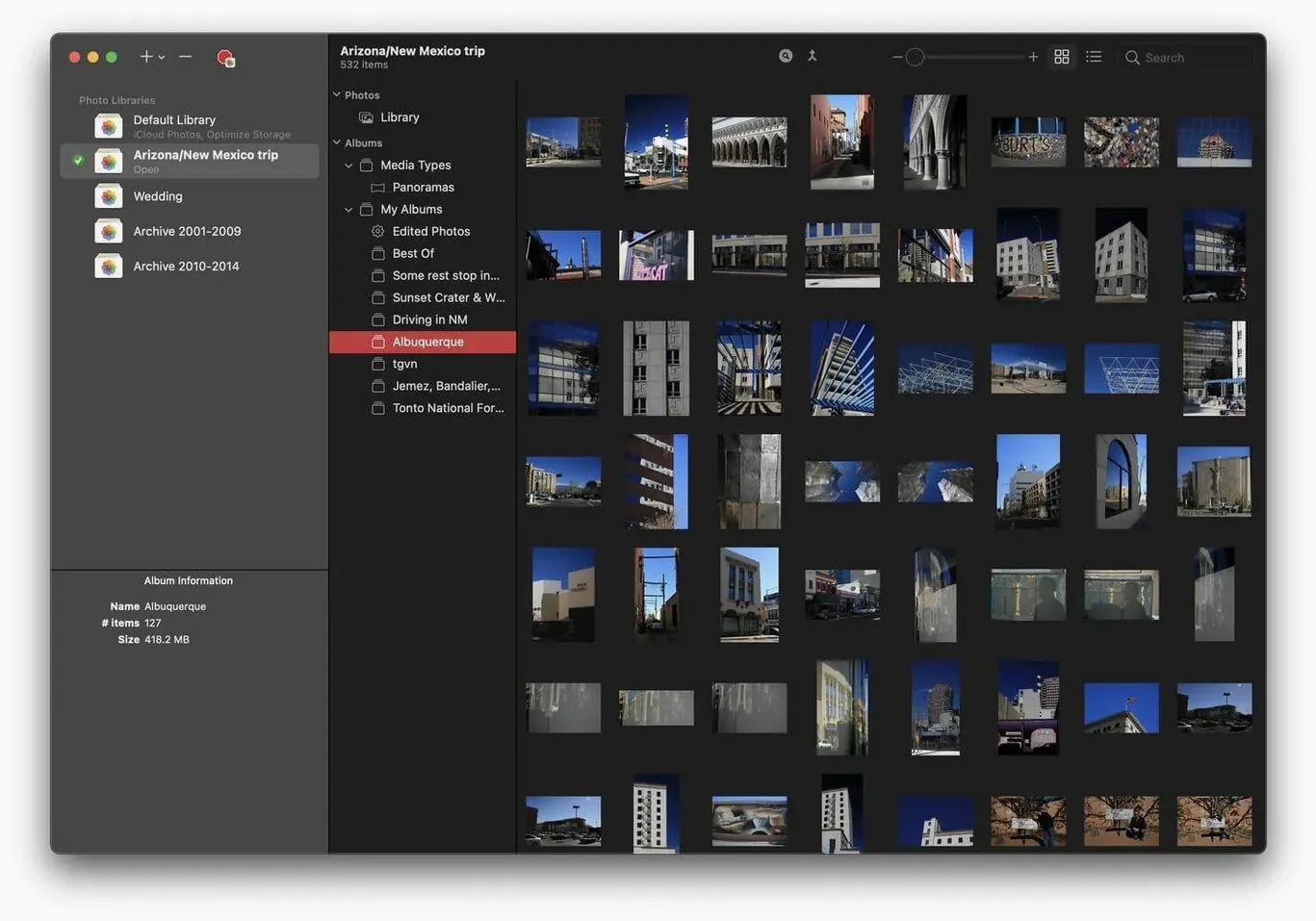
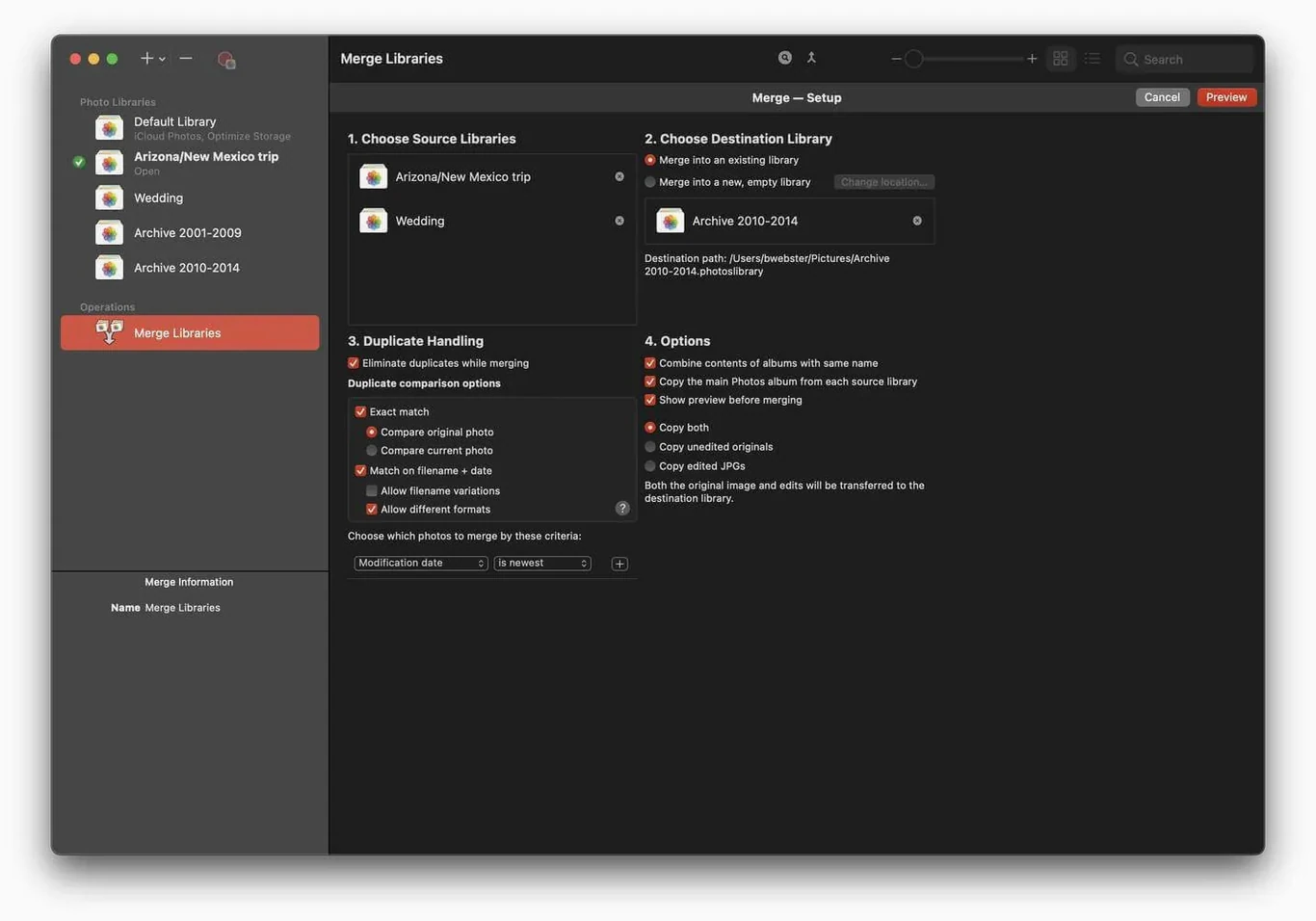
Multiple libraries — instead of storing every picture inside a single, ever-expanding Photos library, you can split your collection into separate libraries for different projects, years, or family members. PowerPhotos lets you switch between them without quitting Photos each time.
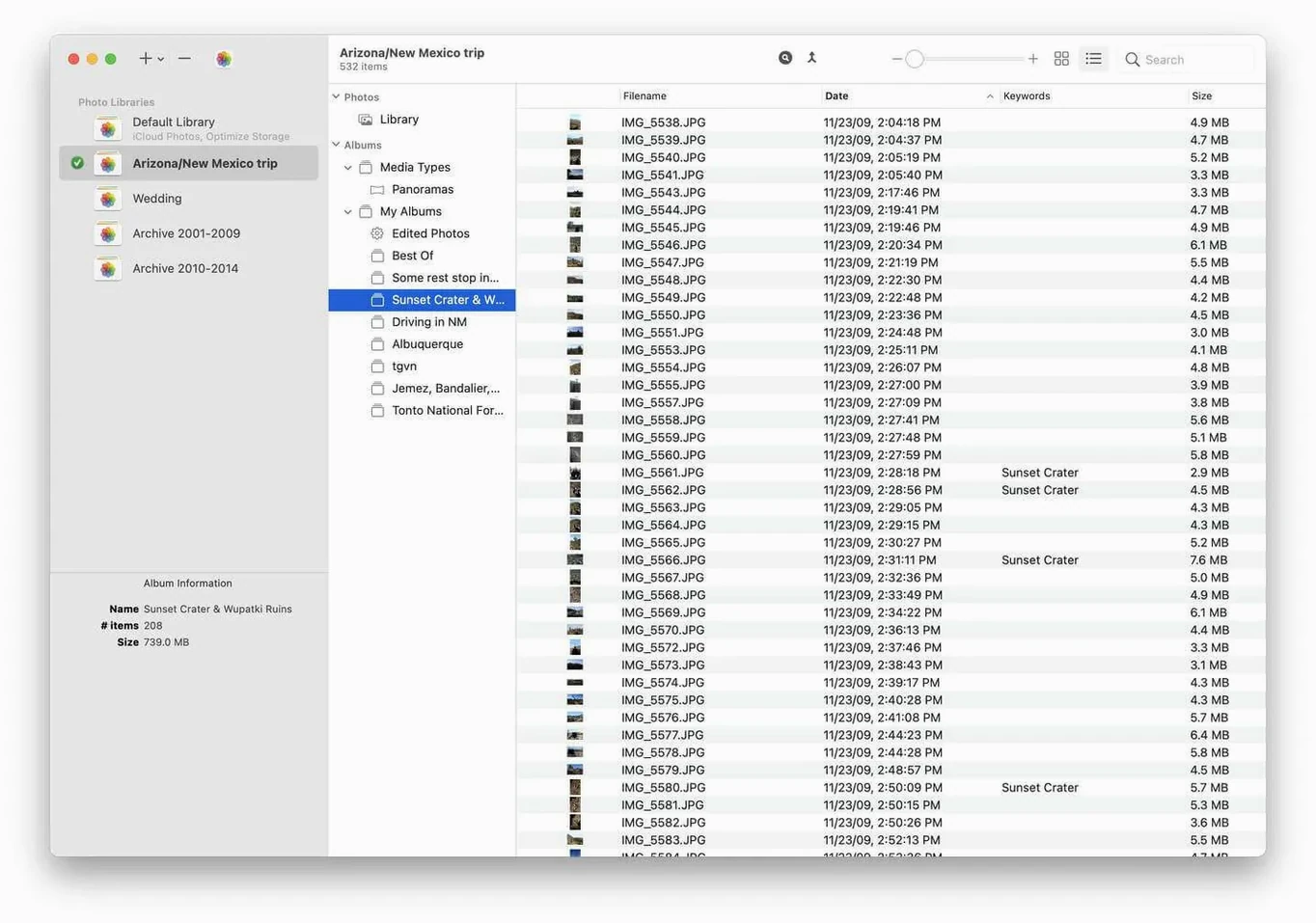
Library browser — you can peek inside a library and browse its albums and moments from within PowerPhotos itself, so you know exactly what is where before you open anything.
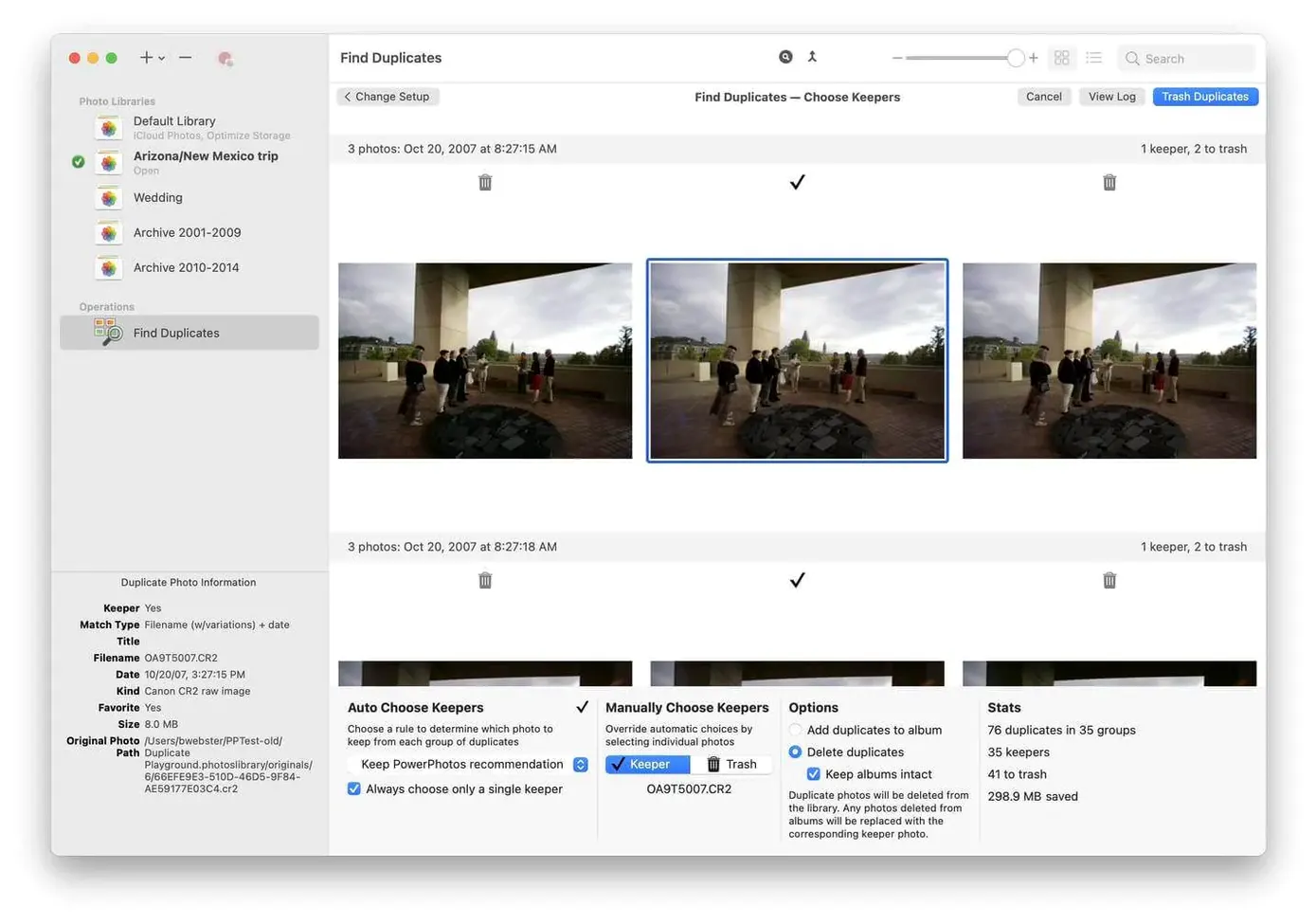
Duplicate detection — the app scans your libraries and places suspected duplicates side by side, making it straightforward to compare and decide which copy to keep.
Standalone companion — PowerPhotos works alongside Apple’s Photos app rather than replacing it. It is a separate product from iPhoto Library Manager, designed specifically for the modern Photos library format.
Managing multiple libraries for growing photo collections
Not everyone needs multiple Photos libraries, but a few kinds of Mac user will wonder how they managed without it. If you keep a single library that swells each year with holiday snaps, screenshots, and family videos, PowerPhotos gives you a way to break that monolith into manageable pieces. Wedding photographers and event shooters often find it essential — they can deliver each client a tidy, self-contained library without ever mingling personal pictures with professional work.
Anyone wrestling with iCloud storage limits benefits too. Apple’s “Optimise Mac Storage” setting helps, but a bloated library still pushes against whatever iCloud tier you pay for. By splitting off older years into separate local libraries, you can keep your main library lean enough that iCloud sync stays snappy. The same logic applies if you share a Mac with a partner or children: give each person their own library and you stop lunch photos from mixing with landscape experiments.
Genealogists and archivists who scan decades of family prints are another natural audience. Scanning projects generate thousands of images, many of which are near-duplicates from different resolutions or slight re-crops. PowerPhotos’ side-by-side duplicate view turns a daunting cleanup into something methodical — you see both versions, compare the detail, and keep the best scan without guesswork.
Searching across every registered library from one bar
A few features sit quietly in the interface and are easy to overlook during the first few hours. The search bar at the top of the library list works across every registered library at once. Type a keyword — a pet’s name, a city, a date — and PowerPhotos returns matches from all libraries without you needing to open each one individually. It is a genuine time-saver when you half-remember a photo but cannot recall which library holds it.
When you drag photos between libraries, PowerPhotos preserves metadata that Apple’s own export-and-import dance can sometimes drop. Titles, descriptions, keywords, and face tags travel with the image. The same applies to albums: you can copy an entire album structure from one library to another in a single operation, keeping the organisation intact. That matters more than it sounds if you have spent evenings carefully curating albums.
Another quietly useful touch is the library statistics pane. Select any library and PowerPhotos shows you its total size, photo count, video count, and how much space the library’s thumbnail caches and face-recognition data consume. It is a quick way to spot a library that has ballooned with cached data you might want to rebuild.
How PowerPhotos fits with other apps and macOS
Because PowerPhotos reads and writes standard Photos library bundles, anything that works with those bundles plays nicely alongside it. Backup utilities like Carbon Copy Cloner or ChronoSync see each library as a single package, so you can schedule separate backup routines for your active library and your archived ones. If you use a network-attached storage device for long-term archiving, you can move older libraries onto the NAS and PowerPhotos will still browse them — though opening them requires the drive to be mounted, naturally.
The duplicate-detection engine also complements external editors. Suppose you use Pixelmator Pro or Affinity Photo to make edits, and you save those edits as new files rather than overwriting originals. Over a few months you end up with several versions of the same image scattered across albums. PowerPhotos spots them, even if they have different filenames and slight cropping differences, because it analyses image content rather than relying on metadata alone. That content-aware matching is what separates it from a simple file-size comparison tool.
Integration with the Mac’s Spotlight search is indirect but useful: once you have split your libraries logically — by year, by project, by person — finding the right library to open becomes faster because the library names themselves are descriptive enough to search from Finder. Some users also pair PowerPhotos with AppleScript or Shortcuts to automate library switching at certain times of day, though that requires a little tinkering.
Catalogue your existing libraries before spliting anything
The instinct on day one is to dive straight into splitting a giant library, but a little restraint pays off. Start by letting PowerPhotos simply catalogue your existing libraries — point it at whatever you already have, even if it is just the default system library. Let it index the contents so the cross-library search has something to work with. That indexing runs in the background and is quick, but it is worth letting it finish before you begin any large copy or merge operations.
Next, run a duplicate scan on your main library before you split anything. Removing duplicates from one library is faster than chasing them across three or four. Set the matching sensitivity in PowerPhotos’ preferences to a middle ground; the default setting catches obvious duplicates and near-duplicates, but if you have burst-mode sequences you might tighten the threshold to avoid flagging shots that are only frames apart.
When you are ready to create a new library, pick a clean naming convention. Libraries named after years (“2023.photoslibrary”, “2024.photoslibrary”) sort naturally and make the library switcher list easy to scan. Avoid spaces in library names if you plan to store them on external drives formatted with file systems that occasionally choke on spaces — a small habit that prevents irritation later.
Finally, before you delete any originals after a library split, open the destination library in Apple Photos and confirm the transfer. PowerPhotos is reliable, but the “trust but verify” approach costs you five minutes and saves the kind of regret that comes from emptying a library too soon. Once verified, you can reclaim the space immediately — the originals are not hidden in some obscure system folder, just deleted as you would delete any file.
- macOS 14 Sonoma or later
- Apple Silicon or Intel 64-bit processor
Questions I keep hearing
Does PowerPhotos replace the Photos app on my Mac?
No, it sits alongside the built-in Photos app and gives you extra tools for organising libraries and cleaning up duplicates.
Can I see what is inside a library without opening it?
Yes, the library browser lets you browse albums and moments directly inside PowerPhotos before you commit to opening the library in Photos.
Will it run on my Intel Mac?
Yes, PowerPhotos supports both Apple Silicon and Intel 64-bit Macs running macOS 14 or later.
Questions from the class 0
Sign in or join the class to ask a question.
Nobody has asked anything yet. If you have used it on a real job, say what the file did.
Also on the Mac Apps shelf
The whole Mac Apps shelf PopClip
Shows a row of actions whenever you select text on your Mac.
PopClip
Shows a row of actions whenever you select text on your Mac.
 Presentify
Draws annotations and highlights on top of any app or presentation with one menu-bar click.
Presentify
Draws annotations and highlights on top of any app or presentation with one menu-bar click.
 ProPresenter
Manages lyrics, slides and media for live events and worship.
ProPresenter
Manages lyrics, slides and media for live events and worship.
 PlistEdit Pro
Displays and rearranges the nested tags inside macOS preference and configuration files.
PlistEdit Pro
Displays and rearranges the nested tags inside macOS preference and configuration files.
 PyCharm
Provides coding tools for Python development and debugging.
PyCharm
Provides coding tools for Python development and debugging.
 Plasticity
Builds watertight solid models for manufacture through direct, history-free editing.
Plasticity
Builds watertight solid models for manufacture through direct, history-free editing.
 QuarkXPress
Designs precise layouts for print and digital publishing.
QuarkXPress
Designs precise layouts for print and digital publishing.
 Pixologic Zbrush
Sculpts digital clay into high-detail models using pixels that carry depth and material data.
Pixologic Zbrush
Sculpts digital clay into high-detail models using pixels that carry depth and material data.