 ASPNetWorld

It's a familiar frustration: an app you trust for one task suddenly starts chattering away in the background, pulling updates you didn't ask for or sending analytics to a server you've never heard of. Most firewalls answer this with port numbers and protocol rules. Radio Silence takes a different path — it lets you point at an application and say, "Not you."
Spot the chatter
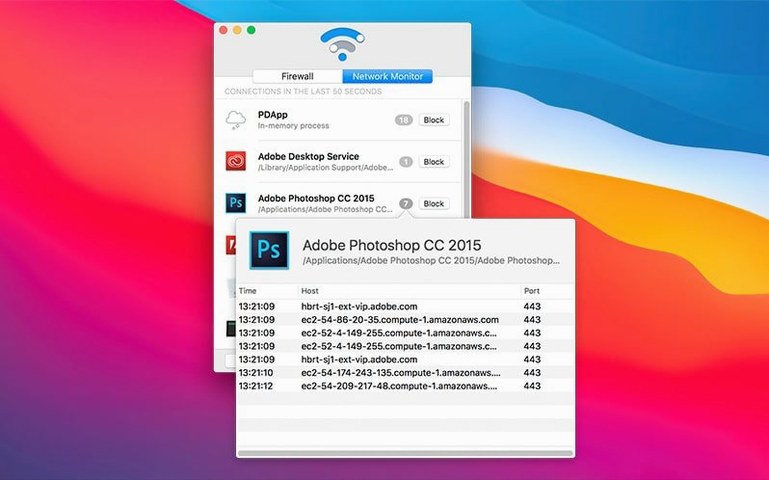
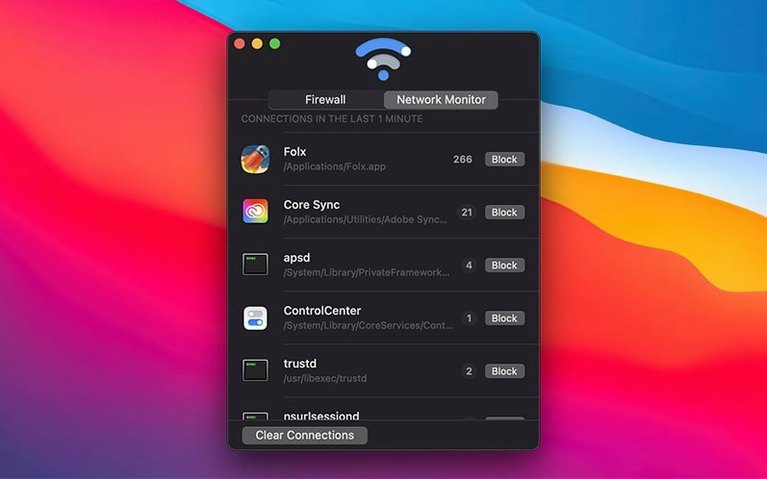
Open the app and you'll find a live network monitor that lists every connection attempt as it happens, with the responsible application named clearly next to it. This real-time view turns an invisible problem into something you can actually see, and it's often surprising how many supposedly offline tools reach for the internet the moment you launch them.
Block an application
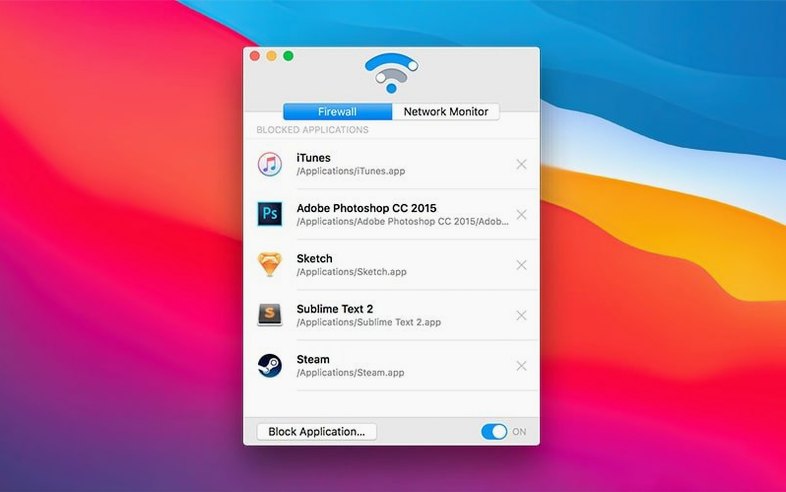
Once you've spotted a culprit, click the "Block Application" button — a standard file picker opens, you select the app, and that's it. Radio Silence quietly drops every connection it tries to make from that moment on. The firewall tab keeps a tidy list of everything you've blocked, so you can review your choices without hunting through system preferences.
Stay in control
Version 3.4 brings a thoughtful safety net: if the app ever fails to launch properly, a help view appears with straightforward troubleshooting information, covering installation errors and permission hiccups. It's a small touch, but it means the tool that guards your network also knows how to look after itself.
Where Radio Silence sits in your Mac ecosystem
Radio Silence isn't a sprawling internet security suite, and that's precisely why it plays nicely with almost everything else you run. It sits at a very specific layer — the network kernel extension — and only intercepts the connections made by applications you've explicitly told it to block. Everything else passes through as normal. This means you can run it alongside Little Snitch if you want overlapping control, or next to a VPN without either tool stepping on the other's toes. The VPN encrypts your traffic; Radio Silence decides which apps get to create traffic in the first place.
It also cooperates with macOS's built-in privacy features rather than fighting them. The permissions it needs are the standard ones for any network filter, and version 3.4's installation guidance now walks you through those prompts for macOS Tahoe with clearer steps than before. If you're already using Screen Time to limit certain apps, Radio Silence complements that by cutting off their internet access entirely — a child-locked game that can't phone home is doubly contained. Similarly, if you rely on iCloud Private Relay, Radio Silence won't interfere; Private Relay handles Safari traffic through its own encrypted tunnel, while Radio Silence works beneath the browser, at the application level.
One subtle integration that's easy to overlook is how the block list behaves when you clone or rename an application. Radio Silence identifies apps by their bundle identifier, not their filename, so moving a blocked app to a different folder doesn't create a loophole. Duplicate an app, though, and the copy inherits the same bundle ID — meaning it's blocked too until you explicitly unblock it. That's either a convenience or a gotcha, depending on what you were trying to do.
A writer's afternoon, uninterrupted
Imagine a freelance journalist — let's call her Kate — who works from a café three afternoons a week. She uses a writing app that's gloriously free of distractions, but its latest update quietly introduced a telemetry module that phones home every time she opens a document. She also keeps a weather app in the menu bar that refreshes constantly, and a photo editor that insists on checking for stock image licences even when she's offline.
Kate installs Radio Silence, opens the network monitor, and watches for two minutes while she launches her usual tools. The weather app pings a server in Oregon every thirty seconds. The writing app sends a small JSON payload on launch. The photo editor attempts three different connections just by sitting in the background. She blocks all three, and her café afternoon changes: the writing app launches faster because it's not waiting for a server response, the menu bar stops showing a spinner every half minute, and her MacBook's battery graph flattens slightly over the next hour. She didn't change any habits — she just removed the noise.
What Kate didn't expect was the psychological effect. Knowing that nothing is phoning home while she drafts sensitive material gives her the same quiet confidence as closing the office door. The radio silence macos experience, if you'll forgive the phrase, is as much about mental clarity as it is about network policy.
The empty block list surprises most first-time users
The most common beginner mistake is treating Radio Silence like a traditional firewall that blocks incoming traffic by default. It doesn't. Out of the box, nothing is blocked — the block list starts empty, and it's up to you to add applications. Someone who rushes through the setup expecting automatic protection will finish with a perfectly clear conscience and zero actual filtering.
Another slip is blocking system processes they don't recognise. The network monitor shows mDNSResponder, rapportd, and other background daemons that keep macOS functioning. Blocking these can break AirDrop, Handoff, or local device discovery, and the symptoms are confusing because Radio Silence doesn't show a warning — it just silently drops the packets. The fix is easy (remove the process from the block list), but the troubleshooting path isn't obvious if you've forgotten what you blocked three days earlier.
A subtler mistake involves the "pause firewall" toggle. New users sometimes pause it to let a blocked app update, then forget to resume, leaving everything open for days. The firewall tab shows a clear indicator when paused, but it's not something the app nags you about — and a quiet firewall that's silently doing nothing is a contradiction that can catch anyone out after a long week.
Small details worth knowing
The block list accepts applications dragged straight from Finder, which is the fastest way to build it — open a Finder window next to the Radio Silence window and drop apps in as you spot them in the monitor. You don't need to use the file picker at all. The list also has no practical limit; you can block dozens of apps and the overhead is negligible because it's just comparing bundle identifiers against a lookup table, not inspecting every packet.
If you need to temporarily unblock something without losing your block list, pausing the firewall is the right tool, but there's also a subtler move: quit the blocked app, remove it from the list, use it briefly online, then add it back. Radio Silence doesn't log your block history beyond the current list, so this leaves no trail — useful if you're letting a single app check for a critical update and don't want to forget to re-block it later because the pause affected everything.
The app doesn't put an icon in the menu bar, which some people miss and others celebrate. If you want to check the block list, you open the main window or leave it minimised in the Dock. For a tool that's supposed to be invisible, that's philosophically consistent, but it does mean you won't get a visual reminder that it's running. A quick Terminal command — ps aux | grep "Radio Silence" — can confirm it if you're ever unsure.
Lastly, version 3.4's improved error handling quietly fixes an annoyance that previously generated support emails: permissions that got lost after a macOS upgrade. Now, if the network filter extension fails to load because of a permissions mismatch, the help view surfaces the exact issue rather than leaving you staring at an empty connection list wondering why nothing's appearing.
An editing session, from silence to silence
You sit down with a coffee at 9:15 and open Radio Silence first, out of habit, just to check the firewall tab. Everything from yesterday is still blocked — a photo uploader, two Adobe background processes, and a game that thought its telemetry was anonymous. You leave the monitor pane open on a secondary display because you're about to test a new video editing plugin and want to see what it does.
The editing suite launches. Within seconds, the monitor lights up: the main application checks for updates, a font manager syncs with its cloud library, and the new plugin sends a burst of analytics to a domain you don't recognise. You drag the plugin's icon from the Applications folder into the block list. The monitor shows a few more connection attempts from it, then nothing — it's been silenced mid-session, without restarting anything.
By 11:00 you're deep in a render, so you pause the firewall briefly to let the font manager finish a sync it's been attempting for weeks. The pause indicator appears; you make a mental note. At 11:12 the sync completes, you unpause, and the block list resumes exactly where it left off. No configuration files were touched, no rules edited. The whole interaction took less thought than adjusting the volume.
When the render finishes at lunchtime, you close the editing suite and glance at the monitor one last time. It's quiet. The only connections showing are from Safari, where you're now reading the news, and from Mail, quietly checking for a message from a colleague. Everything you didn't want talking is silent. You close the Radio Silence window, but the firewall keeps running, as it has for weeks, using about as much CPU as a text file sitting unopened on your desktop.
Version 3.4 focuses on getting out of your way more gracefully. It adds installation guidance for macOS Tahoe, along with much better handling of those frustrating moments when permissions aren't quite right or an install doesn't complete cleanly. There's also a new help view that pops up with plain-language troubleshooting if the app ever fails to launch.
- macOS 10.15 or later
- Intel or Apple Silicon Mac
Questions I keep hearing
Does Radio Silence block incoming connections or just outgoing ones?
It monitors incoming connections initiated by apps, so it covers both directions that your installed software might try to open.
What macOS versions does it work with?
Radio Silence 3.4 requires macOS 10.15 or later and runs natively on both Intel and Apple Silicon Macs.
Where do I see which apps I've blocked?
The Firewall tab within the app keeps a clear, running list of every application you've chosen to block, making it easy to review or mentally un-block something later.
Questions from the class 0
Sign in or join the class to ask a question.
Nobody has asked anything yet. If you have used it on a real job, say what the file did.
Also on the Mac Apps shelf
The whole Mac Apps shelf QuarkXPress
Designs precise layouts for print and digital publishing.
QuarkXPress
Designs precise layouts for print and digital publishing.
 PyCharm
Provides coding tools for Python development and debugging.
PyCharm
Provides coding tools for Python development and debugging.
 RAR Extractor - unzip
Extracts files from compressed archives like RAR and ZIP.
RAR Extractor - unzip
Extracts files from compressed archives like RAR and ZIP.
 RAR Extractor
Previews and extracts compressed archive contents.
RAR Extractor
Previews and extracts compressed archive contents.
 Raycast Pro
Launches apps and commands from a keyboard palette.
Raycast Pro
Launches apps and commands from a keyboard palette.
 ProPresenter
Manages lyrics, slides and media for live events and worship.
ProPresenter
Manages lyrics, slides and media for live events and worship.
 Presentify
Draws annotations and highlights on top of any app or presentation with one menu-bar click.
Presentify
Draws annotations and highlights on top of any app or presentation with one menu-bar click.
 Remove-It
Uninstalls apps and removes their leftover files.
Remove-It
Uninstalls apps and removes their leftover files.