 ASPNetWorld

The version 4.0.7 build arrived with a practical tweak—a workaround for a startup-drive visibility quirk under macOS 27 Golden Gate, so your external clone shows up reliably when you hold the Option key at boot. It is a small change that keeps the tool's central promise intact: a duplicate you can actually start from.
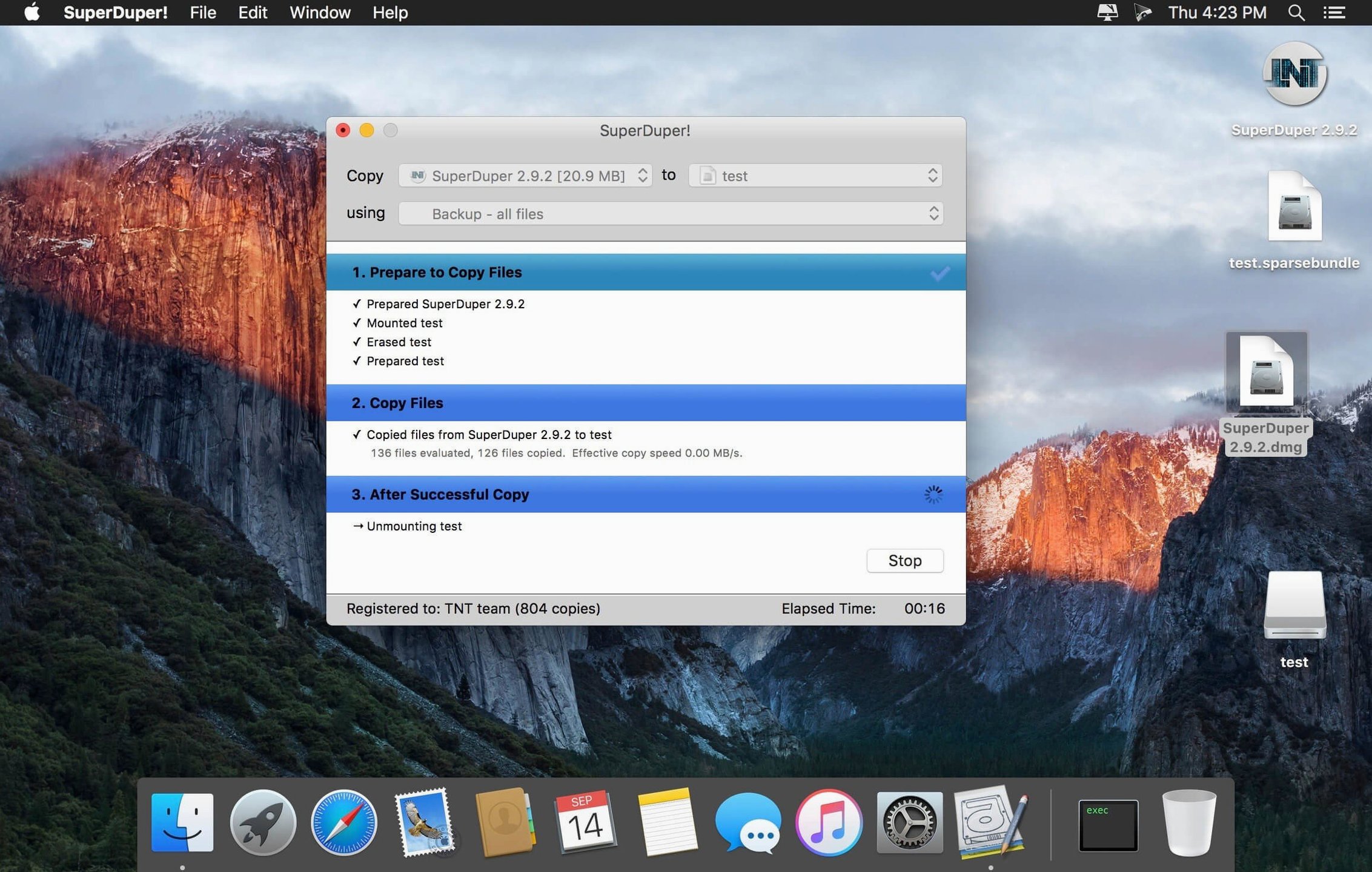
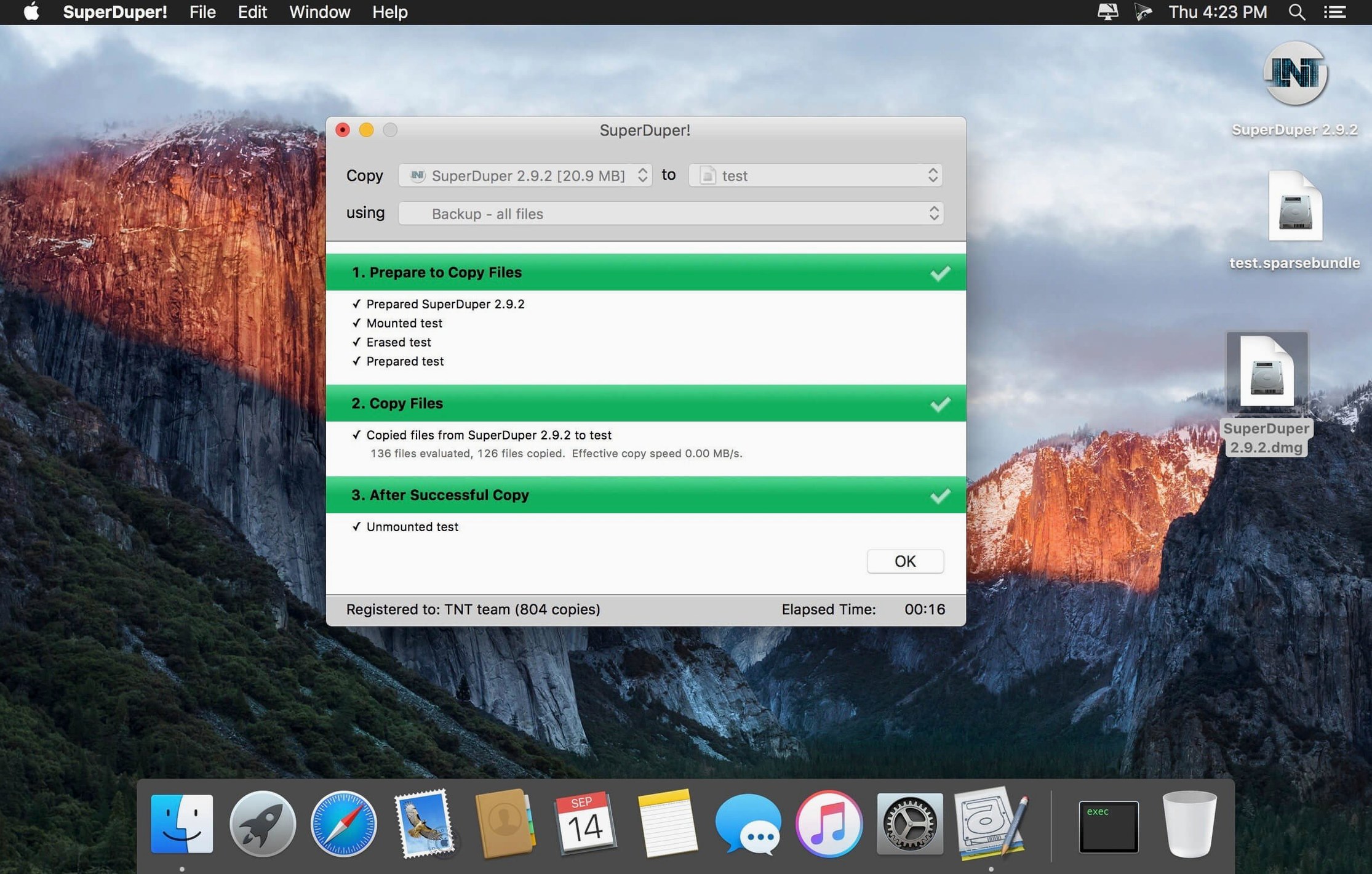
That bootable clone is the feature most people reach for first. SuperDuper! reads your source volume block by block, or file by file with Smart Update, and writes an exact, bootable copy to another drive. Move that drive to a different Mac, and you have moved your whole working environment—applications, settings and all—without an installer in sight. The same engine handles simple folder copies to external media for quick manual shuffling of project files.
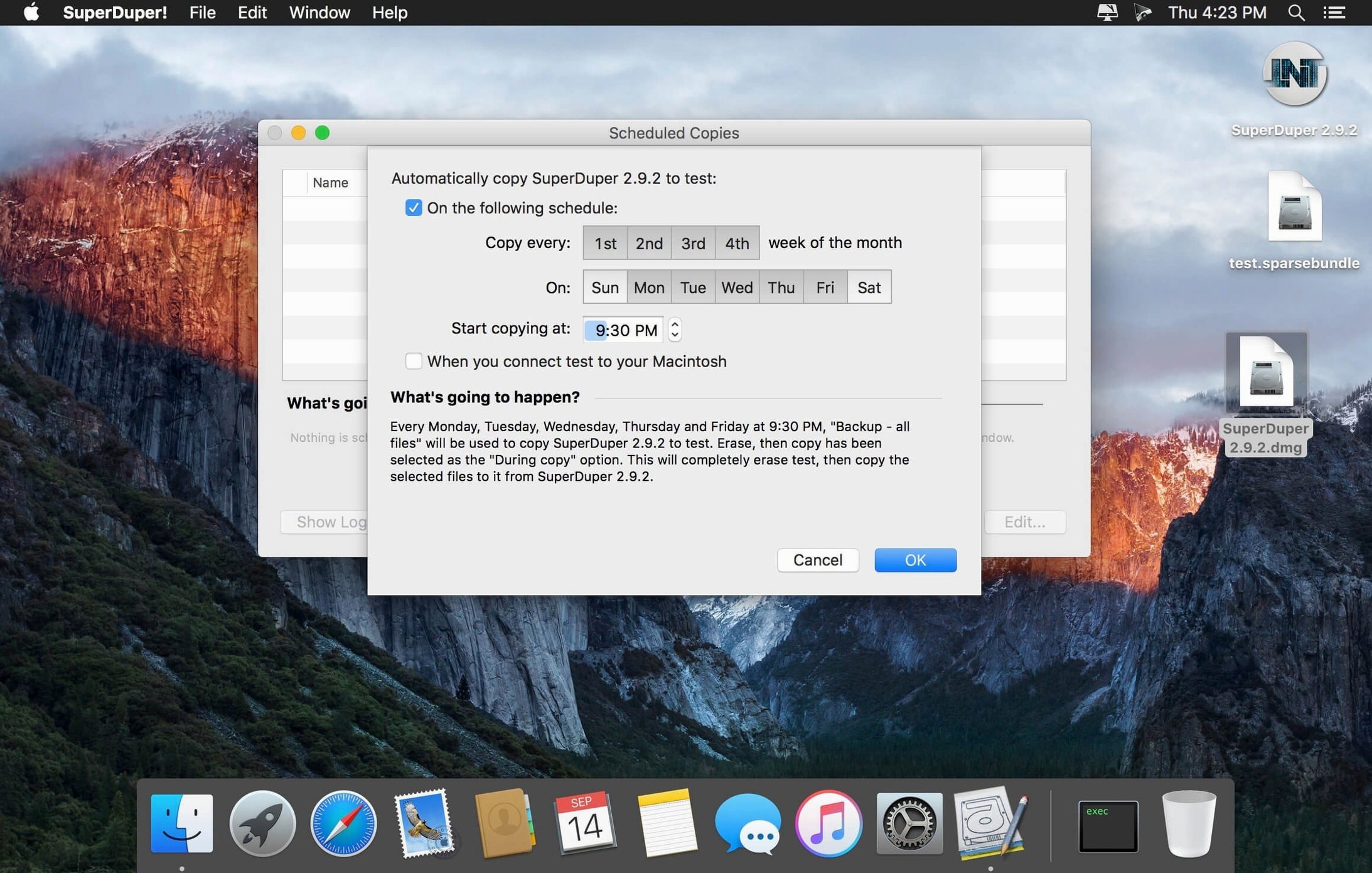
Where the app earns its keep long-term is scheduling. You set a time and a source–destination pair, and it quietly makes periodic backups of your important data. Because it uses Smart Update by default, subsequent runs only touch files that have changed, so a daily refresh of a large music library takes minutes rather than hours.
Under the hood, scripting support lets you chain actions—copy one volume, then another, then run a custom shell script to verify checksums—all triggered from a single schedule. The engine speaks both Apple Silicon and 64‑bit Intel, and it reads from and writes to disk images, so you can clone directly into a portable, mountable file as easily as onto a bare drive. An exact copy of a disk is the clearest safety net you can have, and that remains the whole point.
The engine’s performance in daily use leans more towards consistency than outright speed. A full clone of a 500 GB internal SSD to a USB‑C external drive might complete in just under 25 minutes on a recent Apple Silicon Mac, and the same job using Smart Update a day later often wraps up in under two minutes because only a few hundred megabytes of cache and mail have changed. Memory footprint is refreshingly modest—Activity Monitor typically shows it idling below 80 MB, and it doesn’t spawn a flock of background helpers. The scheduler is a single launchd job that wakes up, checks the clock, and goes back to sleep.
Stability comes from the app’s reluctance to overreach. It asks macOS to do the heavy lifting through its own copy engines, so a backup is really the system copying itself. I have left a daily clone schedule running across three macOS releases without a single hung process, though you should still eject the destination drive cleanly—unplugging it mid‑write can confuse the filesystem just as it would in the Finder. An often‑missed detail: the destination volume is blessed for booting only if you run the clone while logged in as an administrator, because blessing touches the system‑level boot cache. Standard accounts can still make data‑only backups without issue.
Smart Update cannot shrink your data to fit a smaller drive
New users occasionally pick a destination that is smaller than the source and expect Smart Update to squeeze everything across. The app warns you when there is not enough free space, but it cannot shrink a 400 GB data set to fit a 256 GB external SSD unless you first trim the source. A related slip is forgetting that a bootable clone demands a drive formatted as APFS or Mac OS Extended (Journaled) with a GUID partition map—exFAT or FAT32 volumes will accept files but will never be bootable.
Another common stumble is running a scheduled backup after renaming the destination drive. The schedule uses a low‑level identifier that normally survives a rename, but if you reformat and give the drive the same name, the old schedule still points to the previous volume identity and will skip the job. Simply re‑select the destination in the schedule and save it again. Some people also switch off the Mac during a clone and then find the destination won’t mount. Disk Utility’s First Aid almost always repairs it, but the lesson is worth learning: let the progress bar finish before you close the lid.
Option-click Copy Now to run and save a schedule in one step
If you hold the Option key while clicking the “Copy Now” button, the app runs the job immediately but simultaneously saves it as a named schedule entry for later use—two steps folded into one. Another quiet touch is that dragging a folder from the Finder directly onto the destination selector auto‑fills the path, so you do not have to navigate a file browser for a quick manual copy to external media.
The “Run shell script after copy completes” checkbox inside the advanced script editor is a genuine time‑saver for anyone who wants a verification step. A simple tmutil inherit call in that slot makes the cloned volume eligible for Time Machine snapshots, which is not obvious from the interface. Keyboard enthusiasts will also appreciate that pressing ⌘S while a clone is running saves a log file to the desktop, which is helpful when you want to share diagnostics with someone who hasn’t seen the screen.
It runs natively on Apple Silicon with a boot‑registration workaround
Does it work with the latest Apple Silicon Macs? Yes. The build runs natively on ARM and 64‑bit Intel, and the current workaround for boot‑registration under macOS 27 Golden Gate keeps startup‑drive visibility reliable. People who grab a superduper mac build for an M1 or M2 machine will find no Rosetta layer involved.
Can I clone just my user folder and leave the system behind? That is exactly what the “Backup – user files” script template does. It excludes the System and Applications folders while pulling your home directory across, which is handy when you only need a superduper mac download for a personal data safety net rather than a full bootable duplicate.
Is Smart Update the same as incremental backup? Almost. It compares every file on the source against its counterpart on the destination and replaces only what differs. The result after a Smart Update pass is an exact match, not a chain of differential snapshots, so you still end up with a single complete copy. Some people searching for a superduper mac full backup assume they need to erase the destination each time, and Smart Update removes that chore entirely.
The 4.0.7 update addresses a boot-registration issue under macOS 27 Golden Gate, where a freshly cloned startup drive might not appear in the boot picker. A workaround ensures the cloned volume is visible when you need to start from it.
- macOS 10.13 High Sierra or later
- Apple Silicon or 64-bit Intel processor
- English interface
Questions I keep hearing
Which macOS versions does SuperDuper! support?
It runs on macOS 10.13 High Sierra and later, including the latest releases, and works natively on both Apple Silicon and 64-bit Intel Macs.
Can I clone my drive to a disk image instead of a physical drive?
Yes, you can clone a disk, volume or folder directly to a mountable disk image file, which is handy for archiving a system snapshot without a dedicated external drive.
What is Smart Update and why does it matter?
Smart Update compares the source and destination and only copies files that have changed, turning a full-clone process into a quick differential update that preserves the bootable result.
Questions from the class 0
Sign in or join the class to ask a question.
Nobody has asked anything yet. If you have used it on a real job, say what the file did.
Also on the Mac Apps shelf
The whole Mac Apps shelf Super Vectorizer Pro
Traces pixel images into scalable vectors.
Super Vectorizer Pro
Traces pixel images into scalable vectors.
 Sublime Text
Edits code quickly and reliably.
Sublime Text
Edits code quickly and reliably.
 Sweet Home
Designs home interiors in 3D.
Sweet Home
Designs home interiors in 3D.
 SwitchResX
Manages display resolutions and settings.
SwitchResX
Manages display resolutions and settings.
 TablePlus
Manages databases in a visual interface.
TablePlus
Manages databases in a visual interface.
 Tayasui Sketches Pro
Draws and paints with natural-feeling brushes.
Tayasui Sketches Pro
Draws and paints with natural-feeling brushes.
 TechSmith Snagit
Captures screens and records your screen.
TechSmith Snagit
Captures screens and records your screen.
 Techtool Pro
Diagnoses and repairs Mac hardware issues.
Techtool Pro
Diagnoses and repairs Mac hardware issues.