 ASPNetWorld

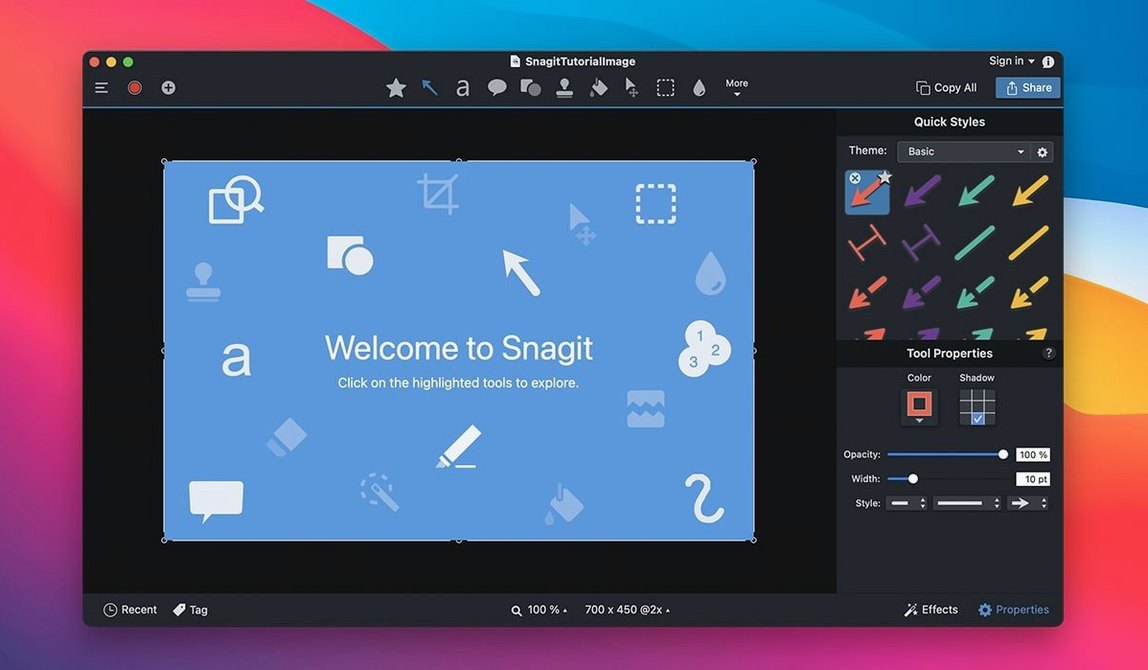
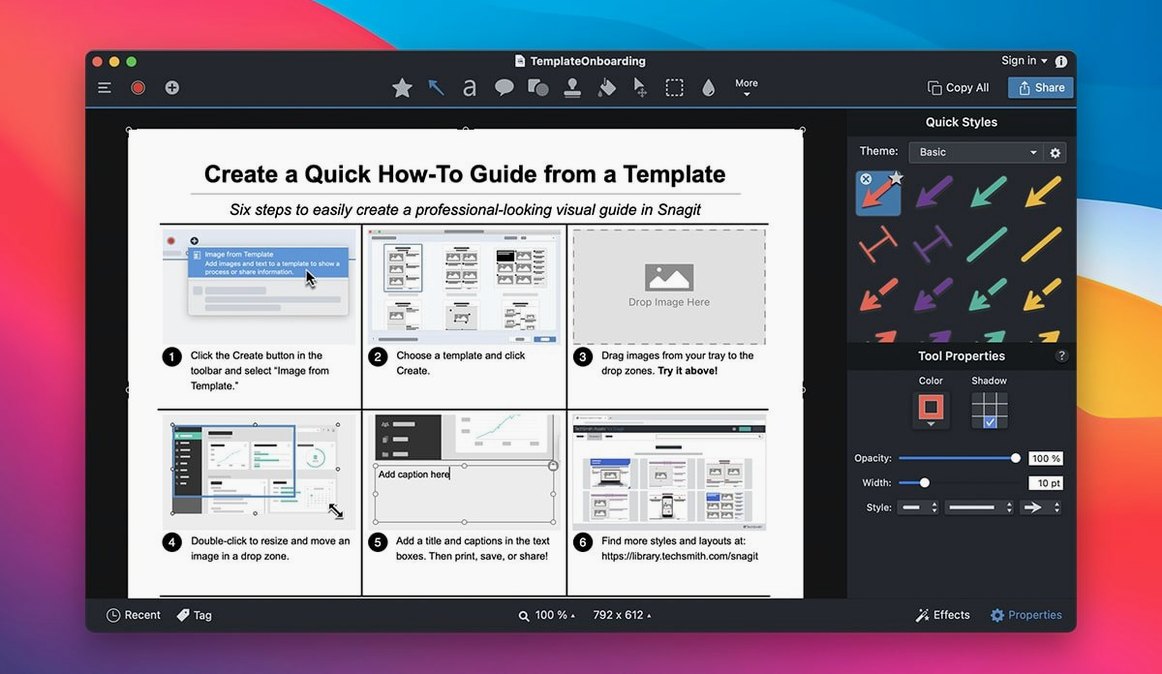
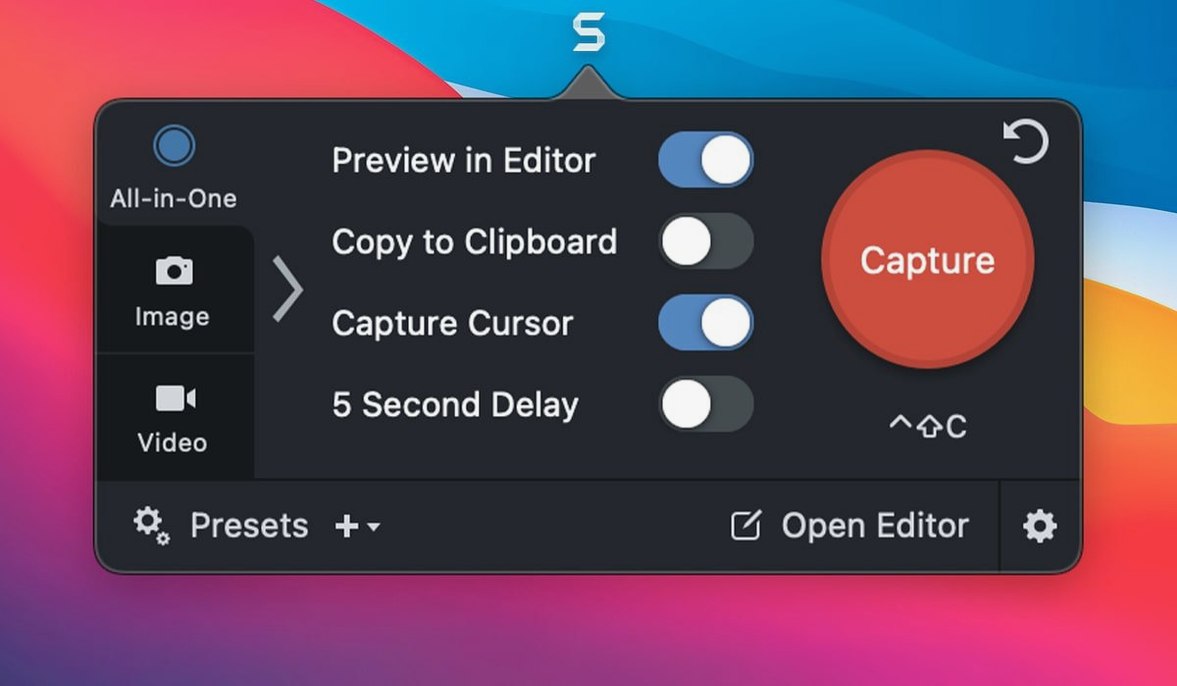
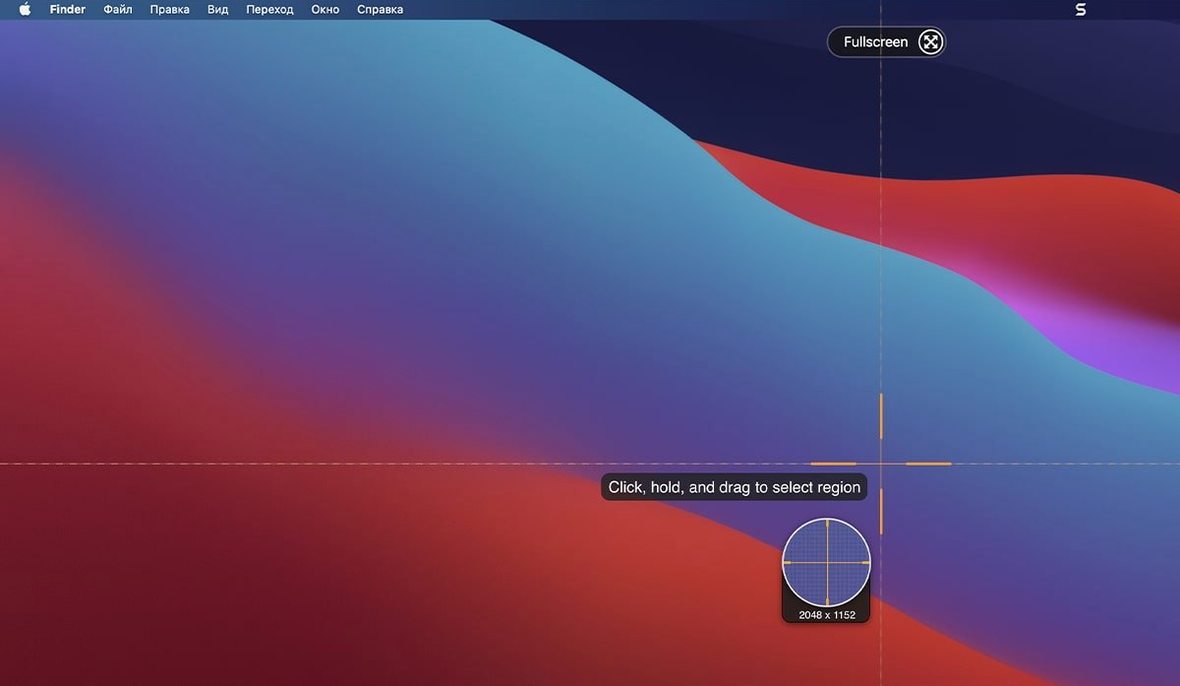
Snagit for macOS is a screen capture and recording app built for people who need to do more than just grab a quick screenshot.
Good for:
- Combining multiple captures into a single collage, which is handy for documentation or comparison.
- Using the library system that automatically organises captures by date and application, and supports custom tags so you can find an image by how you think about it, not just when you saved it.
- Applying non-destructive effects like adjustable shadows, highlights and dimming to draw attention to a specific part of a screenshot.
- Removing an object from an image altogether—Snagit fills the gap with surrounding content, saving a trip into a separate editor.
- Creating custom capture presets with their own keyboard shortcuts; one keystroke can grab a scrolling window, apply a border and save it to a specific library folder.
- Publishing directly to a blog or FTP server from within the app, which keeps a repetitive workflow tidy.
Keep in mind:
- The library search is based on creation date and source application, not visual content.
- Custom presets reward a little upfront time investment; the default presets are fine for casual use but feel generic.
Five matched screenshots and a quick screen recording in one flowing session
Imagine you are putting together release notes for an internal web app. You need five screenshots, each with the same border treatment, and a short screen recording of a new dropdown behaviour. Here is how a session tends to flow once Snagit is part of your muscle memory.
You open the capture window—many people assign it to Shift-Cmd-5 so it never collides with macOS’s own screenshot tool—and pick your preset. You built one called “Docs – window shadow” a fortnight ago. It targets a single window, adds a soft drop shadow and a 2-pixel grey border, then saves straight into a library folder named Release notes. One click, then you tap the browser window you want. Snagit grabs it, applies the effects and files it. No intermediate save dialogs, no Finder clutter.
For the second capture you need the full height of a settings page that scrolls off‑screen. The scrolling-window preset handles it. You click the web page, Snagit scrolls smoothly to the bottom and stitches the frames into a single tall image. The stitching rarely shows a seam unless the page has sticky headers that confuse the algorithm—and even then, the editor’s crop tool trims the duplicate in seconds.
Halfway through you spot a stray support ticket banner in one grab. You open the image from the library tray, switch to the Remove tool and paint over the banner. The app samples the surrounding gradient and fills the gap. It is not Photoshop‑level cloning, but for flat UI backgrounds it works first time often enough that you stop reaching for an external editor.
The recording preset is next. You drag a region around the dropdown, hit record and perform the click. Snagit captures the pointer movement and the menu animation. When you stop, the video sits in the same library as the stills, tagged with the same “Release notes” label you applied earlier. You trim the first half‑second of dead air with the built‑in video trimmer, then drag all six assets into an email. The app resizes the images to a sensible width automatically—no manual export step. The whole sequence, from first grab to sent mail, takes under four minutes.
Capture and scroll‑capture feel instantaneous on Apple Silicon
On an Apple Silicon Mac, the capture engine is responsive enough that you stop thinking about it. A window grab fires the instant you click the target; scrolling captures scroll at roughly the speed the page would in Safari, so a long document takes a few seconds but never feels sluggish. On an Intel machine the scrolling step occasionally hesitates on JavaScript‑heavy pages, though the 2026.3.3 build smoothed out a few long‑standing toolbar quirks on the latest macOS release.
Memory use sits around 400–500 MB with a library of a few hundred captures open. That figure climbs modestly when you edit a recording, because the video preview is held in RAM. The app does not spin up background processes when idle, so it plays nicely with battery life on a MacBook. If you keep the library tidy—archiving old projects now and then—the database stays quick to search even when it holds thousands of items.
Stability is one of those unflashy strengths. The editor has never crashed during an object‑removal operation in my experience, and the auto‑save inside the library means a rare hang during a video export does not cost you the raw capture. The TNT build available as a snagit torrent or snagit mac torrent includes the same underlying engine as the standard distribution, so the reliability story is identical.
If you are considering a snagit for mac download from a trusted catalogue, the 2026.3.3 release is the one to grab—the toolbar‑dragging fix alone makes multi‑display setups far less irritating. Users still on the snagit 2021 download mac vintage will notice the scrolling capture is noticeably smoother now, and the library search indexing is faster to return results when you filter by source application.
Rounding image corners and other tucked‑away editor effects
Several features sit quietly in the interface until you stumble across them. They are worth hunting down early.
- Rounded corners on any image. In the editor, select the image on the canvas, open the Effects panel and drag the corner‑radius slider. It is a one‑step way to turn a rectangular screenshot into something that sits more comfortably inside a slide deck or documentation page.
- Page‑curl effect. Found in the same panel, this adds a subtle curled‑paper shadow to the bottom‑right corner. It sounds frivolous, but it is surprisingly useful for making a screenshot read as “this is a document excerpt” rather than “this is a raw screen grab.”
- Dimming the unimportant bits. The Simplify tool in the toolbar lets you paint a mask over areas you want to recede. Snagit applies a translucent grey overlay and slightly blurs the masked region, while the unmasked area stays crisp. Callout arrows pointed at the bright area do the rest. It is faster than drawing boxes and manually adjusting opacity.
- Copy‑and‑paste between library items. You can copy a callout, arrow or shadow setting from one image and paste it onto another. Right‑click any effect in the properties sidebar and choose Copy style, then right‑click the target object and pick Paste style. If you are annotating twenty screenshots for a knowledge base, this single trick saves more time than any preset.
- Library QuickLook with arrow keys. Select an image in the library, tap the spacebar for QuickLook, then use the arrow keys to flip through neighbouring captures. The 2026.3.3 update fixed a bug that made the arrow keys unresponsive here on macOS 27, so the behaviour is now as fluid as Finder’s own QuickLook.
- Text capture from web pages. The capture window’s dropdown includes a Text option. Drag a region over a block of styled text in a browser—a changelog, a code snippet—and Snagit extracts it as selectable text rather than a flat image. It is not OCR; it reads the underlying text from the page, so accuracy is near‑perfect on standard HTML.
Why repeated visual explainers are the sweet spot
Snagit fits a particular rhythm best. It rewards people who produce visual explanations repeatedly, not occasionally. If you capture something once a week and fire it into Slack unedited, macOS’s built‑in screenshot tool is lighter and faster. But if you find yourself annotating, resizing, combining and filing captures several times a day, the investment in presets and library tags pays back quickly.
Documentation writers and help‑desk teams are the natural home. The combination of scrolling capture, automatic library organisation and the collage builder means you can assemble a multi‑step guide from raw grabs without ever leaving the app. The direct‑to‑email send keeps the feedback loop short when a colleague asks “what does that error look like?”.
Content creators who publish to blogs or FTP also benefit. The built‑in publishing destinations remove the export‑then‑upload dance. You finish an edit, pick Share → Blog and Snagit pushes the image and an optional thumbnail to your WordPress or Movable Type endpoint. The FTP option works the same way for static sites—set the server details once and subsequent uploads are two clicks.
Developers and UI designers often overlook Snagit because they already own heavier tools, but it earns a spot for the quick jobs: grabbing a reference screenshot, adding a measurement‑style callout with pixel‑perfect arrow placement, then copying the flattened image to the clipboard for past
Snagit 2026.4.0 is out now, bringing the developer's latest round of fixes and quiet performance tweaks across the board.
- macOS 15 (Sequoia) or later
- Apple Silicon or Intel 64-bit processor
Questions I keep hearing
Can Snagit remove an object from a screenshot?
Yes, the object removal tool lets you select part of an image and Snagit will fill the space intelligently using the surrounding area.
Questions from the class 0
Sign in or join the class to ask a question.
Nobody has asked anything yet. If you have used it on a real job, say what the file did.
Also on the Mac Apps shelf
The whole Mac Apps shelf Techtool Pro
Diagnoses and repairs Mac hardware issues.
Techtool Pro
Diagnoses and repairs Mac hardware issues.
 Tayasui Sketches Pro
Draws and paints with natural-feeling brushes.
Tayasui Sketches Pro
Draws and paints with natural-feeling brushes.
 Tenorshare UltData
Recovers lost iPhone data.
Tenorshare UltData
Recovers lost iPhone data.
 Termius
Manages SSH connections and command history.
Termius
Manages SSH connections and command history.
 TablePlus
Manages databases in a visual interface.
TablePlus
Manages databases in a visual interface.
 SwitchResX
Manages display resolutions and settings.
SwitchResX
Manages display resolutions and settings.
 TG Pro
Monitors every temperature sensor in your Mac and lets you set custom fan curves.
TG Pro
Monitors every temperature sensor in your Mac and lets you set custom fan curves.
 Sweet Home
Designs home interiors in 3D.
Sweet Home
Designs home interiors in 3D.