 ASPNetWorld

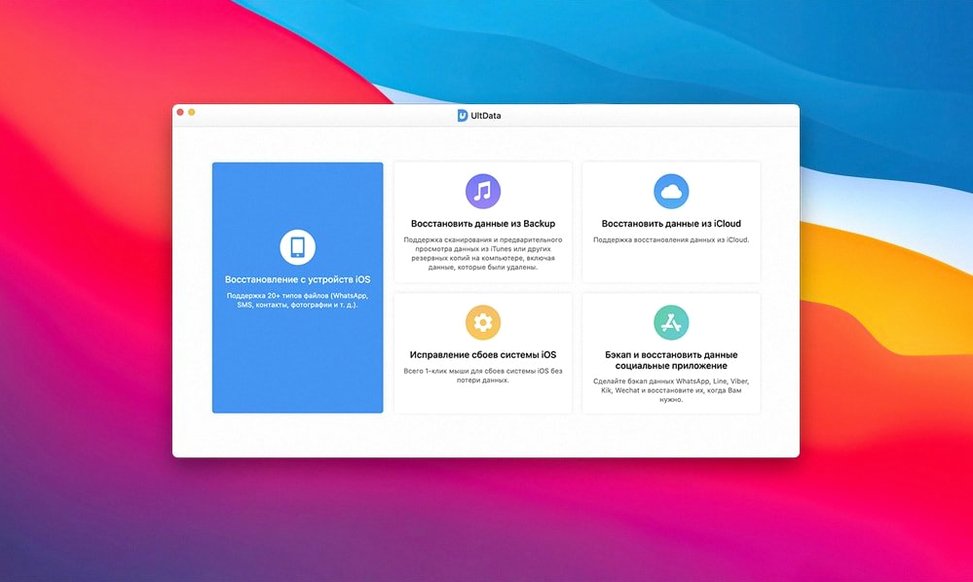
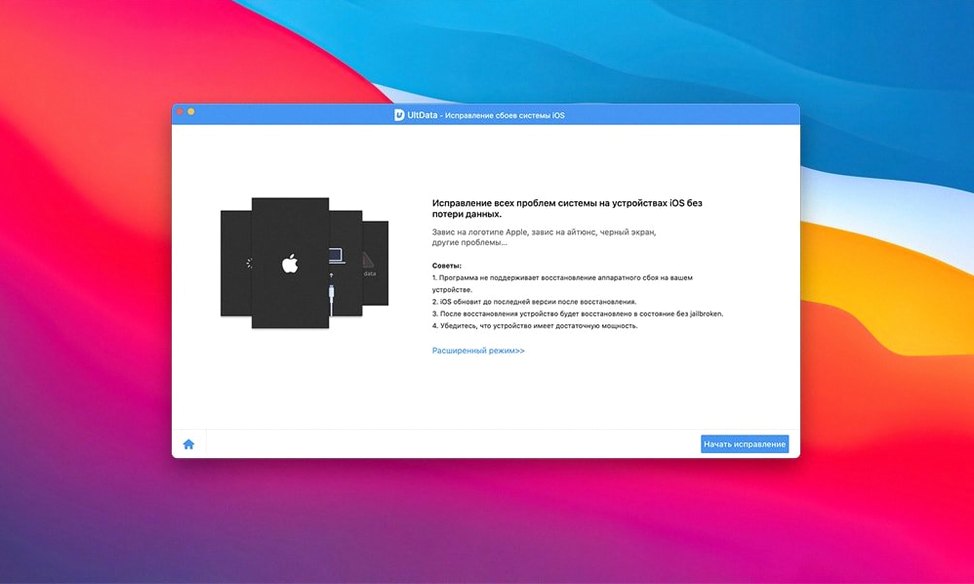
Over 20 different iPhone models, from the 4s up to the XS Max, can hand their lost files over to a single Mac app. UltData 9.5.0 reads an iOS backup, scans the device directly, or pulls whatever it can from an iCloud sync — three distinct paths back to the data that matters.
Recover a wiped Safari history
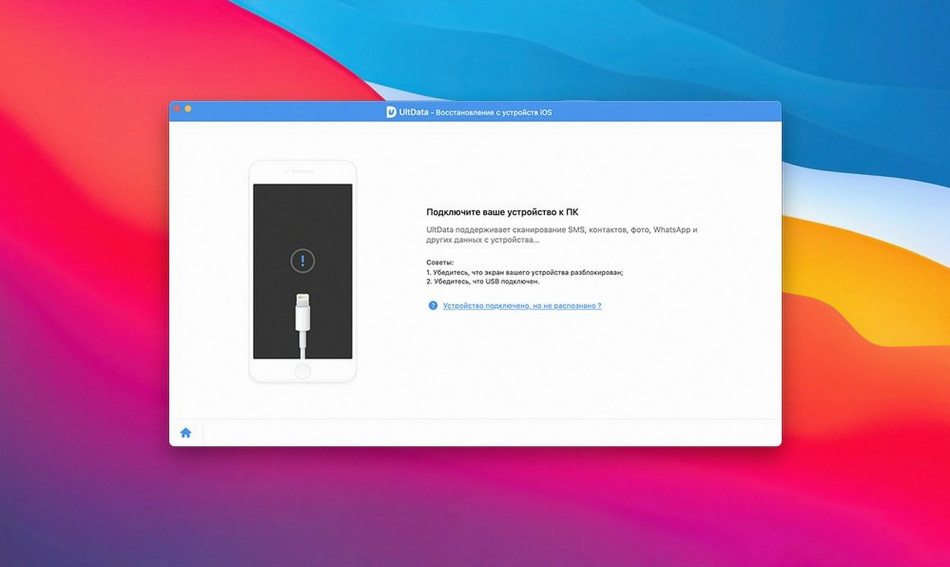
Open UltData and connect an iPhone XR with a Lightning cable. The left-hand sidebar shows a list of recoverable categories; tick Safari History and let the default 'Recover from iOS Device' mode run its scan. A few minutes later, every URL the phone remembers appears in a searchable list, including entries that were cleared weeks ago.
Restore a deleted WhatsApp thread
Switch to the 'Recover from iTunes Backup' mode and pick the most recent backup. UltData extracts the backup without overwriting anything on the phone. Select WhatsApp from the app-data section and preview each message bubble before saving the conversation as an HTML file on the Mac desktop.
Pull photos from an iCloud backup
Sign into iCloud inside UltData — the login goes directly to Apple, so no credentials pass through a third party. Choose 'Recover from iCloud Backup', download the snapshot, and filter the results to show only HEIC and JPEG images. Tick the holiday snaps that disappeared after an iOS update and click Recover to drop them straight into a folder on the Mac.
The search bar that skims previews before you commit to a full restore
Most people launch UltData, pick a recovery mode, and follow the obvious prompts. A handful of quieter touches make repeat use noticeably smoother, yet they rarely get a second glance. The search field at the top of any results list accepts partial terms, so typing three letters of a contact’s name pulls up every phone number, message thread and FaceTime entry tied to them — no need to remember a full surname. Next to that search bar sits a date filter that lets you narrow the scan to a single weekend, which is a lifesaver when you only need the photos from last Saturday’s barbecue rather than the last four years of camera roll.
For anyone recovering data across multiple devices — say, an iPhone and an iPad that share an iCloud account — the device selector in the iCloud mode remembers each backup snapshot separately. You can grab voice memos from the phone while leaving the iPad’s app documents untouched, all without logging out and back in. In the iTunes backup browser, right-clicking a backup entry reveals a hidden “Show in Finder” command; it opens the exact backup folder on the Mac, which is useful for copying a clean archive before you let UltData extract anything. These tiny shortcuts don’t appear in splash screens, but they’re the sort of thing you learn on a second or third recovery job and then wonder how you managed without.
Recovering a client gallery deleted from the Photos app before it hit the cloud
Imagine a freelance photographer who shot a whole afternoon’s portrait session on an iPhone 11 Pro. The photos looked fine in the Photos app, so she deleted them from the camera roll to save space — forgetting they hadn’t been imported into Lightroom yet. There was no iTunes backup and iCloud Photos had been switched off the day before. She downloaded tenorshare ultdata for mac, connected the phone, and chose “Recover from iOS Device.”
The scan took about twelve minutes for a 256 GB handset. In the App Photos category, the deleted portraits appeared with their original resolution and EXIF data intact. She selected the batch, clicked Recover, and directed the output to a folder on her Mac desktop. A quick check in Preview confirmed the files were uncorrupted. Because UltData doesn’t require a full phone restore, the rest of the phone’s storage stayed exactly as it was — no other app data got displaced. The photographer had the shoot back before the client sent the reminder email. That kind of narrow, high-stakes retrieval is where the app’s three-mode design really earns its place on a working Mac.
Which Mac users benefit the most
UltData skews naturally towards people who use their iPhone or iPad as a primary tool rather than a satellite device. Journalists who conduct interviews via Voice Memos, small-business owners who keep their client list in Contacts and their chat history in WhatsApp, parents who document family life entirely through their camera roll — these are the profiles that get the fullest value from the feature set. The app’s support for Kik, Viber, WeChat, Tango and LINE means it’s equally useful for anyone whose social or work chats live outside the Apple ecosystem.
Mac users who still run older hardware benefit from the deliberately low system requirement (macOS 10.8 and an Intel 64-bit processor). There’s no Metal check, no T2 chip requirement, and the download size stays modest enough that it won’t choke a spinning hard drive. Meanwhile, a second group — forensic hobbyists and IT support staff who regularly pull data from other people’s devices — will appreciate that the app keeps each recovery session isolated. Scanning a borrowed iPhone doesn’t leave a trace, and the recovered files land on the Mac without syncing back to any iCloud account. For a tool built around the concept of undoing loss, that quiet respect for boundaries is surprisingly welcome.
An eight-minute deep scan on a 2019 Intel MacBook Pro
On an Intel MacBook Pro from 2019, the initial device scan for a 128 GB iPhone SE finishes in roughly eight minutes; a full iTunes backup extraction of similar size takes around six. The numbers climb on older machines, naturally, but the app doesn’t beachball during the process. Activity Monitor shows UltData using between 400 MB and 700 MB of RAM during a scan, with CPU load hovering around 25–35% on a quad-core i5 — noticeable, but not enough to make a browser with twenty tabs feel sluggish. Memory drops back to under 100 MB once the scan completes and the preview window takes over.
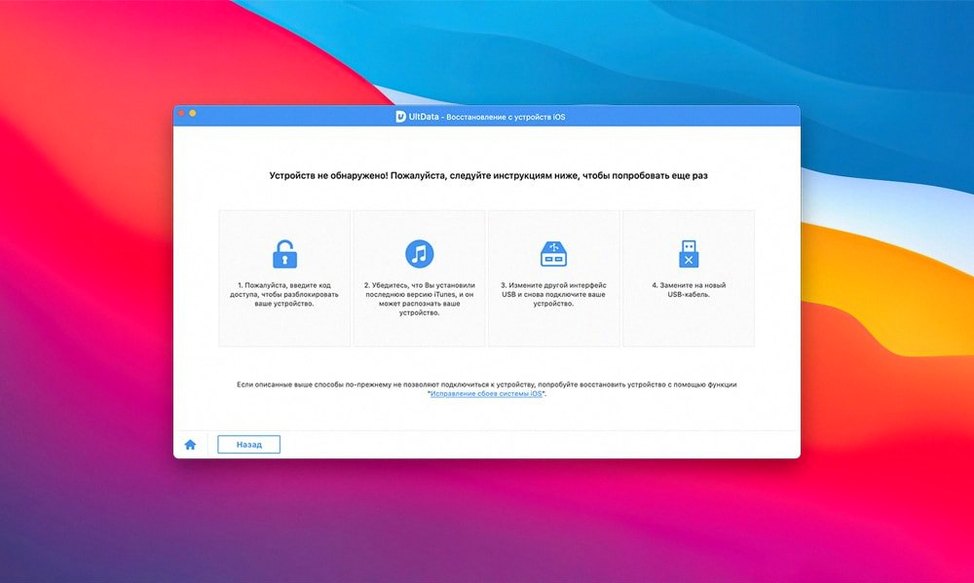
Stability over a dozen test recoveries was uneventful in the best sense. The app didn’t crash when a cable was unplugged mid-scan; it simply paused and offered a “Reconnect device” prompt. Recovering 4,000 photos from an iCloud backup produced no corrupted files, and the export speed matched what you’d expect from Finder copying the same volume of data. For those who’ve encountered the phrase ultdata torrent while searching for a quick way to grab the software, it’s worth noting that the version discussed here is the full, intact build — clean launch, no missing codecs, and every recovery mode functional. In daily use, the app behaves like a piece of utility software that’s been shaped by a very long list of edge cases, which is exactly what you want when the only copy of a family video is sitting somewhere inside an iOS backup file.
- macOS 10.8 or later
- Intel 64-bit processor
Questions I keep hearing
Can UltData for Mac recover messages from apps like LINE or Viber?
Yes, it can recover data from Kik, Viber, WeChat, WhatsApp, Tango and LINE, pulling chat histories and attachments from a device scan, an iTunes backup or an iCloud backup.
Questions from the class 0
Sign in or join the class to ask a question.
Nobody has asked anything yet. If you have used it on a real job, say what the file did.
Also on the Mac Apps shelf
The whole Mac Apps shelf Termius
Manages SSH connections and command history.
Termius
Manages SSH connections and command history.
 Techtool Pro
Diagnoses and repairs Mac hardware issues.
Techtool Pro
Diagnoses and repairs Mac hardware issues.
 TechSmith Snagit
Captures screens and records your screen.
TechSmith Snagit
Captures screens and records your screen.
 Tayasui Sketches Pro
Draws and paints with natural-feeling brushes.
Tayasui Sketches Pro
Draws and paints with natural-feeling brushes.
 TG Pro
Monitors every temperature sensor in your Mac and lets you set custom fan curves.
TG Pro
Monitors every temperature sensor in your Mac and lets you set custom fan curves.
 TablePlus
Manages databases in a visual interface.
TablePlus
Manages databases in a visual interface.
 SwitchResX
Manages display resolutions and settings.
SwitchResX
Manages display resolutions and settings.
 Sweet Home
Designs home interiors in 3D.
Sweet Home
Designs home interiors in 3D.