 ASPNetWorld
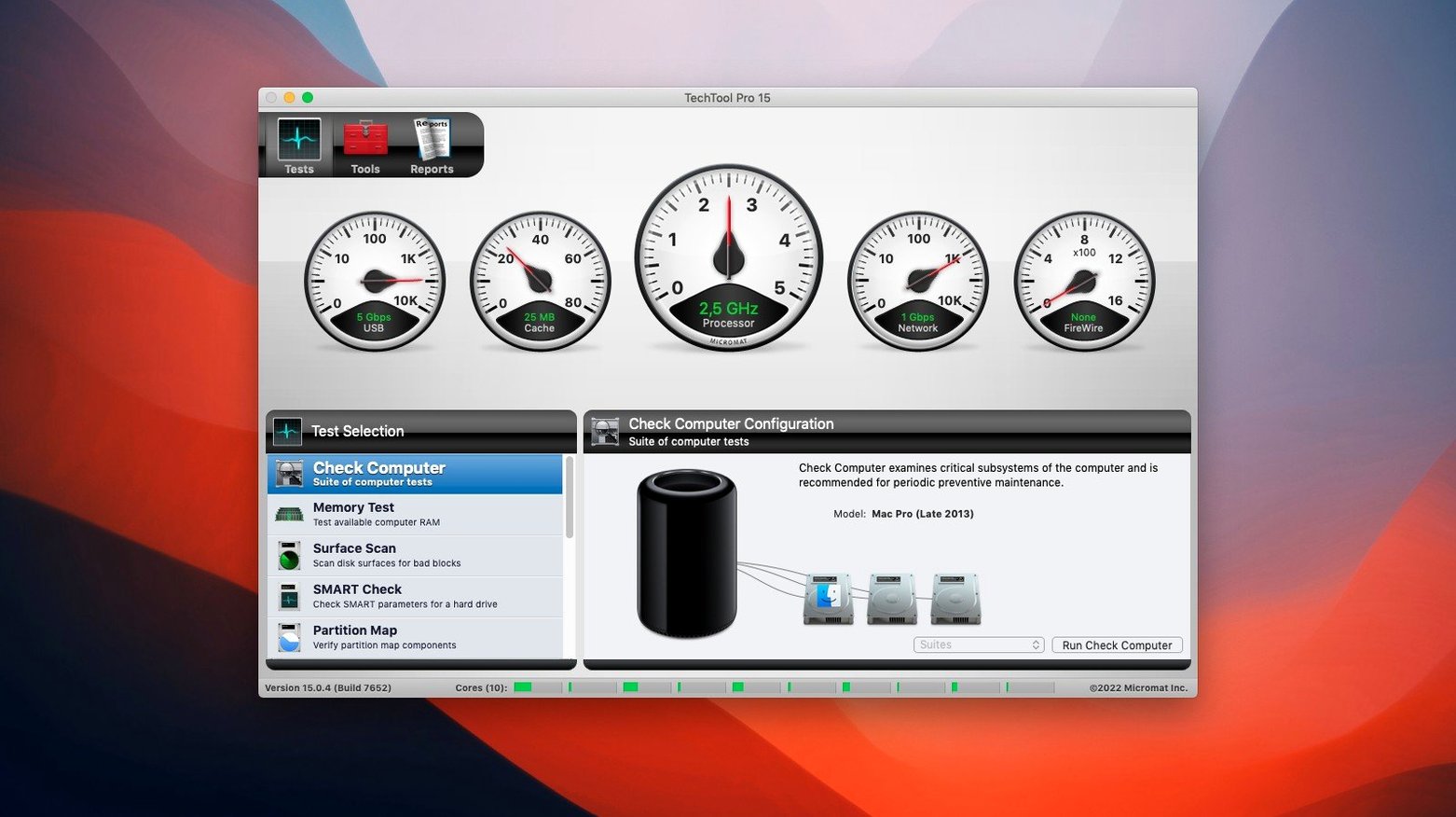
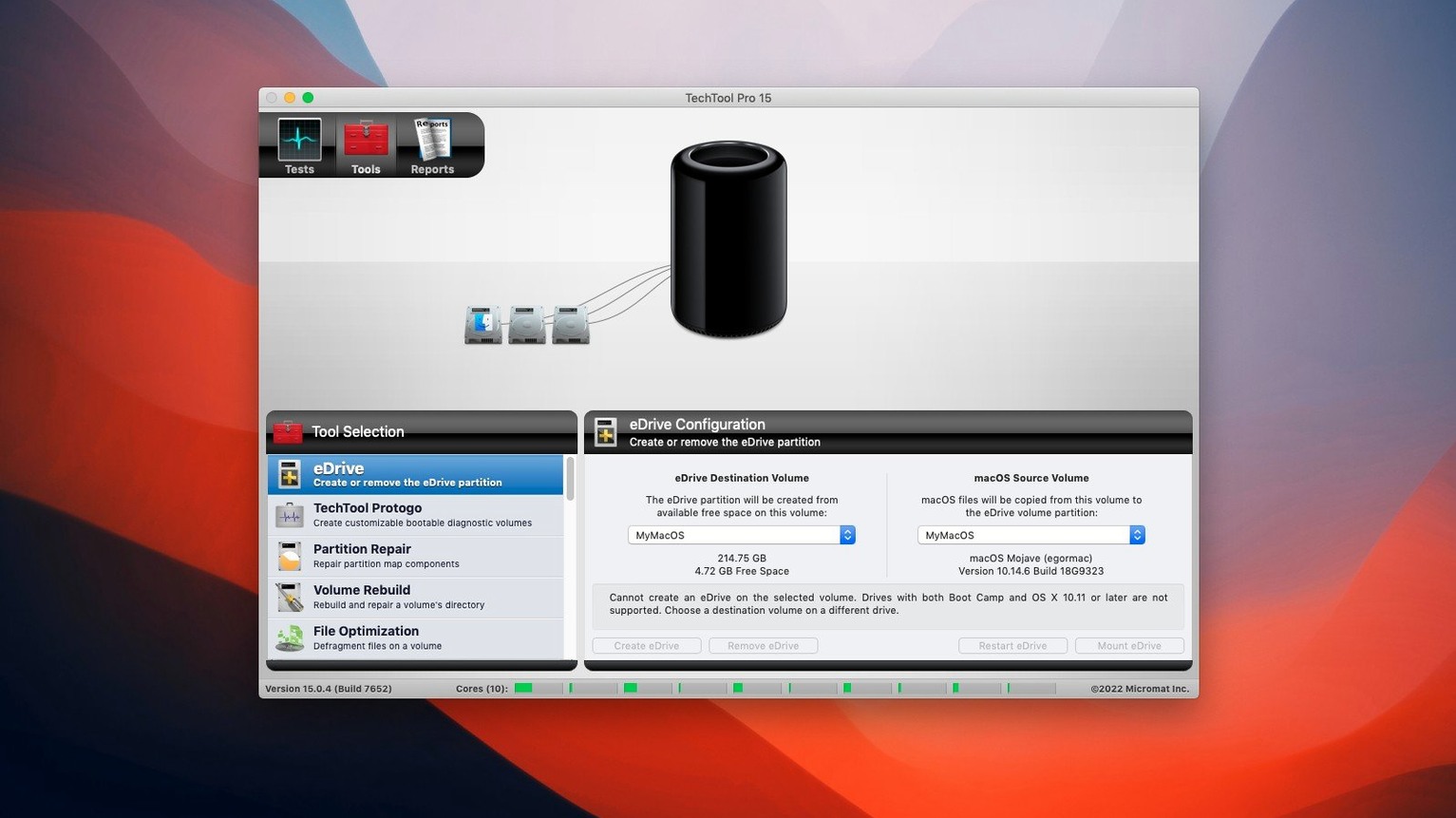
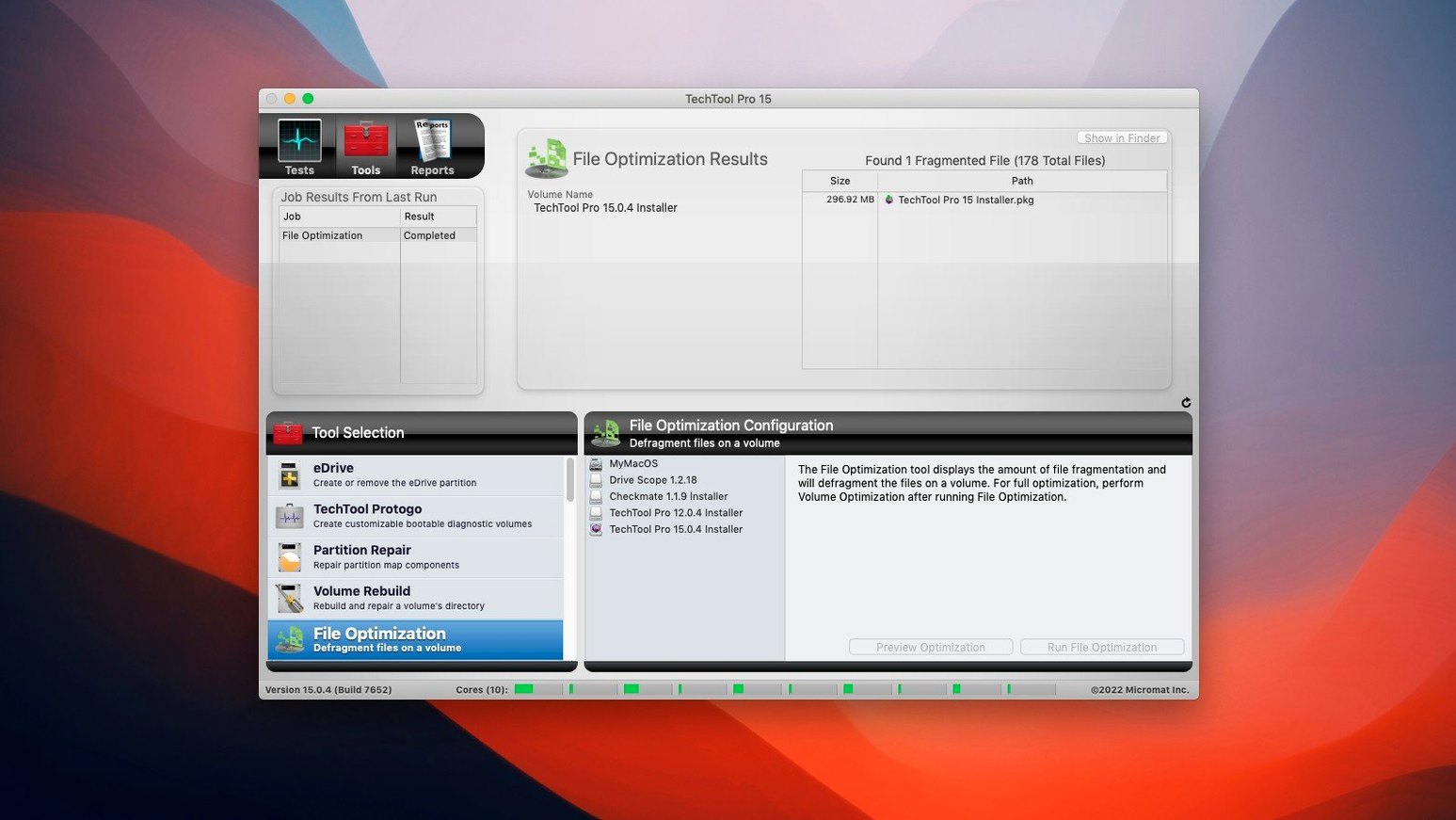
Techtool Pro 20 needs a Mac running macOS 10.13 High Sierra or later, on either Intel or Apple Silicon hardware. If your machine is older than that, you would be looking at a legacy version — version 20 simply will not launch under anything earlier. That compatibility window is the first thing to pin down, because a diagnostic tool is no use if it sits in your Applications folder unopened.
Catching drive failure early with SMART state-change alerts
- Running SMART tests on hard drives to catch a state change before it becomes a failure, which gives you a window to back up and replace the drive on your own schedule.
- Building a custom bootable test drive with Protogo, so you can diagnose a Mac without booting its internal system — useful when the main volume is the thing misbehaving.
- Recovering deleted files or lost data, particularly after an accidental emptying of the Trash.
- Continuous system monitoring that displays an on-screen message or sends an email when abnormal behaviour is detected, so you are not the one who has to notice something is wrong.
- Creating an emergency boot partition directly on the active system volume, with no need for a DVD or external drive.
Volume Cloning verification hiccups and the IT-focused Protection feature
- Techtool Protection can monitor device configuration across a local network for security management, but that feature leans more toward an IT support setup than a single home Mac.
- The Volume Cloning tool had a verification hiccup in earlier builds where a File Sync clone could fail; build 9559 corrected that, so make sure you are on the latest update.
- A crash could previously occur when TechTool Monitor launched — also fixed in the current build — but it is a reminder that monitoring modules need a stable version underneath them.
Techtool Pro makes the most sense for two kinds of Mac user, and they sit at opposite ends of the confidence spectrum. The first is the home user who wants a safety net but does not want to learn terminal commands or interpret Console logs. They plug in an external drive once a week, let the suite run through its checks, and sleep better knowing that SMART status and directory structure have been given a proper look. The second is the technician or IT administrator who already knows what a bad block looks like in a hex dump but values having a single interface that bundles drive testing, volume repair, file recovery, and network device monitoring. Instead of juggling four separate utilities, they launch one and work through a checklist. If you only open a diagnostic tool when your Mac is already kernel-panicking on the sofa, the real value passes you by — the monitoring and scheduled checks are what keep a small repair from becoming a data-loss story.
In a crowded field of Mac utilities, Techtool Pro sits alongside DriveDx, Disk Drill, and Apple’s own Disk Utility, though each occupies a slightly different lane. DriveDx is a specialist: it lives and breathes S.M.A.R.T. data, presenting health indicators with a depth that Techtool Pro does not try to match. What DriveDx lacks is the broader repair toolkit — it will tell you a drive is failing but will not attempt to rebuild a directory or clone the volume to get you out of trouble. Disk Drill reverses that balance, leaning hard into file recovery and deleted-data scanning while offering lighter system diagnostics. TechTool Pro covers the middle ground. It does file recovery, it does SMART testing, and it adds volume repair, permission restoration, and the Protogo bootable-environment builder, all in one package. Disk Utility, which ships with every Mac, handles basic First Aid and volume erasure competently, but Apple deliberately keeps it surface-level. If Disk Utility’s First Aid button cannot fix a damaged catalog file, you are stuck — Techtool Pro is designed to step in at exactly that point.
The jump from version 19 to 20 brought a quieter set of changes than the version number suggests, but the 20.1.7 build tidied up two friction points that had been irritating long-time users. A crash that could fire when TechTool Monitor launched was squashed, which matters because if your background watchdog falls over silently, you lose the early-warning alerts it is meant to deliver. The Volume Cloning tool also received attention: a File Sync clone could previously trip over its own verification step and fail at the last hurdle. That is the worst possible moment for a cloning operation to give up, because by then you have already invested the time. With build 9559, a clone that passes the copy phase should now sail through verification as well. The update also bundled minor fixes and enhancements — the kind Micromat tends to roll in without fanfare — but anyone relying on Techtool Protection’s automatic backups of critical directories will want to be on the current build simply for the stability improvements behind the scenes.
Imagine a freelance photographer whose working week revolves around a MacBook Pro. On Monday morning she docks the machine, connects two external editing drives, and imports a weekend’s worth of RAW files. Techtool Protection has been quietly running in the background, and by Tuesday lunchtime it fires an email notification: one of the external drives has logged a sharp increase in reallocated sectors. SMART status has not yet tripped a plain “failing” flag, but the trend is unmistakable. She opens Techtool Pro, runs a surface scan to map the bad blocks, then uses the Volume Cloning tool to duplicate the whole drive onto a spare she keeps in a drawer. By Wednesday she is editing from the clone and the original drive is on its way to the supplier for a warranty replacement. No data lost, no deadline missed, and the only interruption to her workflow was the twenty seconds it took to read an alert and act on it.
- macOS 10.13 High Sierra or later
- Runs natively on Intel and Apple Silicon Macs
Questions I keep hearing
Does Techtool Pro 20 help if my Mac won't start at all?
Yes, because the integrated Protogo tool can create bootable diagnostic media on a USB drive, letting you run hardware tests and repairs without touching the internal startup disk.
Questions from the class 0
Sign in or join the class to ask a question.
Nobody has asked anything yet. If you have used it on a real job, say what the file did.
Also on the Mac Apps shelf
The whole Mac Apps shelf TechSmith Snagit
Captures screens and records your screen.
TechSmith Snagit
Captures screens and records your screen.
 Tenorshare UltData
Recovers lost iPhone data.
Tenorshare UltData
Recovers lost iPhone data.
 Tayasui Sketches Pro
Draws and paints with natural-feeling brushes.
Tayasui Sketches Pro
Draws and paints with natural-feeling brushes.
 Termius
Manages SSH connections and command history.
Termius
Manages SSH connections and command history.
 TablePlus
Manages databases in a visual interface.
TablePlus
Manages databases in a visual interface.
 TG Pro
Monitors every temperature sensor in your Mac and lets you set custom fan curves.
TG Pro
Monitors every temperature sensor in your Mac and lets you set custom fan curves.
 SwitchResX
Manages display resolutions and settings.
SwitchResX
Manages display resolutions and settings.
 Sweet Home
Designs home interiors in 3D.
Sweet Home
Designs home interiors in 3D.