 ASPNetWorld

Moving files from your Mac to a server halfway across the world sounds technical, but the real headache is usually the software you use to do it. Slow transfers, clunky folder trees that don't refresh properly, and connection settings buried in menus you have to hunt for every time. Transmit 5 for Mac was built to strip that friction away, and once you've installed it, there are a handful of things worth trying straight off the bat to see why it's stuck around as the go-to file transfer client on macOS.
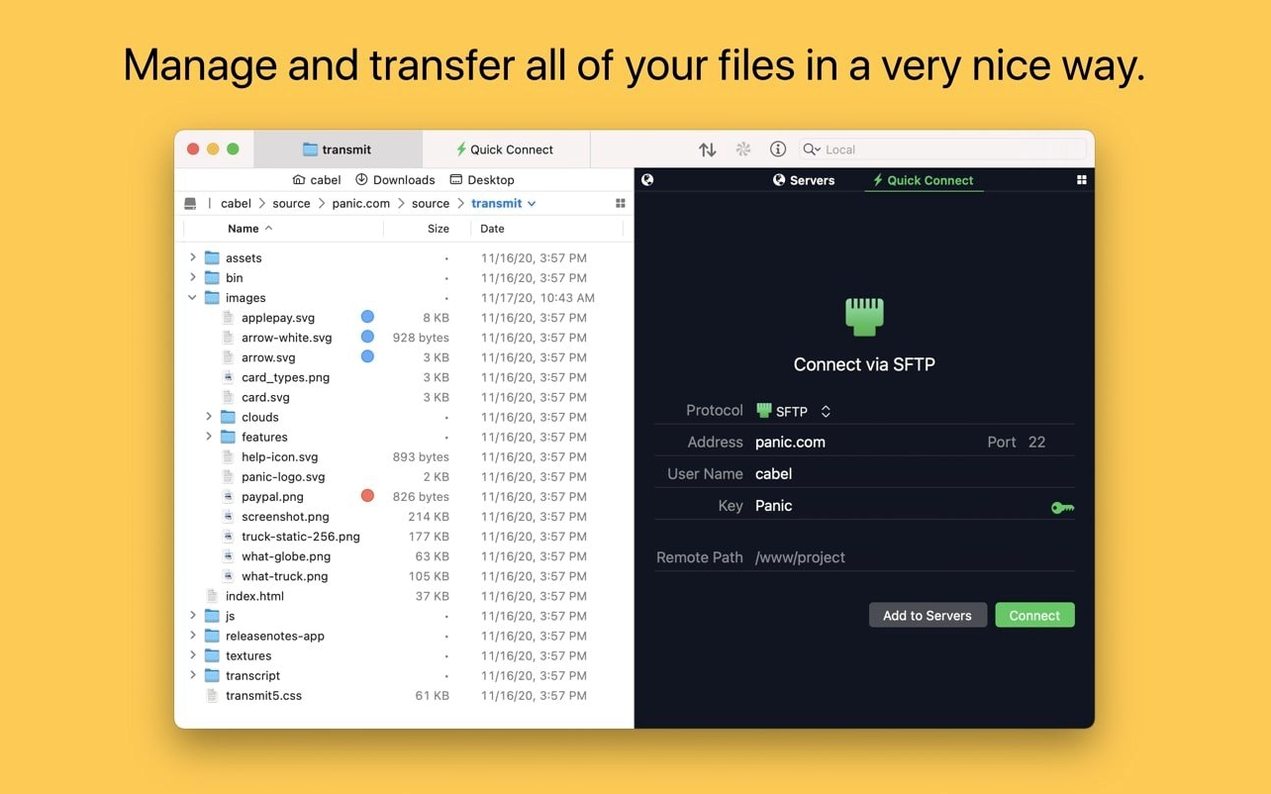
The first thing to set up is a connection to a remote server using FTP or SFTP — the two protocols that handle straightforward file uploads and downloads over the internet. The interface keeps it simple: a two-pane view with your local files on one side and the remote server on the other. Dragging a folder from left to right is all it takes to start a transfer. If you're connecting to a service that supports two-factor login, Transmit handles that without forcing you to generate an app-specific password somewhere else first, which saves an extra trip to your account settings.
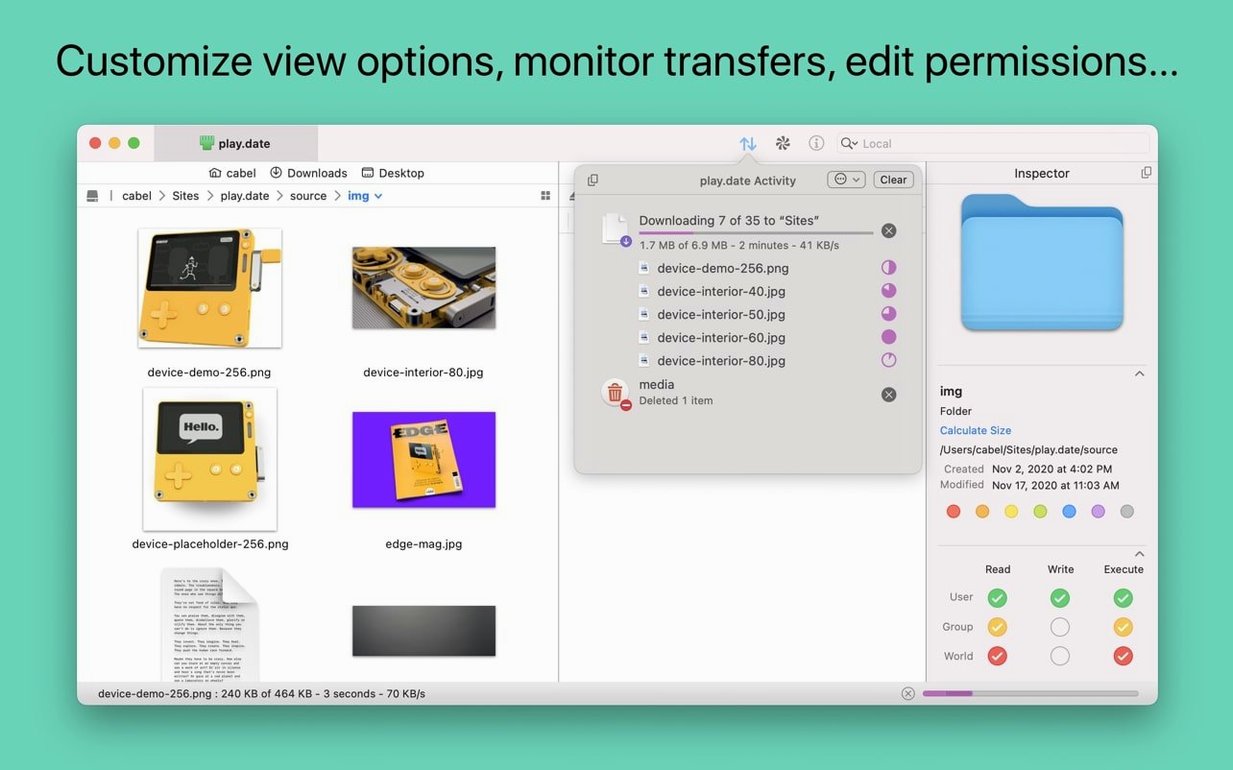
Once you have a connection open, click the information sidebar button in the toolbar to inspect files while you browse. It's the quickest way to check modification dates, permissions, or the exact size of something without opening a separate inspector window. Another button worth pressing early is the one that opens the current remote location in Terminal — useful if you need to run a quick command on a server you've just connected to, and a nice touch for anyone who spends time in both graphical and command-line environments.
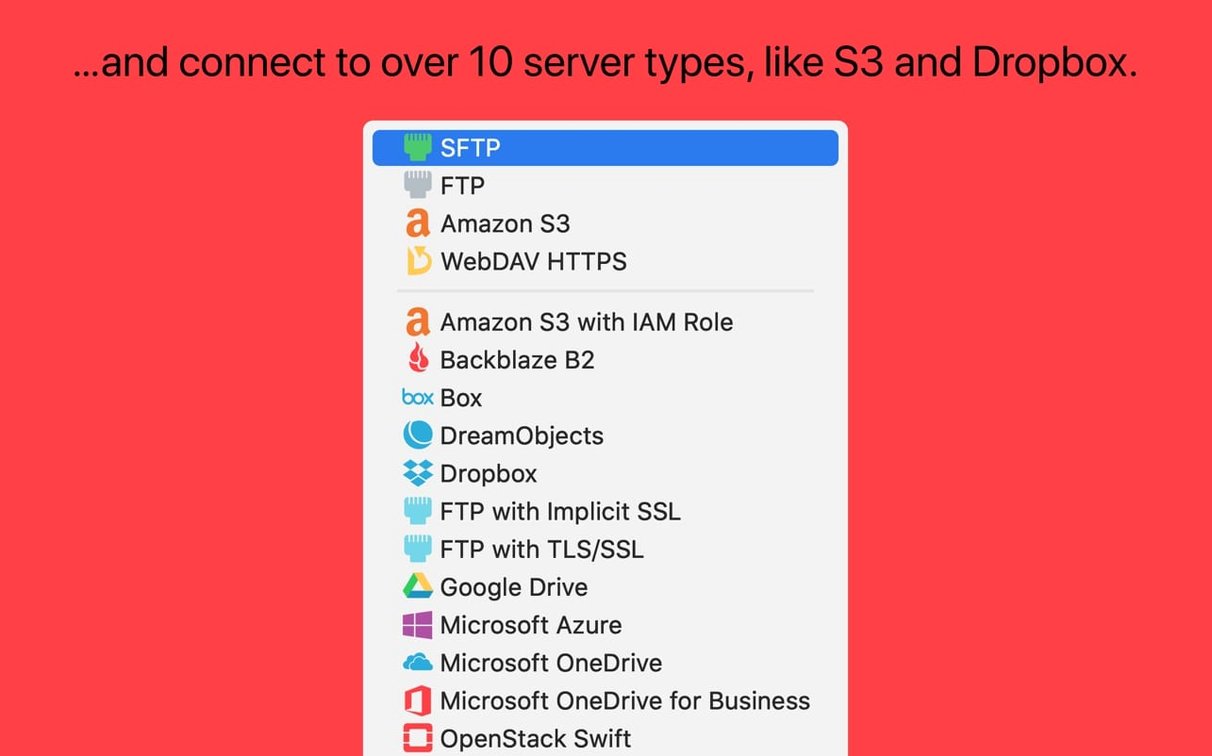
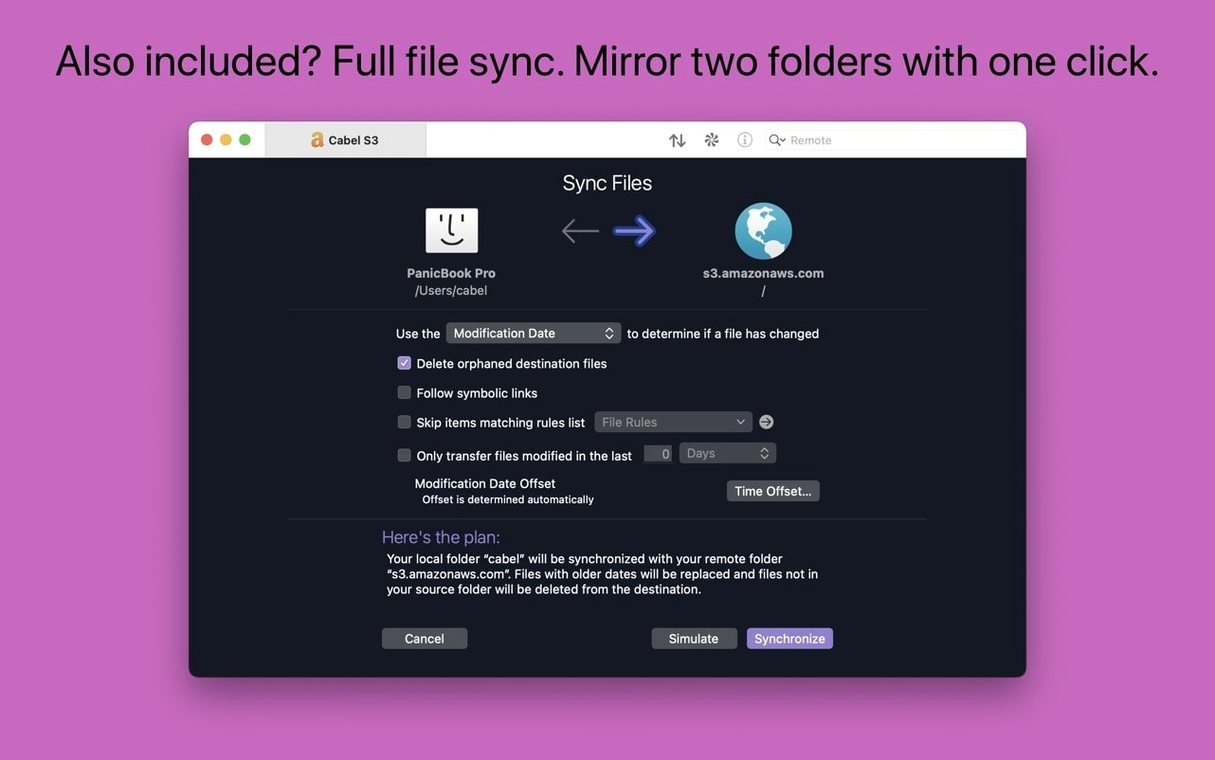
Beyond traditional servers, Transmit also connects to cloud storage including Backblaze B2, Box, Dropbox, and Google Drive. The local-to-remote synchronisation tool is something to experiment with once you're comfortable: pick a local folder and a remote destination, and Transmit keeps them in step. It's one of those features that quietly saves you from manually re-uploading changed files, and it works across FTP, SFTP, S3, and WebDAV connections alike.
Transmit runs natively on both Apple Silicon and Intel Macs
A common worry is whether Transmit will feel sluggish on older Macs. The short answer is that version 5.11.6 runs natively on both Apple Silicon and Intel processors, so you get the full performance of whichever chip your machine has. File listing, thumbnail generation and queue management all stay responsive even with directories containing thousands of items. Another question that crops up regularly is about security — specifically, whether Transmit stores passwords in a way that's safe. It integrates with the macOS Keychain by default, and you can also generate and manage secure keys directly inside the app without reaching for a separate tool. The key manager handles RSA, Ed25519 and ECDSA formats, so you can create a new key pair and drop the public half onto your server without leaving the workspace.
People also ask if they can carry their server settings between two Macs. Panic Sync handles exactly that: sign in once on each machine, and your saved connections, favourites and tags appear automatically. It's the kind of detail that matters when you maintain a dozen client sites and you'd rather not type credentials twice.
S3 now tells you plainly when a file exceeds the upload limit
The most frequent stumble involves S3 uploads of very large files. The release notes for this build mention improved error reporting for files that exceed the upload limit, so if a multi-gigabyte file fails, the message now tells you plainly what went wrong instead of leaving you guessing. A related gotcha is timeout settings — if you're on a slow connection and transfers keep dropping, open the advanced tab in the connection settings and bump the timeout value up a notch.
Another snag: the Get Info toolbar button didn't always light up immediately after launching Transmit, which meant clicking it produced nothing until you'd clicked somewhere else first. That's fixed in 5.11.6. If you're coming to Transmit from a much older version and your saved sites don't appear, check that Panic Sync is turned on in Preferences; local-only sites from Transmit 4 won't migrate automatically unless you export them first.
Dragging files from Transmit into IntelliJ used to trigger a crash, and that too is resolved. If you use JetBrains IDEs heavily for web development, the workflow of pulling a config file from a server straight into your editor now works without a hitch.
Drag any Finder folder into the Places Bar for one-click access
Transmit doesn't try to be an island. The Places Bar offers one-click access to favourite folders, and those folders can be anywhere — your Desktop, a deeply nested project directory, or a network volume mounted in Finder. Tag support means you can colour-code connections the same way you tag files in macOS, which helps when you're scanning a long list of servers for the staging version of a site versus the production one.
The batch renaming tool is worth pairing with a Finder workflow: select a group of files on the remote side, open the rename sheet, and apply numbering or text replacement patterns before they land on your local drive. German users will notice the text entry fields on that sheet are now larger, a quiet fix that makes typing long replacement strings less fiddly. For command-line work, the "Open in Terminal" feature bridges the graphical and shell environments neatly — you can browse to a directory in Transmit's friendly two-pane view, then drop into a shell exactly where you need to be.
Transmit also plays well with cloud services beyond simple uploads and downloads. Because it treats Backblaze B2, Google Drive, Dropbox and the others as first-class connection types rather than bolted-on extras, you can mix cloud and traditional FTP servers in a single sync task. That's particularly handy if you're backing up a local project folder to both a web server and a cloud bucket simultaneously.
The two-pane layout clicks for developers juggling multiple client sites
Web developers who manage multiple client sites tend to find Transmit 5 for Mac indispensable, partly because the two-pane layout maps perfectly to the mental model of "my machine" and "the server," and partly because SFTP key management inside the app saves constant trips to the terminal. The tags and Places Bar keep a sprawling list of connections organised, and the information sidebar means you can check file permissions without opening a separate dialog.
Photographers and video editors who deliver large batches of files to cloud storage also benefit, especially given the improved S3 error reporting for oversized uploads. Knowing immediately that a file is too large, rather than waiting for a vague timeout, changes the rhythm of a delivery day. Creative professionals who use Transmit torrent downloads to grab the app often stick around for the sync feature: set a local watch folder, link it to a remote destination, and every exported JPEG lands on the server without extra clicks.
System administrators who hop between graphical and command-line environments appreciate the Terminal integration and the ability to create key pairs without leaving the UI. Students and hobbyists running older Intel Macs on macOS 13 Ventura can install Transmit 5.10.9 or the current 5.11.6 build and find it equally snappy — there's no penalty for not having the latest Apple Silicon machine. The common thread across all these groups is a need for transfers that just work, with enough depth under the surface to handle edge cases when they arise.
Transmit 5.11.7 delivers a set of behind-the-scenes refinements to keep transfers reliable and cloud links steady.
- macOS 13 or later
- Works natively on both Apple Silicon and Intel 64-bit Macs
Questions I keep hearing
Can Transmit 5 handle very large files?
Yes; it supports very large Amazon S3 files, and recent updates have improved error reporting specifically for files that are too large to upload to S3.
Which cloud services does Transmit connect to?
Alongside the standard FTP, SFTP, S3 and WebDAV protocols, Transmit connects to Backblaze B2, Box, Google Drive, DreamObjects, Dropbox, Microsoft Azure, and Rackspace Cloud Files.
Questions from the class 0
Sign in or join the class to ask a question.
Nobody has asked anything yet. If you have used it on a real job, say what the file did.
Also on the Mac Apps shelf
The whole Mac Apps shelf Trimma
Trims the start or end off a video without opening a library or creating a project.
Trimma
Trims the start or end off a video without opening a library or creating a project.
 TouchDesigner
Assembles real-time visuals by wiring together operators for points, textures and geometry.
TouchDesigner
Assembles real-time visuals by wiring together operators for points, textures and geometry.
 TunesKit iPhone Unlocker
Removes a forgotten screen passcode or an Apple ID from a locked iPhone.
TunesKit iPhone Unlocker
Removes a forgotten screen passcode or an Apple ID from a locked iPhone.
 Tuxera NTFS
Lets your Mac read and write Windows-formatted drives without a second thought.
Tuxera NTFS
Lets your Mac read and write Windows-formatted drives without a second thought.
 Typeface
Browses a visual grid of every installed font and compares them side by side.
Typeface
Browses a visual grid of every installed font and compares them side by side.
 Topaz Video AI
Reconstructs watchable detail from old, low-quality video footage frame by frame.
Topaz Video AI
Reconstructs watchable detail from old, low-quality video footage frame by frame.
 Topaz Photo AI
Analyses a photo and applies the exact sharpening and noise reduction it actually needs.
Topaz Photo AI
Analyses a photo and applies the exact sharpening and noise reduction it actually needs.
 Topaz Gigapixel AI
Enlarges low-resolution images while keeping faces and textures crisp and natural.
Topaz Gigapixel AI
Enlarges low-resolution images while keeping faces and textures crisp and natural.