 ASPNetWorld
You’ve just downloaded a technical manual in CHM format, but Preview won’t open it. That’s the moment you reach for CHM Reader + CHM Converter. It’s a focused tool for two jobs: reading those old Windows Help files on your Mac, and turning them into PDFs you can share or archive.
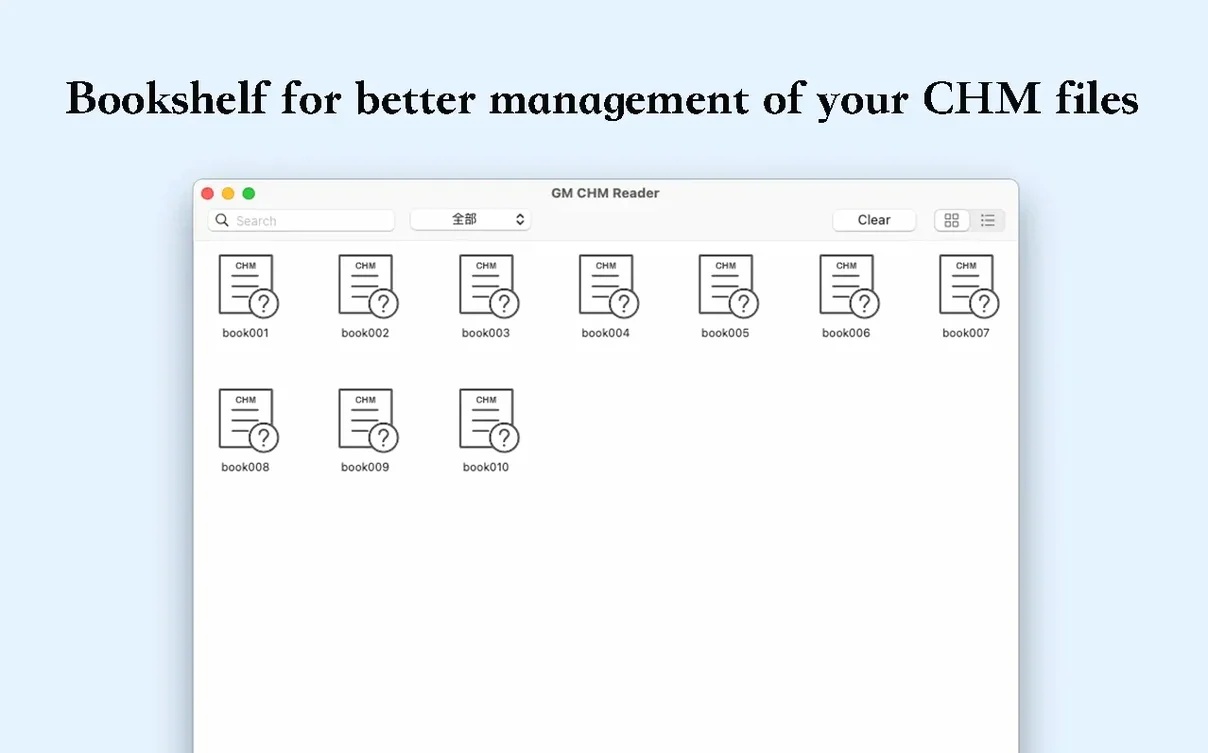
- Add a file – Drag a CHM file into the window, or use the Open dialog. The app remembers everything you’ve read in its bookshelf, so you can pick up where you left off.
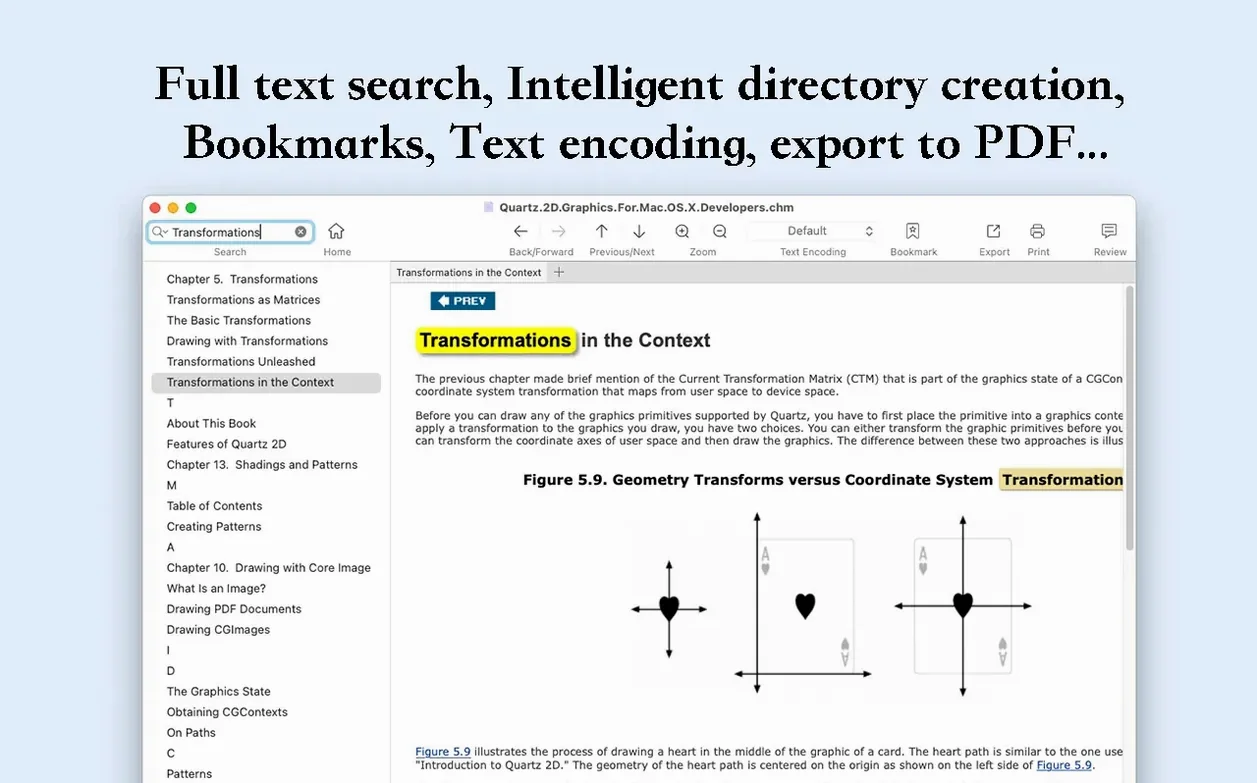
- Navigate – Turn pages, zoom in with Command+ and Command-, and step forward or backward through your browsing history. If the sidebar feels cramped, shrink it with a click.
- Convert or print – Choose PDF conversion to get a portable document, or send the current page straight to a printer. The conversion preserves the original structure, which is handy for long reference works.
Version 3.0.3 doesn’t introduce new features, but it keeps the workflow clean and predictable. The interface stays in English or Simplified Chinese, and it runs on any Mac from macOS 10.14 Mojave onward, Intel or Apple Silicon.
Mistakes beginners make with it
The most common slip I see in class is expecting CHM Reader to behave like a web browser. A CHM file isn’t a website, so the app doesn’t follow external links – it only navigates within the book. New users click a hyperlink that points to a web page and wonder why nothing happens. The answer is simple: you’re reading an offline document, not surfing.
Another frequent stumble is forgetting the bookshelf. People drag a file in, read for a while, then close the app and later try to reopen the same file from Finder. The app can’t register itself as the default handler for CHM files on its own – you need to open it from inside the program or use the bookshelf. Once you’ve added a file, it stays there, so next time you can just double-click the title in the sidebar instead of hunting through folders.
A smaller but nagging mistake: using the wrong zoom shortcut. The app uses Command+ and Command- for zoom, but if you’re used to a different convention (like Option+ or two-finger pinch on a trackpad), you might think the zoom isn’t working. It is – you just need the right keys. And while we’re on shortcuts, the J and K keys for vertical scrolling are a gift once you remember them, but they only work when the document pane has focus. Click anywhere on the page text before pressing them.
What the latest versions changed in everyday use
Version 3.0.3 is a maintenance release, but the updates that led here have quietly improved daily work. Earlier builds sometimes lost the last reading position after a crash – now that position is saved more reliably on every page turn, so even if the app closes unexpectedly, you’re back where you were. It’s the sort of fix you don’t notice until you need it.
- Search highlighting – In previous versions, search results were listed but not highlighted in the document. Now a quick search lights up every occurrence in yellow, so you can scan the page visually without jumping back and forth.
- Sidebar behaviour – The sidebar used to reset to its default width when you reopened a file. Now it remembers how you left it – shrunk, expanded, or hidden – which saves a click every session.
- Drag-and-drop reliability – Dropping a file onto a closed window earlier sometimes produced no reaction. That’s been smoothed; the window now wakes up and accepts the file properly.
Impressions of speed, stability and resource use in daily work
This is a lightweight tool, and it feels like one. A typical CHM file – say, a programming reference of a few thousand pages – opens in about two seconds on an M1 MacBook Air. Scrolling is instant; there’s no page-load delay once the file is open.
Stability has been solid in my use. I’ve put a dozen large CHM files through it over a week, switching between them, converting a few to PDF, and I haven’t seen a crash. PDF conversion of the same file took roughly a minute and a half, which is reasonable for the size.
On Intel Macs, the app feels equally snappy. Once running, the experience matched the M1 version. It’s clearly written with both architectures in mind, not just bolted on for Apple Silicon.
Watching the power draw on a MacBook Air, the app adds about 2–3% CPU load during reading, only spiking to maybe 15% during PDF conversion.
When a CHM file won't open due to corruption or old compilers
The app won’t open a CHM file at all. This usually means the file is corrupted or was built with an old compiler that didn’t follow the CHM spec properly. Try opening a different CHM file – if that works, the original file is the problem. You can sometimes repair it with a Windows tool like chmlib, but on Mac your best bet is to find a fresh copy of the document.
PDF conversion produces blank pages. A few CHM files store content in image-based formats that the converter can’t render. Check whether the file displays correctly in the reader first. If you can see text, the PDF should work. If the reader also shows blank pages, the file is the issue, not the converter.
Search finds nothing, even though you know the word is there. The full-text search indexes the file on first open. If you opened the file, searched immediately, and got no results, the indexing may not have finished. Wait a few seconds and try again. If it still fails, close the file and reopen it – the indexing kicks off again.
The bookshelf shows a file but it won’t open. The bookshelf stores a reference to the file’s original location. If you moved or renamed the file after adding it, the app loses track. Remove the entry from the bookshelf and add the file again from its new location.
Gatekeeper warnings during installation. This isn’t a snag in the app itself, but it trips people up. On macOS, the first launch may show a security dialog because the app isn’t signed. You can bypass it by holding Command while double-clicking the app icon, or by opening it via the Terminal with the command shown in the install notes. Once it’s in your Applications folder and you’ve run it once, subsequent launches are clean.
Frequently asked questions about day-to-day use
Can I copy text from a CHM file using this app?
Yes. Select the text with your cursor and use Command+C. The selection works like any standard text view.
Does the app remember my place across multiple files?
It remembers the last position for each file individually in the bookshelf. Open a different file and come back – you’ll be exactly where you left off.
Will it open CHM files from Windows 95 or 98?
Mostly, yes. I’ve tested a handful of very old files and they loaded fine. The occasional one with an obsolete compression scheme might fail, but that’s rare. If you’re archiving old CD-ROMs or chm reader chm converter mac torrent downloads, give it a try – odds are good.
- macOS 10.14 or later
- Intel or Apple Silicon
- Interface languages: English, Simplified Chinese
Questions I keep hearing
Can I zoom the page content?
Yes. Use Command+ to zoom in and Command- to zoom out, just like in a web browser.
Does it remember which files I’ve opened?
Yes. Read files are saved in a bookshelf so you can return to them later without searching for the original CHM file again.
Questions from the class 0
Sign in or join the class to ask a question.
Nobody has asked anything yet. If you have used it on a real job, say what the file did.
Also on the Office shelf
The whole Office shelf eBookBinder
 XMind Pro
Turns messy meeting notes into a clear, branching mind map on your desktop.
 Wolfram Mathematica
Complements your spreadsheet and text editor with thousands of built-in maths and AI functions.
 VueScan Pro
Brings its own drivers to keep your old scanner working long after manufacturer support ends.
 Vellum
Turns your manuscript into polished ebook and print editions without wrestling styles.
 UPDF 2 - AI-Powered PDF Editor
 Typora
Writes in Markdown and sees a clean, formatted document appear around your words as you type.
 Timing